Measuring Results with Scorecards and KPIs Using Oracle BI EE 11.1.1.7.0
Overview
Purpose
In this tutorial you will learn how to create KPIs and use them to build a Scorecard with objectives and sub-objectives. You will also learn to create the Strategy Tree and Strategy Wheel diagrams.
Time to Complete
Approximately 1 hour.
Introduction
Key Performance Indicators (KPIs):
Key Performance Indicators (KPIs) are high-level snapshots of a business or organizations based on specific predefined measures and represent the results of these business measures. They might include global or regional sales figures, operational costs, and trends over time, or anything else that is deemed critical to a corporation’s success.
KPIs are one of the essential building blocks for a scorecard in Oracle Scorecard and Strategy Management, but they are widely used in Oracle BI in any of the following ways:
- Evaluate metrics against their targets and alert the appropriate users through agents when targets are not met.
- Create an analysis from a KPI and add that analysis to a dashboard. An analysis that is created from a KPI can allow the user to drill into different levels of details based on the KPI’s dimensions.
- In Oracle Scorecard and Strategy Management, use KPIs to evaluate and monitor the performance of the objectives that form the strategy and the initiatives (tasks or projects) that are needed to meet your objectives.
Scorecards clearly indicate which metrics are exceeding or not meeting expectations. Thus if few metrics are not doing well as compared to the target/threshold values, corrective actions can be taken through Email alerts, ERP Workflows and BPEL processes defined within the OBIEE action framework.
You will also learn to add objectives, assign weightage, add sub-objectives and KPIs to a Scorecard.
Oracle Scorecard and Strategy Management:
Oracle Scorecard and Strategy Management (OSSM) typically operates as shown below. The Oracle BI EE repository, or metadata layer, is a driving force behind OSSM, just like it is for Answers. KPI objects are built using columns exposed through a subject area in the Oracle BI EE repository file, where the KPI's actual value can point to one column and its target value can point to another. Multiple KPIs are then added to a Scorecard object, where they can be grouped into objectives and pinned to the various dimensions to which they relate. From there, a Scorecard object can contain any number of Scorecard Documents, or views, that present the KPIs on the Scorecard in some graphical fashion. This process is similar to what a developer does in Answers. First you choose a subject area, then select columns to define the data for the report, and then lastly build views for the compound layout of the report.
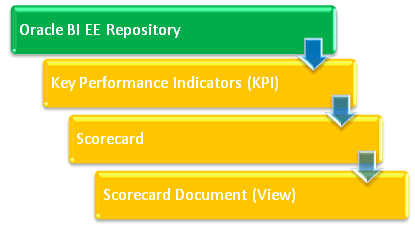
In this tutorial you will learn how to create KPIs and Scorecards. You create KPI for Revenue, Unit Price, Collect to Bill Ratio, Fixed Costs, Percentage Early Shipped and Customer by Sales Rep.
Software Requirements
The following is a list of software requirements:
- Oracle BI EE 11.1.1.7.0 or later must be installed
Please note: This tutorial is built using Oracle Business Intelligence Enterprise Edition 11.1.1.7.0.
- Access to Oracle Database 11.2 or higher.
Prerequisites
Before starting this tutorial:
- You should be able to Create Analyses.
- Ensure that the Sample Sales repository is online. Click here to download the Sample Sales repository file BISAMPLE.rpd. Save the rpd file and deploy it through Enterprise Manager.
- To complete this tutorial you must have access to the BISAMPLE schema. that is included with the Sample Application for Oracle Business Intelligence Suite Enterprise Edition Plus. There are two options for accessing the BISAMPLE schema:
a. If you already have the Sample Applications (V305) Virtual Box image installed from the OTN page , verify that you have access to the BISAMPLE schema and begin the tutorial. Some screenshots might differ.
b. You can download a smaller BISAMPLE schema file (BISAMPLE.zip) from here. Unzip the BISAMPLE.zip file, and begin with README.txt and import the schema to your database using Datapump Import instructions. At the end of the import you may get an error message. Ignore the message.
- Ensure that the BISAMPLE.rpd is connected to the BISAMPLE schema.
Measuring Results with KPIs
In this section, you will create a number of KPIs from the A - Sample Sales subject area.
KPI Concepts and Terminology
Actual Value: Actual values are the current state of the measured performance - for example, the number of units shipped or the service requests closed.
Target Value: Targets are quantifiable goals for each measure. You specify targets for a specific time frame, and KPI uses the target values for comparison to the actual values. Targets create opportunities to succeed, help the organization monitor progress toward strategic goals, and communicate expectations. Examples include units ordered (for comparison with the actual units shipped) and forecasts.
Status: Status is the state of the KPI, based on the comparison of actual and target values, as defined by thresholds. The status assigned to a KPI drives its visual representation, determining the color, icon, and scoring associated with the KPI. For example, a Warning status is by default represented as yellow, with an exclamation point icon, and drives a score of 50. Scores are consumed by applications such as Oracle BI Scorecard to drive cross-KPI standard comparisons.
Threshold: A threshold is defined or derived from a range of values against which a KPI is assigned a status. Typically, two thresholds are defined that specify three ranges; however, any number of thresholds and corresponding statuses can be defined. Thresholds can be simple numbers, but they may also be complex expressions that enable thresholds to vary over time and in response to external factors. The order of the ranges is important when determining KPI status. The KPI value is checked against each range, in order, until one is found that contains the KPI’s value - the name of the matching range provides the KPI’s status.
Score: Each status for a KPI is mapped to an assessment value, or score, that corresponds to a meaning; for example, 0 (bad), 50 (warning), and 100 (good). The scores are employed by Oracle BI Scorecard to provide uniform visualization across different KPIs being used together. Scores are also used to perform aggregations of KPIs into higher-level objects such as objectives, perspectives, and so forth.
Trend and Tolerance: Trend and tolerance indicates whether a value is rising, falling, or unchanged compared to the last period. KPI trend and tolerance also indicates whether this movement is good or bad (based on color coding) relative to the target. A tolerance value can be specified. For example, if a tolerance value of $1,000,000 is set for sales revenue for a multimillion dollar company, the company’s sales revenue must exceed this tolerance to have the trend considered upward.
Change and Variance: Change shows how much the KPI’s value has changed between the previous and current periods. Variance describes how far the KPI’s value is from its target, expressed as a percentage or actual terms (real terms).
Cause and Effect Relationship: KPIs can be related to one another through cause and effect relationships. For example, a KPI for “Percentage of Online Discount” is a cause of the “Customer Satisfaction” KPI.
KPI Watchlist: KPI Watchlists are collections of KPIs, viewed as a performance status report, that you build by adding KPIs, which are stored in the catalog. You use KPI Watchlists to measure the progress of objectives or initiatives.
Scenario:
As an analyst for Eden, Inc., you want to track KPIs listed below. You will eventually leverage these KPIs to create a scorecard for the company.
- Revenue KPI: Track the performance of actual revenue to target revenue. The KPI status is based on the percent variance between these two values.
- Unit Price: Compare the actual unit price to the target unit price. The KPI status is based on the percent variance between these two values.
- Collect to Bill Ratio: Compare the calculated collect-to-bill ratio to a target value of 1. The KPI status is based on fixed ratio values.
- Fixed Costs: Compare current fixed costs to prior period fixed costs. The KPI status is based on the percent variance between these two values.
- % Early Shipped: Compare the calculated measure Early Shipped Pct to the company’s target of 33 percent. The KPI status is based on calculated percentages of the target value.
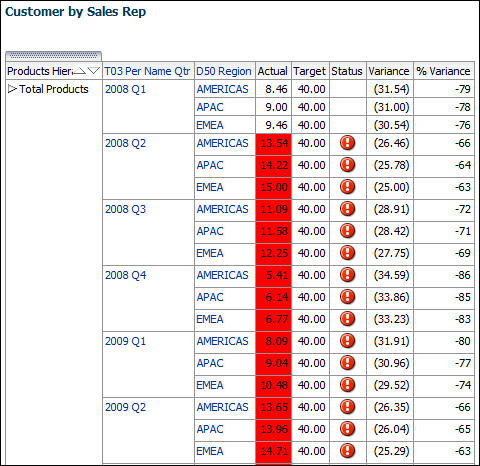
- Customer by Sales Rep: Compare the number of customers by sales rep to the company target of 40. The KPI status is based on calculated percentages of prior period customer by sales rep values.
Creating a KPI for Revenue
-
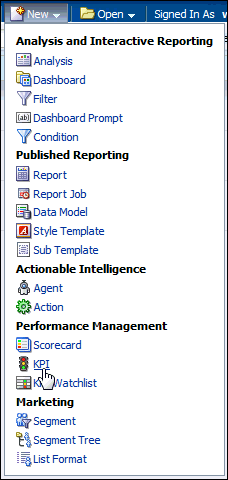
In the Global Header, click New and then KPI.
-
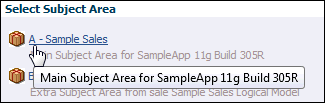
In the Select Subject Area pop-up, select A - Sample Sales.
-
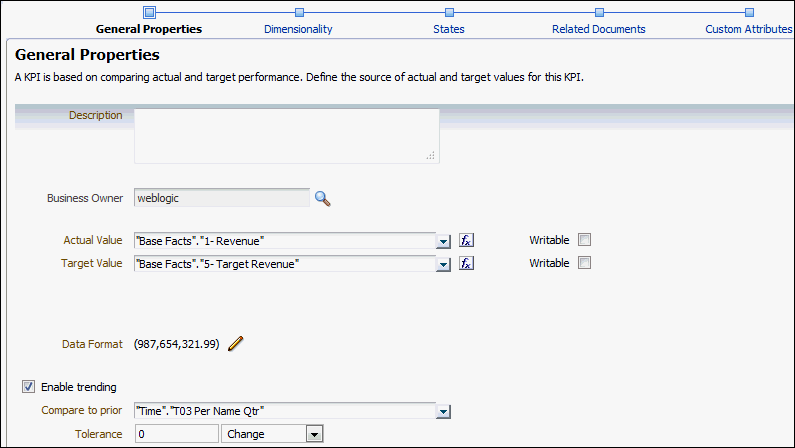
Defining General Properties.
- In the Actual Value drop-down list, select Facts > Base Facts > 1-Revenue.
- In the Target Value drop-down list, select Facts > Base Facts > 5-Target Revenue.
- Select Enable trending.
- In the “Compare to prior” drop-down list, select Time > T03 Per Name Qtr.
- In the Tolerance drop-down list, select Change.
- Click Next
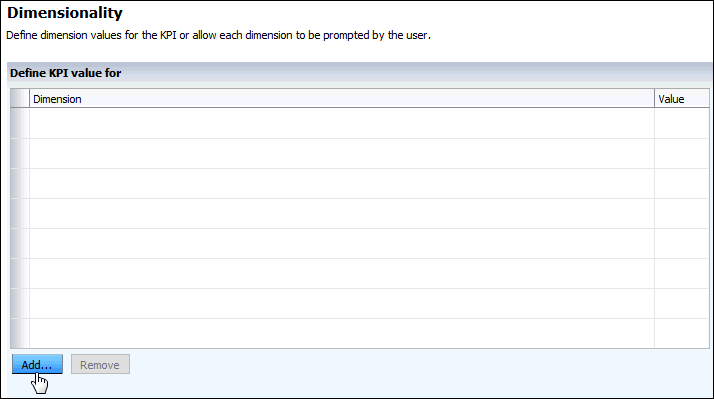
Defining the Dimensionality.
- Click the Add button to display the Add Dimension dialog box.
- Select Products > Products Hierarchy to add the product hierarchy.
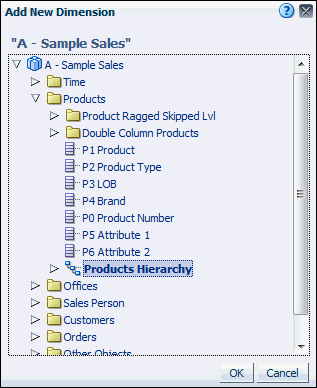
- Click OK.
- Leave the Value set to <is prompted>.
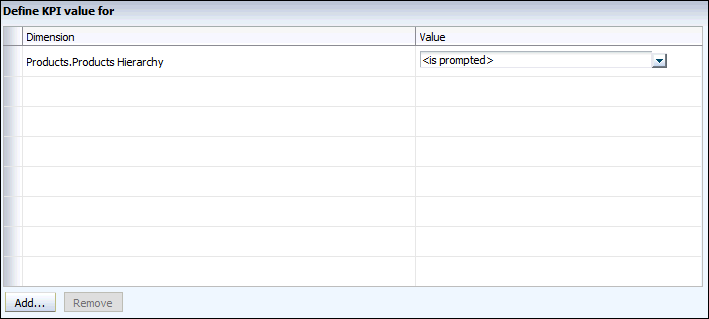
- Repeat these steps to add Offices > Office Regions > D50 Region and Time > T03 Per Name Qtr.
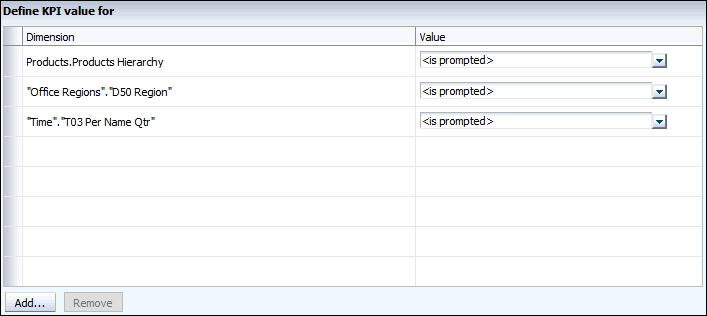
- Click Next
- Click the Add button to display the Add Dimension dialog box.
-
Adding KPI Goals and Thresholds –States.
- Verify that High Values are Desirable is selected in the Goal drop-down list.
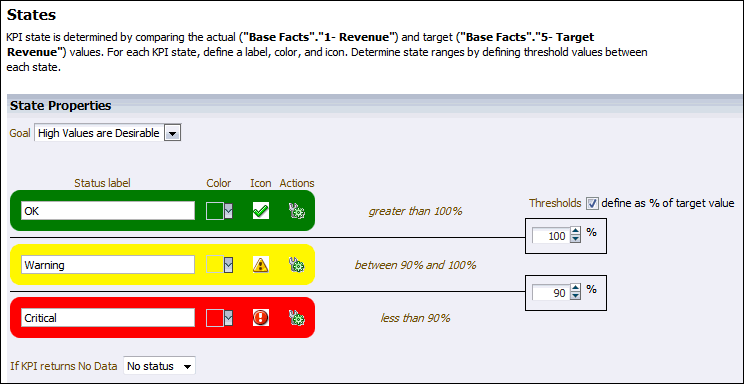
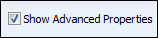
- Select Show Advanced Properties to display the Score column.
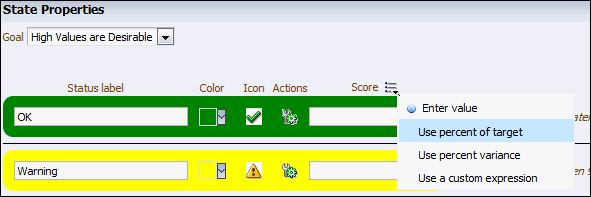
- Next to Score, click the Options button and select Use percent of target.
- Accept the remaining defaults, and click Next.

- Verify that High Values are Desirable is selected in the Goal drop-down list.
-
Adding Related Documents: The Related Documents page is where you can add links to an internal finance portal, stock quotes, or quarterly reports. For this practice, you are not adding any related documents to your KPIs. Click Next.
-
Adding Custom Attributes: The Custom Attributes page is where you can add custom calculations for the KPI. For this practice, you are not adding any custom attributes.
Save the KPI.
- Click the Save KPI as button.
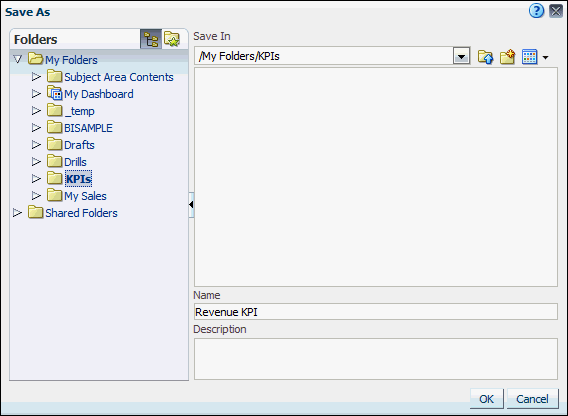
- Select the My Folders\KPIs folder. If KPIs folder is not available, create by clicking New Folder button
 and add KPIs folder.
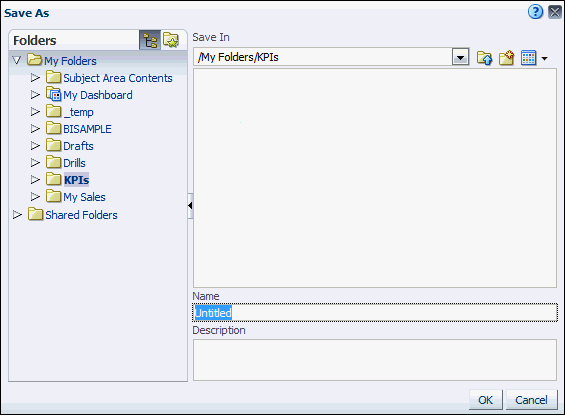
- Save the KPI to the KPIs folder as Revenue KPI.
In the Global header, select Open > Revenue KPI to view the KPI.

Creating a KPI for Unit Price
-
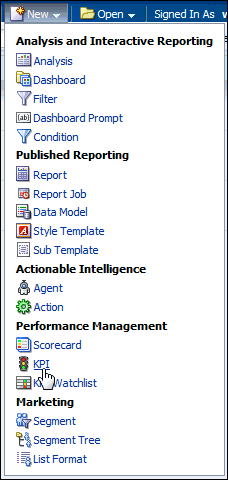
In the Global Header, click New and then KPI.
-
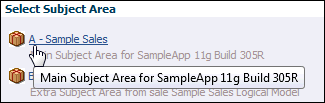
In the Select Subject Area pop-up, select A - Sample Sales.
-
Defining the General Properties:
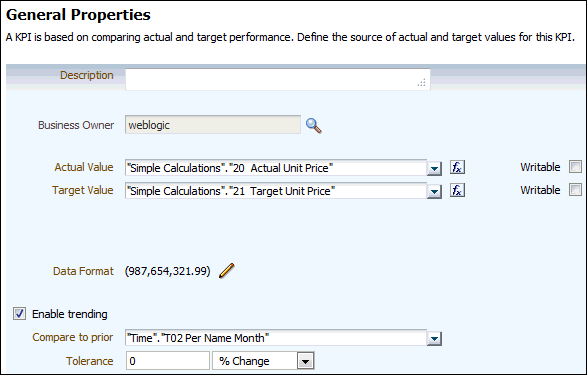
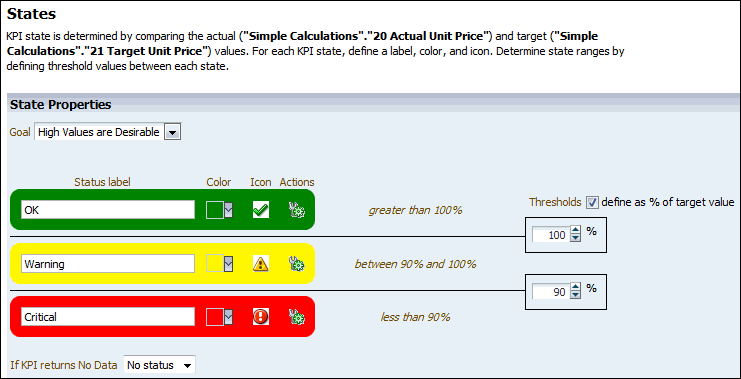
- In the Actual Value drop-down list, select Facts > Calculations > Simple Calculations > 20 Actual Unit Price.
- In the Target Value drop-down list, select Facts > Calculations > Simple Calculations > 21 Target Unit Price.
- Select Enable trending.
- In the “Compare to prior” drop-down list, select Time > T02 Per Name Month.
- Click Next..
-
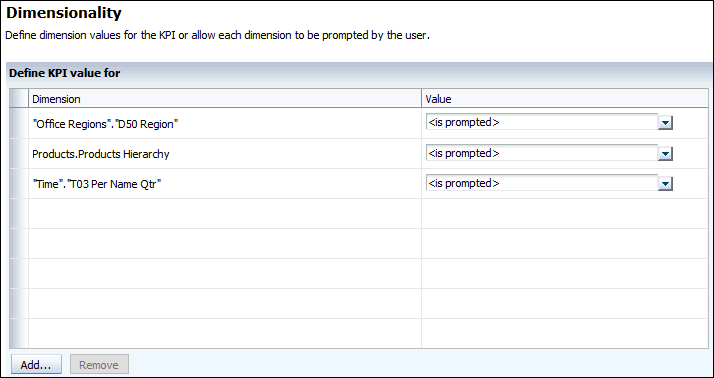
Defining the Dimensionality (leaving the value to be prompted):
- Offices > Office Regions > D50 Region
- Products > Products Hierarchy
- Time > T03 Per Name Qtr
-
Adding KPI Goals and Thresholds –States: You will use the default settings for Thresholds and States, and you do not have any Related Documents or Custom Attributes to define.
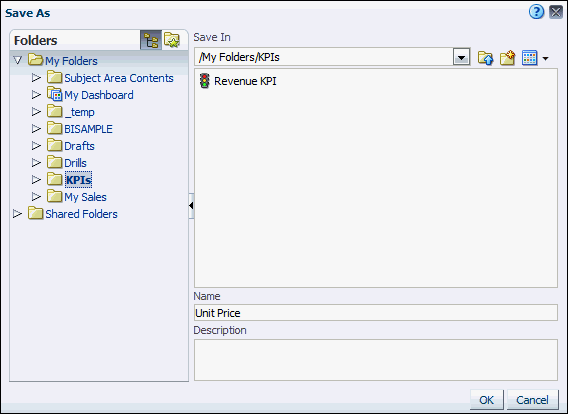
Click the Save KPI as button.
-
Save the KPI in the KPIs folder as Unit Price.
-
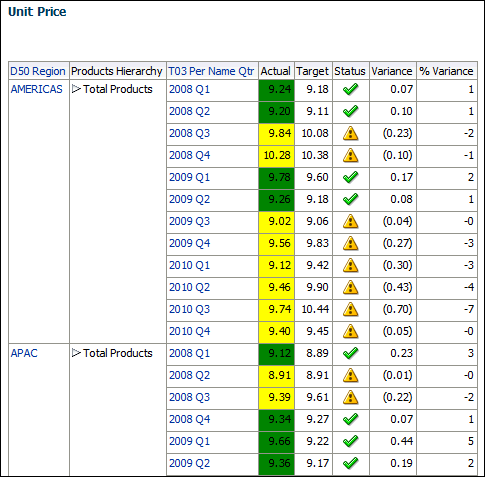
In the Global header, select Open > Unit Price to view the KPI.
Creating a KPI for Collect to Bill Ratio
-
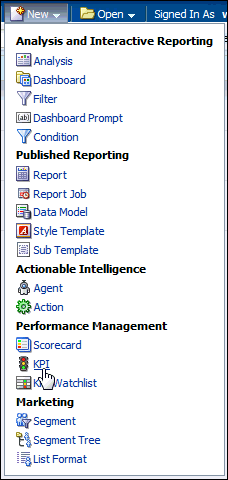
In the Global Header, click New and then KPI.
-
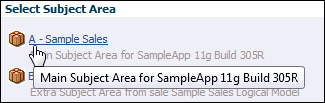
In the Select Subject Area pop-up, select A - Sample Sales.
-
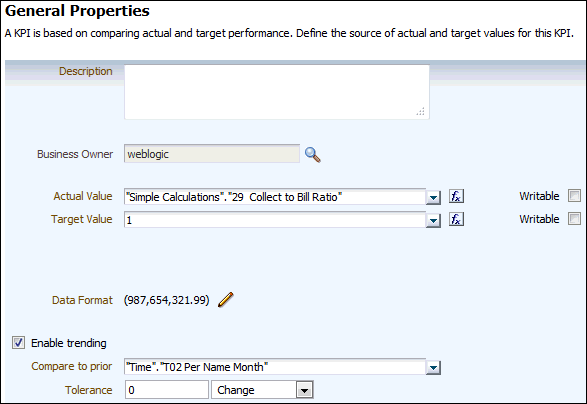
Defining the General Properties:
- In the Actual Value drop-down list, select Facts > Calculations > Simple Calculations > 29 Collect to Bill Ratio.
- In the Target Value field, enter 1.
- Select Enable trending.
- In the “Compare to prior” drop-down list, select Time > T02 Per Name Month.
- In the Tolerance drop-down box, select Change.
- Click Next.
-
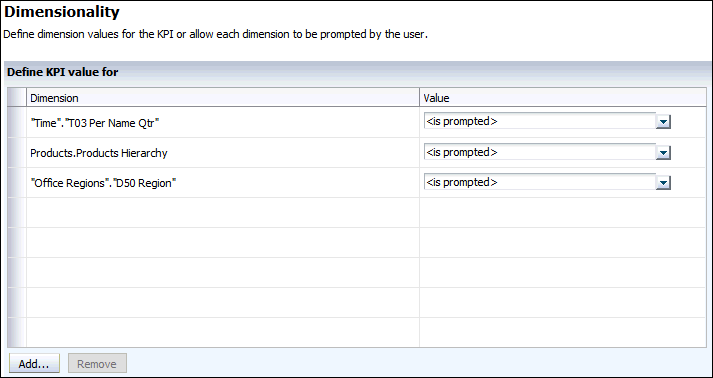
Defining the Dimensionality (leaving the value to be prompted):
- Time > T03 Per Name Qtr
- Products > Products Hierarchy
- Offices > Office Regions > D50 Region
-
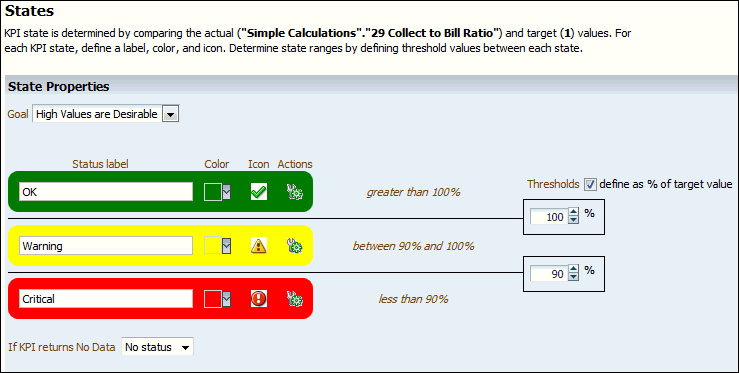
Click Next to display the States page.
-
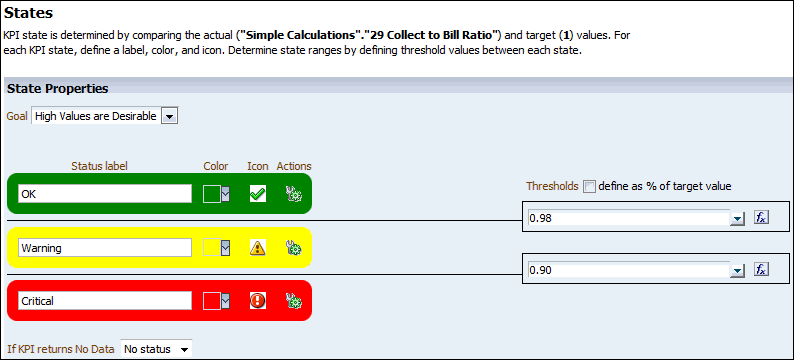
Define your thresholds:
- Next to Thresholds, deselect define as % of target value.
- For the upper threshold, enter 0.98.
- For the lower threshold, enter 0.90.
-
Click Finish to display the Save As dialog box.
-
Save the KPI to the KPIs folder as Collect to Bill Ratio.
-
In the Global header, click Open and select Collect to Bill Ratio to view the KPI.

Creating a KPI for Fixed Costs Using Ago Function
-
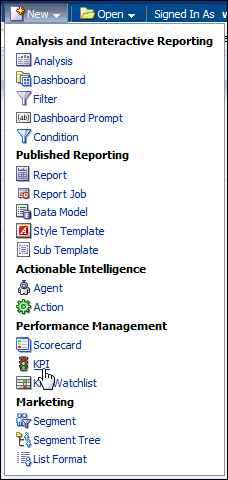
In the Global Header, click New and then KPI.
-
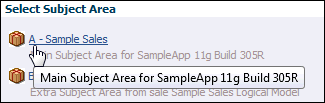
In the Select Subject Area pop-up, select A - Sample Sales.
-
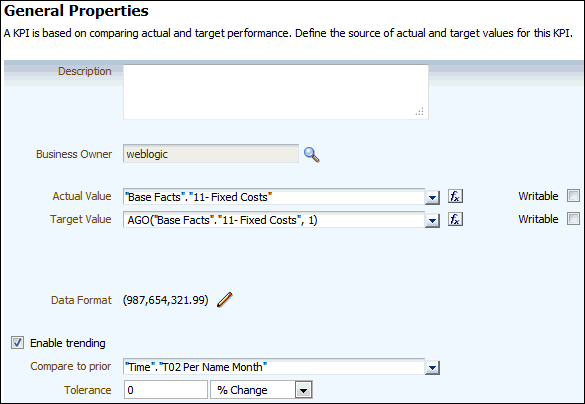
Defining the General Properties:
- In the Actual Value drop-down list, select Facts > Base Facts > 11 – Fixed Costs.
- Next to the Target Value drop-down list, click the Edit Target Value Formula button
 to display the Edit Formula dialog box.
 - Click the Insert Function button
 .
. - Expand Time Series Calculations, and select Ago.
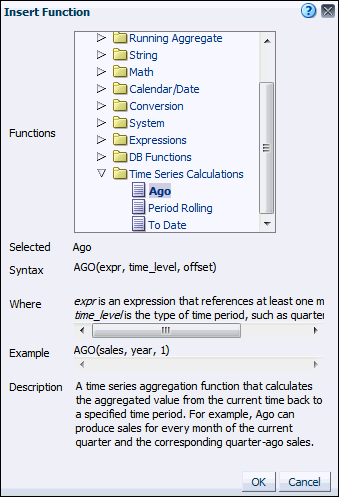
- Click OK to insert the AGO function into the formula text box.
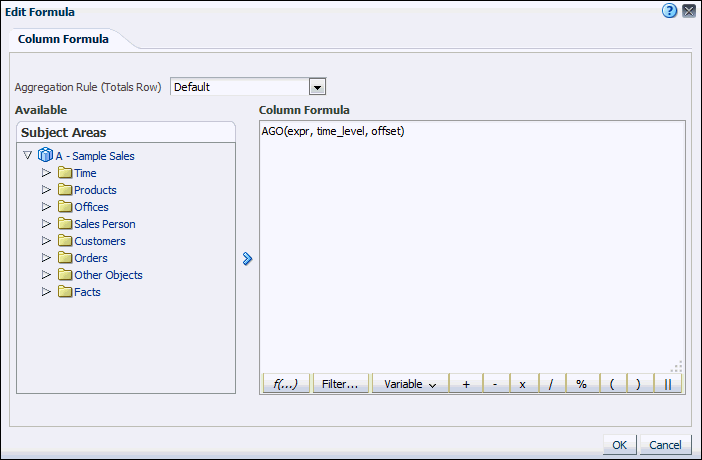
- Under Subject Areas, expand Facts > Base Facts, and select 11 – Fixed Costs.
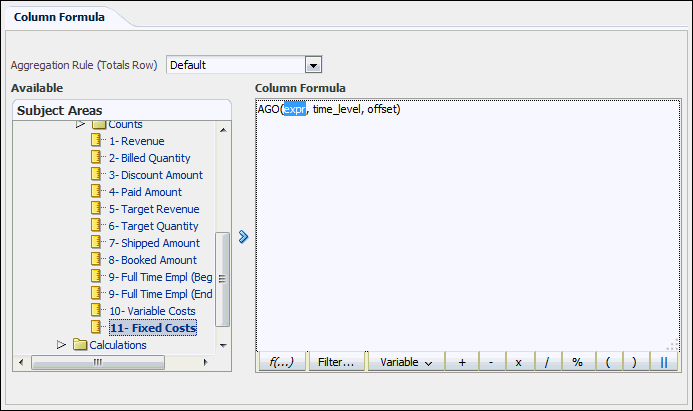
- Click the Add Column button to add the measure to the AGO function.
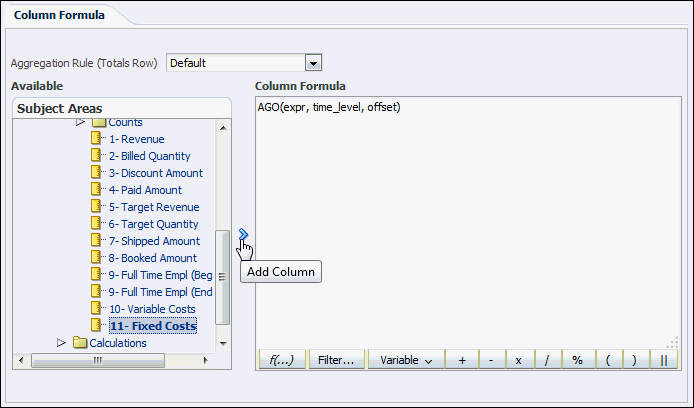
- In the formula text box, delete the time_level argument, and replace the offset argument with 1. The completed formula should match the following:
AGO("Base Facts"."11- Fixed Costs", 1)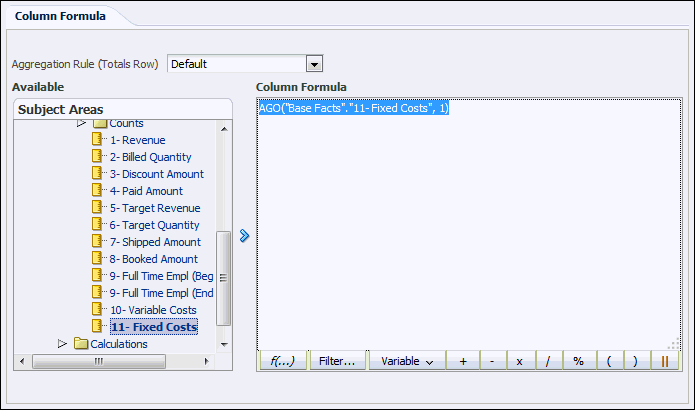
- Click OK to return to the General Properties page.
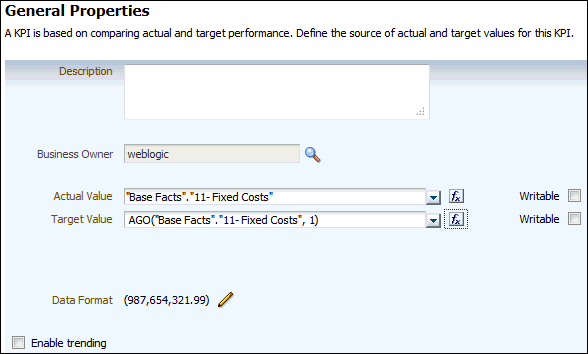
- Select Enable Trending.
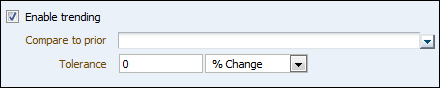
- In the “Compare to prior” drop-down list, select Time > T02 Per Name Month.
- Click Next.
-
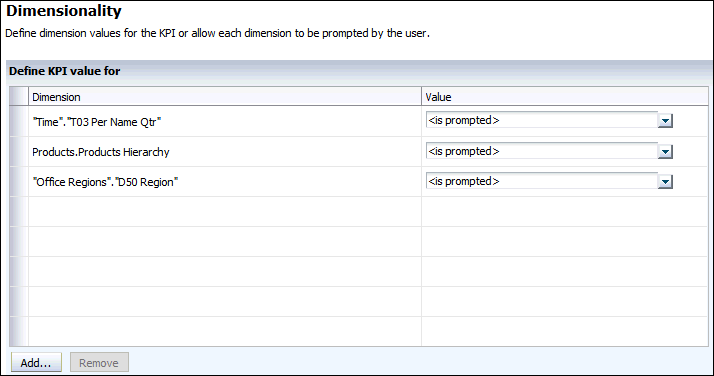
Defining the Dimensionality (leaving the value to be prompted):
- Time > T03 Per Name Qtr
- Products > Products Hierarchy
- Offices > Office Regions > D50 Region
-
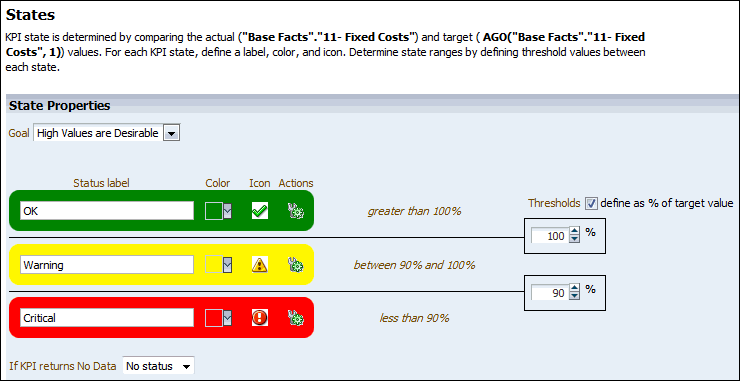
Click Next to display the States page.
-
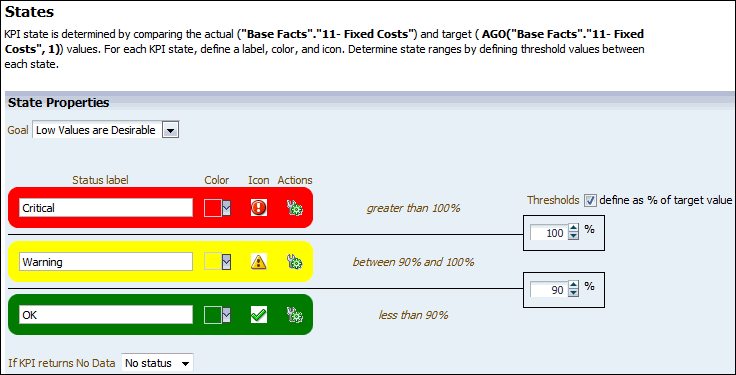
Adding KPI Goals and Thresholds –States:
- In the Goal drop-down list, select Low Values are Desirable.
- Accept the default threshold settings.
- Click Finish to open the Save As dialog box.
-
Save the KPI to the KPIs folder as Fixed Costs.
-
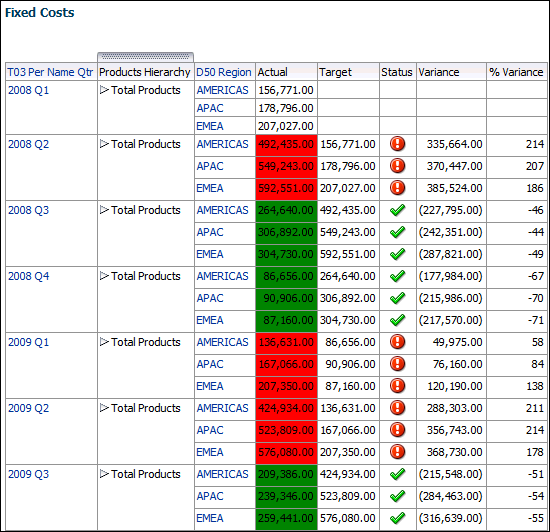
In the Global header, click Open and select Fixed Costs to view the KPI. Notice that no target data is displayed for 2008 Q1, because there is no data in the database prior to 2008 Q1.
Creating the % Early Shipped KPI
-
In the Global Header, click New and then KPI.
-
In the Select Subject Area pop-up, select A - Sample Sales.
-
Defining the General Properties:
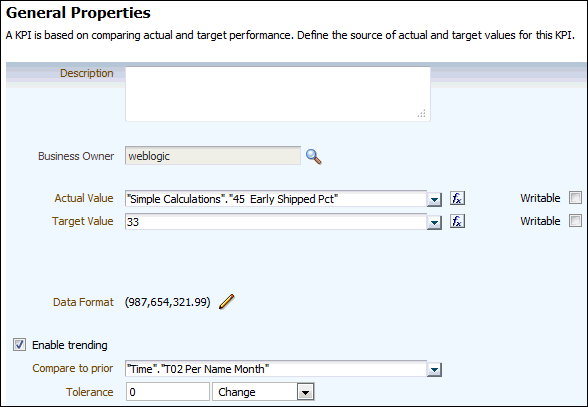
- In the Actual Value drop-down list, select Facts > Calculations > Simple Calculations > 45 Early Shipped Pct.
- In the Target Value field, enter 33.
- Select Enable trending.
- In the “Compare to prior” drop-down list, select Time > T02 Per Name Month.
- In the Tolerance drop-down list, select Change.
- Click Next.
-
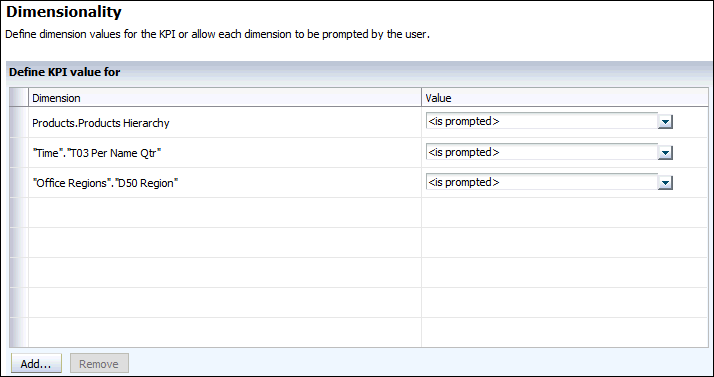
Defining the Dimensionality (leaving the value to be prompted):
- Products > Products Hierarchy
- Time > T03 Per Name Qtr
- Offices > Office Regions > D50 Region
-
Click Next to display the States page.
-
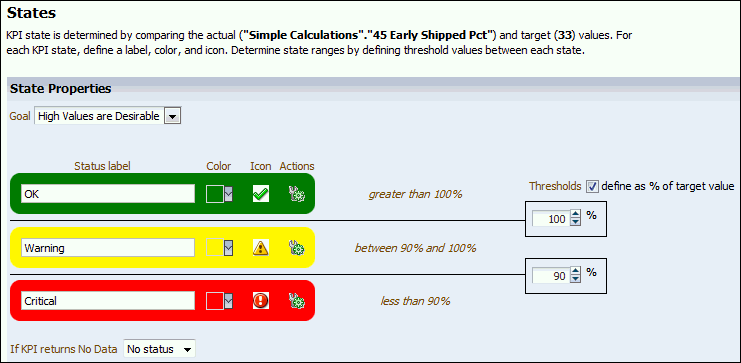
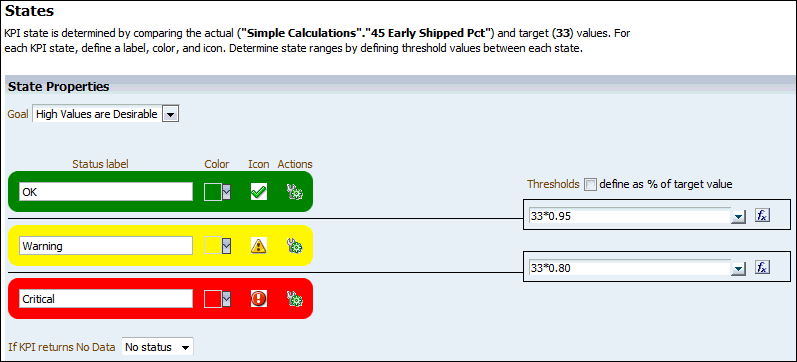
Adding KPI Goals and Thresholds –States:
- Next to Thresholds, deselect define as % of target value.
- For the upper threshold, enter the following calculation: 33 * 0.95.
- For the lower threshold, enter the following calculation: 33 * 0.80.
- Click Finish to display the Save As dialog box.
-
Save the KPI in the KPIs folder as % Early Shipped.
-
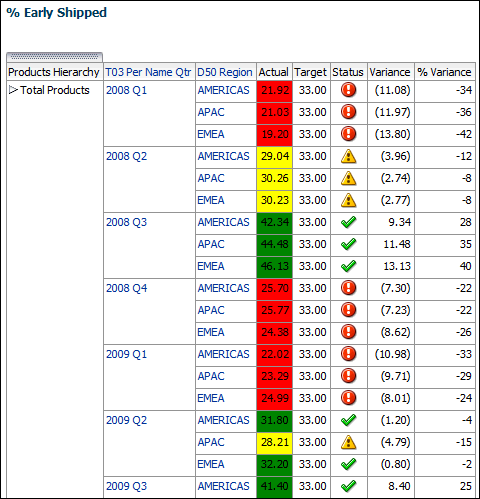
In the Global header, click Open and select % Early Shipped to view the KPI.
Creating the Customer by Sales Rep KPI (Ago function)
-
In the Global Header, click New and then KPI.
-
In the Select Subject Area pop-up, select A - Sample Sales.
-
Defining the General Properties:
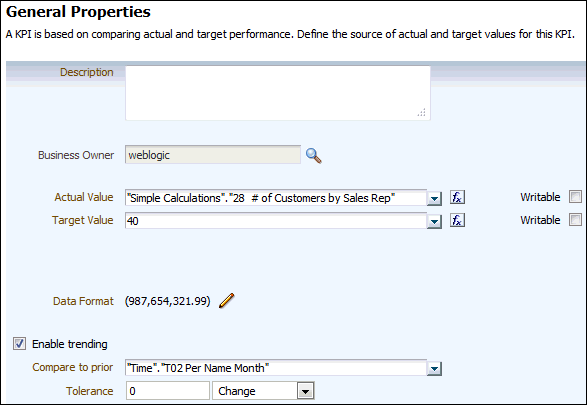
- In the Actual Value drop-down list, select Facts > Calculations > Simple Calculations > 28 # of Customers by Sales Rep.
- In the Target Value field, enter 40.
- Select Enable trending.
- In the “Compare to prior” drop-down list, select Time > T02 Per Name Month.
- In the Tolerance drop-down list, select Change.
- Click Next.
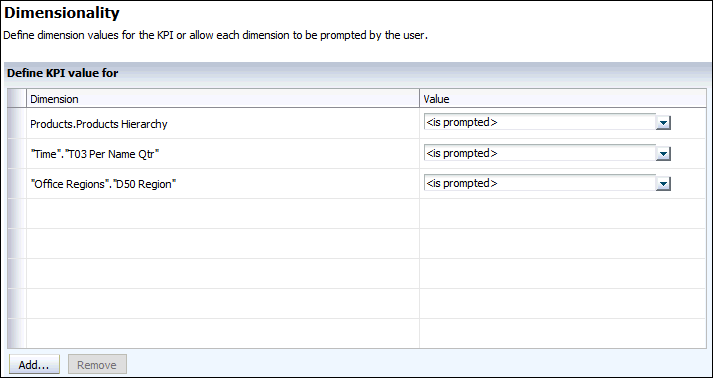
Add the following dimensionality for the KPI, leaving the value to be prompted:
- Products > Products Hierarchy
- Time > T03 Per Name Qtr
- Offices > Office Regions > D50 Region
-
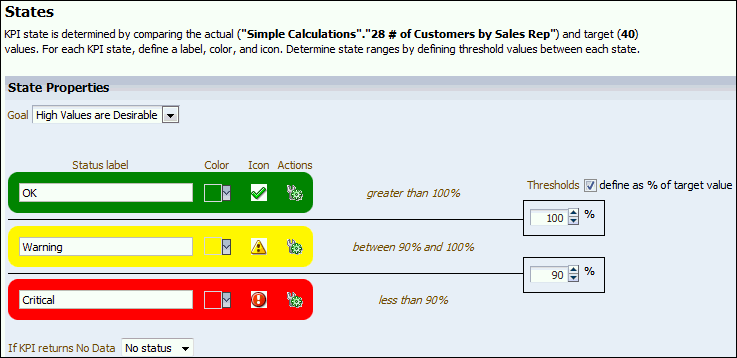
Click Next to display the States page.
-
Adding KPI Goals and Thresholds - States:
- Next to Thresholds, deselect define as % of target.
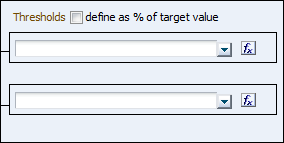
- Next to the upper threshold field, click the Thresholds button
 to display the Edit Formula dialog box.
 - Click the Insert Function button
 .
. - Expand Time Series Calculations, and select Ago.
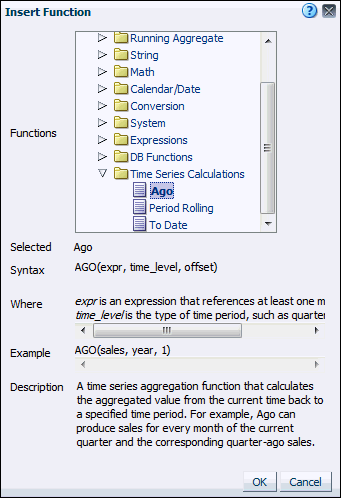
- Click OK to insert the AGO function into the Formula Editor to display the Edit Formula dialog box appears with AGO formula.
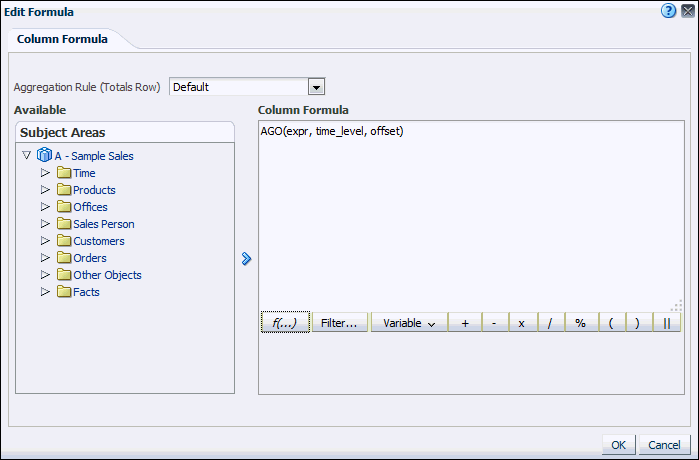
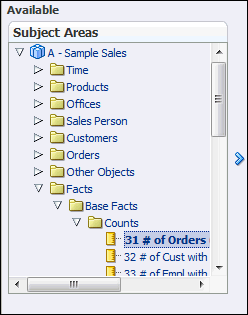
- Under Subject Areas, select Facts > Base Facts > Counts > 31 # of Orders (Cnt Distinct).
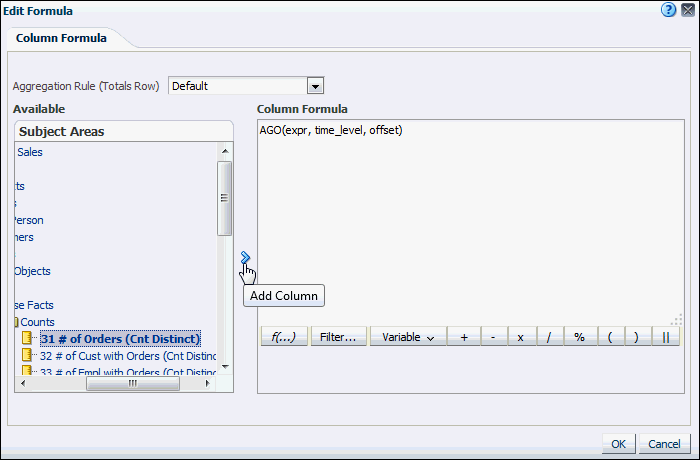
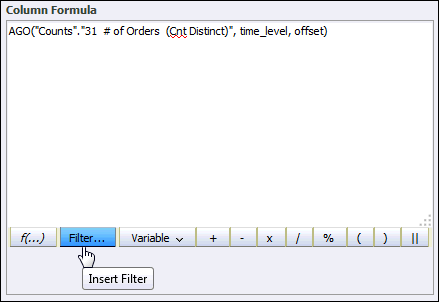
- Click the Add Column button to add the measure to the AGO formula. Note: the measure should automatically replace the expr argument in the formula.
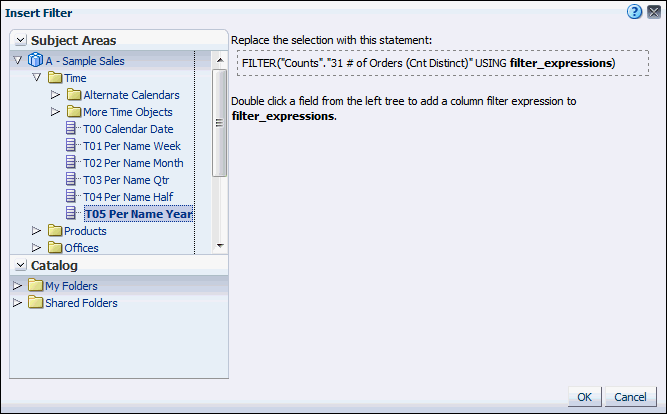
- Click Filter.
- Under Subject Areas, double-click Time > T05 Per Name Year to open the New Filter dialog box.
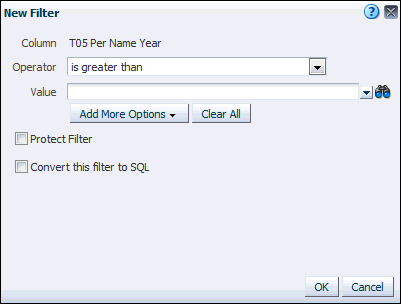
- In the Operator drop-down list, select is greater than.
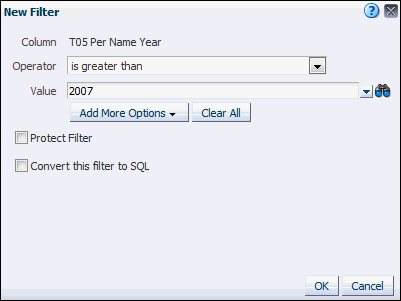
- In the Value drop-down list, select 2007. Click OK to close New Filter dialog box.
- Click OK to paste the filter into the formula.
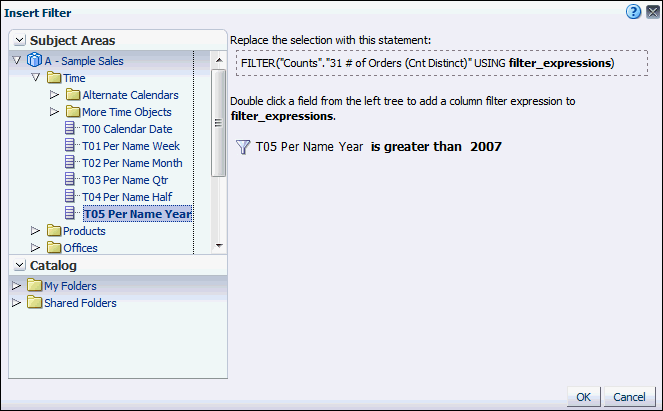
- Complete the formula: Remove the time_level argument, replace the offset argument with 1, and add a multiplier of 0.95. The complete formula is as follows:
AGO(FILTER("Counts"."31 # of Orders (Cnt Distinct)" USING ("Time"."T05 Per Name Year" > '2007')), 1) * 0.95.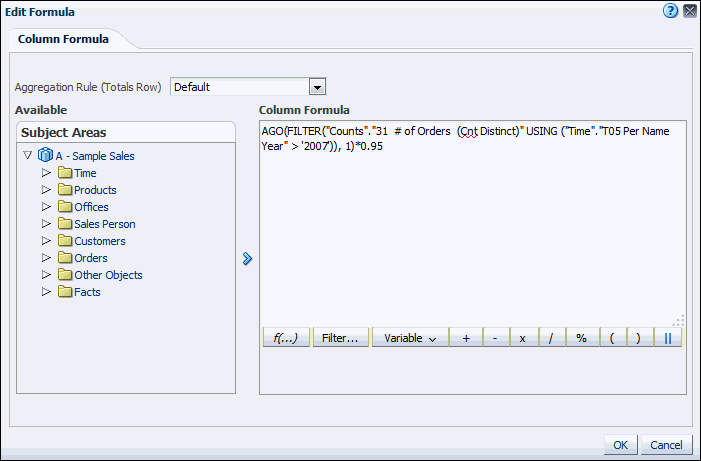
- Select the formula, right-click the highlighted text, and select Copy.
- Click OK to return to the States page.
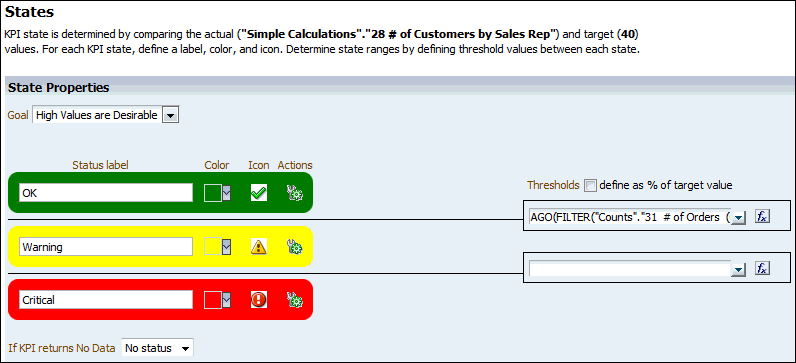
- Next to the lower threshold field, click the Thresholds button
 to display the Edit Formula dialog box.
 - Right-click in the Column Formula text box, and select Paste.
- Change the multiplier at the end of the formula to 0.85. The complete lower threshold formula is as follows:
AGO(FILTER("Counts"."31 # of Orders (Cnt Distinct)" USING ("Time"."T05 Per Name Year" > '2007')), 1) * 0.85.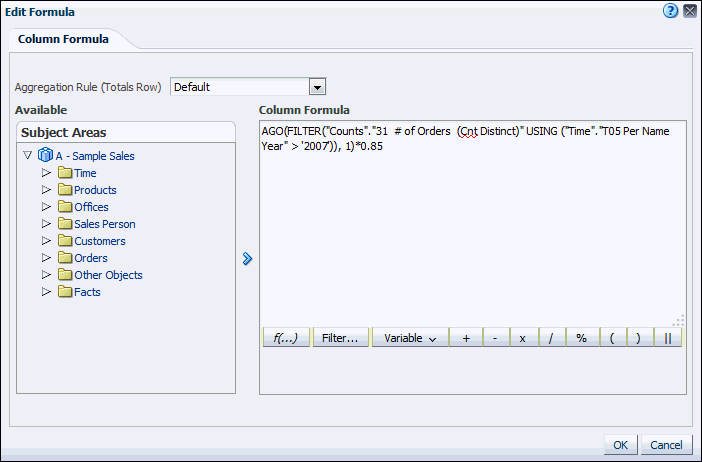
- Click OK.
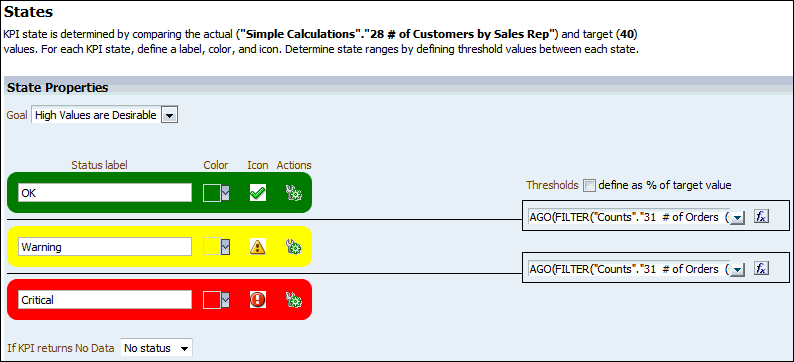
- Next to Thresholds, deselect define as % of target.
- Click Finish to display the Save As dialog box.
-
Save the KPI to the KPIs folder as Customer by Sales Rep.
-
In the Global header, click Open and select Customer by Sales Rep to view the KPI.
Building the Scorecard
In this section, you will create a Scorecard for Eden Inc, using the KPIs you created in the preceding section. The scorecard will have two main objectives:
Improve Financial Results: To accomplish this objective, the company needs to increase sales and reduce costs, each of which will be represented as sub-objectives with related KPIs. The Increase Sales sub-objective requires KPIs that track revenue and unit prices. The Reduce Cost sub-objective requires KPIs that track the collect-to-bill ratio and fixed costs.
Enhance Customer Satisfaction: To accomplish this objective, the company wants to track and improve its early shipping percentages and its ratio of customers to sales reps.
Creating a Scorecard
-
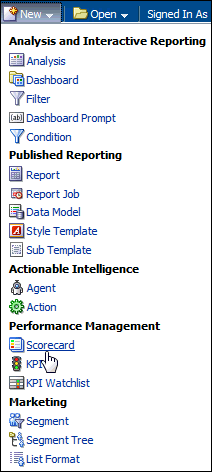
In the Global Header, select New > Scorecard.
-
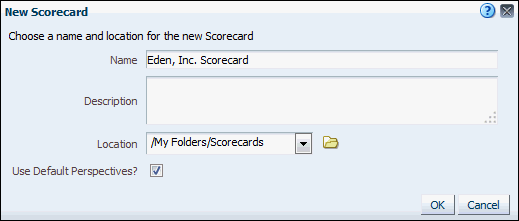
The New Scorecard dialog box is displayed. Define the scorecard and save location:
- For Name, enter Eden, Inc. Scorecard.
- For Location, select My Folders/Scorecards.
- Verify that Use Default Perspectives is selected.
- Click OK to open the Scorecard Editor.
Adding Main Objectives to the Scorecard
-
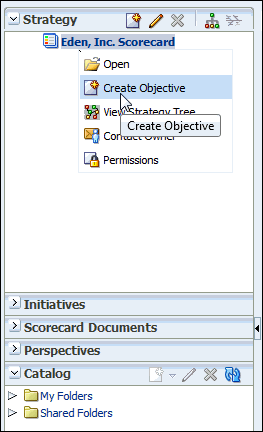
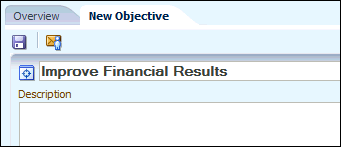
In the Strategy pane, right-click Eden, Inc. Scorecard and select Create Objective to open a New Objective tab.
-
In the name field, enter Improve Financial Results.
-
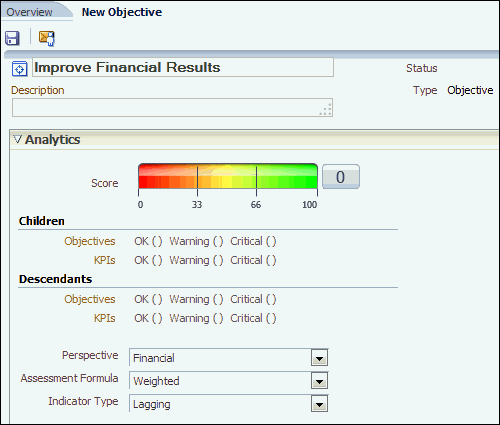
In the Analytics pane, select the following options:
- For Perspective, select Financial.
- For Assessment Formula, select Weighted.
- For Indicator Type, select Lagging.
-
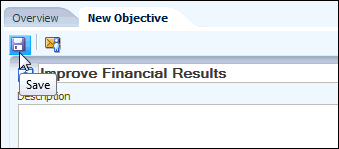
Click the Save button. The Improve Financial Results objective is added to the Strategy pane under Sales Scorecard.
-
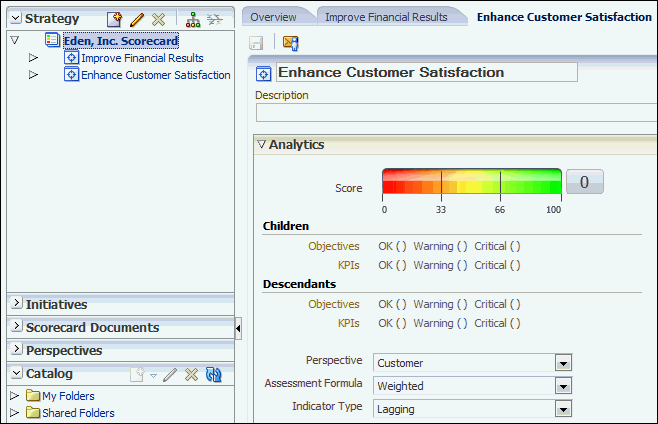
Repeat above steps to add the Enhance Customer Satisfaction objective, with the following specifications:
Perspective: Customer
Assessment Formula: Weighted
Indicator Type: Lagging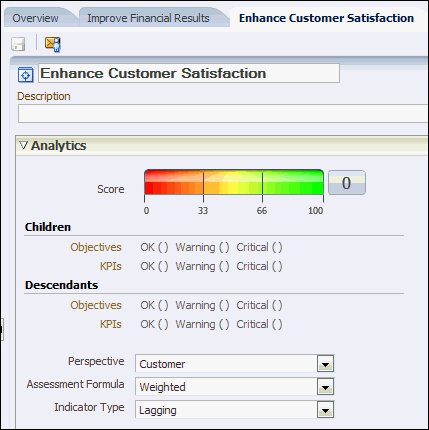
Note: You use perspectives to represent your key business competencies (Financial or Research and Development, for example) that you can use to align initiatives and objectives. Perspectives are categories in your organization with which to associate initiatives, objectives, and KPIs. In this example you use the default perspectives that are defined by the Balanced Scorecard Methodology. -
Check your work:
Assigning Weights to the Main Objectives
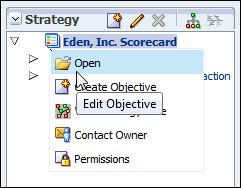
- In the Strategy pane, right-click Eden, Inc. Scorecard and select Open to display a tab for scorecard options.
-
In the Analytics pane, select the following options:
- For Perspective, select Undefined.
- For Assessment Formula, select Weighted.
- For Indicator Type, select Lagging.

-
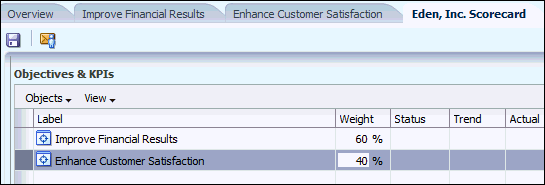
In the Weight column of the Objectives & KPIs list, enter the following weights for the two main objectives:
- Improve Financial Results: 60%
- Enhance Customer Satisfaction: 40%
-
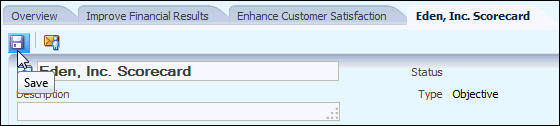
Click the Save button to save your changes.
Adding Sub-Objectives for Improve Financial Results
-
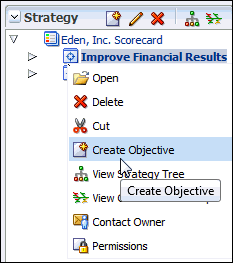
In the Strategy pane, right-click Improve Financial Results and select Create Objective.
-
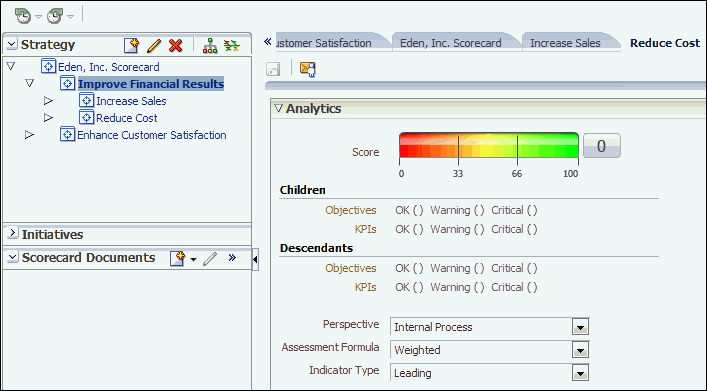
Add sub-objectives to Improve Financial Results based on the following table:
Objective Name
Perspective
Assessment Formula
Indicator Type
Increase Sales
Financial
Weighted
Lagging
Reduce Cost
Internal Process
Weighted
Leading
-
Save each sub-objective and check your work:
-
To add weights for the sub-objectives, click the Improve Financial Results tab.
The following warning is displayed: "A new child has been added whose weight is initially set to zero. Please assign weight to the newly added child and rebalance the other weights accordingly."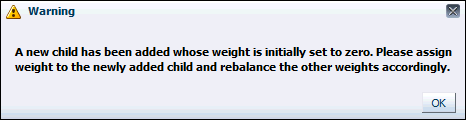
-
Click OK to dismiss the warning.
-
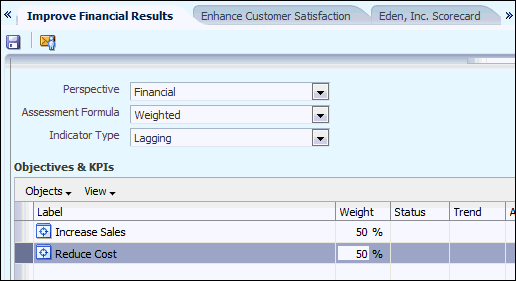
In the Objectives & KPIs list, adjust the weights for each sub-objective to 50%.
-
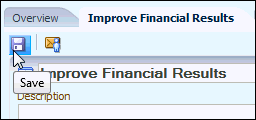
Click the Save button to save your changes.
Adding KPIs to the Increase Sales Objective
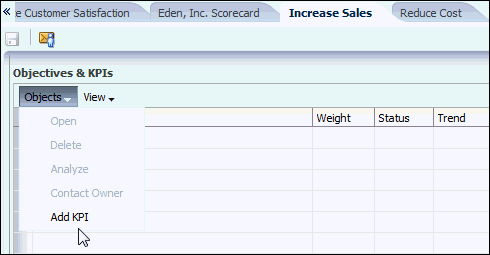
- Click the Increase Sales tab.

-
In the Objectives & KPIs list, select Objects > Add KPI to display the Select a KPI dialog box.
-
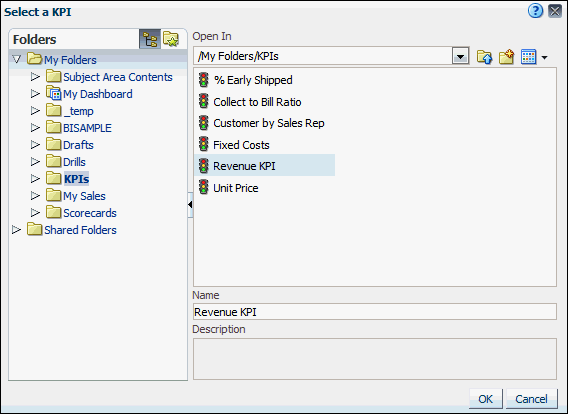
Browse to the My Folders//KPIs folder, and select Revenue KPI. Click OK to add the KPI.
-
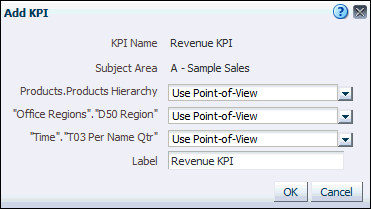
In the Add KPI dialog box, you select any dimensions that are prompted in the KPI. You can also select variables or instruct the KPI to use the scorecard point of view. Verify that Use Point-of-View is selected for all of the dimensions of the Revenue KPI, and then click OK.
-
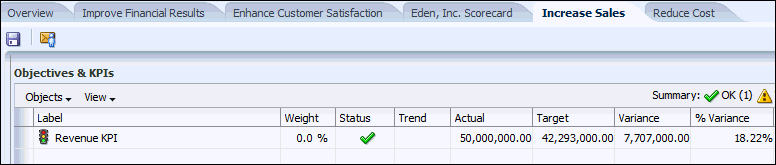
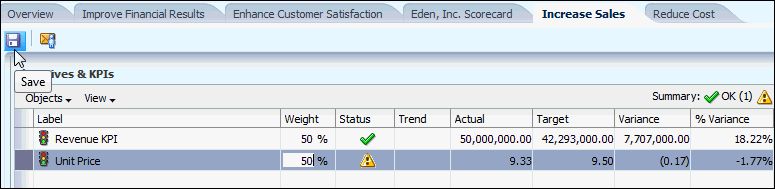
Notice that the KPI details are now displayed in the Objectives & KPIs list.
-
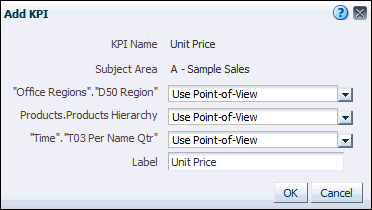
Add the Unit Price KPI (located in KPIs) to the Increase Sales objective. Use the scorecard point of view for all the KPI dimensions.
-
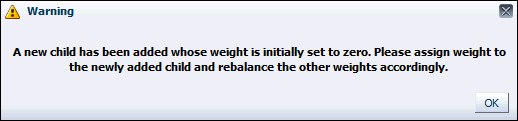
The following message is displayed: "A new child has been added whose weight is initially set to zero. Please assign weight to the newly added child and rebalance the other weights accordingly." Click OK.
-
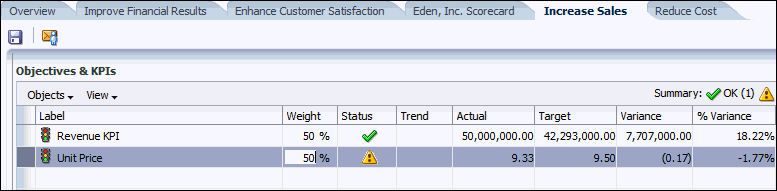
In the Objectives & KPIs list, set the weight of each KPI to 50%.
-
Click the Save button to save the changes to the objective.
Adding KPIs to the Reduce Cost Objective
-
Click the Reduce Cost tab.

-
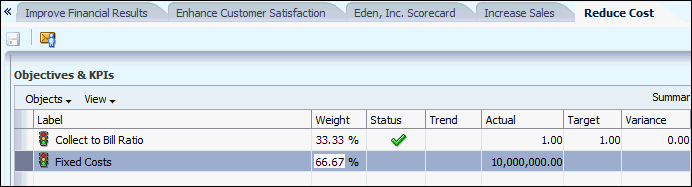
Add KPIs to the Reduce Cost objective based on the following table (all KPIs are located in the KPIs folder):
KPI
Dimensions
Weight
Collect to Bill Ratio
“Use Point-of-View” selected for all dimensions
33.33%
Fixed Costs
“Use Point-of-View” selected for all dimensions
66.67%
-
Click the Save button to save the changes to the objective.
-
Compare the Objectives and KPIs to the following:
-
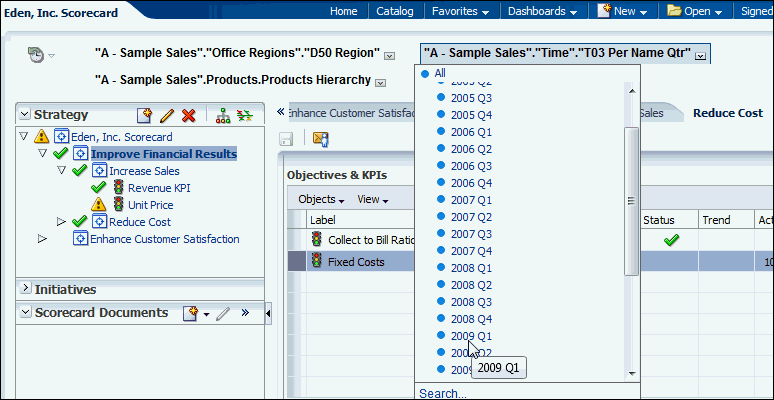
In the scorecard point of view, in the “A – Sample Sales”.”Time”.”T03 Per Name Qtr” drop-down list, select 2009 Q1 and wait for the scorecard to refresh. KPI data is displayed in the Objectives & KPIs list.
-
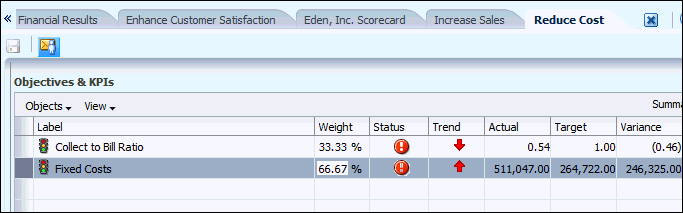
Check your work.
Adding KPIs to the Enhance Customer Satisfaction Objective
-
Click the Enhance Customer Satisfaction tab.

-
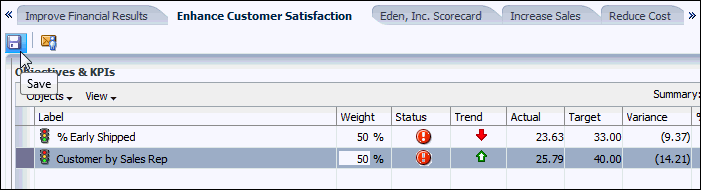
Add KPIs to the Enhance Customer Satisfaction objective based on the following table (all KPIs are located in the KPIs folder):
KPI
Dimensions
Weight
% Early Shipped
“Use Point-of-View” selected for all dimensions
50%
Customer by Sales Rep
“Use Point-of-View” selected for all dimensions
50%
-
Click the Save button to save the changes to the objective.
-
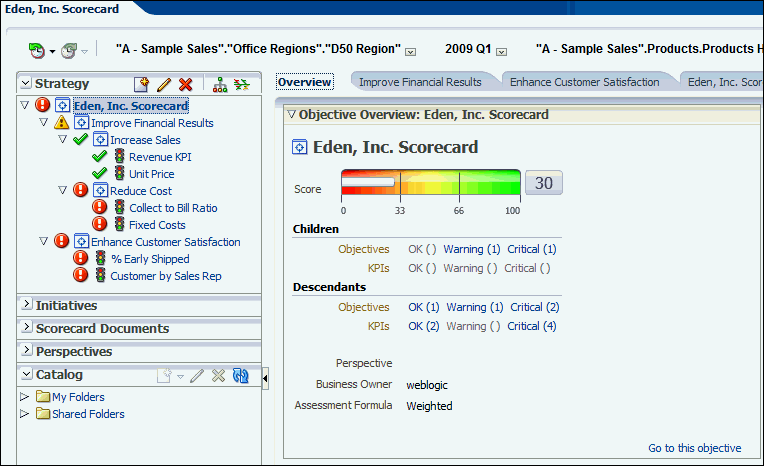
Compare the results in your Strategy pane to the following:
Changing the Names of Point-of-View Dimensions
-
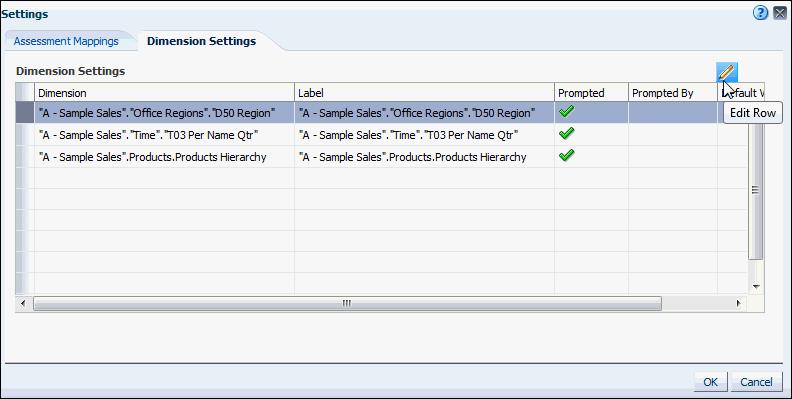
Click the Scorecard Settings icon
 to open the Settings dialog box.
 -
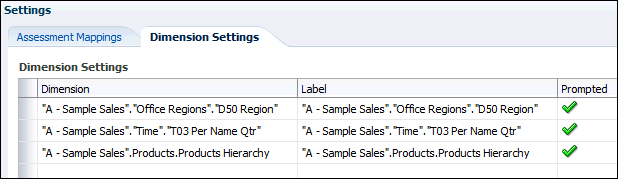
Click the Dimension Settings tab.
-
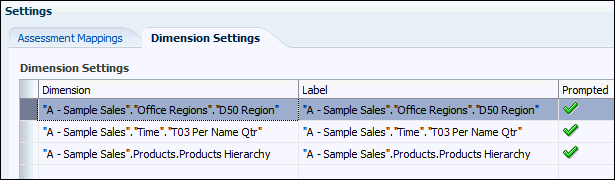
Select the “A – Sample Sales”.”Office Regions”.”D50 Region” dimension.
-
Click the Edit button to open the Edit Dimension Settings dialog box.
-
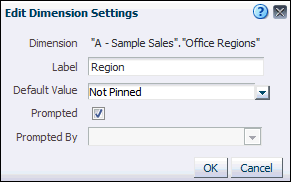
In the label field, enter Region to provide a more user-friendly name for the dimension.
-
Notice that the Edit Dimension Settings dialog box also enables you to select a default starting value for a dimension.
-
Leave the other settings as they are and click OK to close the Edit Dimension Settings dialog box.
-
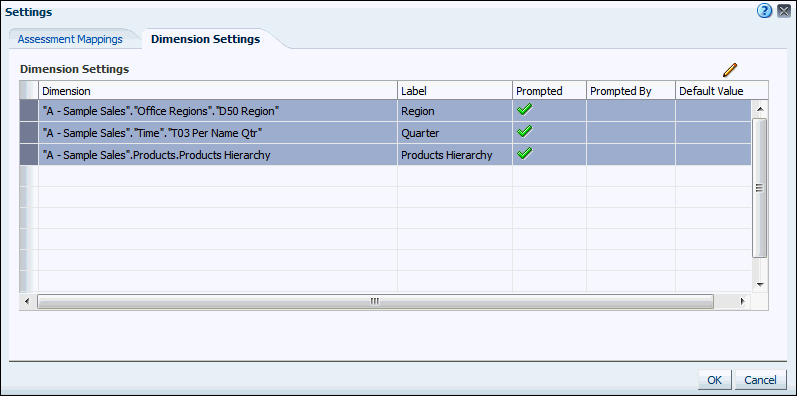
Repeat the process to change the labels to more user-friendly names and select default values for the remaining dimensions, as described in the following table:
Dimension
Label
Default Value
“A – Sample Sales”.”Time”.”T03 Per Name Qtr”
Quarter
2009 Q1
“A – Sample Sales”.”Products”.”Products Hierarchy”
Products Hierarchy
-
Check your work:
-
Click OK to close the Settings dialog box.
-
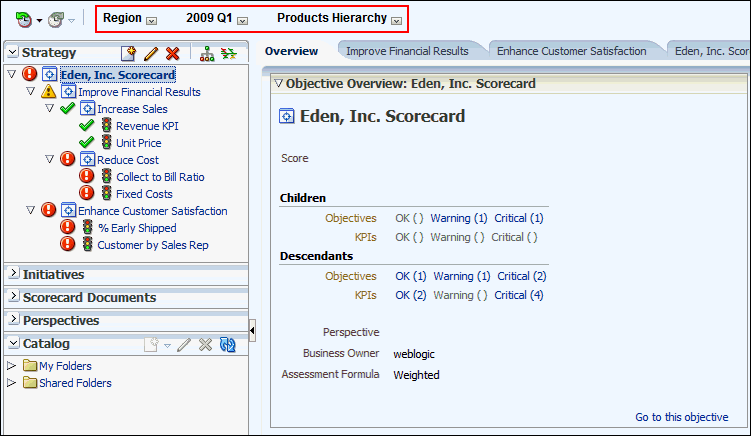
Names of Point-of-View Dimensions has been changed.
Creating Scorecard Documents
In this section, you create a Strategy Tree diagram and a Strategy Wheel to analyze your scorecard data.
-
Create a Strategy Tree diagram:
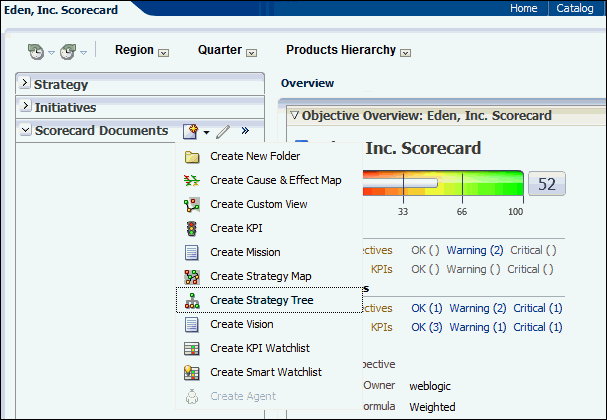
- In the Scorecard Documents pane, click the Create button, and select Create Strategy Tree.
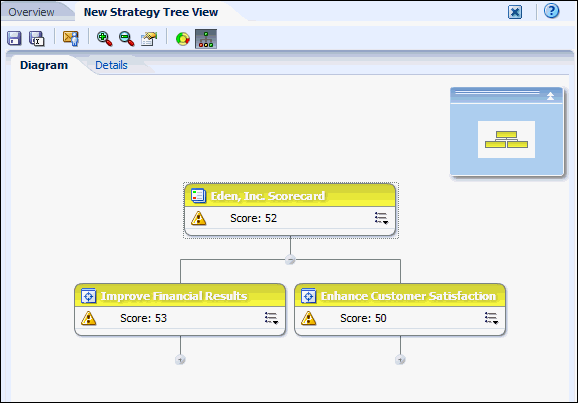
- A Strategy Tree diagram is displayed. Notice that the total scorecard node and the main objectives are displayed by default.
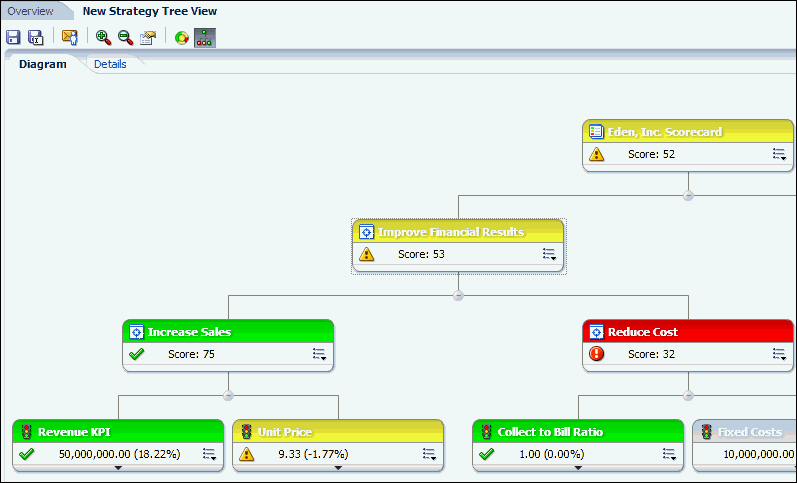
- Click the expansion controls below the main objective nodes to view the sub-objectives and KPIs until the diagram is fully expanded. You can use Zoom In and Zoom Out to view the diagram.
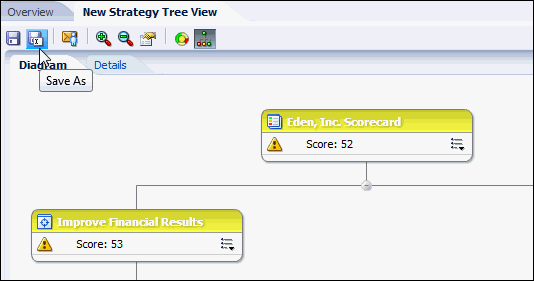
- Click the Save As button to save the Strategy Tree diagram. Save the diagram to My Folders/Scorecards/Eden, Inc. Scorecard as Sales Strategy Tree. Notice that Sales Strategy Tree is displayed in the Scorecard Documents pane.
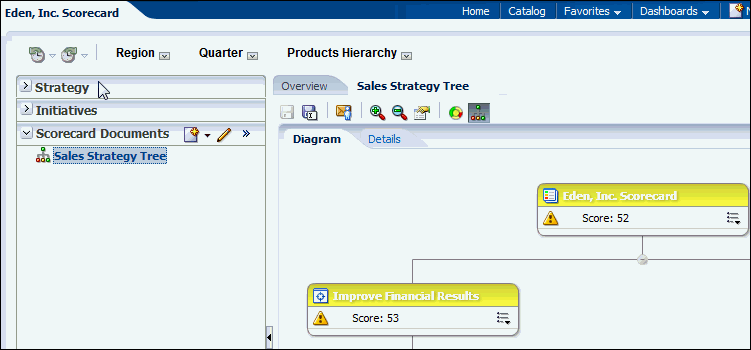
- In the Scorecard Documents pane, click the Create button, and select Create Strategy Tree.
-
Create a Strategy Wheel diagram.
- On the Sales Strategy Tree tab, click the Wheel Diagram Type button
 to display a Strategy Wheel diagram.
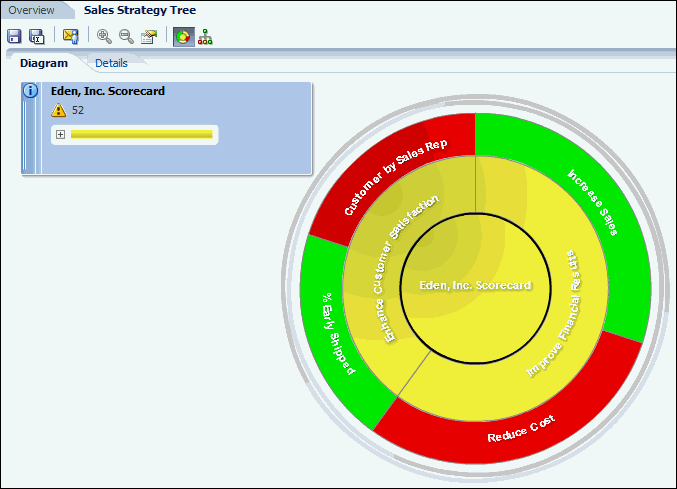
- Click the Save As button and save the Strategy Wheel diagram to My Folders/Scorecards/Eden, Inc. Scorecard as Sales Strategy Wheel. Notice that Sales Strategy Wheel is displayed in the Scorecard Documents pane.
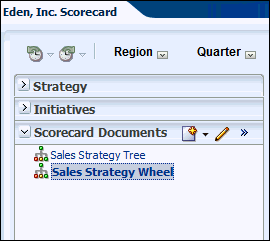
- On the Sales Strategy Tree tab, click the Wheel Diagram Type button
-
Explore the Strategy Wheel diagram:
- Double-click the Improve Financial Results objective to center the diagram on that objective. Notice that the breadcrumb navigation path is displayed to the right of the wheel diagram.
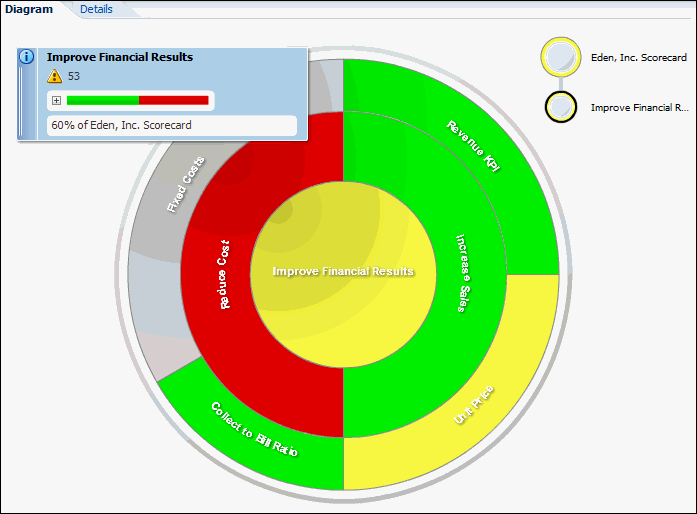
- Double-click the Increase Sales sub-objective to center the diagram on the sub-objective.
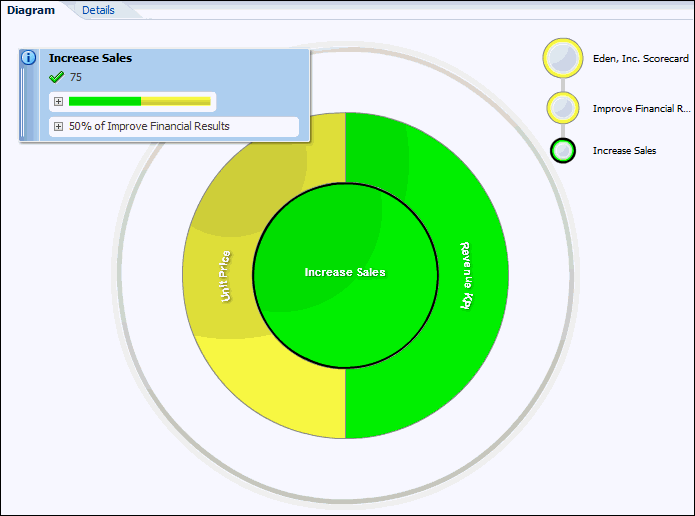
- Double-click the Eden, Inc. Scorecard breadcrumb to return the diagram to its original state.
- By default, strategy wheel diagrams show three levels of detail, but you can display more or fewer levels by using the collapse and expansion rings on the outer edge of the diagram. Click the expansion ring.
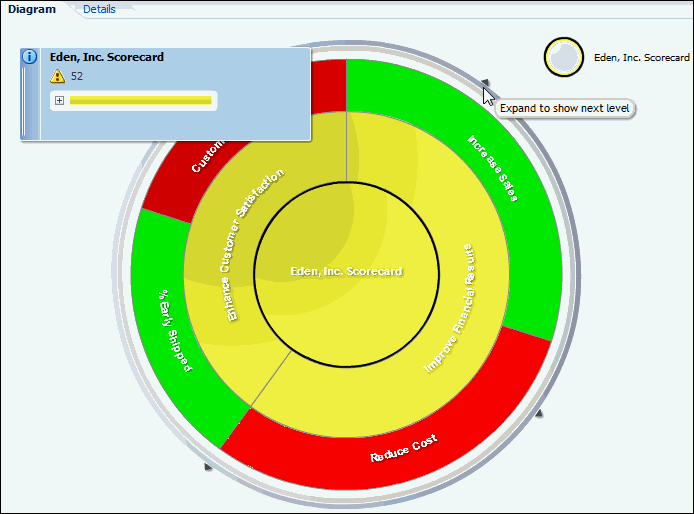
- Notice that the KPIs for the Increase Sales sub-objective are now displayed in the outer level of the strategy wheel diagram.

- Click the collapse ring twice. Notice that only Sales Scorecard and the two main objectives are displayed in the diagram.
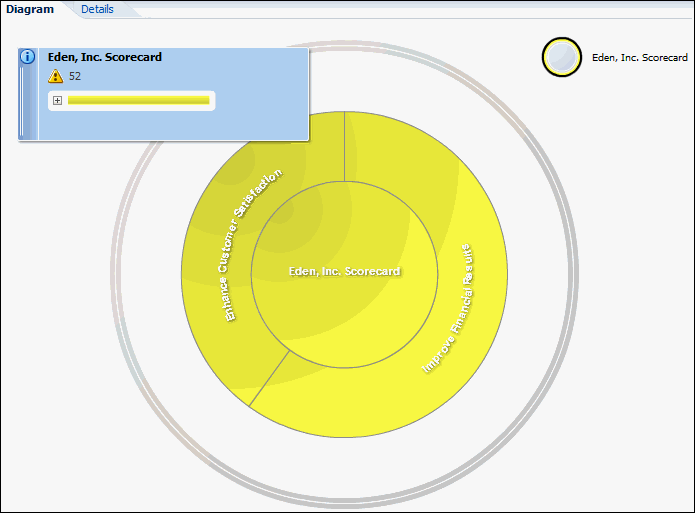
- Double-click the Improve Financial Results objective to center the diagram on that objective. Notice that the breadcrumb navigation path is displayed to the right of the wheel diagram.
Creating Smart KPI watch list
- In the Scorecard Documents pane, click the Create button, and then select Create Smart Watchlist.
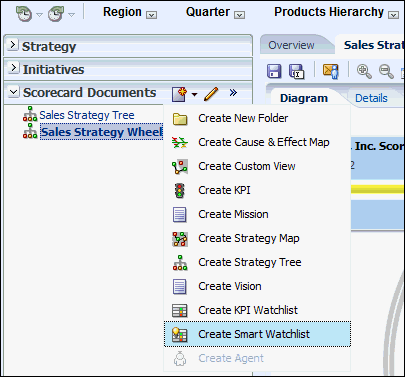
- A New Smart Watchlist View tab is displayed. Notice that by default the Smart Watchlist is populated with all of the Scorecard objectives and KPIs.
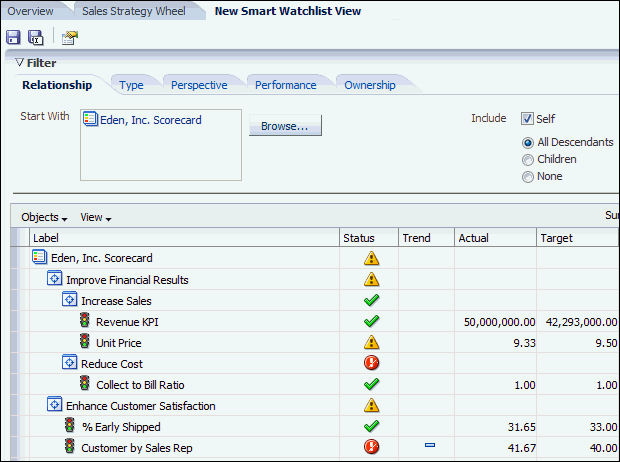
- Explore the Smart Watchlist filter tab options.
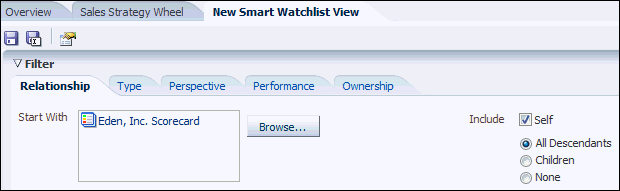
- Relationship: Filter by a specific objective and specify how much of the hierarchy to include.
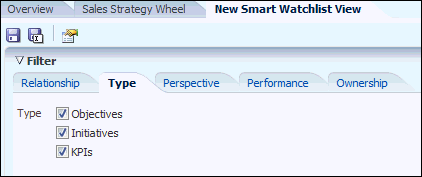
- Type: Specify which type of objects to include (objectives, initiatives, and KPIs).
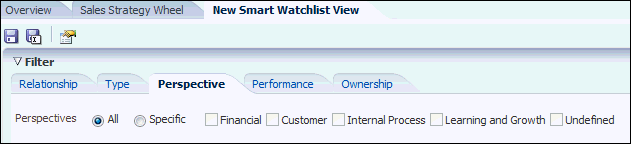
- Perspectives: Specify which types of perspectives to include.
- Performance: Filter the objects displayed in the watchlist by score, status, % Variance, or % Change.
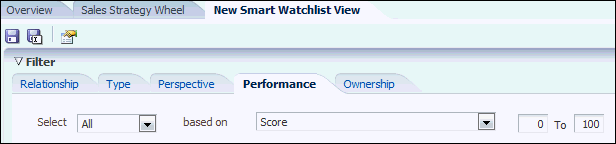
- Ownership: Filter the objects displayed in the watchlist by business owner.
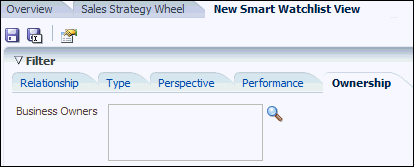
- Relationship: Filter by a specific objective and specify how much of the hierarchy to include.
-
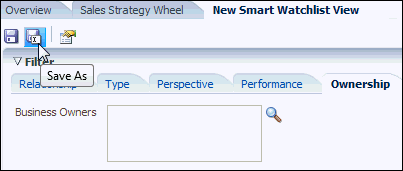
Click the Save As button and save the smart watchlist to My Folders/Scorecards/Eden, Inc. Scorecard as Sales Smart Watchlist.
-
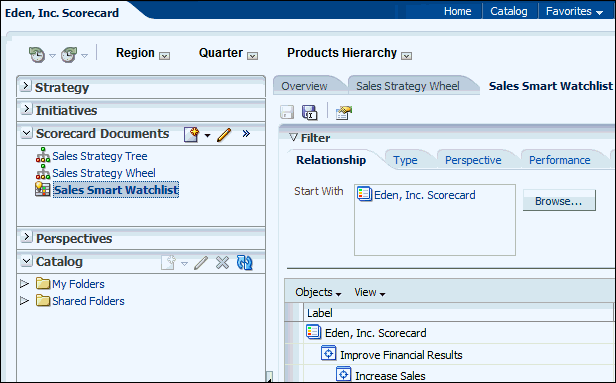
Sales Smart Watchlist is displayed in the Scorecard Documents pane.
Creating an Agent for Revenue KPI
-
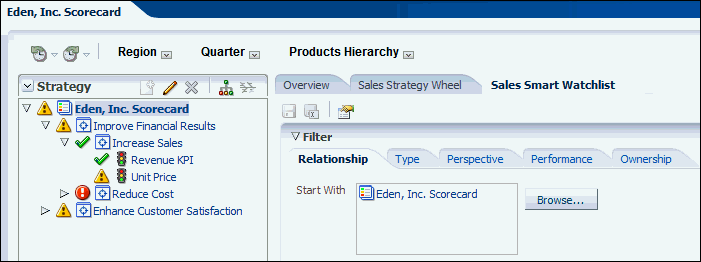
In the Strategy Pane, expand Eden, Inc. Scorecard > Improve Financial Results > Increase Sales to display the KPIs.
-
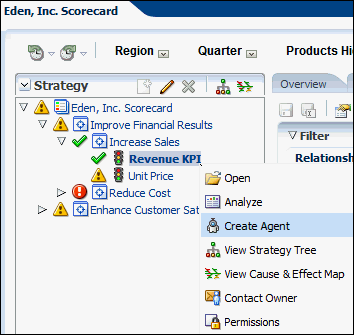
Right-click Revenue KPI and select Create Agent to display the Create New Agent dialog box.
-
Define the Agent:
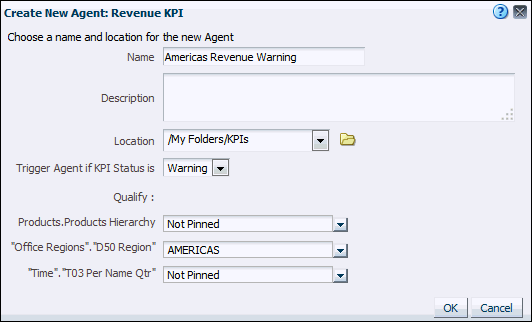
- In the Name field, enter Americas Revenue Warning.
- In the Location drop-down box, select My Folders/KPIs.
- In the “Trigger Agent if KPI Status is” drop-down box, select Warning.
- In the “Office Regions”.”D50 Region” drop-down box, select Americas. Leave the other dimensions set to “Not Pinned.”
-
Click OK.
-
The agent is displayed in a new window. If Firefox displays the message, Firefox prevented this site from opening a pop-up window, then click Options and select Show <popup window URL>.
-
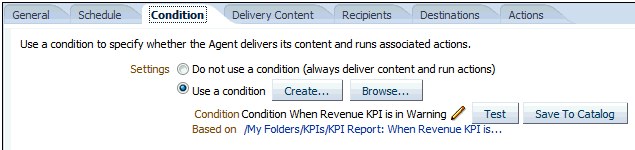
Click the Condition tab. Notice that the condition “When Revenue KPI is in Warning” is already defined.
-
Click Test to see how the condition evaluates. The following message is displayed: The condition evaluates to True. Click OK.
-
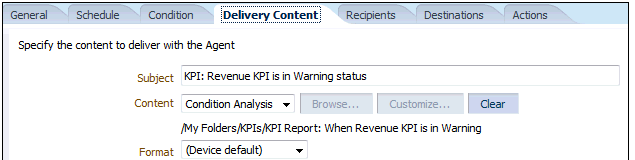
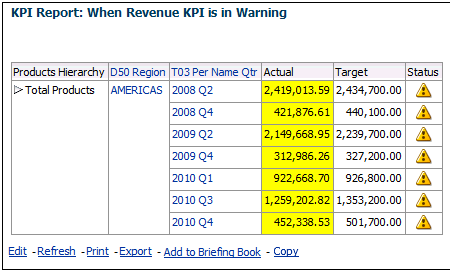
Click the Delivery Content tab. Notice that a KPI report called “KPI Report: When Revenue KPI is in Warning” was automatically created as the delivery content for the agent.
-
View the delivery content for the agent.
-
Close the window to return to your original browser window and the Eden, Inc. Scorecard.
Viewing Your Scorecard
-
In the Global header, click Catalog.

-
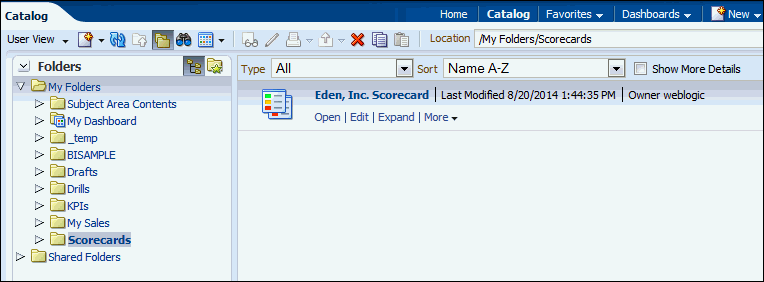
In the Folders pane, select My Folders > Scorecards.
-
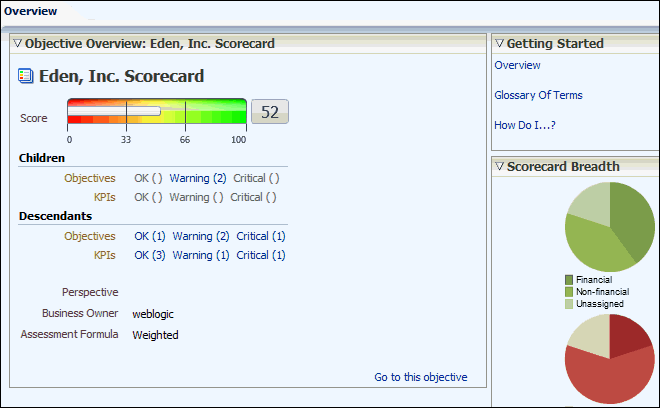
In the right pane, locate Eden, Inc. Scorecard and click Open. The Overview tab of the scorecard is displayed. The Overview tab provides summary information for an initiative, objective, or KPI. In this case, the Overview tab provides summary information for the root objective, Eden, Inc. Scorecard. Here you can view summary information about the status of Child and Descendant objects, such as Objectives, KPIs, and so forth.
-
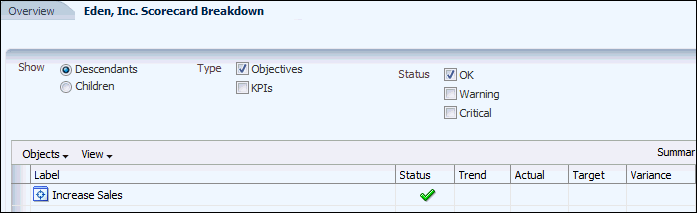
In the Descendants section, click the OK link for KPIs to open the Sales Scorecard Breakdown tab. You use the Breakdown tab of the Scorecard editor to view and manage the objects that are used to evaluate the performance of an initiative or an objective. Using this tab, you can filter the objects in the list by Descendants, Children, Objective and by Status. For example, for an objective, you might want to show only the Child KPIs that have a status of OK. You cannot save this tab.
-
Return to the Overview tab.
-
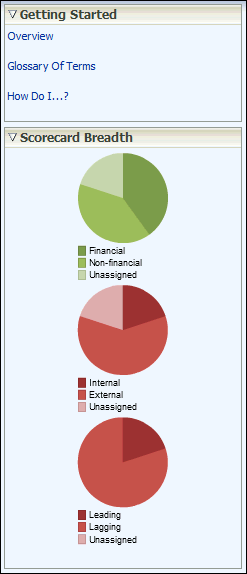
Notice the Scorecard Breadth pane. You use this pane to view Pie graphs that show how evenly the Objectives (and the KPIs that support them) that compose your scorecard are distributed among the following categories: Financial versus Non-financial, Internal versus External, Leading versus Lagging. These Pie graphs are helpful to determine how balanced your scorecard is. Move the mouse over a Pie graph to view a description of the graph.
-
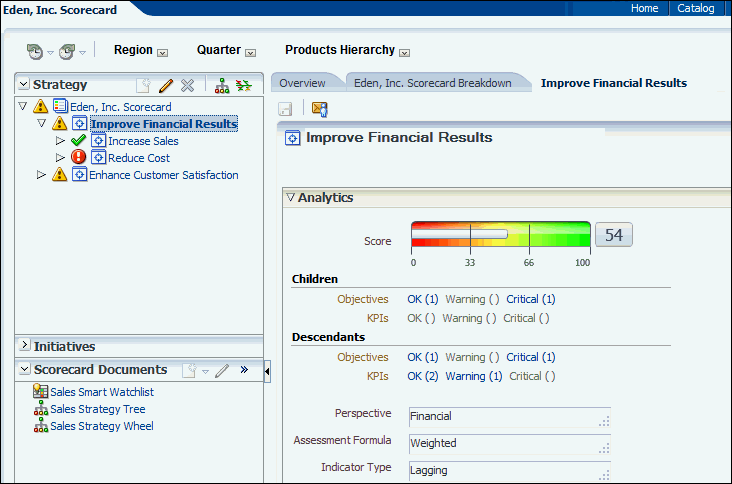
Double-click Improve Financial Results in the Strategy pane to view this objective in the right pane.
-
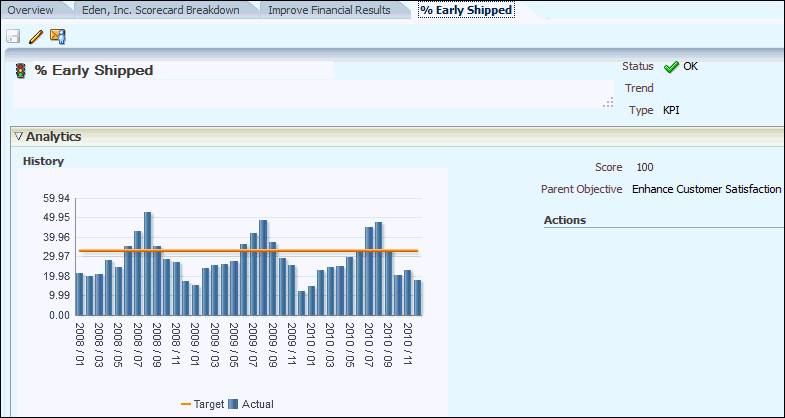
Expand Enhance Customer Satisfaction in the Strategy pane and double-click % Early Shipped to view this KPI in the right pane. You can also right-click the object and select Open.
-
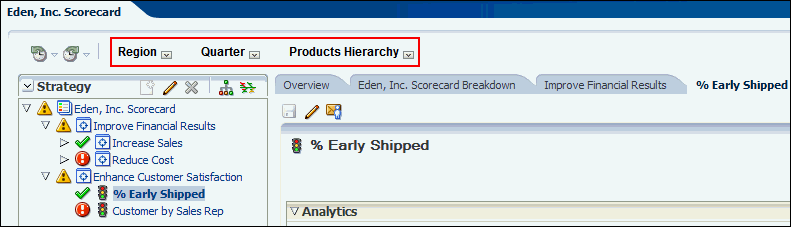
Use the dimensions in the Point-of-View bar to manipulate the KPI and view different results.
-
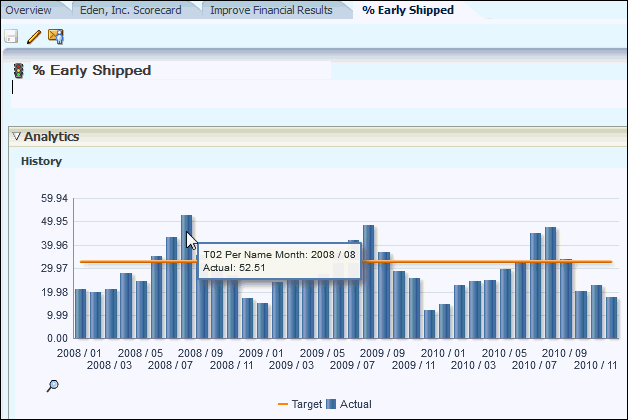
Move the mouse over the KPI graph to view pop-up information.
Summary
In this tutorial, you learned to:
- Create various KPIs
- Measure results with KPIs
- Create Scorecards
- Add Objectives, Weightage, Sub-objectives and KPIs to Scorecards
Resources
Credits
- Lead Curriculum Developer: Syed Khairulla
- Other Contributors: Kasturi Shekhar
To navigate this Oracle by Example tutorial, note the following:
- Topic List:
- Click a topic to navigate to that section.
- Expand All Topics:
- Click the button to show or hide the details for the sections. By default, all topics are collapsed.
- Hide All Images:
- Click the button to show or hide the screenshots. By default, all images are displayed.
- Print:
- Click the button to print the content. The content that is currently displayed or hidden is printed.
To navigate to a particular section in this tutorial, select the topic from the list.