
 Adding Parameters to a Data Model in Oracle Business Intelligence Publisher
 Before You Begin
This 15-minute tutorial shows you how to add parameters to a data model and test the parameters.
Background
Using parameters in a data model enables filtering the source data. The filtered data is used in reports.
In this tutorial, use the Demo data available in the Oracle Business Intelligence installation directory. You create a data set of products, and then use the text and menu type parameters to filter the product list based on the price limit and the supplier.
What Do You Need?
- Access to Oracle Business Intelligence Publisher as a BI Content Author
- Access to samples and demo data source installed and configured in the
${xdo.server.config.dir}/repository/DemoFilesdirectory when you installed Oracle Business Intelligence Publisher
 Create a Data Model
In this section, create a data model, develop a SQL query against the Products table, and then create a data set in the data model.
- Sign in to Oracle Business Intelligence Publisher with your credentials.
- On the Home page, click New, and then select Data Model.
- Select Data Sets, click New Data Set
 in the Diagram tab, and then select SQL Query.
 - In the New Data Set - SQL Query dialog box, enter
Product_Supplier_Pricein the Name field, selectdemofrom the Data Source list, and then selectStandard SQLfrom the Type of SQL list. - Click Query Builder.
- In Query Builder, select OE from the Schema list, and then select PRODUCTS.
- From Products, select the PRODUCT_ID, PRODUCT_NAME, SUPPLIER_ID, LIST_PRICE columns, and then click Save.
- In the New Data Set - SQL Query dialog box, view the SQL query you built in the Query Builder dialog box, and then click OK.
- Click Save
 .
. - In the Save As dialog box, from the Catalog pane, select My Folders, enter
Product_dmas the data model name, and then click Save.


 Add Parameters to the Data Model
In this section, add a text type parameter and a menu type parameter to the data model. Use a list of values (LOV) for the menu type parameter.
- In the Product_dm data model, click List of Values, click Create new List of Values , and then enter the following values:
- Name:
Supplier_Lov - Type:
SQL Query - Data Source:
demo - SQL Query:
Select supplier_id from products

Description of the illustration bip_ds_supplier_lov.png - Name:
- Click Parameters, click Create new Parameter , and then enter the following values for the P_SupplierID menu type parameter:
- Name:
P_SupplierID - Data Type:
String - Default Value:
102059 - Parameter Type:
Menu - Display Label:
Select a Supplier ID - List of Values:
Supplier_Lov - Number of Values to Display in List:
20

Description of the illustration bip_ds_supplier_id_param.png - Name:
- Click Create new Parameter , and then enter the following values for the P_PriceLimit text type parameter:
- Name:
P_PriceLimit - Data Type:
Integer - Default Value:
223 - Parameter Type:
Text - Display Label:
Price Limit - Text Field Size:
6

Description of the illustration bip_ds_price_limit_param.png - Name:
- In Data Sets, click Product_Supplier_Price, click the Diagram tab, click Edit Selected Data Set
 , add the following condition to the SQL query, and then click OK to save the data set:
where "PRODUCTS"."SUPPLIER_ID"=:P_SupplierId and "PRODUCTS"."LIST_PRICE"<:P_PriceLimit - Click Save .

 Test the Parameters in the Data Model
In this section, test the parameters in the data model.
- In the Product_dm data model, click View Data.
- In the Data tab, click View, and then click Table View.
- Enter
500in the Price Limit field, select 102081 from the Select a Supplier ID list, and then click View.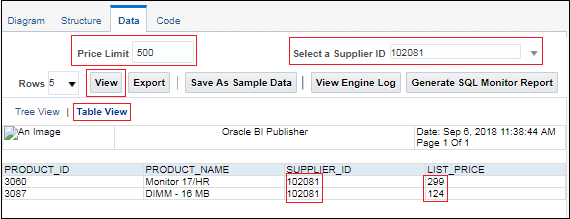
Description of the illustration bip_dm_view.png
 Want to Learn More?