Modify the Layout and Dimension Member Selections of the Report
This tutorial teaches you how to use OracleBI Discoverer Plus OLAP (Discoverer Plus OLAP), release 10.1.2.2, to create sophisticated business intelligence reports that use Oracle OLAP data. Discoverer Plus OLAP wizards and the interactive Discoverer Plus OLAP worksheet environment make the creation of OLAP reports quick and easy.
The Prerequisites topic contains information on the 10.1.2.2 Patch Set requirements.
Approximately 1 hour
This tutorial covers the following topics:
 Place the cursor over this icon to load and view all the screenshots for this tutorial.
(Caution: This action loads all screenshots simultaneously, so response time may be slow depending on your Internet connection.)
Place the cursor over this icon to load and view all the screenshots for this tutorial.
(Caution: This action loads all screenshots simultaneously, so response time may be slow depending on your Internet connection.)
Note: Alternatively, you can place the cursor over an individual icon in the following steps to load and view only the screenshot associated with that step. You can hide an individual screenshot by clicking it.
In this lesson, while learning to use the Discoverer Plus OLAP interface, you will create two reports that enable analysis of profit and margin trends for products across geographic regions. The first report enables product category analysis of profit and margin contribution for the top performing countries. The second report enables trend analysis of the same data from a regional perspective..
While creating these reports, you learn how to use various Discoverer Plus OLAP wizards and the interactive worksheet environment to develop and leverage analytic reports.
Reports created in Discoverer Plus OLAP can be then be accessed by executive managers and business analysts alike, using Discoverer Plus OLAP, OracleBI Discoverer Viewer, and OracleBI Discoverer Portlet Provider.
Before starting this tutorial, you should perform the following steps:
| 1. | Database: Have access to or have installed Oracle Database 10g Enterprise Edition with the OLAP Option, Oracle Database 10g Release 2, Patch Set 10.2.0.2 with the patch 5146470 or higher.
|
||||||||||||
| 2. | OracleBI Discoverer: Have access to or have installed Oracle BIDiscoverer that is contained in the Oracle Application Server 10g and Oracle Developer Suite 10g Release 2 (10.1.2) Patch Set 2 (10.1.2.2.0). The 10.1.2.2 Patch Set release package is available for download from Metalink, using the following steps:
|
||||||||||||
| 3. | Sample Schema: Have access to or have installed the Oracle BI Discoverer 10.1.2.2 samples. The 10.1.2.2 samples package includes an analytic workspace (AW) as part of its Common Schema sample data set. This OBE lesson uses the AW. To install the Common Schema data set, first download the archived 10.1.2.2 Samples from OTN to the computer that contains the Oracle Database. For instructions on installing the 10.1.2.2 Common Schema, use the following steps:
|
||||||||||||
In order to access OLAP data using Discoverer Plus OLAP, you must create the following:
|
A Connection: You must supply the appropriate connection information to connect to the OLAP data source through the Discoverer Plus Connection manager. |
|
|
A Workbook: The Discoverer container that is used to organize worksheets. | |
|
A Worksheet: The Discoverer object that contains an OLAP report. Every Discoverer OLAP worksheet contains a Crosstab and a Graph. You may choose to view the crosstab, the graph, or both. |
|
If both the crosstab and graph are visible, the following behavior is evident: |
||
| - Query | The crosstab and graph in a worksheet share the same query. They will both update when the query is modified in either the crosstab or the graph. | |
| - Layout | Optionally, a crosstab and graph may also have a linked layout. In this case, both update when the layout of one object is modified. You can un-link the layout of the crosstab and graph. | |
Complete these subtopics to create the Discoverer Plus OLAP report:
|
Create a Connection | |
|
Create a Workbook and Worksheet | |
| 1. | Open your browser by double-clicking on the appropriate icon on your desktop.
|
||||||||||||||||||
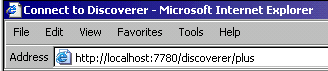
| 2. | Enter the URL for Discoverer Plus in the address line of your browser. The URL uses the following format:
Then, click Enter. For example, when the middle tier has been installed on the local machine and is listening on port 7780, the following URL may used to open the Discoverer Plus Connection manager window:
Result: The Discoverer Plus Connection manager displays in the browser.
|
||||||||||||||||||
| 3. | The Discoverer Plus Connection manager enables you to connect to Discoverer Plus OLAP in one of two ways. You can:
As shown in the screen shot, to connect to the Discoverer Plus OLAP sample schema by specifying the following:
Result: A new browser window opens, and Discoverer Plus OLAP aunchs. Once Discoverer Plus OLAP opens, the Workbook Wizard automatically displays. (Note: If the Discoverer Plus Connection manager window re-displays, minimize it.)
|
||||||||||||||||||
Create a Workbook and Worksheet
In Discoverer Plus OLAP, your analytic reports are stored as Worksheets. Worksheets are organized into containers called Workbooks.
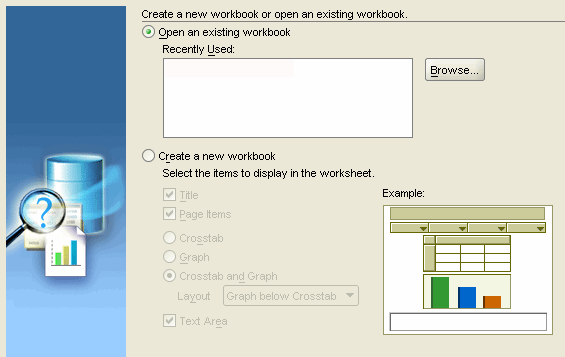
Once the connection to a Discoverer Plus OLAP data source is made, the Workbook Wizard is automatically displayed. The Workbook Wizard lets you open an existing workbook or create a new workbook.
Follow these steps to create a new workbook and a worksheet.
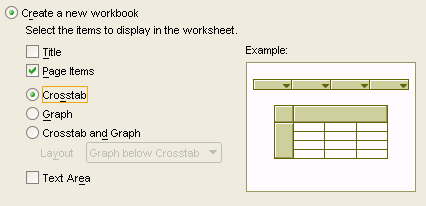
| 1. | When first displayed, the Workbook Wizard looks like this:
In the Workbook Wizard, select the Create a new workbook option. Then, within this option deselect everything except Page Items and Crosstab.
Click Next to continue.
|
||||||
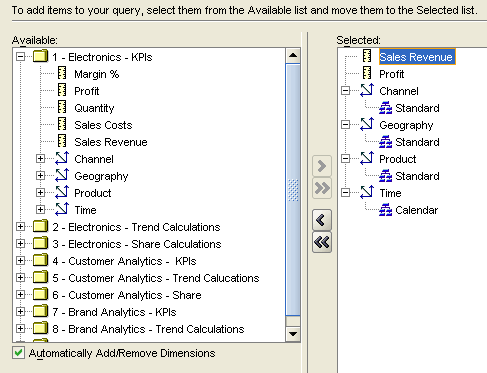
| 2. | In the Available list, open the Electronics – KPIs folder. Select the Sales Revenue and Profit measures. Use the Add Selected Items button (">") to move the measures from the Available to the Selected list.
|
||||||
| 3. | At this point in the wizard, you have two choices:
Shortly, you will modify the layout and specify dimension member selections for the report in an interactive fashion. Therefore, click Finish. In the Worksheet area of the Discoverer Plus OLAP window, the crosstab displays:
|
||||||
You can modify the layout of a report and specify members for each dimension in a query in the Workbook Wizard, or you can use the Available Items pane in the Worksheet environment to modify the report interactively.
In this topic, you will use the Available Items pane and Worksheet area to modify the dimension selections for dimensions in your report. In addition, you will modify the layout and presentation format of the report.
|
Use the Available Items Pane and the Worksheet Area | |
|
Modify the Geography Selection and Create a Saved Selection | |
|
Modify Other Dimension Selections and Enhance the Data Formatting | |
Use the Available Items Pane and the Worksheet Area
Modify the report layout and dimension selections interactively using the Available Items pane and the worksheet area, as follows:
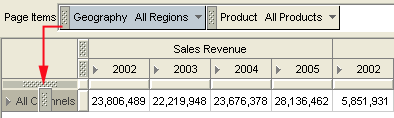
| 1. | In the worksheet, swap Channel and Geography, so that Channel is located in the Page Items area and Geography is located in the Row axis. To swap the position of two dimensions, drag one dimension tile on top of the other, as shown here:
|
||||||||||||
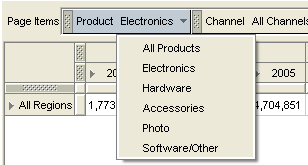
| 2. | Move Channel to the right of Product in the Page Items area. Since you did not select dimension members for this report by using the Worksheet Wizard, default dimension members are selected for you, as shown here:
|
||||||||||||
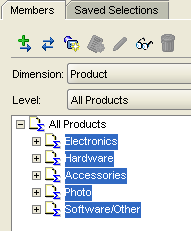
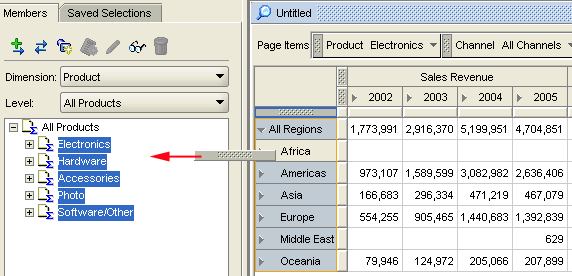
| 3. | Change the selection for Product by using the Available Items pane (to the left of the worksheet), as shown here:
The report should now contain the following Product members:
|
||||||||||||
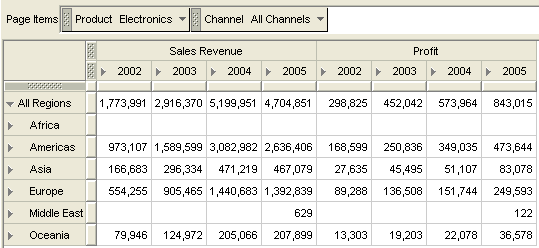
| 4. | In the report, drill on All Regions by clicking the drill icon.
|
||||||||||||
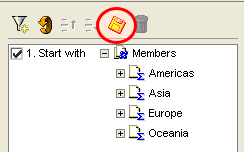
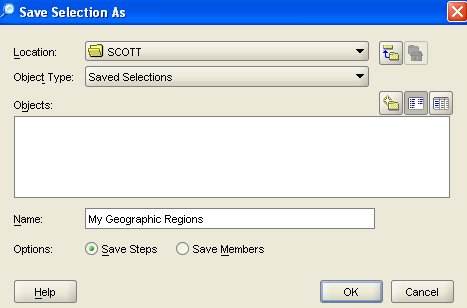
You can save any dimension selection for reuse. A Saved Selection records the selection criteria for a dimension in a query. Saved Selections are stored in the Discoverer Catalog and can be reused in other queries that reference the same dimension.
Next, you will modify the Geography dimension selection using several techniques. Then, you will save the resulting selection for reuse later in the lesson.
| 1. | You can remove any dimension member from a report by dragging it from the worksheet. As shown in the following example, remove Africa from the worksheet by dragging it to the Available Items pane.
Note: You can also add items to a report by dragging items onto the worksheet from the Available Items pane.
|
||||||||||||
| 2. | Replace the current dimension selection for Geography by performing the following:
|
||||||||||||
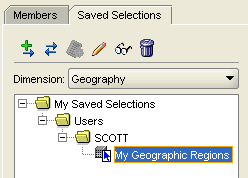
| 3. | Create a saved selection for the Geography dimension.
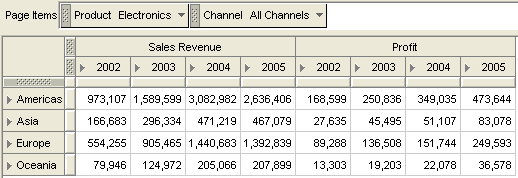
The worksheet should look like this:
|
||||||||||||
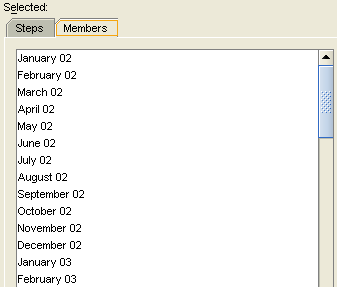
To modify the Time dimension selection, you will use a Hierarchy condition to return the months for 2002 through 2005. Then, you will select new Channel dimension members interactively. Finally, you will enhance the data formatting of the report by applying a currency format to the measures.
| 1. | First, drag the Time dimension to the Page Items area, to the left of Product, like this:
Then, launch the Edit Worksheet Wizard by either clicking the Edit Worksheet icon, or by selecting Edit > Worksheet from the menu.
|
|||||||||||||||
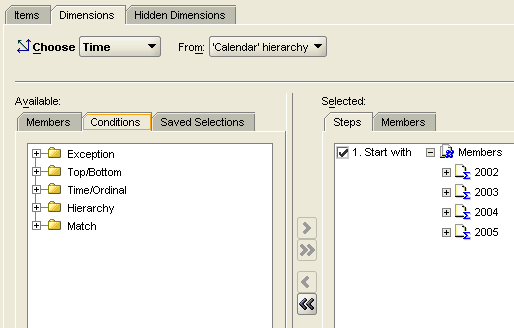
| 2. | In the Edit Worksheet Wizard, click the Dimensions tab (Time is selected by default), and then select the Conditions tab, as shown here:
|
|||||||||||||||
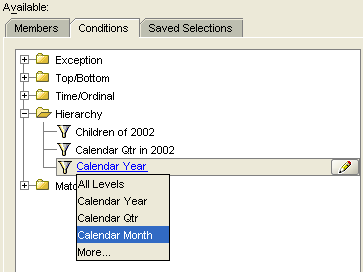
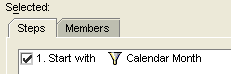
| 3. | To create the Time dimension condition, perform the following:
The worksheet updates with the new Time dimension selection.
|
|||||||||||||||
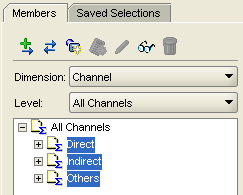
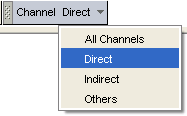
| 4. | Modify the Channel dimension selection interactively by using the Available Items pane next to the Worksheet area:
The report now enables analysis along channels of distribution.
|
|||||||||||||||
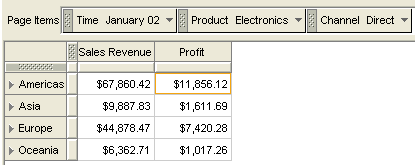
| 5. | Apply currency formatting to the Sales Revenue and Profit measures by selecting both measure columns and clicking the Format as Currency button. Hint: To select a column of data, click the bar just below the column header.
The worksheet should look like this:
|
|||||||||||||||
Now, you will add the Margin % measure to the worksheet and apply a Stoplight format to the Margin % data.
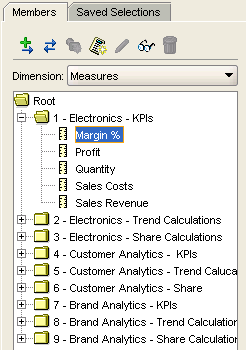
| 1. | In the Available Items pane, select Measures from the Dimension box.
|
|||||||||
| 2. | From the Electronics - KPIs folder, drag Margin % to the worksheet.
|
|||||||||
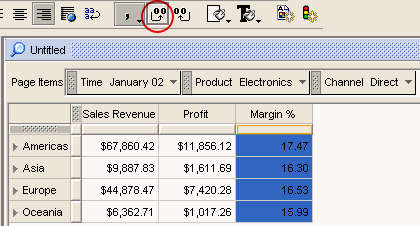
| 3. | Select the Margin % column in the worksheet and add two decimal places to the data by using the Add Decimals icon. The worksheet should look like this:
|
|||||||||
| 4. | Apply a stoplight format to the Margin % measure.
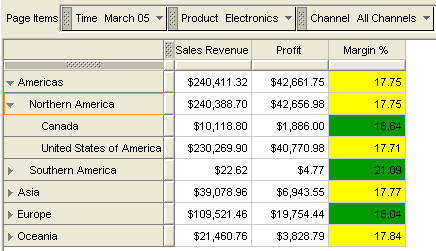
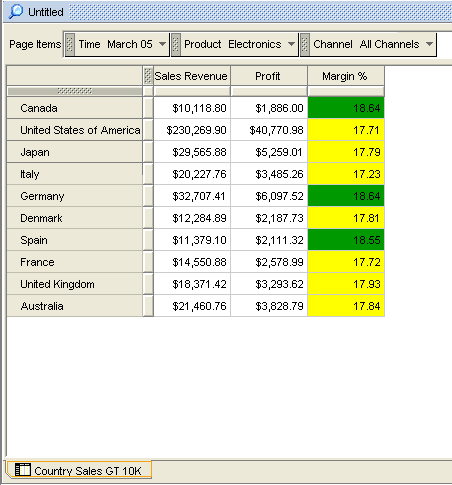
The crosstab reflects the new stoplight formatting, which is updated automatically when you select new dimension members from Page Items. Here is an example:
|
|||||||||
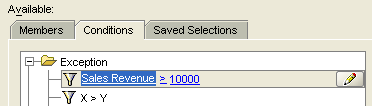
Next, you will modify the selection for the Geography dimension by using an Exception condition. The condition will to return all Country-level members that have revenue greater than $10,000.
OLAP dimension conditions are easy to use, since they are presented to the user in common business terms. In addition, they provide powerful analytic functionality without compromising query performance.
| 1. | Click the Edit Worksheet icon (or select Edit > Worksheet from the menu)..
|
||||||||||||
| 2. | In the Edit Worksheet Wizard, click the Dimensions tab, select Geography from the Choose box, and then remove the current selection.
|
||||||||||||
| 3. | Create the appropriate condition by performing the following:
|
||||||||||||
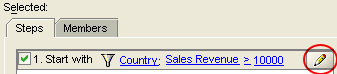
| 4. | You will now qualify this condition, so that any time a new Product, Time, or Channel member is selected from the Page Items area, the condition will be re-evaluated and return a new set of Country level values. Select the condition in the Steps tabbed page, and then click the Edit Step icon, as shown here:
|
||||||||||||
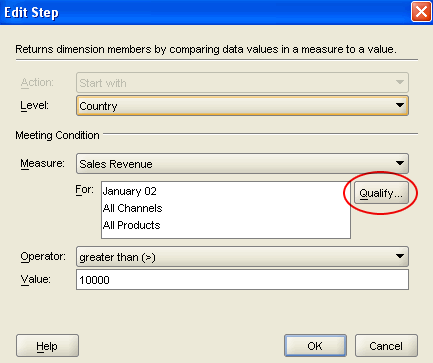
| 5. | In the Edit Step dialog box, click the Qualify button.
Notes: An OLAP exception condition or ranking condition returns the appropriate dimension members for the condition by using a specific combination of values for the remaining, or qualifying, dimensions in the query. The values for these dimensions are displayed in the For box. For example, as shown in the Edit Step dialog above, our exception condition would return all country level members with revenue greater than $10,000 for January 02, All Channels, and All Products. In an exception or ranking condition, you can use the Qualify button to select a different dimension member for each of the qualifying dimensions in the query. Even more, you can specify that the ranking condition should be re-executed each time you select a new member from a qualifying dimension that is in the Page Items region of the crosstab. To specify this kind of dynamic qualification, go to the next step in these instructions.
|
||||||||||||
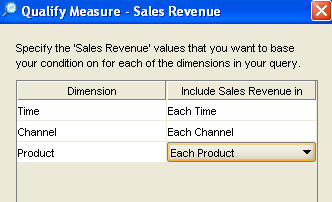
| 6. | In the Qualify Measure dialog box, select Each Time, Each Channel, and Each Product as shown below.
Hint: As mentioned previously, this enables the condition to automatically reevaluate when a new Time, Channel, or Product member is selected from the Page Item area. If you don't want the condition to re-evaluate, but want to return a set of countries for a particular Time, Channel, or Product member, simply select those members in this dialog box.
|
||||||||||||
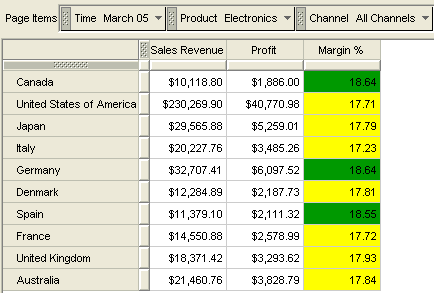
| 7. | Click OK to close the Qualify Measure dialog box. Then, click OK to close the Edit Step dialog box. Finally, click OK in the Edit Worksheet Wizard to execute the query. The resulting report should look similar to this:
|
||||||||||||
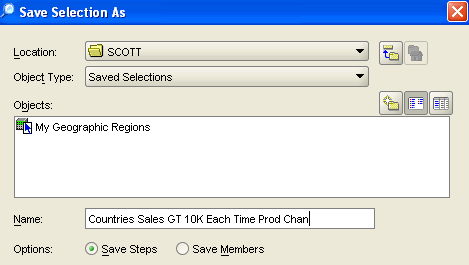
| 8. | Create a Saved Selection in order to save the exception condition for the Geography dimension.
|
||||||||||||
| 9. | Experiment with the report by selecting new Time, Product, and Channel members from the Page Items area. Notice how the dynamic update of the exception condition provides new information with each subsequent selection. The stoplight formatting is maintained and updated automatically. In addition, the reexecution of the query returns new data almost instantaneously. The high level of performance is directly due to the array-based design of the analytic workspace and the power of the OLAP calculation engine.
|
||||||||||||
| 10. | When you are done experimenting, give the worksheet a name.
|
||||||||||||
You can use an existing worksheet as the starting point to develop a new report. In this topic, you will create a new report using this method. The new report will focus on similar data, but will change the analytic emphasis of the report. In addition, you will add a graph to the new report.
Complete the following subtopics to create the new report and save the Workbook.
|
Duplicate the Worksheet and Modify the Query | |
|
Add a Graph to the Worksheet | |
|
Save the Workbook | |
Duplicate the Worksheet and Modify the Query
To create a new worksheet that uses the same query structure, you can duplicate an existing worksheet. Here, you will duplicate the current worksheet, but modify the query for regional analysis of the Geography dimension, rather than for exception analysis at country level.
| 1. | Right-click the worksheet tab (Country Sales GT 10K), and select Duplicate Worksheet from the menu. Result: A new worksheet with the name Copy of Country Sales GT 10K is created.
|
|||||||||
| 2. | Rename the new worksheet to Regional Analysis.
|
|||||||||
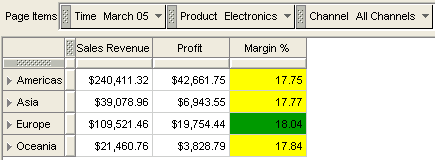
| 3. | Replace the current Geography selection with the My Geographic Regions saved selection:
The Geography dimension selection should be replaced with the four regional members in the saved selection, like this:
|
|||||||||
Even though you did not select a graph for the worksheet when you first created the report, both a crosstab and a graph are always available. You can choose to display either or both presentations of the data in any worksheet.
Use the following steps to display and modify a graph in order to enhance the analytic content of the report.
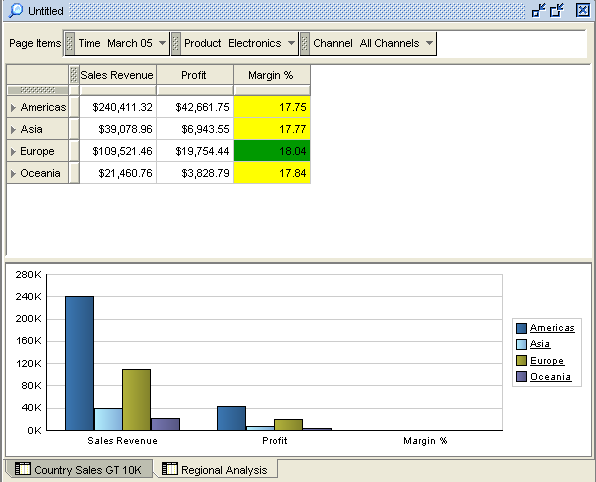
| 1. | Select View > Graph from the menu bar. Result: A default Bar graph for the current query appears.
When you select new dimension members from the Page Items area, the crosstab and graph automatically update. The graph and crosstab share the same query, and by default, they contain linked layouts.
|
||||||
| 2. | Unlink the presentation layouts by selecting Edit > Link Crosstab and Graph Layouts. Hint: The feature is a toggle and is enabled by default. Unlinking the layouts enables you to provide different layouts for the graph and crosstab in the worksheet. Result: Page Item dimensions are now visible above both the crosstab and the graph.
|
||||||
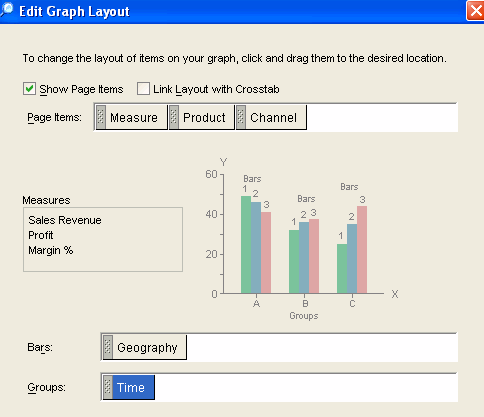
| 3. | Right-click the graph, and select Edit Graph Layout from the menu.
|
||||||
| 4. | In the Edit Graph Layout dialog box, drag the graph item tiles so that: a. Time is in the Groups area
|
||||||
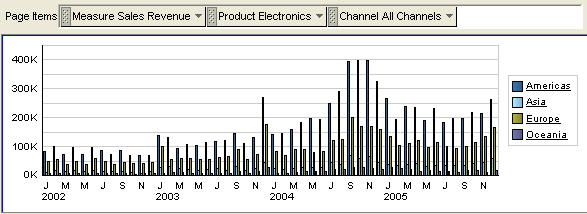
| 5. | Click OK to view the graph, which should look like this:
|
||||||
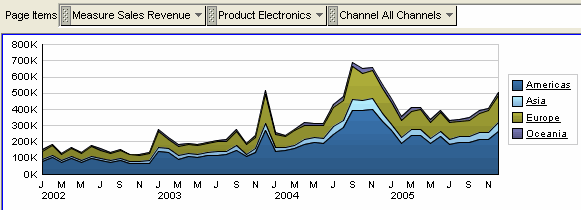
| 6. | Change the graph type as follows:
The graph should now look like this:
|
||||||
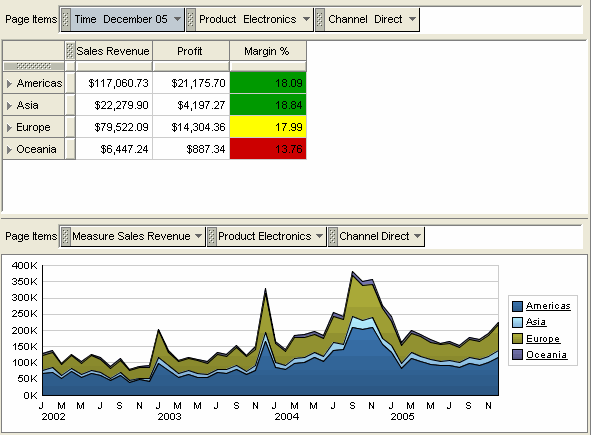
| 7. | From the Page Items section of the graph, select Direct from the Channel dimension. Because both the graph and the crosstab share the same query, both are updated automatically. | ||||||
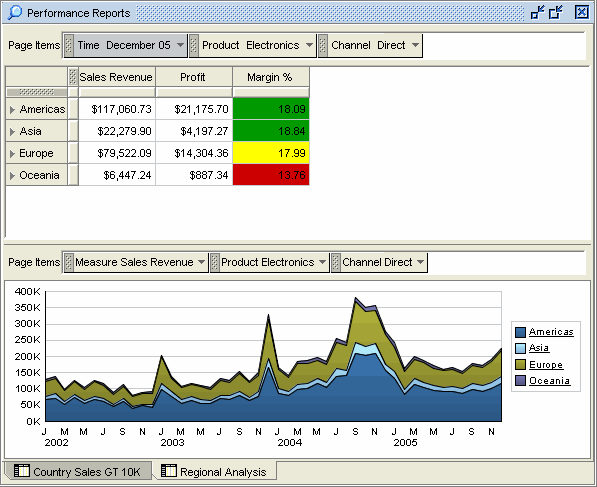
| 8. | From the Page Items section of the crosstab, select December 05 from the Time dimension. Because layouts are unlinked, the user can view one time period in the crosstab while simultaneously viewing history for all time periods in the graph. The worksheet should now look something like this:
|
||||||
| 1. | From the menu bar, select File > Save.
|
| 2. | Name the workbook as Performance Reports, and click OK. The workbook should look like this:
|
| 3. | Experiment with the worksheet. For example, select new dimension members in both the graph and the crosstab. Or, you can select a new Measure in the graph. When you are done experimenting, select File > Save from the menu. |
In this lesson, you learned how to:
|
Use Discoverer Plus OLAP to access data in an OLAP analytic workspace. | |
|
Use both the Worksheet Wizard and the interactive worksheet environment to analyze the data. | |
|
Create Saved Selections for reuse in other queries. | |
|
Apply conditional query criteria to enhance the analytic effectiveness of your reports. | |
|
In the next lesson, you will use Discoverer Plus OLAP to add another worksheet to the workbook that you created in this lesson. In the third worksheet, you will use a new feature in the 10.1.2.2 release: Calculated Members. |
|
To learn more about Oracle Business Intelligence features of the AS/DS 10G R2 PATCH SET 2 (10.1.2.2) release, refer to additional OBEs in the same focus area. |
Place the cursor over this icon to hide all screenshots.