This tutorial shows you how to configure an application to use Oracle Coherence*Web while running on Oracle WebLogic Server.
Approximately 90 minutes
This tutorial covers the following topics:
 Place the cursor over this icon to load and view all the screenshots for this tutorial.
(Caution: This action loads all screenshots simultaneously, so the response
time may be slow depending on your Internet connection.)
Place the cursor over this icon to load and view all the screenshots for this tutorial.
(Caution: This action loads all screenshots simultaneously, so the response
time may be slow depending on your Internet connection.)
Note: Alternatively, you can place the cursor over each individual icon in the following steps to load and view only the screenshot associated with that step.
Oracle Coherence*Web is an extension module that is built on top of Oracle Coherence and handles HTTP session management for Web application servers such as Oracle WebLogic Server, IBM WebSphere, Tomcat, and others. Coherence*Web support can be added to Oracle WebLogic Server in just a few steps because it is packaged as a native WebLogic session management Service Provider Interface (SPI).
After the SPI is installed on a WebLogic Server (WLS) domain, there are a few additional steps needed to enable Coherence*Web in an application. Coherence*Web does not replace the native Web session caching of WebLogic Server. If an application is not specifically configured for it, that application will use the regular WebLogic Server HTTP Session functionality.
This tutorial is the second of a two-part tutorial that covers using Coherence*Web for applications on a WLS domain. Part 1 covered the installation of the required patches and libraries on the WebLogic Server domain itself. This part covers the configuration of an application to use Coherence*Web and testing it against two separate running domains.
This tutorial uses the Eclipse integrated development environment (IDE), which needs an additional software package from Oracle installed. The Oracle Enterprise Pack for Eclipse (OEPE) is a free extension for Eclipse that streamlines development for and deployment to Oracle WebLogic Server. There is a previous tutorial that covers setting up Eclipse with OEPE for use with Oracle Coherence; it can be found here. If you have previously completed that tutorial, your Eclipse installation should be properly configured to immediately start this one. If you have not completed that tutorial, you can either do so in its entirety first or just complete section 1.3 of it.
The steps in this tutorial involve creating and configuring an Eclipse workspace and project, and establishing the basic resources needed for an application to take advantage of Coherence*Web. The code has been provided for you and it contains a simple servlet and a JavaServer Page (JSP). The servlet and JSP simply populate and access data in the HttpSession, and will not contain any Coherence-specific code. After the code is imported, you will deploy the application to both the WebLogic Server domains that you created in Part 1. The application will not initially contain the Coherence*Web configuration, so you can observe the behavior of the same application running on two completely independent WLS domain instances. You will then make the necessary configuration changes for Coherence*Web, and will deploy and test the application again and see how two independent domains share the same session information. As a final step, you will use the software load balancer that is included for testing the application with Coherence in a more realistic manner.
Before starting this tutorial, you should:
| 1. | Have completed Part 1 of this tutorial and met all its prerequisites:
This tutorial refers to locations on your system in the following way:
|
| 2. | Have Eclipse 3.4 SR2 installed (Ganymede) and the Oracle Enterprise Pack for Eclipse added to it. (For more information, see Section 1.3 of the tutorial titled "Oracle Coherence and Oracle WebLogic Server: Setting Up an Eclipse Development Environment," which can be found here.)
|
| 3. | Consult the following documentation before this tutorial:
|
In this topic, you choose the basic workspace, create a dynamic Web project, and establish the WebLogic Server run-time settings.
Important: Remember that this tutorial assumes that you have the Oracle Enterprise Pack for Eclipse installed. Refer to the Prerequisites section if you have questions.
|
Open a workspace and create a project | |
1. |
Launch Eclipse.
|
2. |
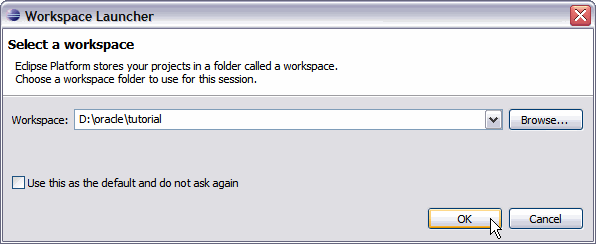
You will be presented with the Eclipse Workspace Launcher. Choose a location for your workspace—for example, D:\oracle\tutorial. This location is referred to as $WORKSPACE from this point forward.) Click OK.
|
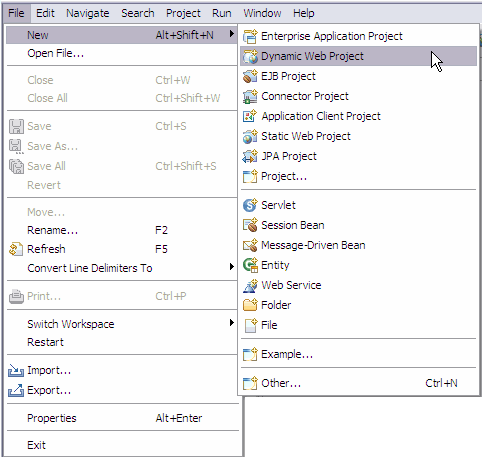
| 3. | Select File > New > Dynamic Web Project.
|
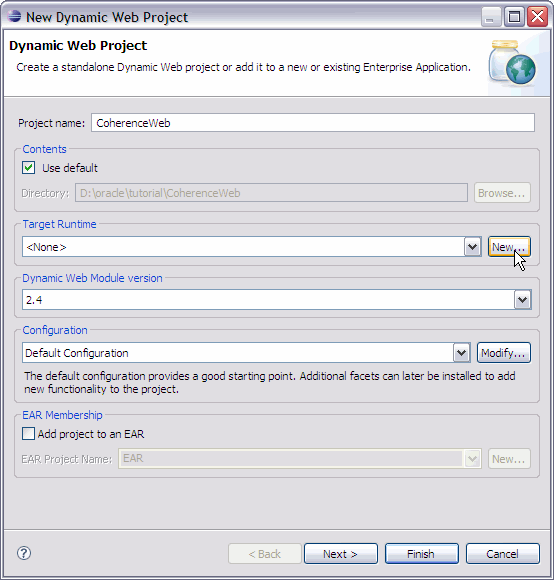
| 4. | Name the project CoherenceWeb and click the New button for Target Runtime.
|
| 5. | Select Oracle > Oracle WebLogic Server 10gR3 as the type and click Next.
|
| 6. | Browse to the WebLogic Server home ($MIDDLEWARE_HOME\wlserver_10.3) and click Finish.
|
| 7. | The Dynamic Runtime Module version will automatically update to 2.5 and the Configuration will set to Default Configuration for Oracle WebLogic Server 10gR3. No further configuration is needed. Click Finish.
|
|
Import the application code | |
| 1. | Download the code.
|
| 2. | Unzip the files to a temporary location. You refer to this temp location as $STARTER_SOURCE.
|
| 3. | In Eclipse, expand the CoherenceWeb project in the Project Explorer.
|
| 4. | Right-click CoherenceWeb and select Import > Import.
|
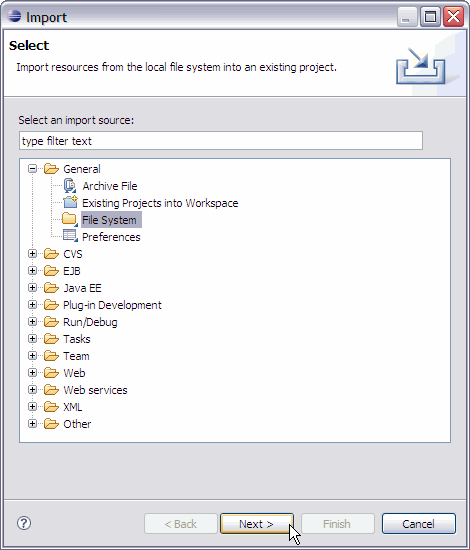
| 5. | Expand the General category and select File System. Click Next.
|
| 6. | In the From Directory field, browse to $STARTER_SOURCE/tutorial_start. |
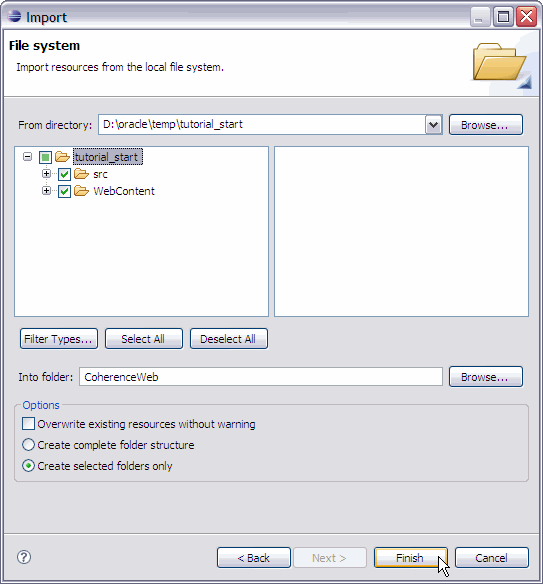
| 7. | Expand tutorial_start and select the check boxes for the src and WebContent folders only.
Accept all other defaults and click Finish.
|
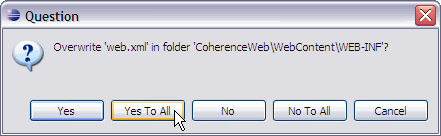
| 8. | Click Yes To All when prompted by a Question dialog box that asks you whether you want to overwrite the files in the project.
|
| 9. | Expand the Java Resources/src/obe.coherence tree as well as the WebContent tree.
|
| 10. | Open the SessionTest1.java servlet code and the getSessionValue1.jsp code in the Source view. |
| 11. | Note that in the SessionTest1 servlet, it is the doGet() method that performs all the functions.
protected void doGet(HttpServletRequest request, HttpServletResponse response) throws ServletException, IOException { // Put a value in the session, use a String (which is Serializable) int serverPort = request.getLocalPort(); String testVal = "Test Value: " + serverPort + ":" + java.lang.System.currentTimeMillis(); // Add to the session request.getSession().setAttribute("testVal", testVal); System.out.println("\n Server: " + serverPort + ":: Attribute added to Session. " + testVal); response.setContentType(CONTENT_TYPE); PrintWriter out = response.getWriter(); out.println("<html>"); out.println("<head><title>Oracle Coherence*Web Simple Test 1 - Session Data Loader</title></head>"); out.println("<body>"); out.println("<p>Simple Test 1 - Session Data Loader Servlet</p>"); out.println("<p>Server: " + serverPort + "</p>"); out.println("<p>This servlet loaded the following value as a Session Attribute: <code>" + testVal + "</code></p>"); out.println("</body></html>"); out.close(); } |
| 12. | Now look at the getSessionValue1 JSP. It is very similar to the code in the SessionTest1 servlet, but instead of creating a test value and putting it in the session, it looks for the pre-existing value in the session (put there by the SessionTest1 servlet). If no value is found, the JSP indicates that the test value is null. It also prints a statement to the WLS console window so that you can determine which server ran the JSP. <%@ page contentType="text/html; charset=ISO-8859-1" pageEncoding="ISO-8859-1"%> <!DOCTYPE html PUBLIC "-//W3C//DTD HTML 4.01 Transitional//EN" "http://www.w3.org/TR/html4/loose.dtd"> <% String sessionVal = null; int thisServerPort = request.getLocalPort(); sessionVal = (String) session.getAttribute("testVal"); System.out.println("\nJSP on server " + thisServerPort + " has retrieved value " + sessionVal + " from current Session"); %> <html> <head> <meta http-equiv="Content-Type" content="text/html; charset=ISO-8859-1"> <title>Oracle Coherence*Web Simple Test 1 - Session Data Retriever</title> </head> <body><p>The server that is running this JSP is on port: <%= thisServerPort %></p> <p>Value in Session is: <%= sessionVal %></p> </body> </html>
|
| 13. | Look at the Problems view in Eclipse and ensure that there are no errors. |
The Oracle Enterprise Pack for Eclipse extensions make deployment and testing with WebLogic Server fast and easy. This brief section will have you create a server profile for each of the WebLogic Server domains that you created in Part 1 of this tutorial.
|
Create the WebLogic Server configuration profiles in Eclipse | |
To create the server configurations in Eclipse so you can easily deploy and test your application, perform the following steps:
| 1. | Launch the domains that you created in Part 1 of this tutorial. (The domain names are WLS_A and WLS_B, and you can launch both by running the startWebLogic.cmd script in each of the root directories. Ensure that the domains start without any errors.
|
| 2. | Click the Servers view at the bottom of the Eclipse interface.
|
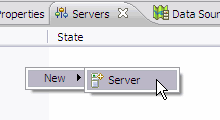
| 3. | Right-click inside the Servers view and select New > Server.
|
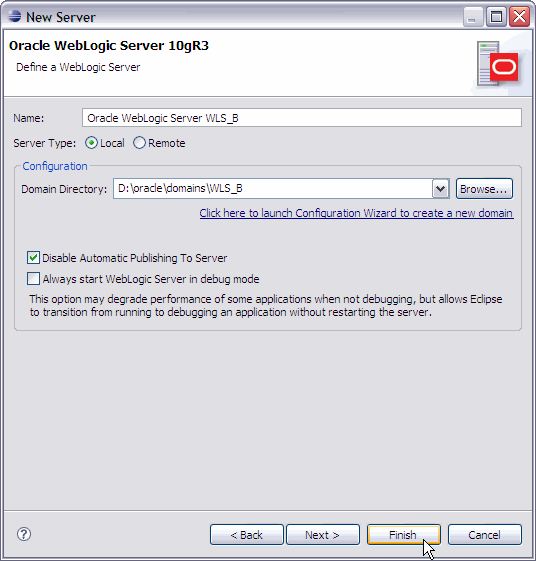
| 4. | Expand the Oracle category and select Oracle WebLogic Server 10gR3. Set the name to Oracle WebLogic Server WLS_A and click Next.
|
| 5. | Browse to the location of the WLS_A domain and again change the name to Oracle WebLogic Server WLS_A. Click Finish.
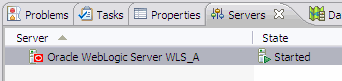
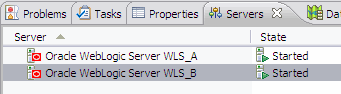
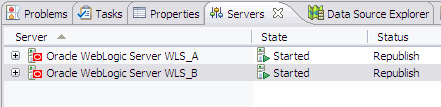
Ensure that the server’s listed state is Started in the Servers view.
|
| 6. | Perform steps 1 through 5 again, but provide the name of the server as Oracle WebLogic Server WLS_B and point it to the location of your WLS_B domain.
|
| 7. | When you have created both server profiles, ensure that they are listed as Started in the Servers view.
|
Before enabling Coherence*Web support for the application, run the application as is so that you can better understand the difference between native WebLogic session operation and Coherence*Web session caching.
|
Deploy the application to the servers | |
|
Test the application | |
To deploy the application to the servers, perform the following steps:
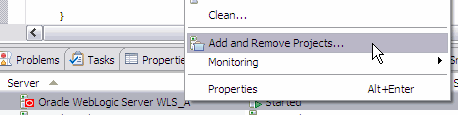
| 1. | Deploy the application to the WLS_A server. Right-click Oracle WebLogic Server WLS_A in the Servers view and select Add and Remove Projects.
|
| 2. | Click the Add All button to add the application to Configured projects for WLS_A and click Finish to publish it to the server.
|
| 3. | Ensure that there are no errors in the WLS_A server window and that the Status shown for WLS_A in the Servers view in Eclipse is Synchronized.
|
| 4. | Repeat steps 1 through 3 for the WLS_B server.
|
To test the application, perform the following steps:
| 1. | Launch a Web browser and connect to the SessionTest1 servlet on WLS_A. (Remember that WLS_A has a port number of 7001, and WLS_B has 7201.) http://localhost:7001/CoherenceWeb/SessionTest1 Note the data shown in the browser as well as in the console window for WLS_A.
|
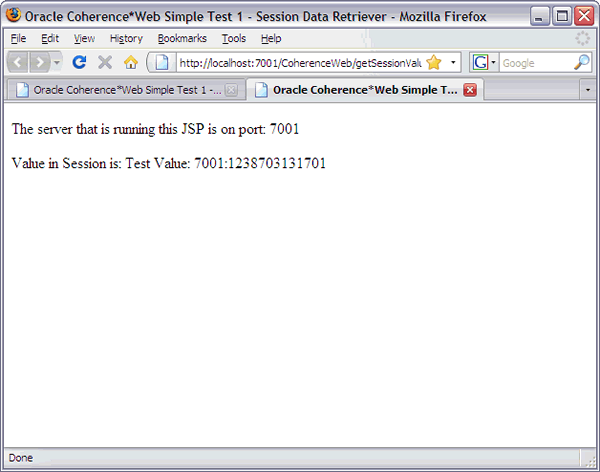
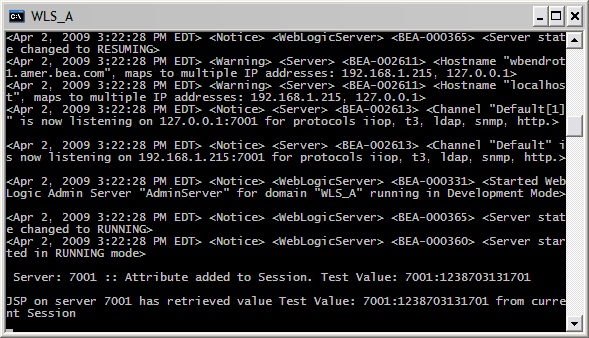
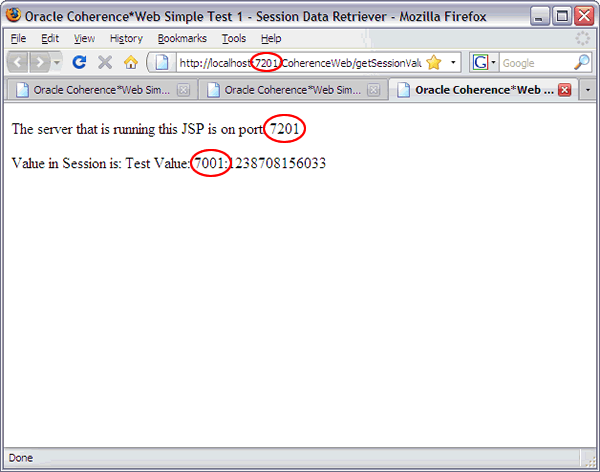
| 2. | Now, launch either a new browser window or tab and connect to getSessionValue1.jsp on WLS_A. http://localhost:7001/CoherenceWeb/getSessionValue1.jsp Note that the data shown in the browser matches the data put there by the SessionTest1 servlet. Also note that the port indicated is 7001 for “server running this JSP” and that the first four digits of the test value are also 7001. This means that the server that created the value is WLS_A.
Additionally, there should be a print statement in the WLS_A console window indicating that it ran the JSP.
|
| 3. | Start another browser window or tab and connect to the JSP (not the servlet) on WLS_B. http://localhost:7201/CoherenceWeb/getSessionValue1.jsp Note that the value returned is null this time. Do you understand why?
At this stage, both the WebLogic Servers are completely independent of one another. Even though they run the exact same application, there is nothing linking the active sessions from one to the other. The connection that you made in step 3 to WLS_B is an entirely new HttpSession that belongs only to WLS_B. But in part 1 of this tutorial, didn’t you add the Coherence*Web SPI library to both the domains? Yes, you did, but several additional configuration changes must be made to the deployment descriptors of your application to let WebLogic Server know that you want to use Coherence*Web session caching instead of the native WebLogic session caching. Adding the libraries to the domains are only a part of the process.
|
| 4. | Close your browser windows.
|
There are two stages to the configuration changes that are needed to use Coherence*Web:
The first stage is the addition of a shared library reference in the weblogic.xml deployment descriptor of the application. The weblogic.xml descriptor contains WLS-specific deployment directives for your application. The shared library, in this case, is coherence-web-spi.war that you added in Part 1, and is a shared resource in the domain.
The second stage is the addition of the coherence.jar file that the application requires to resolve Coherence class references. You already copied this jar file to the $DOMAIN_HOME\lib folder of both your domains. As mentioned earlier, this placement of coherence.jar puts the Coherence class files on the system classpath of each server, and is referred to as application server scoped. Alternatively, you can place the jar file in the APP-INF\lib folder of an EAR to scope Coherence to your application, or in the WEB-INF\lib folder of a Web application to scope Coherence only to that Web application. See http://download.oracle.com/docs/cd/E14526_01/coh.350/e14536/wslinstall.htm#COHCW147 for more details.
|
Add the required libraries to the application | |
1. |
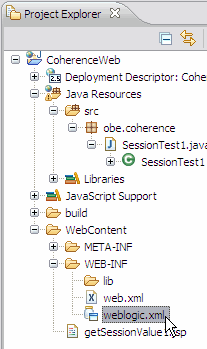
Add the shared library reference in weblogic.xml. Expand the WebContent/WEB-INF folder of the Coherence*Web application in the Project Explorer view in Eclipse. Open the weblogic.xml file in the Source view.
|
2. |
Click the Source tab at the bottom of the Source view and add the following lines to the descriptor (above the final </wls:weblogic-web-app> ). <wls:library-ref> <wls:library-name>coherence-web-spi</wls:library-name> <wls:specification-version>1.0.0.0</wls:specification-version><wls:implementation-version>1.0.0.0</wls:implementation-version> <wls:exact-match>false</wls:exact-match> </wls:library-ref>
Save the file.
|
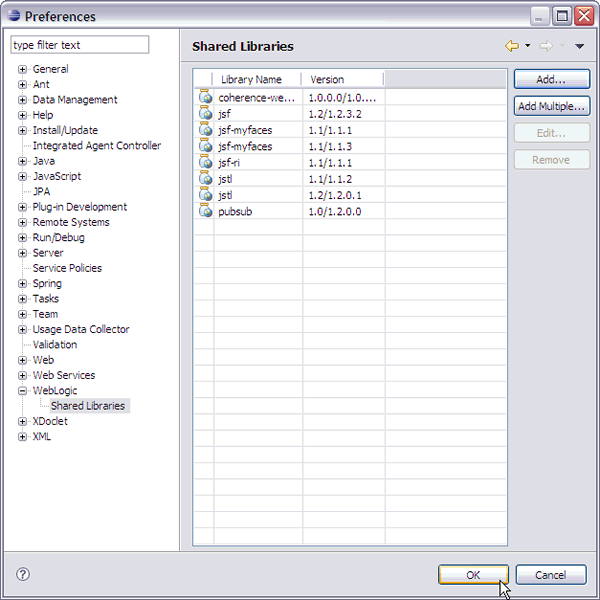
| 3. | Select Window > Preferences > WebLogic > Shared Libraries and click Add.
|
| 4. | Browse to $COHERENCE_HOME\lib\coherence-web-spi.war. Click OK.
|
| 5. | Click OK again in the Preferences dialog box.
|
| 6. | If you have not copied $COHERENCE_HOME\lib\coherence.jar to the $DOMAIN_HOME\lib folder for both WLS_A and WLS_B domains, copy it now.
|
Now that the Coherence*Web configuration has been applied to the tutorial application, you deploy it to the servers and run the tests again to compare the behavior between the native WebLogic Server session and the Coherence*Web session caching.
|
Deploy and test the application | |
1. |
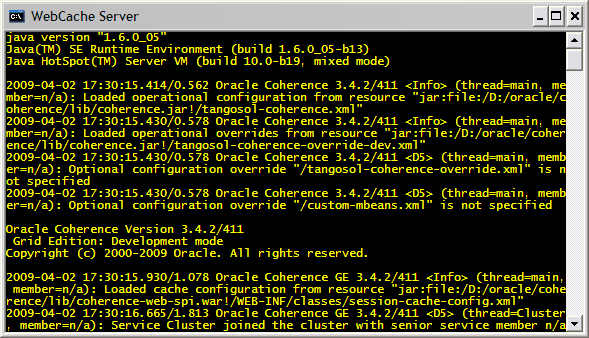
Start the Coherence cache by launching the $COHERENCE_HOME\bin\web-cache-server.cmd script that you created in Part 1 of this tutorial.
|
2. |
Note that the Status for both server instances in the Servers view in Eclipse currently reads as “Republish.” This is because the code was updated and there is now a mismatch between the code that Eclipse has and the code that is deployed to WebLogic Server.
Right-click each server and select Publish.
Note that while the application is deployed this time, you see activity in both the WebLogic console windows and the Coherence cache server window. Because the application now has Coherence*Web support enabled, as the application is deployed, it joins the Coherence cluster.
|
| 3. | Launch your browser again and test the servlet on WLS_A. http://localhost:7001/CoherenceWeb/SessionTest1 The result is the same as the previous test (as it should be). WLS_A at port 7001 creates a string containing its port marker and the current time stamp and places it in the HttpSession.
|
| 4. | Now, like before, test the JSP on WLS_A. http://localhost:7001/CoherenceWeb/getSessionValue1.jsp Again, this matches the outcome from the previous test exactly. The JSP on WLS_A is able to retrieve a session value placed by a servlet running in the same session on the same server.
|
| 5. | Now, test the JSP on WLS_B. http://localhost:7201/CoherenceWeb/getSessionValue1.jsp This time, the JSP on WLS_B is able to retrieve a value created on WLS_A, placed in a session that previously existed only on WLS_A. This is Coherence*Web in action.
In this simple tutorial, you saw how two completely independent application servers could have identically deployed applications that enable users to share sessions between the servers. In actual practice, this could be two separate clusters, perhaps geographically separated by thousands of miles. But it is not at all common for a user to ever manually switch between servers for the same application as you just did in this test. The actual way an application would be served to users would be via an entity known as a load balancer, which will be covered in the final part of this tutorial.
|
Now, as just stated, in the real world, you would not have a user manually switching between independent server instances. You would have an automated way of routing users to a given server based on criteria such as which server is currently under the least user load. Or if there was a server failure, you would ideally want a user to be sent to an alternate or backup server without them ever knowing about the failure. This is the job of a load balancer.
The load balancer is actually where the user connects to, and the load balancer routes the user to the determined server behind the scenes. If the user could see the port number that is in use, as you saw during the tests, the user would connect to the load balancer’s port and would never see the ports of the actual servers.
Oracle Coherence comes with a simple software-based load balancer that is used for simple development testing. This final section takes you through its use, and you test the application again.
In this topic, you use the simple load balancer that is provided with the Oracle Coherence installation and perform a final test that better resembles how a Coherence*Web–enabled application would be accessed in the real world.
|
Launch the Load Balancer and perform a final test | |
1. |
Open another command-line window and go to $COHERENCE_HOME\lib.
|
2. |
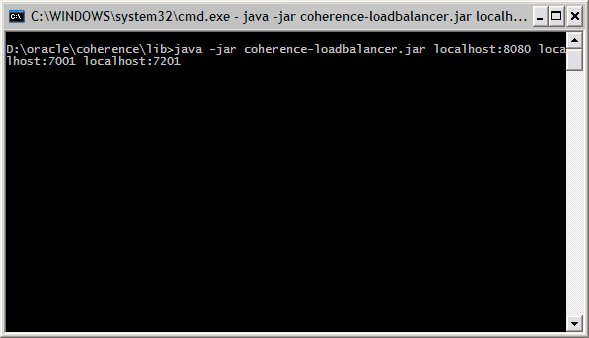
The load balancer takes the following syntax: java -jar coherence-loadbalancer.jar <LoadBalancerAddr:PORT> <LBTargetAddr:PORT> <LBTargetAddr:PORT> <LoadBalancerAddr> is the IP or DNS name for the load balancer itself followed by a colon, and then its port number. For this test, give the load balancer a port number of 8080. (If that port conflicts with another application running on that port on your particular system, feel free to give another; just make sure it is not either 7001 or 7201). The <LBTargetAddr> entries are for the entities that are to be load balanced, namely WLS_A and WLS_B. The port numbers for each should match the ports that have been used throughout the tutorials, 7001 for WLS_A and 7201 for WLS_B. So the command that you should issue is: java - jar coherence-loadbalancer.jar localhost:8080 localhost:7001 localhost:7201 There may not be any response or feedback from the command. This is okay.
|
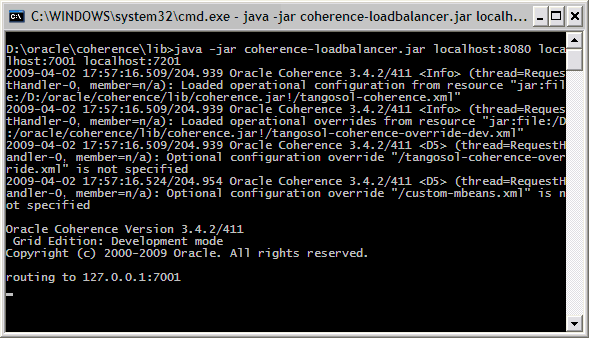
| 3. | Launch your Web browser and test the servlet. But remember to use the load balancer’s port number (8080) and not 7001 or 7201. http://localhost:8080/CoherenceWeb/SessionTest1 You should now see activity on the load balancer console.
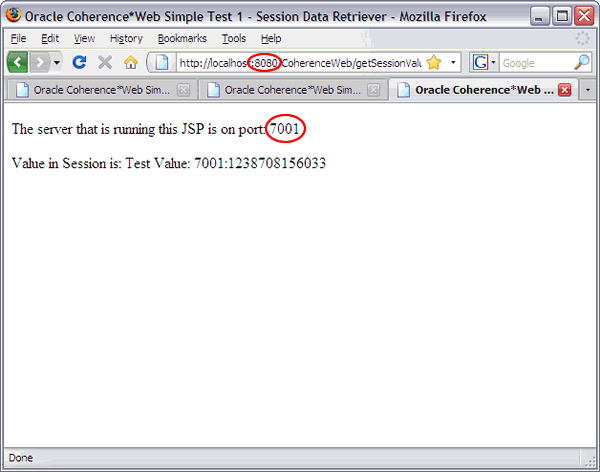
You get a response in the JSP that indicates that one of the WLS instances replied. The browser output will show a port number of 7001 or 7201, but the address bar will show 8080. You connected to the load balancer, which then routed the request to one of the servers.
|
| 4. | Connect to the JSP again using the load balancer’s port number. http://localhost:8080/CoherenceWeb/getSessionValue1.jsp The load balancer again logs the route, but note that it used 7201 this time. This is because the Coherence load balancer performs load balancing in a round-robin fashion, meaning it alternates sequentially through each load balance target that it has listed.
The output of the JSP shows that it was run on 7201, but retrieved a value created on 7001 (WLS_A).
You have now seen a pair of independent WebLogic Server instances sharing HttpSession information with client access provided via a load balancer. You could have two or 200 WebLogic Server instances and if they all had the same application and Coherence*Web enabled, it would work exactly the same way. |
| 5. | You can now undeploy the application from the WebLogic Server domains and shut down the domains and the Coherence cache server instance.
|
Although this tutorial only briefly described how to use Oracle Coherence*Web with Oracle WebLogic Server, it provided the foundation for getting a working development environment up and running.
In this lesson, you learned how to:
|
Configure a Java Web application to use Oracle Coherence*Web for HttpSession sharing while running on Oracle WebLogic Server | |
To learn more about Oracle Coherence*Web, you can refer to:
|
Oracle Coherence on OTN | |
|
Oracle Coherence 3.4x Documentation | |
|
Oracle Coherence Knowledge Base Dashboard | |
|
Oracle Coherence Incubator | |
|
Oracle Coherence OBE section on the OTN Web site | |
Place the cursor over this icon to hide all screenshots.