Before You Begin
Purpose
In this tutorial, you learn how to create, search, modify, and delete the main Oracle Identity Manager entities: users, roles, and organizations.
Time to Complete
30 minutesContext
This tutorial is a part of the Getting Started with Oracle Identity Manager(OIM) 11gR2 PS3 series which includes:
- Installing a Database for Identity and Access Management (IdM) Suite
- Setting-up an Oracle Identity Manager 11gR2 PS3 environment
- Getting Started with Oracle Identity Manager Entities (this tutorial)
- Provisioning OIM Accounts
Background
Oracle Identity Manager Entities - An OverviewOracle Identity Manager manages an organizations'
accounts, privileges, and authorizations through
entities. This tutorial covers three of the most
basic OIM entities: Users, Roles, and Organizations.
Note: For
more information about other OIM entities such as
administration roles, refer to the Oracle Identity
Management 11g documentation or the Oracle Identity
Governance 11g R2: Essentials course (links provided
in the 'Want to Learn More section).
What Do You Need?
For completing this tutorial you will need:
- An
Environment with an Oracle Identity
Management 11gR2 PS3 Environment installed and
running.
Note: The tutorial Setting-up an Oracle Identity Management 11gR2 PS3 Environment provides instructions on how to setup an Oracle Identity Management 11g R2 PS3 environment.
Creating Organizations
An organization entity represents a logical container of entities such as users and other organizations in Oracle Identity Manager. Organizations are containers that can be used for delegated administrative models. In addition, an organization defines the scope of other Oracle Identity Manager entities, such as users. Oracle Identity Manager can have a flat organization structure or a hierarchical structure, which means that an organization can contain other organizations. The hierarchy represents departments, geographical areas, or other logical divisions facilitating management of Oracle Identity Manager entities.
In this section you will create a organization called Marketing. You will perform this task using the Oracle Identity Manager Identity Self Service Console.
-
Open the browser and enter the url http://host01.example.com:14000/identity . The Identity Self Service Console login page is displayed. Enter xelsysadm as the username and Welcome1 as the password. Click Sign In.

Description of this image -
Click Manage:
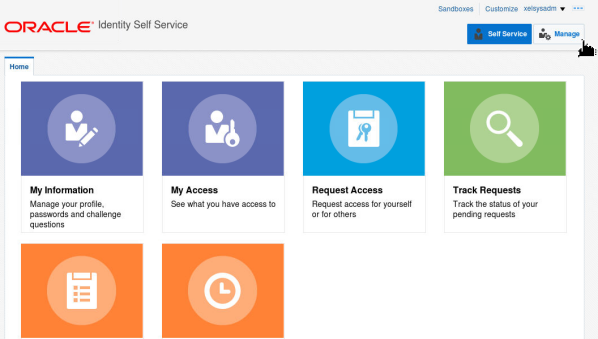
Description of this image -
Click Organizations:
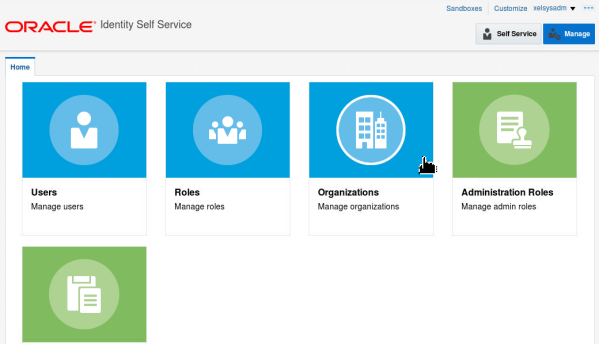
Description of this image -
Click Create:
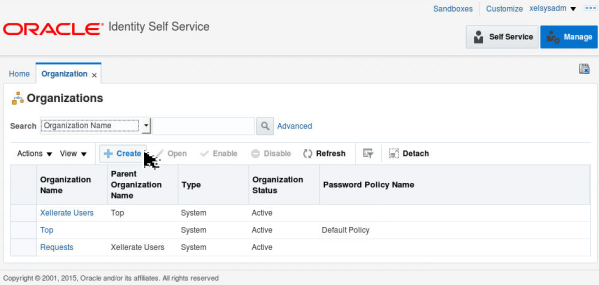
Description of this image -
In the Organization Name field, enter Marketing. Select Department from the Type drop-down list. Click the search icon in the Parent Organization Name field:
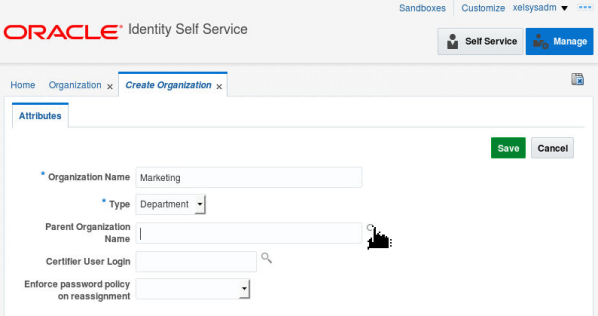
Description of this image -
The Search Organizations window is displayed. Enter Top in the Organization Name field and click Search:
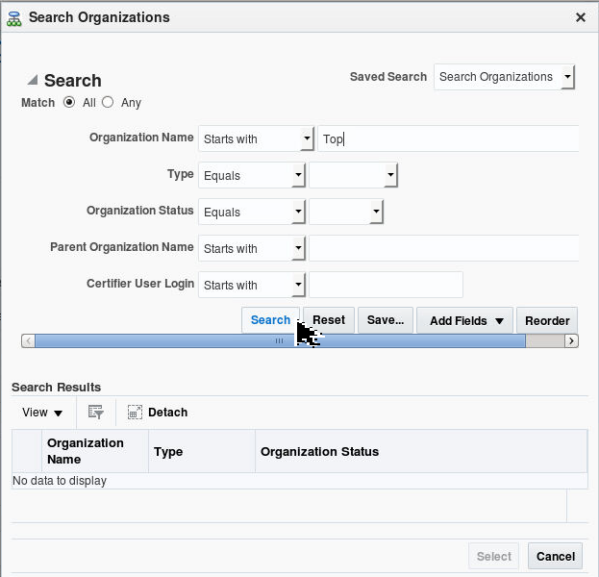
Description of this image -
Select Top from the search results and click Select:
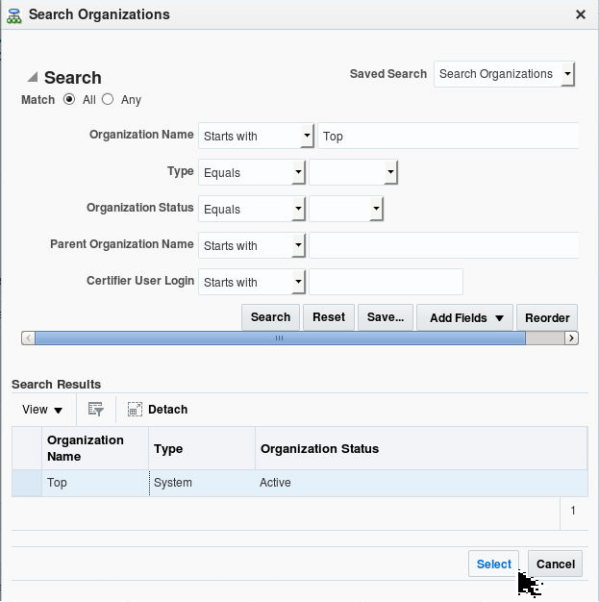
Description of this image -
Click Save:

Description of this image -
A message indicating that the organization has been created is displayed. Click Refresh. The Marketing organization is displayed in the Organizations List:
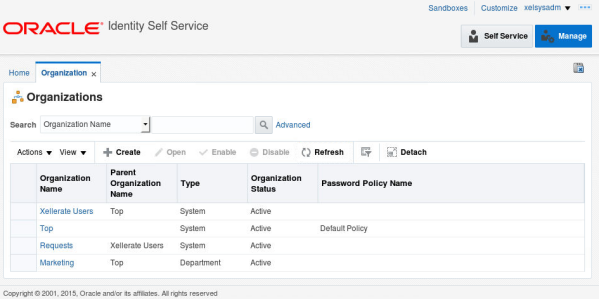
Description of this image
Creating Users
-
Click Home:

Description of this image -
Click Users:

Description of this image -
Click Create:

Description of this image -
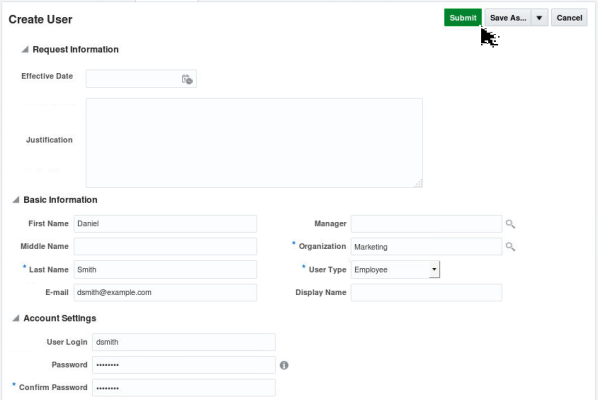
Enter the following values in the Basic Information section and then click the search icon next to the Organization field:
- First Name: Daniel
- Last Name: Smith
- E-mail: dsmith@example.com
-
Enter Marketing in the Organization Name field and click Search:

Description of this image -
From the search results, select the Marketing department and click Select:

Description of this image -
The Organization field in the Create User window displays the selected organization. Select Employee in the User Type field, enter the following details in the Account Settings section and click Submit:
- User Login: dsmith
- Password: Welcome1
- Confirm Password: Welcome1
-
A message indicating that the user has been created is displayed.
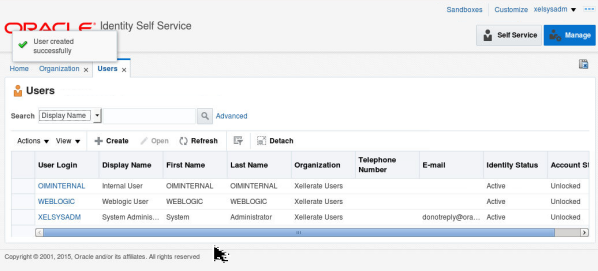
Description of this image -
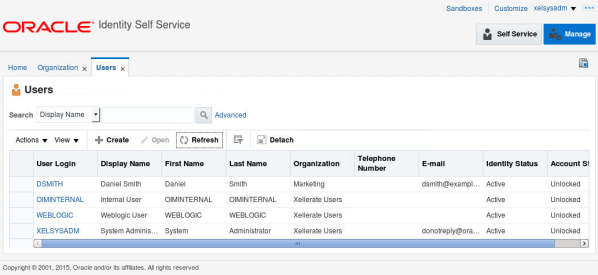
Click Refresh. The newly created user DSMITH is displayed in the Users list:
Description of this image

Creating Roles
-
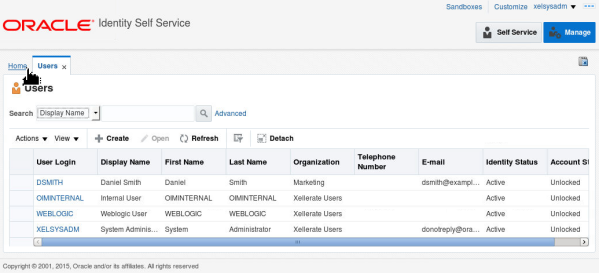
Click Home:
Description of this image -
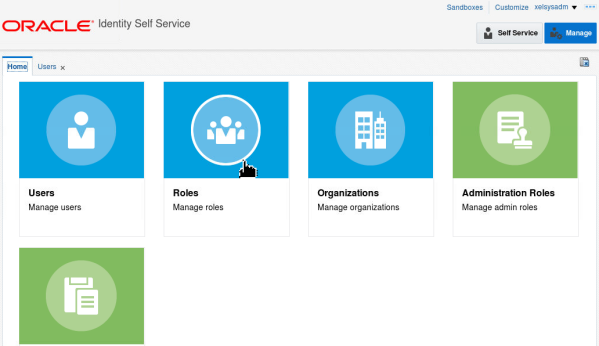
Click Roles:
Description of this image -
Click Create:
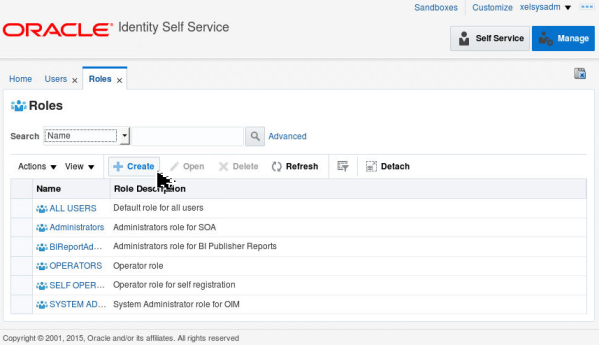
Description of this image -
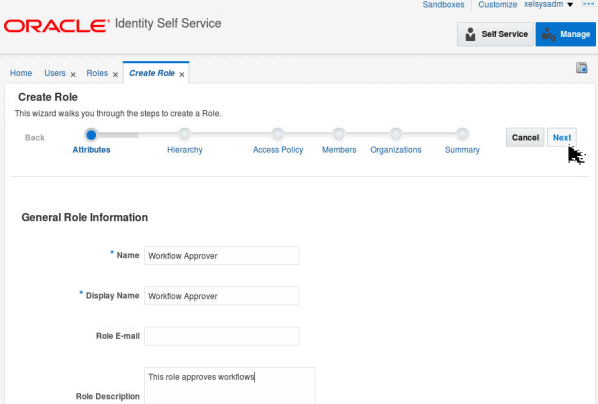
Enter the following values in the General Role Information section and click Next:
- Name: Workflow Approver
- The Display Name is automatically updated. You can change it if you want.
- Role Description: This role approves workflows
-
Click Next:
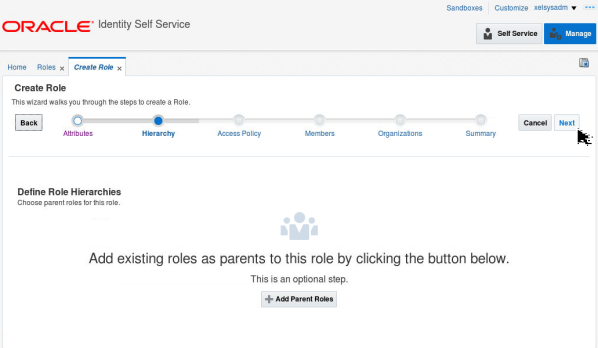
Description of this image -
Click Next:
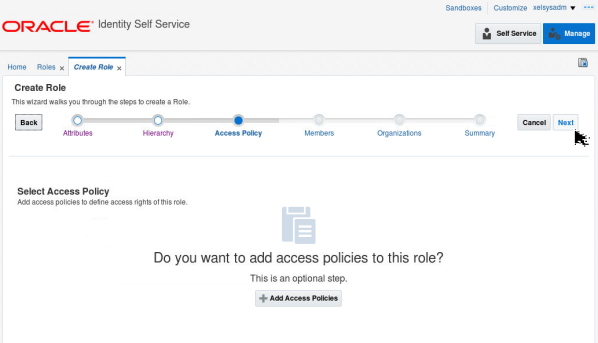
Description of this image -
Click Next:
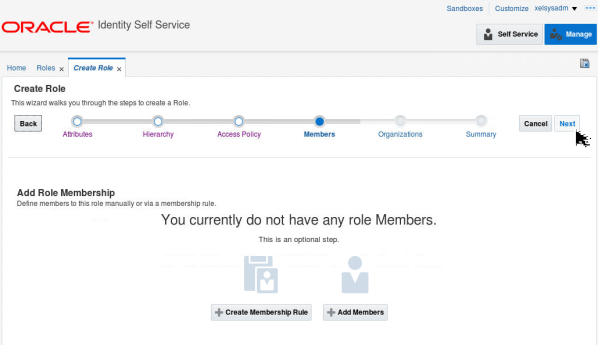
Description of this image -
Click Next:
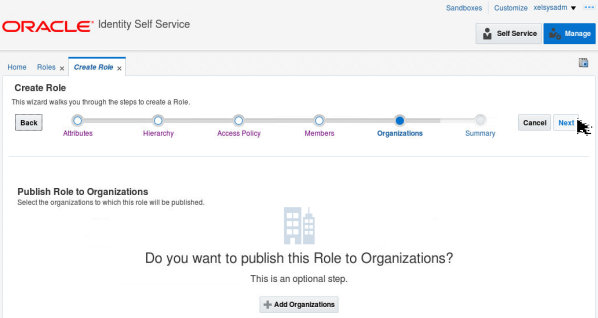
Description of this image -
Review the Summary page and click Finish:
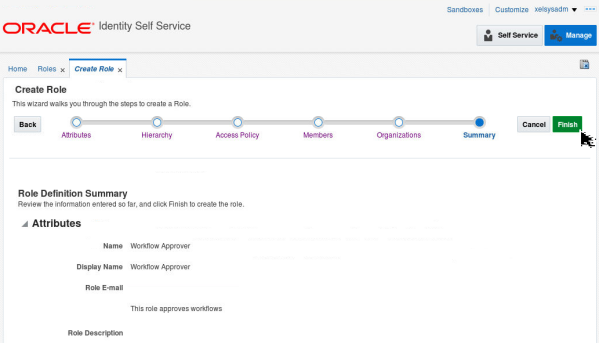
Description of this image -
A message indicating that the role has been created is displayed. Click Refresh:
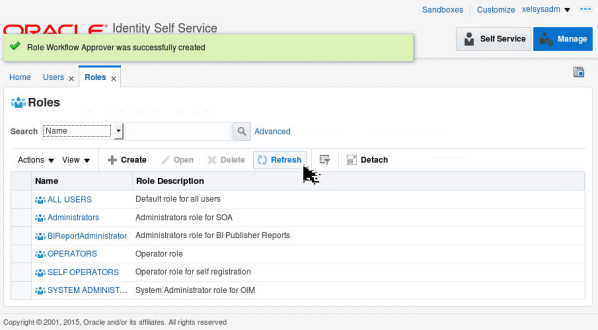
Description of this image -
The newly created role is displayed in the Roles list:
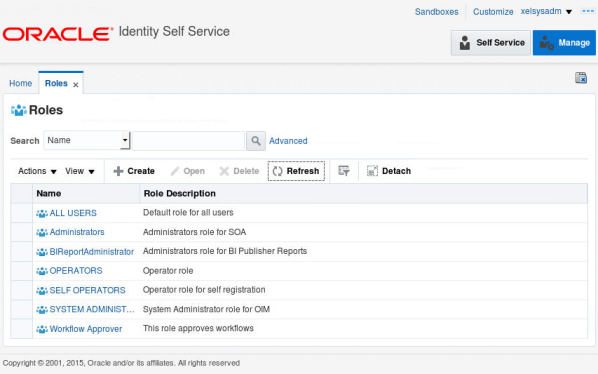
Description of this image
Updating Organizations
-
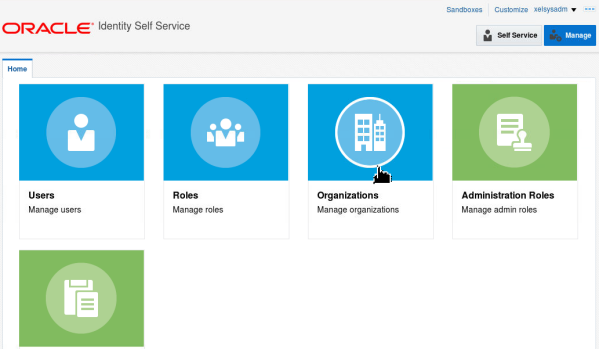
In the Home page click Organizations:
Description of this image -
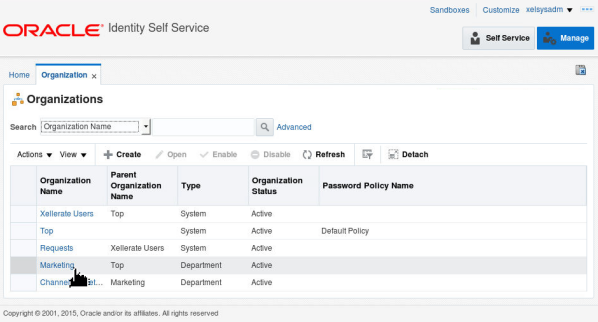
From the Organizations list, click Marketing:
Description of this image -
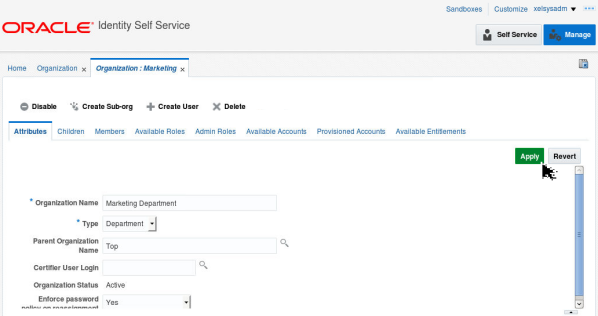
In the Organization Name field, change the value to Marketing Department and click Apply (Note: After entering the value, you might have to click outside the Organization Name field for the Apply button to become active):
Description of this image -
A message indicating that the organization is modified appears:
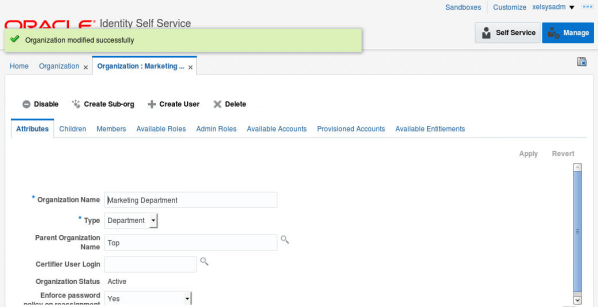
Description of this image
Updating Roles
-
In the Home page click Roles:
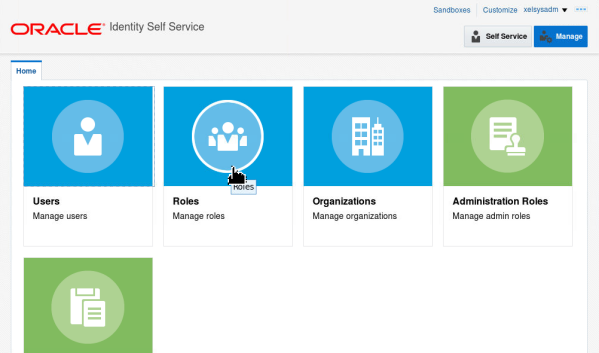
Description of this image -
In the roles list, Click Workflow Approver:
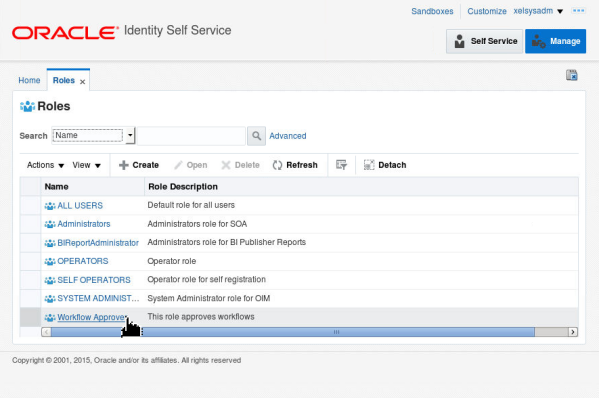
Description of this image -
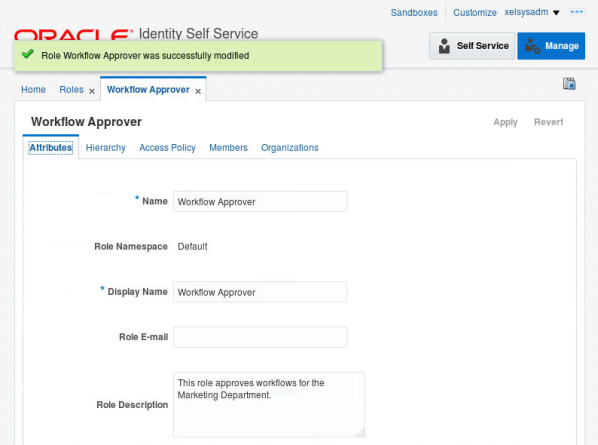
Update the Role Description field to This role approves workflows for the Marketing Department and click Apply (Note: After entering the value, you might have to click outside the Role Description field for the Apply button to become active):
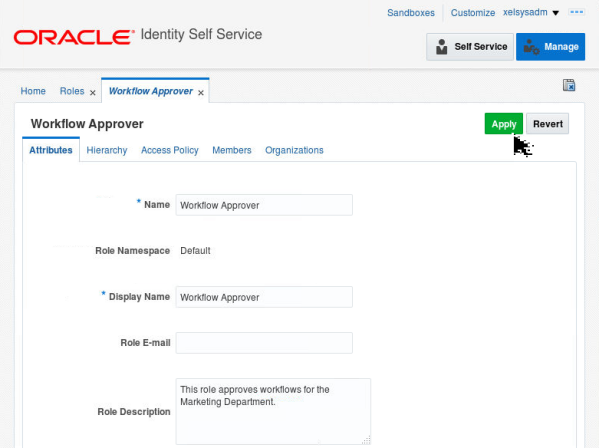
Description of this image -
A message indicating that the role has been updated is displayed:
Description of this image - Close all the open tabs.
Updating Users
-
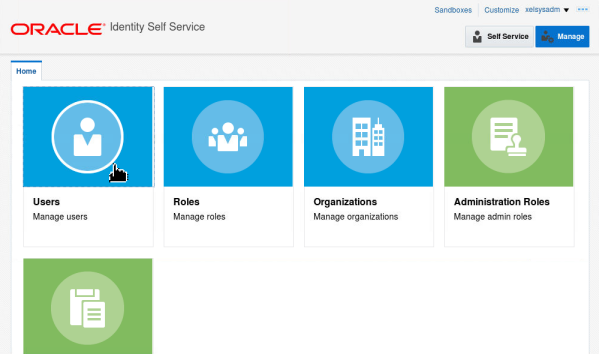
In the Home page click Users:
Description of this image -
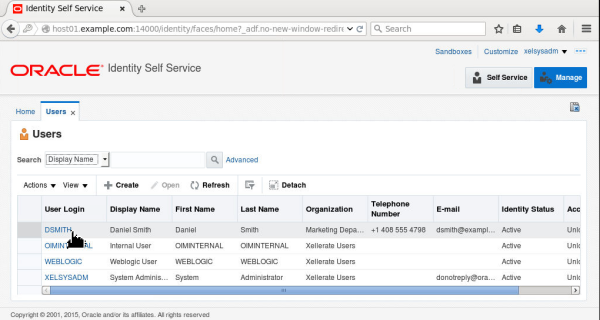
In the users list, click DSMITH:
Description of this image -
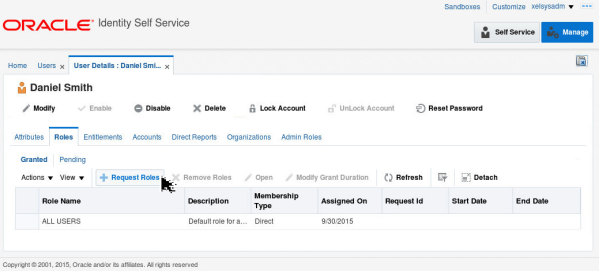
Ensure that the Roles tab is selected and click Request Roles:
Description of this image -
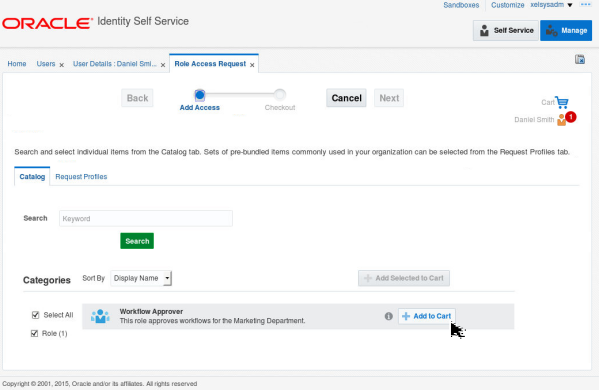
Click Add to Cart next to the Workflow Approver role:
Description of this image -
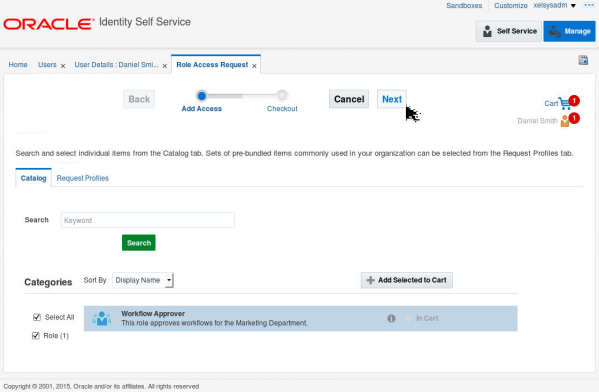
Observe that the cart indicates that one item is added. Click Next:
Description of this image -
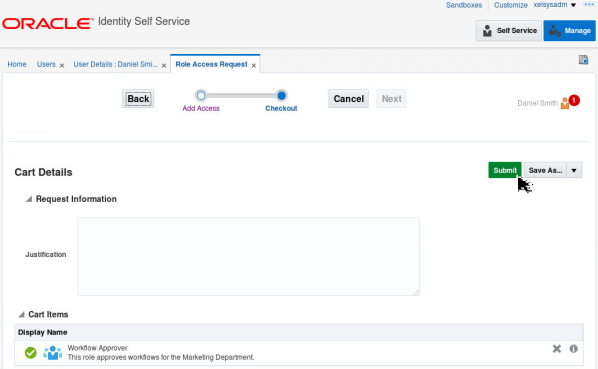
Click Submit:
Description of this image -
A message indicating that the request for role access is completed appears. Click Refresh:

Description of this image -
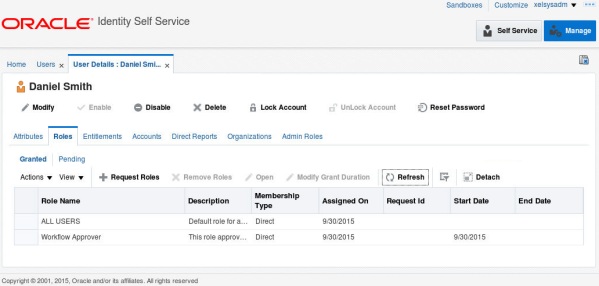
In the Roles tab, all the roles assigned to the user Daniel Smith are displayed. The newly assigned role Workflow Approver is also listed:
Description of this image -
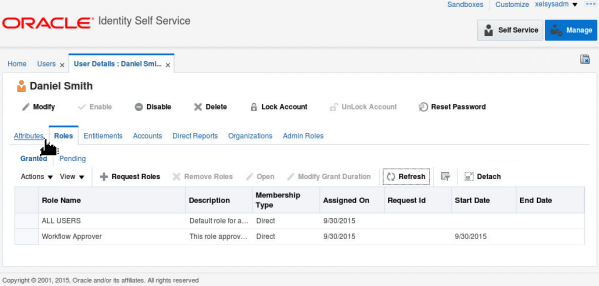
Click Attributes:
Description of this image -
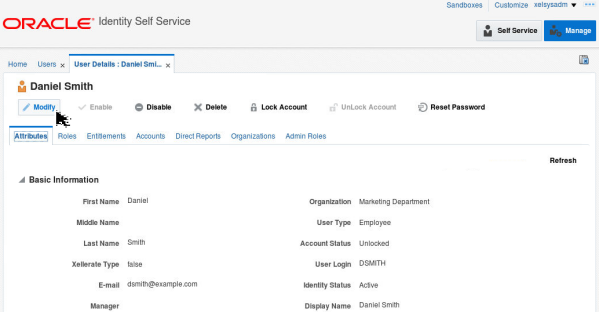
Click Modify:
Description of this image -
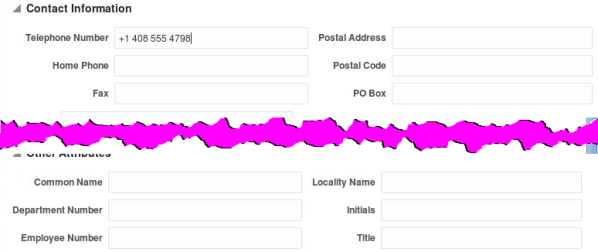
Scroll down to the Contact Information section. In the Telephone Number field, enter +1 408 555 4798:
Description of this image -
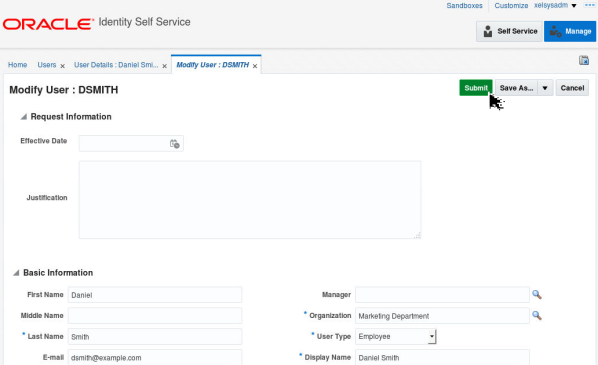
Scroll up and click Submit:
Description of this image -
A message indicating that the operation completed successfully is displayed:
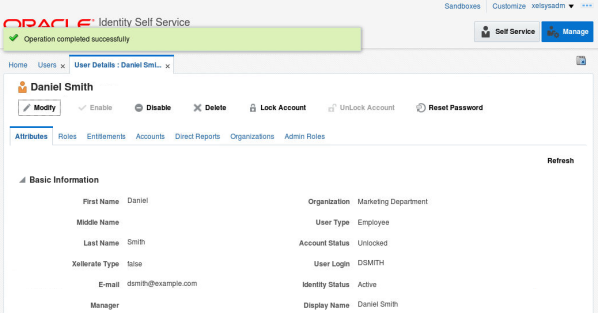
Description of this image - Close all open tabs.
Searching Entities
In this section you will search for a user using a search criteria and view the results.
-
In the Identity Self Service home page, click Users:
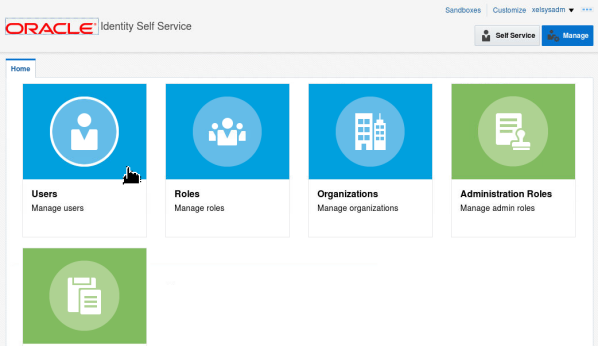
Description of this image -
Click Advanced:

Description of this image -
You will search for all users that belong to the Marketing department. Click the search icon next to the Organization field:

Description of this image -
In the Organization Name field, enter Marketing and click Search:
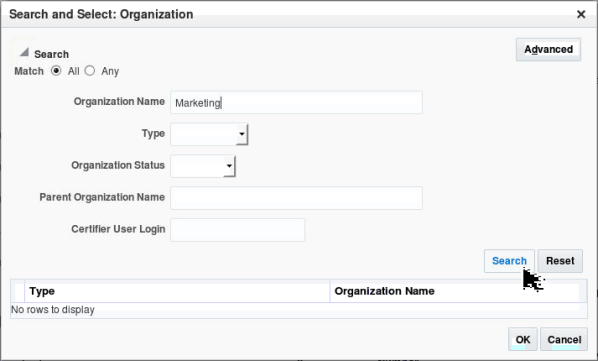
Description of this image -
In the search results, select the Marketing Department and click OK:
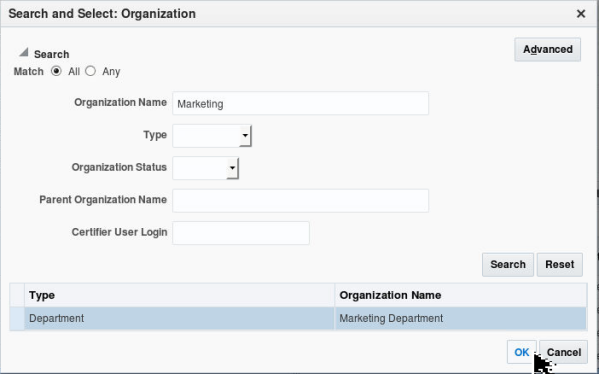
Description of this image -
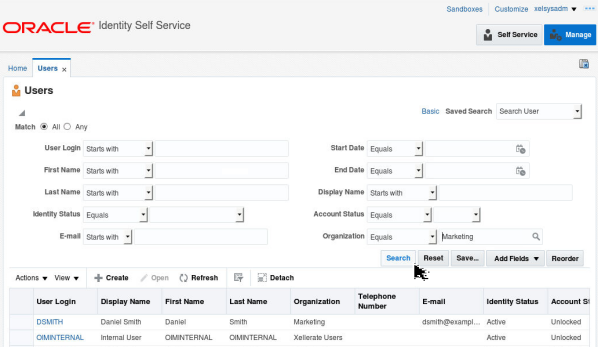
Click Search:
Description of this image -
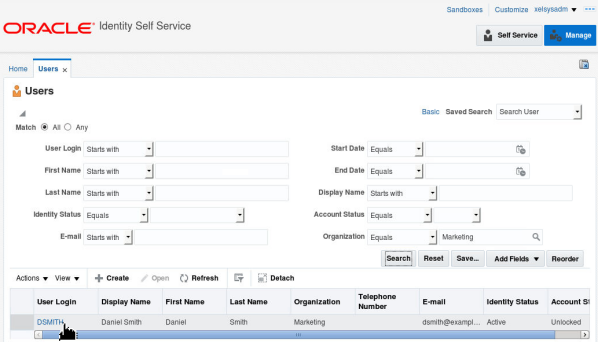
The search result displays the user DSMITH, because the user belongs to the Marketing organization. Click DSMITH:
Description of this image -
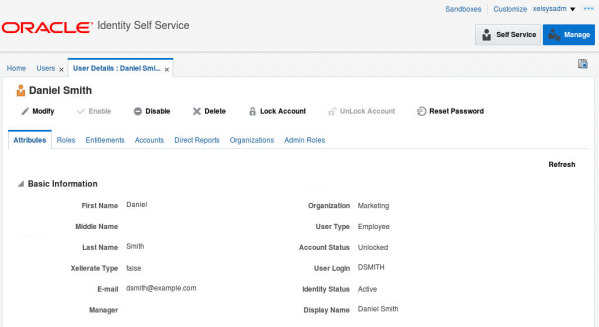
The details of the user Daniel Smith are displayed.
Description of this image - Close all the open tabs.
Deleting Users
When users no longer exist in the organization, you can delete them from the system. Deleted users are marked in the system as deleted and are not completely removed. You cannot create another user with the same name as the deleted user.
-
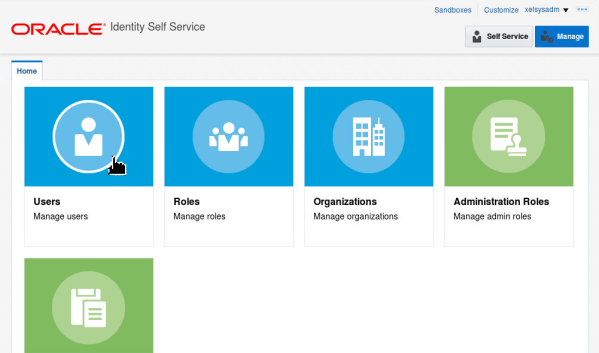
In the home page, click Users:
Description of this image -
In the users list, click the row corresponding to the user DSMITH to select it:
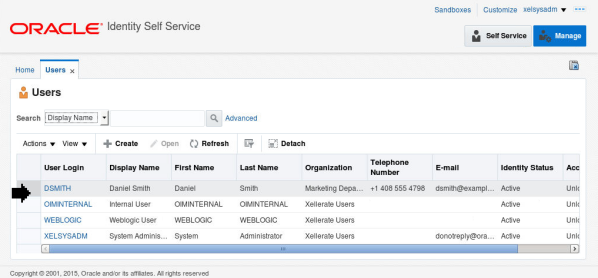
Description of this image -
Click Delete:
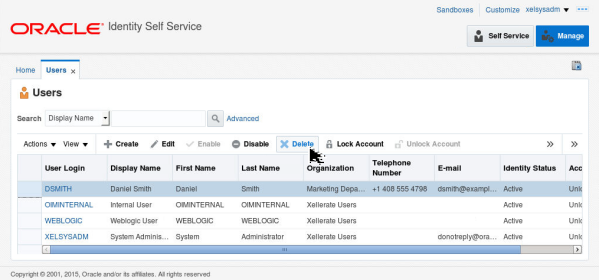
Description of this image -
Click Submit:
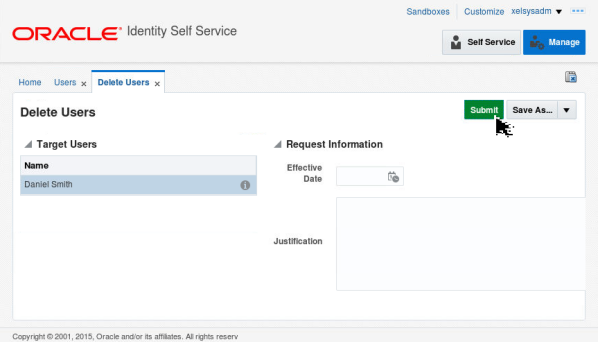
Description of this image -
A message indicating that the operation is successful is displayed. Click Refresh:
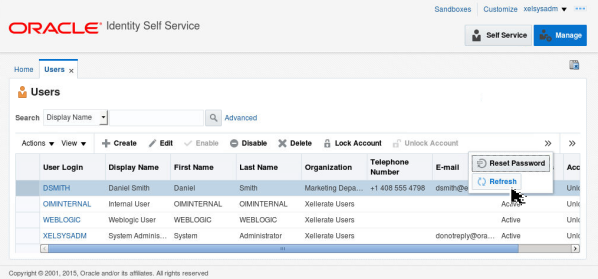
Description of this image -
The users list is updated. You no longer see the user DSMITH listed:
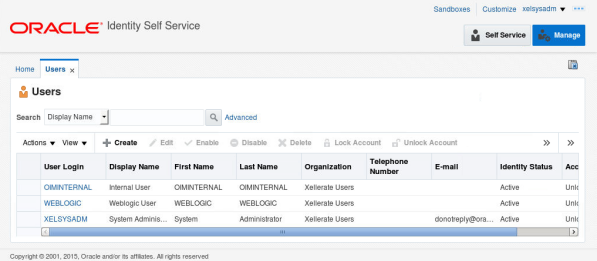
Description of this image - Close the Users tab.
Deleting Roles
When roles are no longer needed you can delete them from the system.
-
In the home page, click Roles:
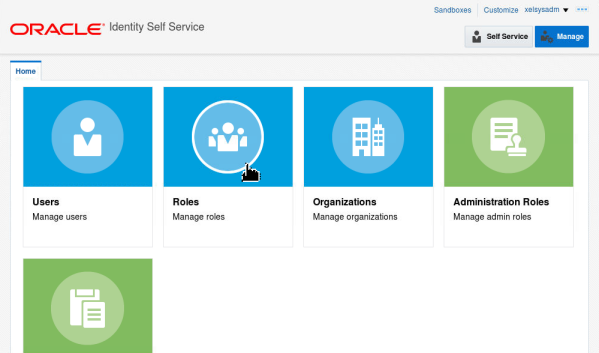
Description of this image -
In the roles list, click the row corresponding to the role Workflow Approver to select it:
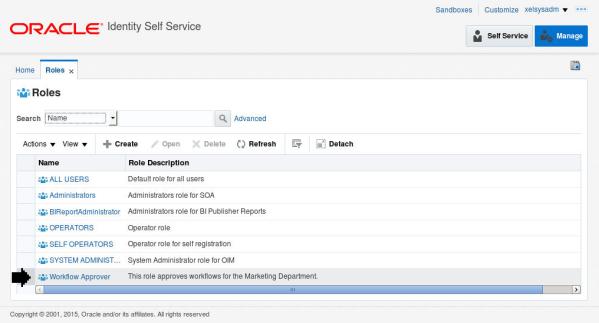
Description of this image -
Click Delete:
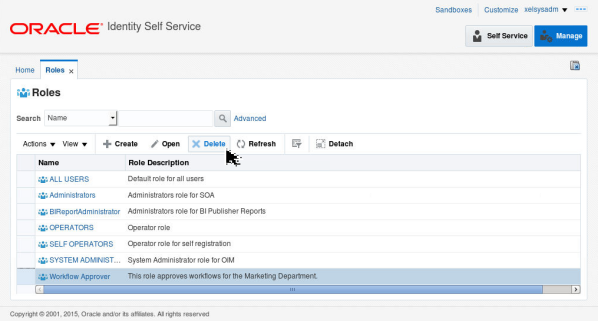
Description of this image -
Click Yes:
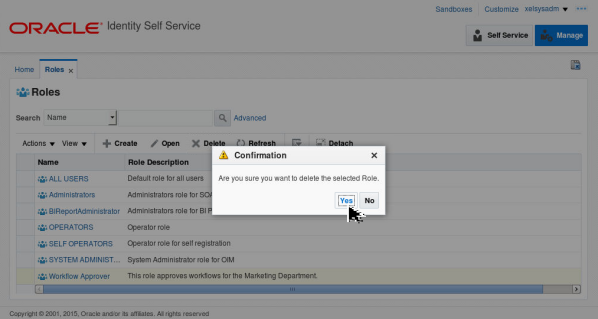
Description of this image -
A message indicating that the operation is successful is displayed. Click Refresh:
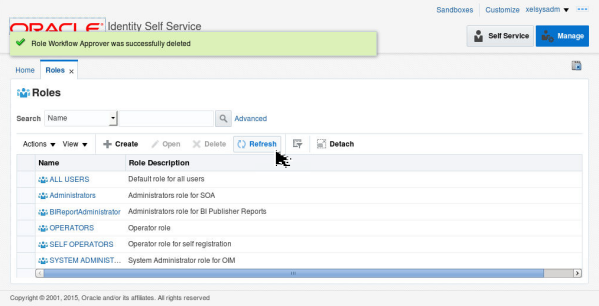
Description of this image -
The role list is updated. You no longer see the role Workflow Approver listed:
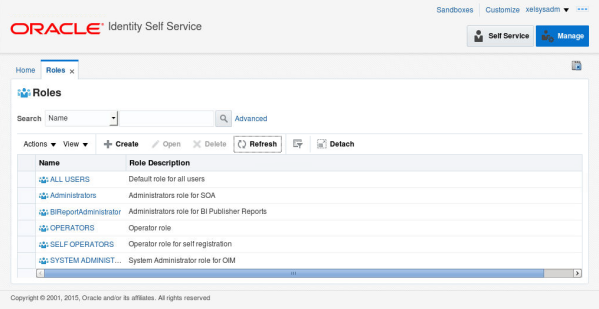
Description of this image - Close the Roles tab.
Deleting Organizations
When organizational restructuring occurs, some organizations need to be deleted and newer ones created. Organizations that are deleted from the system are marked deleted. You cannot create new organizations with the same names are the ones deleted. The organization should be empty before you can delete the organizations - you will need to delete all users that are part of the organization or assign them to other departments.
-
In the home page, click Organizations:
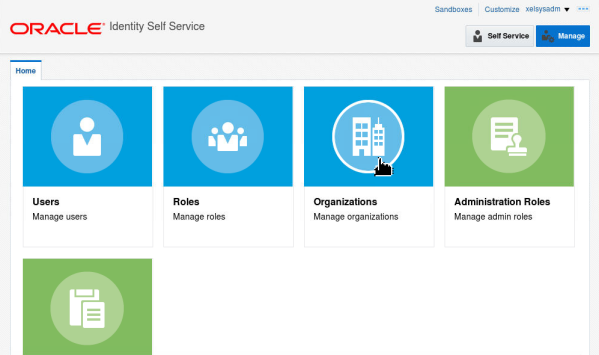
Description of this image -
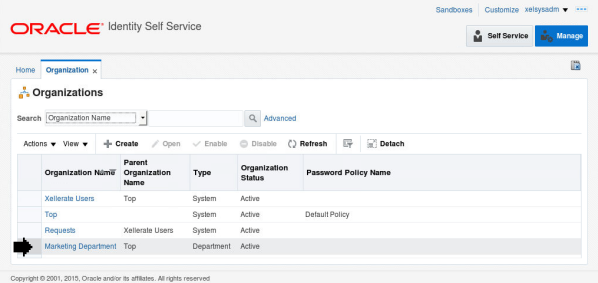
In the organizations list, click the row corresponding to the Marketing Department to select it:
Description of this image -
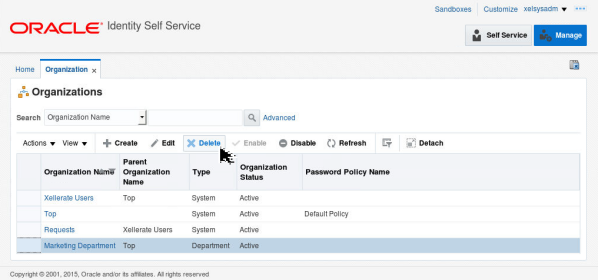
Click Delete:
Description of this image -
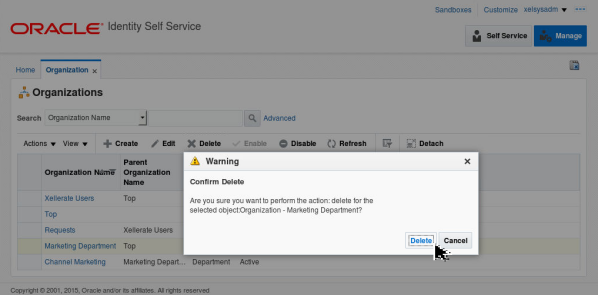
Click Delete:
Description of this image -
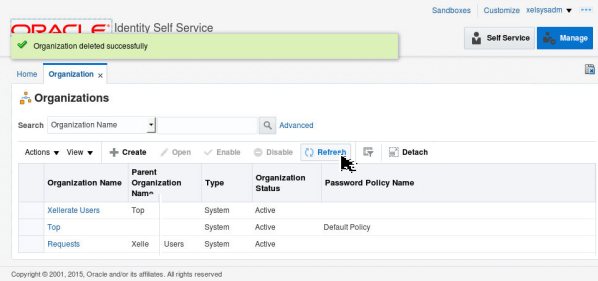
A message indicating that the operation is successful is displayed. Click Refresh:
Description of this image -
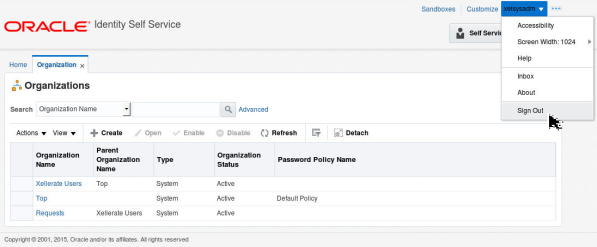
Click xelsysadm and click Sign Out:
Description of this image - Close the browser.
Want to Learn More?
Credits
- Developer: Sanjay Kumar Kunithala
- Lead Developer: Frederico Hakamine