Before You Begin
Purpose
In this tutorial, you will learn to install an Oracle Database instance for Oracle Identity and Access Management (IdM) Suite 11g.
Important: This tutorial focuses exclusively on installing an Oracle Database for study purposes. To learn more about various database installation options, refer to the Oracle Database 11g Release 2 - Database 2 Day DBA Documentation (link provided in 'Want to Learn More' section).
Time to Complete
90 minutes
Context
This tutorial is a part of the Getting Started with Oracle Identity Manager(OIM) 11gR2 PS3 series which includes:
- Installing a Database for Identity and Access Management (IdM) Suite (this tutorial)
- Setting-up an Oracle Identity Manager 11gR2 PS3 environment
- Getting Started with Oracle Identity Manager Entities
- Provisioning OIM Accounts
Background
Oracle Identity and Access Management (IdM) Suite stores all identity information in an Oracle Database. While installing a database for use with Oracle Identity and Access Management Suite, you must ensure that certain parameters are set appropriately.
What Do You Need?
For completing this tutorial you will need:
- An environment with:
- At least 4GB of physical memory
- Oracle Enterprise Linux 6 or superior, with access to Internet
- Super-user (
root) credentials
- Basic understanding of Linux Note: You will be installing the
oracle-rdbms-server-11gR2-preinstall
utility to prepare your server for the Oracle
Database installation. Refer to the article How I Simplified Oracle Database
12c and 11g Installations on Oracle Linux 6 to
become familiar with the utility.
Preparing your Server
In this section, you install the oracle-rdbms-server-11gR2-preinstall
utility. This utility prepares your Linux server for
installation of the Oracle Database.
-
Launch a Linux terminal as
root. -
Enter the command
yum install
                                  oracle-rdbms-server-11gR2-preinstall
. When terminal prompts for confirmation, entery.
Description of this image - Wait until server displays the message
Complete!and close the terminal.
Downloading the Oracle Database Software
-
Launch your browser and navigate to http://otn.oracle.com. Click Downloads > Oracle Database.

Description of this image -
In the Database download page, accept the license agreement, scroll-down to Oracle Database 11g Release 2, and download the installation files for
Linux x86-64.
Description of this image - After the download is complete, move the
installation zip files (
linux.x64_11gR2_database_1of2.zipandlinux.x64_11gR2_database_2of2.zip) to/home/oracle.
Installing the Database
-
Launch a Linux terminal as oracle.
-
Enter the following commands to extract the contents of the zip files into the
/home/oracle/databasedirectory:cd /home/oracle unzip linux.x64_11gR2_database_1of2.zip unzip linux.x64_11gR2_database_2of2.zip -
Before starting the Oracle Database installer, you need to create the directory where the database software will be located. In the terminal window, enter the following commands to install the necessary directories:
mkdir -p /u01/app/oracle/product/11.2.0/db_1 chown -R oracle:oinstall /u01 chmod -R 775 /u01 -
Enter the following commands to launch the Oracle Database 11g Release 2 installer:
cd /home/oracle/database ./runInstaller -
In the step 1 of the Oracle Database Installer, select your security upgrade preferences, and then click Next.

Description of this image -
In step 2, select Install database software only, and click Next:
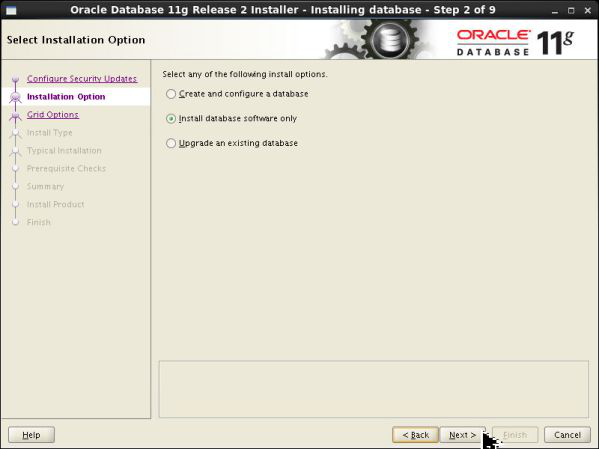
Description of this image -
In step 3, select Single instance database installation. Click Next:

Description of this image -
In step 4, ensure that English is listed in the Selected Languages list and click Next:
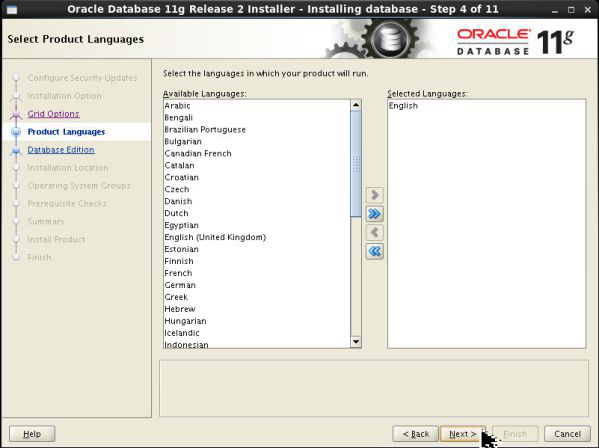
Description of this image -
In step 5, select Enterprise Edition and click Next:

Description of this image -
In step 6, specify the following values and click Next:
- Oracle Base:
/u01/app/oracle - Software Location:
/u01/app/oracle/product/11.2.0/db_1

Description of this image - Oracle Base:
-
In step 7, specify the following values and click Next:
- Inventory Directory:
/u01/app/oraInventory - oraInventory Group Name:
oinstall
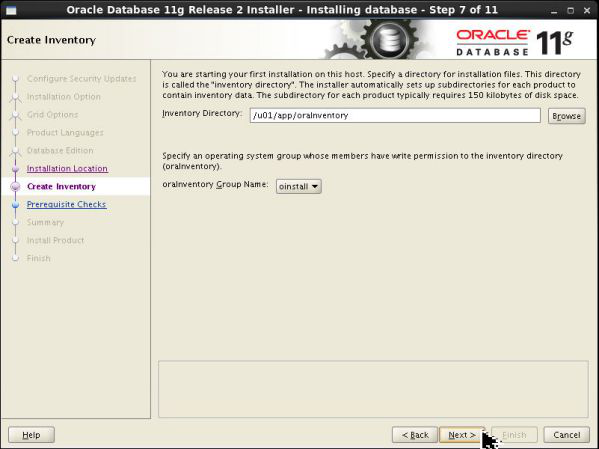
Description of this image - Inventory Directory:
-
In step 8, confirm that
dbais selected for OSDBA and oinstall is selected for OSOPER, and click Next:
Description of this image -
In step 9, installer runs prerequisite checks. If no issues are reported, click Next:
Important: If installer returns a error, identify the checks that failed and perform the necessary fixes. Then click Fix and Check Again and retry the installation.
Description of this image -
In step 10, verify the installation summary and click Finish:

Description of this image -
During step 11, the installer will copy the database files. Wait for few minutes until the installer displays the Execute Configuration scripts pop-up.
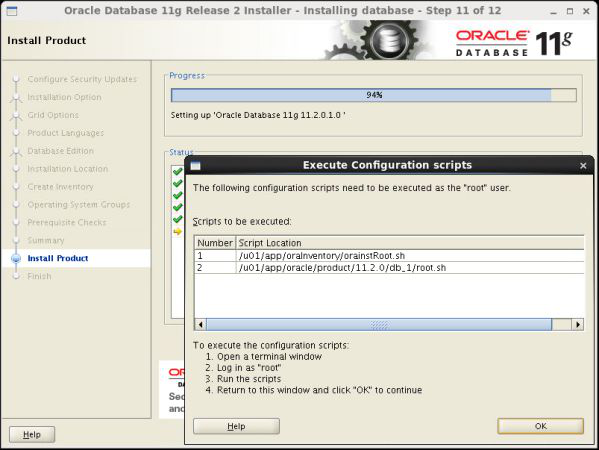
Description of this image -
Launch a terminal window as
rootand execute the following scripts:/u01/app/oraInventory/orainstRoot.sh /u01/app/oracle/product/11.2.0/db_1/root.sh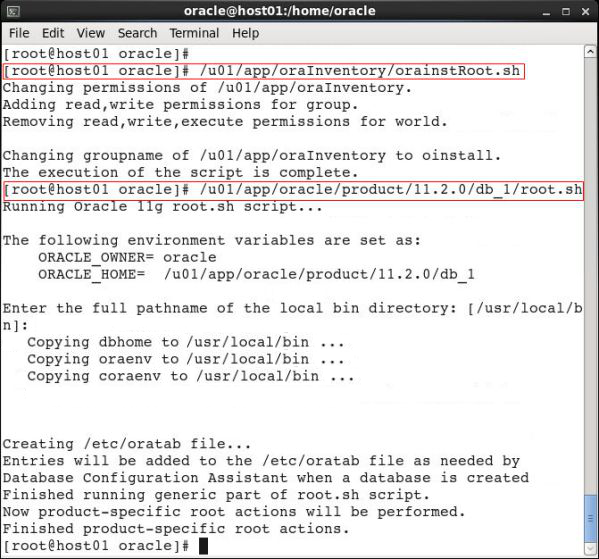
Description of this image - Close the
rootterminal, return to the Execute Configuration Scripts window, and click OK. -
Wait until the installation confirmation appears and click Close:
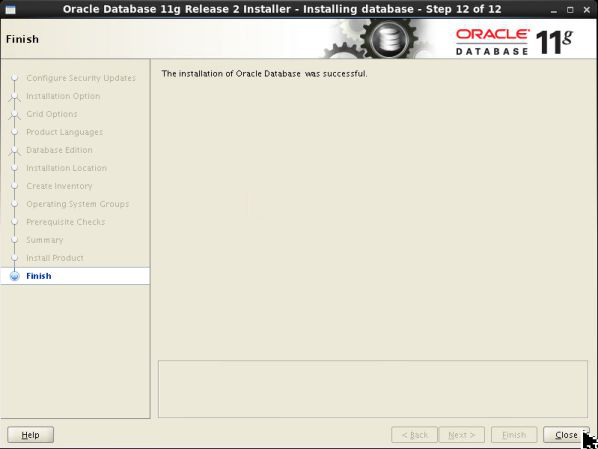
Description of this image
Creating a Database
After installing the Oracle Database software, you
must run the Database Configuration Assistant (dbca)
utility to create a database.
-
Launch a terminal window as
oracleand run the following commands to launch the Database Configuration Assistant (dbca):cd /u01/app/oracle/product/11.2.0/db_1/bin ./dbca -
In the Welcome screen, click Next:

Description of this image -
In step 1, select Create a Database and click Next:

Description of this image -
In step 2, select General Purpose or Transaction Processing and click Next:

Description of this image -
In step 3, enter
orcl.example.comas Global Database Name,orclas SID, and click Next:
Description of this image -
In step 4, de-select Configure Enterprise Manager and click Next:

Description of this image -
In step 5, select Use the Same Administrative Password for All Accounts, enter the password as
Welcome1, and click Next:
Description of this image -
In step 6, accept the default configuration and click Next:

Description of this image -
In step 7, accept the default configuration and click Next:

Description of this image -
In step 8, ensure that Sample Schemas is not selected and click Next:

Description of this image -
In step 9, click Character Sets:

Description of this image -
Select Use Unicode (AL32UTF8):

Description of this image -
Click All Initialization Parameters.

Description of this image -
In the Initialization Parameters window, click Show Advanced Parameters:

Description of this image -
For the following variables, click in the Value field and update the corresponding values, and click Close:
- session_cached_cursors:
100 - processes:
500 - open_cursors:
800 - memory_target:
838860800 - aq_tm_processes:
1 - java_pool_size:
125829120

Description of this image - session_cached_cursors:
-
In step 9, click Next:

Description of this image -
In step 10, accept the default selections and click Next:

Description of this image -
In step 11, select Create Database and click Finish:
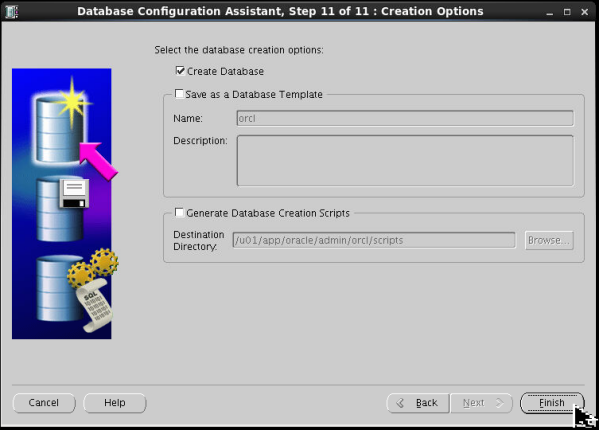
Description of this image -
In the Confirmation window, verify the database details and click OK:

Description of this image -
Database creation progress is displayed.

Description of this image -
The Database creation complete message is displayed. Click Exit:

Description of this image
Performing post-configuration tasks and testing the Database
In this section, you will perform post-setup tasks to configure the database variables and ensure that the database can be startup and shutdown without issues.
Configuring database variables
To configure the database variables, perform the following tasks:
- Launch a terminal window as
oracleand enter the commandvi $HOME/.bash_profile. -
Enter the following variables and save the
.bash_profilefile.export ORACLE_HOME=/u01/app/oracle/product/11.2.0/db_1 export ORACLE_SID=orcl export PATH=$ORACLE_HOME/bin:$PATH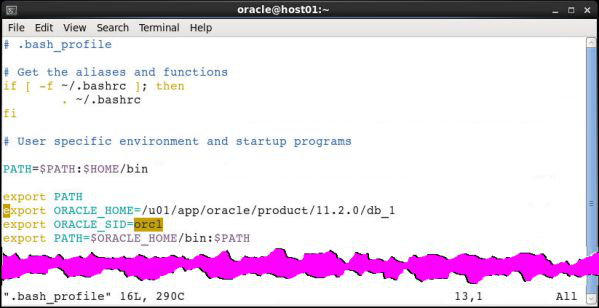
Description of this image - Repeat steps 1 and 2 to include the Oracle
Database variables in the
$HOME/.bashrcfile.
Description of this image - Close your terminal.
Testing the database
Perform the following steps to test the database installation:
-
Launch a terminal window as
oracleand enter the following commands to confirm the database variables are in place:echo $ORACLE_HOME echo $ORACLE_SIDTerminal should display:

Description of this image Note: If terminal displays a blank line after you enter the environment variable, return to section Configuring database variables to troubleshoot the session variable configuration.
-
In the terminal, enter the command
which
                                      sqlplus
to locate where thesqlplusutility is available:
Description of this image -
Execute the command
sqlplus / as
                                      sysdba;
to start sqlplus. In sqlplus prompt, enterselect 1 from dual;. Sqlplus returns 1. This signifies that the database is running.
Description of this image - Enter the command
exitto close sqlplus. -
In the terminal window, enter the command
tnsping
                                      localhost
to test the database listener. If the command returns OK, it signifies that the database listener is running and is correctly configured.
Description of this image
Stopping the database
Perform the following steps to stop the database and the listener:
- In a terminal window, enter the command
lsnrctl
                                    stop
to stop the database listener. - In a terminal window, enter the command
sqlplus
                                    / as sysdba;
to start sqlplus. - At the sqlplus prompt, enter the command
shutdown
                                    immediate;
to stop the database. - Enter the command
exitto close the sqlplus.
Starting the database
Perform the following steps to start the database and the listener:
- In a terminal window, enter the command
sqlplus
                                    / as sysdba;
to start sqlplus. - In sqlplus prompt, enter the command
startup;to start the database. - Enter the command
exitto close the sqlplus. - In a terminal window, enter the command
lsnrctl
                                    start
to start the database listener. - Optionally, perform the instructions in the section Testing the database to confirm that database and listener are running correctly.
Want to Learn More?
Credits
- Developer: Sanjay Kumar Kunithala
- Lead Developer: Frederico Hakamine