Before You Begin
Purpose
In this tutorial you will learn about Oracle Identity Manager Connectors and use the Oracle Identity Manager Connector for UNIX to provision an user account.
Time to Complete
45 minutes
Context
This tutorial is a part of the Getting Started with Oracle Identity Manager(OIM) 11gR2 PS3 series which includes:
- Installing a Database for Identity and Access Management (IdM) Suite
- Setting-up an Oracle Identity Manager 11gR2 PS3 environment
- Getting Started with Oracle Identity Manager Entities
- Provisioning OIM Accounts (this tutorial)
Background
Oracle Identity Manager ConnectorsOracle Identity Manager automates access rights management, security, and provisioning of IT resources. Oracle Identity Manager connectors are used to integrate Oracle Identity Manager with external, identity-aware applications.
In this tutorial you will learn to install and use the connector that enables you to integrate Oracle Identity Manager with UNIX-based target systems using SSH or Telnet protocol. This connector enables you to use the target system as a managed (target) resource or as an authoritative (trusted) source of identity data for Oracle Identity Manager.
What Do You Need?
For completing this tutorial you will need:
- An
Environment with an Oracle Identity
Management 11gR2 PS3 Environment installed and
running.
- The tutorial Setting-up an Oracle Identity Management 11gR2 PS3 Environment provides instructions on how to setup an Oracle Identity Management 11g R2 PS3 environment.
- In
this tutorial, you learn just
the basic steps for downloading,
installing and using an Oracle Identity Manager
connector. For a detailed description of the
concept of OIM connectors visit the OIM Official
Documentation or sign-up for the OIM Essentials
course.
Downloading the Connector
-
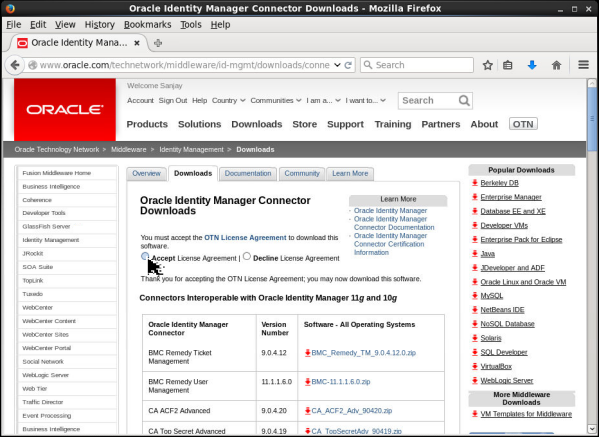
To download the connector, open the browser on your Linux machine go to the Oracle Identity Management Connector Downloads page. Click Accept License Agreement:
Description of this image -
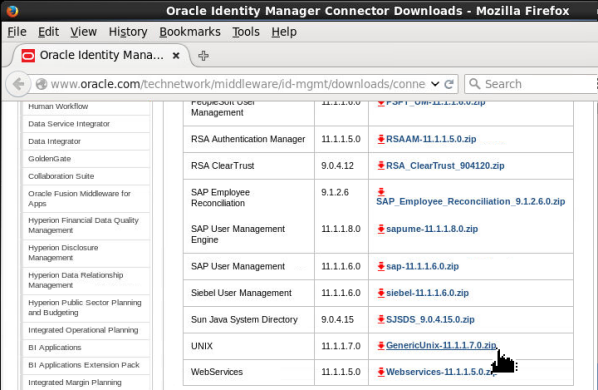
Scroll down to locate the UNIX Connector and click the ZIP file name corresponding to the connector (in this case GenericUnix-11.1.1.7.0.zip):
Description of this image -
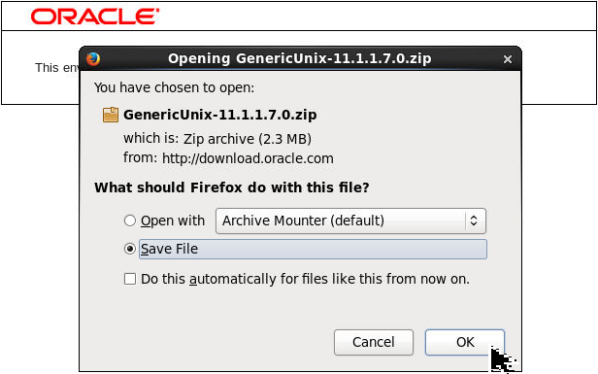
When prompted enter your single sign-on password. Then, select Save File and click OK:
Description of this image -
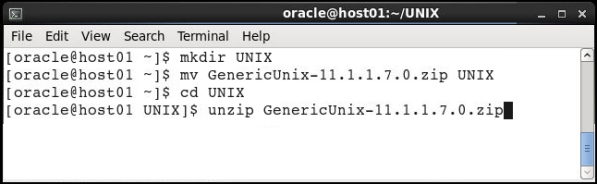
When the download is complete, open a terminal and navigate to the folder where the zip file was downloaded and run the following commands:
This unzips the connector files into a directory called GenericUnix-11.1.1.7.0.zip under the directory UNIX.mkdir UNIX mv GenericUnix-11.1.1.7.0.zip UNIX cd UNIX unzip GenericUnix-11.1.1.7.0.zip
Description of this image -
Now you will open the Oracle Identity Manager System Administration console. In your browser, enter the URL http://host01.example.com:14000/sysadmin. Enter the User ID xelsysadm and password as Welcome1. Click Sign In:
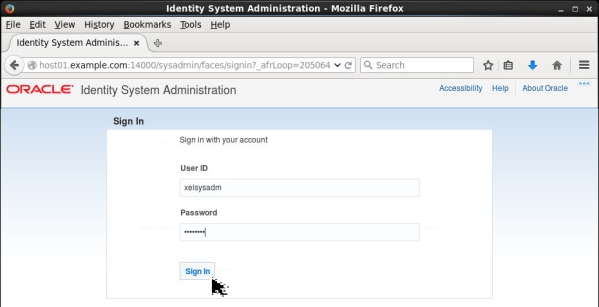
Description of this image -
Click Manage Connector:
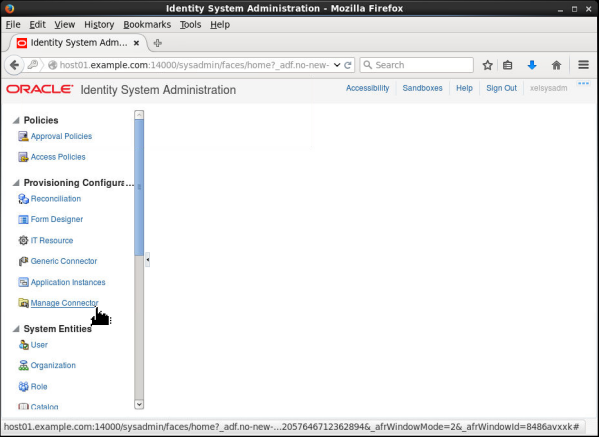
Description of this image Note: The Connector Installation window appears in a popup. Ensure that popups are not blocked by your browser.
-
Click Install:
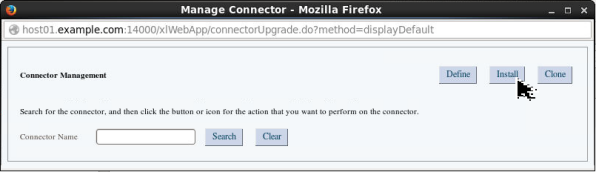
Description of this image -
Enter /home/oracle/UNIX in the Alternative Directory field. This is the directory where you unzipped the connector files. Click Refresh:
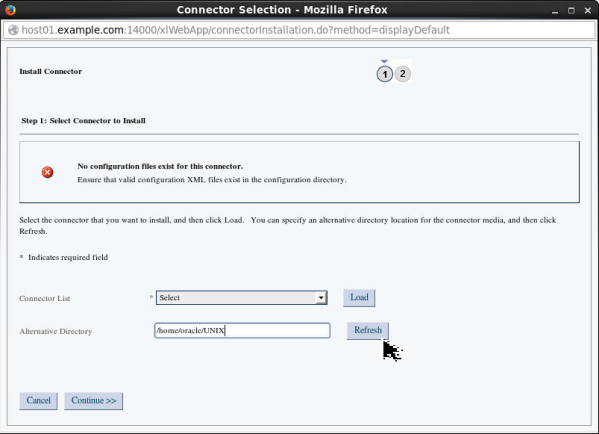
Description of this image -
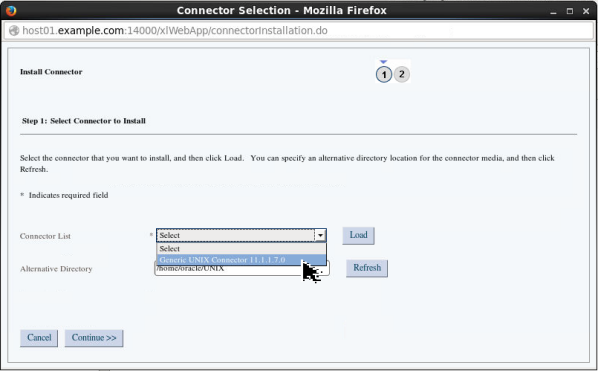
Select the Connector List drop down. The Generic UNIX connector is displayed in the connector list. Select the Generic UNIX Connector 11.1.1.7.0:
Description of this image -
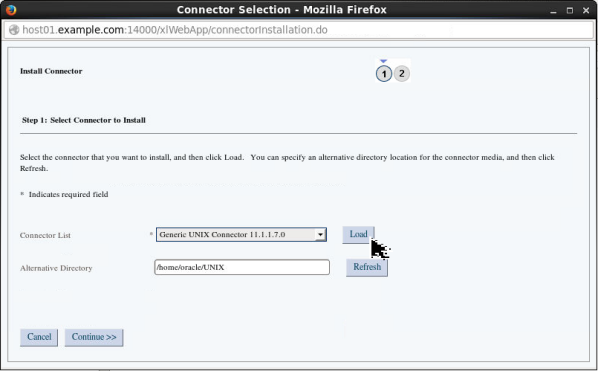
Click Load:
Description of this image -
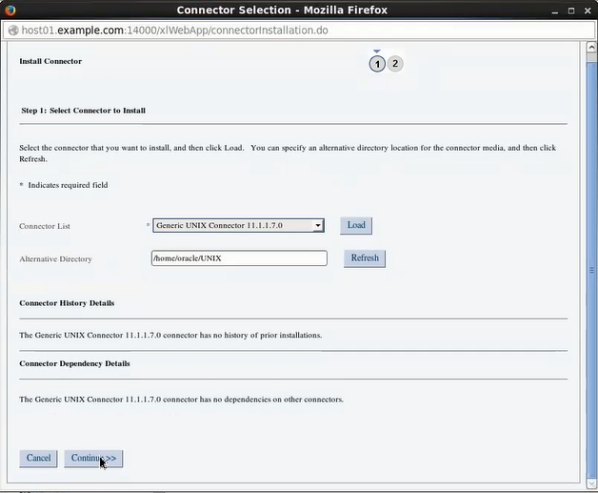
The connector is loaded and all dependencies are checked. Click Continue:
Description of this image -
The connector is installed. Click Exit to close the connector installation window:

Description of this image -
Now you will clear the server cache by restarting your OIM server. To restart the OIM server, open a terminal window and enter the following commands:
cd $DOMAIN_HOME/bin
./stopManagedWebLogic.sh oim_server1 (enter username as weblogic and password as Welcome1 if propmted)
./startManagedWebLogic.sh oim_server1 (enter username as weblogic and password as Welcome1 if propmted)
Note: You can also clear the server cache by running the PurgeCache.sh utility. Refer to the Fusion Middleware Administrator's Guide for Oracle Identity Manager to learn more about running the PurgeCache.sh utility.
Creating an IT Resource
-
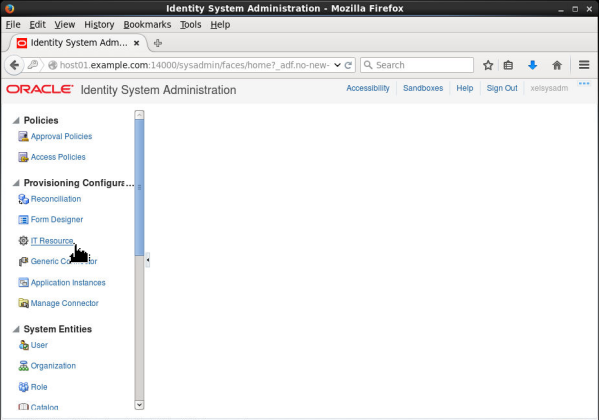
Switch to the browser that has the Identity System Administration Console running. Click IT Resource:
Description of this image -
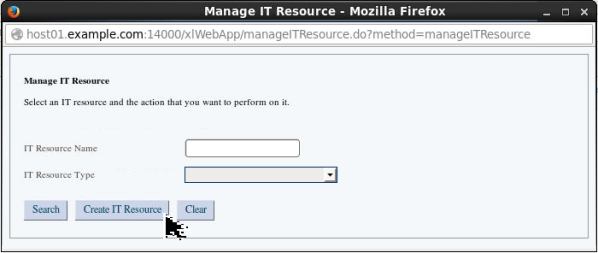
In the Manage IT Resource window, click Create IT Resource:
Description of this image -
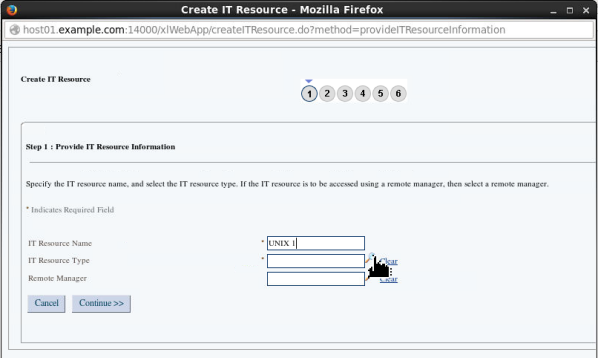
In the IT Resource Name field, enter UNIX 1. Then, click the search icon next to the IT Resource Type field:
Description of this image -
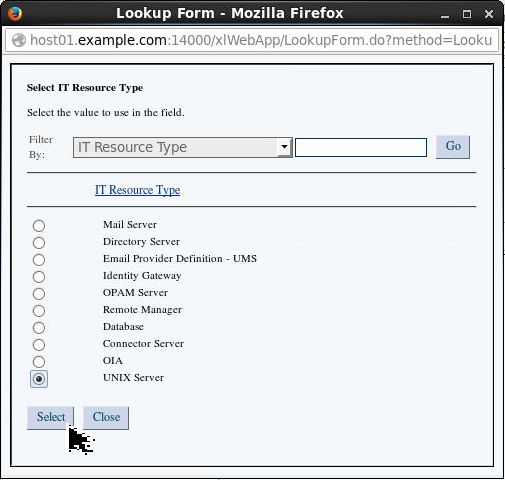
Select UNIX Server and click Select:
Description of this image -
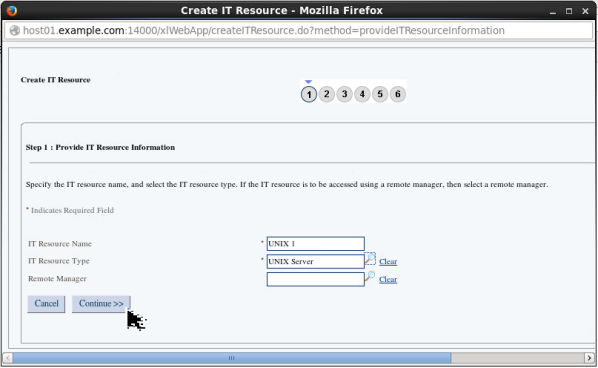
Click Continue:
Description of this image -
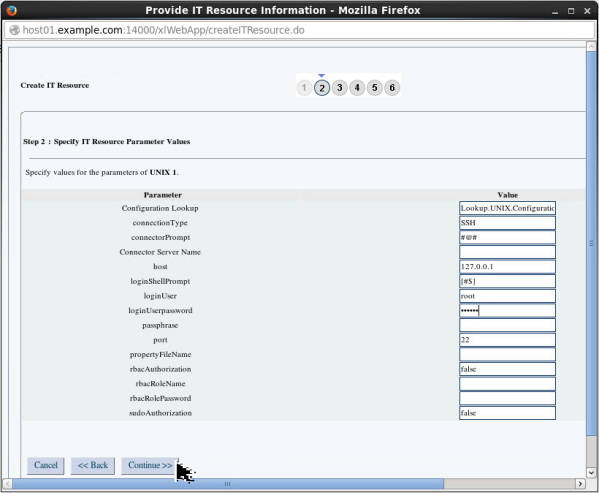
In the Step 2: Specify IT Resource Parameter Values window, enter the following values:
- host: 127.0.0.1 (This indicates your local host)
- loginUser: root
- loginUserpassword: <password for the root user on your Linux machine)
-
Click Continue:
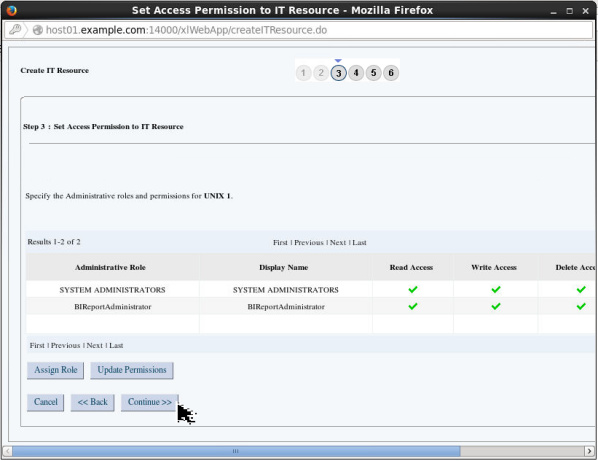
Description of this image -
Click Continue:
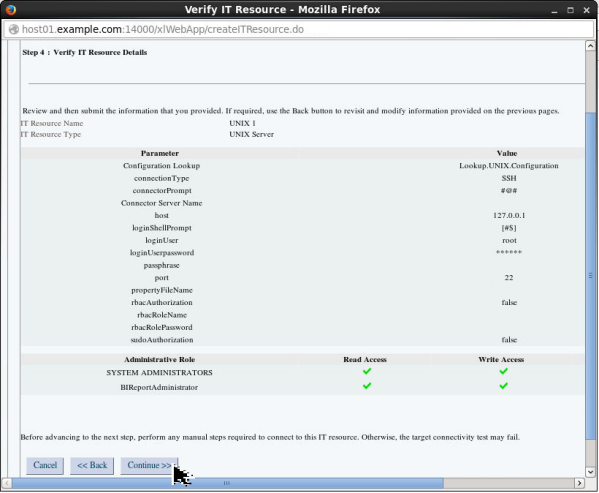
Description of this image -
Click Continue:
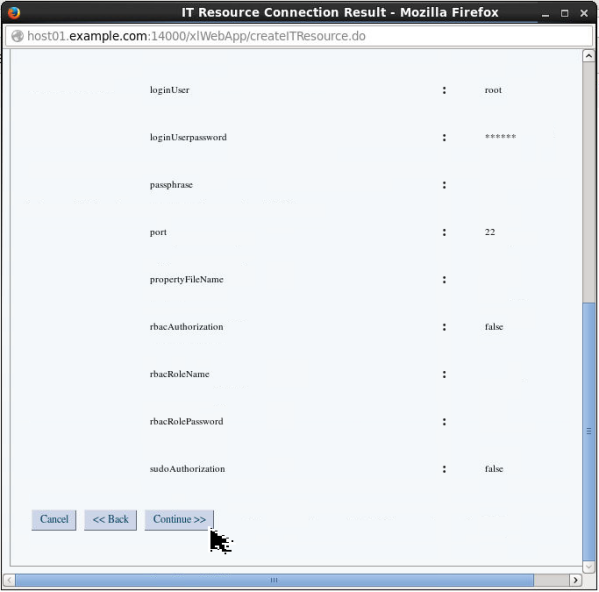
Description of this image -
The IT Resource is created. Click Finish to close this window:
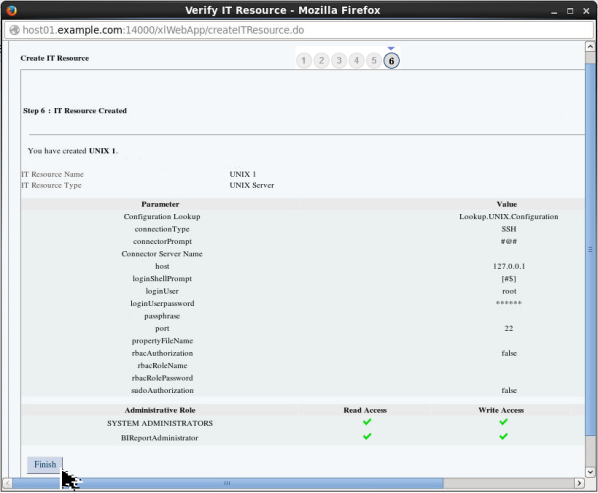
Description of this image
Creating Reconciliation Lookups
When you install the UNIX Connector, it creates a set of Scheduled jobs that let you lookup the target system for information. For example, you can look up the target UNIX system and collect information about the groups that are available in that system. You will use the UNIX User Shell Lookup Reconciliation and UNIX Primary Group Lookup Reconciliation scheduled jobs to collect the shells and groups that are available in the UNIX system.
-
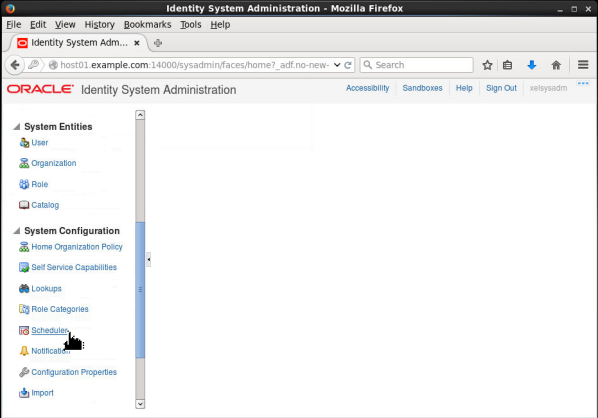
Switch to the browser that has the Identity System Administration Console running. Click Scheduler:
Description of this image -
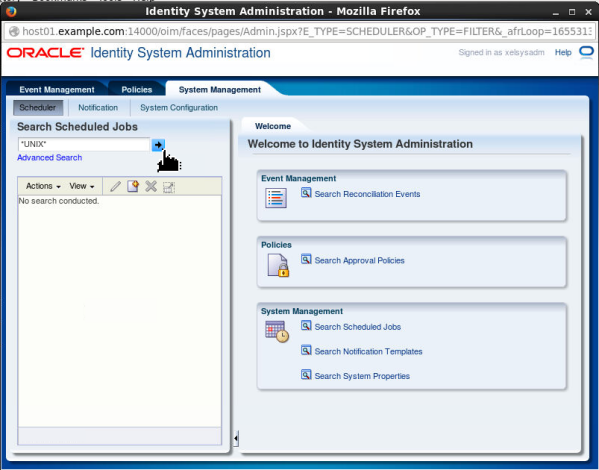
Enter *UNIX* in the search field and click Search:
Description of this image
-
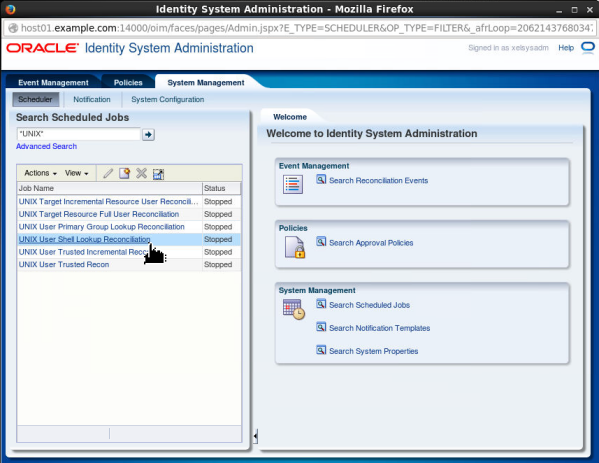
Click UNIX User Shell Lookup Reconciliation:
Description of this image
-
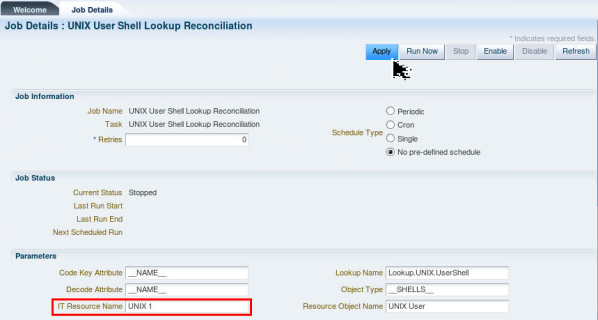
In the Parameters section, enter UNIX 1 in the IT Resource Name field and click Apply:
Description of this image
-
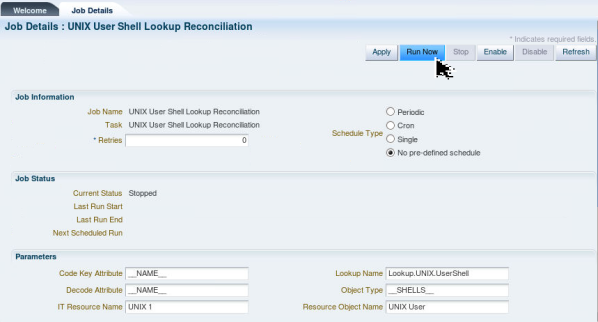
Click Run Now:
Description of this image
-
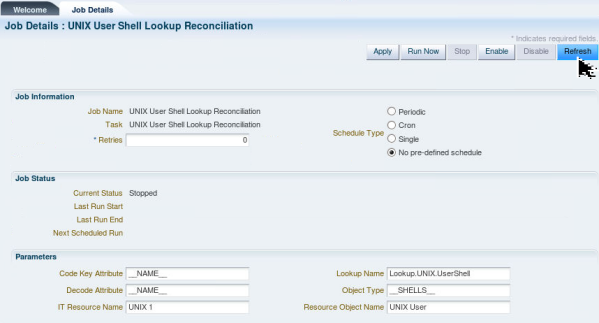
Click Refresh:
Description of this image
-
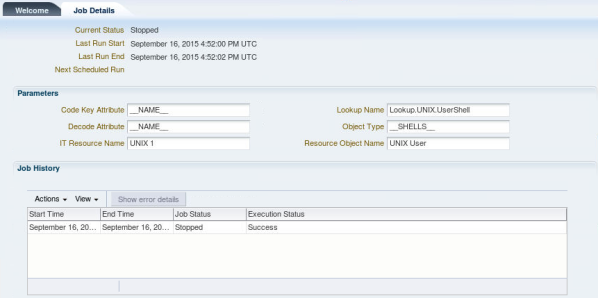
Scroll down to the Job History section. The execution status of the scheduled job shows Success:
Description of this image
-
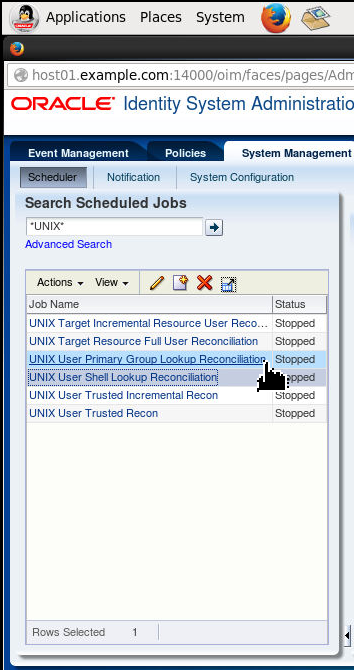
Click UNIX User Primary Group Lookup Reconciliation:
Description of this image
-
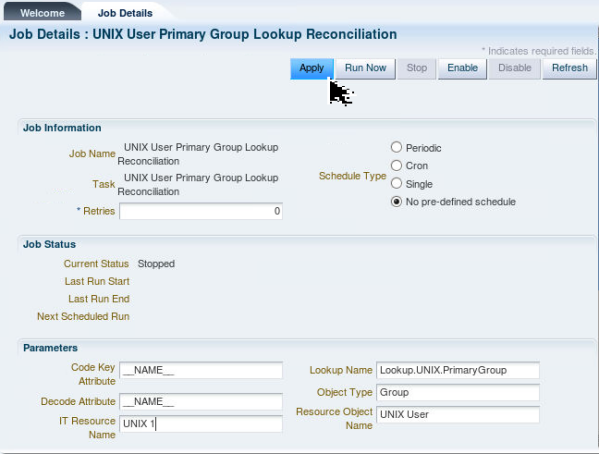
In the Parameters section, enter UNIX 1 in the IT Resource Name field and click Apply:
Description of this image
-
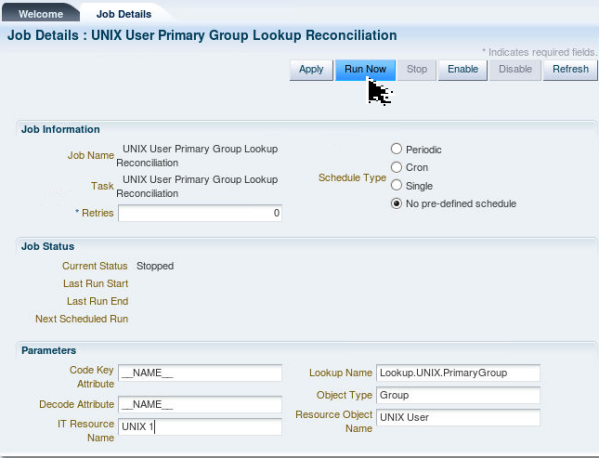
Click Run Now:
Description of this image -
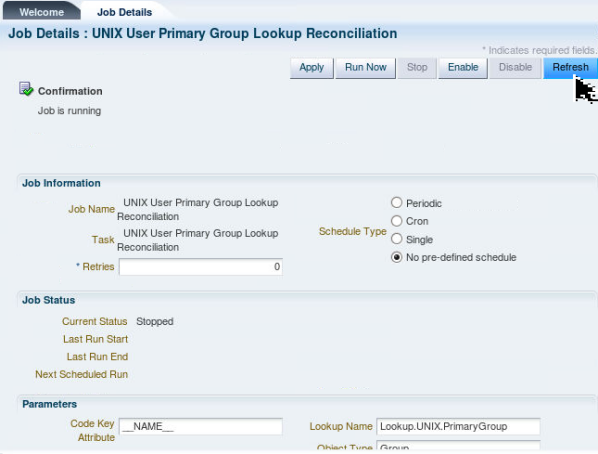
Click Refresh:
Description of this image
-
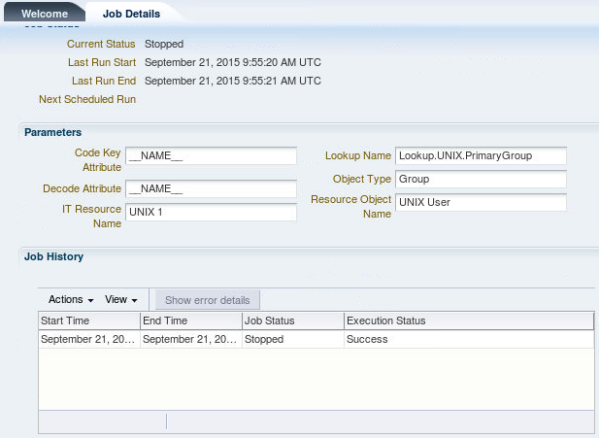
Scroll down to the Job History section. The execution status of the scheduled job shows Success. Close the Identity System Administration window that displays the scheduler jobs:
Description of this image
Creating Application Instance
An Application Instance is the provisionable entity which will be published to the catalog. It is a combination of IT resource instance (target connectivity and connector configuration) and resource object (provisioning mechanism). You will create an Application Instance to create a user in the target UNIX system.
-
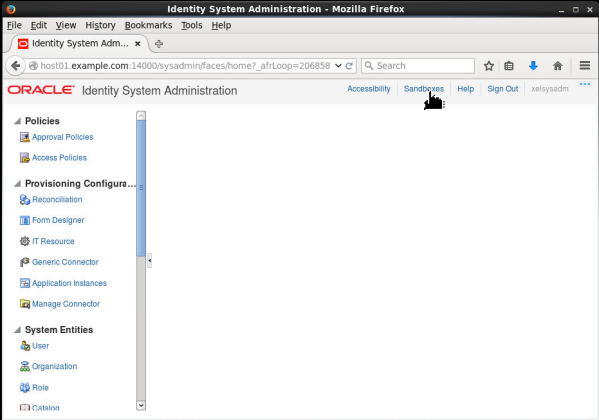
In the Oracle Identity System Administration window, click Sandboxes:
Description of this image
-
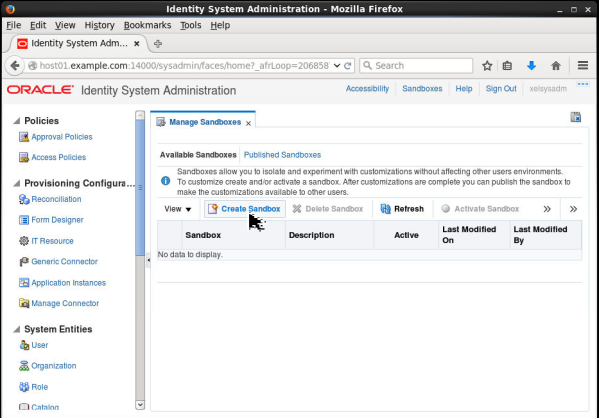
Click Create Sandbox:
Description of this image
-
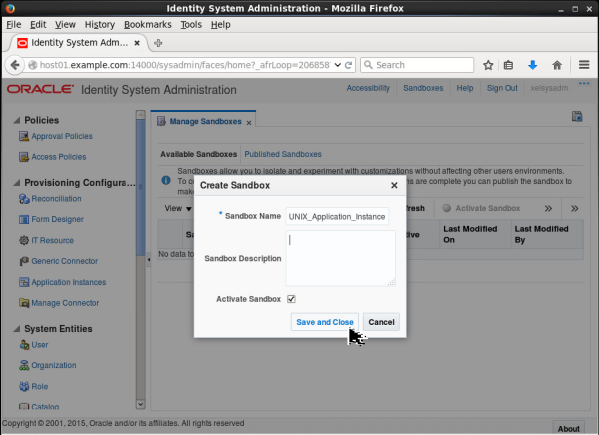
Enter UNIX_Application_Instance in the Sandbox Name field and click Save and Close:
Description of this image
-
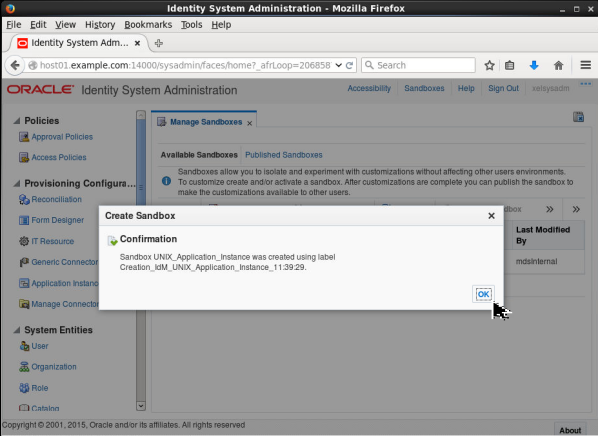
Click OK:
Description of this image -
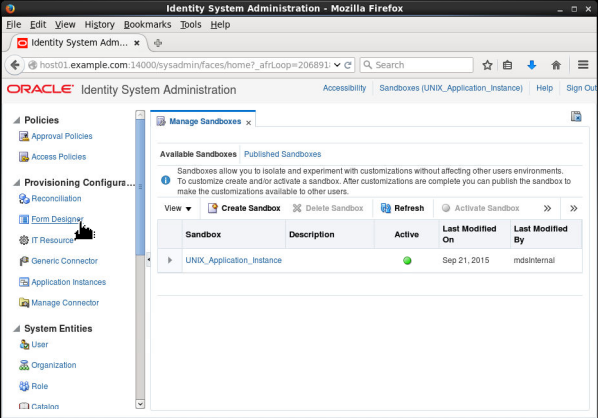
Click Form Designer:
Description of this image
-
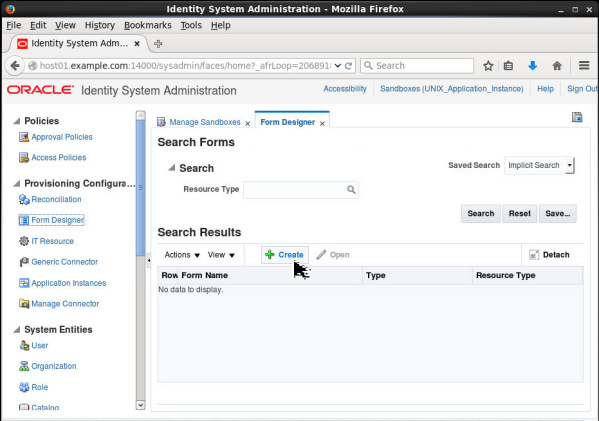
Click Create:
Description of this image -
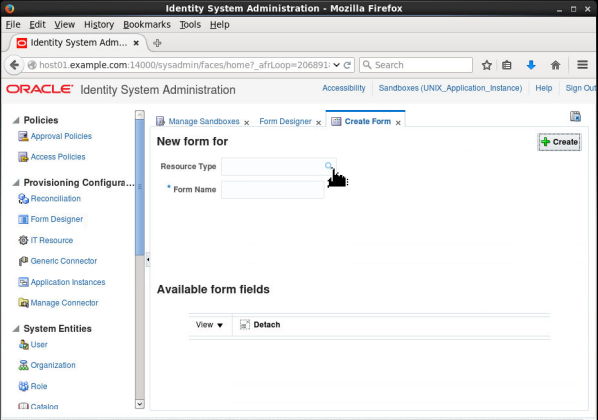
Click the search icon in the Resource Type field:
Description of this image
-
Click Search:
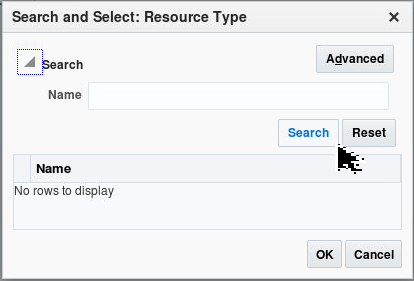
Description of this image
-
Select UNIX User and click OK:
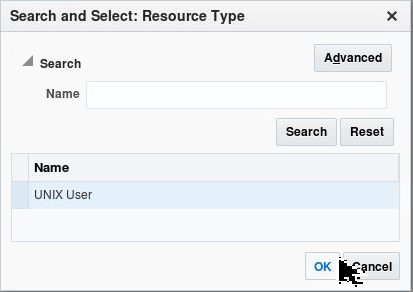
Description of this image
-
In the Form Name field, enter UNIX1 and click Create:
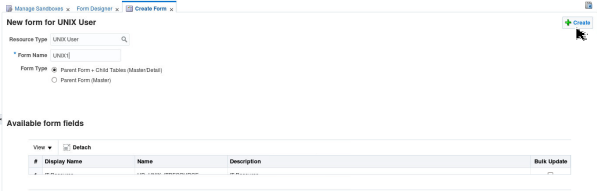
Description of this image
-
A message indicating that the form is created is displayed. Close the Form Designer tab:
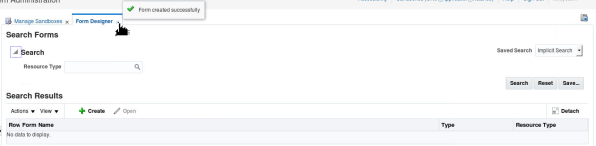
Description of this image
-
Click Application Instances:
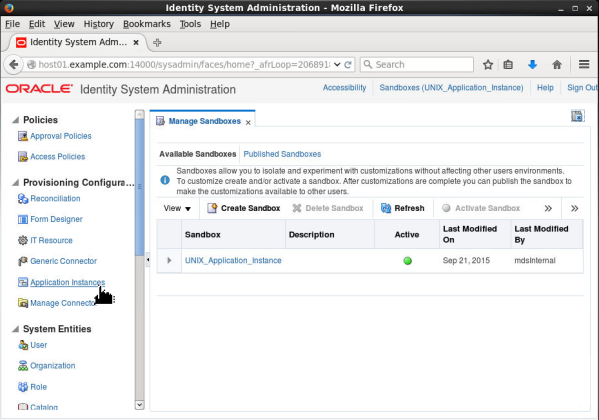
Description of this image
-
Click Create:
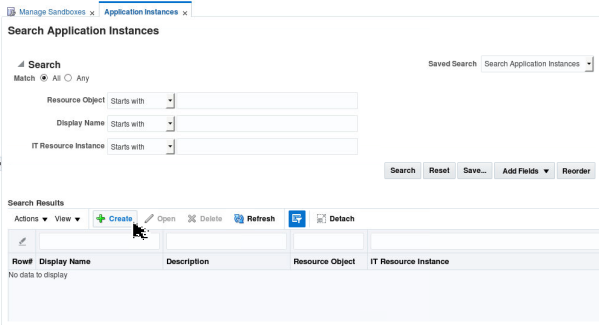
Description of this image -
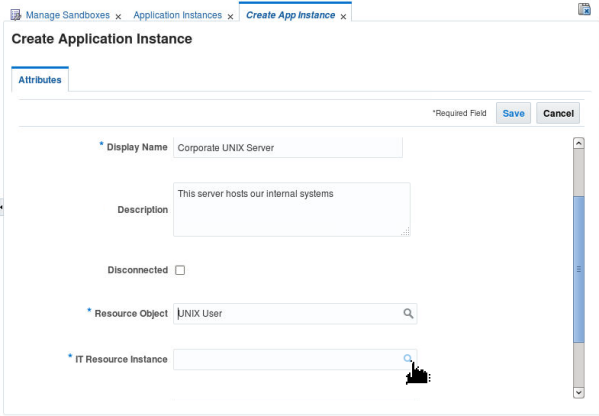
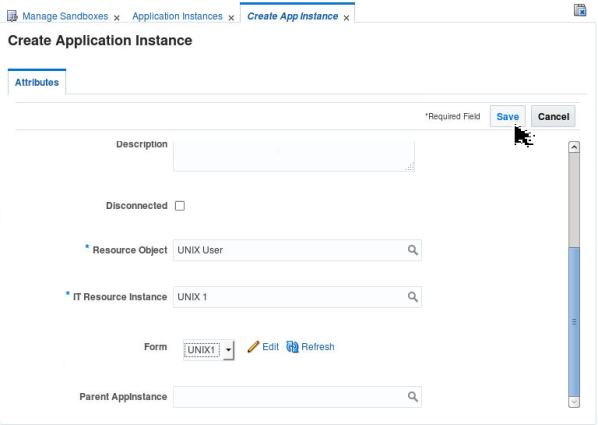
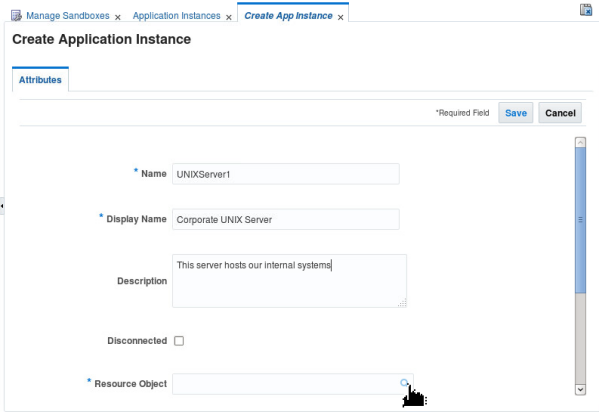
In the Create Application Instance window, enter the following values and click the search icon in the Resource Object field:
- Name: UNIXServer1
- Display Name: Corporate UNIX Server
- Description: This server hosts our internal systems
-
Click Search:
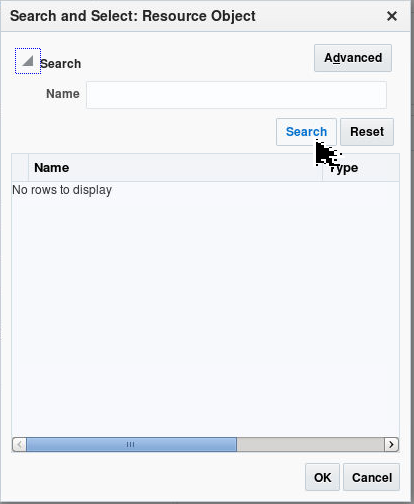
Description of this image
-
In the search results, select UNIX User and click OK:
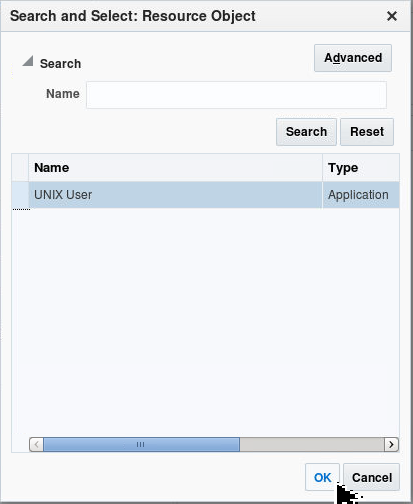
Description of this image
-
Scroll down and click the search icon in the IT Resource Instance field:
Description of this image
-
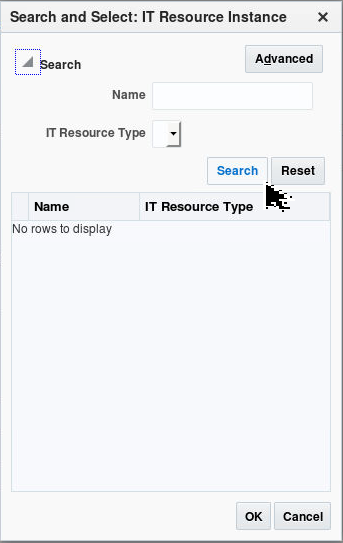
Click Search:
Description of this image
-
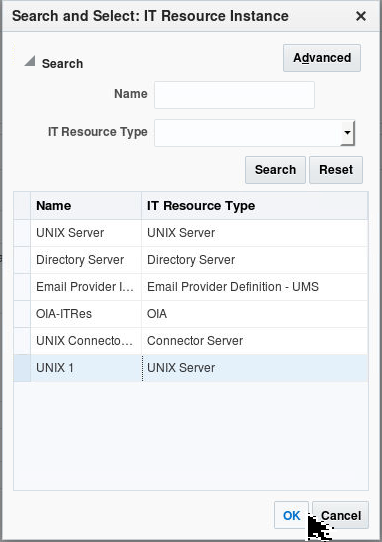
Select UNIX 1 from the search results and click OK:
Description of this image
-
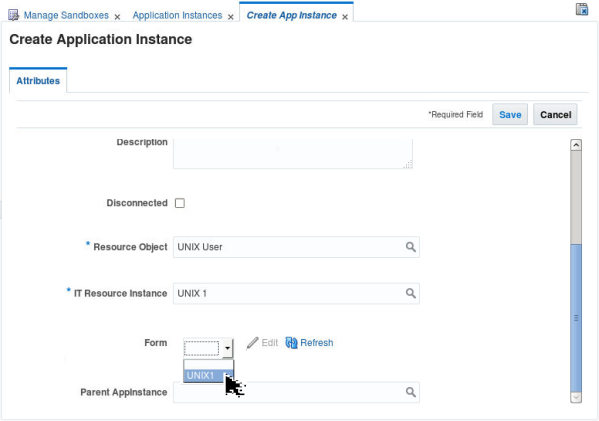
From the Form drop-down list, select UNIX1:
Description of this image
-
Click Save:
Description of this image
-
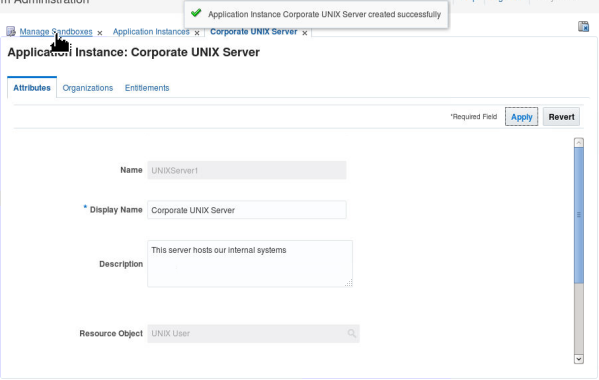
A message indicating that the Application Instance is created is displayed. Click Manage Sandboxes:
Description of this image
-
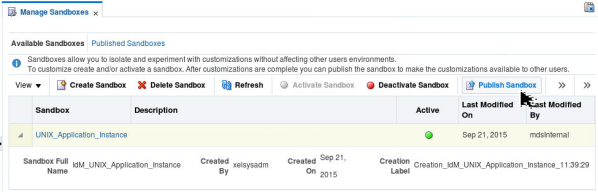
Select the UNIX_Application_Instance sandbox and click Publish Sandbox:
Description of this image
-
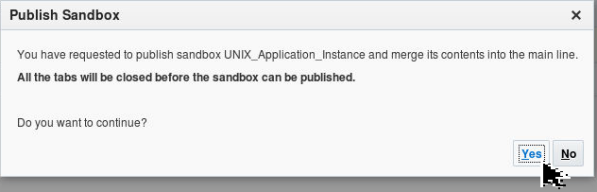
Click Yes:
Description of this image -
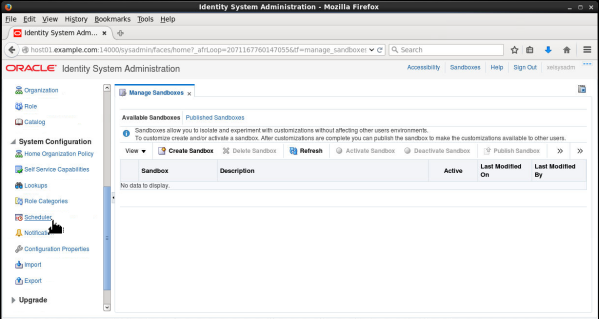
Scroll down and click Scheduler:
Description of this image -
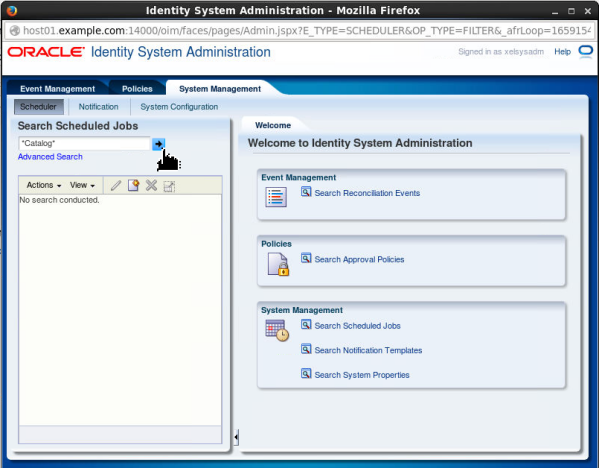
In the Search Scheduled Jobs field, enter *Catalog* and click the search button:
Description of this image -
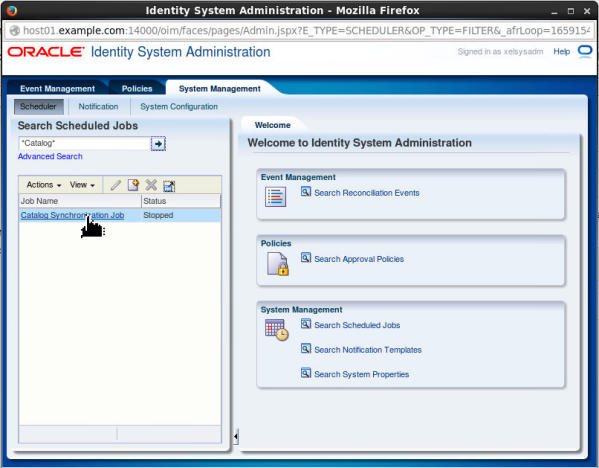
Click Catalog Synchronization Job:
Description of this image
-
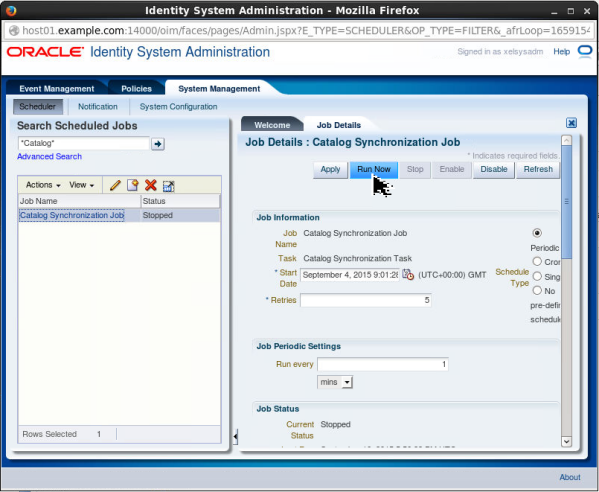
Click Run Now:
Description of this image
-
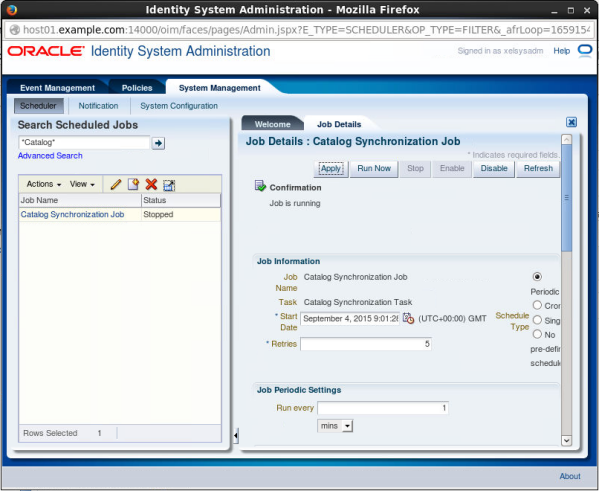
A message indicating that the scheduled job is running is displayed. Close the Scheduler window:
Description of this image
-
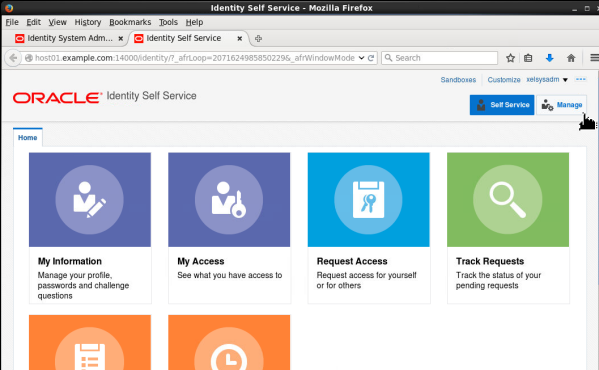
In a new browser window or tab, open the Oracle Identity Self Service console by entering the url http://host01.example.com:14000/identity. If prompted for login information specify the username as xelsysadm and password as Welcome1. Click Manage:
Description of this image
-
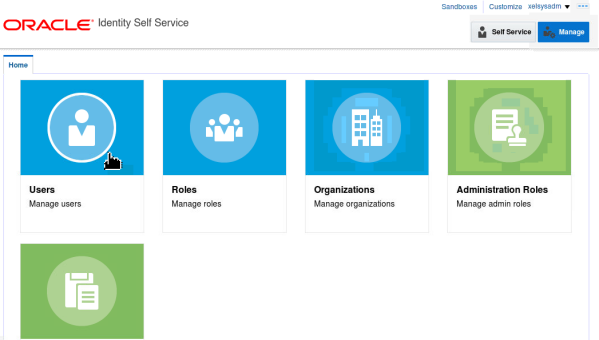
Click Users:
Description of this image -
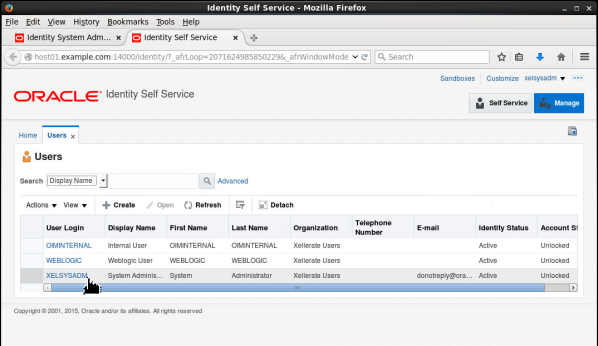
In the Users list, click XELSYSADM:
Description of this image
-
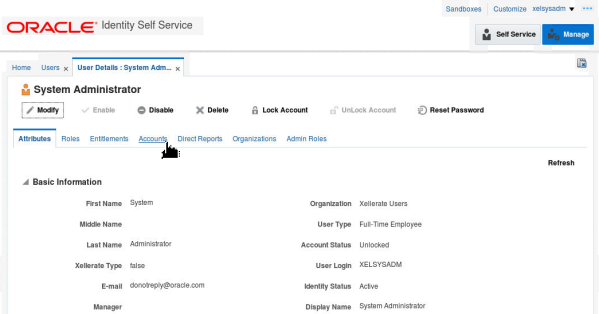
Click Accounts:
Description of this image
-
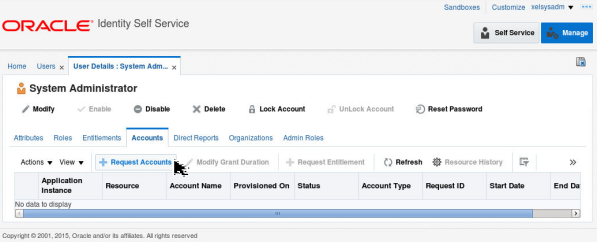
Click Request Accounts:
Description of this image
-
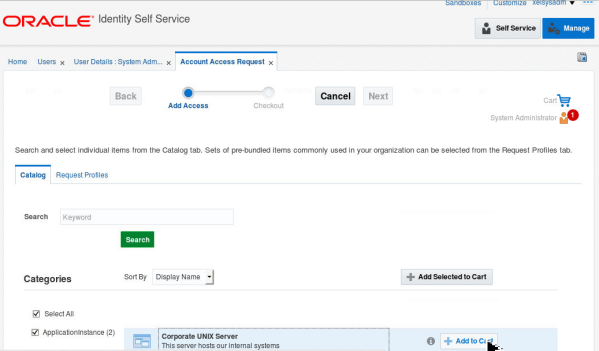
Click Add to Cart next to Corporate UNIX Server. This is the application instance that you created earlier:
Description of this image
-
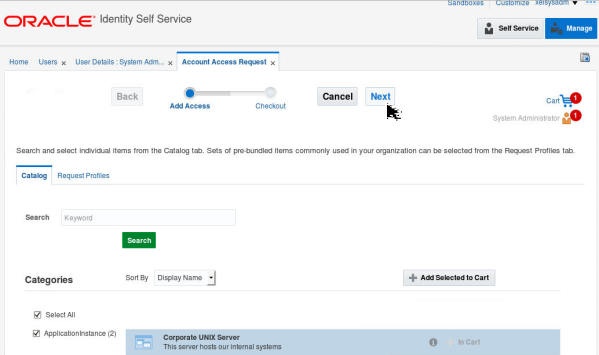
Click Next:
Description of this image
-
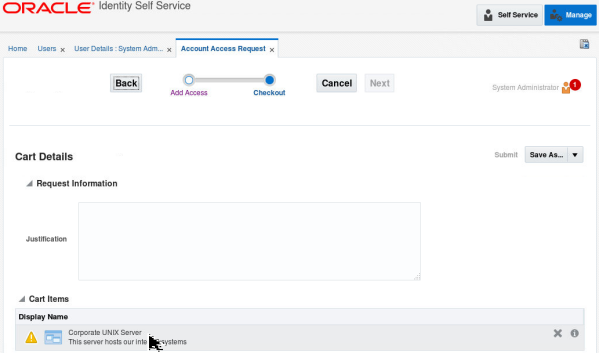
In the Cart Items section, click Corporate UNIX Server:
Description of this image
-
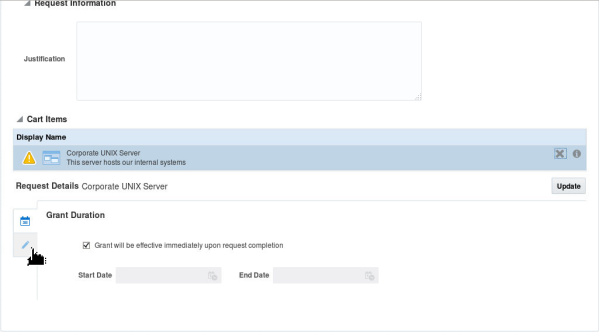
Scroll down and click the edit icon:
Description of this image
-
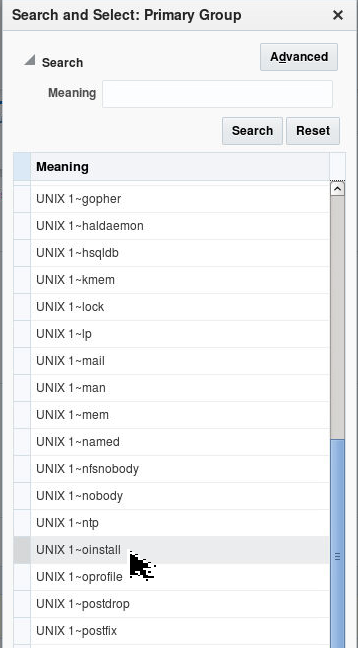
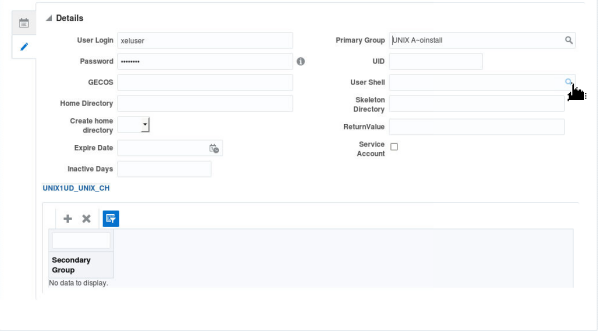
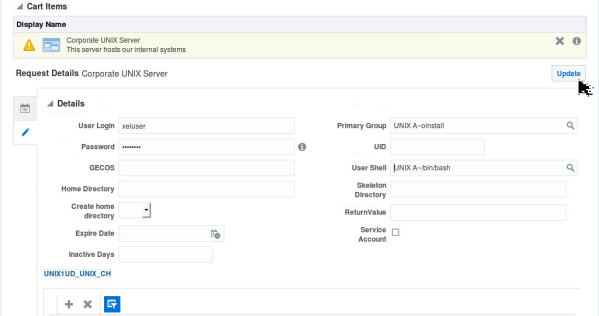
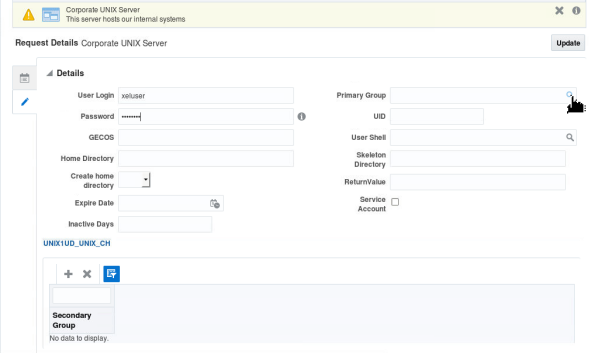
Enter the following values and click the search icon in the Primary Group field:
- User Login: xeluser
- Password: Welcome1
-
Select UNIX 1~oinstall and click OK:
Description of this image
-
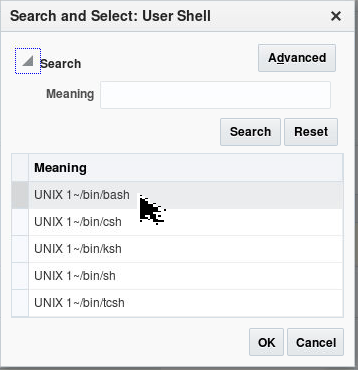
Click the search icon in the User Shell field:
Description of this image
-
Select UNIX 1~/bin/bash and click OK:
Description of this image
-
Scroll up and click Update:
Description of this image
-
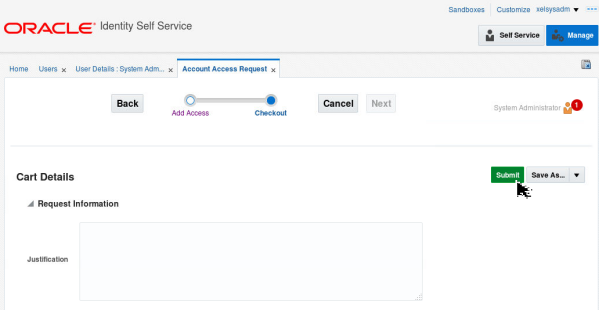
Click Submit:
Description of this image
-
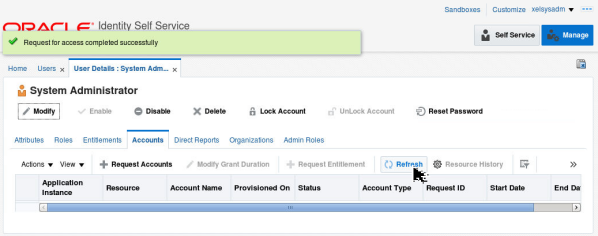
A message indicating that the request is completed successfully is displayed. Click Refresh:
Description of this image
-
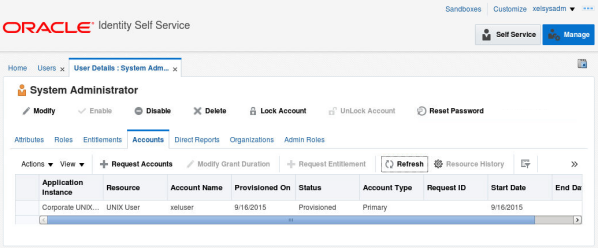
The status for the request shows provisioned. This indicates that you have provisioned a UNIX user xeluser from OIM using the UNIX connector:
Description of this image
-
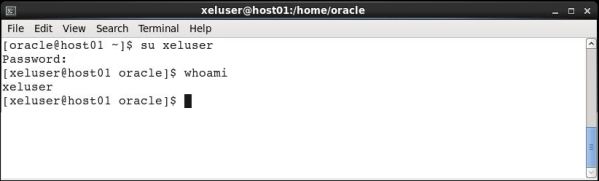
Open a terminal window and enter the following commands:
su xeluser
Enter the password as Welcome1
whoami
The terminal displays xeluser in response to the
whoami command. This confirms that the user xeluser
is created on the UNIX system. -
Close the terminal and logout of the Identity Self Service Console and the Identity System Administration console that is running in the browser.
Want to Learn More?
Credits
- Developer: Sanjay Kumar Kunithala
- Lead Developer: Frederico Hakamine