Oracle Identity Manager: Customizing UI Button Labels
Purpose
This tutorial covers how to determine the appropriate location of files used to change button labels for Oracle Identity Manager Web-based consoles effectively.
Oracle Identity Manager has five web-based consoles: the Login page and the Unauthenticated Self Service, Authenticated Self Service, Advanced Administration, and Delegated Identity Administration consoles. These consoles are deployed through the iam-consoles-faces.war and admin.war files. The out-of-the-box labels displayed on the buttons might not be preferred in certain cases. In such scenarios, this tutorial provides examples through which you can learn how to change some of the button labels.
The labels on the buttons are referred from localized properties files. Within the web applications, there are a number of properties files and based on the end user’s locale, the label from the appropriate localized properties file is picked up.
Time to Complete
Approximately 45 minutes.
Overview
This tutorial example demonstrates how to customize the Oracle Identity Manager UI button labels.
Scenario (Optional)
Linda works as a network administrator for Mydo Main Corporation. She is responsible for performing identity and access management tasks on users within the company. Her tasks include customizing button labels for three web-based consoles in the Oracle Identity Manager Administrative and User Interface: the Advanced Administration, Delegated Identity Administration, and Authenticated Self Service consoles. By doing so, Linda tailors the console UI interface to meet the company's requirements
Software and Hardware Requirements (Optional)
The following is a list of software requirements used in this tutorial:
- Oracle Database 11g 11.1.0.7.0
- Oracle WebLogic Server 10.3.5.0
- Oracle Identity Manager 11g 11.1.1.5.0
Before starting this tutorial, Oracle Identity Manager 11g should be installed and configured. In addition, this tutorial provides an optional zip file that can be downloaded to assist Linda with completing the button label customization. The zip file should be downloaded to the Oracle Identity Manager server machine.
In addition to the completed customized .properties files for each part of this tutorial, the downloadable zip file contains:
- A README file that provides brief instructions on how to use the files.
- A modified properties file for the task and its corresponding original file.
- An image that shows the differences between the original and customized property files.
Note: Download, copy, and extract the zip file into your $HOME folder or any temporary folder. Alternatively, use direct the links to the property files provided in the tutorial to download (into a temporary folder) the specific customized property file for that section. You can use the downloaded property files to replace the original files in their respective archive (JAR) file location, as described in relevant sections of this tutorial.
Prerequisites
Before starting this tutorial, you should have installed, configured, and started:
. |
The Oracle Database |
|---|---|
. |
The Oracle WebLogic Server |
. |
Oracle Identity Manager |
Customizing Button Labels for Oracle Identity Manager Consoles
Your tasks are to customize button labels in the following pages for the Oracle Identity Manager Administrative and User Interface:
- The Create Approval Policy page of the Advanced Administration console
- The Create User page of the Identity Administration console
- The Security tabbed page of the Profile page in the Self Service console
Overview of Steps to Change Button Labels
Oracle Identity Manager (Oracle Identity Manager) administration console pages are implemented as Java web applications, with a UI interface based on Oracle Application Developer Framework (ADF) libraries. The Oracle Identity Manager administration console web applications are deployed to an Oracle WebLogic Server runtime environment.
These Oracle Identity Manager web applications are typically deployed by using an Enterprise Archive (EAR) files. The EAR file is a standardized package that contains a one or more WAR files and also JAR files that provide the application logic and configuration the latter of which is managed through a collection of property files. The properties for controlling the setting of UI component labels are usually located in one of the property files stored in some JAR file package.
To customize UI button labels in Oracle Identity Manager console pages, the general steps are:
- Identify and locate the JAR file containing the properties file containing the button label property.
- Extract the properties file from the JAR file and make a backup copy of files.
- Make the modifications to the properties in the appropriate property file.
Note: For the English language the *_en.properties files are used. Ensure you make changes to the property file corresponding to the required locale. - Replace the ordinal property file in the appropriate JAR file, by adding (updating) the modified file in the JAR file.
- Restart the Oracle Identity Manager server instance.
For each of the subsequent examples, the instructions guide you to:
- Observe the button labels in the web page before they are changed
- Take the steps to modify the properties for the selected button labels
- Restarted the Oracle Identity Manager server and view the changes made.
Location of Property Files
Most of the properties files for the unauthenticated self service, authenticated self service, and advanced administration consoles are located in one of the following two JAR files:
- iam-consoles-faces.war/WEB-INF/lib/iam-consoles-faces.jar
- iam-consoles-faces.war/WEB-INF/lib/OIMUI.jar
Properties for the Administration UI are in a JAR file stored in the following directory:
- admin.war/WEB-INF/lib
Note: The exact jar file and the location of a properties file depend on the feature and the console. The names of the jar file and the locations to the properties file can help in identifying the appropriate file. For example, the scheduler UI uses the properties file located inside OIMUI.jar prefixed with the oracle/iam/features/scheduler/agentry/resources path.
About Runtime Environment Paths
In this tutorial MW_HOME is assumed to be /opt/oracle/Middleware, and Oracle_IDM1 is the directory in which the Oracle Identity Manager software has been installed. You should create an environment for MW_HOME that is appropriate for your installation of Oracle Identity Manager 11g.
The WAR files described above are located in the MW_HOME/Oracle_IDM1/servers/app folder, where MW_HOME represents the directory path for the Fusion Middleware home chosen when installing Oracle WebLogic Server, and Oracle_IDM1 represents the home directory for the Oracle Identity Management 11g installation.
Advanced Administration: Change Create Approval Policy Button Labels
In this section task is to modify the button labels in the Create Approval Policy form, in the Advanced Administration console, from Cancel and Next to Abort and Go, respectively.
Note: Properties that set the labels for the Cancel and Next buttons are found in the Agent_en.properties file located in the JAR file identified by the following directory path MW_HOME/Oracle_IDM1/server/apps/oim.ear/iam-consoles-faces.war/WEB-INF/lib/OIMUI.jar. The actual properties file is stored in the JAR file prefixed by the following path name /oracle/iam/request/agentry/resources.
To complete this task, ensure that the Oracle WebLogic Server and Oracle Identity Manager server instances are running in your environment, and perform the following steps:
View Default Button Labels on the Create Approval Policy Page
In this section, you view the default button labels.
. |
In a new web browser window or page, enter the URL http://localhost:14000/oim to access the Oracle Identity Manager Login page.
Note: Replace the URL host name and port to suit your installation configuration. |
|---|---|
. |
On the Oracle Identity Manager Login page, in the Sign In section enter the User Login xelsysadm and Password Welcome1, and click Sign In.
Note: Replace the password with the one you chose when you installed the Oracle Identity Manager software. |
. |
On the Oracle Identity Manager Self Service Welcome page, navigate to the Policies tabbed page in the Advanced Administration console, by clicking the Advanced icon or link:
On the Oracle Identity Manager Advanced Administration page, click the Policies tab:
|
. |
On the Policies tabbed page, to create a new Approval policy, under Approval Policies in the Search Approval Policies section, click Actions > Create.
Note: In the Policies > Create Approval Policy tabbed page, observe the default button labels are Cancel and Next, respectively:
|
. |
Sign out of the Oracle Identity Manager Administration console by clicking the Sign Out link in the toolbar.
|




Extract, Modify, and Replace the Agent_en.properties File
. |
Open a new Terminal window, and if needed set and update the following environment variables: $ export MW_HOME=/opt/oracle/Middleware $ export JAVA_HOME=/usr/java/jdk1.6.0_24 $ PATH=$JAVA_HOME/bin:$PATH Note: The command line syntax shown is Borne shell syntax, please use equivalent commands for your shell or command line environment. |
|---|---|
. |
In the Terminal window, navigate to the $MW_HOME/Oracle_IDM1/server/apps/oim.ear/iam-console-faces.war/WEB-INF/lib folder, which contains the OIMUI.jar file. Execute the following commands to navigate to the appropriate folder and backup the JAR file: $ cd $MW_HOME/Oracle_IDM1/server/apps/oim.ear/iam-console-faces.war/WEB-INF/lib $ cp OIMUI.jar $HOME/backups Note: The $HOME/backups folder should already exist. |
. |
Extract the Agent_en.properties file to be modified, from the oracle/iam/request/agentry/resources folder in the OIMUI.jar file: $ jar xvf OIMUI.jar oracle/iam/request/agentry/resources/Agent_en.properties Note: The jar command extracts the Agent_en.properties file into a folder structure resembling the path it was extracted from the OIMUI.jar file. |
. |
To change the button labels from Cancel to Abort and Next to Go, edit the Agent_en.properties file using your preferred editor. For example: $ gedit oracle/iam/request/agentry/resources/Agent_en.properties Note: Alternatively, you can download this already modified Agent_en.properties file, and replace the oracle/iam/request/agentry/resources/Agent_en.properties file you extracted. Otherwise, to make the changes yourself, in the editor window, search for the string "Intent[NEXT]", make the changes shown in the following image, save the changes, and close the editor window:
Note: The the hash (#) character prefix represents a line comment. The following changes have been made to the Agent_en.properties file shown in the preceding image:
Alternatively, replace the existing entries with their new values. |
. |
In the Terminal window, to update (replace) the Agent_en.properties file in the OIMUI.jar file with the newly updated Agent_en.properties file extracted to the file system execute the following command: $ jar uvf OIMUI.jar oracle/iam/request/agentry/resources/Agent_en.properties Note: The u option in the jar command line adds (updates) the file specified in the third argument into the OIMUI.jar file named in the second argument. Delete the modified Agent_en.properties file and the directory tree into which it was extracted by executing the following command: $ rm -rf oracle |
. |
To restart the Oracle Identity Manager server instance, in a Terminal window, execute the following commands: $ cd $MW_HOME/user_projects/domains/base_domain/bin $ ./stopManagedWebLogic.sh oim_server1 Wait for the Oracle Identity Manager WebLogic Managed Server instance to be shutdown, and then execute the following command to restart it. $ cd $MW_HOME/user_projects/domains/base_domain/bin $ ./startManagedWebLogic.sh oim_server1 & Note: The WebLogic Server domain folder location, the domain folder name (base_domain), and the Oracle Identity Manager managed server instance name (oim_server1), as shown in this example may be different for your installation. Replace the domain path, domain name, and Oracle Identity Manager managed server name entries with values that match your own environment. Alternatively, if you have the WebLogic Server Node Manager configured you can restart the Oracle Identity Manager managed server instance from the WebLogic Server Administration Console web page. |

Note: Click the Modifying a JAR File with UI Tools link to learn how you can use the Linux Gnome UI applications to find, extract, and replacing the Agent_en.properties in the OIMUI.jar file.
Verify Changes to Button Label Names
. |
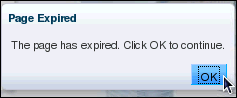
Return to the web browser window or page containing the Oracle Identity Manager Administration or Login page. If the Login page is not displayed you may have to enter a URL such as http://localhost:14000/oim (replacing the hostname and port with values suited to your environment). Note: If you return the the Oracle Identity Manager login page you may see the following Page Expired dialog box.
If the above Page Expired dialog box appears in the web browser, click OK to refresh the Oracle Identity Manager Login page. |
|---|---|
. |
On the Oracle Identity Manager Login page, in the Sign In section enter the User Login xelsysadm and Password Welcome1, and click Sign In.
Note: Replace the password with the one you chose when you installed the Oracle Identity Manager software. |
. |
On the Oracle Identity Manager Self Service Welcome page, navigate to the Policies tabbed page in the Advanced Administration console, by clicking the Advanced icon or link:
On the Oracle Identity Manager Advanced Administration page, click the Policies tab:
|
. |
On the Policies tabbed page, to create a new Approval policy, under Approval Policies in the Search Approval Policies section, click Actions > Create.
|
. |
In the Policies > Create Approval Policy tabbed page, observe that the button labels have changed to Abort and Go, respectively:
|
. |
Sign out of the Oracle Identity Manager Administration console by clicking the Sign Out link in the toolbar.
|

Identity Administration: Change Create User Button Labels
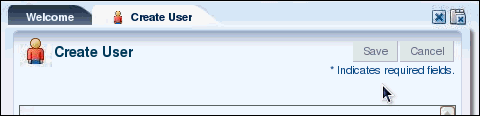
In this section task is to modify the button labels in the Create User form, in the User Administration console, from Save and Cancel to Submit and Clear, respectively.
Note: Properties that set the labels for the Save and Clear buttons are found in the IdentityUIBundle_en.properties file located in the following JAR file: MW_HOME/Oracle_IDM1/server/apps/oim.ear/admin.war/WEB-INF/lib/IdentityTaskFlow.jar. The IdentityUIBundle_en.properties file is located in the name /oracle/iam/identitytaskflow/resources path in the IdentityTaskFlow.jar file.
To complete this task, perform the following steps:
View the Default Button Labels
In this section, you open the Create User page to view the default button labels.
. |
In a web browser window or page, enter the URL http://localhost:14000/oim to access the Oracle Identity Manager Login page. |
|---|---|
. |
On the Oracle Identity Manager Login page, in the Sign In section enter the User Login xelsysadm and Password Welcome1, and click Sign In. |
. |
On the Welcome page, click the Administration icon or link.
|
. |
On the Oracle Identity Manager - Delegated Administration page, click the Create User link.
And on the Create User tabbed page, confirm that the default button labels are Save and Cancel, respectively.
|
. |
On the Oracle Identity Manager toolbar, click the Sign Out link. |


Modify Button Label Properties in the IdentityUIBundle_en.properties File
In this section, you modify the appropriate properties to change the button labels.
. |
Open a new Terminal window, and if needed set and update the following environment variables: $ export MW_HOME=/opt/oracle/Middleware $ export JAVA_HOME=/usr/java/jdk1.6.0_24 $ PATH=$JAVA_HOME/bin:$PATH Navigate to the $MW_HOME/Oracle_IDM1/server/apps/oim.ear/admin.war/WEB-INF/lib folder, which contains the IdentityTaskFlow.jar file. Backup the JAR file with the following command (assuming the $HOME/backups folder exists): $ cd $MW_HOME/Oracle_IDM1/server/apps/oim.ear/admin.war/WEB-INF/lib $ cp IdentityTaskFlow.jar $HOME/backups |
|---|---|
. |
In the Terminal window, execute the following command to exact the IdentityUIBundle_en.properties file from JAR file by using the oracle/iam/identitytaskflow/resources/IdentityUIBundle_en.properties path: $ jar xvf IdentityTaskFlow.jar \ Note: The jar command extracts the IdentityUIBundle_en.properties file into a folder structure resembling the path it was extracted from the IdentityTaskFlow.jar file. |
. |
To change the button labels from Save and Cancel buttons to Submit and Clear, edit the IdentityUIBundle_en.properties file using your preferred editor. For example: $ gedit oracle/iam/identitytaskflow/resources/IdentityUIBundle_en.properties Note: Alternatively, you can download this already modified IdentityUIBundle_en.properties file, and replace the oracle/iam/identitytaskflow/resources/IdentityUIBundle_en.properties file you extracted from the IdentityUIBundle_en.properties file. To make the changes yourself, in the editor window, search for the string "save_action", make the following changes to the IdentityUIBundle_en.properties file:
Note: Use the the following image as a guide:
Importantly, remember to save the changes to the IdentityUIBundle_en.properties file, and close the editor window. |
. |
In the Terminal window, update (replace) the IdentityUIBundle_en.properties file in the IdentityTaskFlow.jar file with the modified IdentityUIBundle_en.properties file by executing the following command: $ jar uvf IdentityTaskFlow.jar \ Note: The u option in the jar command line adds (updates/replaces) the file named in the third argument in the JAR file specified as the second argument. Remove the modified IdentityUIBundle_en.properties file and the directory tree into which it was extracted by executing the following command: $ rm -rf oracle |
. |
Restart the Oracle Identity Manager server by performing the following commands in a Terminal window: $ cd $MW_HOME/user_projects/domains/base_domain/bin $ ./stopManagedWebLogic.sh oim_server1 Wait for the Oracle Identity Manager WebLogic Managed Server instance to be shutdown, and then execute the following command to restart it. $ cd $MW_HOME/user_projects/domains/base_domain/bin $ ./startManagedWebLogic.sh oim_server1 & |

Verify the Updated Button Labels
In this section, you sign into the Oracle Identity Manager Administration console and confirm that the Create User tabbed page contains the new button labels Submit and Clear.
. |
Return to the web browser window or page containing the Oracle Identity Manager Administration or Login page, enter the User Login xelsysadm and Password Welcome1, and click Sign In. Note: If you return the the Oracle Identity Manager login page you may see the following Page Expired dialog box.
Note: If the Login page is not displayed, enter the URL http://localhost:14000/oim (replacing the hostname and port with values suited to your environment). |
|---|---|
. |
On the Welcome page, click the Administration icon or link.
|
. |
On the Oracle Identity Manager - Delegated Administration page, click the Create User link, and on the Create User tabbed page, confirm that the default button labels are Submit and Clear, respectively.
|
. |
Sign out of the Oracle Identity Manager Administration console by clicking the Sign Out link in the toolbar. |

Self Service: Change Profile > Security Button Labels
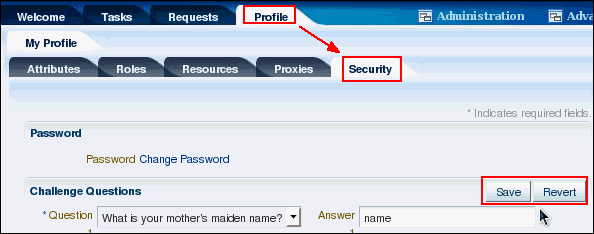
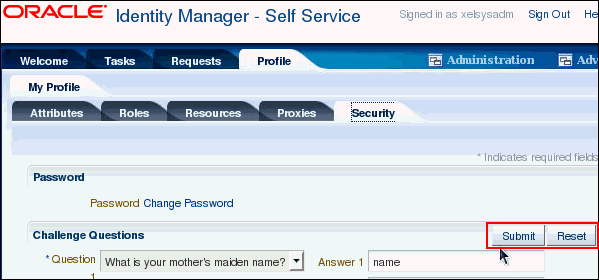
In this section task is to modify the button labels in the Change Profile form, in the Self Service console, from Save and Revert to Submit and Reset, respectively.
Note: Properties that set the labels for the Apply and Revert buttons are found in the Agent_en.properties file located in the following JAR file: MW_HOME/Oracle_IDM1/server/apps/oim.ear/iam-console-faces.war/WEB-INF/lib/OIMUI.jar. The specific Agent_en.properties file is located in the path name /oracle/iam/selfservice/agentry/resources in the Oracle Identity ManagerUI.jar file.
To complete this task, perform the following steps:
View the Default Challenge Questions Form Button Labels
In this section, you navigate to the Challenge Questions form in the Security tabbed page of the the user profile in Self Service console to view the default button labels.
. |
In a web browser window or page, enter the URL http://localhost:14000/oim to access the Oracle Identity Manager Login page, in the Sign In section enter the User Login xelsysadm and Password Welcome1, and click Sign In. Note: Use the password appropriate for your installation of Oracle Identity Manager. |
|---|---|
. |
On the Oracle Identity Manager page displayed in the web browser, after you sign in you may need to click the Self-Service link to view the appropriate tabbed pages for the Self Service console, as shown in the following image: On Self service console page, to view the Challenge Questions form in the Security tabbed page contains the buttons labeled Save and Revert respectively, click the Profile tab and then click the Security tab.
|

Modify the Button Label Properties in Agent_en.properties
In this section, you extract the appropriate Agent_en.properties file and change the appropriate button label property values.
. |
Open a new Terminal window, and if needed set and update the following environment variables: $ export MW_HOME=/opt/oracle/Middleware $ export JAVA_HOME=/usr/java/jdk1.6.0_24 $ PATH=$JAVA_HOME/bin:$PATH |
|---|---|
. |
In the Terminal window, navigate to the $MW_HOME/Oracle_IDM1/server/apps/oim.ear/iam-console-faces.war/WEB-INF/lib folder, which contains the OIMUI.jar file. Execute the following commands to navigate to the appropriate folder and backup the JAR file: $ cd $MW_HOME/Oracle_IDM1/server/apps/oim.ear/iam-console-faces.war/WEB-INF/lib $ cp OIMUI.jar $HOME/backups/OIMUI.jar.ss Note: The $HOME/backups folder should already exist. The additional extension .ss is appended to the file name copied to avoid overwriting the OIMUI.jar backed up from the first example in this tutorial. |
. |
Extract the Agent_en.properties file to be modified, in the oracle/iam/selfservice/self/agentry/resources path from the OIMUI.jar file: $ jar xvf OIMUI.jar oracle/iam/selfservice/self/agentry/resources/Agent_en.properties Note: The Agent_en.properties file is extracted into a folder structure using the full path name from which it was extracted out of the OIMUI.jar file. |
. |
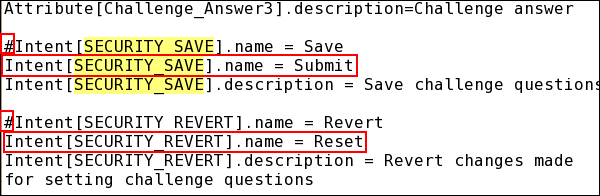
To change the button labels from Save to Submit and Revert to Reset, edit the Agent_en.properties file using your preferred editor. For example: $ gedit oracle/iam/selfservice/self/agentry/resources/Agent_en.properties Note: Alternatively, you can download this already modified Agent_en.properties file, and replace the oracle/iam/selfservice/self/agentry/resources/Agent_en.properties file you extracted. Otherwise, to make the changes yourself, in the editor window, by searching for the string "SECURITY_SAVE", making the following changes to the Agent_en.properties file:
Note: The the hash (#) character prefix represents a line comment. Verify that your changes resemble those shown in the following image, save the changes, and close the editor window:
|
. |
In the Terminal window, to update (replace) the Agent_en.properties file in the Oracle Identity ManagerUI.jar file with the newly updated Agent_en.properties file extracted to the file system execute the following command: $ jar uvf OIMUI.jar oracle/iam/selfservice/self/agentry/resources/Agent_en.properties Note: The u command line option updates (replaces) the file specified in the third argument into the OIMUI.jar file named as the second argument. Remember to delete the modified Agent_en.properties file and the directory tree into which it was extracted by executing the following command: $ rm -rf oracle |
. |
To restart the Oracle Identity Manager server instance, in a Terminal window, execute the following commands: $ cd $MW_HOME/user_projects/domains/base_domain/bin $ ./stopManagedWebLogic.sh oim_server1 Wait for the Oracle Identity Manager WebLogic Managed Server instance to be shutdown, and then execute the following command to restart it. $ cd $MW_HOME/user_projects/domains/base_domain/bin $ ./startManagedWebLogic.sh oim_server1 & |
Verify the Button Labels Have Been Changed
In this section, you sign into the Oracle Identity Manager Self Service console and navigate to the Security table of the user profile to verify the the button labels have been changed to Submit and Reset.
. |
In a web browser window or page, enter the URL http://localhost:14000/oim to access the Oracle Identity Manager Login page, in the Sign In section enter the User Login xelsysadm and Password Welcome1, and click Sign In. Note: Use the password appropriate for your installation of Oracle Identity Manager. |
|---|---|
. |
On Self service console page, to view the Challenge Questions form in the Security tabbed page contains the buttons labeled Save and Revert respectively, click the Profile tab and then click the Security tab. Verify that the button labels are now Submit and Reset respectively.
Note: After you sign in, you may need to click the Self-Service link to view the appropriate tabbed pages for the Self Service console. |
Summary
Note: Although this example demonstrates button label changes, the usage of properties files as shown here holds true for other text and label changes. Similar steps can be performed to customize those changes.
In this tutorial, you have learned how to:
- Locate a JAR file from the Oracle Identity Manager runtime server folders that contains a property file, which is extracted to the file system.
- Edit the properties in the extracted property file to change button (or component) labels for specify button labels in the some of the Oracle Identity Manager console pages.
- Replace the extracted property file in the JAR file with the updated button labels.
- Restart the Oracle Identity Manager server instance and verify that the changes to the appropriate button labels in the appropriate console pages are active.
Resources
- Oracle Identity Managment web site on Oracle.com
- To learn more about
, refer to additional OBEs in the OLL Web site (can link to a specific set of OBEs on the subject)
Credits (Optional)
- Lead Curriculum Developer: Glenn Stokol
- Other Contributors: Robert La Vallie

 |
Copyright © 2011, Oracle and/or its affiliates. All rights reserved |