Optimizing Oracle Web Cache
Purpose
This tutorial introduces one of the tuning techniques for increasing cache hits.
Time to Complete
Approximately 15 minutes.
Overview
Oracle Web Cache is preset with default caching rules and system settings
that are useful for most basic applications. In addition, system administrators
may use the diagnostic and monitoring tools to optimize Oracle Web Cache.
This lesson introduces one set of statistics called Popular Pages, which is
useful for identifying the most frequently requested URL and its associated
cacheability.
Software and Hardware Requirements (Optional)
The following is a list of software requirements:
| Item | Specification |
| Processor Type | Intel Xeon or Pentium IV |
| Processor Speed | 2.4 GHz or higher |
| Number of Processors | 1 or more (if required) |
| Memory | 2 GB |
| Hard Disk Space | 20 GB (initial size) |
| Operating System | RedHat Enterprise Linux 4 Update 5 |
Prerequisites
Before starting this tutorial, you should:
|
. |
Have an instance of Oracle WebLogic Server 10.3 |
|---|---|
|
. |
Have configured a domain |
|
. |
Have completed the OBE titled "Configuring Oracle Web Cache for Caching a JavaEE Application" |
|
. |
Have completed the OBE titled "Configuring Oracle Web Cache for Session Binding and Load Balancing" |
|
. |
Have completed the OBE titled "Configuring Oracle Web Cache for Scalability and Failover" |
Checking for Popular Pages That Are Not Cached
|
. |
Browse the Web pages by accessing http://edrsr15p1.us.oracle.com:7785/cntroot/login.jsp. |
|---|---|
|
. |
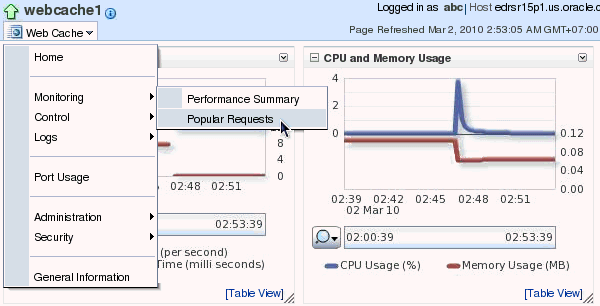
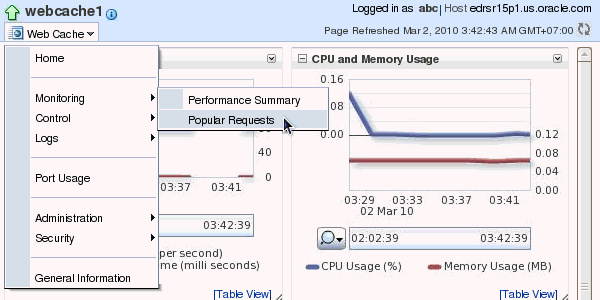
Navigate to the Oracle Web Cache Home page in Fusion Middleware Control. From the Web Cache menu, select Monitoring > Popular Requests.
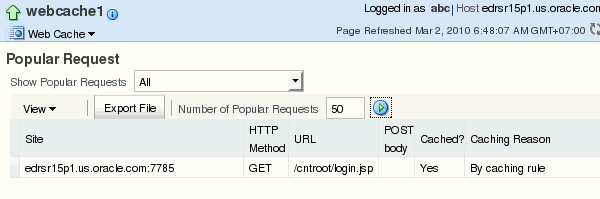
Observe that edrsr15p1.us.oracle.com:7785/cntroot/login.jsp is not cached. You have noticed this in the OBE titled "Configuring Oracle Web Cache for Caching a Java EE Application." The page at edrsr15p1.us.oracle.com:7785/cntroot/login.jsp is a redirect header from the origin server. Because it is the opening page of the site, it is accessed frequently. You will now learn how to cache this page. |
Adding a Caching Rule
|
. |
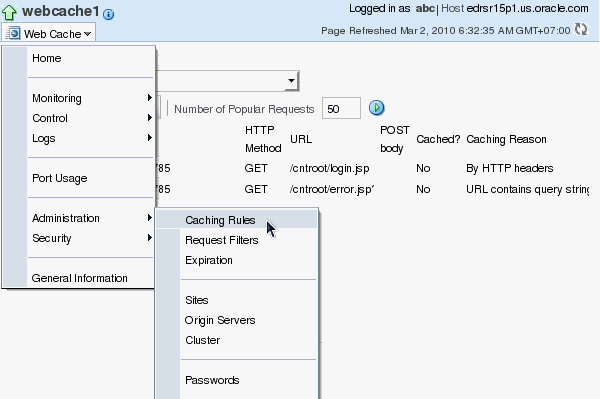
From Web Cache menu, navigate to Administration > Caching Rules to create a new caching rule.
|
|---|---|
|
. |
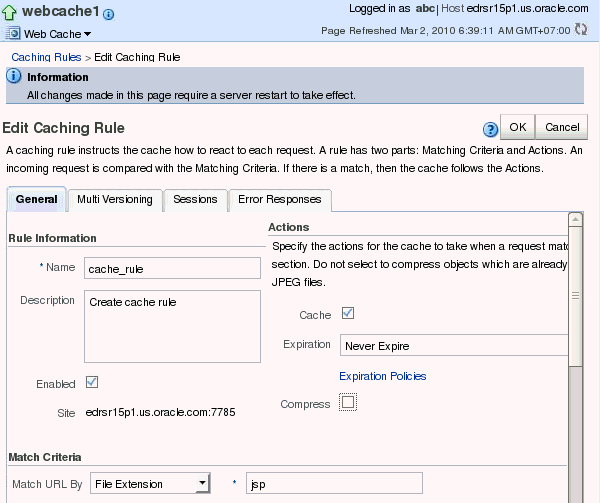
Click Create to create a new rule.
|
| . |
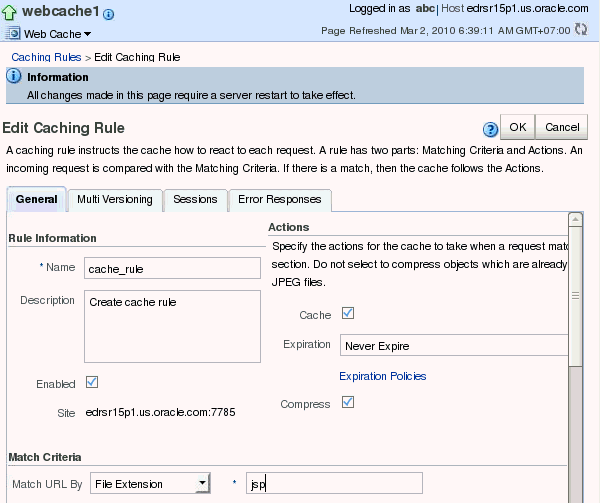
Enter the following: Name: caching_hrapp (anything you want)
|
|
. |
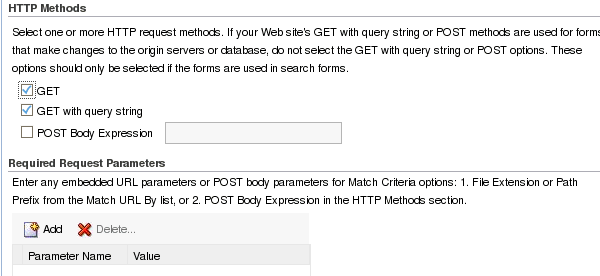
Verify that GET and GET with query string is selected in the HTTP Methods section.
|
|
. |
Because this URL never changes and has no content for compression, set the following: Expiration: Never Expire
|
|
. |
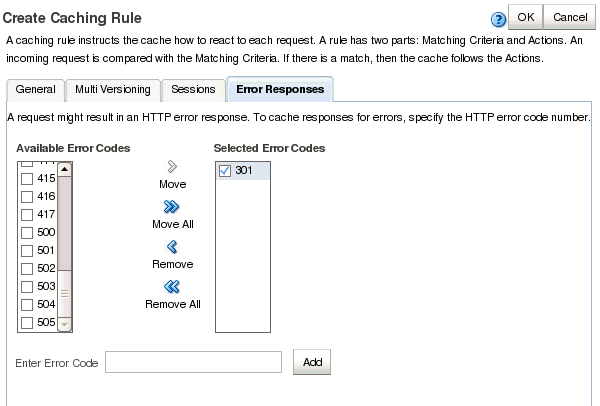
Click the Error Responses tab. This page is to instruct Oracle Web Cache how to handle special cases, such as responses that do not result in 200 HTTP code.
|
|
. |
Scroll down and look for Cache Error Responses. In the Available Error Codes, select 301 and click > Move. Click OK.
301 is the error code from the origin server. Oracle Web Cache logs all the HTTP code from the origin server in the access logs.
|
|
. |
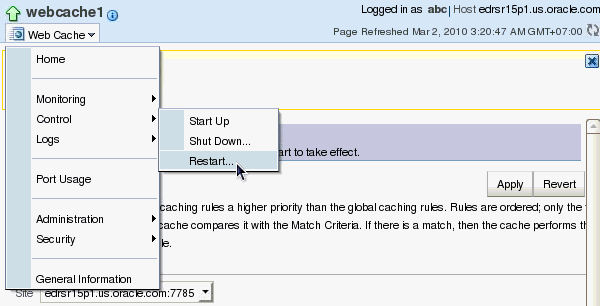
Click Web Cache > Control > Restart to restart Oracle Web Cache.
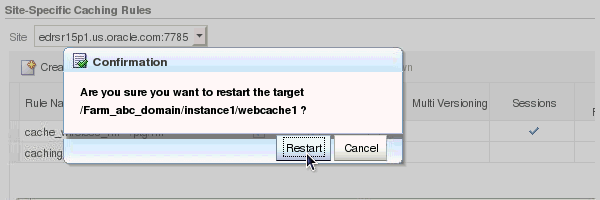
Click Restart to confirm.
Click Close when the restart operation completes successfully.
|
|
. |
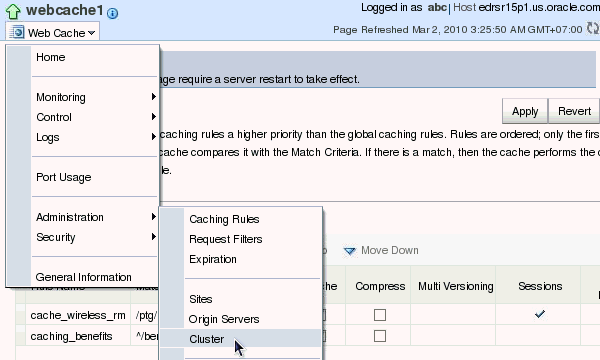
You have already learned that you must propagate the configuration and restart the cache server process of cluster members when you make some changes. You will now propagate changes. From Web Cache menu, navigate to Administration > Cluster.
|
|
. |
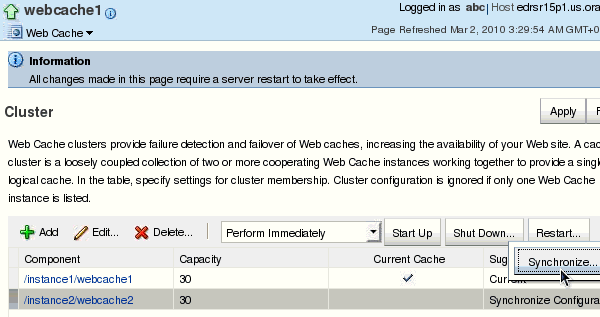
Select the second Web Cache, and click Synchronize.
|
|
. |
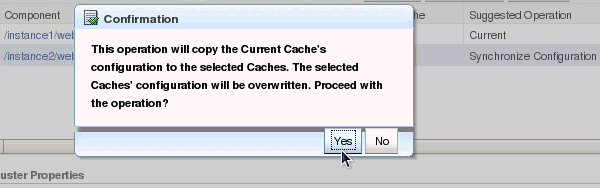
Click Yes when prompted for confirmation.
|
|
. |
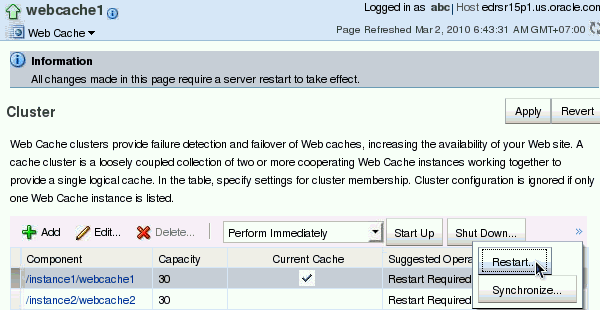
Restart both Web Cache instances.
|
|
. |
Open another browser window and browse the Web pages by accessing http://edrsr15p1.us.oracle.com:7785/cntroot/login.jsp
|
|
. |
Navigate to the Oracle Web Cache Home page in Fusion Middleware Control. From the Web Cache menu, select Monitoring > Popular Requests.
|
|
. |
Observe that login.jsp is cached.
|



Summary
In this tutorial, you have learned how to:
- Use Popular Request to identify popular requests and increase cacheability
- Compose caching rule to store redirects
Resources
- Oracle Fusion Middleware Guide Administrator's Guide for Oracle Web Cache 11g Release 1 (11.1.1)
- Configuring and Managing Oracle Web Cache eStudy
- To learn more about
, refer to additional OBEs on the OTN Web site (can link to a specific set of OBEs on the subject)
