WebCenter Content (WCC) 11g Installation: Part 1 - Configuring the Database with Repository Creation Utility (RCU)
Overview
- Oracle Database (DB)
- Java
- WebLogic Server 11g (WLS)
- Repository Creation Utility (RCU)
- WebCenter Content (WCC)
- Optionally JRockit - JRockit Mission Control (JRMC) - this should include the JRockit JVM as well. In this demo the JVM already installed on the server is the Sun JVM. See the Oracle website http://www.oracle.com/technetwork/middleware/webcenter/content/overview/index.html or just manually go to http://www.oracle.com and look for the Oracle Technology Network.
- Oracle WebLogic Server (WLS) to host the WebCenter Content application
- WebCenter Content (but the Database needs to be prepared with Repository Creation Utility first, which is demonstrated in this tutorial)
- JRockit Java Virtual Machine (JVM) if the default Sun JVM packed with WebLogic Server is not desired (Note: Both JVMs will eventually be combined into one to take advantages of the best of both)
- Step 1. Repository Creation Utility executed to configure the Database for WebCenter Content installation.
- Step 1. WebLogic Server install to host WebCenter Content.
- Step 2. Install WebCenter Content.
- Step 2.a.Install JRockit if desired with the WebLogic Server installation.
- Step 3. Deploy WebCenter Content to the running application server.
- Accessing Repository Creation Utility via Command Line
- Configuring the Database with Repository Creation Utility
- Verifying the Tables have been created
- Oracle Database (DB) and Java have been downloaded
- Repository Creation Utility has been downloaded.
- You have a basic understanding of the following technologies: Database, Java
Oracle WebCenter Content (WCC) 11g Installation Overview
Software to be pre-installed:
Software to be downloaded:
Software to be installed:
Order of Operations:
- Step 1 is assigned to the Repository Creation Utility configuration and the WebLogic Server installation because they are not related to each other and can be done in either order.
But both need to be done before installing WebCenter Content.
Purpose of this Tutorial
This tutorial covers how to install Oracle WebCenter Content (WCC) Part 1. The demonstration installation of WebCenter Content is split into multiple OBE´s. The intended flow of the OBE´s is as follows:
- Part 1. Configuring the Database with Repository Creation Utility (demonstrated in this OBE)
- Part 2. Installing WebLogic Server
- Part 3. Installing and Deploying WebCenter Content
Time to Complete
Approximately 30 minutes
Introduction
The following demo is configured in a Linux environment. Command shortcuts and program mappings may be different than yours. Contact your local administrator to assist you, if the commands in this demo do not work for you.
Start with the Installation Documentation. Keep it open while installing for reference. Keep the documentation handy while installing. Downloads can be found in multiple places and the Readme file gives you some direction.
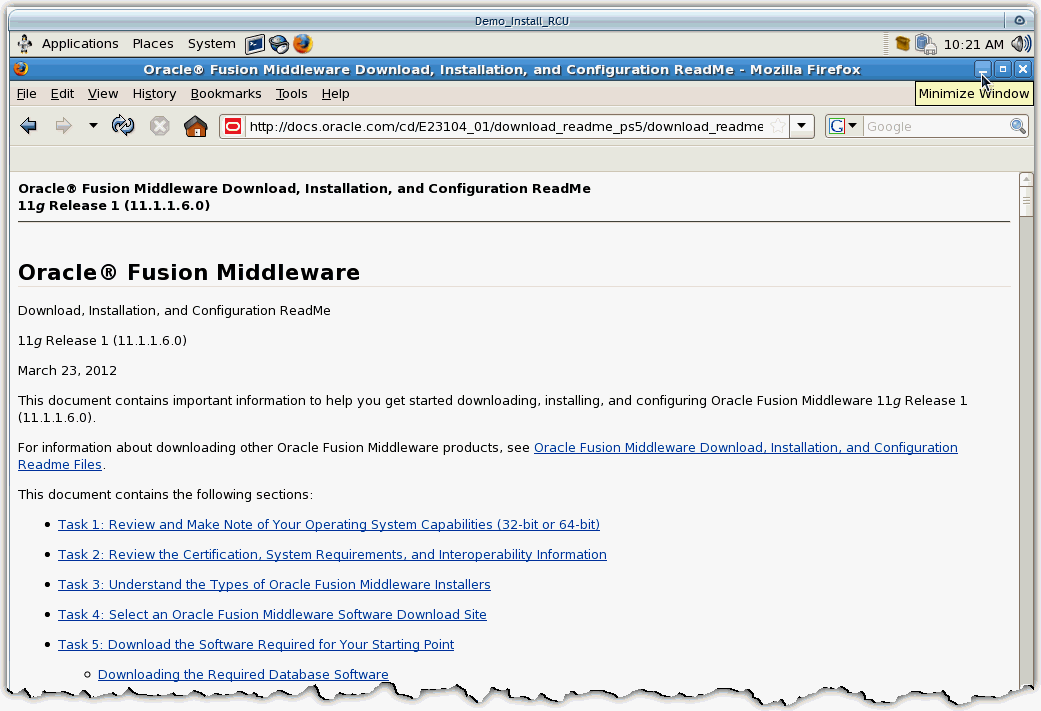
Scenario
In this tutorial in order to configure the database with Repository Creation Utility, you perform the following:
Prerequisites
This tutorial is written specifically to be used in your product environment. The following demo is configured in a Linux environment. Command shortcuts and program mappings may be different than yours. Contact your local administrator for help if the commands in this demo do not work for you.
The following prerequisites are assumed:
Accessing Repository Creation Utility via Command Line
Before installing WebCenter Content, as mentioned in the documentation, you need a Database in order to configure that Database and you need an installation of WebLogic Server This OBE is focused on configuring the Database with Repository Creation Utility.
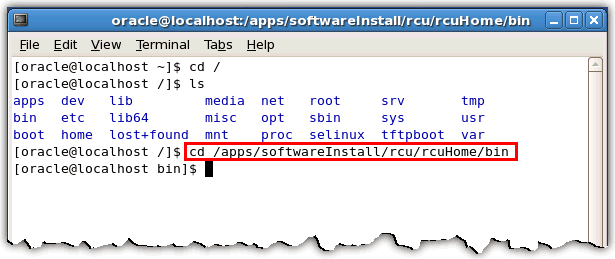
Open a command line or terminal session and navigate to where the downloaded and extracted Repository Creation Utility files are located.
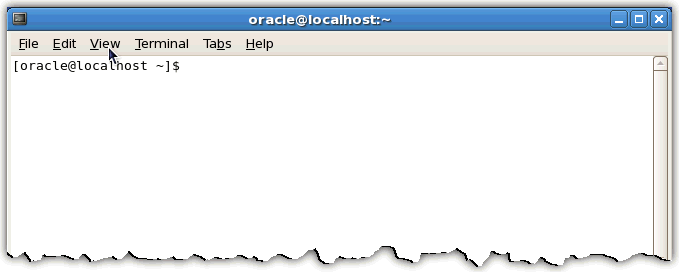
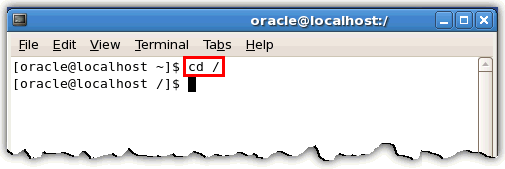
Type cd / here and hit Enter, to navigate to the root directory.
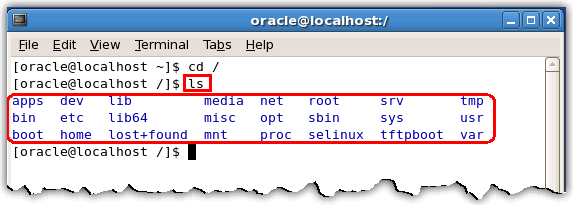
Type ls here and hit Enter, to show the root directory contents.
Type cd /apps/softwareinstall/rcu/rcuhome/bin and hit Enter. This is the location where you extracted the download of Repository Creation Utility to.
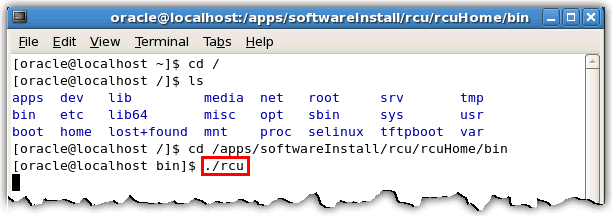
Type ./rcu and hit Enter, to execute the application.
Configuring the Database with Repository Creation Utility
- Host Name: localhost.localdomain
- Port: 1521
- Service Name: orcl.localdomain
- Username: SYS
- Password: welcome1
- Role: SYSDBA
In this topic, you configure the database using the Repository Creation Utility application.
You just opened the Repository Creation Utility application.
On the "Welcome" screen click Next.
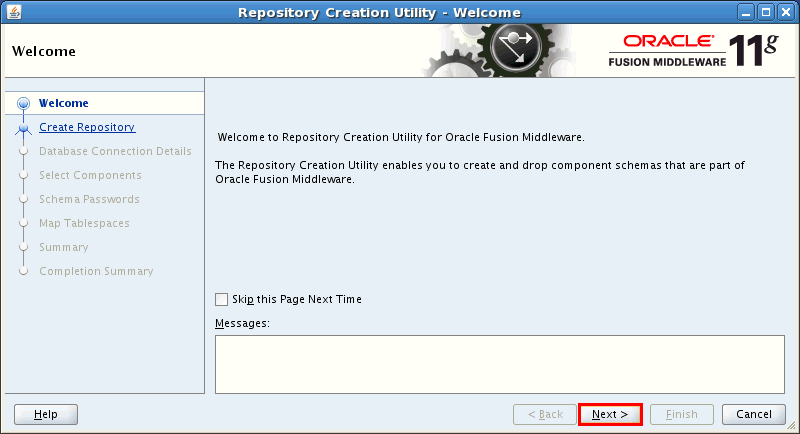
With the Repository Creation Utility, schemas for different products can be added or deleted/dropped. You are adding the schema for WebCenter Content. In the "Create Repository" section select Create and click Next.

Contact a Database Administrator (DBA) regarding the following Database Connection details and gather the data ahead of time.
- (Enter the port number for connection to the DB. The default will be used in this example.)
- The Database Administrator (DBA) may not grant access to the SYS user.
Consult your Database Administrator (DBA) ahead of time.
- (Enter the password for SYS here.)
Click Next.

The "Repository Creation Utility - Checking Prerequisites" window opens up. This is a status box for success of Repository Creation Utility table creation in the DBA.
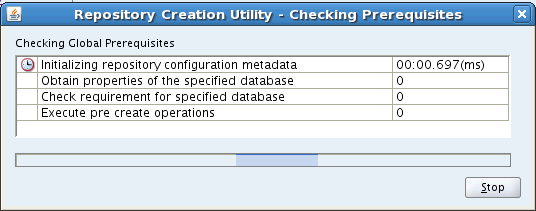
When the operation is complete, click OK.

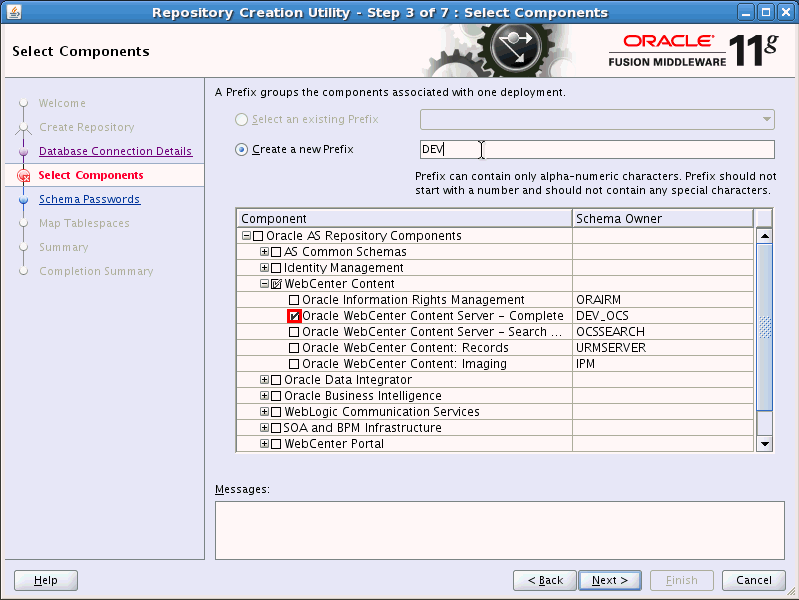
On the "Select Components" screen, expand the WebCenter Content Component.

Then choose Oracle WebCenter Content Server - Complete.
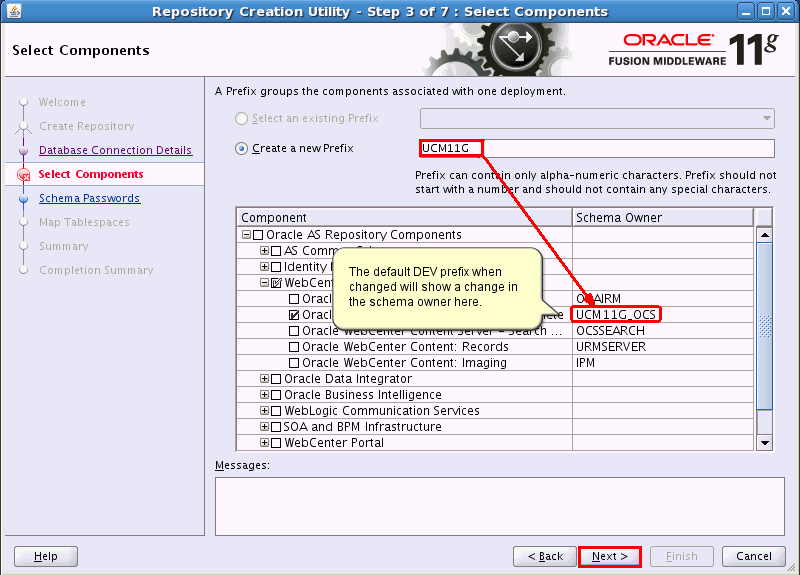
Type UCM11g in the "Create a new Prefix" field, to be the new prefix for the Database table owner.
Click Next.
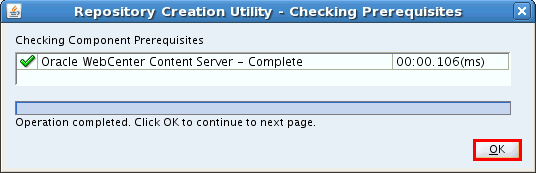
This will cause the Repository Creation Utility to double check what was selected against the Database to be sure it will all work.
Click OK when complete.
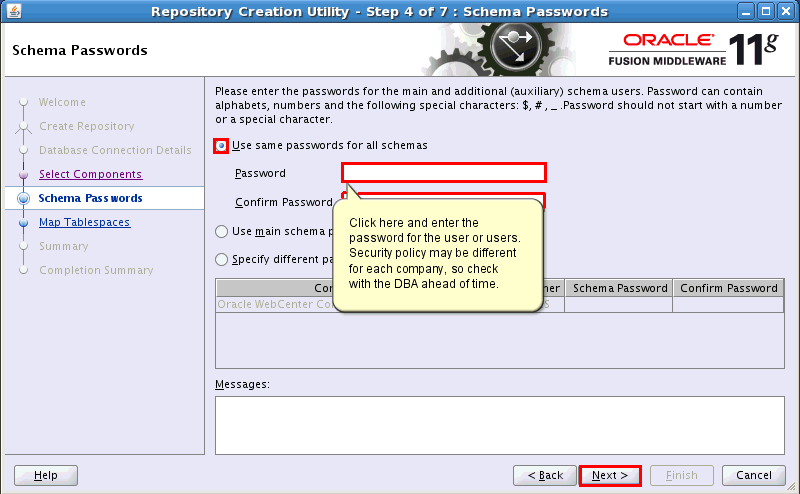
On the "Schema Passwords" screen, select Use same passwords for all schemas.
Enter the password Welcome1, confirm it and click Next.
On the "Map Tablespaces" screen you see an auto-generated summary based on your previously entered data.
Click Next.
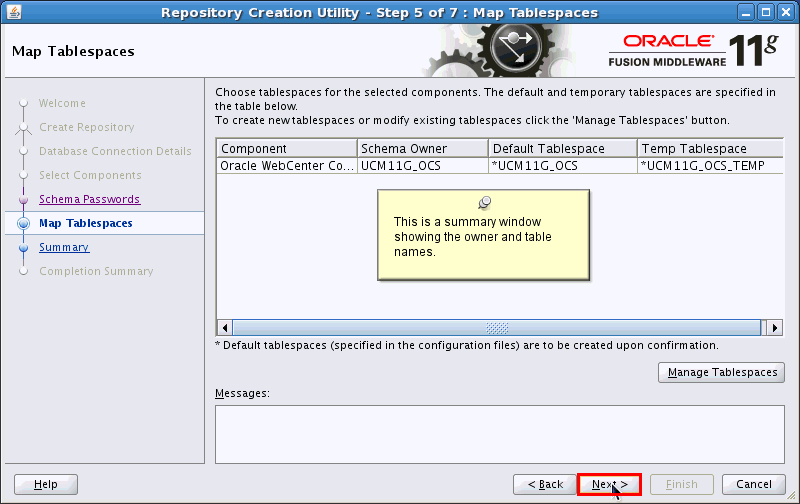
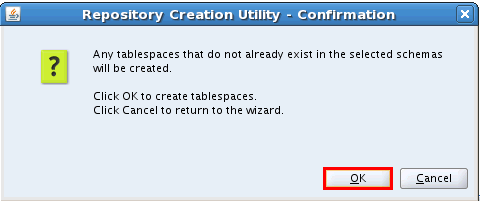
In the Confirmation pop-up window click OK.
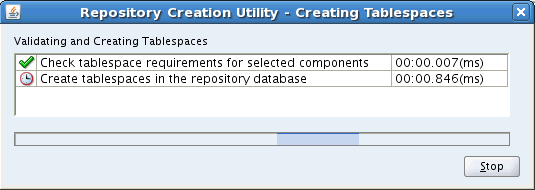
The Tablespaces are being created.
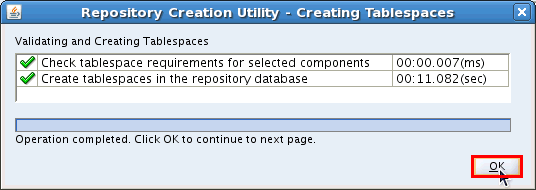
Once this process is complete, the Stop button is relabeled to an OK button, which you click upon successful completion.
Click OK when complete.
On the "Summary" screen, click Create to finalize the creation.
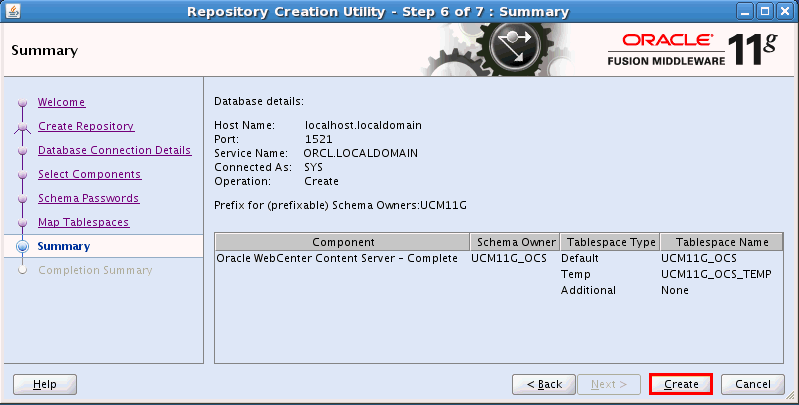
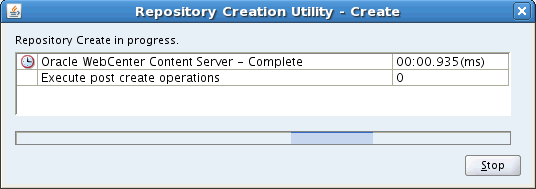
Watch for successful creation.
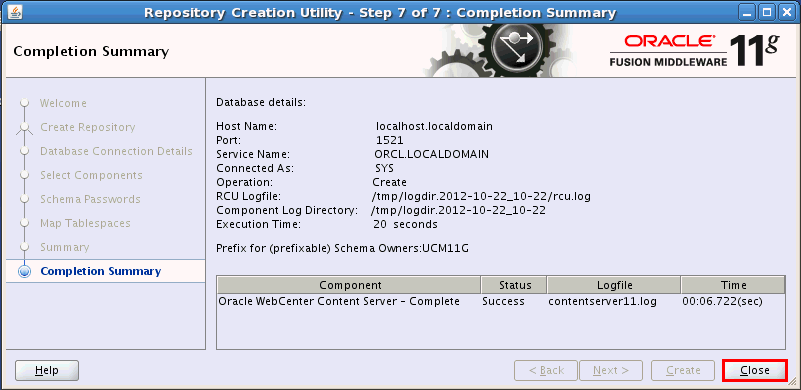
On the "Completion Summary" screen click Close when you are ready to finish.
Verifying the Tables have been created
In this topic, you will verify that the table creation has been successful. You will use SQL*PLUS to check the tables.
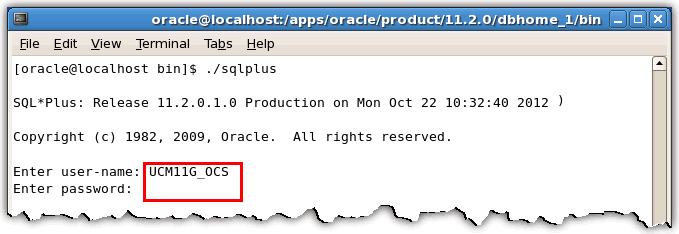
Use the command line and type ./sqlplus.
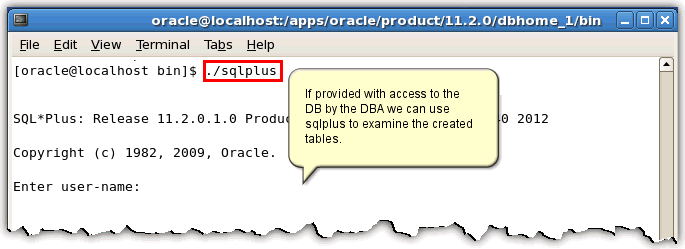
Type UCM11g_OCS here (or whatever name you gave the Database user / owner of the WebCenter Content Database schema through the Repository Creation Utility) and password (in the demo we are using Welcome1) here.
Now you are ready to enter your SQL statement.
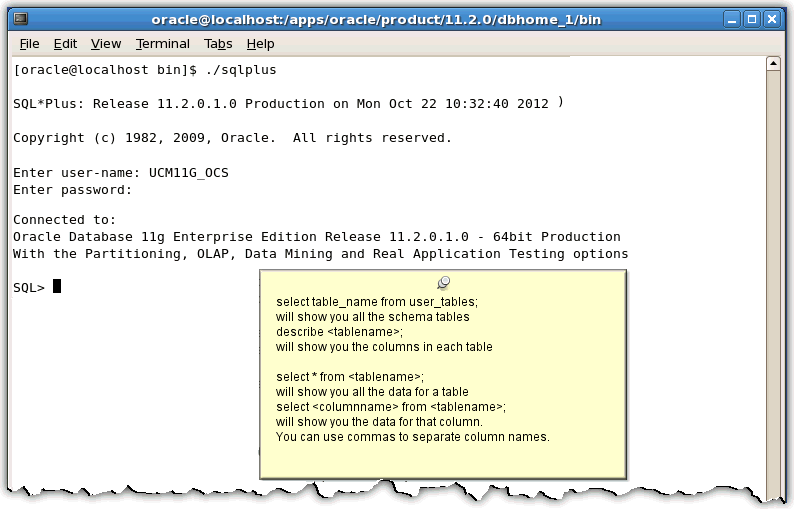
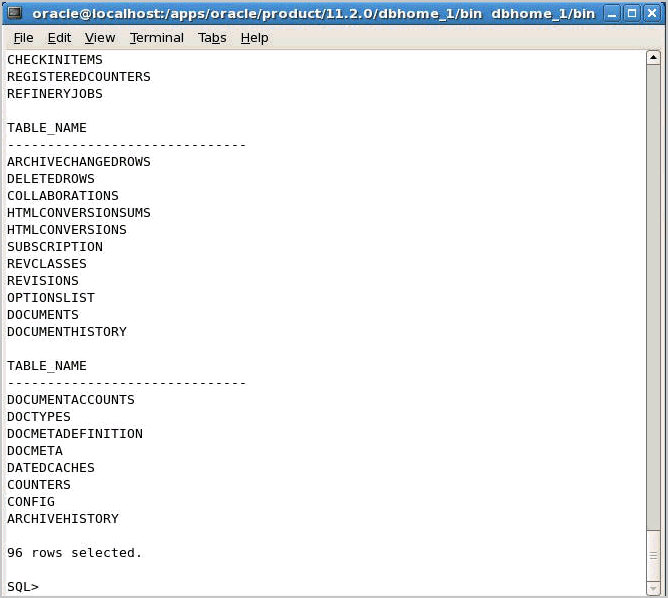
Type select table_name from user_tables; here.

A list of all created tables is returned.
Summary
- Access the Repository Creation Utility via Command Line
- Configure the Database with the Repository Creation Utility
- Verify that the Tables have been created
In this tutorial, you have learned how to:
Resources
To help navigate this Oracle by Example, note the following:
- Hiding Header Buttons:
- Click the Title to hide the buttons in the header. To show the buttons again, simply click the Title again.
- Topic List Button:
- A list of all the topics. Click one of the topics to navigate to that section.
- Expand/Collapse All Topics:
- To show/hide all the detail for all the sections. By default, all topics are collapsed
- Show/Hide All Images:
- To show/hide all the screenshots. By default, all images are displayed.
- Print:
- To print the content. The content currently displayed or hidden will be printed.
To navigate to a particular section in this tutorial, select the topic from the list.