Overview
Purpose
Docker (http://www.docker.com/) is useful for building system containers that can be copied, executed and shared with a specific configuration.
In this tutorial, a Docker image is constructed for a development installation of WebLogic Server 12c using the Zip Distribution. Then, the WebLogic Server Docker container is also extended with a configuration for a WebLogic Server domain.
This tutorial demonstrates:
- Installing Docker on Oracle Linux 7.x
- Configuring a Docker Container for WebLogic Server 12.1.3
- Extending the Docker Container with a WebLogic Server Domain
- Running the Docker Container for WebLogic Server 12.1.3
Time to Complete
Approximately 45 minutes.
Introduction
Using Docker, developers can build a standardized environment that includes the application platform and dependencies. In this tutorial a Oracle Linux 7.x system is used as the base Docker image and then this tutorial demonstrates the steps to install Docker on Oracle Linux 7.x, configures a container for WebLogic Server 12c and runs the container.
Hardware and Software Requirements
To use Docker with WebLogic Server ensure that you have:
- An Oracle Linux 7.x system
- Download Oracle Linux 7.x here:
http://www.oracle.com/technetwork/server-storage/linux/downloads/. - Oracle
Linux 7.x installation instructions are here:
http://docs.oracle.com/cd/E52668_01/E54695/html/index.html. - Sufficient hardware to run Docker and WebLogic
Server 12.1.3. For details, see the list of
certified platforms:
http://www.oracle.com/technetwork/middleware/ias/downloads/fusion-certification-100350.html - Access to http://www.oracle.com/technetwork to download the WebLogic Server 12.1.3 Zip Distribution.
- Access to http://www.oracle.com/technetwork to download the Java Development Kit (JDK) RPM.
- Access to https://github.com/oracle/docker to download the WebLogic Server Dockerfile.
- Access to https://registry.hub.docker.com/_/oraclelinux/ to pull the Oracle Linux 7.x Docker image.
Note that this tutorial was tested with these versions of software products:
- Oracle Linux 7.x
- WebLogic 12.1.3 Zip Distribution Update 2
- Docker 1.3.3 and Docker 1.5
- JDK 1.7 revision 79
- The May 6, 2015 release of the docker-master.zip file from https://github.com/oracle/docker.
Installing Docker on Oracle Linux 7.x
Prior to installing Docker, several configuration changes are made to the Oracle Linux 7.x system, including:
- Configuring yum repositories to download Docker and Oracle packages
- Creating an
oracleuser for the system, instead of accessing the system asroot - Granting the
oracleusersudoaccess to execute privileged commands
-
Open an terminal session to the the Oracle Linux 7.x system as
root. -
Configure the yum repository by executing vi /etc/yum.repos.d/public-yum-ol7.repo to edit the file.
-
Set
enabled=1for the ol7_latest, ol7_UEKR3, optional_latest, and ol7_addons yum repositories.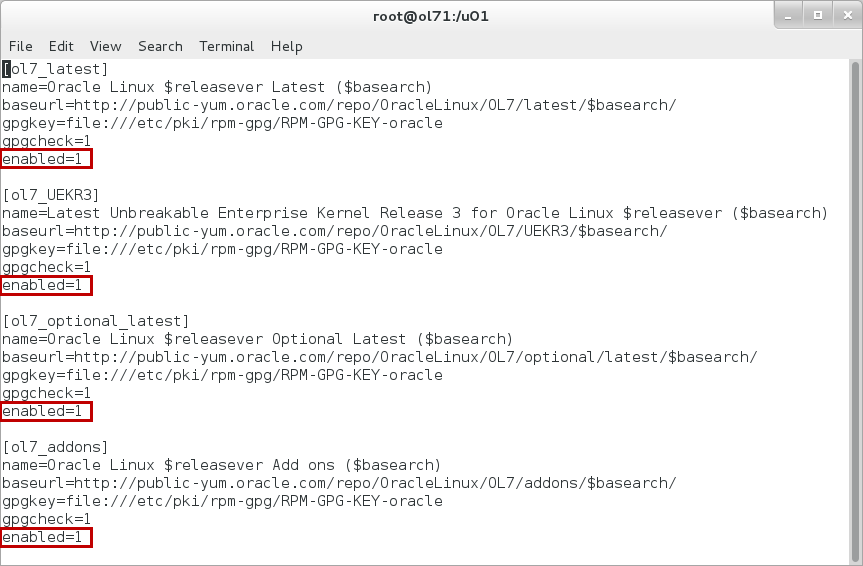
-
Enter
wqto save and close the/etc/yum.repos.d/public-yum-ol7.repofile. -
Enter vi /etc/selinux/config to configure the state of SELinux.
-
Edit the
SELINUXsetting fromenforcingtodisabled.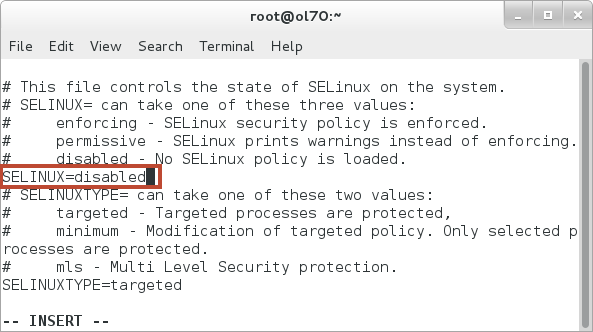
-
Enter
wqto save and close the/etc/selinux/configfile. -
Execute yum install oracle-rdbms-server11gR2-preinstall.x86_64 to install the package.
-
Execute
passwd oracleand enter a new password for theoracleuser.
-
Execute visudo /etc/sudoers to edit the /etc/sudoers file.
-
In the editor, add a line after the
rootline for theoracleuser that is similar to the root user:oracle ALL=(ALL) ALL.
-
Enter
wqto save the /etc/sudoers file. -
Execute yum install docker.
-
Enter
'y'at the prompt to install the packages.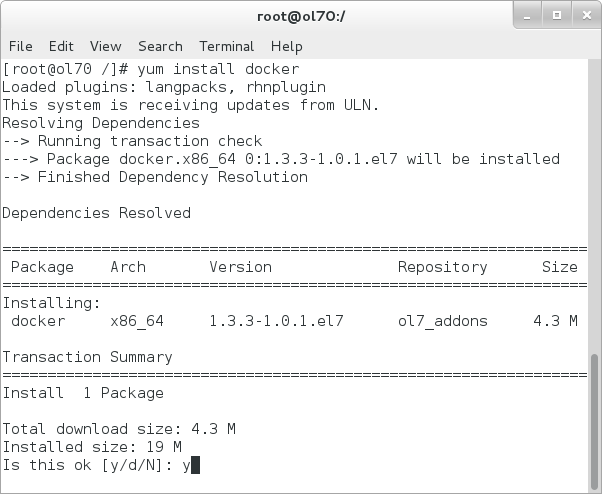
-
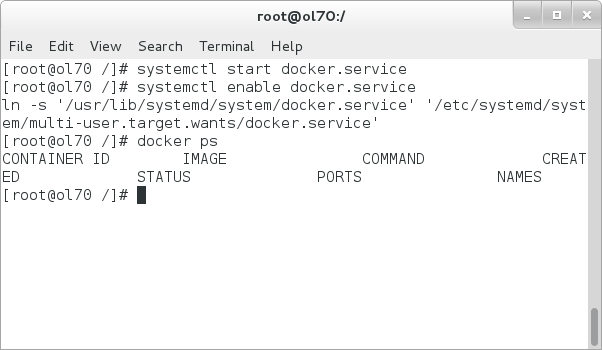
Execute systemctl start docker.service to start the Docker service.

-
Execute systemctl enable docker.service to set the Docker service to automatically start at system startup.

-
Execute docker ps to list the running Docker containers.
The results of the command displays that there aren't any containers on this system.
-
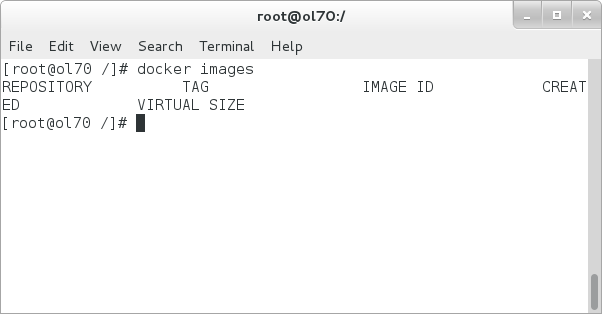
Execute docker images to list the Docker images.
The results of the command displays that there aren't any images on this system.
-
Execute mkdir /u01 to create a directory for the Dockerfile and scripts.
-
Execute chown oracle:oinstall /u01 to change the ownership of
/u01tooracle:oinstall.
Installing the oracle-rdbms-server-11gR2-preinstall.x86_64
will create an oracle user
and oinstall group that are used
instead of root for normal system
access.
Next, grant sudo privileges to the oracle
user.
Docker finishes installing and displays the complete message.

The next steps in this tutorial will build a WebLogic Server12c Developer Docker Image.
Downloading the Components for the Docker Image
There are several components to build the WebLogic Server 12c Developer Docker image, including: the Dockerfile, build scripts, WebLogic Server Zip Distribution, and the JDK.
At the time this tutorial
was developed, the WebLogic Docker project required
the wls1213_dev_update2.zip file and
the JDK 7u79 RPM file jdk-7u79-linux-x64.rpm.
Also, the downloaded JDK and WebLogic Server files
need to be in the same directory as the Dockerfile;
in this tutorial, that is /u01/docker-master/OracleWebLogic/dockerfiles/12.1.3.
Note that the set of files and scripts provided at https://github.com/oracle/docker may be updated or changed to reflect newer versions of the JDK and WebLogic Server. Please review the readme in the Git repository and the directory docker/OracleWebLogic/dockerfiles/12.1.3 for the most current set of JDK and WebLogic Server files supported.
-
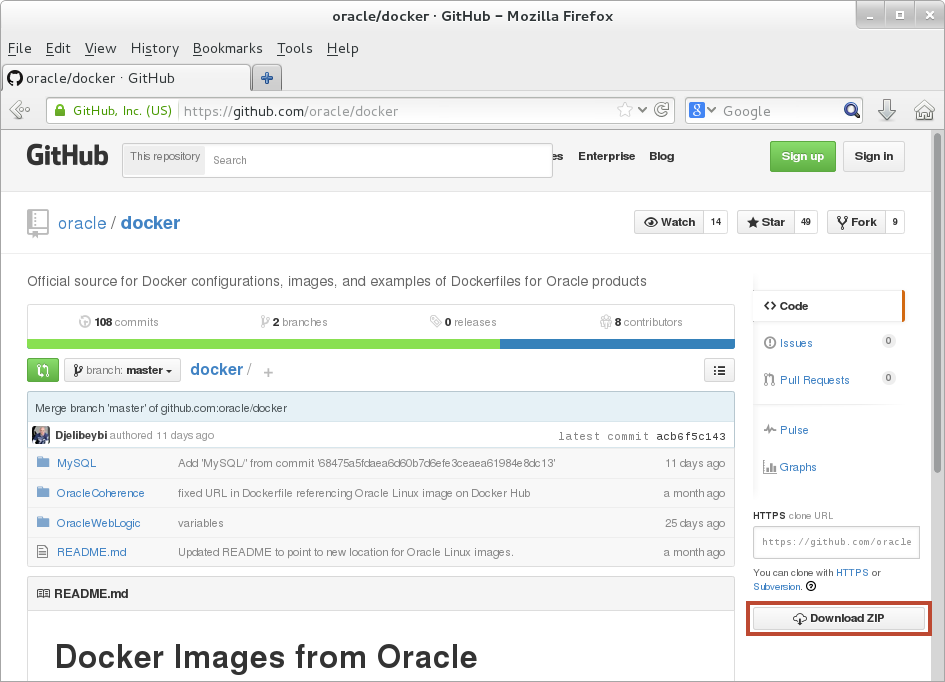
In the Oracle Linux 7.x system, open a browser and navigate to the URL https://github.com/oracle/docker.
-
In the browser, click the Download ZIP button.
-
In the browser, save the
docker-master.zipfile to the Oracle Linux 7.x system in the/u01directory.
-
In the Oracle Linux 7.x system, open an terminal session to the the Oracle Linux 7.x system as the
oracleuser. -
In the terminal session, change directory to
/u01by executingcd /u01. -
In the terminal session, expand the
docker-master.zipfile in the/u01directory. Execute unzip docker-master.zip.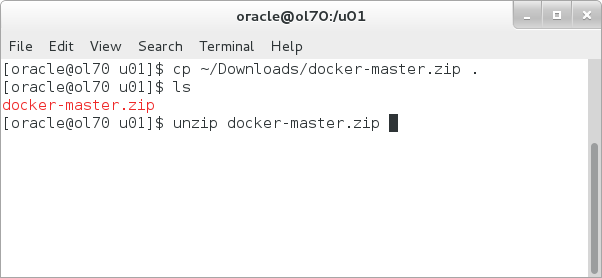
The files from the
docker-master.zipfile are extracted.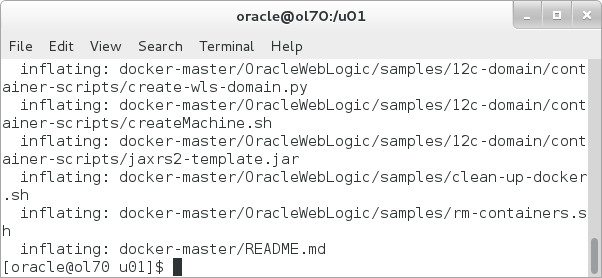
-
In the browser, download the JDK 7u75 Linux RPM file,
jdk-7u79-linux-x64.rpm, to/u01/docker-master/OracleWebLogic/dockerfiles/12.1.3. Browse to http://www.oracle.com/technetwork/java/javase/downloads.The Docker image is configured for this specific version of the JDK.
-
In the browser, download the WebLogic 12c Developer Zip distribution file
WebLogic
                                  Server1213_dev_update2.zip.
and save it to/u01/docker-master/OracleWebLogic/dockerfiles/12.1.3. Browse to http://www.oracle.com/technetwork/middleware/weblogic/downloads/wls-for-dev-1703574.htmlThe Docker image is configured for this specific version of WebLogic 12c Zip Distribution.
With the JDK and WebLogic Server files downloaded, the system is prepared to build the WebLogic Server Docker Image.
Building the WebLogic Server 12c Zip Distribution Development Docker Image
In this tutorial, the objective is to build a
Docker image for WebLogic Server 12.1.3 Zip
Distribution development installation. When this
tutorial was created, the buildDockerImage.sh
script accepts arguments for development (-d)
and generic (-g).
-
In the Oracle Linux 7.x system, open an terminal session to the the Oracle Linux 7.x system as oracle.
-
Execute cd /u01/docker-master/OracleWebLogic/dockerfiles to change to the
dockerfilesdirectory.
-
Execute sudo ./buildDockerImage.sh -d. to start the script to build the WebLogic Server Docker image.
The
sudocommand runsbuildDockerImage.shfile asroot. The-dargument specifies development distribution.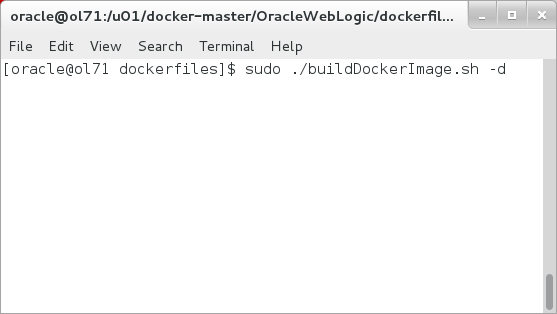
-
Execute
sudo docker images.docker imagesis the command to list the current set of Docker images available in the repository.
The buildDockerImage.sh script
builds the Docker Image.

In addition to validating the JDK file and WebLogic Server file downloads, the script creates directories and installs Java in the Docker image.
Finally, the buildDockerImage.sh
script installs WebLogic Server and exits with
output that the Docker image is ready to be
extended.
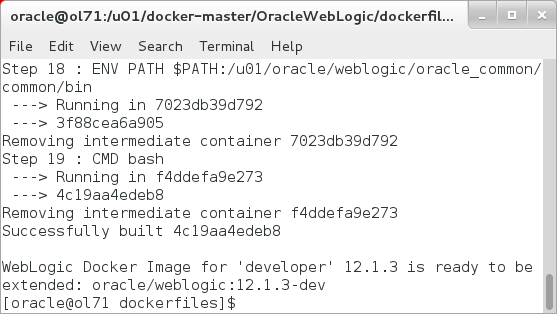
Note that this WebLogic Server 12c Docker image does not have a WebLogic Server domain configured yet - this Docker image is just an installation of the WebLogic Server Zip Distribution; another Docker image with a WebLogic Server domain will be created in the next step.
Extending the WebLogic Server Docker Image with a WebLogic Server Domain
This step in the tutorial uses the Docker image with WebLogic installed and a sample script supplied from GitHub to create a WebLogic Server domain with a single WebLogic Administration server.
-
Execute
cd
                                  /u01/docker-master/OracleWebLogic/samples/12c-domain
to change to the directory with the WebLogic domain extension dockerfile.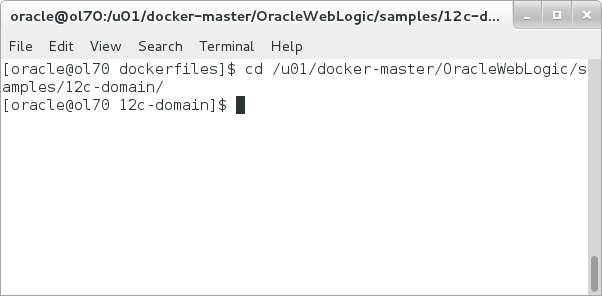
-
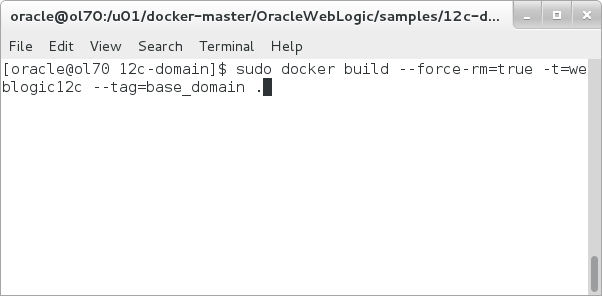
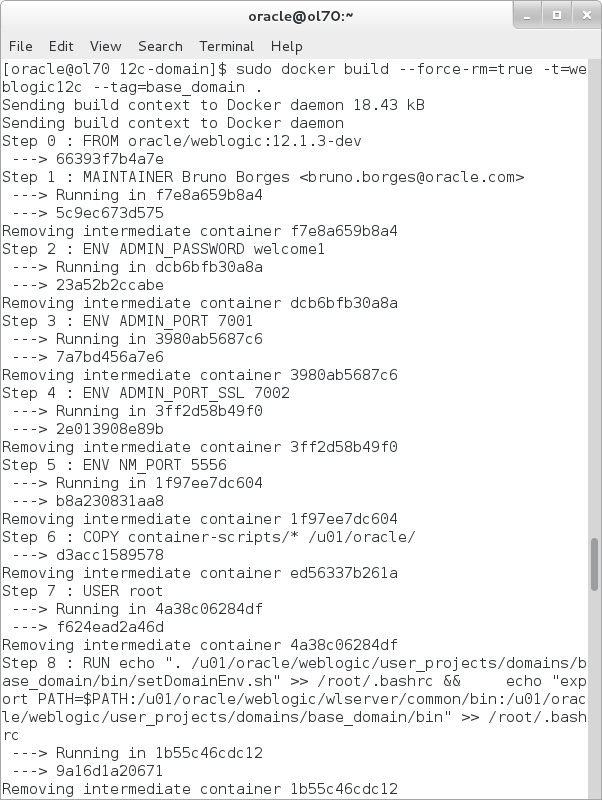
Execute
sudo docker build
                                  --force-rm=true --rm=true -t=weblogic12c
                                  --tag=base_domain .
Note that the period (.) at the end of the command is required - it indicates that the command should use the current directory for the dockerfile.
-
Execute sudo docker images.
The docker build command builds an
image using the current Dockerfile and the --force-rm
and --rm will remove
intermediate images.
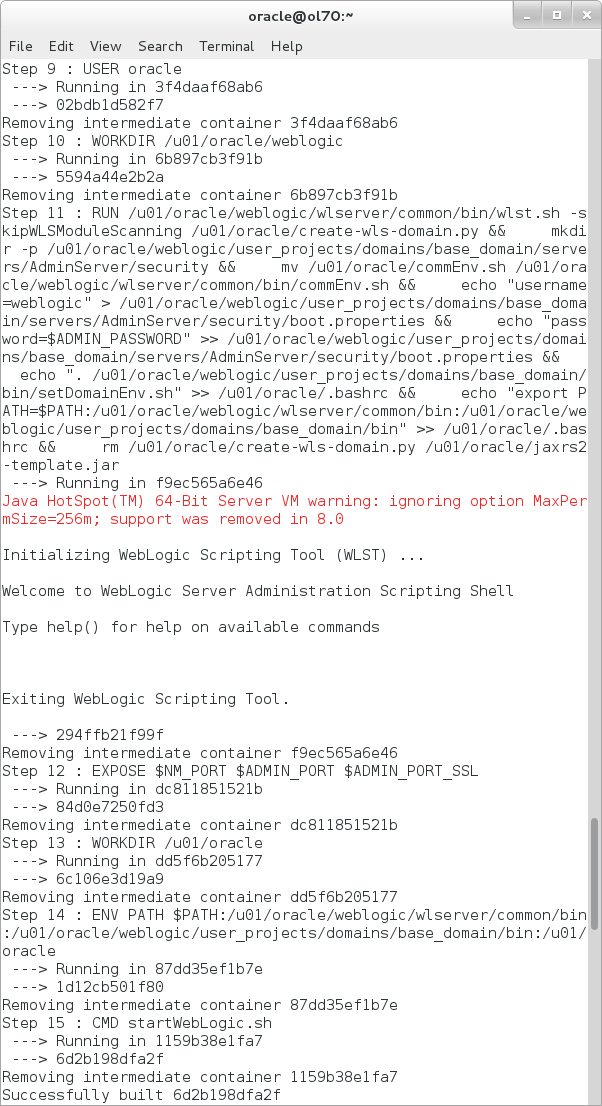
The docker build command completes the image by
creating the domain, base_domain,
exposing WebLogic Server network ports, and
setting startWebLogic.sh as the
container command.
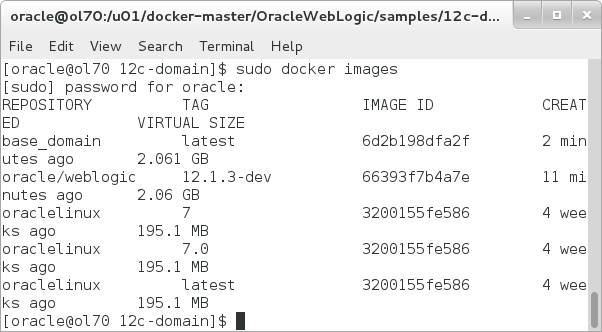
There is a new image named base_domain
that the docker build command
created.
Next, the Docker Image with the WebLogic Server 12c domain is run as a Docker container.
Running the WebLogic Server 12c Docker Image
-
Execute cd /u01.
-
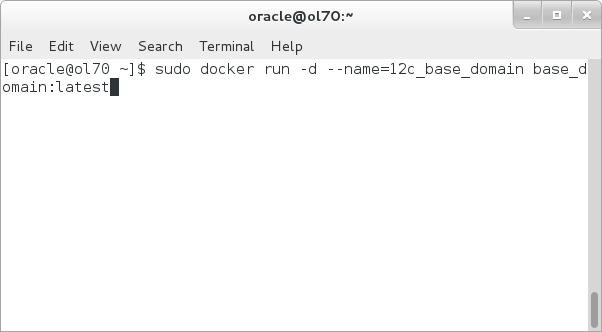
Execute sudo docker run -d --name=12c_base_domain base_domain:latest to start the Docker image with the WebLogic Server domain.
-
Execute
sudo docker ps.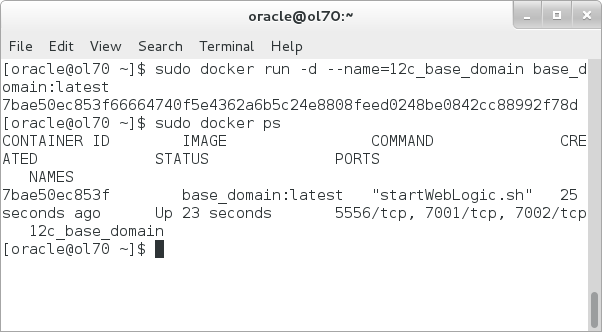
The running containers are displayed, including the running
12c_base_domain. -
Execute
sudo docker inspect --format '{{
                                  .NetworkSettings.IPAddress }}'
                                  12c_base_domain.
The Docker inspect command returns the container's network address.
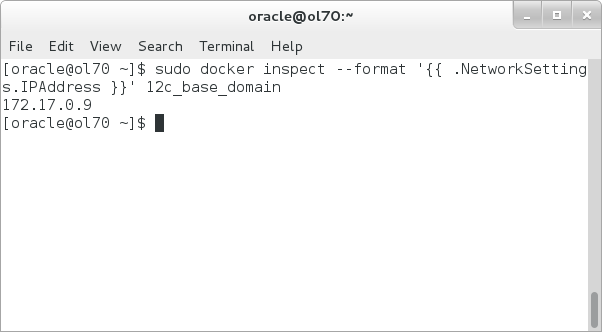
The Docker container's address is typically of the form 172.17.x.y. This tutorial uses the address 172.17.0.9.
Use the address returned by Docker for the next steps.
-
In the Oracle Linux 7.x system, open a browser and navigate to http://172.17.0.9:8001/console.
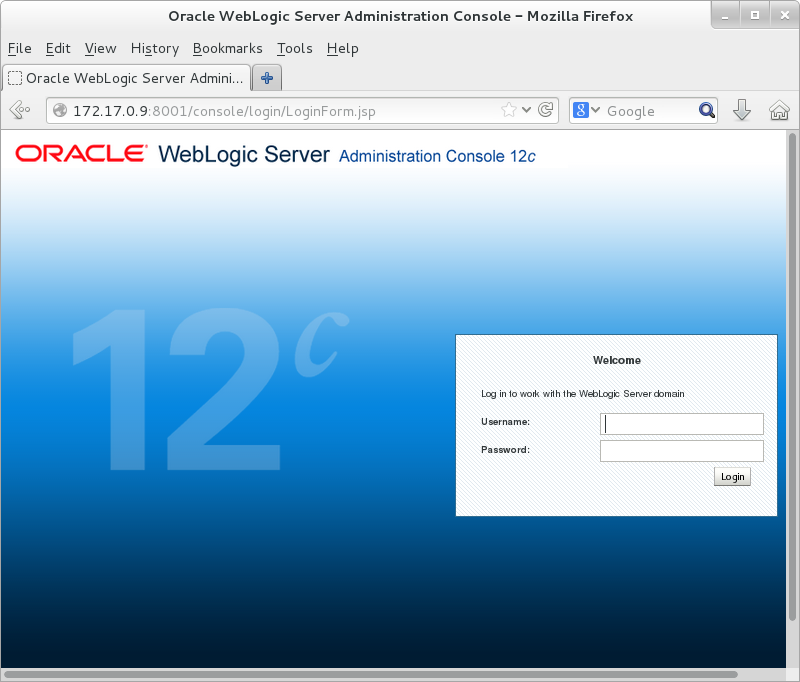
-
In the WebLogic Server Administration Console log in using
weblogicfor Username andwelcome1for Password.
The WebLogic Server console for
base_domaindisplays.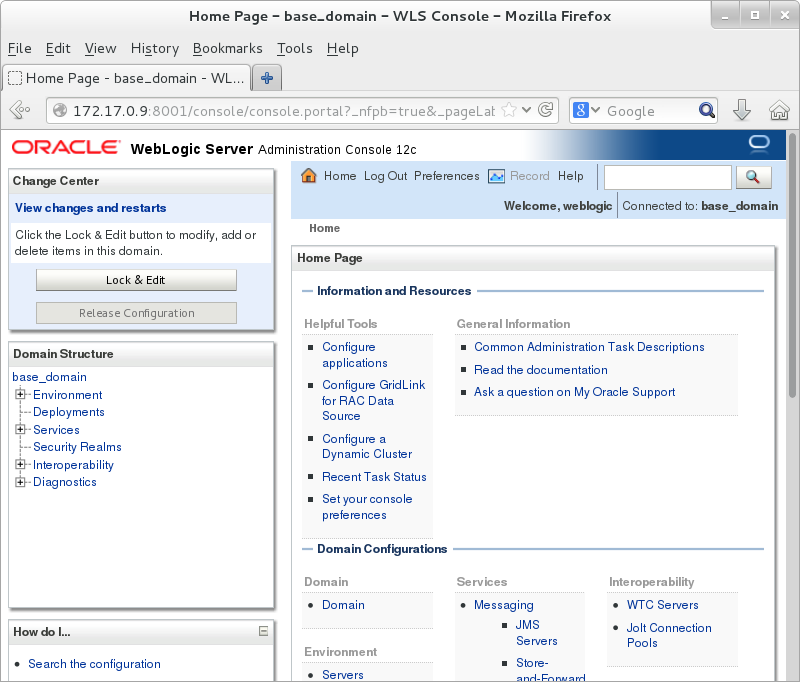
-
Execute
sudo docker exec -i -t
                                  12c_base_domain bash.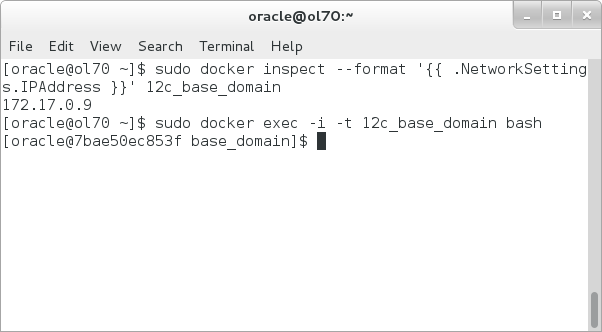
The
docker execcommand is a useful tool to obtain a bash shell into a running Docker container. -
In the terminal shell into the running Docker container, execute
ps -ef|grep java.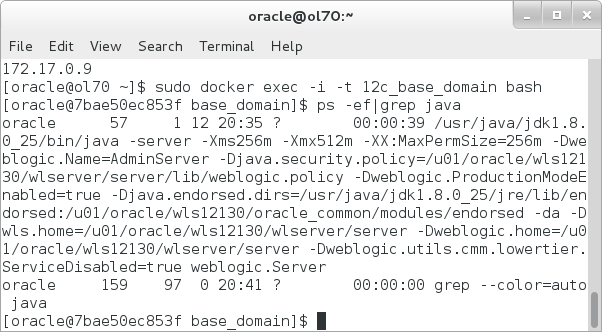
As expected, the Java process running WebLogic Server displays.
- Type
exitto leave the Docker container. -
Execute
sudo docker stop
                                  12c_base_domain.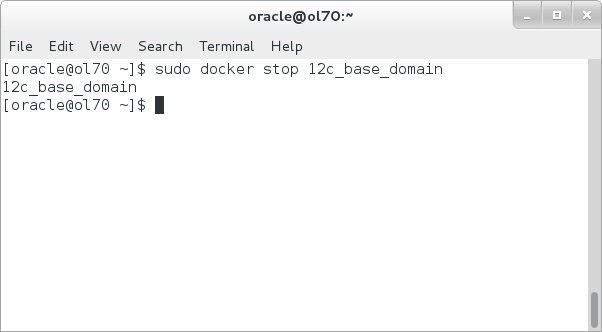
The
docker stopcommand terminates a running Docker container. -
Execute
sudo docker ps.
There aren't any running Docker containers.
Docker starts the WebLogic Server container as a daemon (the -d parameter) and returns the command prompt.

Working with the WebLogic Server 12c Docker Image
Some next steps that might be useful working with the WebLogic Server 12c Docker container include:
- Using Docker Data Volumes, which are writeable mounts inside a Docker container, to store persistent data. Browse to: https://docs.docker.com/userguide/dockervolumes/.
-
Exporting/Importing Docker Images for use in other systems running Docker. Browse to: https://docs.docker.com/reference/commandline/cli/#export and https://docs.docker.com/reference/commandline/cli/#import.
- Learn to use the Docker Hub to store Docker Images or create your own private repository. Browse to: http://docs.docker.com/userguide/dockerrepos/ and/or https://github.com/docker/docker-registry.
Summary
In this tutorial, you learned to:
- Install Docker on Oracle Linux 7.x
- Configure a Docker Container for WebLogic Server 12.1.3
- Extend the WebLogic Server Docker Container
with a WebLogic Server Domain
- Run the Docker Container for WebLogic Server 12.1.3
Resources
- Docker Images from Oracle - for WebLogic Server, Coherence and MySQL
- WebLogic Server 12.1.3 Documentation
- To learn more about WebLogic Server refer to additional Oracle By Example tutorials in the Oracle Learning Library
Credits
- Lead Curriculum Developer: Tom Eliason
- Other Contributors: TJ Palazzolo