Oracle WebLogic Server 12c: Configuring Managed Servers
Purpose
This tutorial shows how to configure Oracle WebLogic Server 12c managed servers.
Time to Complete
Approximately 1/2 hour
Overview
In a WebLogic Server domain there is always one administration server. This special instance of WebLogic Server is responsible for the configuration of the entire domain. Other servers in the domain are called managed servers. These are typically the servers on which you run your applications. A domain can contain any number of managed servers.
This tutorial covers configuring Oracle WebLogic Server 12c (12.1.1) managed servers by using the WebLogic Server administration console. It also shows how to create a new managed server using the administration console.
Software Requirements
The following is a list of software requirements:
- Oracle WebLogic Server 12c (12.1.1)
Prerequisites
Before starting this tutorial, you should have completed the Oracle by Example tutorial titled Oracle WebLogic Server 12c: Installing WebLogic Server and Creating a Domain.
Configuring Managed Servers
To configure managed servers in the domain, perform the following steps:
. |
If the administration server of the domain is not already running, it needs to be started. To start it, from the domain directory, enter the command: $ ./startWebLogic.sh
|
|---|---|
. |
As the script runs it will prompt you for a username and password. Use the administrator username and password entered when the domain was created. In this tutorial the username entered is weblogic and the password entered is Welcome1. Note: The password will not be displayed.
|
. |
After the administration server is up and running, access
the WebLogic Server administration console.
Open a web browser and enter the URL:
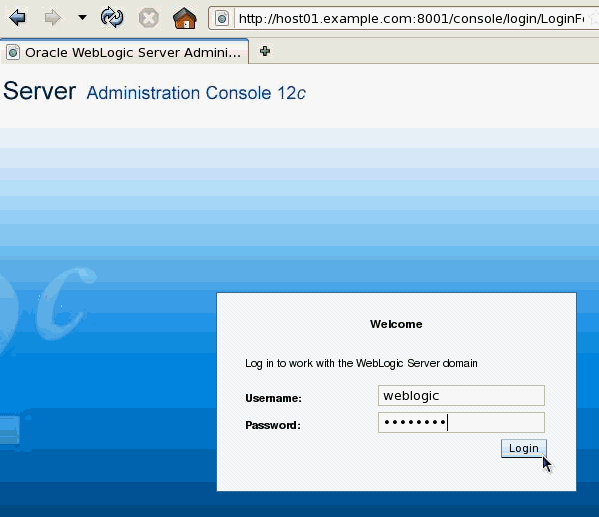
In this tutorial, that is: http://host01.example.com:8001/console Note: Use the host name of your host. Also, if you used a different port number for the administration server, use that port instead. On the Welcome screen, log in using the Username and Password entered to start the administration server.
|
. |
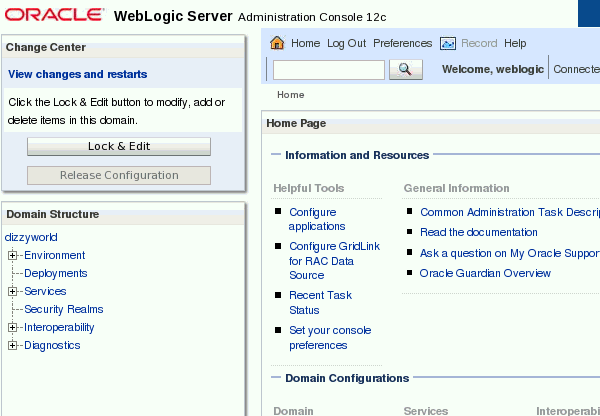
The home page of the administration console is displayed.
|
. |
In the administration console under Domain Structure, expand Environment (by clicking the + next to it). Then click Servers.
|
. |
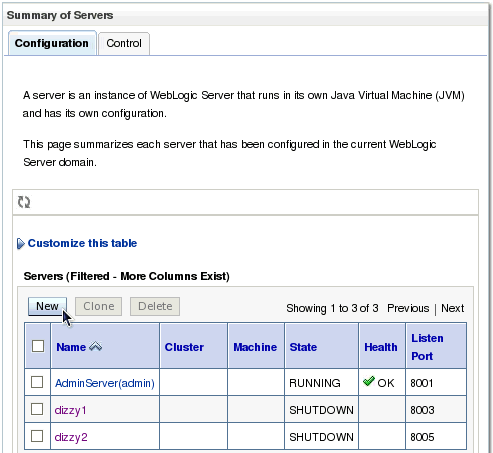
On the right, notice that the Summary of Servers section appears. Here you can view the administration server and managed servers defined in the domain. Click the server dizzy1.
|
. |
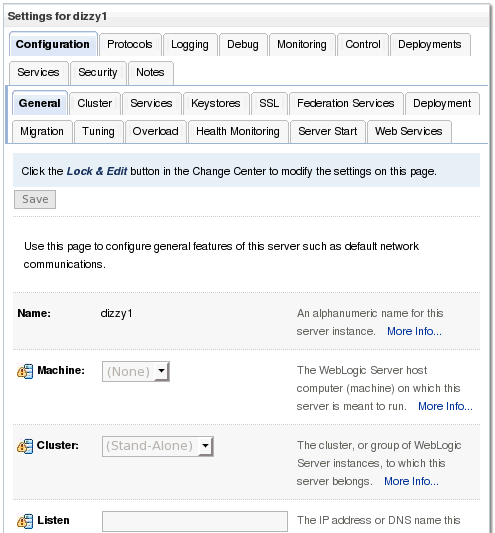
The settings for dizzy1 are displayed.
|
. |
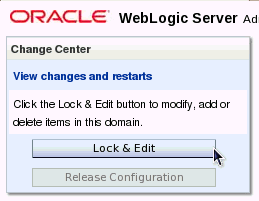
To be able to modify the settings of dizzy1, or change anything in the configuration of the domain, the configuration must first be locked. At the top left of the administration console, in the Change Center, click the Lock & Edit button.
|
. |
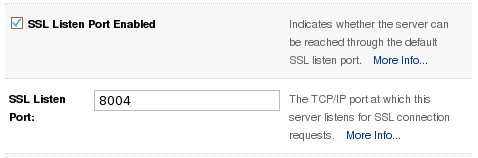
Under the Settings for dizzy1, scroll down and select the SSL Listen Port Enabled check box. Then enter the SSL Listen Port as 8004.
|
. |
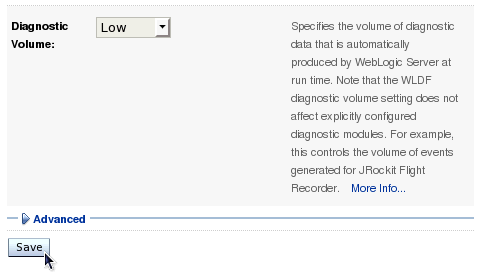
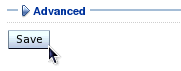
Scroll down further and click the Save button.
|
. |
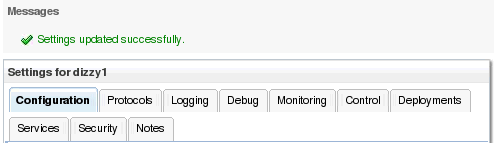
Above the Settings for dizzy1, the message "Settings updated successfully" is displayed.
|
. |
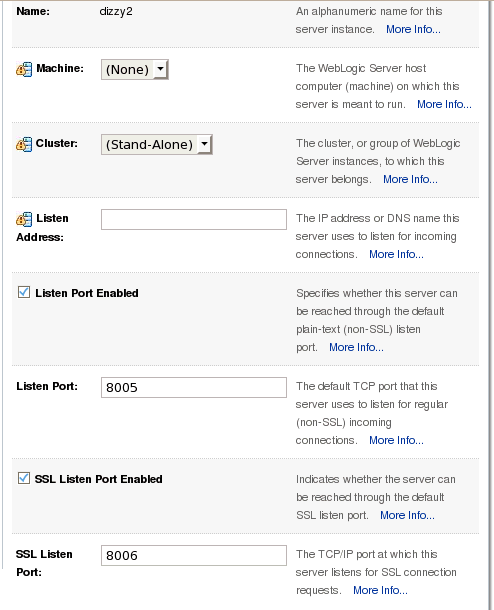
Also enable the SSL port for the server dizzy2. Under Domain Structure, click Servers again. In the Servers table, this time click the server dizzy2. Under the Settings for dizzy2, scroll down and select the SSL Listen Port Enabled check box. Then enter the SSL Listen Port as 8006.
|
. |
Scroll down further and click the Save button again. Note: Or scroll up. There is a Save button at the top and the bottom of the Settings area.
The message "Settings updated successfully" is displayed again.
|
. |
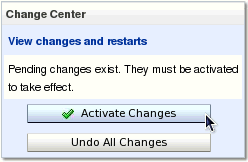
To complete the changes, go back to the Change Center. Click the Activate Changes button.
|
. |
The message "All changes have been activated. No restarts are necessary." is displayed.
|





Adding a New Managed Server
To add a new managed server to the domain by using the administration console, perform the following steps:
. |
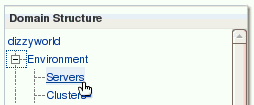
In the administration console, under Domain Structure, click Servers.
|
|---|---|
. |
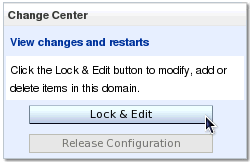
In the Change Center, click the Lock & Edit button.
|
. |
Notice above the Servers table that the New button is now enabled. Click it.
|
. |
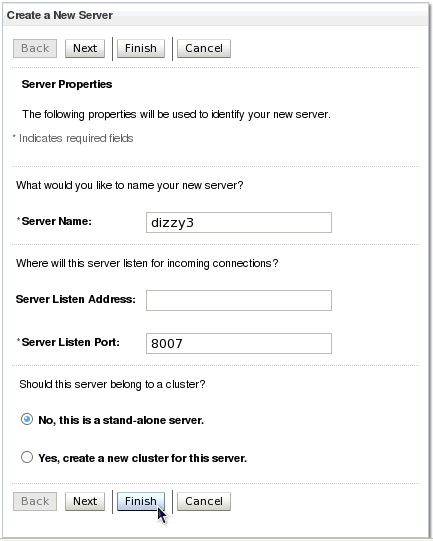
Under Create a New Server, enter the Server Name of dizzy3. Leave the Server Listen Address blank. Enter the Server Listen Port of 8007. Select No, this is a stand-alone server. Then click Finish.
|
. |
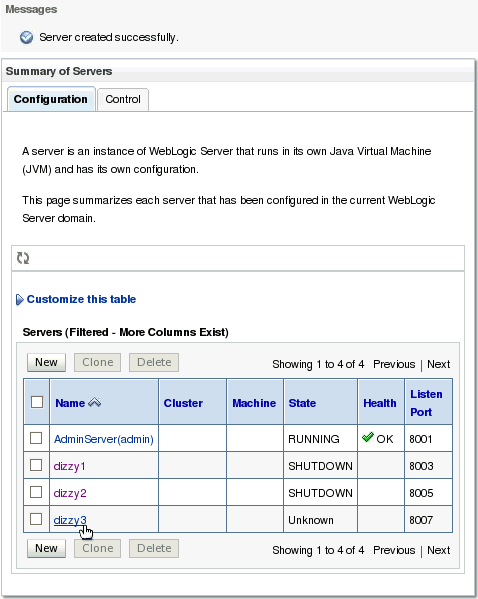
The message "Server created successfully." is displayed. In the Servers table, click the server dizzy3.
|
. |
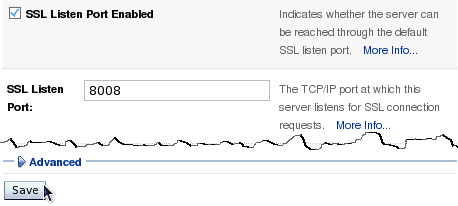
Enable the SSL port for the server dizzy3. Under the Settings for dizzy3, scroll down and select the SSL Listen Port Enabled check box. Enter the SSL Listen Port as 8008. Then scroll down and click the Save button.
The message "Settings updated successfully" is displayed above the Settings area.
|
. |
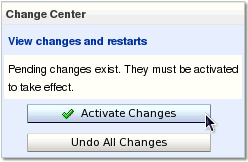
To activate the changes, go to the Change Center and click the Activate Changes button. Note: If you wish to see what changes are pending, before clicking the Activate Changes button you can click the View changes and restarts link above it.
Once again the message "All changes have been activated. No restarts are necessary." is displayed.
|
. |
Under Domain Structure, once again click Servers. In the Servers table on the right, you can see all the servers in the domain, including the once just created, dizzy3.
|

Summary
In this tutorial, you learned how to:
- Configure managed servers
- Add a new managed server to a domain
The next suggested tutorial is titled Oracle WebLogic Server 12c: Deploying and Undeploying Applications.
Resources
- For documentation on Oracle WebLogic Server 12c, visit the Documentation Library.
- For more information on creating managed servers, see the Create Managed Servers section of the Administration Console Online Help.
- For more information on configuring servers, see the Configuration Options section of the Administration Console Online Help.
- To learn more about Oracle WebLogic Server, refer to additional OBEs in the OLL website.
Credits
- Lead Curriculum Developer: Bill Bell
- Original OBE Created By: TJ Palazzolo

 |
Copyright © 2011, Oracle and/or its affiliates. All rights reserved |