Oracle WebLogic Server 12c: Installing and Configuring a Cluster Proxy
Purpose
This tutorial shows you how to install an instance of Oracle Web Tier and then configure it as a proxy for an Oracle WebLogic Server 12c cluster.
Time to Complete
Approximately 90 minutes
Overview
Oracle Web Tier contains two main components: Oracle HTTP Server and Oracle Web Cache. Together, these products are responsible for managing incoming HTTP requests, caching web messages, and sending XML and HTML back to the client.
Oracle HTTP Server provides a framework for hosting static pages, dynamic pages, and applications over the web. It is based on the Apache infrastructure, and includes modules developed specifically by Oracle.
Oracle Web Cache is a content-aware server accelerator, or reverse proxy, for the web tier that improves the performance, scalability, and availability of web sites that run on Oracle HTTP Server. Oracle Web Cache is the primary caching mechanism provided with Oracle Fusion Middleware. Caching improves the performance, scalability, and availability of web sites that run on Oracle WebLogic Server by storing frequently accessed URLs in memory.
Oracle Process Manager and Notification Server (OPMN) is installed by default when Oracle Web Tier is installed. OPMN provides a command-line interface for you to monitor and manage Oracle Web Tier and other native (non-Java) processes.
Proxy plug-ins enable Oracle WebLogic Server to integrate with popular web server products, including Oracle HTTP Server. This includes load balancing HTTP requests across a WebLogic cluster, and automatically failing over requests due to a server not being available. These plug-ins also integrate with the HTTP session replication features of WebLogic Server. The plug-in for Oracle HTTP Server is automatically installed as part of a new Oracle HTTP Server component, although it must be configured with the location of your WebLogic cluster.
Software Requirements
The following is a list of software requirements:
- Oracle WebLogic Server 12c (12.1.1)
Prerequisites
Before starting this tutorial, you should have completed the Oracle by Example tutorials titled:
- Oracle WebLogic Server 12c: Installing WebLogic Server and Creating a Domain
- Oracle WebLogic Server 12c: Configuring Managed Servers
- Oracle WebLogic Server 12c: Creating a Basic Cluster
Starting Your Cluster
To start your existing WebLogic cluster, perform the following steps:
. |
If the administration server of the domain is not already running, it must be started. To start it, in a Terminal window, navigate to the domain directory, and enter the command: ./startWebLogic.sh When prompted for a username and password, enter the credentials of the domain administrator.
|
|---|---|
. |
After the administration server is up and running, determine whether or not your domain is running the Enterprise Manager Fusion Middleware Control application. Open a web browser and enter the URL: http://hostname:port/em In this tutorial, that is: http://host01.example.com:8001/em Note: Use the host name of your host. Also, if you used a different port number for the administration server, use that port instead. If you receive a 404 or Not Found message, then Enterprise Manager is not running on your domain. You will use this information when installing Web Tier.
|
. |
If any of the servers in your WebLogic cluster (dizzy1, dizzy2, dizzy3) are not yet running, start them. If you have previously configured and started the Node Manager, as described in the Oracle WebLogic Server 12c: Configuring and Using Node Manager tutorial, you can start these managed servers by using the administration console. Otherwise, start each server from within a Terminal window with the start script. For example: ./startManagedWebLogic.sh dizzy1 host01.example.com:8001
|
Deploying a Sample Application
To deploy a web application to the cluster, in order to test the proxy plug-in, perform the following steps:
. |
Download the browsestore.war web application. Place it in a location that is accessible to your WebLogic domain. In this tutorial, the directory /u01/app/oracle/Middleware/user_projects/applications was created and the file was placed there.
|
|---|---|
. |
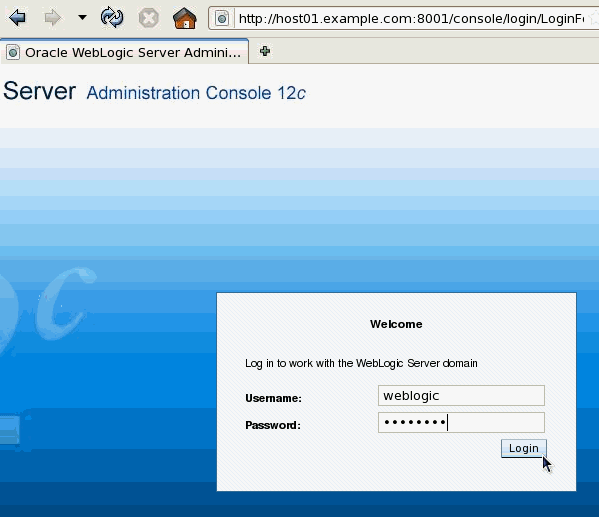
Open a web browser and enter the URL of the domain's administration console. In this tutorial, that is: http://host01.example.com:8001/console Note: Use the host name and port of the administration server of your domain. On the Welcome screen, log in using the username and password entered to start the servers.
|
. |
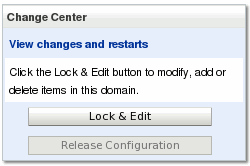
In the Change Center, click the Lock & Edit button.
|
. |
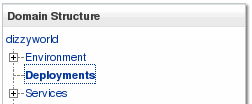
Under Domain Structure, click Deployments.
|
. |
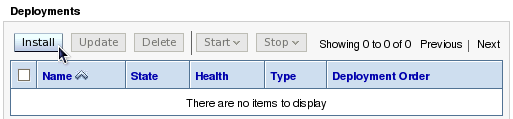
On the right, under Deployments, click the Install button.
|
. |
Find the Current Location field. Use the links to browse to the location in which you placed the downloaded browsestore.war file. There you will see browsestore.war with a radio button next to it. Select that radio button. The console then fills in the Path field for you. Alternatively, you can type in the path and file name in the Path field yourself. Then click Next.
|
. |
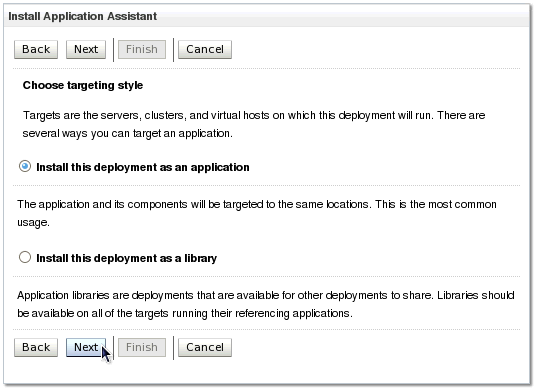
On the next screen, ensure that the option Install this deployment as an application is selected. Then click Next.
|
. |
On the next screen, select the cluster dizzycluster. Then click Next.
|
. |
On the next screen, keep all the default values and click Finish.
|
. |
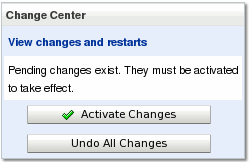
In the Change Center, click the Activate Changes button.
|
. |
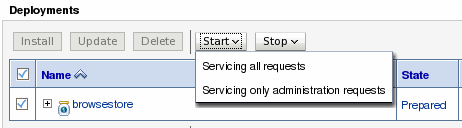
In the Deployments table, select the check box to the left of the browsestore application. Then use the Start drop-down list to select the option Servicing all requests.
When prompted, click Yes to continue.
|


Installing Oracle Web Tier
To install an instance of Oracle Web Tier, including Oracle HTTP Server, perform the following steps:
. |
Download and extract the Oracle WebTier Utilities 11g installer zip file. The WebLogic plug-in supports Oracle HTTP Server 11.1.1.1 or later, but using the latest (11.1.1.6+) is recommended. You can install Oracle Web Tier either on the same machine that is running WebLogic Server or on a different machine.
|
|---|---|
. |
Open a Terminal window and navigate to the location where you extracted the installer. Launch the installer: cd Disk1 ./runInstaller
|
. |
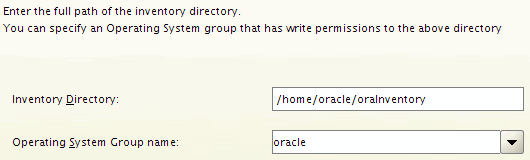
If no Oracle installation inventory already exists on this machine for the current user, the Specify Inventory Directory screen appears. Accept the defaults and click OK.
You are also prompted to run a script createCentralInventory.sh as the root user. Follow these instructions and then click OK.
|
. |
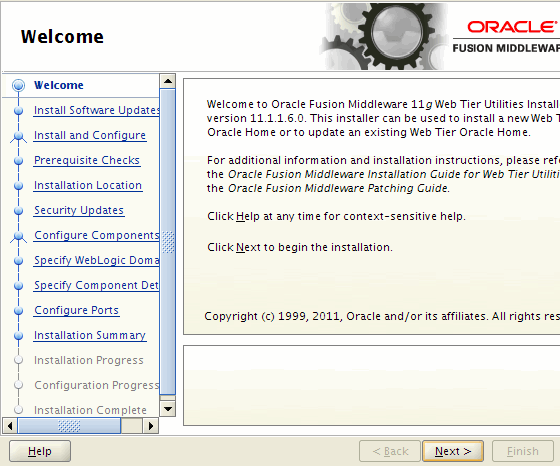
When the Welcome screen appears, click Next.
|
. |
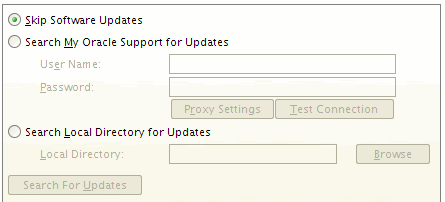
In the Install Software Updates screen, select the option Skip Software Updates and click Next.
|
. |
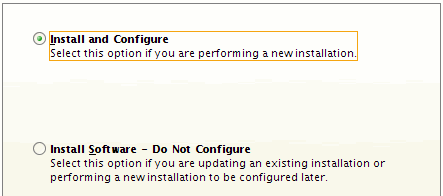
In the Select Installation Type screen, select the option Install and Configure and click Next.
|
. |
In the Prerequisite Checks screen, verify that all checks succeeded and then click Next.
If one or more tests fail, a full description of the issue can be found in the bottom panel, along with possible workarounds or corrections. You may need to exit the installer to correct a problem before proceeding.
|
. |
In the Specify Installation Location screen, enter an appropriate install location. This can either be an existing Middleware Home or a new one. This tutorial will use the following values: Oracle Middleware Home: /u01/app/oracle/Middleware Oracle Home Directory: Oracle_WT1 Click Next.
|
. |
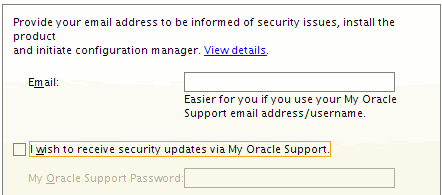
In the Specify Security Updates screen, if you have an Oracle Support account you can enter your Email address. For this tutorial, the option I wish to receive security updates via My Oracle Support is cleared. Click Next. If prompted for confirmation, click Yes.
|
. |
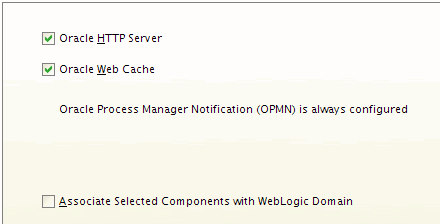
In the Configure Components screen, verify that both Oracle HTTP Server and Oracle Web Cache are selected. If you determined earlier that Enterprise Manager Fusion Middleware Control is running in your domain, then select the option Associate Selected Components with WebLogic Domain. Otherwise, do not select this option. Click Next.
If you selected this option, the Specify WebLogic Domain screen appears. Enter the Host Name, Port Number, User Name, and Password for your WebLogic administration server. For this tutorial those values would be: Host Name: host01.example.com Port Number: 8001 User Name: weblogic Password: Welcome1
|
. |
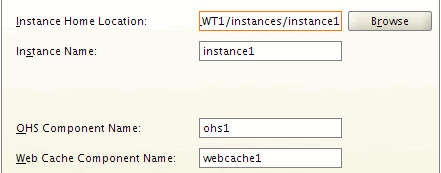
In the Specify Component Details screen, leave the default values for all fields. Then click Next.
|
. |
In the Web Cache Administrator Password screen, enter the password Welcome1. Then click Next.
|
. |
In the Configure Ports screen, select the option Auto Port Configuration and click Next.
|
. |
In the Installation Summary screen, click Install. Complete the installation and configuration. You are also prompted to run a script oracleRoot.sh as the root user. Follow these instructions and then click OK. When finished, click Finish to exit the installer.
|





Configuring the WebLogic Proxy Plug-in
To configure Oracle HTTP Server to proxy to the WebLogic cluster, perform the following steps:
. |
Locate and edit the file <WEBTIER_HOME>/instances/instance1/config/OHS/ohs1/mod_wl_ohs.conf. In this tutorial, <WEBTIER_HOME> is /u01/app/oracle/Middleware/Oracle_WT1.
|
|---|---|
. |
Directly below the line <IfModule weblogic_module>, add a new line to link this HTTP Server to your WebLogic cluster. Provide the host and port for at least one server in the cluster. If you enter multiple host / port combinations, separate them with commas:
<IfModule weblogic_module> Note: You are not required to specify the location of every WebLogic Server in your cluster. After one successful connection, the server will provide the plug-in with the locations of all servers that are currently running in the cluster. This server list is then updated with each request.
|
. |
Add the following new lines to the end of the file:
<Location /> Save your changes.
|
. |
Open a Terminal window and change directories to <WEBTIER_HOME>/instances/instance1/bin.
|
. |
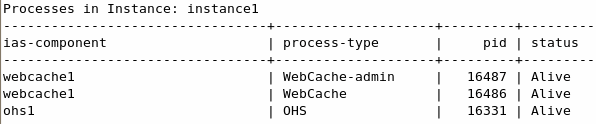
Execute the following command: ./opmnctl status
|
. |
From the output of the command, verify that the HTTP Server process ohs1 is running ("Alive").
|
. |
Execute the following command to restart the HTTP Server with the latest configuration changes: ./opmnctl restartproc ias-component=ohs1
|
Testing the Proxy Plug-in
To validate the plug-in's configuration, perform the following steps:
. |
Direct a browser to the browsestore application, but via the HTTP Server proxy. The default port is 7777: http://<host>:7777/browsestore For example: http://host01.example.com:7777/browsestore
|
|---|---|
. |
Locate the Terminal windows from which you started the servers in your WebLogic cluster. Use the output messages to confirm which server the request was directed to: serviced request for the welcome page If you started these servers with Node Manager instead of from a Terminal window, you will need to view the output log files (<server_name>.out in the server's logs directory).
|
. |
Click the Browse Store link in the application. Then select a category check box and click the Retrieve Items button.
|
. |
Once again, check which server each of the two prior requests was routed to: serviced the request to browse the store serviced request to print items
|
. |
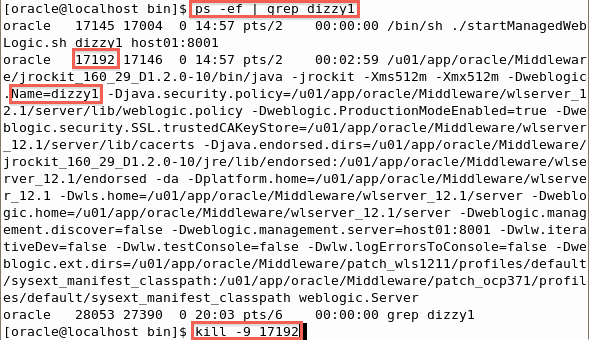
Kill the server that processed the most recent request ("serviced request to print items"). Use either Ctrl + C or the Linux kill command.
|
. |
Return to your Web browser, and use the browsestore application to continue shopping. Select a different category. Oracle HTTP Server should avoid the failed server with no interruption to the client.
|


Summary
In this tutorial, you learned how to:
- Deploy a web application to a WebLogic cluster
- Install, start, and stop Oracle Web Tier
- Configure the WebLogic plug-in in Oracle HTTP Server
- Test a plug-in's load balancing and failover capabilities
Resources
- For documentation on Oracle WebLogic Server 12c, visit the Documentation Library.
- For documentation on Oracle Web Tier 11g, visit the Documentation Library.
- For more information on configuring and using the WebLogic proxy plug-ins, see Using Web Server Plug-Ins with Oracle WebLogic Server in the WebLogic Server documentation.
- To learn more about Oracle WebLogic Server, refer to additional OBEs in the OLL website.
Credits
- Author: TJ Palazzolo

 |
Copyright © 2012, Oracle and/or its affiliates. All rights reserved |