Oracle WebLogic Server 12c: Configuring a JDBC Data Source
Overview
- Oracle Linux 5.6+
- Oracle WebLogic Server 12c (12.1.3)
- Oracle Database 11.2 (This tutorial uses Oracle Database 11g Enterprise Edition Release 11.2.0.3.0.)
- Oracle WebLogic Server 12c: Installing WebLogic Server and Creating a Domain
- Oracle WebLogic Server 12c: Configuring Managed Servers
Purpose
This tutorial shows you how to use the Oracle WebLogic Server 12c administration console to configure a Java Database Connectivity (JDBC) data source.
Time to Complete
Approximately 1/2 hour
Introduction
A data source is an object that enables a JDBC client to obtain a database connection. The data source has a collection of database connections called a connection pool. An application can request a connection from the data source, use the connection to access the database, and then close the connection. Rather than actually closing the connection, however, the data source places it back in the connection pool to be used again. You can set up a data source as part of a domain configuration and target it to a particular instance of WebLogic Server. When that server starts, or when the data source is deployed, WebLogic Server creates database connections for the data source connection pool.
This tutorial shows you how to use the Oracle WebLogic Server 12c (12.1.3) administration console to create a data source and its connection pool. The connections are to an Oracle database.
Hardware and Software Requirements
Prerequisites
Before starting this tutorial, you should have completed the Oracle by Example tutorials titled:
Setting Up the Schema in the Oracle Database
- testds_oracle.sql: A SQL script to configure the required schema in Oracle Database
- testds.war: A simple web application used to test the configured data source
- deploy_testds.py: A WebLogic Scripting Tool (WLST) script used to deploy the web application
- Log in to the system as the user who started Oracle Database.
Open a Terminal window and navigate to the location of the SQL script file,
testds_oracle.sql. -
Print the database environment variables to ensure that they are set:
echo $ORACLE_HOME/scratch/u01/appdb/db11g/product/11.2.0/dbhome_1$>echo $ORACLE_SIDorclNote: The values of your environment variables may be different. If no values are printed, then set the variables to the proper values with:
$>export ORACLE_HOME=valid_value$>export ORACLE_SID=valid_value -
Invoke SQL*Plus as the sysdba user:
$>$ORACLE_HOME/bin/sqlplus / as sysdba - Connect to the database as the
system user and provide the password
and the name of the database as you connect.
In this tutorial the command is:
SQL>connect system/Welcome1@orcl -
Run the SQL script with the following command:
SQL>@testds_oracle.sql
To set up the database schema required by the JDBC client application, perform the following steps:
Download the jdbc_obe.zip file to the machine that contains your WebLogic Server domain and servers. Extract the file contents to a local drive. In this tutorial, the files are extracted to the /scratch/jdbcobe/testds directory. The zip file contains three files:
Access SQL*Plus and prepare to run the SQL script file.

Run the SQL script as the system user.

The script, testds_oracle.sql, creates a user called DBTESTER with the password Welcome1. It grants that user the ability to create sessions, tables, and so on. It then connects to the database as that user and creates three tables: EMPLOYEE, WLS_CATALOG_ITEMS, and WLS_CLIENT_INFO. The script then inserts rows into those tables. Finally, the script exits SQL*Plus.
Configuring a JDBC Data Source
- Open a Terminal window and navigate to the domain directory. In this tutorial, the domain directory is /scratch/domains/mydomain.
- In the domain directory, enter the following command:
- Open a Terminal window and
navigate to the bin
directory under your domain directory. In this tutorial, the
domain directory is
/scratch/domains/mydomain. - Enter the following command:
startManagedWebLogic.sh. - The name of the managed server that you want to start
- The URL of the administration server
server1http://<ip_address>:7001- Open a web browser and enter the following URL:
http://hostname:port/consoleIn this tutorial, that is:
http://<ip_address>:7001/consoleNote: Use your administration server machine's host name or IP address for <ip_address>. Also, if you used a different port number for the administration server, use that port instead.
- On the Welcome screen, log in with the username and password that you entered to start the administration server.
- Enter the database name. In this tutorial, it's
orcl. Your database name may be different. - Enter the host name (or the IP address) of the machine where the database is running. In this tutorial, use the IP address of the database.
- Enter the database port. In this tutorial, the port is
1521. - Enter
DBTESTERfor the database user name. This is the user that was created by the SQL script. - Enter the database user's password and confirm the password. The password is
Welcome1. - Leave the Additional Connection Properties field blank, and click Next.
- If the message "Connection test succeeded" is displayed, click Next.
- If the connection test fails, click the Back button, review your entries for the data source, and correct any errors. If there are no errors and the test still fails, make sure your database is running.
- Initial Capacity: 2
- Maximum Capacity: 10
- Minimum Capacity: 2
To configure a JDBC data source by using the WebLogic Server administration console, perform the following steps:
If the administration server of the domain is not already running, start it.
$> ./startWebLogic.sh

As the script runs, it prompts you for a username and password. Enter the credentials of the domain administrator.
In this tutorial, the username is weblogic
and the password is Welcome1.
Note: The password is not displayed.

If the server1 managed server is not already running, start it.
This command takes two arguments:
In this tutorial, those arguments are:
Note: Replace <ip_address>
with the host name or IP address of your administration server.

At the prompt, enter the administrator username and password.
Note: The password is not displayed.

After both servers are up and running, access the WebLogic Server administration console.

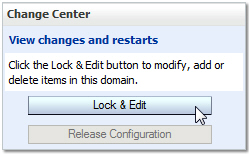
Creating a data source is a change to the domain's configuration, so you must first lock it. In the Change Center, click Lock & Edit.
Under Domain Structure, expand Services, and then click Data Sources.
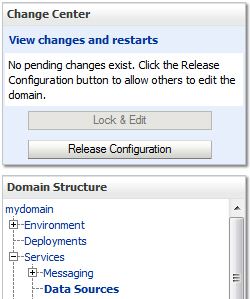
On the right, notice that the Summary of JDBC Data Sources section appears.
Under the Data Sources table heading, click the New drop-down list and select Generic Data Source.

On the first page of the Create a New JDBC Data Source wizard,
enter testDS for the data source name and JNDI name, select
Oracle from the Database Type drop-down list, and click Next.
Note: The data source name and the JNDI name do not have to match. The JNDI name is the one to make note of, because it is used by JDBC clients to access the data source.

On the second page of the wizard, select *Oracle's Driver (Thin) for
Instance connections; Versions:Any from the Database Driver drop-down list, and click Next.

On the next page of the wizard, keep all the default transaction options and click Next.

On the next page of the wizard, perform the following steps:

On the next page of the wizard, click Test Configuration to check if you can make a connection to the database based on the information that you entered.

Perform one of the following steps:

On the last page of the wizard, the data source is targeted. Targeting a data source to a server means that the server manages its own instance of the data source. The data source is available as one of the resources of that server. Select the server1 check box and click Finish.

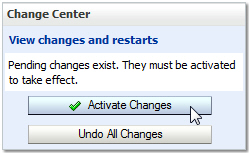
In the Change Center, click Activate Changes .
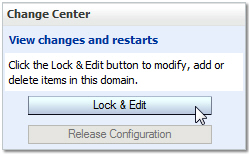
Click Lock & Edit to modify the settings of the new data source.
In the Data Sources table, click testDS to modify its configuration.

Under Settings for testDS, click the Configuration tab and the Connection Pool subtab.
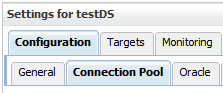
Scroll down to the capacity fields, enter the following values, and then click Save.

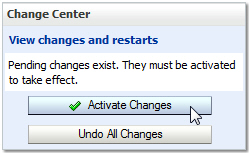
In the Change Center, click Activate Changes.
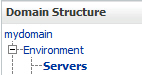
Under Domain Structure, expand Environment and click Servers.
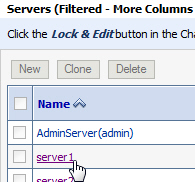
In the Servers table, click server1.
Under "Settings for server1," click the Configuration tab and the General subtab, and then click the View JNDI Tree link.

The JNDI tree opens in a new browser window (or tab) and displays testDS.
Note: Other entries in the JNDI tree of your server may be very different from what is shown here. It depends on your server's resources.

Testing the JDBC Data Source
- Navigate to the /server/bin directory under the WebLogic installation directory. In this tutorial, that is /scratch/u01/app/fmw/wlserver/server/bin.
- Run the setWLSEnv.sh script as follows: source setWLSEnv.sh
- In another web browser window or tab, enter the host and port of the managed server,
followed by
/testds. In this tutorial, enter the following URL:http://<ip_address>:7003/testds. - Replace
<ip_address>with the host name or IP address of your server1 machine. - When the application comes up, enter the following values:
- Data Source Name:
testDS - Table Name:
EMPLOYEE - Username:
weblogic(Use your domain administrator username.) - Password:
Welcome1(Use your domain administrator password.) - Click Test Data Source.
To test the JDBC data source with a simple web application, perform the following steps:
In a new Terminal window, perform the following steps:
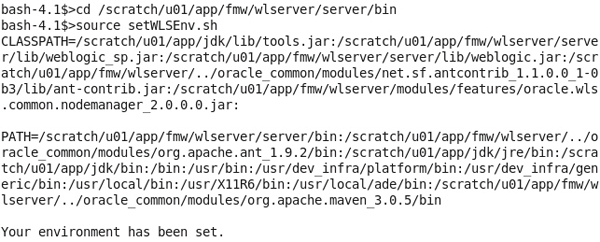
$> cd /scratch/u01/app/fmw/wlserver/server/bin
$> source setWLSEnv.sh
The PATH and the CLASSPATH
are set so that the WLST deployment script can be executed.
Navigate to the directory that contains the testds.war file. This file was part of the zip file that you extracted to the /scratch/jdbcobe/testds directory.

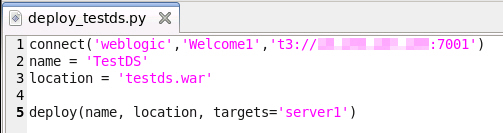
Before running the supplied WLST script, deploy_testds.py, you need to edit it. The first line of the script contains the connect() command. The first argument of that command is the domain administrator username, the second argument is the domain administrator password, and the third argument is the host name or IP address and port of the administration server of the domain. Replace <ip_address> with the host name or IP address of your domain's administration server machine.
Note: Notice the use of the t3 protocol when accessing the administration server. This proprietary protocol is used by WLST when it communicates with the admin server.

Make any required changes and save the file. Here is the file updated with the administration server machine's IP address:
Enter the following command to run the deploy_testds.py script:
$> java weblogic.WLST deploy_testds.py
The script deploys the web application that is archived in the testds.war file and targets the application to the server1 server.

A message confirms that the deploy operation was completed.
Note: Ignore the warnings about an insecure protocol and about WLContext.close(). The context warning is always displayed when you run a WLST deployment script, but it is not an issue.
Verify that the deployment was successful: In the administration console, click Deployments under
Domain Structure, and then find TestDS with the Active state in the Deployments table.

To use the deployed application, perform the following steps:
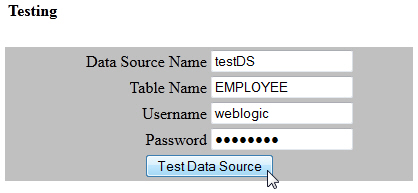
The rows in the EMPLOYEE table are displayed below the fields.

The application uses the data source name (testDS) as the JNDI name to look up
the data source from server1, retrieves a database connection from that data source, and executes
the SQL script to select all the rows in the table entered in the EMPLOYEE Table Name field.
If you want to test the data source again, try a different table
in the Table Name field. The other two tables are
WLS_CATALOG_ITEMS and WLS_CLIENT_INFO.
Summary
- Run a SQL script in SQL*Plus
- Start instances of WebLogic Server
- Configure a JDBC data source by using the administration console
- Test a data source by using a simple web application
- For documentation on Oracle WebLogic Server 12c (12.1.3), visit the Oracle WebLogic Server Documentation Library.
- For more information on creating JDBC data sources, see the Administering JDBC Data Sources for Oracle WebLogic Server document.
- To learn more about Oracle WebLogic Server, refer to additional OBEs in the Oracle Learning Library.
- Lead Curriculum Developer: Bill Bell
- Original Oracle by Example tutorial for version 11g created by: TJ Palazzolo
- Other Contributors: Susan Moxley
In this tutorial, you learned how to:
Resources
Credits
To navigate this Oracle by Example tutorial, note the following:
- Hide Header Buttons:
- Click the title to hide the buttons in the header. To show the buttons again, click the title again.
- Topic List:
- Click a topic to navigate to that section.
- Expand All Topics:
- Click the button to show or hide the details for the sections. By default, all topics are collapsed.
- Hide All Images:
- Click the button to show or hide the screenshots. By default, all images are displayed.
- Print:
- Click the button to print the content. The content that is currently displayed or hidden is printed.
To navigate to a particular section in this tutorial, select the topic from the list.