Before You Begin
Purpose
Time to Complete
Background
This tutorial shows you how to create and configure machines by using the Oracle WebLogic Server 12c (12.2.1) administration console.
What Do You Need?
Creating and Configuring Machines
To create and configure machines in the domain by using the administration console, perform the following steps:
- If the administration server of the domain is
not already running, start it.
- Open a Terminal window and navigate to the domain directory. In this tutorial, the domain directory is /scratch/u01/app/fmw/user_projects/domains/mydomain.
- In the domain directory, enter the following
command: ./startWebLogic.sh

- At the prompt, enter the credentials of the
domain administrator. In this tutorial, the
username is weblogic and the
password is welcome1.
Note: The password is not displayed.
Wait until the administration server is running before continuing.
- If any of the managed servers of the domain are
running, shut them down. (You cannot change the
machine of a running server.)
- Open a web browser and enter the following
URL for the administration console: http://hostname:port/console
In this tutorial, the URL is http://<ip_address>:7001/console. Replace <ip_address> with the host name or IP address of your administration server. - On the Welcome screen, log in with the
username and password that you entered to
start the administration server.

- In the administration console, under Domain
Structure, expand Environment, and
then click Servers.

- On the Control tab, under Summary of
Servers, select the check box for each running
managed server, and then select Force
Shutdown Now from the Shutdown list.

- At the prompt, click Yes, refresh
the browser, and ensure that all managed
servers show the SHUTDOWN state.

- Open a web browser and enter the following
URL for the administration console: http://hostname:port/console
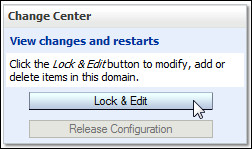
- Creating a machine is a change to the domain's
configuration, so you must first locked the
configuration. In the Change Center, click Lock
& Edit.
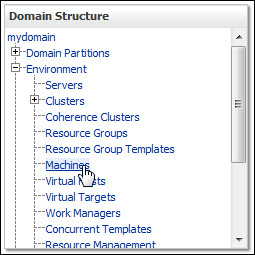
- Under Domain Structure, expand Environment, and
then click Machines.
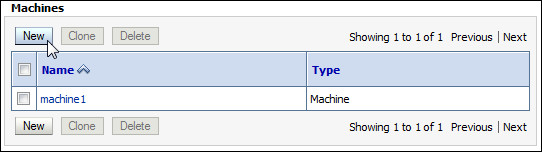
- On the right, above the Machines table, click New
to open the Create a New Machine wizard.
- On the Machine Identity page, enter machine2
for the name, select Other for the machine
OS, and then click Next.
Note: In this tutorial, WebLogic Server is running on Linux. Although Linux is a UNIX-based operating system, you don’t need the UNIX-specific machine settings for this tutorial. Therefore, select the simpler Other option.
- On the Node Manager Properties page, select Plain
for the Node Manager type, enter the host name or
IP address of the machine, enter a port, and then
click Finish.
In this tutorial, the IP address is entered for the Listen Address, and 5557 is entered for the Listen Port.
- In the Change Center, click Activate
Changes.
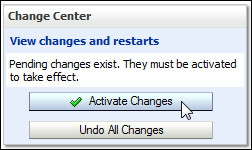
The following message is displayed: "All changes have been activated. No restarts are necessary."
- To update the new machine, lock the
configuration again.
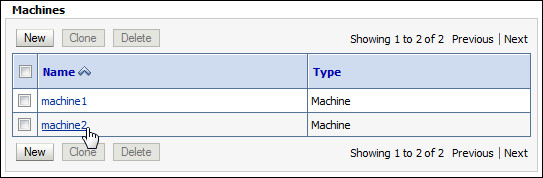
- In the Machines table, click machine2.
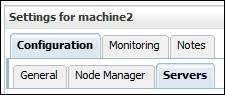
- Under " Settings for machine2," click the Configuration
tab and the Servers subtab.
- Above the Servers table, click Add.
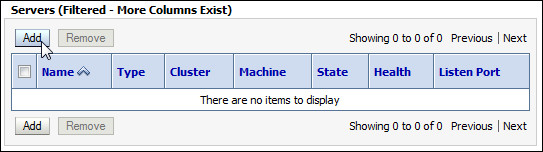
- On the Add a Server to Machine page, ensure that
Select an existing server, and associate it
with this machine is selected, select server2,
and then click Finish.

- Change the settings of machine1.
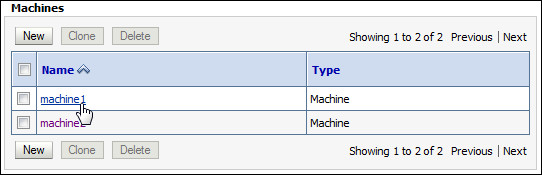
- In the Machines table, click machine1.
- Under "Settings for machine1," click the Configuration
tab and the Node Manager subtab.
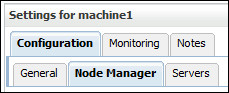
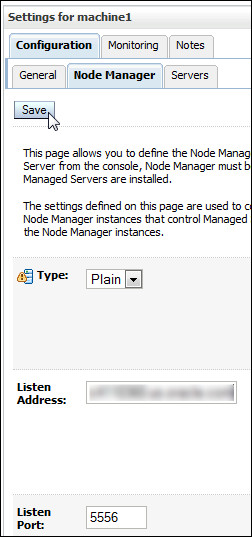
- Select Plain for the Node
Manager type, ensure that the machine's host
name or IP address is correct for the Listen
Address, ensure that Listen Port is 5556, and
then click Save.
- Click the Configuration tab and the
Servers subtab and review the servers
for machine1.
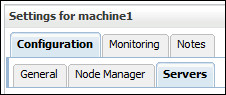
In the Servers table, you can see that the other servers are still assigned to machine1.

- In the Machines table, click machine1.
- In the Change Center, click Activate Changes.
Starting a Managed Server
To restart the managed servers, perform the following steps:
- Run the managed server start script.
- Open a Terminal window and navigate to the
bin directory under your domain directory. In
this tutorial, the domain directory is /scratch/u01/app/fmw/user_projects/domains/mydomain.
Enter the following command: startManagedWebLogic.sh. This command takes two arguments:
- The name of the managed server that you want to start
- The URL of the administration server
In this tutorial, those arguments are:
- server1
- http://<hostname>:7001
Note: Replace <hostname> with the host name or IP address of your administration server.
- At the prompt, enter the administrator
username and password.
Note:The password is not displayed.
- Open a Terminal window and navigate to the
bin directory under your domain directory. In
this tutorial, the domain directory is /scratch/u01/app/fmw/user_projects/domains/mydomain.
- Wait for the following message: The server
started in RUNNING mode. This message
means that the server is up and running.

Want to Learn More?
-
For documentation on Oracle WebLogic Server 12c (12.2.1), visit the Oracle WebLogic Server Documentation Library.
- See "Machines" in Creating WebLogic Domains Using the Configuration Wizardfor more information in machine configuration.
-
To learn more about Oracle WebLogic Server, refer to additional OBEs in the Oracle Learning Library
Credits
- Lead Curriculum Developer: Tom Eliason
- Original Oracle by Example tutorial for version 12c created by: Bill Bell
- Original Oracle by Example tutorial for version 11g created by: TJ Palazzolo
- Other Contributors: Veerabhadra Rao Putrevu, Susan Moxley
Version
- 01-14-001-CreatingandConfiguringMachines