Get Started with FSM to Import and Export Resource Alerts
 Before You Begin
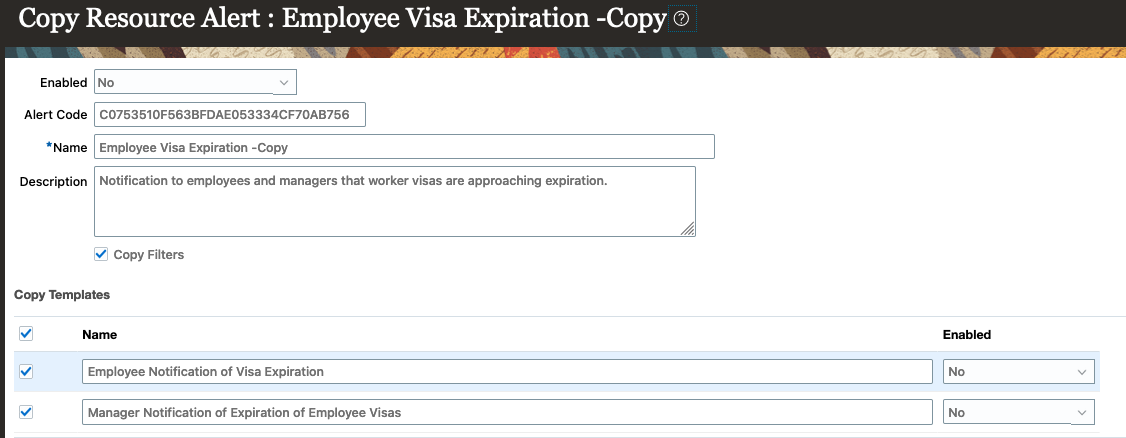
This tutorial shows you how to export and import resource alerts using FSM. This tutorial also shows you how to copy a resource alert from the alerts composer tool.
Background
Alerts Composer is a tool that enables you to send informational notifications to Oracle HCM Cloud users by email and worklist. Resource Alerts are based on Oracle HCM Cloud REST API resources. For example, Visa Expiration Resource alert can be triggered when a worker visa is approaching expiration. Notifications are sent to the worker and the manager informing them of visa expiration.
Use Functional Setup Manager to import and export Resource Alert packages across environments. For example, export and import resource alerts setup data from one application environment to another environment.
Alerts Composer also provides the flexibility to copy an existing resource alert.
 Create Implementation Project to Export Resource Alerts
Login as an implementation user and create a new implementation project.
Navigator > Other > Setup and Maintenence > Tasks > Manage Implementation Projects
- Choose Create from Actions in Search Results section
-
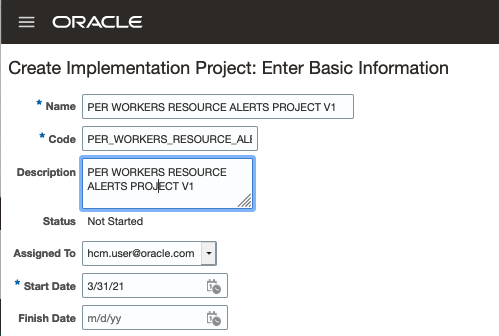
Create a new implementation project:
Attribute Value Name PER WORKERS RESOURCE ALERTS PROJECT V1 Code PER_WORKERS_RESOURCE_ALERTS_PROJECT_V1 Description Project for Global HR Resource Alerts Start Date sysdate - Add the task to the project.
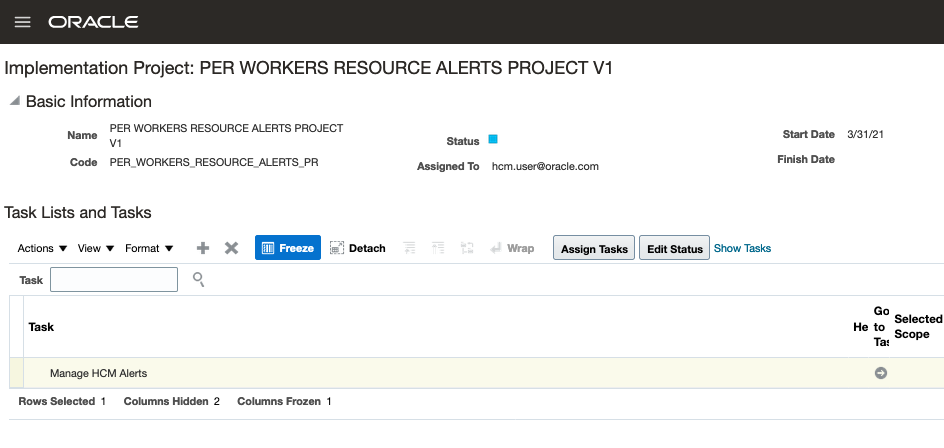
- Click Save and Open Project.
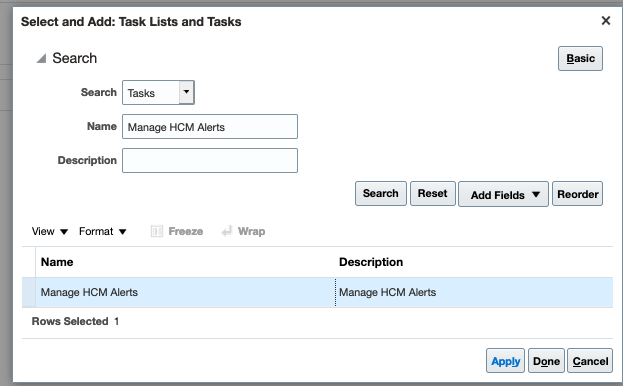
- In Task Lists and Tasks table, choose Select and Add task action.
- Search for Manage HCM Alerts.
- Select and Add Task.
- Click Done.
 Create a Configuration Package and Export the Template
Create a configuration package.
Navigator > Other > Setup and Maintenence > Tasks > Manage Configuration Packages
-
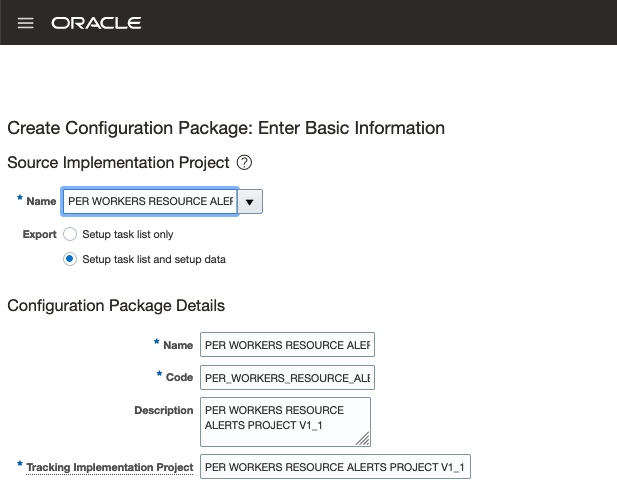
Create a package:
Attribute Value Source Implementation Project PER WORKERS RESOURCE ALERTS PROJECT V1 Name PER WORKERS RESOURCE ALERTS PACKAGE V1 Code PER_WORKERS_RESOURCE_ALERTS_PACKAGE_V1 Description Package for Global HR Resource Alerts Tracking Implementation Project PER WORKERS RESOURCE ALERTS PROJECT V1 - Click Next.
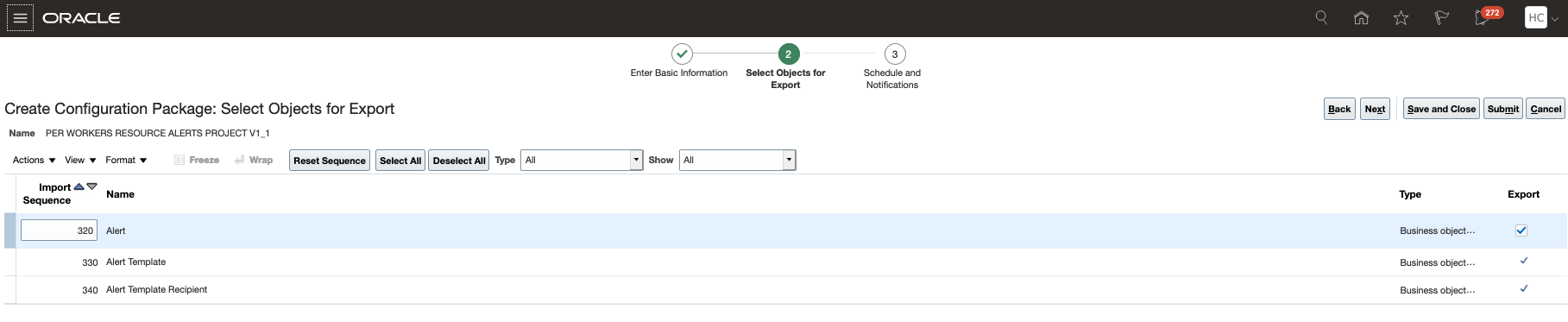
- Enable Export for all displayed business objects.Note that this option will be enabled by default for Alert, Alert Template and Recipient.
-
Select scope for the Alerts to be included in the package:
- Select and Add Alerts.
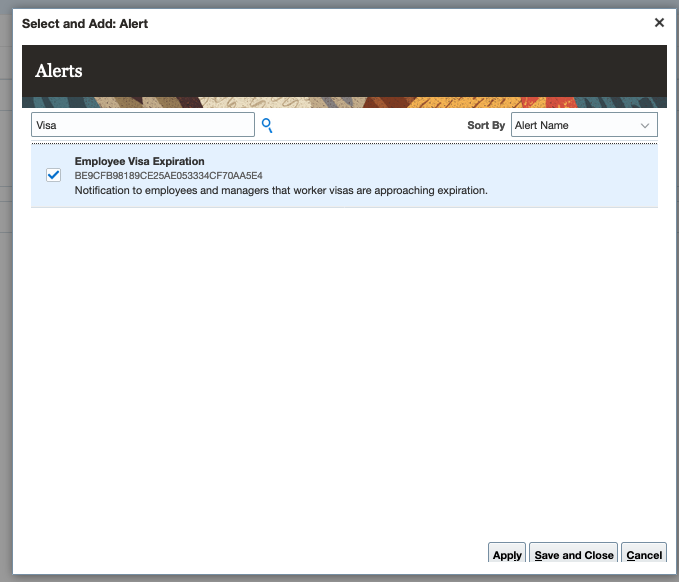
Fig 1.5 Select and Add Alerts 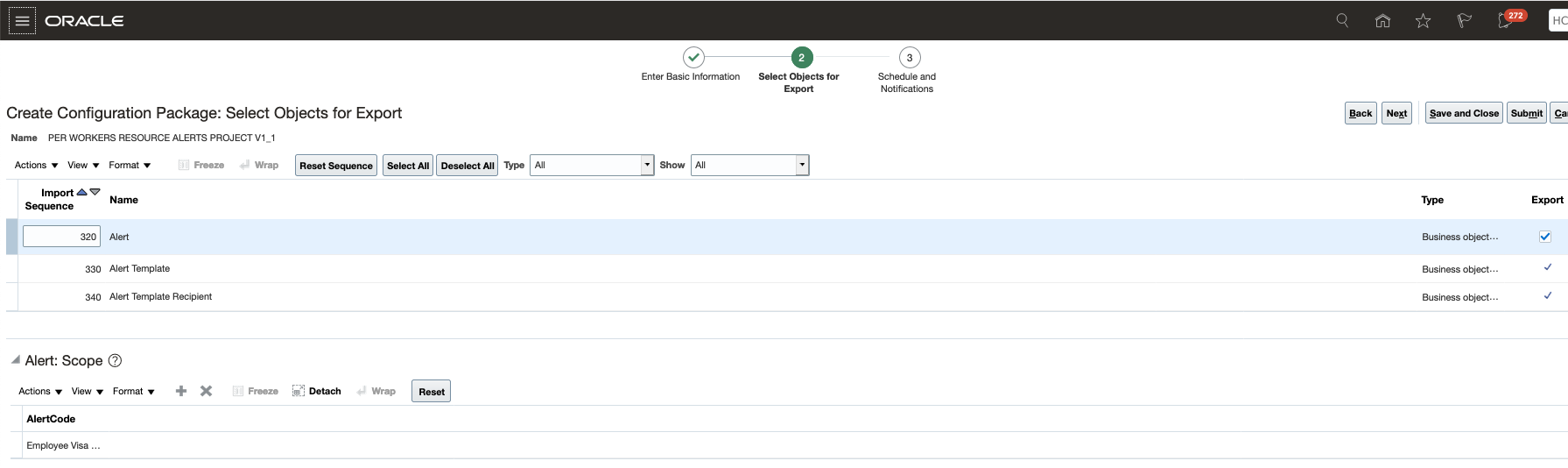
Fig 1.6 Select Object and Scope - Click Submit.
- Click Refresh in Export and Import Processes section to check status of export setup data.
- After the process completes successfully, select Download Configuration Package in the Download option.
- Save the package ZIP file in your local folder.
- Click Done.

 Import Template Package into Target Environment
Go to the target environment where the template needs to be imported.
Navigator > [Others] Setup and Maintenance
- Select Manage Configuration Packages from Actions.
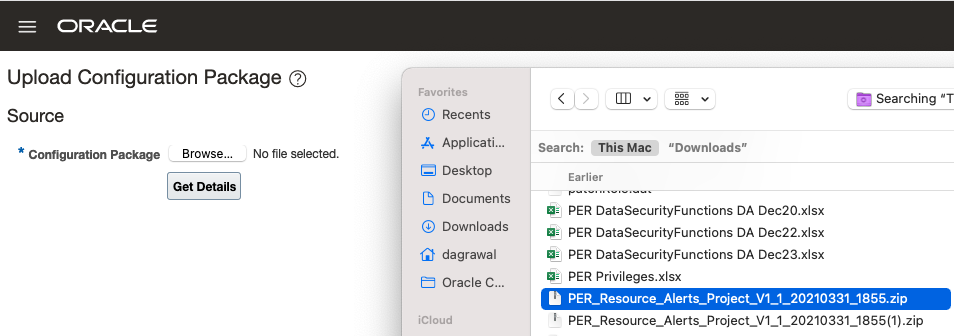
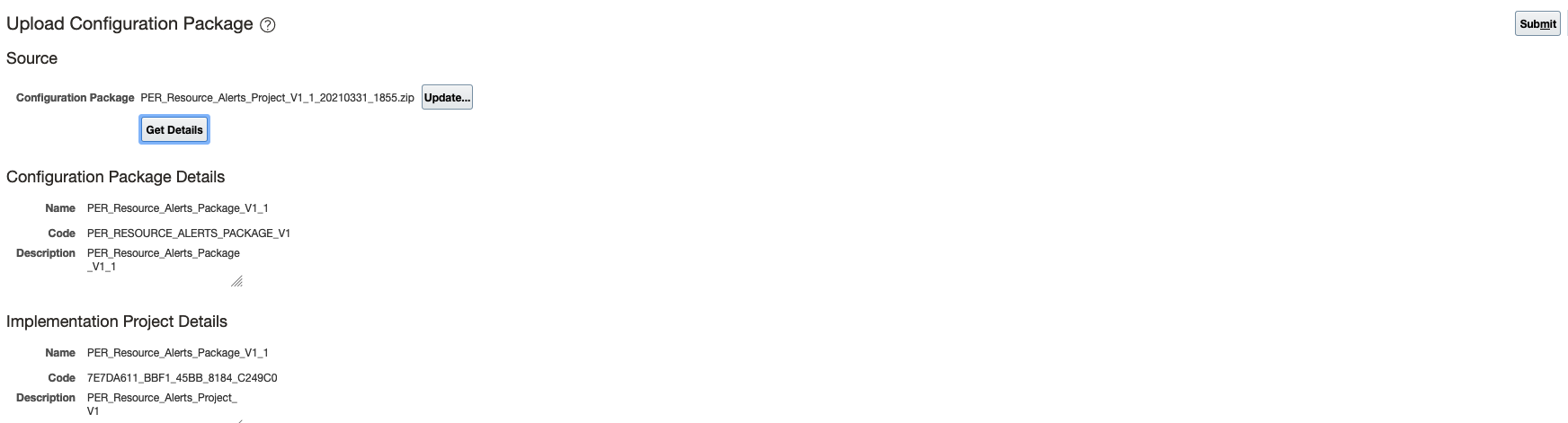
- Click on Upload and select the zip file to be uploaded.
- Click Submit.
- After the upload completes successfully, click Import Setup Data.
- Click Next in Enter Basic Information.
- Click Submit in Select Pauses for External Import.
- Confirm import process completes successfully.
- Click Done.



 Review Imported Template in Alerts Composer Tool
Go to the Alerts Composer tool in the target environment.
Navigator > [Tools] Alerts Composer
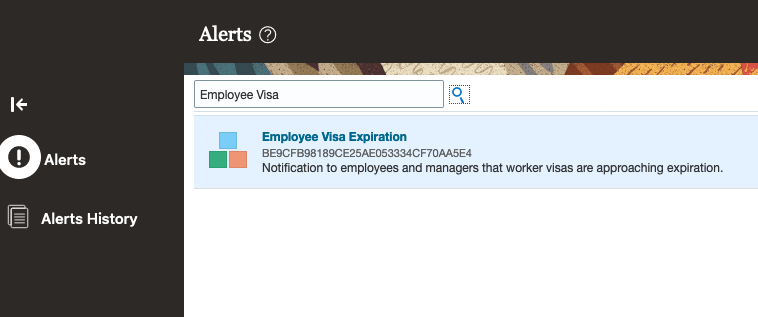
- Search on the Employee Visa Expiration Resource Template imported from the template package file.
- Confirm that the resource alert is imported successfully. It is recommended that you create a copy of the imported alert before making changes to it.
 Copy the Alert Template
Go to the Alerts Composer tool.
Navigator > [Tools] Alerts Composer
- Search the alert to be copied. In this example, search the Employee Visa Expiration Resource Template imported from the template package file.
- Select the resource and choose Copy Action.
- Create a copy of the resource alert.
- Provide a new name for the copied alert.
- Select option to copy filters.
- Select the templates to be copied.
- Click Save and Close.