
 Assign HCM Journey to Employee
 Assign HCM Journey to Employee
The following section walks through the end user experience for the employee actor in the runtime interaction with the HCM Journey Booster experience.
Previously the Journey template has been setup to be a standalone Journey, but the tasks can be integrated into larger Journeys and not stand alone.
Allocate new HCM Journey to employee
- On the explore page of HCM Journeys in the search entry box, enter Uniform. This will return the newly created Uniform Request Journey created in the previous section.
- Assign the Journey to the logged in user by the Add to My Journeys

- Navigate to the My Journeys tab
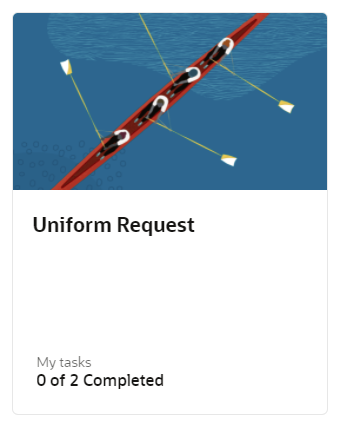
- Select the Unform Request Journey
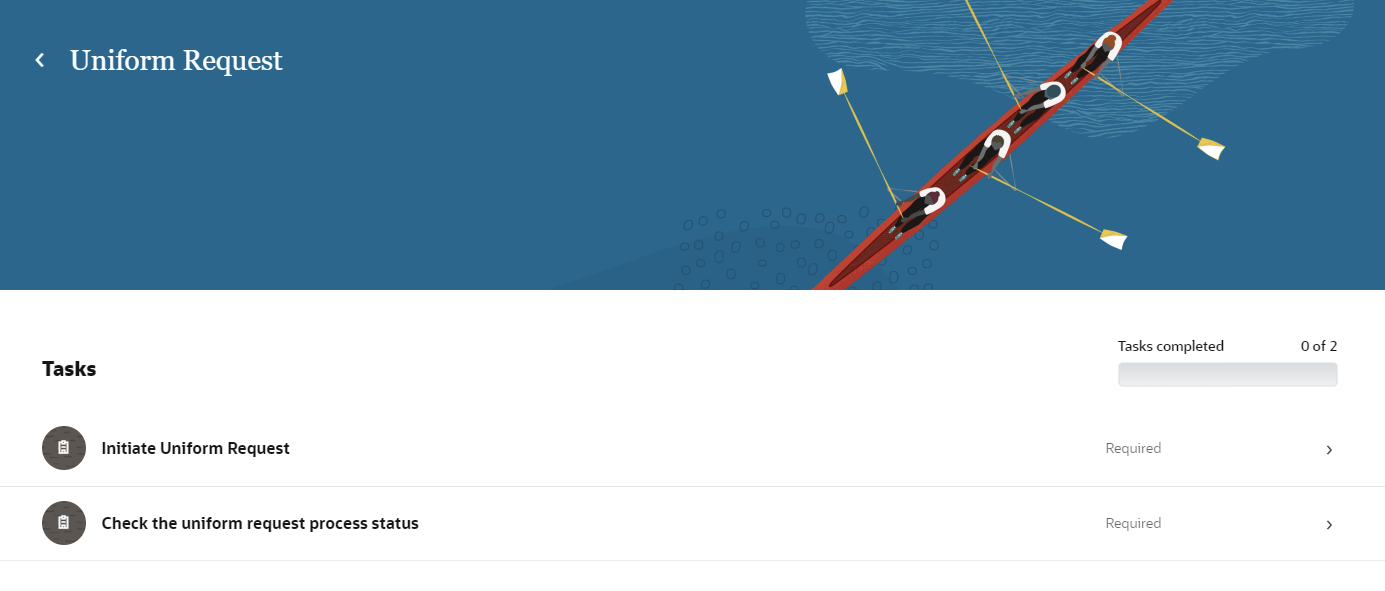
- Expand the Initiate Uniform Request task
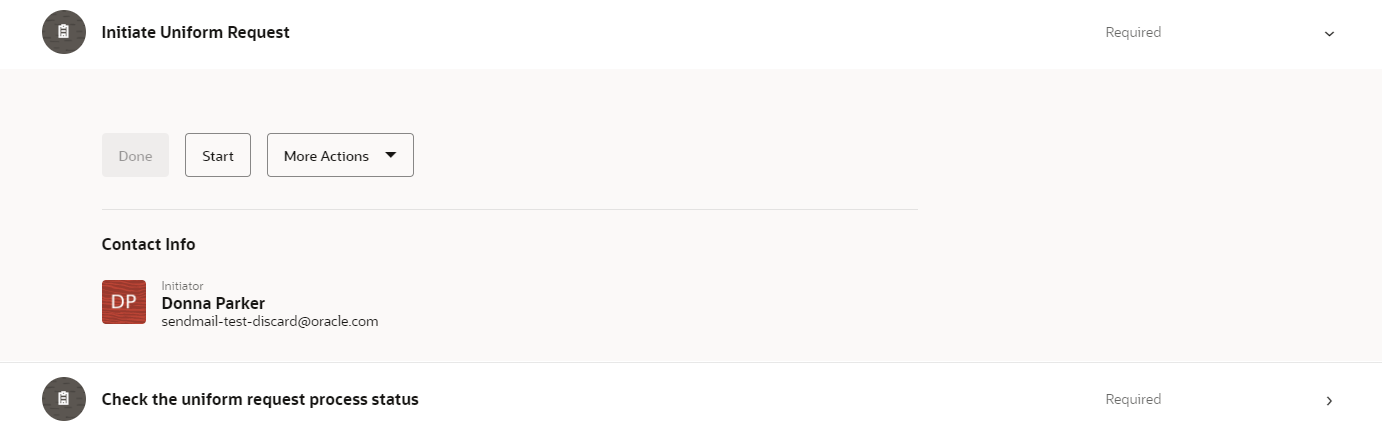
- Select Start
This will initiate Uniform Request process in Booster, and display a Request processing notification

- Select Done, to mark the task as Complete.
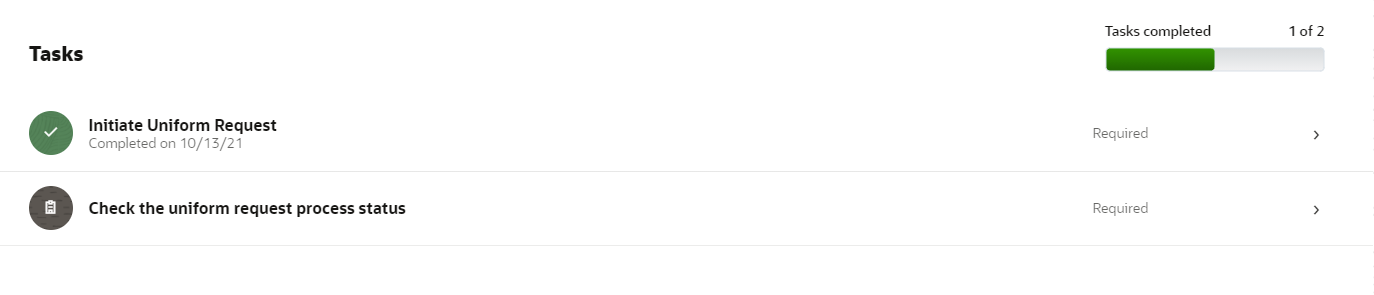
- An email notification will have been sent to the employee per the flow, notifying of
need to complete the Uniform Selection.
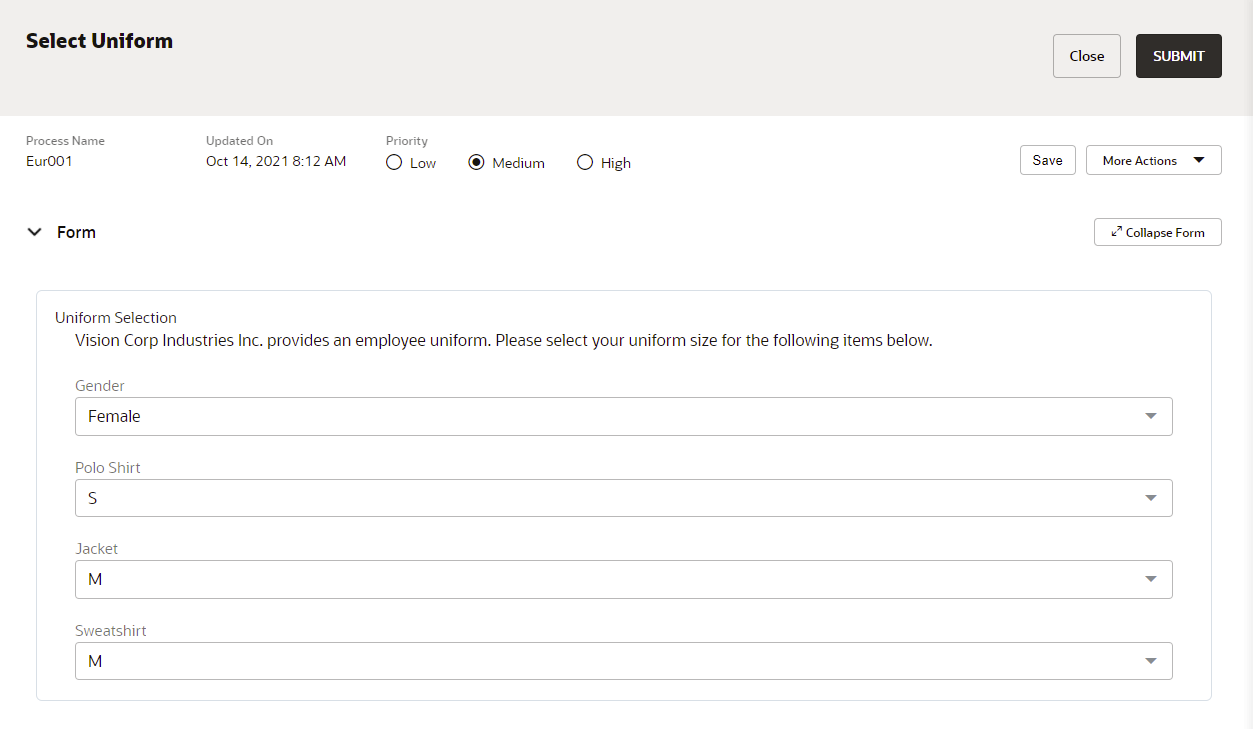
Once the uniform selection has been completed, the user will select Submit. This will move the process forward to the approval task.
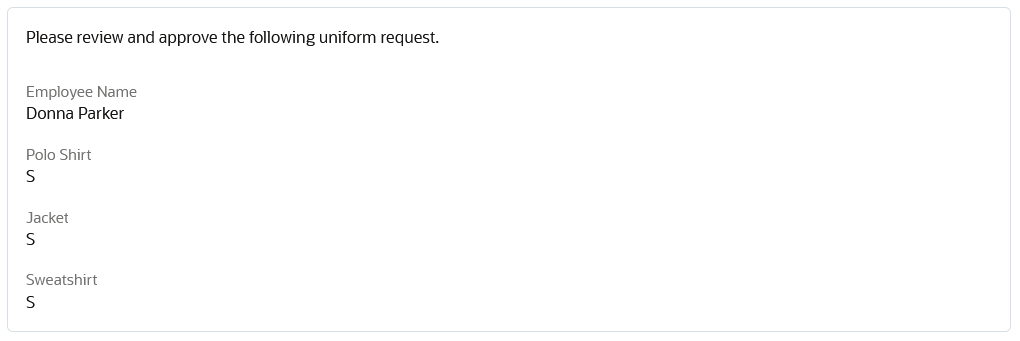
- Approval of Uniform Request
An approval notification is sent to the individual in the organization
responsible for approving uniforms. They can action the approval via the notification or
by entering the Booster product and reviewing the workspace tasks.
- Worker checks status in HCM Journey while Process is in progress, they will receive the
following response.
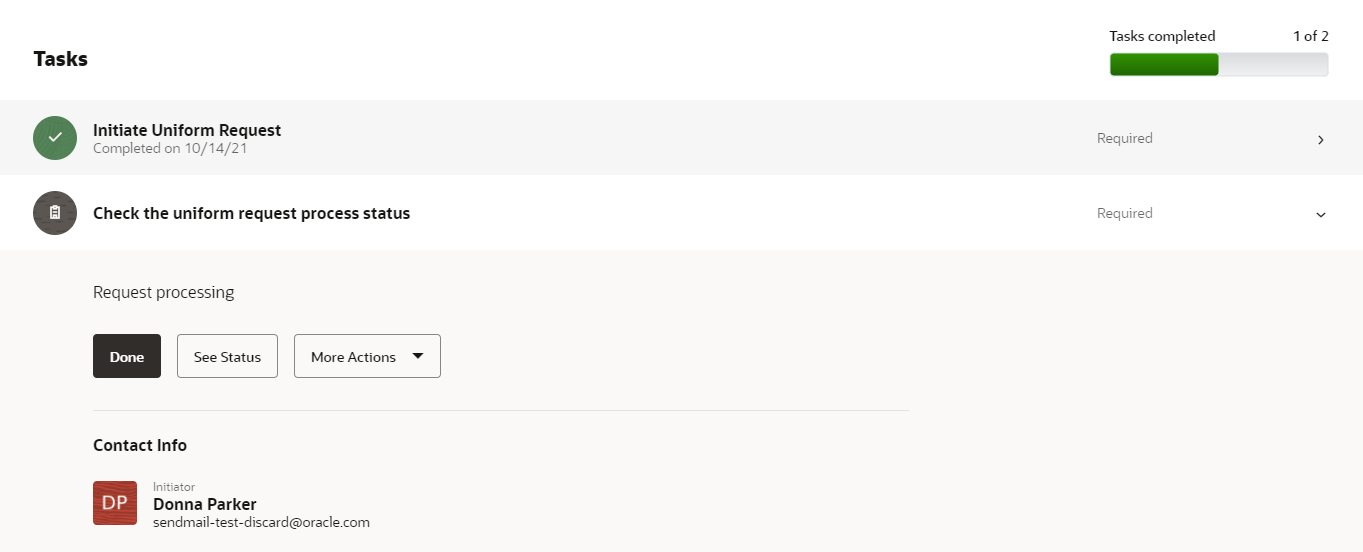
- Once the Process has been completed, a completed message will be returned and the Worker can make the task as Done.