Searching for Items in the Repository
Purpose
In this tutorial, you learn how to search for items in the repository with general and advanced search options.
Time to Complete
Approximately 20 minutes
Overview
The Search utility enables you to search and retrieve items and documents from any repository in Oracle Enterprise Performance Management Workspace, Fusion Edition release 11.1.2.1 (Workspace). For example, you can search for Financial Reporting reports, books, and batches, as well as Microsoft Office Excel, Word, and PowerPoint files, and PDF and plain text files.
Consider some of the following reasons for using the Search utility:
- Find the location of items in the repository
- Find reports that contain a specific member name
- Find which books and batches contain a specific report
- Find which reports contain a specific row and column template
You can easily and quickly search for repository items based on keywords in document-specific metadata. For example, keywords can include the item name, item description, item creation data, and column and row headings in a report. When you save or update items in the repository, specialized parsers generate keywords for the items.
Scenario
Financial Reporting reports display data from varying data sources, such as Oracle® Essbase databases or Oracle® Hyperion Financial Management, Fusion Edition applications. If you rename or remove dimension members in the data sources, the changes impact the reports that contain the members. For example, the reports may fail or result in an error. As a report designer or administrator, you can use the Search utility to locate the Financial Reporting reports and objects (such as grids and charts) that contain the members to assess the impact of the changes and to update the affected reports and objects.
Occasionally, you rename, remove, or move reports in the repository. These changes affect the books and batches that contain the reports. You can use the Search utility to determine which books and batches are affected by changes to report names and locations. This allows you to update the books and batches accordingly.
As a report designer, you may need to find which reports contain specific row and column templates to understand the impact of changes to the row and column templates. For example, if you change the location of a row and column template, the template is automatically deleted from reports that are linked to the template. Before changing the location of the template, you can find which reports are linked to the template so that you can update the reports.
As a report viewer, you may need to find the location of specific reports in the repository to preview and print reports and books.
Prerequisites
Before starting this tutorial, you should have:
- Access to Workspace release 11.1.1.x or higher
- Access to folders, reports, templates, books, batches, and other documents in the repository
Performing General Searches
In this topic, you use the Search utility to locate a specific report in the repository and to find which books and batches contain the report. You also find reports in the repository that contain a specific keyword, such as a member name, item name, or description, and you locate the reports that contain a specific row and column template.
Finding Specific Reports
You may need to locate a report in the repository to preview the report or to add the report to a book or batch. You can also find which books and batches contain the report.
To search for a specific report in the repository, and to locate the books and batches that contain the report, perform the following steps:
. |
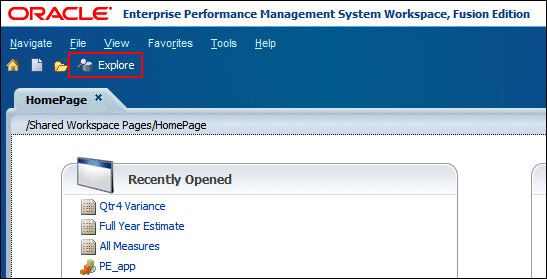
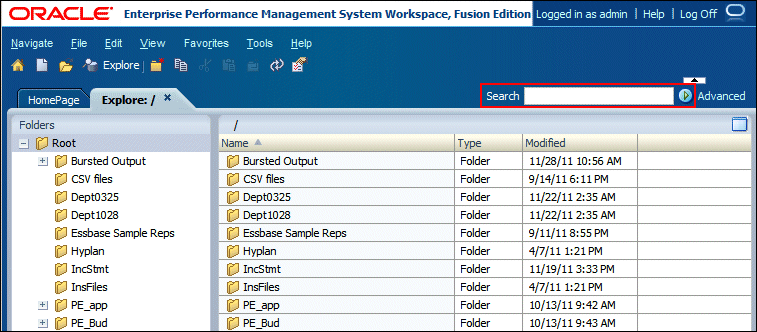
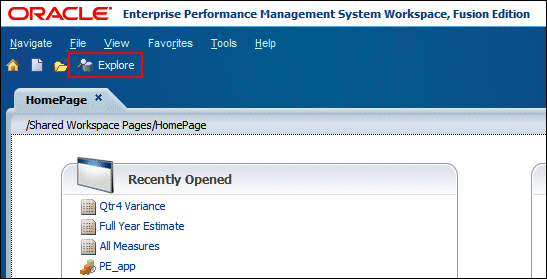
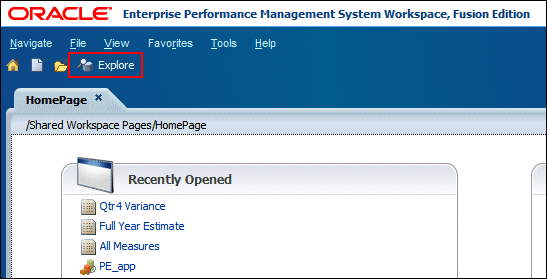
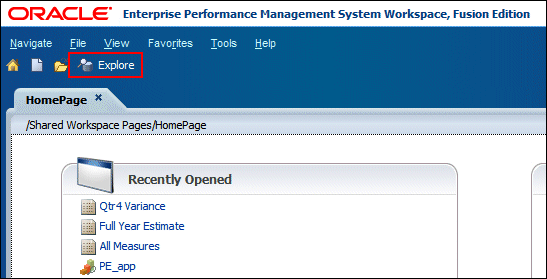
In Workspace, click Explore to navigate to the Explore page and view the Workspace repository. Note: You do not have to navigate to the Explore page to search for items.
The repository is displayed with a Search text box and Search icon. The Search text box is available on all Workspace pages
|
|---|---|
. |
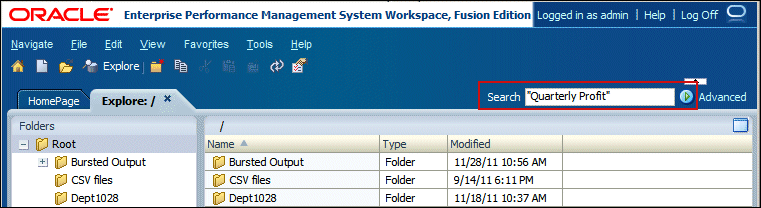
In the Search text box, enter the report name in quotation marks, and then click Search. In this example, you enter "Quarterly Profit". When you enter an item name in quotation marks, Search finds the exact occurrence of the words. If you do not enclose the words in quotation marks, Search finds repository items that contain any of the listed keywords.
|
. |
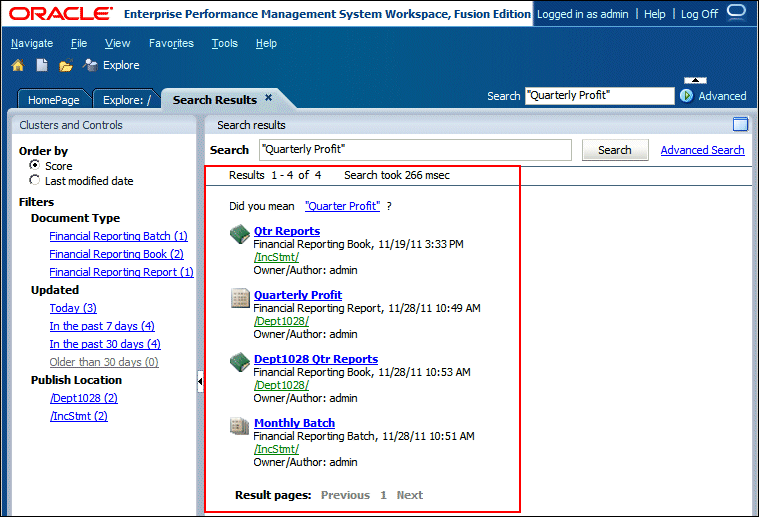
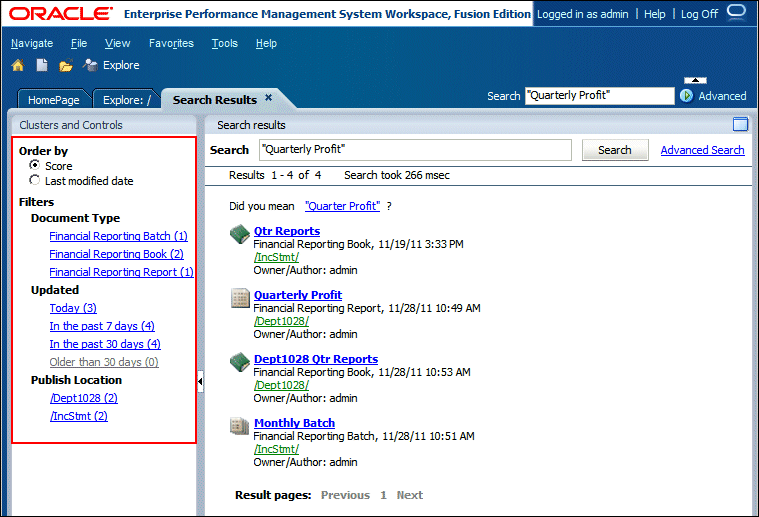
View the results of the search. Search results include only the items that users are authorized to see. The content area displays the item name, description, document type, date the item was created or modified, location, and owner. In this example, four items match the search criteria and none of the items have a description. The report, Quarterly Profit, is located in the /Dept1028 folder. The report is included in one batch (Monthly Batch) and in two books (Qtr Reports and Dept1028 Qtr Reports). Note: You can click the item name to launch it. For example, you can click Quarterly Profit to preview the report.
You can use the navigation pane on the left of the page to filter and sort the items by score or by last-modified date. By default, the results are sorted by score. An item's score is determined by how often the keyword appears in the item and the number of keywords in the item. You can also filter the search results by document type, created or modified date, and location. For example, you can select the document type, Financial Reporting Book, to display the two books that match the search criteria.
|
. |
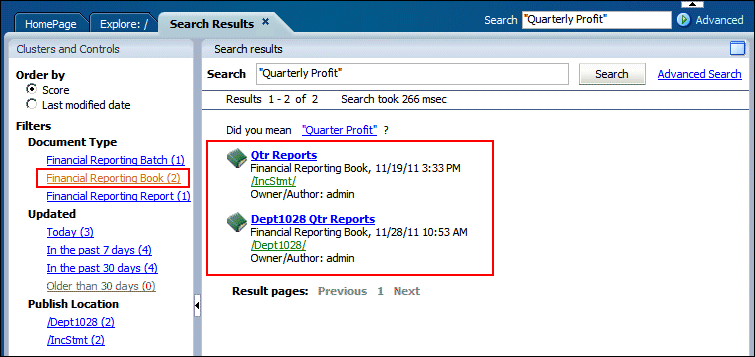
In the navigation pane, under Document Type, click Financial Reporting Book (2) to filter the search and display only the books that match the search criteria. The two books that contain the Quarterly Profit report are displayed. One book is located in the /IncStmt folder and the second book is located in the /Dept1028 folder.
|
. |
Select File, then Close, and then Current to close the Search Results page.
|
Finding Items that Contain a Specific Keyword
You many need to find items or documents in the repository that contain a specific keyword. For example, you search for items that include a specific member name or text.
To find items in the repository that contain a specific keyword, perform the following steps:
. |
In Workspace, click Explore to navigate to the Explore page and view the Workspace repository.
|
||||||||||
|---|---|---|---|---|---|---|---|---|---|---|---|
. |
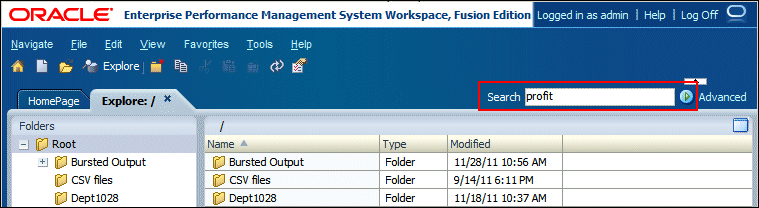
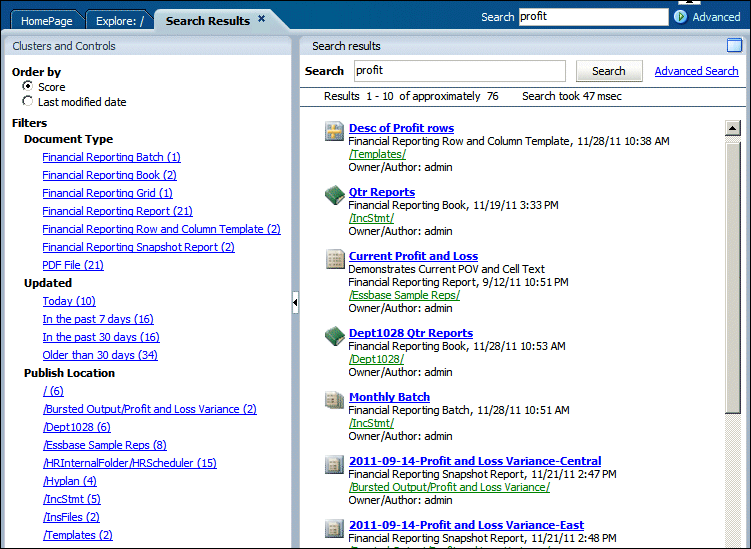
In the Search text box, enter the keyword, and then click Search. In this example, you search for the keyword profit.
|
||||||||||
. |
View the results of the search. In this example, the Search Results page displays the first 10 out of 76 results. All search result items include the profit keyword, for example, some items have it in the item name, other items may have it in report headings, while others may have the Profit account member in the report. You can use the navigation pane on the left of the page to filter the search results by document type, created or modified date, and location. For example, you can narrow the search to display only the six items in the /Dept1028 folder.
|
||||||||||
. |
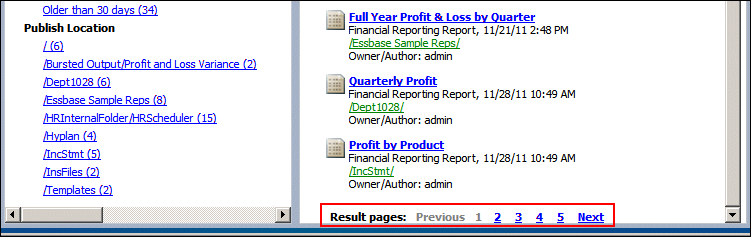
Use the scroll bar to scroll down to the bottom of the page. In the "Result pages" area, you can navigate to other pages to see additional search results.
|
||||||||||
. |
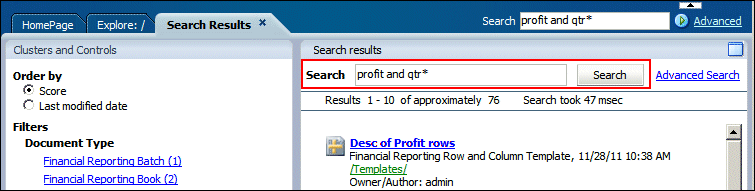
Add a keyword to the Search text box to narrow the search results, and then click Search. In this example, you change the search string to profit and qtr* to search for items in the repository that contain the profit keyword and also any keyword that begins with qtr.
The following table lists some additional search syntax:
|
||||||||||
. |
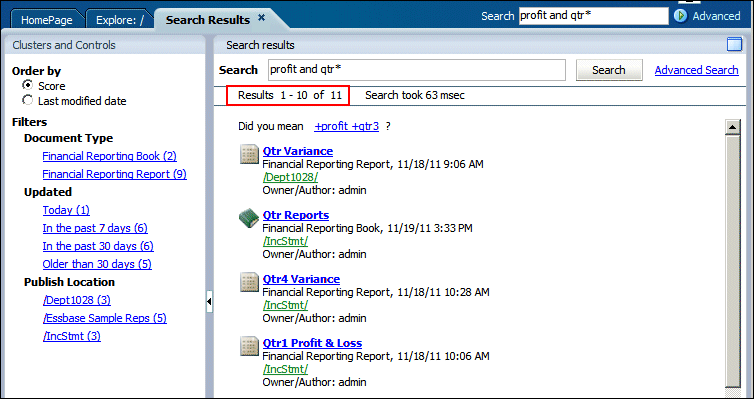
View the search results. In this example, the search results are narrowed down to 11 items. The following graphic displays some of the items:
|
||||||||||
. |
Select File, then Close, and then Current to close the Search Results page.
|
Finding Reports that Contain a Specific Row and Column Template
Row and column templates can be linked to multiple reports. Before making changes to row and column templates, you can find the reports that include the template to understand the impact of your changes.
To find reports that contain a specific row and column template, perform the following steps:
. |
In Workspace, click Explore to navigate to the Explore page and view the Workspace repository.
|
|---|---|
. |
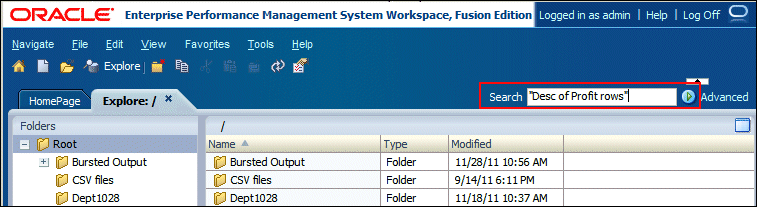
In the Search text box, enter the name of the row and column template in quotation marks, and then click Search. In this example, you enter "Desc of Profit rows".
|
. |
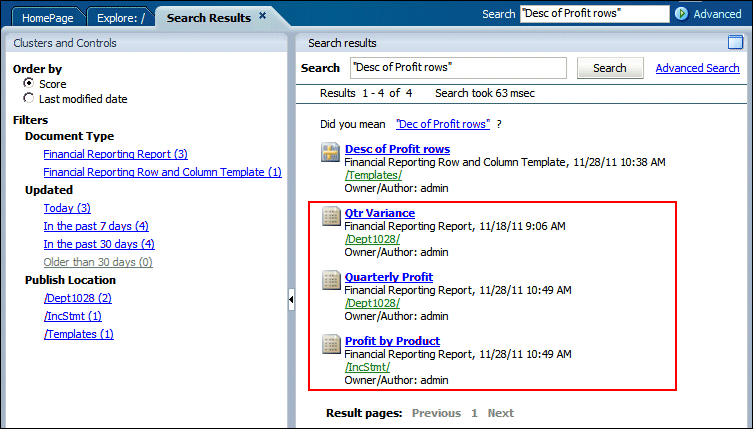
View the results of the search. In this example, the search results display the template, "Desc of Profit rows", and the three reports that contain the template.
|
. |
Select File, then Close, and then Current to close the Search Results page.
|
Performing Advanced Searches
In this topic, you use the Search utility with advanced options to narrow the search results. For example, you find only Financial Reporting reports that were created in the past week and that include a specific keyword, and you find Financial Reporting reports that include a specific member name in the rows of the report. You also search for Microsoft Word documents that you want to include in a batch.
Finding Specific Reports that were Created in the Past Week
You may want to find only specific repository items that contain a specific keyword and that were created or modified within a time frame, such as in the past week or month.
To find only Financial Reporting reports that contain a specific keyword and that were created in the past week, perform the following steps:
. |
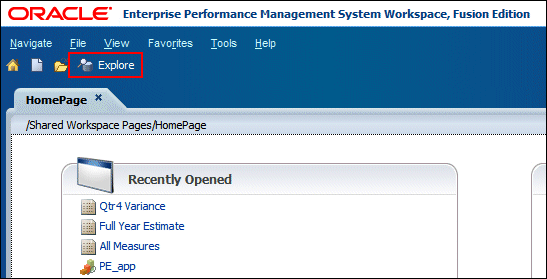
In Workspace, click Explore to navigate to the Explore page and view the Workspace repository.
|
||||||||||||
|---|---|---|---|---|---|---|---|---|---|---|---|---|---|
. |
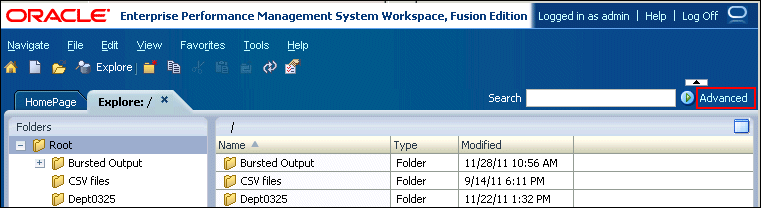
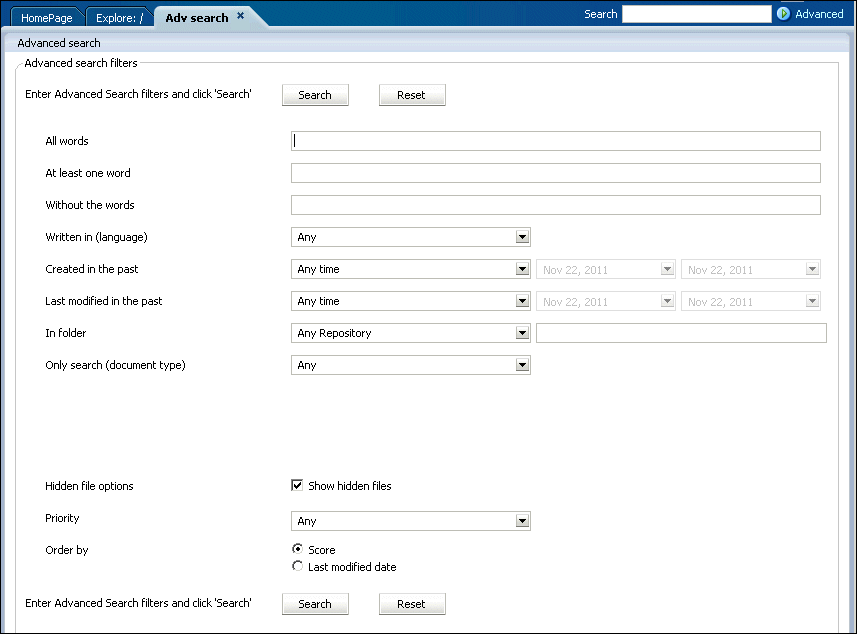
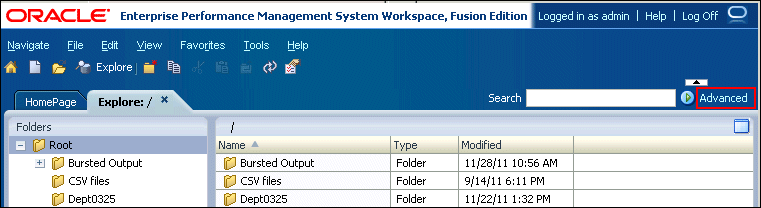
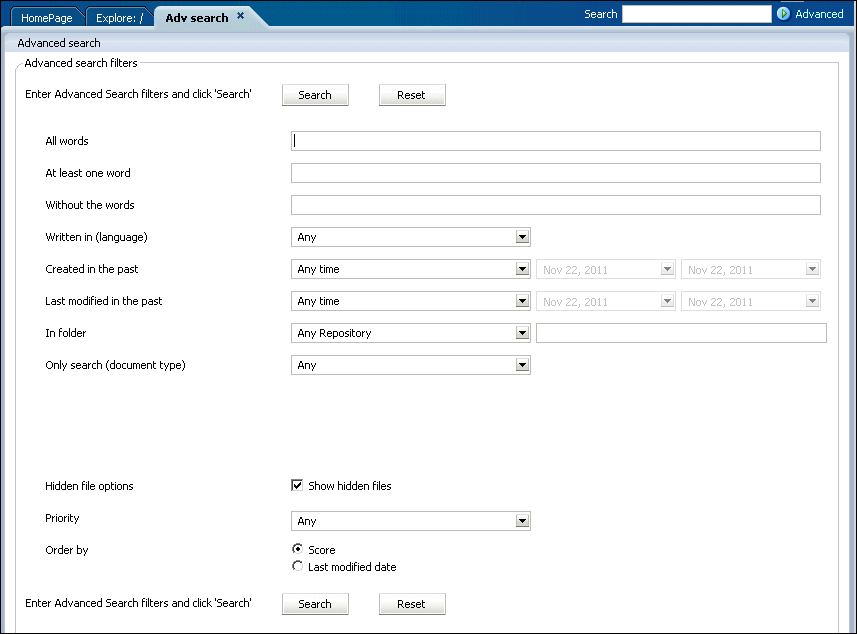
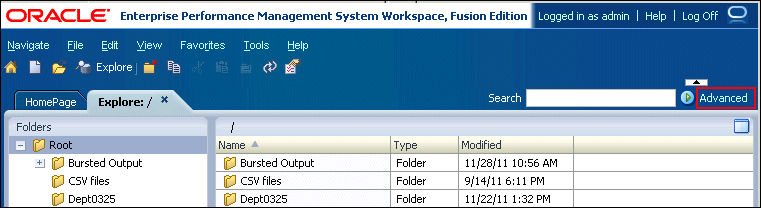
Click Advanced to display the "Adv search" page.
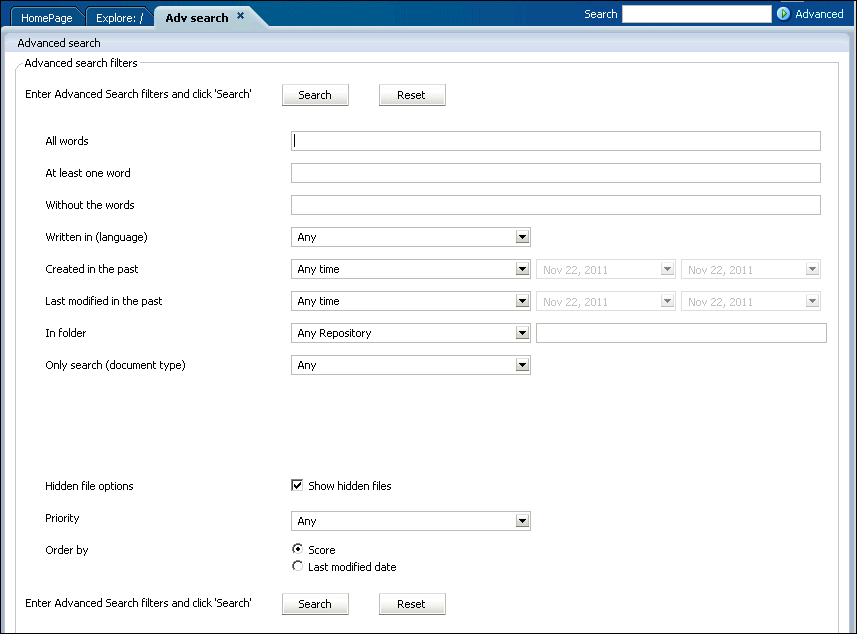
The "Adv search" page is displayed.
Use the "Adv search" page to find items with the following criteria:
|
||||||||||||
. |
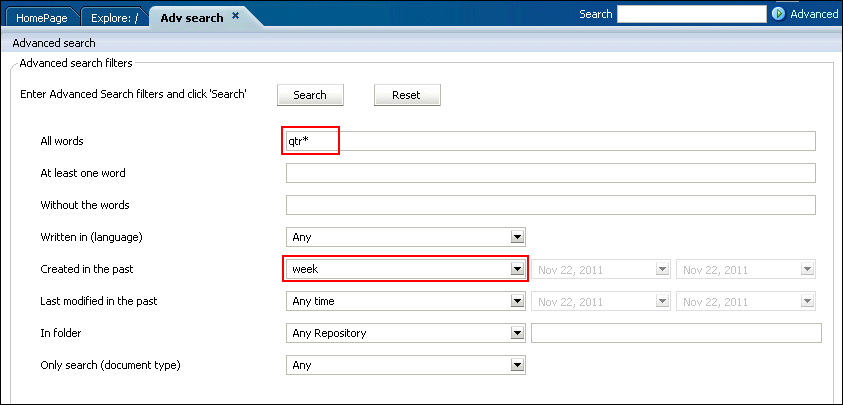
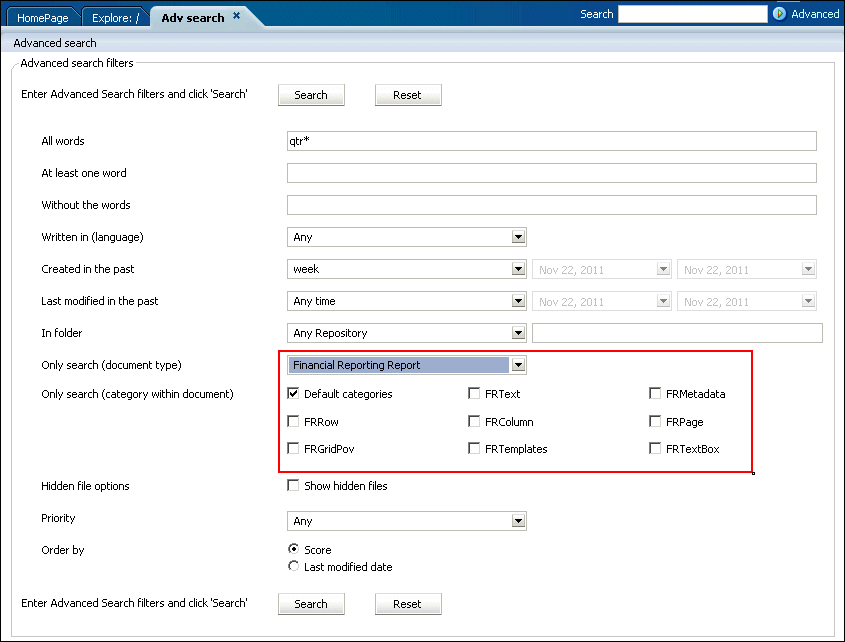
Search for items that were created in the past week and that include keywords that begin with qtr. In the "All words" text box, enter qtr*. From the "Created in the past" list, select week.
|
||||||||||||
. |
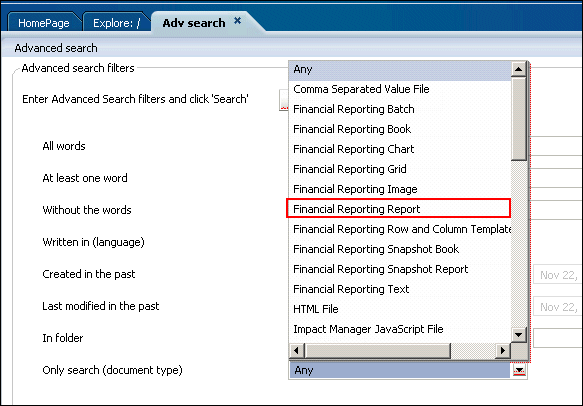
From the "Only search (document type)" list, select Financial Reporting Report to search only for Financial Reporting reports that meet the search criteria.
|
||||||||||||
. |
When you select a document type, the "Only search (category within document)" area is displayed on the page. Optionally, you can select categories within the document type to search. For example, in Financial Reporting reports, you can limit the search to report rows or columns. In this example, you search all categories in the report. Click Search.
|
||||||||||||
. |
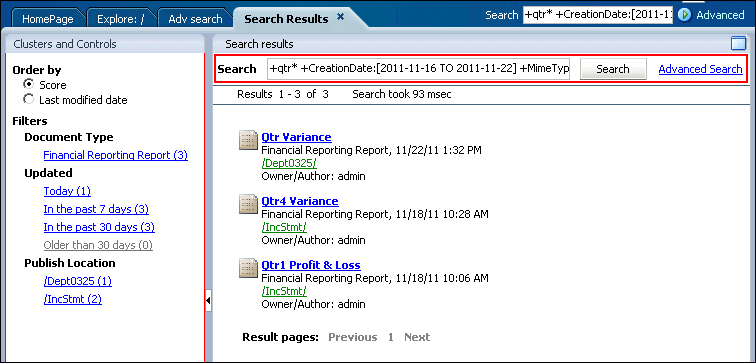
View the search results. In this example, three reports meet the search criteria. The Search text box displays the search syntax. You can modify the search syntax or click Advanced Search to modify the search criteria.
In this example, the Search syntax includes the range of dates with the syntax +CreationDate:[2011-11-6 TO 2011-11-22]. The square brackets specify the range values. The following table lists some additional search syntax for dates, file names, and locations:
|
||||||||||||
. |
Select File, then Close, and then Current to close the Search Results page.
|
||||||||||||
. |
Select File, then Close, and then Current to close the "Advanced search" page.
|
Finding Reports that Contain a Specific Member in the Report Rows
You may want to find items in the repository that contain specific member names. You can search entire items for the member name or you can search specific categories within the items. For example, you can search for a member name in entire reports or just in the rows of reports.
To find only Financial Reporting reports that were modified in the past week and which contain a specific member name in the report rows, perform the following steps:
. |
In Workspace, click Explore to navigate to the Explore page and view the Workspace repository.
|
|---|---|
. |
Click Advanced to display the "Adv search" page.
The "Adv search" page is displayed.
|
. |
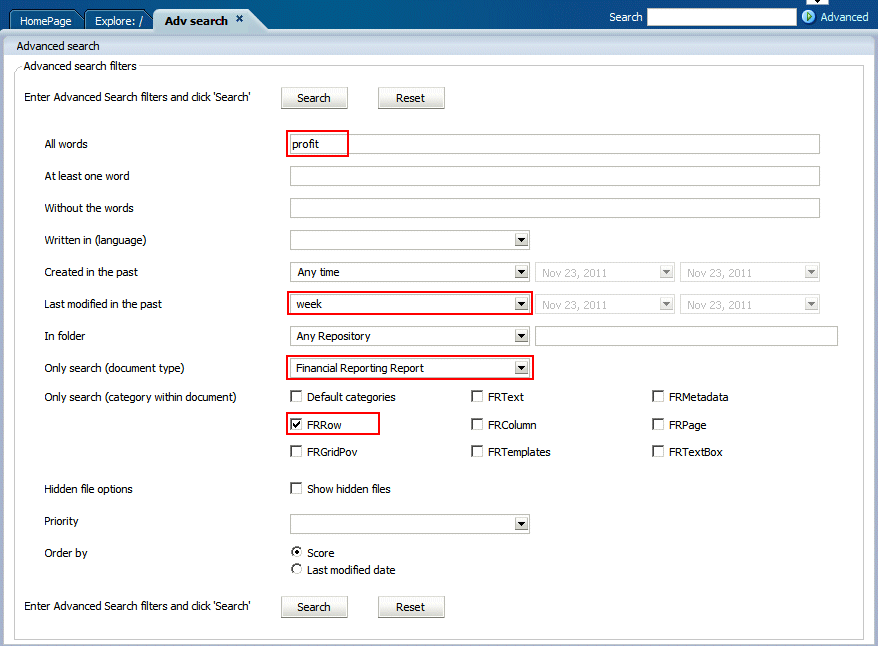
To search for the Profit member name only in the rows of Financial Reporting reports that were modified in the past week, perform the following actions:
|
. |
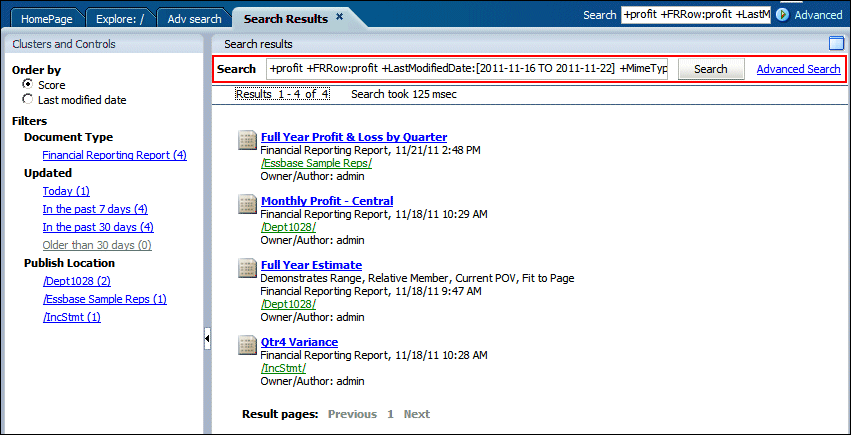
View the search results. In this example, four reports meet the search criteria. The Search text box displays the search syntax. You can modify the search syntax or click Advanced Search to modify the search criteria.
|
. |
Select File, then Close, and then Current to close the Search Results page.
|
. |
Select File, then Close, and then Current to close the "Advanced search" page.
|
Finding Microsoft Office Word Documents in the Repository
You may want to find other documents in the repository so that you can preview them or add them to books or batches.
To find Microsoft Office Word documents, perform the following steps:
. |
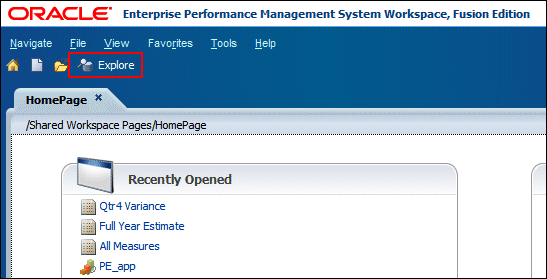
In Workspace, click Explore to navigate to the Explore page and view the Workspace repository.
|
|---|---|
. |
Click Advanced to display the "Adv search" page.
The "Adv search" page is displayed.
|
. |
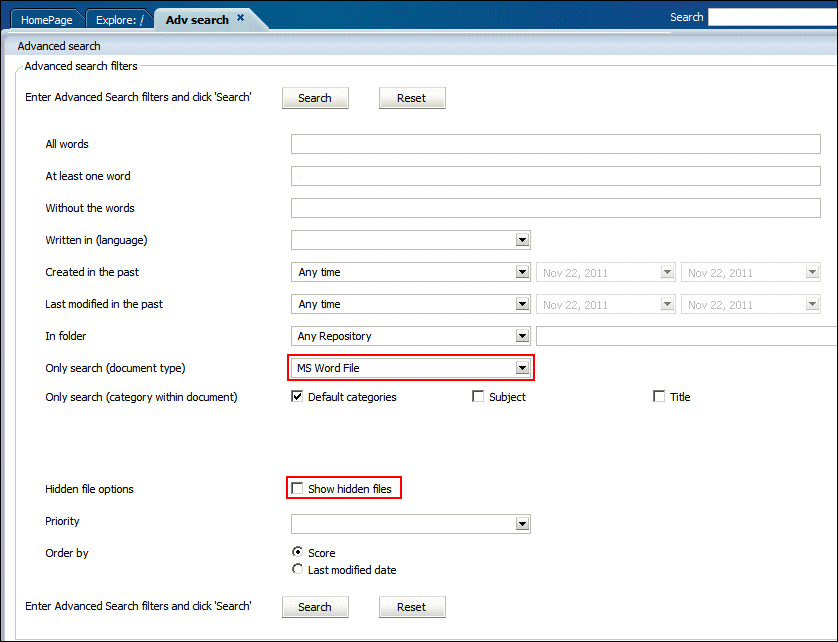
From the "Only search (document type)" list, select MS Word File to search only for Microsoft Office Word documents. Clear Show hidden files to search for all Word files that are not hidden in the repository, and then click Search.
|
. |
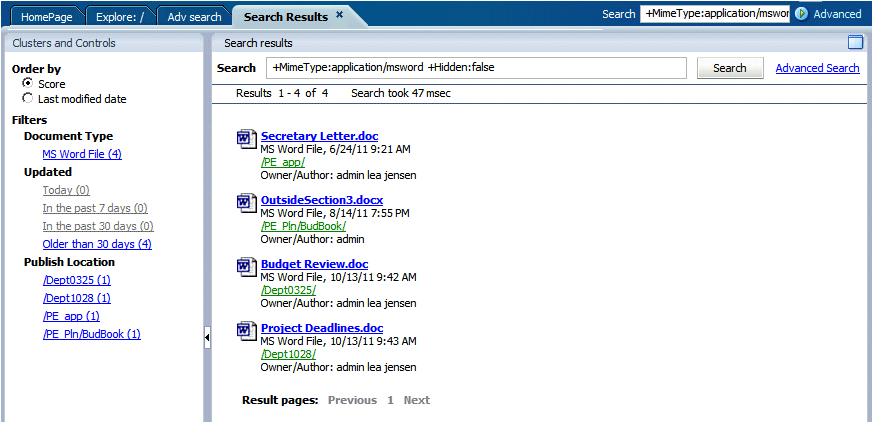
View the search results. In this example, four Word documents are displayed.
|
. |
Select File, then Close, and then Current to close the Search Results page.
|
. |
Select File, then Close, and then Current to close the "Advanced search" page.
|
Summary
The Search utility enables you to find items and documents from any Workspace repository. For example, you can use general search options to find the location of repository items, find which reports include a specific row and column template, and find which books and batches contain a specific report. You can use advanced search options to narrow the search, such as finding which reports include a specific member in the report rows or finding repository items that were created or modified within a specific time frame.
In this tutorial, you should have learned how to:
- Search for items in the repository with general options
- Search for items in the repository with advanced options
Resources
- To learn more about Financial Reporting, refer to additional OBEs in the OLL Web site.
- To learn about designing Financial Reporting reports, refer to the Oracle® Hyperion Financial Reporting Studio, Fusion Edition User's Guide Release 11.1.2.1.

 |
About
Oracle | Oracle and Sun |  | Subscribe | Careers | Contact
Us | Site Maps | Legal
Notices | Terms of Use | Your Privacy Rights | Subscribe | Careers | Contact
Us | Site Maps | Legal
Notices | Terms of Use | Your Privacy Rights |