Creating a Single Item Change Request
Overview
Purpose
This tutorial demonstrates the submission, enrichment, and commitment of a single item change request using an Oracle Data Relationship Governance workflow model.
Time to Complete
Approximately 30 minuntes.
Introduction
In this tutorial, you create a single item change request, add comments, add workflow tags, and save the draft request. Next, you submit the request for enrichment and commitment by other Data Relationship Management users. As the enrichment user, you review the assigned request and claim it for modification and approval. Then you calculate and validate the request, make corrections, and approve the request to send it to the final commitment user. As the commitment user, you approve the request to commit the request changes to a version and review activity for the request.
Prerequisites
Before starting this tutorial, you should:
- Have access to or have installed Oracle Data Relationship Management 11.1.2.3.301.
- Have access to or have installed the COAMGT Data Relationship Management application. You can download the application here and use these instructions to install and configure the application.
Creating a Single Item Request
-
Launch Data Relationship Management Web Client.
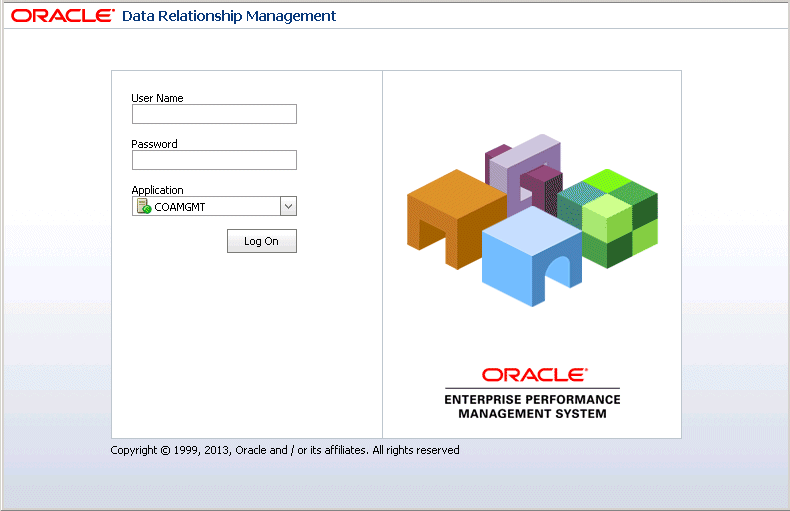
The logon page for Oracle Data Relationship Management is displayed.
-
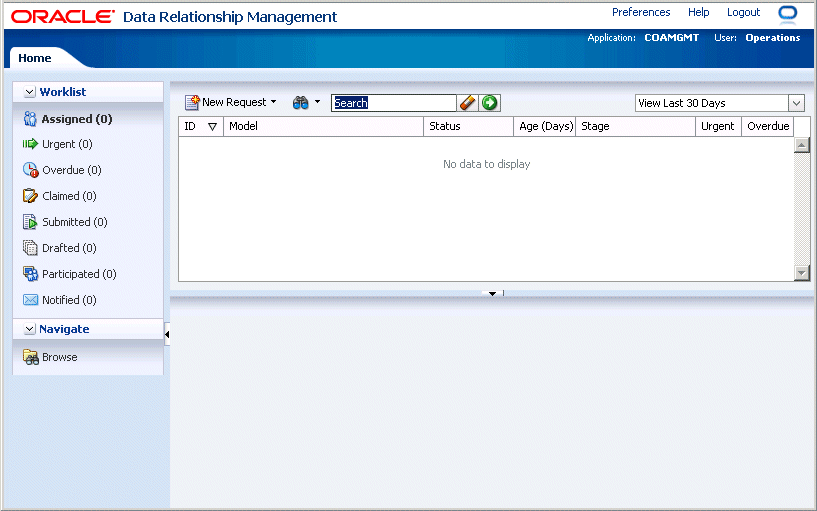
Log on to the COAMGMT application as user Operations with a password of Welcome!.
-
Select New Request and then New Financial Account.
Note: Load the version if prompted.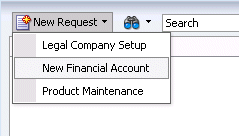
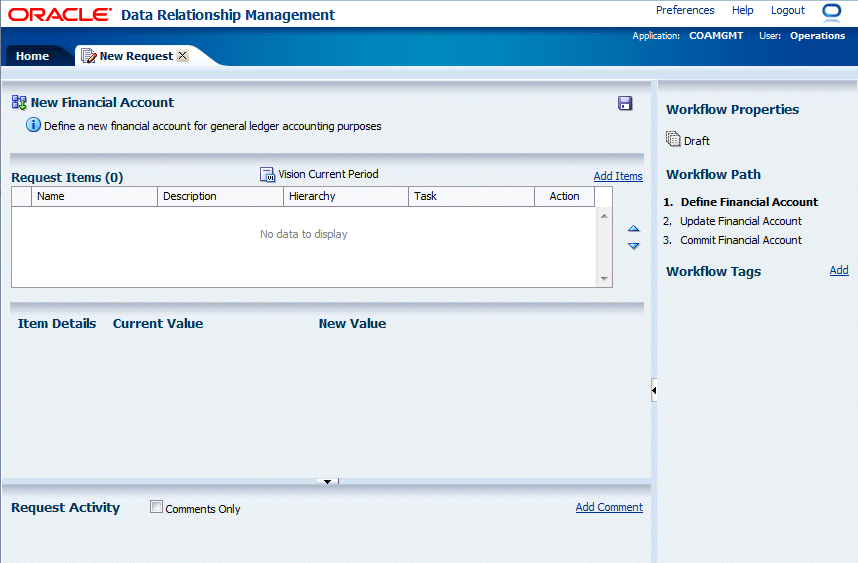
The New Request tab is displayed. The workflow model label and description is displayed at the top of the tab. Because the Vision Current Period version variable is used in the New Financial Account workflow model selecting a version is not required.
-
Click Add Items to add a request item.
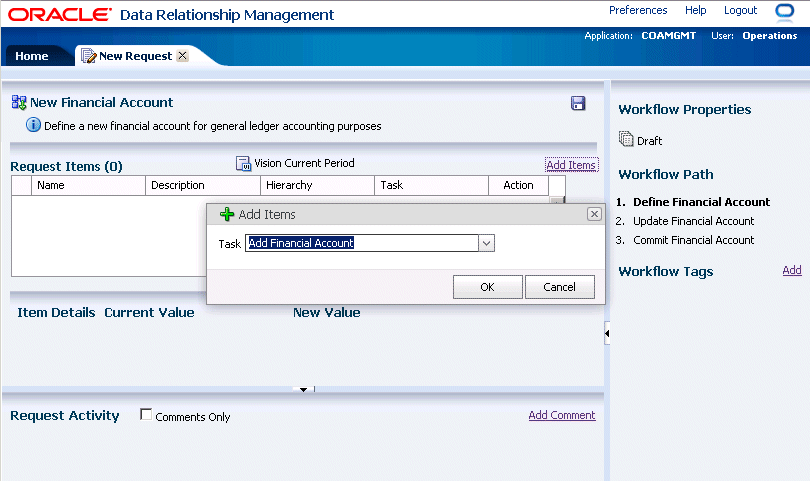
The Add Items dialog box is displayed with the Add Financial Account item preselected in the Task drop-down list.
-
Click OK.
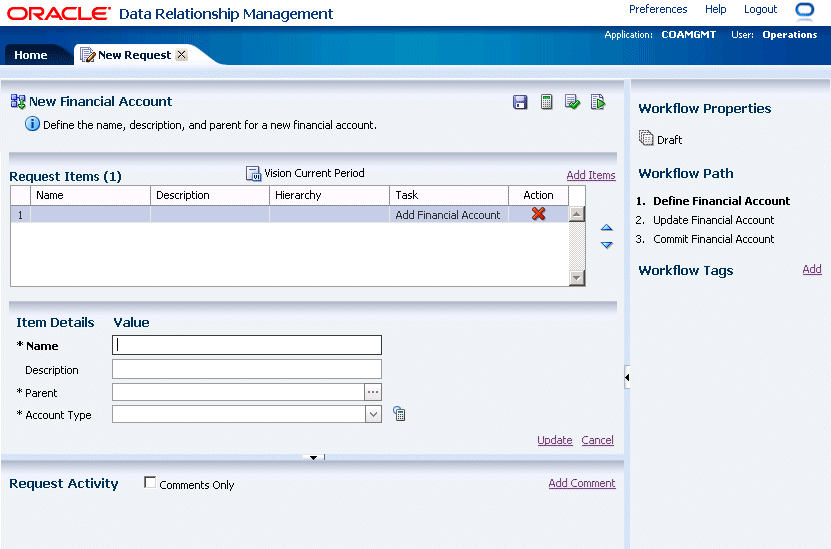
The Add Financial Account task is added to the Request Items table and the Item Details fields are displayed below the table.
-
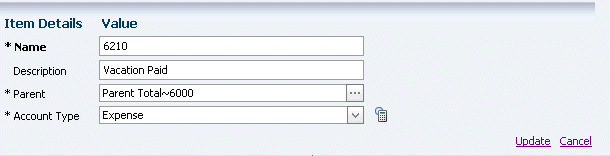
Define the following values for the new financial account:
- Name = 6210
- Description = Vacation Paid
- Parent = Parent Total~6000
- Account Type = Expense
-
Click the Update link to temporarily save your changes to the request item.

The request item is updated with your saved changes.
The Worklist page is displayed with a list of requests currently assigned to the user is available for review.
Adding Comments to the Request
-
Click the Add Comment link in the top right of the Request Activity area of the tab.

The Add Comment dialog box is displayed.
-
Enter a comment for downstream users to view. For example, type We need a new financial account to track paid vacation expenses.
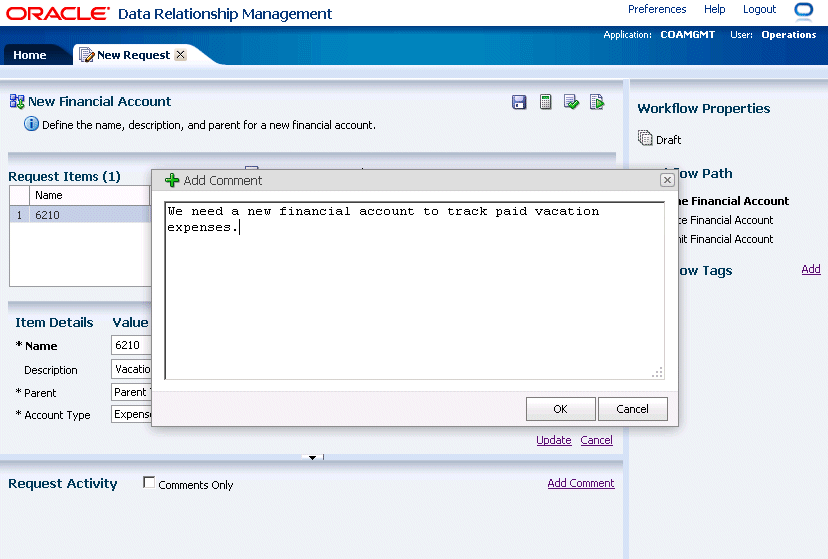
Click OK.
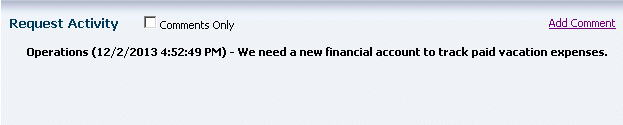
The comment is displayed in the Request Activity area with the user and timestamp information.
Adding Workflow Tags to the Request
Click the Add link in the top right corner of the Workflow Tags area of the page.
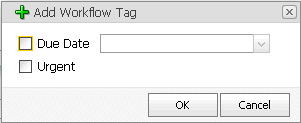
The Add Workflow Tag dialog is displayed.
-
Select the Due Date and Urgent tags. For the Due Date tag enter a date a week from today.
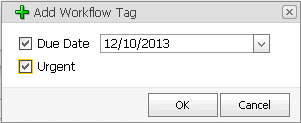
-
Click OK.
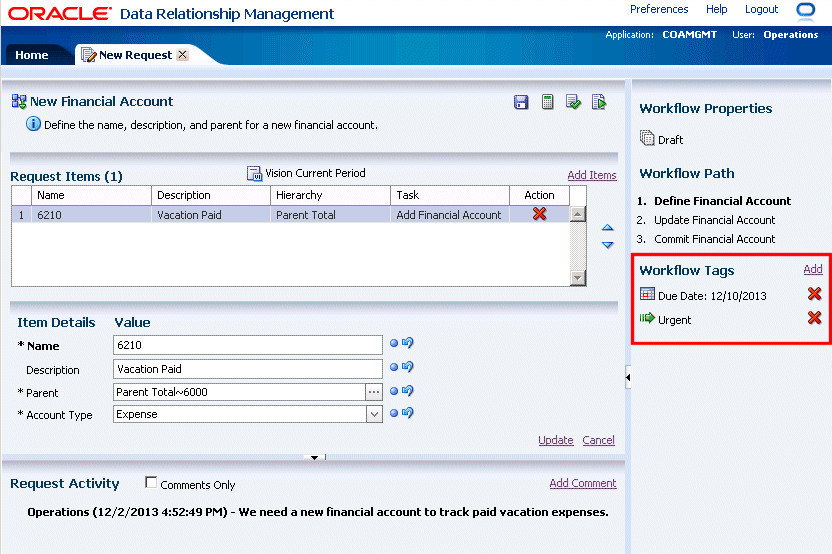
The Due Date and Urgent tags are now assigned to the request.
Saving a Draft Request
-
In the toolbar, click the Save button (
 ).
).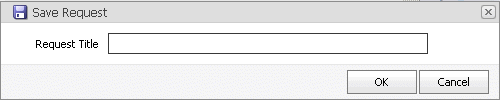
The Save Request dialog box is displayed.
-
In the Request Title box, enter Vacation Paid and click OK.
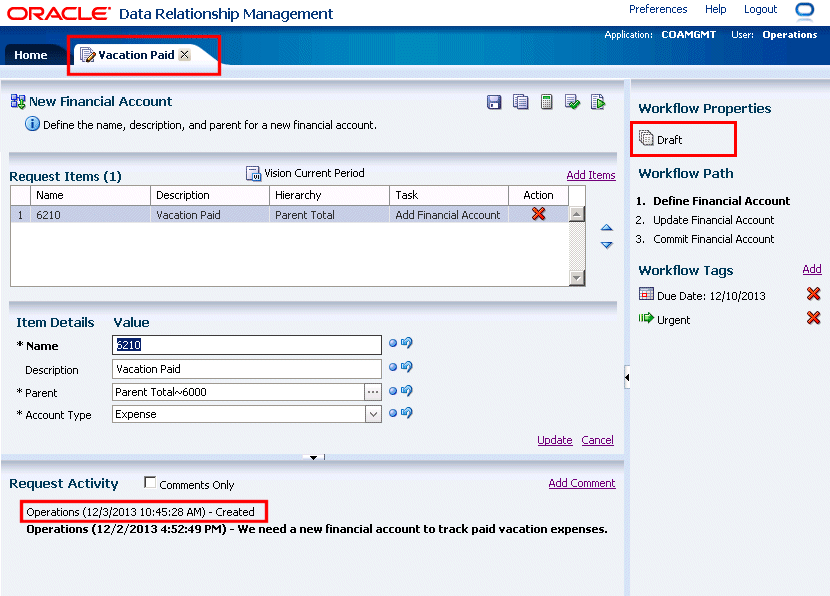
The New Request tab is changed to Vacation Paid, the Workflow Properties area of the page displays the Draft status of the request, and the Request Activity area displays a new record stating creation of the request.
Submitting the Request
-
In the Workflow Path area of the page, view the list of workflow stages associated with the New Financial Account workflow model. The current stage Define Financial Account is bold faced. The Update Financial Account stage and the Commit Financial Account stage are displayed after it.
-
In the toolbar, click the Submit button (
 ).
).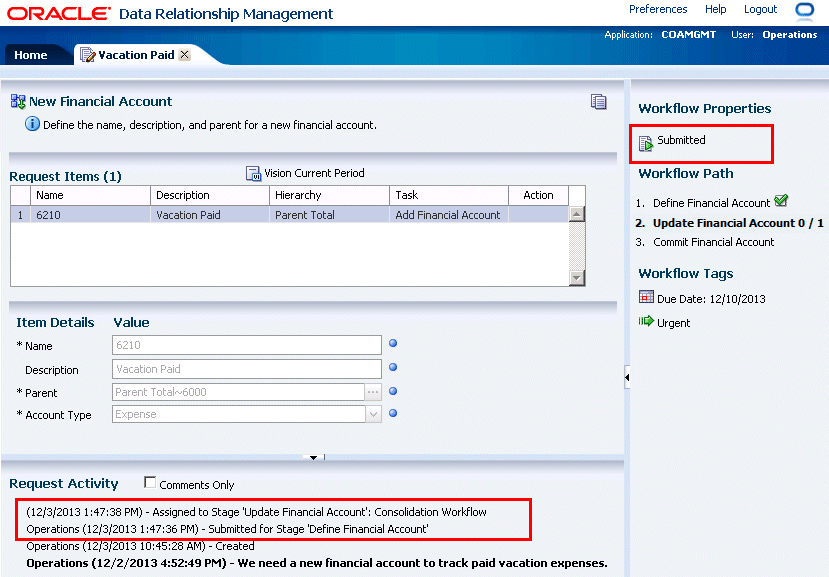
The request is validated and submitted to the workflow model for assignment to the next user(s). The Workflow Path area displays the request status (Submitted) and the current stage of the request in bold font. The previous stage that has been completed is marked with a checkmark icon. The Request Activity area displays new records stating submission of the request. Note that the submitted request is no longer editable or actionable by the submitting user.
-
Close the Vacation Paid tab and log out as user Operations.
Reviewing Assigned Requests and Claiming a Request
-
Log in as user jcooper with a password Welcome!.
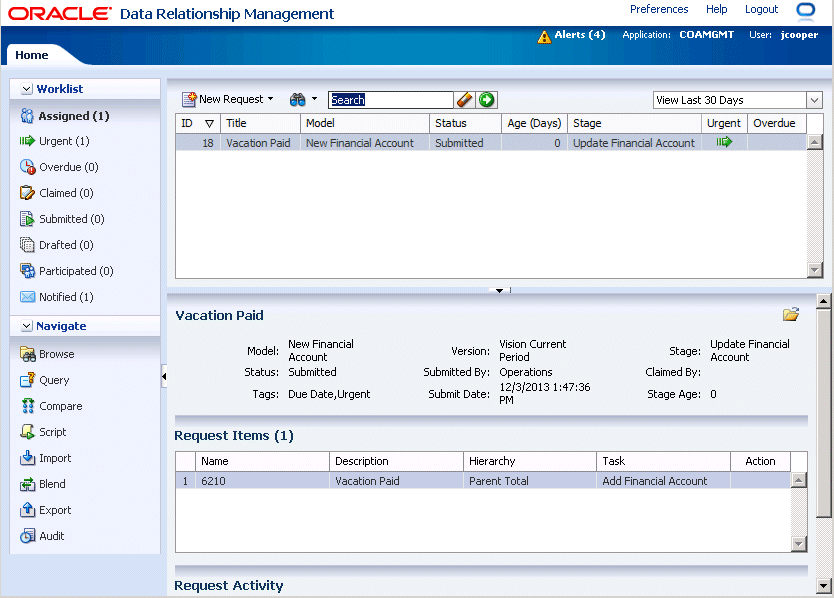
The Worklist page displays the assigned Vacation Paid request and its summary.
-
Click the Open button (
 ) to open the request.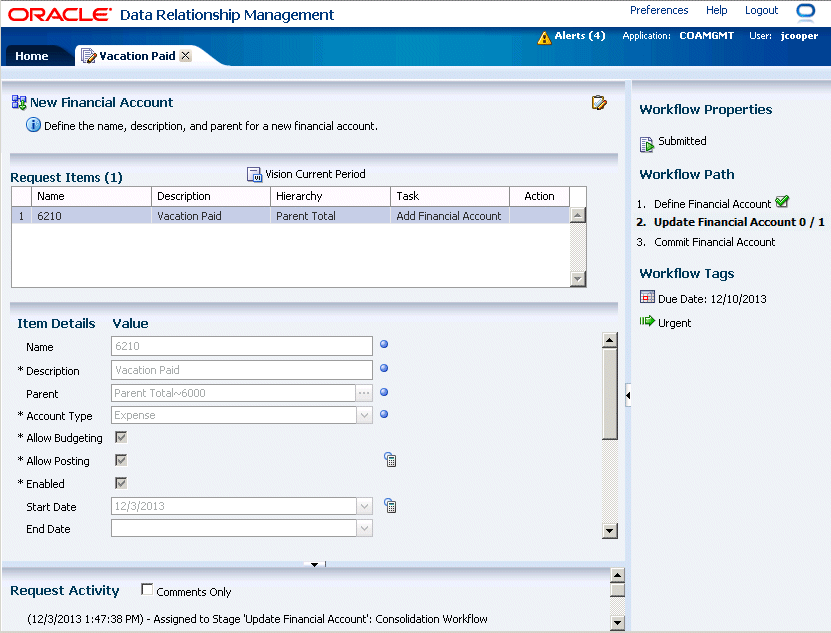
The Vacation Paid request is opened on a new tab. Because the request is now in the Update Financial Account stage that uses a different workflow task, the Item Details area of the page displays different properties than the Define Financial Account stage. Note that the Item Details of the request item in the request are not yet editable.
-
Click the Claim button (
 ) to act upon the request.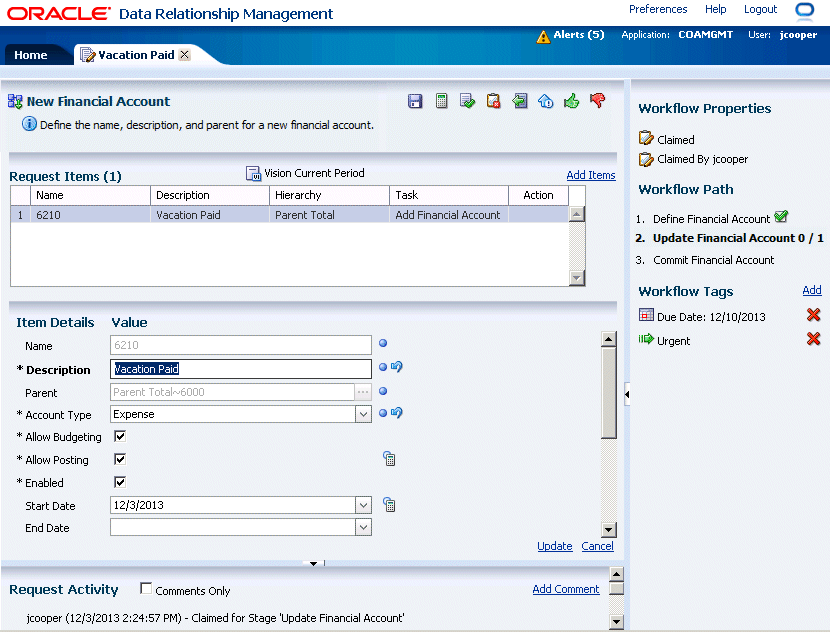
The Workflow Properties area displays that the request is claimed by user jcooper. Note that item details are now enabled for editing.
Calculating Request Item Properties
-
View the properties that are marked as required (with an asterisk) and read-only (disabled). In the tollbar, click the Calculate button (
 ) to re-calculate inherited and derived values based on the new values that were previously entered by the submitting user.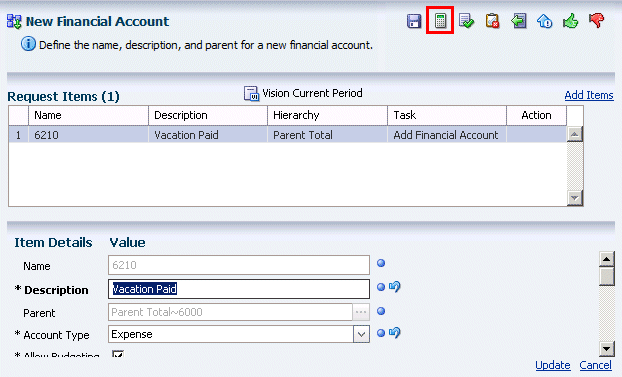
The Request Activity displays a new record listing the updated properties.
-
Review the calculated values that are marked by the Calculated Value icon (
 )next to the item value.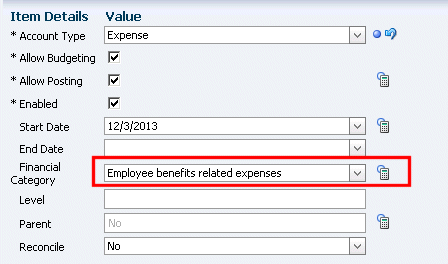
Enriching and Validating the Request
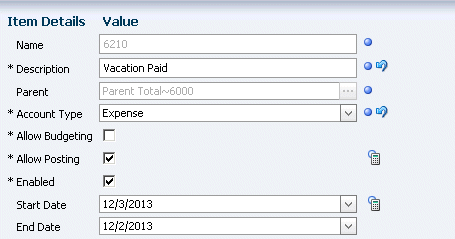
- In the Item Details section, perform the following actions:
- Uncheck the Allow Budgeting property to set it to False.
- Click the drop-down icon for the End Date property and choose yesterday.
-
Click the Save button (
) to save the changes to the request.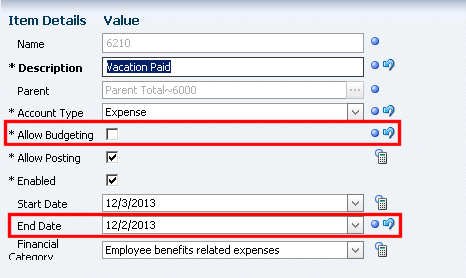
The Allow Budgeting and End Date properties are now marked as Modified.
-
Click the Validate button (
 )to validate the request items.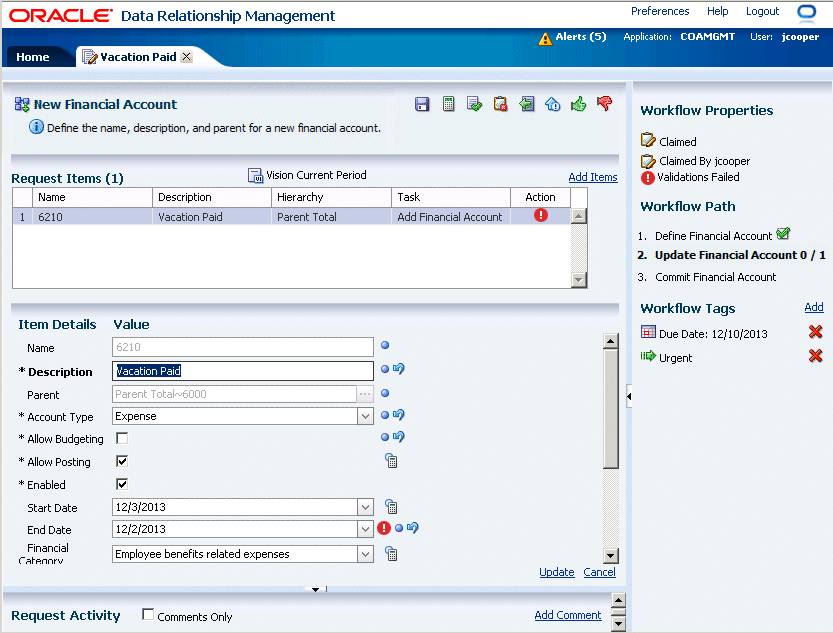
The 6210 – Vacation Paid request item and the End Date property for the request item are marked with validation failure indicators.
-
In the Action column for the Request item, click the Validation Error icon (
 ) to show the validation errors.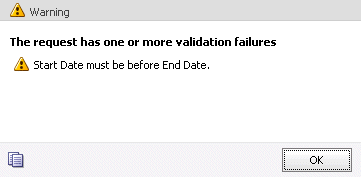
The Warning dialog box displays a validation error stating that Start Date must be before End Date.
-
Click OK to close the Warning dialog box.
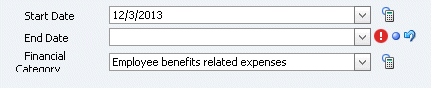
- Click the Revert to Previous Value button (
 ) to the right of the End Date property to remove the previously defined end date.
- In the toolbar, click the Approve button (
 ) to approve the request items with the additional changes and assign the request to the next user in the workflow model.
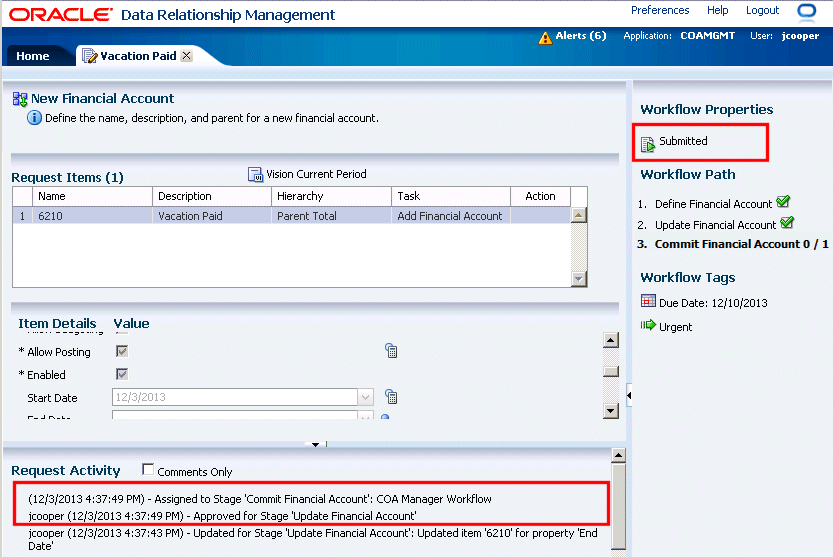
The request is validated and submitted to the workflow model for assignment to the next user(s). The Workflow Path area displays the request status (Submitted) and the current stage of the request in bold font. The Update Financial Account stage that has been completed is marked with a checkmark icon. The Request Activity area displays new records stating submission of the request.
-
Close the Vacation Paid tab and log out as user jcooper.
Commiting the Request
-
Log in as user jstein with a password Welcome! and then select the Worklist task group.

The Worklist page and the list of assigned requests are displayed.
-
Click the Open button (
) to open the request.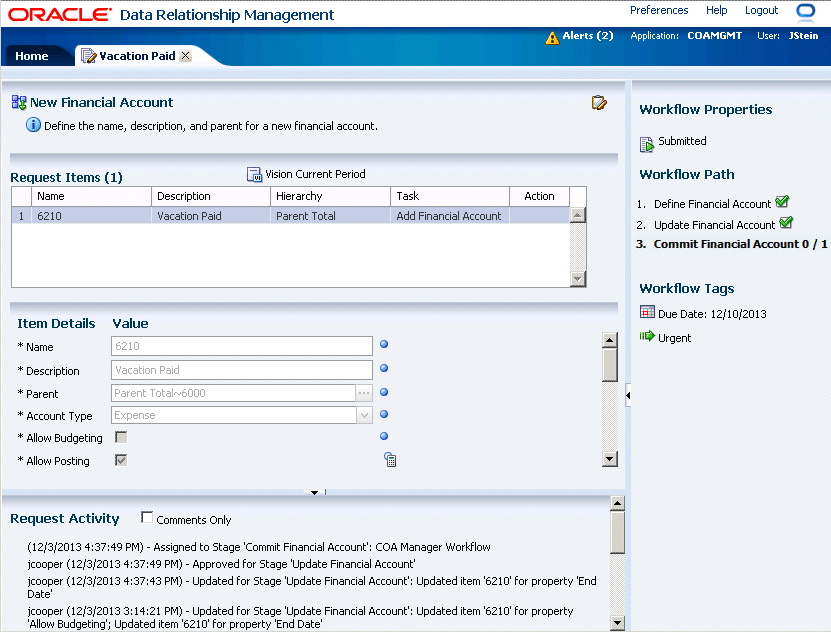
The Vacation Paid request is opened on a new tab. Note that the Item Details of the request item in the request are not editable.
-
Click the Claim button (
) to act upon the request.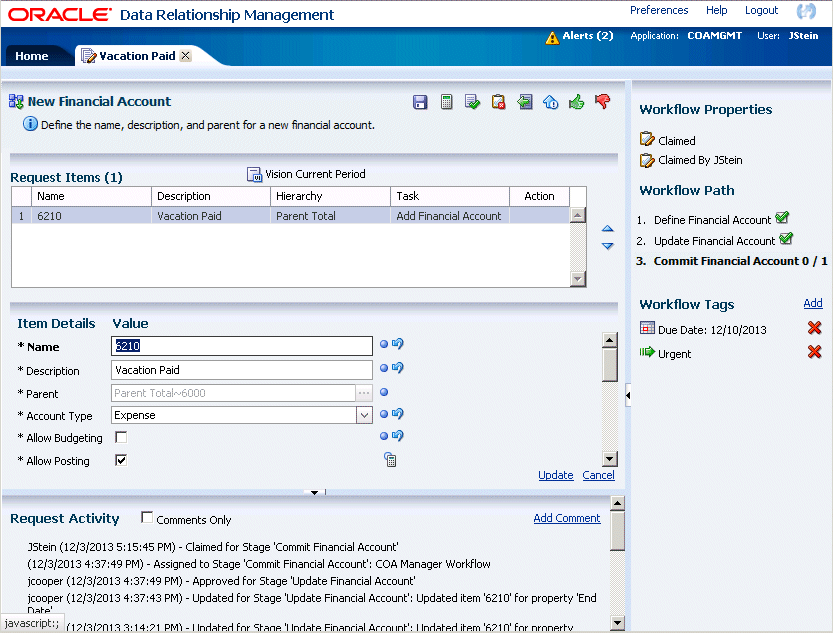
The Workflow Properties area displays that the request is claimed by user JStein. The request is in the final workflow stage (Commit Financial Account). Note also that item details are now enabled for editing.
- In the toolbar, click the Approve button () to approve the changes in the request and commit them to a version in Data Relationship Management.
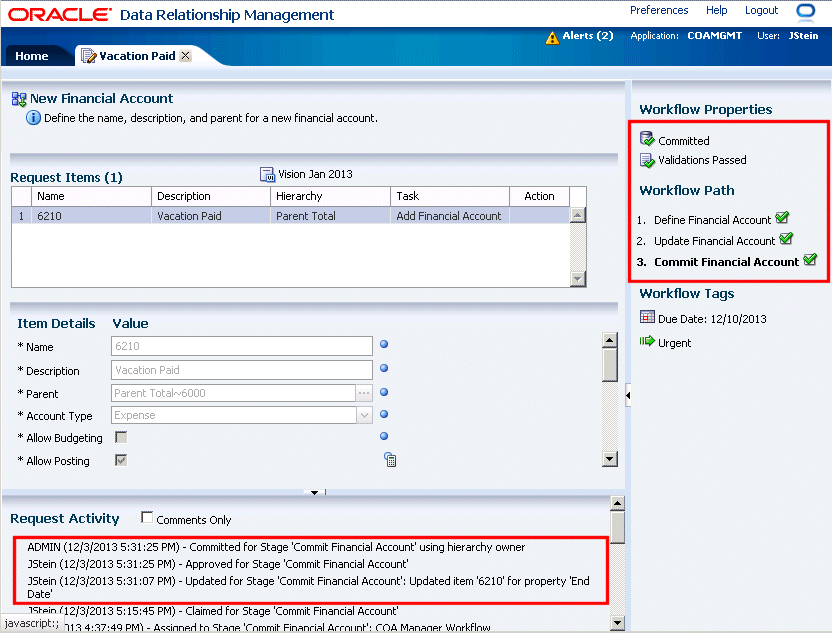
The request is validated and commited. The Request Activity area displays new records stating submission of the request. Note that the hierarchy owner user (ADMIN) is implicitly used by the workflow model to commit request changes to nodes in a single hierarchy.
-
Close the Vacation Paid tab and log out as user jstein.
Summary
In this tutorial, you learned:
- As the request creator, to create a single item change request, add comments, add workflow tags, save the draft request, and submit the request for enrichment and commitment by other Data Relationship Management users.
- As the enrichment user, to review the assigned request and claim it for modification and approval, calculate and validate the request, make corrections, and approve the request to send it to the final commitment user.
- As the commitment user, to approve the request to commit the request changes to a version and review activity for the request.
Resources
- Oracle Data Relationship Governance on Oracle Technology Network (OTN)
- Oracle Data Relationship Management 11.1.2.3 Documentation
- To learn more about Data Relationship Management refer to additional OBEs in the Oracle Learning Library
To navigate this Oracle by Example tutorial, note the following:
- Topic List:
- Click a topic to navigate to that section.
- Expand All Topics:
- Click the button to show or hide the details for the sections. By default, all topics are collapsed.
- Hide All Images:
- Click the button to show or hide the screenshots. By default, all images are displayed.
- Print:
- Click the button to print the content. The content that is currently displayed or hidden is printed.
To navigate to a particular section in this tutorial, select the topic from the list.