Before You Begin
Purpose
This tutorial demonstrates how to load and map dimensions using Oracle Financial Data Management EE (FDMEE) and Oracle Data Relationship Management (DRM).
Time to Complete
Approximately 20 minutes.
Background
The 11.1.2.4.340 release of Data Relationship Management provides an integration with the 11.1.2.4.200 release of FDMEE.
The integration with FDMEE provides the following capabilities:
-
Import chart of accounts values and hierarchies from source ERP systems to Data Relationship Management
-
Map ERP source values to EPM target dimension members within Data Relationship Management
-
Export ERP source to EPM target member mappings from Data Relationship Management to FDMEE
What Do You Need?
Before starting this tutorial, you should have access to or have installed Oracle Data Relationship Management 11.1.2.4.340.
Running FDMEE Metadata Rule to Load Dimensions From ERP Source
-
Log in to the EPM Workspace.
-
From the Navigate menu, select Administer > Data Management.
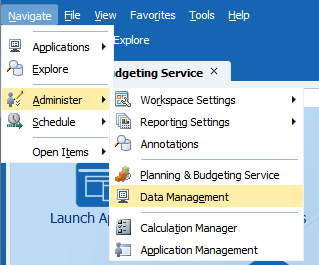
The Workflow tab of FDMEE is displayed.

-
Select the Setup tab and click Source System.
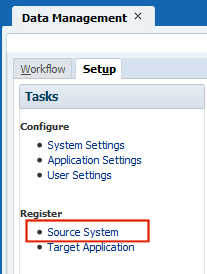
View the list of ERP source systems registered with FDMEE.
Note: The source system for this tutorial is an E-Business Suite R12 General Ledger instance.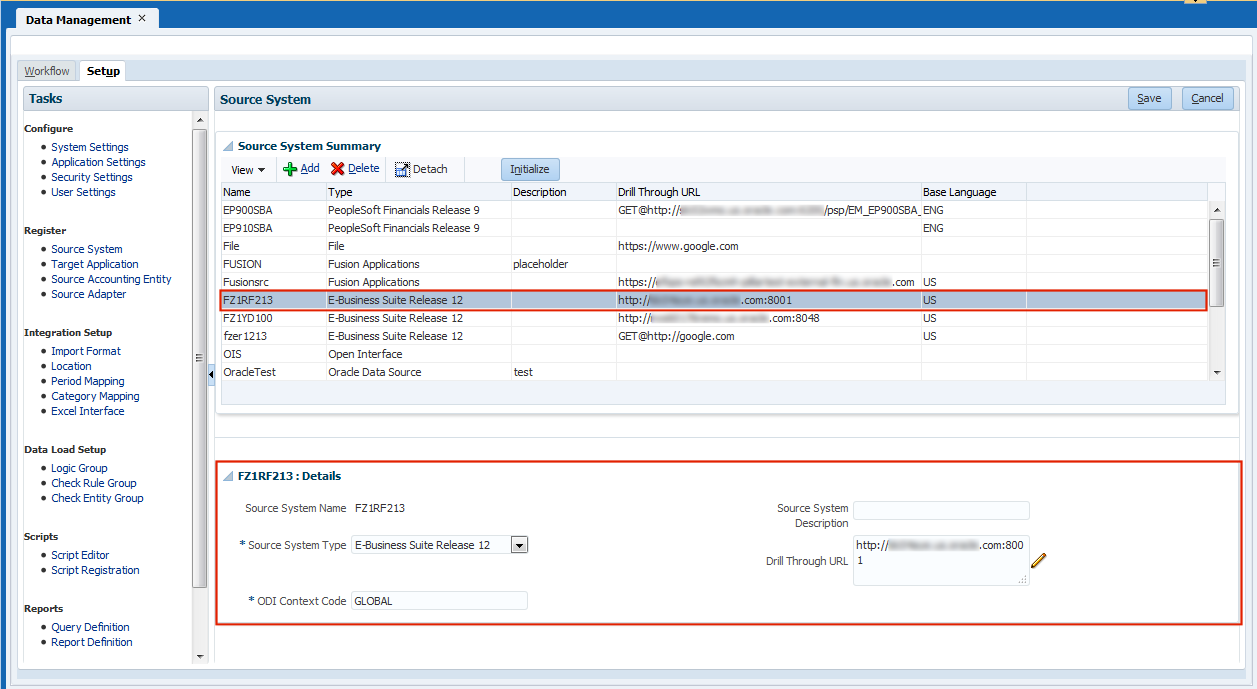
-
Click the Target Application setup task and view the list of EPM target applications registered with FDMEE. The target application for this tutorial is a Hyperion Planning instance. Select the DRM Options tab and view configured DRM parameters for the target app.

-
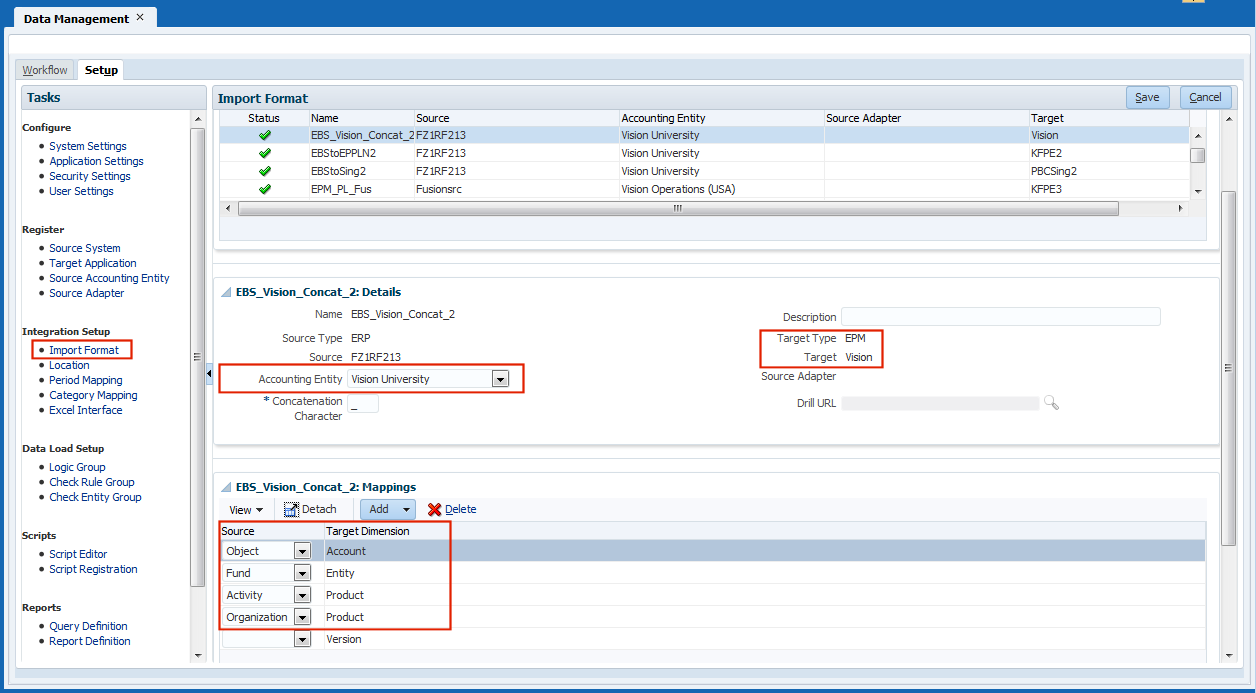
Select the Import Format setup task and view an import format defined for the chosen ERP source system and EPM target application. The selected Accounting Entity identifies the chart of accounts segments available for loading. Below, these chart of accounts segments are mapped to dimensions of the EPM target application. Note that two source segments, Activity and Organization, have been mapped to the same target dimension, Product.
-
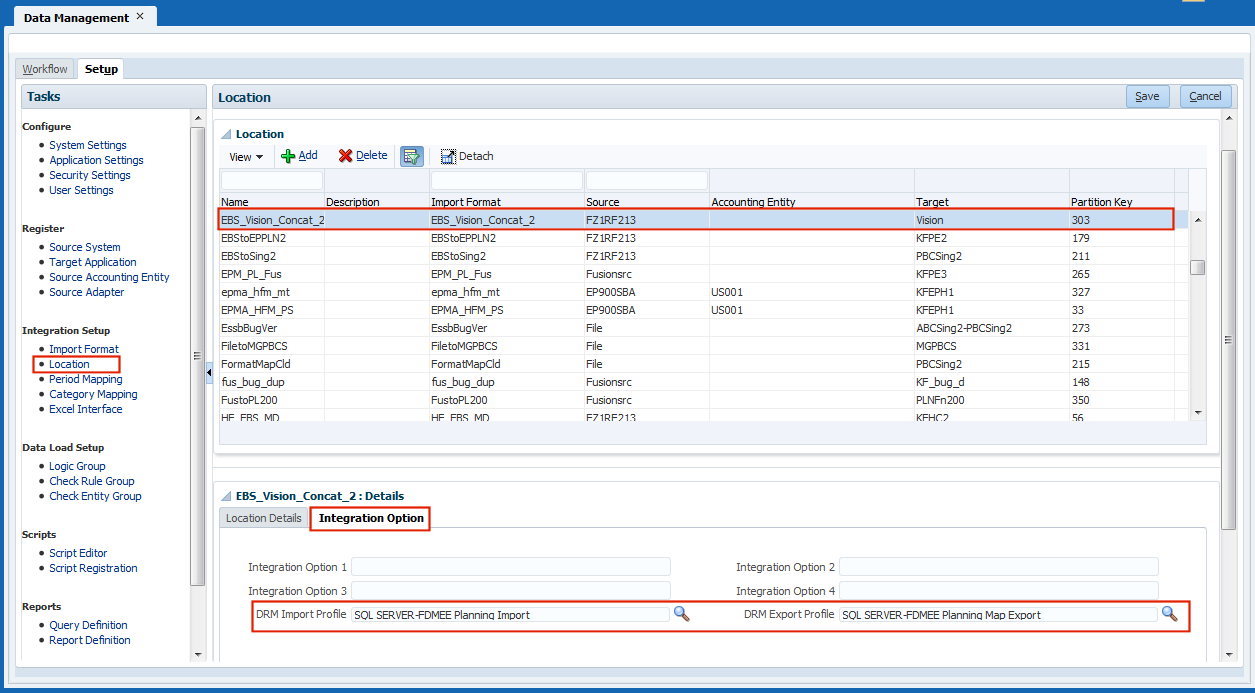
Select the Location setup task and view a list of defined Locations in FDMEE. The selected location uses source system, target application, and import format which were viewed previously. Select the Integration Option tab and view the DRM import and export profiles configured for this location.
-
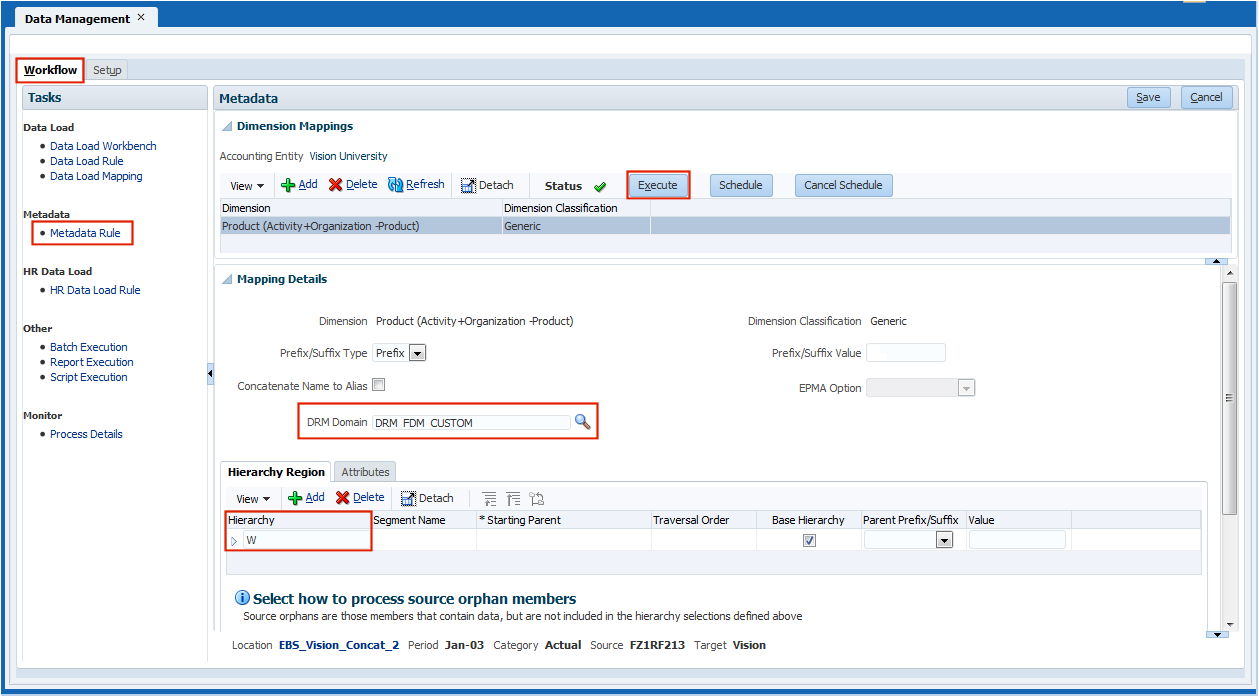
Select the Workflow tab, and then select the Metadata Rule task. View a dimension on the EPM target application which has been mapped to a combination of two ERP source chart of account segments. Combined values for these segments will be imported into a DRM domain. A single hierarchy is selected for extraction from the ERP source system. Click Execute to import the segment values and hierarchy into DRM.
-
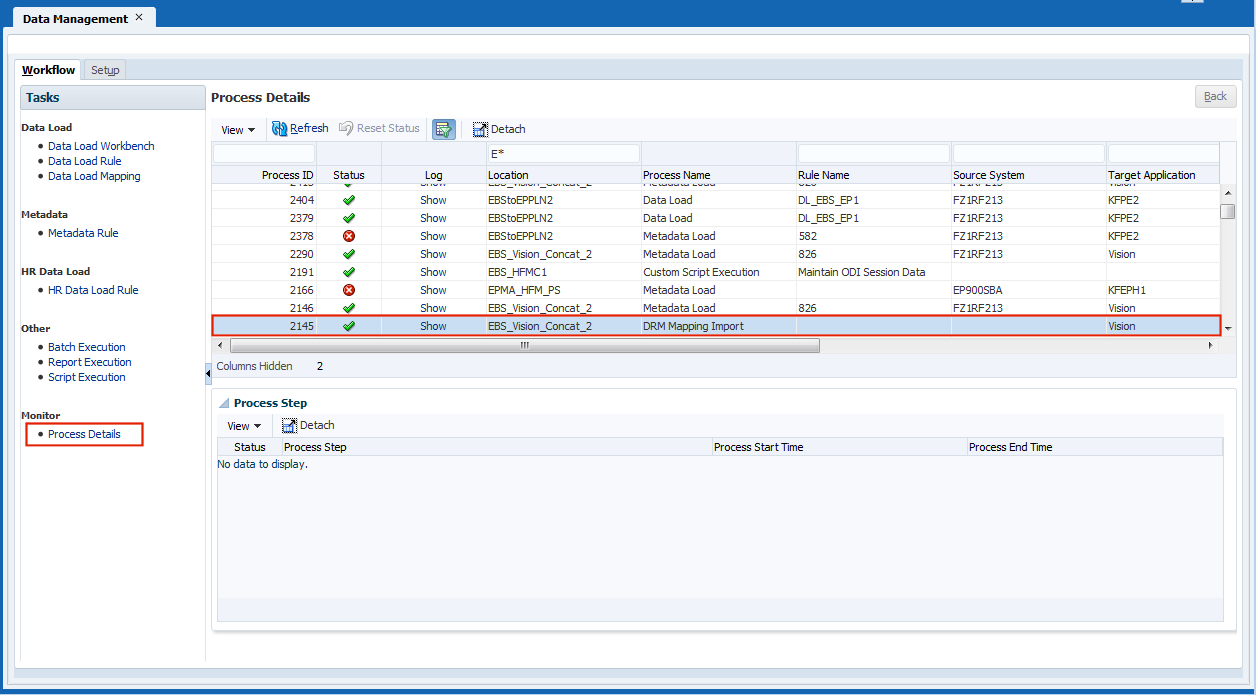
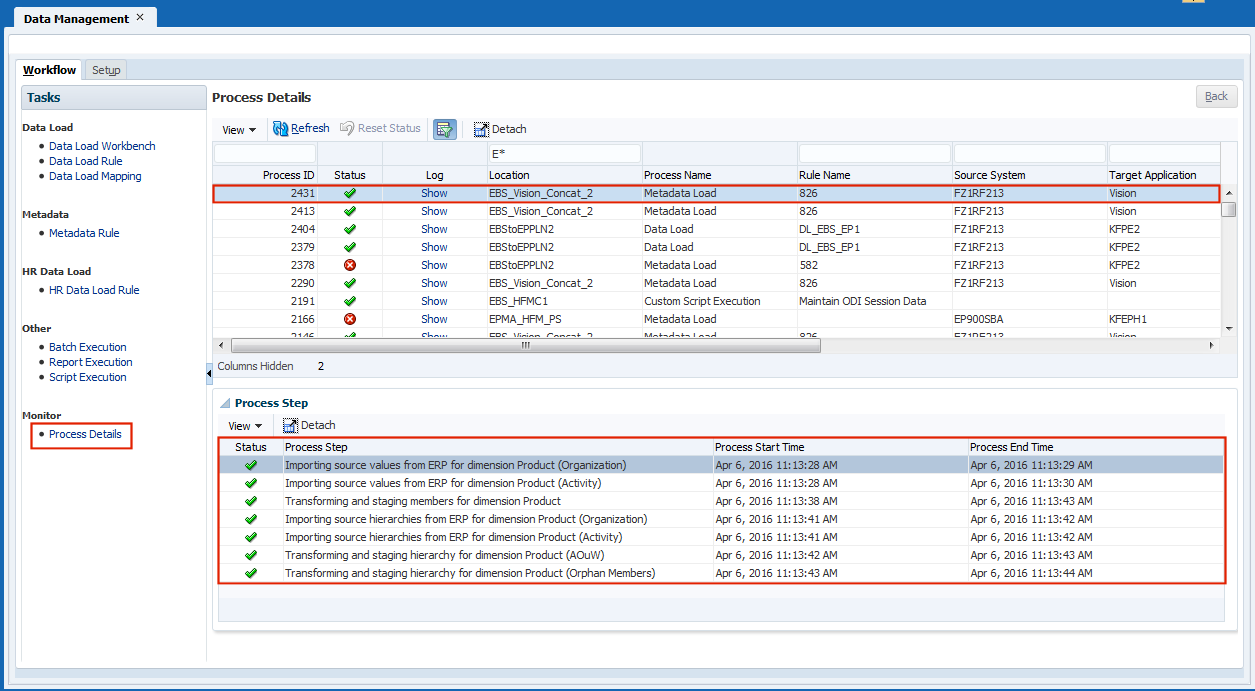
Select the Process Details task to view the details of the Metadata Load in FDMEE. The results of the metadata rule execution are monitored here. View the process steps for the FDMEE metadata load process into DRM.
Mapping ERP Source Values to EPM Target Members Using DRM Hierarchies
-
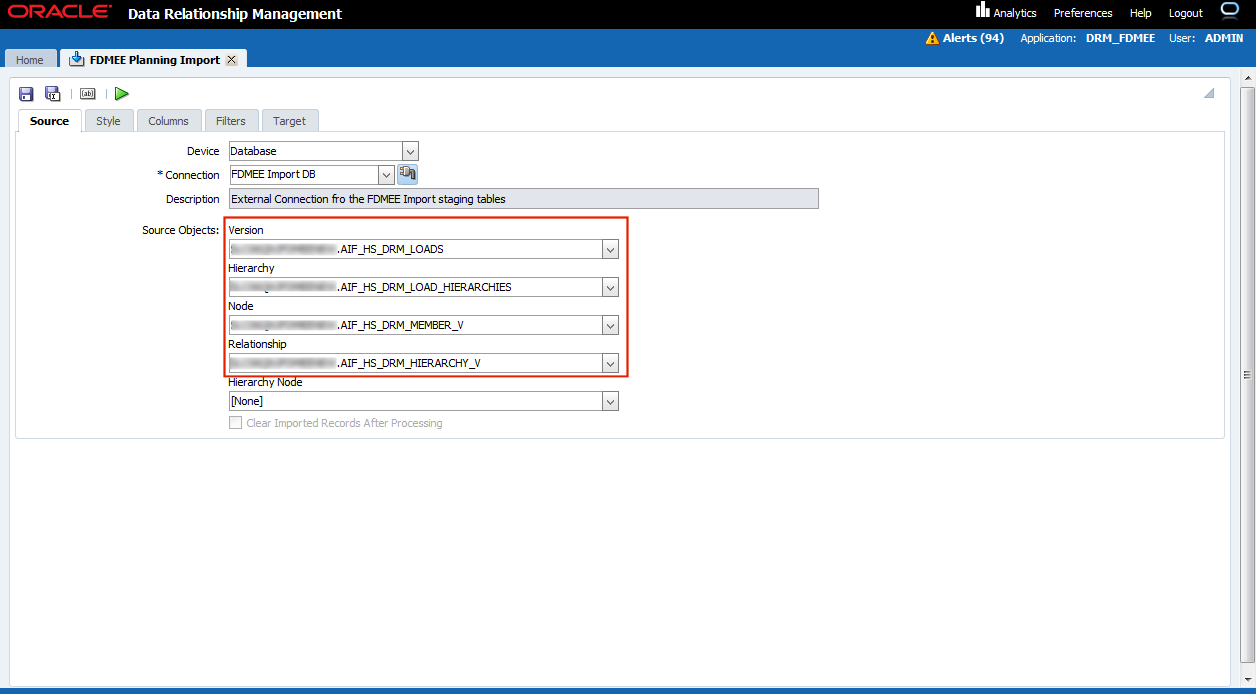
Log in to Data Relationship Management Web Client. Click Import to view a list of import profiles in DRM. Double-click FDMEE Planning Import to open it. This import profile was loaded from the FDMEE app template and is configured with staging tables in the FDMEE database. This import file is used to import data provided during the FDMEE metadata load process. Close the FDMEE Planning Import tab.
-
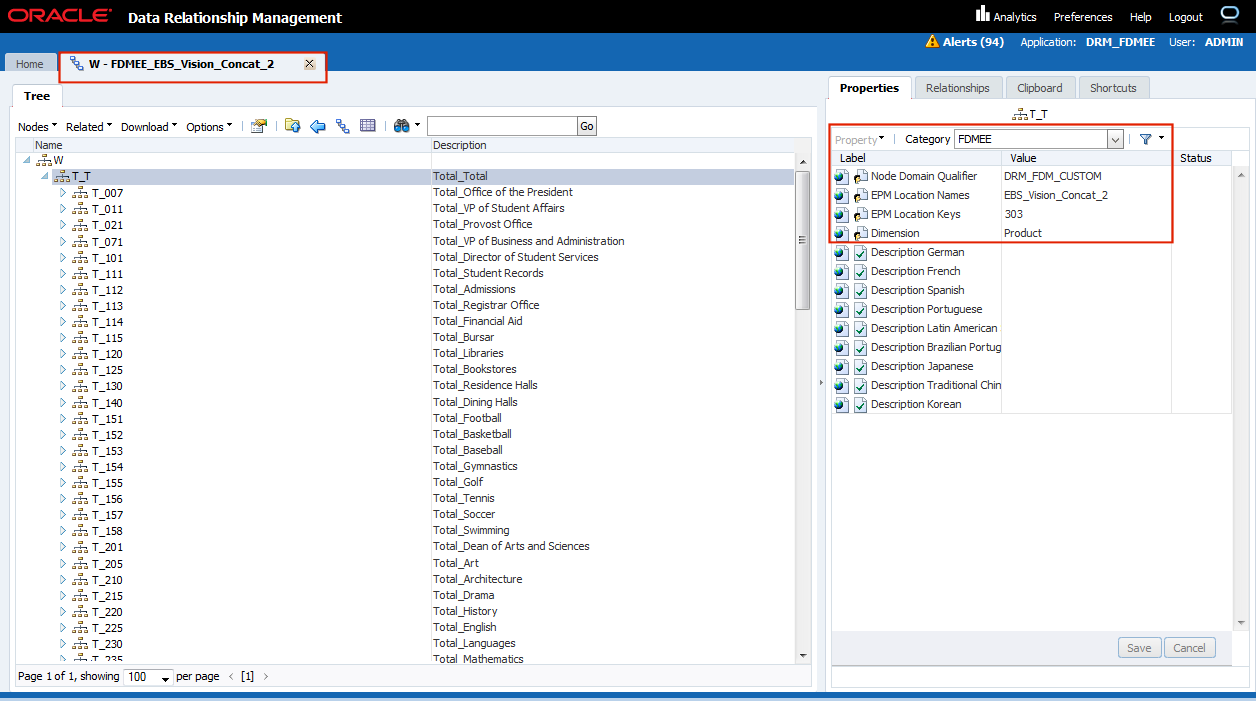
Click Browse to view versions in the DRM application. Select a version created by import process from FDMEE. Open the hierarchy imported from E-Business Suite source system. On the Browse-Hierarchy page, select a node from the tree and select the FDMEE property category. These properties are used to link DRM nodes from the ERP source system to a FDMEE location and EPM target dimension.
-
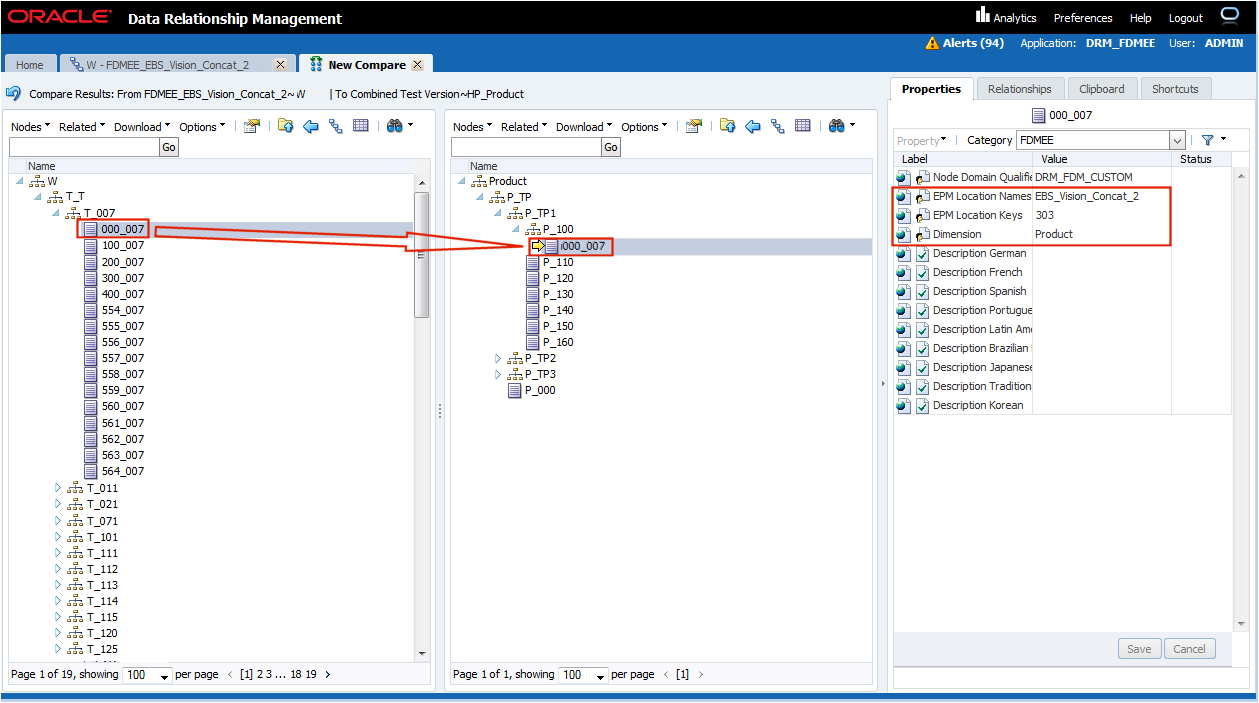
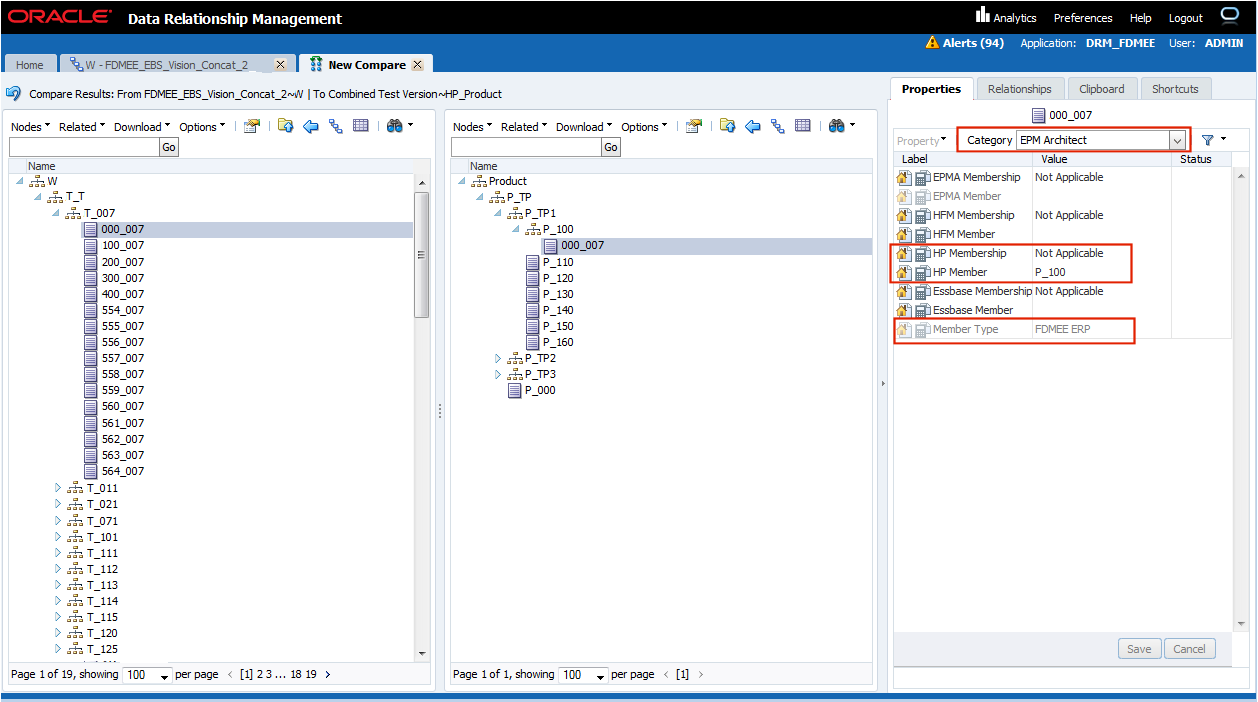
Click the Shortcuts tab and select New Compare. Choose a DRM version and hierarchy that are used by the EPM target application and dimension for the FDMEE Location. Run a visual compare to map the ERP source values to EPM target nodes. Select a source node and a target dimension node. Select the EPM Architect category to view the membership of the node to the target Planning application.

-
To perform an source-to-target mapping, drag-and-drop the ERP source node as a child of an EPM target node in the EPM dimension hierarchy. The FDMEE properties for the ERP source node identify the FDMEE location and dimension which will use this source-to-target mapping.
-
Select the EPM Architect property category. View that the mapped node is not a member of the Planning dimension but is mapped to the Planning member above it in the hierarchy. Close the compare and hierarchy tabs.
-
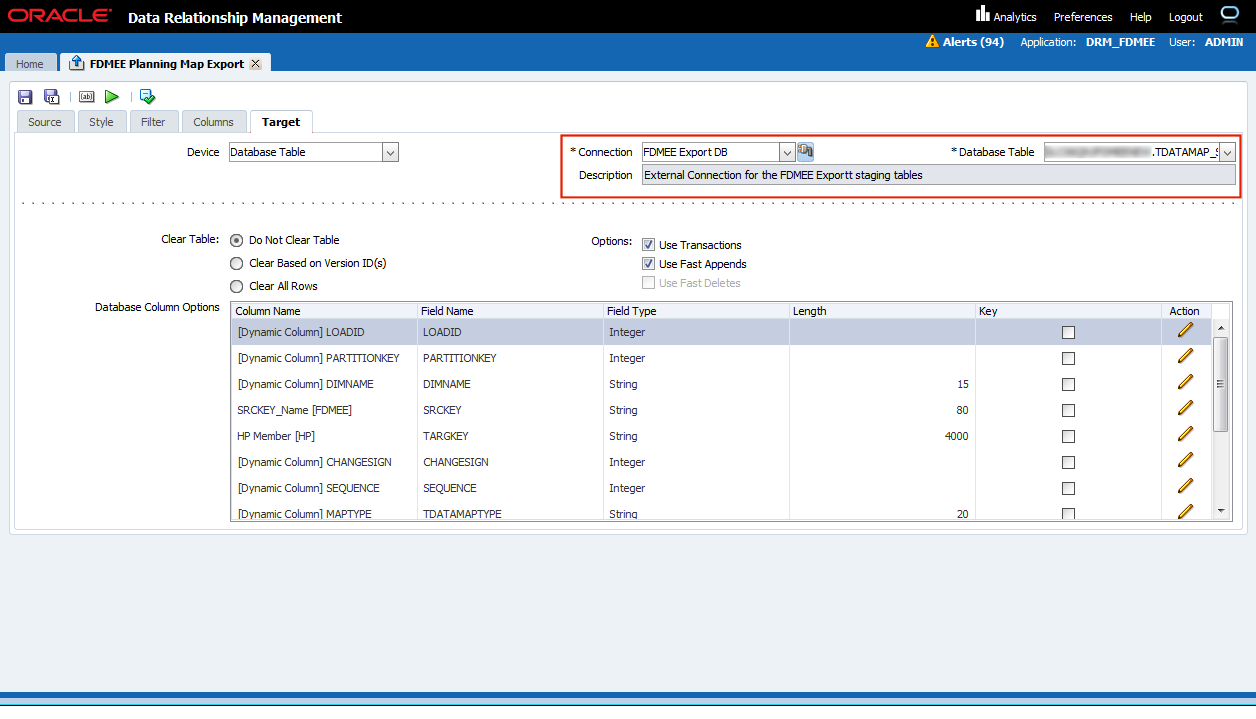
Click Export to view a list of export profiles. Open the FDMEE Planning Map Export and click the Target tab. This export profile was loaded from the FDMEE app template and is configured with a staging table in the FDMEE database. This export profile is used to export member mappings to FDMEE. Close the Export tab.
Importing Member Mappings From DRM into FDMEE
-
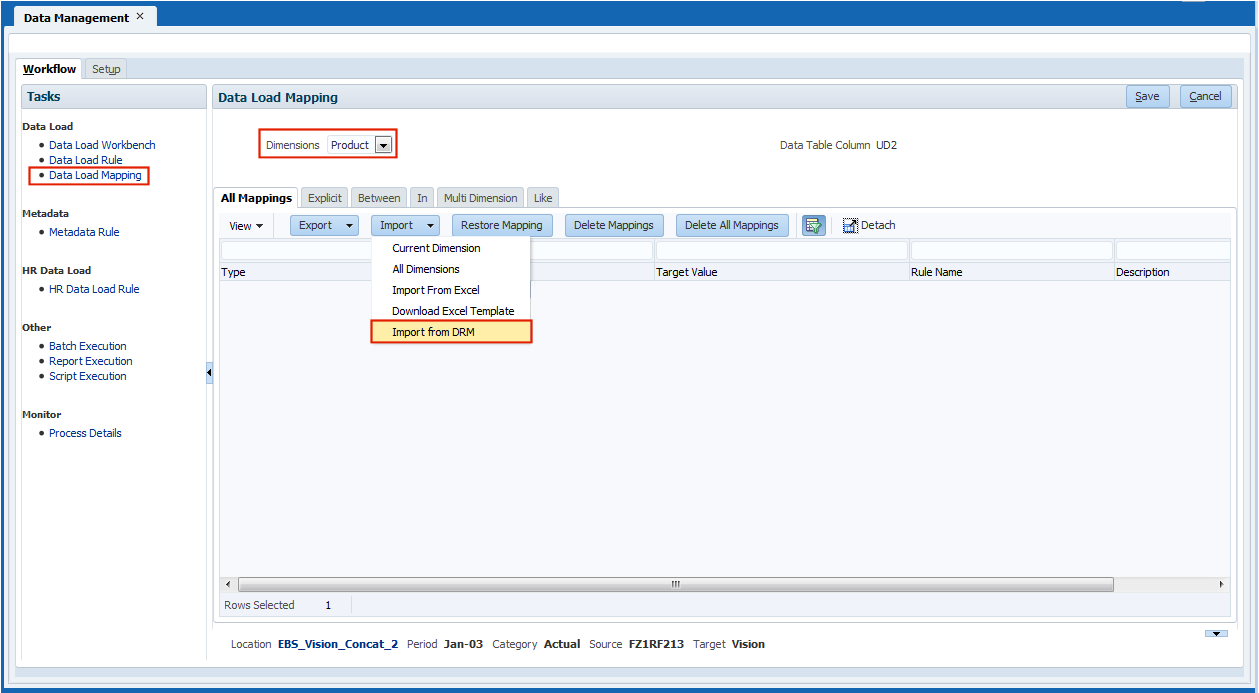
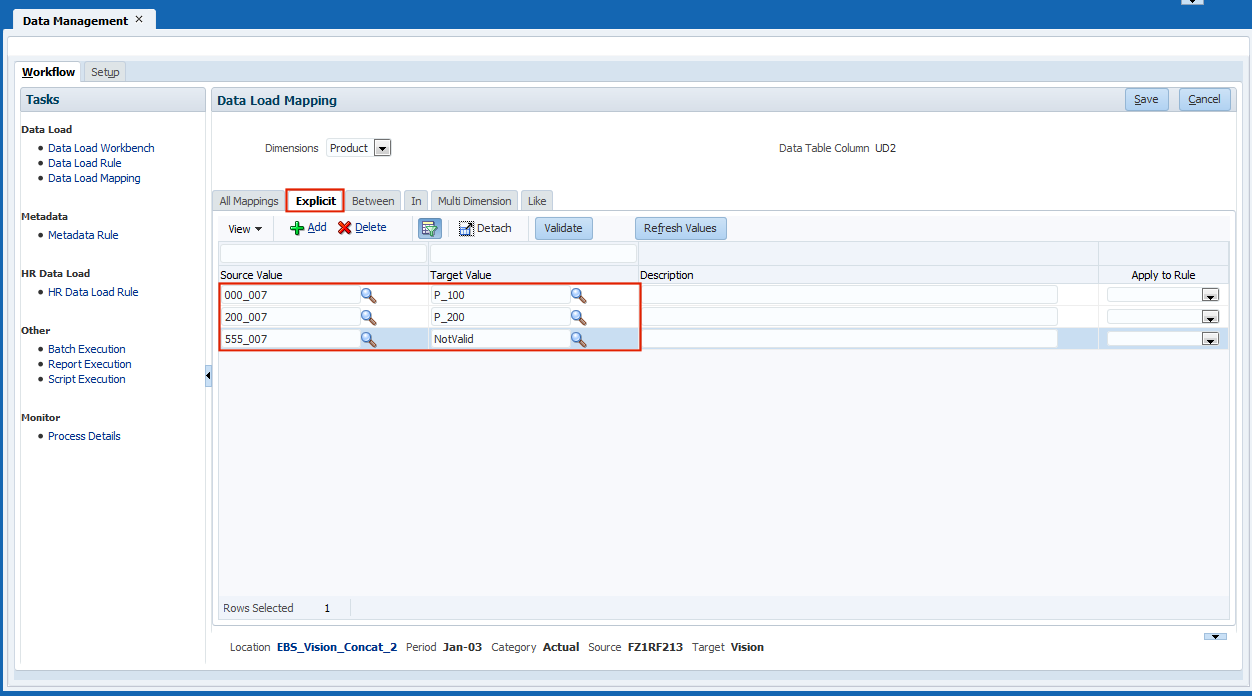
Navigate back to FDMEE in the EPM Workspace. Select the Data Load Mapping task and choose a FDMEE Location. Select the EPM target dimension for which to import mappings from DRM. From the Import menu, select Import from DRM.
-
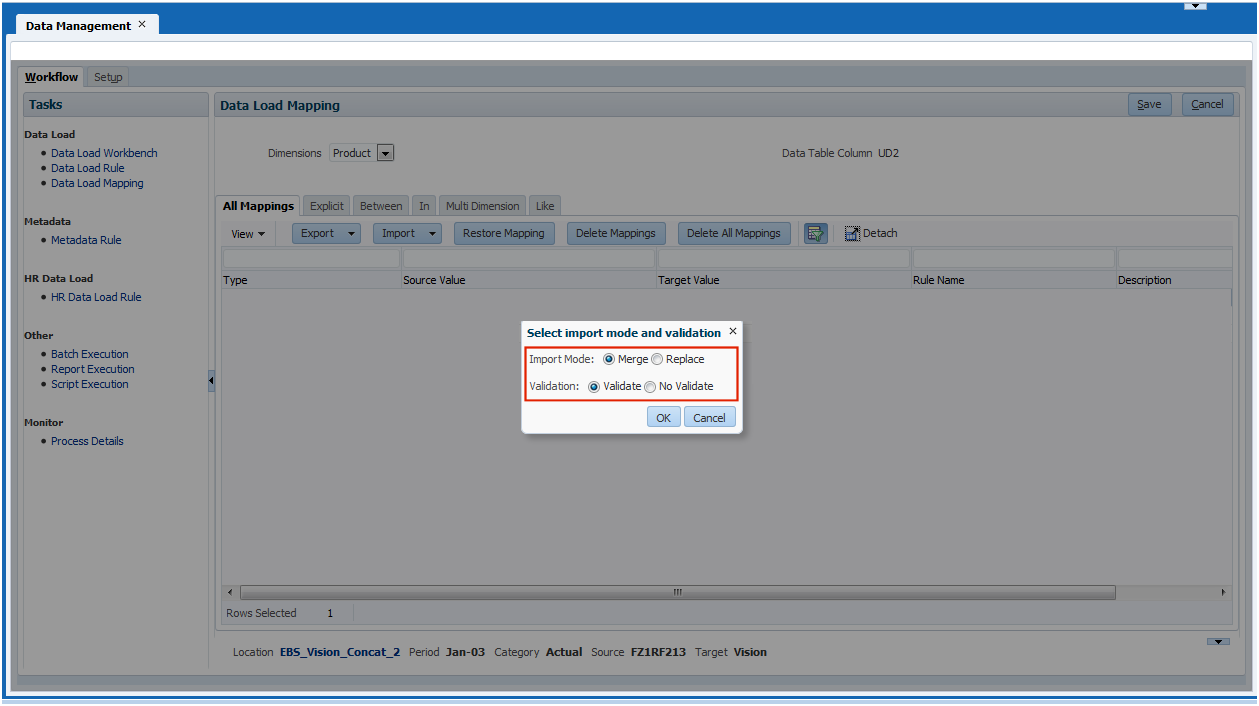
In the "Select import mode and validation" dialog box, select Merge and Validate. Click OK to import the mappings from DRM for the selected FDMEE location.
-
After the import is complete, select the Explicit tab to view the mappings imported from DRM into FDMEE.
-
Select the Process Details task. View the DRM Mapping Import process and its details.