Enabling Duplicate Member Outlines in Oracle Essbase 11.1.2
Purpose
This tutorial shows you how to enable Essbase outlines to contain duplicate member names.
Time to Complete
Approximately 20 minutes
Overview
Essbase enables duplicate member names to be included in cube outlines. You can enable duplicate member names for an entire outline, individual dimensions within an outline, or generations (or levels) within dimensions. This tutorial shows you how to enable Essbase outlines to contain duplicate member names at whatever level is required to meet your business analytics requirements.
Scenario
The Bigcorp corporation manufactures hard disk drives for computer makers and the disk drive aftermarket. Bigcorp's Essbase database Sales requires duplicate member names in the Customer dimension, since several individual customers are members of both the Original Equipment Manufacturer (OEM) and Retail channels within the Customer dimension.
Software and Hardware Requirements
The following is a list of software requirements:
- Oracle® Essbase 11.1.2
Prerequisites
None
Enabling Duplicate Member Names During Database Creation
By default, Essbase outlines require unique member names (except for shared members, which provide alternative rollups within a dimension). If your Essbase model requires duplicate member names in the outline, the simplest way to enable them is to select the Allow duplicate member names option when you create the Essbase database.
. |
Select Allow duplicate member names during database creation.
Duplicate member names are enabled for all of the dimensions in the outline.
|
|---|

Converting a Unique Member Name Outline to Accept Duplicate Member Names
You can also convert an outline that accepts only unique member names to one that accepts duplicate member names.
. |
Open the database outline for editing.
Note: If you already have the database outline open for editing, save any changes you have made to the outline before converting it. You cannot convert an outline that has unsaved changes.
|
|---|---|
. |
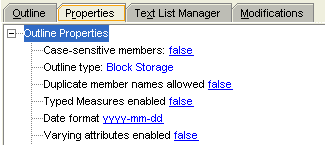
Select the Properties tab, and then expand Outline Properties.
|
. |
In the Duplicate member names allowed drop-down list, select true.
Duplicate member names are enabled for the outline. Note that after you change the setting to true and save the outline, the outline cannot be converted back to a unique member outline.
|


Enabling Duplicate Member Names for Specific Dimensions
In the first two topics, you enabled duplicate member names for all dimensions when the database outline was created or converted. You enable duplicate member names for specific dimensions by "taking back" the duplicate member names capability for all other dimensions. Put another way, if you require unique member names in any dimensions of a duplicate member name outline, tag these dimensions as unique.
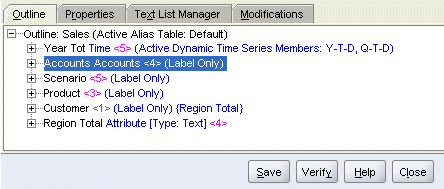
In the Bigcorp Sales database, to enable duplicate member names for only the Customer and Region Total dimensions, you enable duplicate member names for the Sales outline, and then tag all of the dimensions except Customer and Region Total as unique. The following example shows how to tag the Accounts dimension as unique.
. |
Right-click the Accounts dimension and select Edit member properties.
|
|---|---|
. |
In the Information tab, expand the Information, Member information, and Dimension type nodes to reveal the Duplicate member names allowed in dimension setting, and then select false.
|
. |
Click OK to return to the Member Properties dialog box, and then click Save.
Repeat steps 1 through 3 for any other duplicate member name dimensions that need to be tagged as unique member name dimensions.
|


Enabling Duplicate Member Names for Specific Generations or Levels
Using the same approach as the one in the previous topic, you can require unique member names for specific generations or levels in dimensions that allow duplicate member names. In this way, you can enable duplicate member names for the other generations or levels in the dimension. You assign uniqueness to a generation using the same Outline Editor feature that you use for assigning a name to a generation.
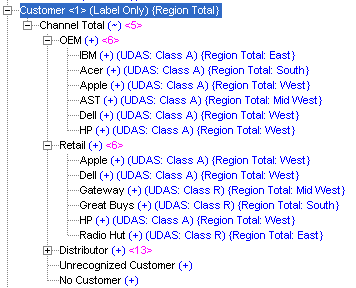
In this example using the Bigcorp Sales outline, you provide a generation name (Channels) at Generation 3 of Customer, and you assign uniqueness to this generation, thus requiring unique member names for the customer channels (OEM, Retail, Distributor). You provide a generation name (Customers) at Generation 4, but retain the duplicate member name capability for this generation so that individual customers can be members of more than one channel ([OEM].[Apple], [Retail].[Apple]).
. |
Open the database outline for editing.
|
|---|---|
. |
In the menu, select Outline, then Generations.
|
. |
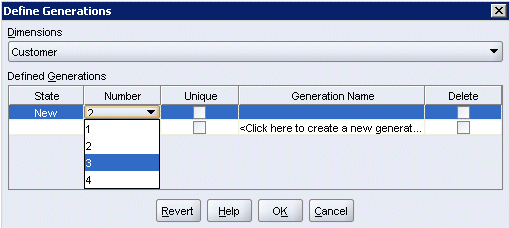
In the Define Generations dialog box in the Dimensions drop-down list, select Customer.
|
. |
The Defined Generations table for Customer is displayed.
|
. |
In the first row of the table, click <Click here to create a new generation>.
|
. |
In the Number column drop-down list, select 3 (Generation 3).
|
. |
In the Generation Name column, enter Channels.
|
. |
In the Unique column, select the check box.
|
. |
Repeat steps 5 through 7 for the next row of the table to provide a generation name (Customers) for Generation 4.
|
. |
For Generation 4, leave the Unique column check box deselected.
You have specified that the channel names (Generation 3) can be unique but that individual customer names (Generation 4) can contain duplicate member names. Generation 2 has not been modified, since neither generation name nor duplicate member name functionality is relevant to our modeling needs for this single-member generation. |
. |
Click OK to close the Define Generations dialog box.
|
. |
Click Save to save the changes to your outline. |




Summary
This tutorial has described how to enable duplicate member names for an entire Essbase outline or, alternatively, for individual dimensions or generations within dimensions. Through these techniques, you can implement duplicate member names in your Essbase outlines to whatever extent your business model requires.
Resources
- To learn more about duplicate member names in Essbase, refer to the Oracle Essbase Release 11.1.2 Database Administrator's Guide.
- To view additional OBEs related to duplicate member names, search "duplicate member names " in the OLL Web site.


|
About
Oracle |Oracle and Sun |  | Careers | Contact
Us | Site Maps | Legal
Notices | Terms of Use | Your Privacy Rights | Careers | Contact
Us | Site Maps | Legal
Notices | Terms of Use | Your Privacy Rights
|