Installing and Configuring E-Business Suite Integration Types for Financial Close Management 11.1.2.3
Overview
Purpose
This tutorial covers installing and configuring Oracle E-Business Suite (EBS) end user and event monitoring integration types for the Close Manager module of Oracle Hyperion Financial Close Management 11.1.2.3.
Time to Complete
Approximately 3 hours.
Introduction
This tutorial covers configuring Oracle E-Business Suite (EBS) End User and Event Monitoring integration types for the Close Manager module of Oracle Hyperion Financial Close Management 11.1.2.3 (FCM).
Prerequisites
This tutorial assumes that you have installed and configured FCM 11.1.2.3, and that you are familiar with both Close Manager and E-Business Suite administration. Before starting this tutorial, you should have access to the following integration type XML files:
- EBS_AP_Integration_11123.xml
- EBS_AR_Integration_11123.xml
- EBS_GL_Integration_11123.xml
- EBS_GL_EventMonitoring_11123.xml
Importing End User Integration Types
You create end user integration points between EBS by importing integration types from XML files. To import end user integration types, you create an EBS application in Close Manager and configure the application properties. You then load the XML files for the end user integration types into Close Manager. The end user integration XML files are:
- EBS_AP_Integration_11123.xml
- EBS_AR_Integration_11123.xml
- EBS_GL_Integration_11123.xml
-
Login to Close Manager as an administrator.
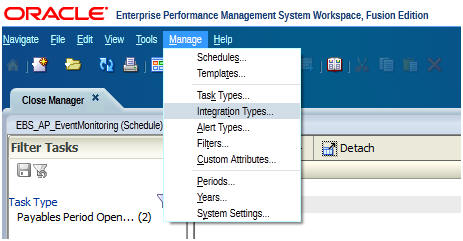
Select Manage Integration Types.
-
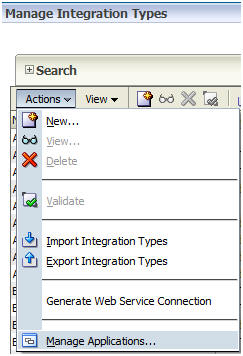
Select Actions > Manage Applications.
-
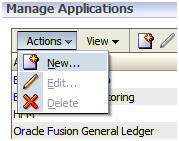
Select Actions > New.
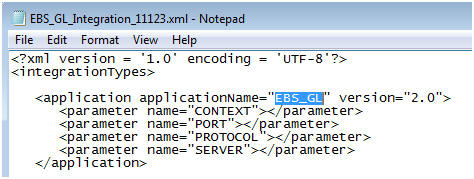
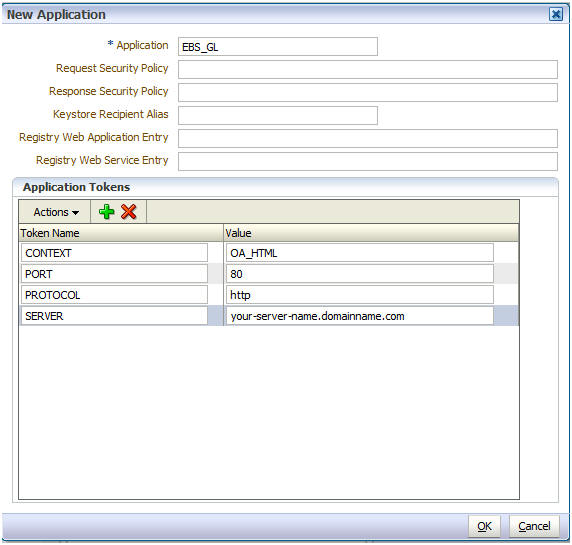
- Specify the application name and properties. The application values for the EBS application should match the values provide for the "applicationName" element in the integration XML file. The following examples are for EBS_GL_Integration_11123.xml.
Token Name
Token descriptions
CONTEXT
Property used for URL-based integration, EBS URL context. Example: OA_HTML
PORT
Property used for URL-based integration, port used to access EBS server. Example: 80
PROTOCOL
Property used for URL-based integration, Web-based protocol used to access EBS server. Example: http
SERVER
Property used for URL-based integration, EBS server name.
-
Click OK.
-
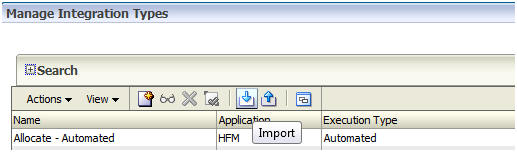
In the Manage Integrations Types dialog box toolbar, click Import.
You import the product-specific integration type XML files into Close Manager using the Import Integration Type wizard, which you access from the Manage Integration Types dialog box. The wizard loads the integration types from the XML file and creates corresponding tasks types in Close Manager.
-
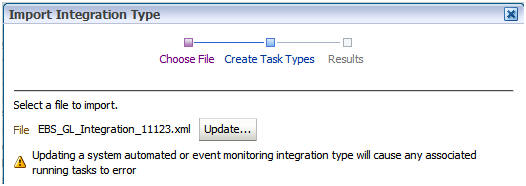
Browse to select the integration type XML file that you want to import, and click Next.
The example shows the EBS_GL_integration_11123.xml file.
-
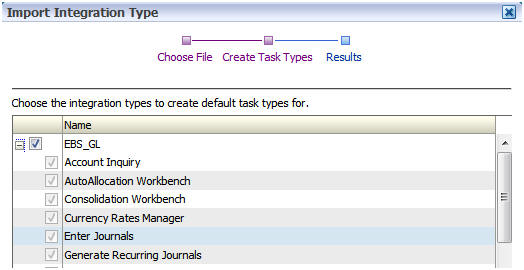
Select the Integration Types for which you want to automatically create task types, and click Next to import the integration types.
-
At the Results screen, click Close.
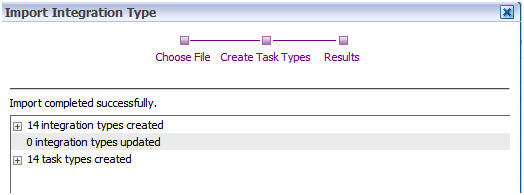
Importing Event Monitoring Integration Types
The Event Monitoring feature of Close Manager helps in monitoring a particular operation or activity in an external product being used as part of the close process, and provides information about its status to other tasks in a financial close schedule. In this tutorial we discuss Close Manager and EBS product integration using the OracleAppsAdapter SOA Resource Adapter which is based on Oracle’s JCA technology. Details about OracleAppsAdapter are provided in the Oracle Fusion Middleware documentation library available at: http://docs.oracle.com/cd/E21764_01/soa.htm.
You use the file EBS_GL_EventMonitoring_11123.xml to import the event monitoring integration types. The following table describes the EBS events that are monitored:
Event Name |
Description |
oracle.apps.gl.Journals.journal.approve |
General Ledger: Journal Approved |
oracle.apps.gl.Journals.journal.post |
General Ledger: Posting Completed |
oracle.apps.gl.CloseProcess.period.close |
General Ledger: Period Closed |
oracle.apps.gl.CloseProcess.period.open |
General Ledger: Period Opened |
oracle.apps.gl.CloseProcess.period.reopen |
General Ledger: Period Reopened |
To configure Event Monitoring, you must be knowledgeable of Oracle Fusion Middleware and EBS administration. You must also be knowledgeable of end-user and system-automated tasks in Close Manager.
Pre-Import Configuration
You must perform the following tasks before creating event monitoring integrations for EBS events.
-
Verify that the Oracle EBS DB’s APPS schema has privileges to write to queue tables.
This is a MANDATORY step because you run a SQL script on the EBS Oracle DB after creating integration points in FCM. The scripts must be executed on the APPS schema. Therefore, this schema must have the required DB privilege. - Verify that the WF_DEFERRED queue agent listener is running.
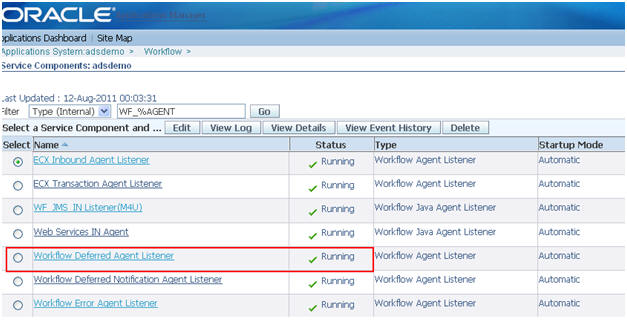
The Oracle EBS events make use of Oracle Advance Queuing technology to propagate business event message payloads to external applications. This is achieved through a dedicated queue name WF_DEFERRED. Therefore, it is required to check if this queue listener is running in the EBS instance.
To verify that the WF_DEFERRED agent is running: - Log on to Oracle Applications.
- Select Workflow Administrator Web Applications responsibility and Workflow Manager under Oracle Applications Manager.
- Click on the icon next to Agent Listeners.
- Navigate through the list of Agent Listeners and make sure that Work flow Deferred Agent Listener is running.
-
Perform the following steps for EPM-side WebLogic server configuration of the OracleAppsAdapter (also known as the EBS Adapter):
- Verify all managed servers are stopped.
- Open a command prompt window.
- Navigate to MIDDLEWARE_HOME/wlserver_10.3/server/bin.
- Execute the following command setWLSEnv.cmd (for Linux execute setWLSEnv.sh).
- Next execute the following command:
for Windows: Java weblogic.WLST %EPM_ORACLE_HOME%/products/FinancialClose/wlscripts/FCM_EBSConfig_WLS_Script.py
for Linux: java weblogic.WLST $EPM_ORACLE_HOME/products/FinancialClose/wlscripts/FCM_EBSConfig_WLS_Script.py
- Provide the connection properties when prompted for EBS Data Source connection details:
Database Name
This is the Oracle DB SID, for example ORCL
Host Name
The EBS server host name
Port
This is the Oracle DB port, for example 1521
Database User Name
APPS
Database Password
APPS schema password, for example APPS
Target
EPM SOA managed server, for example soa_server1
-
Perform the following steps for EPM-side WebLogic server configuration of the DbAdapter (also known as the Database Adapter):
- Verify all managed servers are running.
- Open a command prompt window.
- Navigate to MIDDLEWARE_HOME/wlserver_10.3/server/bin.
- Execute the following command setWLSEnv.cmd(for Linux execute setWLSEnv.sh).
- Next execute the following command:
for Windows: java weblogic.Deployer -adminurl t3://<admin-url>:<admin server port> -user <admin user> -password <password> -update -name DbAdapter -plan <db plan location>\FCM_DBAdapter_Plan.xml
for Linux: java weblogic.Deployer -adminurl t3://<admin-url>:<admin server port> -user <admin user> -password <password> -update -name DbAdapter -plan <db plan location>/FCM_DBAdapter_Plan.xml
Here is an example:
java weblogic.Deployer -adminurl t3://localhost:7001 -user weblogic -password welcome1 -update -name DbAdapter -plan C:\Oracle\Middleware\EPMSystem11R1\products\FinancialClose\wlscripts\FCM_DBAdapter_Plan.xml
This creates the DbAdapter connection factory “eis/DB/financialclose” inside the DbAdapter deployment.
Importing Event Monitoring Integration Types
You create event monitoring integration points between EBS by importing integration types from an XML file. To import event monitoring integration types, you create an EBS application in Close Manager and configure the application properties. You then load the XML files for the end user integration types into Close Manager. The event monitoring integration XML file is EBS_GL_EventMonitoring_11123.xml.
-
Login to Close Manager as an administrator.
Select Manage Integration Types.
-
Select Actions > Manage Applications.
-
Select Actions > New.
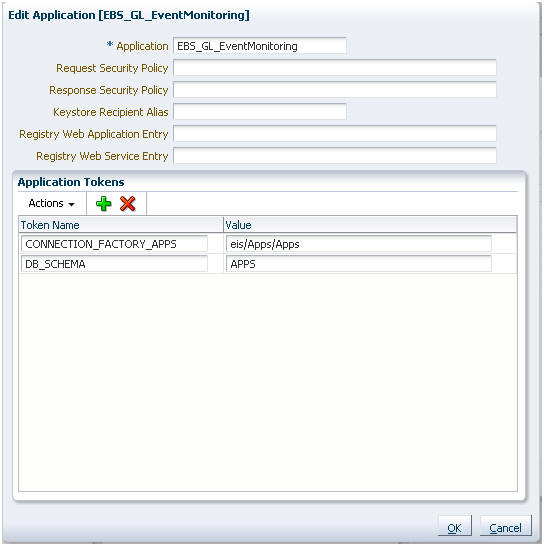
- Specify the application name and properties. The application values for the EBS application should match the values provide for the "applicationName" element in the integration XML file.
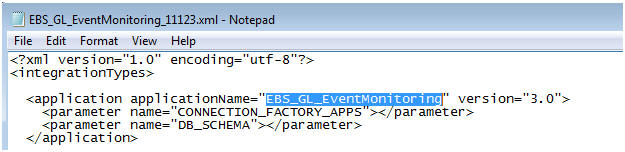
Token Name
Token descriptions
CONNECTION_FACTORY_APPS
The Oracle Apps Adapter’s javax.resource.cci.ConnectionFactory JNDI name. Value is eis/Apps/Apps.
DB_SCHEMA
EBS DB Schema Name that has access to the DB queues. Value is APPS
-
Click OK.
-
In the Manage Integrations Types dialog box toolbar, click Import.
-
Browse to select EBS_GL_Integration_11123.xml, and click Next.
-
Select the integration types for which you want to automatically create task types, and click Next to import the integration types.
-
At the Results screen, click Close.
- Set the event monitoring integration type parameters:
The General Ledger Journals Event Monitoring integration types use the same task parameter:Name
Type
Required
Order
Hidden
Batch ID
Text
Yes
1
N
The General Ledger Close Process Period Event Monitoring integration types use the same task parameter:
Name
Type
Required
Order
Hidden
LedgerID:PeriodName
Text
Yes
1
N
Post-Import Configuration
You run the parameterized SQL script “Subscribe_to_EBS_Events.sql” by connecting to the Oracle EBS DB instance using the APPS schema. Prior to running the SQL script, you must ensure that the event is enabled for subscription.
-
Login to EBS using your administrator credentials.
Select the Workflow Administrator role from the left tree.
Select the Business Events tab, and find the event in question, for example “oracle.apps.gl.Journals.journal.approve”.
-
When you find the event name, click the Update button.

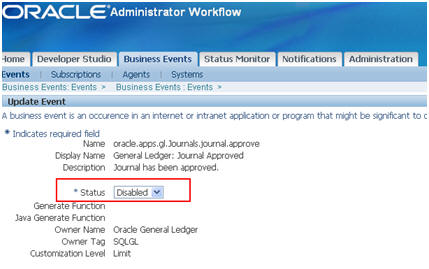
- Run the parameterized SQL script Subscribe_to_EBS_Events.sql, either from SQL Plus or from SQL Developer, by connecting to the EBS instance using APPS schema credentials.
-
Confirm the event subscription by running the following SQL query in SQL Developer after connecting to the EBS DB instance:
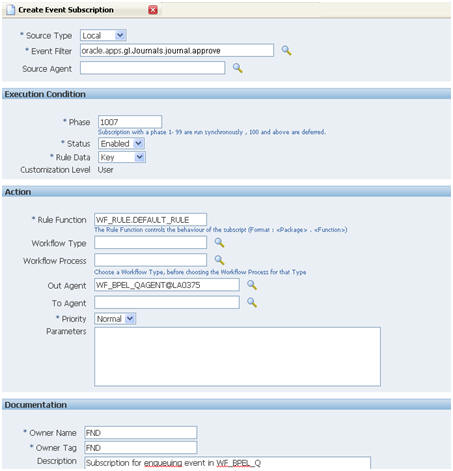
select aq$_wf_bpel_qtab_s.name, aq$wf_bpel_qtab_r.rule from apps.aq$_wf_bpel_qtab_s, aq$wf_bpel_qtab_r where apps.aq$_wf_bpel_qtab_s.name = aq$wf_bpel_qtab_r.name;This query will give the Consumer ID (NAME column) and event name (RULE column) to which it is related. The subscriptions should resemble the figure below for each event. (Note: If the phase value is greater than 99, change it to a value between 1 and 99).
You will find the SQL script “Subscribe_to_EBS_Events.sql” at the following location::
%EPM_ORACLE_HOME%\products\FinancialClose\database\external_sql_scripts.
Note: To subscribe to multiple EBS Events, you have to use a new SQL Worksheet for each Event.
This script takes one parameter: the EBS event name string that is specified in the integration type.
FCM generates a unique key called Consumer ID which is associated with the integration type and event name.
The
Consumer ID and event name association can be found at Manage Integration Types > Edit/View Integration Type UI.
Executing EBS Tasks that Raise Business Events
Now that you have configured the EBS Business event system to subscribe to the required events, you can verify your results by raising business events. The following sections describe how to run the EBS tasks that raise the events you track using the OracleAppsAdapter in SOA.
Raising oracle.apps.gl.Journals.journal.approve Events
-
Log on to EBS.
Select the General Ledger, Vision Operations (USA) role from the left tree.
-
Select Journals, then Enter and wait for Oracle Applications to start.
-
Click No for the “Find records in this folder?” message.
-
Click New Batch on the Find Journals screen.
Window (Vision Operation (USA)) is displayed.
-
Enter a unique batch name in the Batch field.
- Navigate to File menu and click Save to save the batch.
Note: When you click Save, the cursor needs to be inside the Batch field.
-
Click OK at the “Please enter one or more Journals” message.
-
Click Journals.
-
Enter a unique name in the Journal field.
Provide Line entries starting with Line 1. Provide debit and credit values for the accounts.
-
After you finish entering the line values, move the cursor into the Journal field.
-
Navigate to the File menu and click New.
-
Click Yes at the “Do you want to save the changes you made?” prompt.
Note: This enables you to add multiple Journal entries into the Batch.
-
After finishing all the journal entries for the last Journal, move the cursor into the Journal field.
-
Navigate to the File nenu and click Save to save the last journal entry.
-
Focus on the Batch (Vision Operation (USA)) and select the Batch field.
-
Click the Help menu and select Diagnostics, then Examine.
-
For Oracle password, specify APPS.
-
Enter JE_BATCH_ID in the Field box and click inside the Value box to get the unique Journal batch ID.
The figure below shows an example value for JE_BATCH_ID. 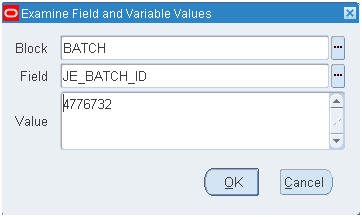
Copy this value to Notepad. This batch ID will be used as value in Close Manager for the “EVENT_DATA” parameter of the Event Monitoring task.
-
Perform the following steps in Close Manager:
- Create a new schedule in a Pending state.
- Create a task for event monitoring task to monitor oracle.apps.gl.Journals.journal.approve.
- In the Parameters page, provide a value for EVENT_DATA as the journal batch ID from EBS.
- Save the task and set the schedule to state to Open .
-
In EBS, on Batch (Vision Operation (USA)), the Approve button is now enabled for the specified batch. Click Approve to raise the journal approval event.
-
Perform the following steps in Close Manager::
- Wait for the task to be set to the Open state. It takes a couple of minutes for SOA to capture the EBS event.
- After two or three minutes, click Refresh in Workspace.
Refer to the following document for further information on Journal Batch Approval: http://download.oracle.com/docs/cd/A60725_05/html/comnls/us/gl/journa09.htm#t_ja_submit
Raising oracle.apps.gl.Journals.journal.post Events
-
Log on to EBS.
Select the General Ledger, Vision Operations (USA) role from the left tree.
-
Select Journals, then Enter and wait for Oracle Applications to start.
-
Click No for the “Find records in this folder?” message.
-
Click New Batch on the Find Journals screen.
Window (Vision Operation (USA)) is displayed.
-
Enter a unique batch name in the Batch field.
- Navigate to the File menu and click Save to save the batch.
Note: When you click Save, the cursor needs to be inside the Batch field.
Click OK for the “Please enter one or more Journals” message.
-
Click Journals.
-
Enter a unique name in the Journal field.
Provide Line entries starting with Line 1. Provide debit and credit values for the accounts.
-
After you finish entering the line values, move the cursor into the Journal field.
-
Navigate to the File menu and click New.
-
Click Yes at the “Do you want to save the changes you made?” prompt.
Note: This enables you to add multiple Journal entries into the Batch.
-
After finishing all the journal entries for the last Journal, move the cursor into the Journal field.
-
Navigate to the File menu and click Save to save the last journal entry.
-
Focus on Batch (Vision Operation (USA)) and select the Batch field.
-
Click the Help menu and select Diagnostics, then Examine.
-
For the Oracle password, specify APPS.
-
Specify JE_BATCH_ID in the Field box and click inside the Value box to get the unique Journal batch ID.
The figure below shows an example value for JE_BATCH_ID. Copy this value to Notepad. This batch ID will be used as value in Close Manager for the “EVENT_DATA” parameter of the Event Monitoring task.
-
Perform the following steps in Close Manager:
- Create a new Schedule in a Pending state.
- Create a task for event monitoring to monitor oracle.apps.gl.Journals.journal.post.
- In the Parameters page, provide a value for EVENT_DATA as the journal batch ID from EBS.
- Save the task and set the schedule to state to Open.
-
Perform the following steps in EBS:
- On Batch (Vision Operation (USA)). the Post button is now enabled for the specified batch. Click Post to fire a new EBS Request ID. Note this ID.
- Create a task for event monitoring task to monitor oracle.apps.gl.Journals.journal.post.
- Examine the status of EBS request by selecting the View menu, then Requests, then Specific Requests.
- Specify the Request ID that was noted in step a.
- Perform the following steps in Close Manager:
- Wait for the task to be set to the Open state. It takes a couple of minutes for SOA to capture the EBS event.
- After two or 3 minutes click Refresh in Workspace.
Refer to the following document for further information on Journal Batch Post: http://download.oracle.com/docs/cd/A60725_05/html/comnls/us/gl/conten07.htm#w_conts_post
Raising oracle.apps.gl.CloseProcess.period.close Events
-
Log on to EBS.
Select the General Ledger, Vision Operations (USA) role from the left tree.
-
Select Select Open/Close, then Enter and wait for Oracle Applications to start.
-
At the Find Period dialog box, click the Find button to open the Open and Close Period dialog box.
-
From the list of displayed periods, choose the one you want to close.
-
Select the status column for that period.
- Click the Status Options button.
A status list pops up.
-
Selected the Closed status and click OK.
-
Make a note of the period in Notepad.
-
Navigate to the File menu and click Save to save the status.
-
Focus on the status column of the period.
-
Click the Help menu and select Diagnostics, then Examine.
-
For the Oracle password, specify APPS.
-
Enter LEDGER_ID in the Field box and click inside the Value box to get the unique Ledger ID.
The figure below shows an example value for LEDGER_ID. 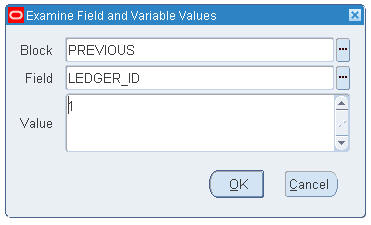
-
Copy this value to Notepad. You will use Ledger ID as the value in Close Manager for the LedgerID:PeriodName parameter of the Event Monitoring task.
-
Perform the following steps in Close Manager:
- Create a new schedule in a Pending state.
- Create a task for event monitoring to monitor oracle.apps.gl.CloseProcess.period.close.
- In Parameters page, provide a value for LedgerID:PeriodName as “LedgerID:PeriodName” from EBS (for example: 1:Dec-10, where 1 is Ledger ID and Dec-10 is period).
- Save the task and set the schedule state to Open.
-
Perform the following steps in EBS:
- Close the Open and Close Period dialog box.
- Click OK in the Submit Request Node message box.
- Examine the status of the EBS request by selecting the View menu, then Requests, then Specific Requests.
-
Perform the following steps in Close Manager:
- Wait for the task to be set to the Open state. It takes a couple of minutes for SOA to capture the EBS event.
- After two or three minutes, click Refresh in Workspace.
Refer to the following document for further information on General Ledger Periods: http://docs.oracle.com/cd/A60725_05/html/comnls/us/gl/openper.htm
Raising oracle.apps.gl.CloseProcess.period.open Events
-
Log on to EBS.
Select the General Ledger, Vision Operations (USA) role from the left tree.
-
Select Open/Close, then Enter and wait for Oracle Applications to start.
-
At the Find Period dialog box, click the Find button to open the Open and Close Period dialog.
-
Copy the period you want to open to Notepad.
-
Focus on the status column of the period.
-
Click the Help menu and select Diagnostics, then Examine.
-
For the Oracle password, specify APPS.
-
Enter LEDGER_ID in the Field box and click inside the Value box to get the unique Ledger ID.
The figure below shows an example value for LEDGER_ID. -
Copy this value to Notepad. You will use Ledger ID as the value in Close Manager for the LedgerID:PeriodName parameter of the Event Monitoring task.
-
Perform the following steps in Close Manager:
- Create a new schedule in a Pending state.
- Create a task for event monitoring to monitor oracle.apps.gl.CloseProcess.period.open.
- In the Parameters page, provide a value for LedgerID:PeriodName as “LedgerID:PeriodName” from EBS (for example: 1:Dec-10, where 1 is Ledger ID and Dec-10 is period).
- Save the task and set the schedule to state to Open .
-
Perform the following steps in EBS:
- Click Open Period.
- Select the period to open and click OK to raise the event.
- Examine the status of the EBS request by selecting the View menu, then Requests, then Specific Requests.
-
Perform the following steps in Close Manager:
- Wait for the task to be set to the Open state. It takes a couple of minutes for SOA to capture the EBS event.
- After two or three minutes, click Refresh in Workspace.
Refer to the following document for further information on General Ledger Periods: http://docs.oracle.com/cd/A60725_05/html/comnls/us/gl/openper.htm
Raising oracle.apps.gl.CloseProcess.period.reopen Events
-
Log on to EBS.
Select the General Ledger, Vision Operations (USA) role from the left tree.
-
Select Open/Close, then Enter and wait for Oracle Applications to start.
-
At the Find Period dialog box, click the Find button to open the Open and Close Period dialog.
-
Copy the closed period that you want to reopen to Notepad.
-
Focus on the status column of the period.
-
Click the Help menu and select Diagnostics, then Examine.
-
For the Oracle password, specify APPS.
-
Enter LEDGER_ID in the Field box and click inside the Value box to get the unique Ledger ID.
The figure below shows an example value for LEDGER_ID. -
Copy this value to Notepad. You will use Ledger ID as the value in Close Manager for the LedgerID:PeriodName parameter of the Event Monitoring task.
-
Perform the following steps in Close Manager:
- Create a new schedule in a Pending state.
- Create a task for event monitoring to monitor oracle.apps.gl.CloseProcess.period.reopen.
- In the Parameters page, provide a value for LedgerID:PeriodName as “LedgerID:PeriodName” from EBS (for example: 1:Dec-10, where 1 is Ledger ID and Dec-10 is period).
- Save the task and set the schedule to state to Open.
-
Perform the following steps in EBS:
- Click Open Period.
- Select the closed period to open and click OK to raise the event.
- Examine the status of the EBS request by selecting the View menu, then Requests, then Specific Requests.
-
Perform the following steps in Close Manager:
- Wait for the task to be set to the Open state. It takes a couple of minutes for SOA to capture the EBS event.
- After two or three minutes, click Refresh in Workspace.
Refer to the following document for further information on General Ledger Periods: http://docs.oracle.com/cd/A60725_05/html/comnls/us/gl/openper.htm
Unsubscribing from EBS Events
Perform the steps below to unsubscribe from an EBS business event.
- Perform the following steps to execute a SQL query to verify that the Consumer ID is subscribed to an EBS Event:
- Open SQL Developer.
- Connect to the EBS Oracle DB instance using the APPS schema.
- Copy and paste the following SQL script:
select aq$_wf_bpel_qtab_s.name, aq$wf_bpel_qtab_r.rule from apps.aq$_wf_bpel_qtab_s, aq$wf_bpel_qtab_r
where apps.aq$_wf_bpel_qtab_s.name = aq$wf_bpel_qtab_r.name; - Click the execute SQL button
A list of Consumer ID and EBS event names is displayed.
- If the Consumer ID is found for the event, then perform the steps below to execute a SQL script to unsubscribe:
- Open SQL Developer.
- Connect to the EBS Oracle DB instance using the APPS schema.
- Copy and paste the SQL script provided below step e.
- Click the execute SQL button.
- Supply values for EventName and Consumer ID when prompted.
declare
subscriber sys.aq$_agent;
begin
-- remove subscription
delete from wf_event_subscriptions where event_filter_guid in(
select guid from wf_events where name = '&EventName')
and out_agent_guid in ( select guid from wf_agents where name = 'WF_BPEL_QAGENT');
-- remove subscriber
begin
subscriber := sys.aq$_agent('&ConsumerId', NULL, NULL);
dbms_aqadm.remove_subscriber(queue_name => 'WF_BPEL_Q', subscriber => subscriber);
exception
when others then null;
end;
end;
/
commit;
The Consumer ID will be unsubscribed from the event.
Troubleshooting
The following sections cover some typical problems and suggested solutions.
Unable to Execute DBAdapter Configuration Command
F:\>java weblogic.Deployer -adminurl t3://server_name:7001 -user epm_admin -password ****** -update -name DbAdapter -plan F:\Oracle\Middleware\EPMSystem11R1\products\FinancialClose\wlscripts\FCM_DBAdapter_Plan.xml
weblogic.Deployer invoked with options: -adminurl t3:// server_name:7001 -user epm_admin -update -name DbAdapter -plan F:\Oracle\Middleware\EPMSystem11R1\products\FinancialClose\wlscripts\FCM_DBAdapter_Plan.xml
Task 0 initiated: [Deployer:149026]update application DbAdapter on soa_server1.
Task 0 completed: [Deployer:149026]update application DbAdapter on soa_server1.
Target state: update completed on Server soa_server1
To fix this problem, edit FCM_DBAdapter_Plan.xml:
-
The <config-root> node property C:\Oracle\Middleware\Oracle_SOA1\soa\connectors\plan should be changed to the correct location by locating the SOA_HOME and then changing it to %SOA_HOME%\soa\connectors\plan path. For example, if SOA_HOME is F:\Oracle\Middleware\Oracle_SOA1, then set the value for <config-root> to F:\Oracle\Middleware\Oracle_SOA1\soa\connectors.
- Re-run the DBAdapter configuration commands.
EBS Consumer ID conflicts with EBS Event Name
This scenario could occur if you make use of multiple FCM servers to subscribe to the same EBS DB instance. It is advised to use a single FCM server to subscribe to an EBS DB instance because the Consumer ID is generated based on the integration type ID, which is unique for a given server. If a different FCM server subscribes to an event, with the same Consumer ID, then it is possible that the subscription will not be successful because the EBS Oracle DB will detect it as a duplicate entry.
If you have to use different FCM servers to test the integrations, then it is advised to first unsubscribe the unused Consumer IDs.
EBS Events Not Appearing in SOA
- To verify the EBS Events are not appearing in SOA:
- Verify Oracle WebLogic DataSource jdbc/AppsDataSource connects to EBS Oracle DB instance.
- Verify that WF_DEFERRED Agent listener is running in EBS Oracle Workflow.
- Verify that the financialclose_datasource has SOA server in its target list.
- Check the SOA logs for errors of type [ERROR] [] [oracle.soa.adapter].
The OracleAppsAdapter supports Oracle ODL logging and will log errors to SOA server log. Typical errors could be:- java.sql.SQLException: ORA-24010: QUEUE APPS.WF_BPEL_Q does not exist.
- java.sql.SQLException: ORA-25226: dequeue failed, queue APPS.WF_BPEL_Q is not enabled for dequeue.
For these errors, please check if::- EBS DB has access permissions for APPS schema.
- Queue WF_BPEL_Q is present and supports message DQUEUE -ing.
- If the above errors are not seen in the SOA server log, use the following procedure to troubleshoot the EBS Oracle DB instance:
- Connect to EBS Oracle DB using Oracle SQL Developer with APPS schema credentials (APPS/APPS).
- Expand the Other Users node and select APPLSYS user.
- Use filter CORRID = 'APPS:<your EBS event name>'.
- Check if data is present. If no data exists, reboot the EBS instance.
- If data exists in the WF_DEFERRED queue table, then check if data is available in the APPS.WF_BPEL_QTAB queue table.
- If data does not exist in APPS.WF_BPEL_QTAB, then ensure Out Agent is set correctly for the event subscription.
Summary
In this tutorial, you learned to:
- Import end user integration types
- Import event monitoring integration types
- Execute EBS tasks that raise business events
- Perform troubleshooting
Credits
- Lead Curriculum Developer: Mark Mitsock
- Other Contributors: Ashutosh Bhatikar, Ron Reiley
To navigate this Oracle by Example tutorial, note the following:
- Topic List:
- Click a topic to navigate to that section.
- Expand All Topics:
- Click the button to show or hide the details for the sections. By default, all topics are collapsed.
- Hide All Images:
- Click the button to show or hide the screenshots. By default, all images are displayed.
- Print:
- Click the button to print the content. The content that is currently displayed or hidden is printed.
To navigate to a particular section in this tutorial, select the topic from the list.