Installing and Configuring FDMEE Integration Types for Financial Close Management 11.1.2.3
Overview
Purpose
This tutorial covers installing and configuring Oracle Hyperion Financial Data Quality Management Enterprise Edition (FDMEE) integration types for Oracle Hyperion Financial Close Management 11.1.2.3 (FCM).
Time to Complete
Approximately 1 hour.
Introduction
The Close Manager module of Oracle Hyperion Financial Close Management 11.1.2.3 (FCM) supports system automated integrations with Oracle Hyperion Financial Data Quality Management Enterprise Edition (FDMEE). This tutorial covers installing and configuring FDMEE integration types for FCM.
Prerequisites
- If FDMEE is to be used to manage Oracle Hyperion Financial Management application data, then it is recommended that your run the FCM integration XML on Microsoft Windows.
- It is recommended that you apply FCM 11.1.2.3.000 Patch Set Update 16989110, as it contains some important fixes.
- It is recommended that you apply FDMEE 11.1.2.3.000 Patch Set Update 16681929.
- You should have access to the AIFIntegrationTypes_11_1_2_3.xml integration types XML file.
Generating the Java Keystore for Message Protection
You must create a keystore using the JDK 1.6 based keytool utility, and then use Enterprise Manager to set up message protection for Web services.
Note: The steps that follow can also be found in the Configuring Oracle Web Services Manager for EPM System Products section of the Oracle® Enterprise Performance Management System Installation and Configuration Guide. You should perform these steps as part of post-EPM product configuration.
-
Open a DOS window and navigate to /Oracle/Middleware/user_projects/$DOMAIN_HOME/config/fmwconfig, in the server running the WebLogic Administration Server hosting your EPM System domain.
-
Execute the following command:
keytool -genkeypair -keyalg RSA -alias aliasName -keypass password –keystore keystoreName.jks -storepass password -validity 3600Note: If the keytool command is not recognized, the Path environmental variable might not include the JDK. Add the JDK to the Path variable using the following command:
set PATH=%PATH%;C:\Oracle\Middleware\JDK160_35\bin\;.;..When running the command above, the user is required to perform the following:
- Set the –keypass and –storepass password parameters to the desired password, for example ‘oracle1’.
- Update the –alias aliasName parameter to the desired alias name, for example orakey.
- Update the –keystore parameter to the desired keystore name, for example EPMKeystore.jks.
Log in to Enterprise Manager (for example http://WebLogicAdminServerHost:7001/em) using WebLogic administrator credentials.
Expand WebLogic Domain, and then select EPMSystem (or the domain name used for the EPM System deployment).
-
Right-click EPMSystem, select Security, and then select Security Provider Configuration.
-
Scroll to the Keystore section, expand the section, and then click Configure.
-
For Keystore Path, enter the path and name for the keystore that you created, for example ./EPMKeystore.jks.
-
Enter the keystore password you used when creating the keystore, and confirm it.
-
Enter an alias and password for both Signature Key and Encryption Key, using the alias and password that you used when creating the keystore. Confirm the passwords, and then click OK.
The alias and password for the signature and encryption keys define the string alias and password used to store and retrieve the keys.
-
Log out and restart Oracle Enterprise Manager Fusion Middleware Control so that the changes take effect, and then restart the EPM System managed servers.
Importing FDMEE Integration Types into Close Manager
You create integration points between FDMEE and the Close Manager module of FCM by importing the file AIFIntegrationTypes_11_1_2_3.xml into Close Manager. After importing the integration types, you edit the AIF application information and seed the Execute Data Rule Async System Automated integration type.
-
Login to Close Manager as an administrator.
-
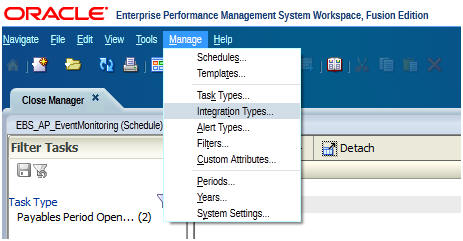
Select Manage > Integration Types.
-
In the Manage Integrations Types dialog box toolbar, click Import.
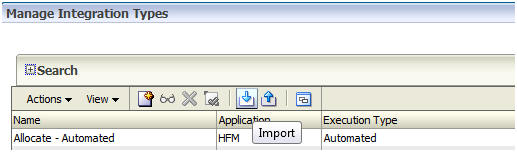
You import the product-specific integration type XML files into Close Manager using the Import Integration Type wizard, which you access from the Manage Integration Types dialog box. The wizard loads the integration types from the XML file and creates corresponding tasks types in Close Manager.
-
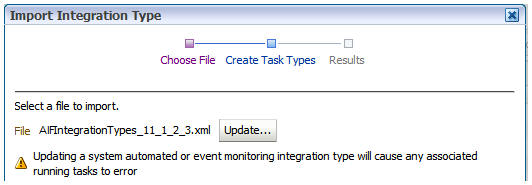
Browse to select FMIntegrationTypes_11_1_2_3.xml, and click Next.
-
Select the integration types for which you want to automatically create task types, and click Next to import the integration types.

-
At the Results screen, click Close.
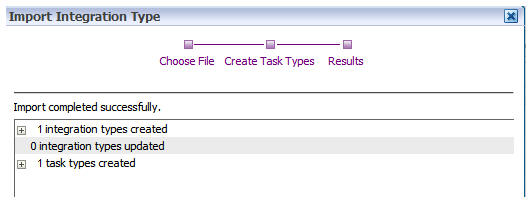
After importing the integration types, you next edit the AIF application information.
-
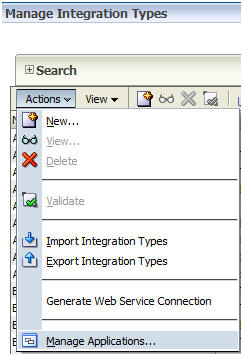
Select Manage > Integration Types.
-
Select Actions > Manage Applications.
-
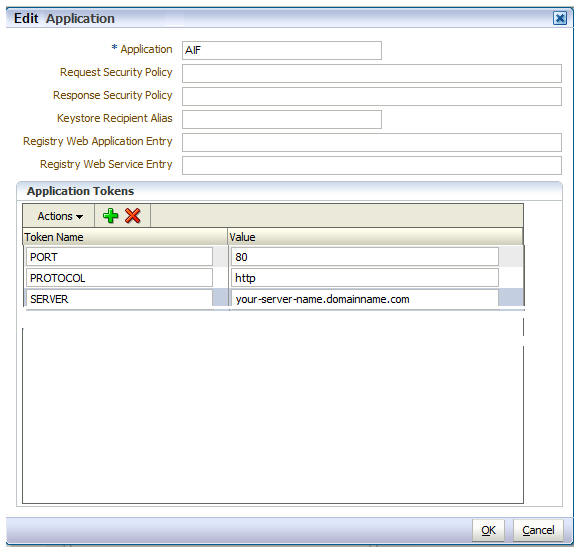
Open the AIF application and fill the application tokens with the required information..
Token
Description
PROTOCOL
Protocol used to invoke the FDMEE RuleService. The value should be http or https.
SERVER
The EPM FDMEE server name where the RuleService web service is deployed.
PORT
The EPM FDMEE server port where the RuleService web service is deployed.
After configuring the AFI application, you next seed the Execute Data Rule Async System Automated integration type.
-
Select Manage > Integration Types.
-
Select the Execute Data Rule Async integration type.

-
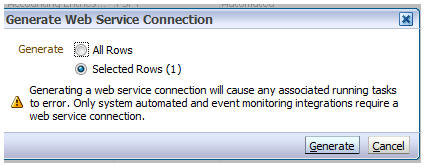
Select Actions > Generate Web Service Connection.

-
Click Generate to generate the automated integration types.
Troubleshooting
The following sections cover some typical problems and suggested solutions.
PolicySet Invalid: WSM-06102 PolicyReference The policy referenced by URI oracle/wss11_saml_or_username_token_with_message_protection_service_policy could not be retrieved.
-
Occurrence: This issue could occur when a user is trying to execute the Execute Data Rule Async task.
-
Cause: Java keystore is not configured.
- Fix: The Java keystore needs to be configured for the EPM domain as described in the Generating the Java Keystore for Message Protection section. Additionally, verify that the wsm-pm application is set to Active in the WebLogic Console’s Deployments.
FDMEE Task Fails With Error
-
Occurrence: FDMEE task fails with an error when running in an FCM schedule.
-
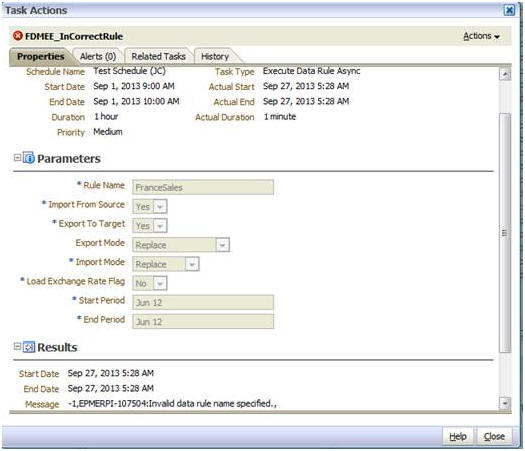
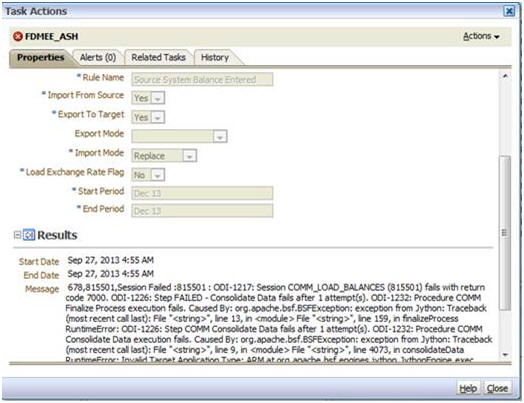
Cause: To find the cause, double click the FCM task, and see the Message field of the Results section.
-
Case 1: Invalid Data Rule name specified. Reopen the task, correct the Rule Name parameter, and save. This should re-execute the task.
-
Case 2: ODI errors. Take the corrective action pertaining to the ODI error and then reopen the task for execution.
Summary
In this tutorial, you learned to:
- Generate the Java keystore for message protection
- Import FDMEE integration types into Close Manager
- Perform troubleshooting
Credits
- Lead Curriculum Developer: Mark Mitsock
- Other Contributors:Ashutosh Bhatikar, Ron Reiley
To navigate this Oracle by Example tutorial, note the following:
- Topic List:
- Click a topic to navigate to that section.
- Expand All Topics:
- Click the button to show or hide the details for the sections. By default, all topics are collapsed.
- Hide All Images:
- Click the button to show or hide the screenshots. By default, all images are displayed.
- Print:
- Click the button to print the content. The content that is currently displayed or hidden is printed.
To navigate to a particular section in this tutorial, select the topic from the list.