Installing and Configuring Oracle® Hyperion Financial Close Management 11.1.2.3.000 With SOA Clustering
Purpose
This tutorial covers installation and configuration of Financial Close Management 11.1.2.3.000 in an environment that uses SOA clustering.
Note: Upgrades from previous installations are not supported.
Time to Complete
Approximately 8 hours
Overview
In this tutorial, you install and configure the components required for Financial Close Management 11.1.2.3.000 in an environment that uses SOA clustering. This installation assumes that the Oracle HTTP Server installed by EPM System Installer is the logical host.
Prerequisites
Before starting this tutorial, you should:
. |
Ensure that the IPv6 Network is properly working if this feature is enabled on your machines – see Appendix D: IPv6 Network. |
|---|---|
. |
Have access (with sysdba privileges) to an Oracle 11g or MS SQL Server 2005/2008 database. |
. |
Have access (with administrative rights) to an external authentication provider, such as Oracle Internet Directory, Microsoft Active Directory, or SunOne. |
. |
Have access to the installation files for the following software: |
Database Prerequisites
Database Versions
Oracle SOA Service Infrastructure supports the following database versions:
- Oracle Database 10g (10.2.0.4 or later for non-XE database)
- Oracle Database 11g (11.1.0.7 or later for non-XE database)
To determine the database version, execute this query:
SQL>select version from sys.product_component_version where product like 'Oracle%';
Database Initialization Parameters
Ensure that the following initialization parameter is set to the required value. It is checked by the Repository Creation Utility:
Processes = 300 or greater (the parameter class is Static)
To check the value of the initialization parameter using SQL*Plus, you can use the SHOW PARAMETER command.
As the SYS user, issue the SHOW PARAMETER command as follows:
SQL> SHOW PARAMETER processes
Set the initialization parameter using the following command:
SQL> ALTER SYSTEM SET processes=300 SCOPE=SPFILE
After setting the parameter, restart the database.
Installation and Configuration Sequence
WebLogic is required as the Web application server for both the Enterprise Performance Management (EPM) components and Service Oriented Architecture (SOA) Suite. Your installation and configuration sequence may vary based on whether or not you have an existing WebLogic installation.
Clustered Install Scenario
- SOAHOST1
- AdminServer
- FoundationServices0
- FinancialClose0
- ERPIntegrator0
- SOA Server0 (WLS_SOA1)
- OWSM Server0 (WLS_WSM1)
- SOAHOST2
- FoundationServices1
- FinancialClose1
- ERPIntegrator1
- SOA Server1 (WLS_SOA2)
- WLS_WSM1 (WLS_WSM2)
Note: SOAHOST1 and SOAHOST2 should be replaced with actual Host names during installation.
Running the Repository Creation Utility
. |
In the folder to which you unzipped the utility, navigate to the rcuHome\bin folder and run rcu.bat.
|
|---|---|
. |
On the Welcome screen, click Next.
|
. |
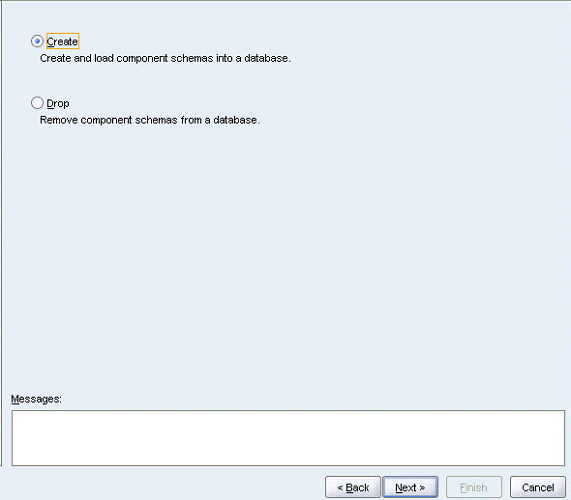
On the Create Repository screen, select Create, and then click Next.
|
. |
On the Database Connection Details screen, enter the database connection details. Example for Oracle database:
Example for MS SQL database:
|
. |
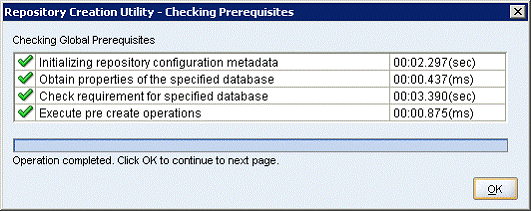
At the prerequisites confirmation prompt, click OK. If a warning prompt regarding the character set is displayed, click Ignore.
|
. |
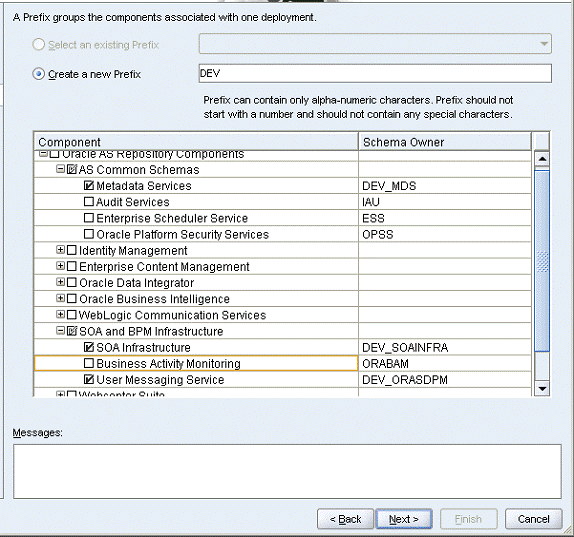
On the Select Components screen, in the Create a new prefix text box, enter a prefix for the schema tables.
|
. |
In the Component list, under SOA and BPMA Infrastructure, select SOA Infrastructure, and click Next. You will see that, User Messaging Service under SOA and BPM Infrastructure and Metadata ServicesAS Common Schemas get selected automatically when you selected SOA Infrastructure.
|
. |
At the prerequisites confirmation prompt, click OK.
|
. |
On the Schema Passwords screen, select Use the same password for all schemas, enter a password, and click Next.
|
. |
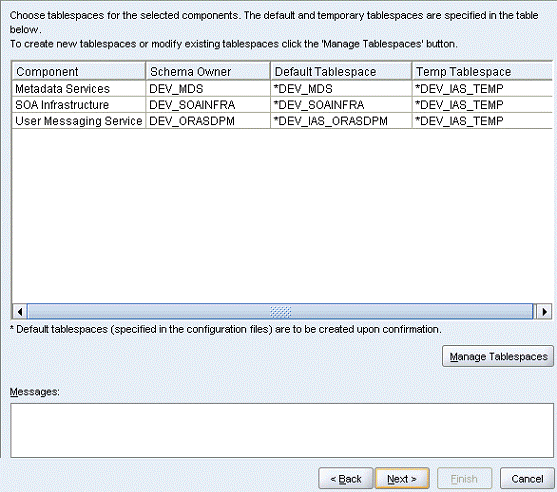
On the Map Tablespace screen, leave the default tablespace names and click Next. Note: The example below is for Oracle.
|
. |
At the confirmation prompt, click OK. Note: The example below is Oracle.
|
. |
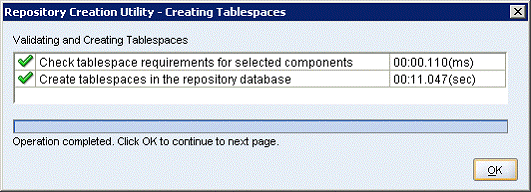
At the completion prompt, click OK. Note: The example below is Oracle.
|
. |
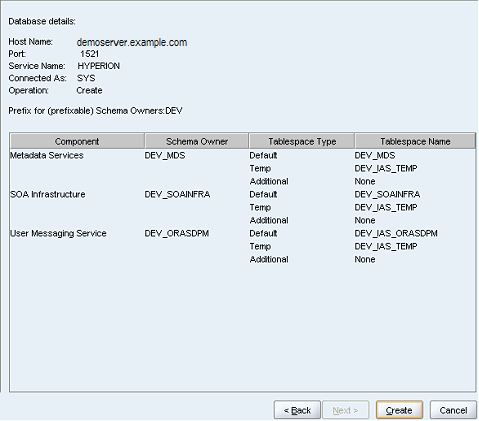
On the Summary screen, click Create. This may take a while.
|
. |
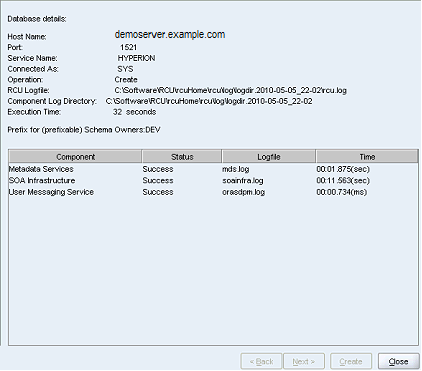
On the Completion Summary screen, click Close.
|






Configuring the Repository
Configuring SOA Schemas for Transactional Recovery Privileges
You need the appropriate database privileges to allow the Oracle WebLogic Server transaction manager to query for transaction state information and issue the appropriate commands, such as commit and rollback, during recovery of in-flight transactions after a WebLogic Server container crash.
To configure the SOA schemas for transactional recovery privileges:
. |
Log on to sqlplus as a user with sysdba privileges. For example:
|
|---|---|
. |
Grant select on sys.dba_pending_transactions to soaha_soainfra.
|
. |
Grant force any transaction to soaha_soainfra.
|
Shared Storage Prerequisites
For proper recovery in case of failure, store JMS, JRFASYNC and transaction logs in a location that is accessible to all the nodes that can resume the operations after a failure in a managed server. This requires a shared storage location that can be referenced by multiple nodes.
Create three directories “jms”, “tlogs” and “jrfAsync” in a Shared storage location as described below.
For Linux:
The shared storage can be a NAS or SAN device. The following is an example command based on a NAS device. Your options may be different from the ones specified in this section:
APPHOST1> mount nasfiler:/vol/volX/FMWshared
MW_HOME -t nfs -o
rw,bg,hard,nointr,tcp,vers=3,timeo=300,rsize=32768,wsize=32768
For Windows:
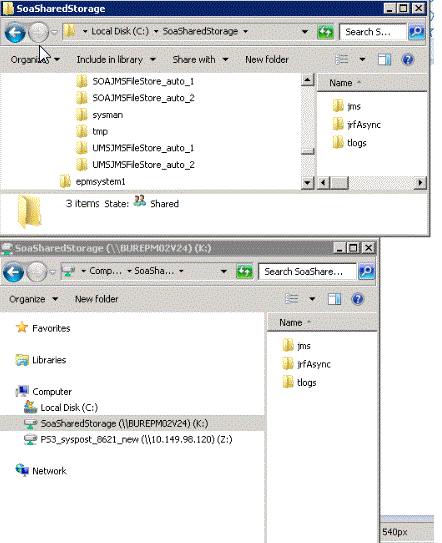
Create a folder in one of the SOA nodes and share that for all other SOA nodes. From all nodes map theshared folder to one of the drives, and make sure to use the same drive letter in all nodes, including the server that has folder. In this folder, create three sub-folders as “jms”, “tlogs” and “jrfAsync”. These will be used during Configuring a Shared JMS Persistence Store setup.
For e.g. Create a shared Folder SoaSharedStorage on SOAHOST1. Map it to drive K on SOAHOST1 as shown in the screen shot. On SOAHOST2, map the folder SoaSharedStorage of SOAHOST1 to the same drive K.
Synchronizing System Clocks
Synchronizing system clocks on each of the cluster nodes for high availability SOA deployments is required. Verify that the clocks on both machines are the same. If not, change the time on the machines as admin, and restart the machines.
Installing EPM Components on SOAHOST1 and SOAHOST2
To install the EPM components, you run the Oracle Hyperion Enterprise Performance Management System Installer. Foundation Services and Financial Close Management are required components. If it is not already present, WebLogic is installed as part of the Foundation Services installation. This has to be performed on both SOAHOST1 and SOAHOST2. You configure EPM components after you install and configure SOA Suite.
. |
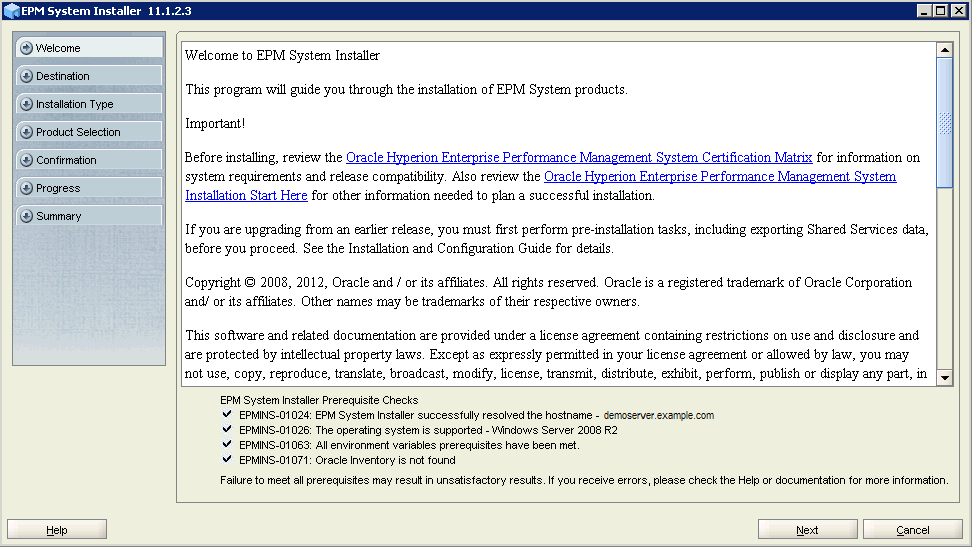
Navigate to the installation folder for the Hyperion software and run installtool.cmd. Note: Throughout this tutorial, for Linux versions of command, consult Appendix D: Linux Commands.
|
|---|---|
. |
Select a language, and click OK.
|
. |
On the Welcome screen, click Next.
|
. |
On the Destination screen, select the location for the Middleware Home directory, and click Next.
|
. |
On the Installation Type screen, select New installation, and click Next.
|
. |
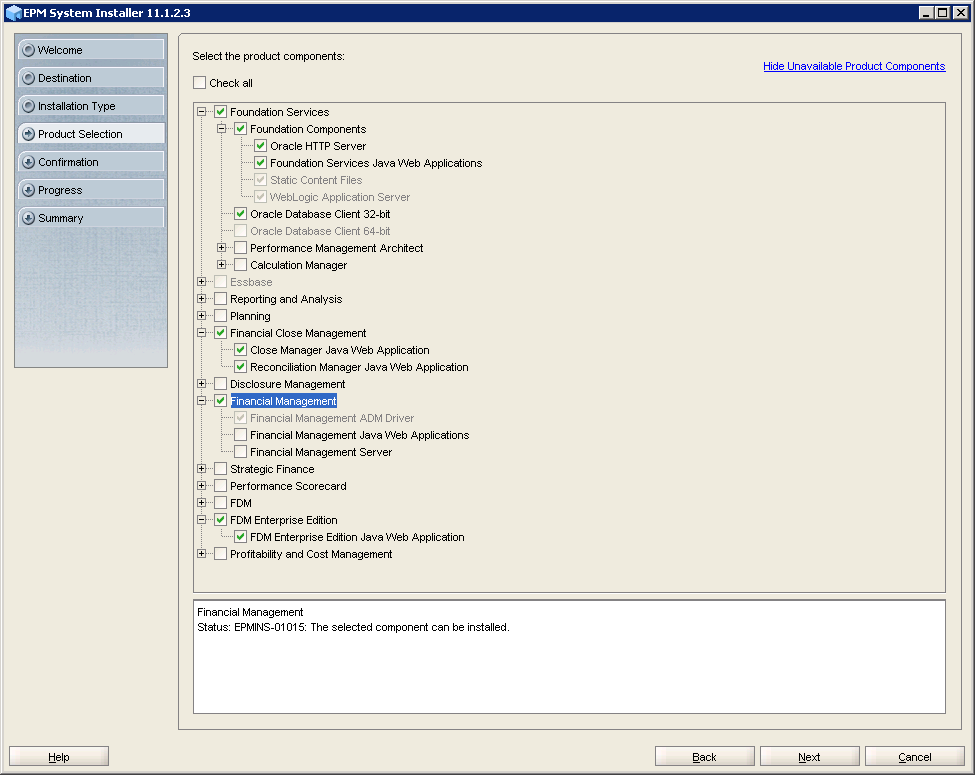
On the Product Selection screen: a. Deselect Check All. b. Under Foundation Services select Foundation Components. c. Select Financial Close Management. d. Select FDM Enterprise Edition (Oracle Database Client 32 bit and Financial Management ADM Driver will be auto-selected). e. Click Next.
|
. |
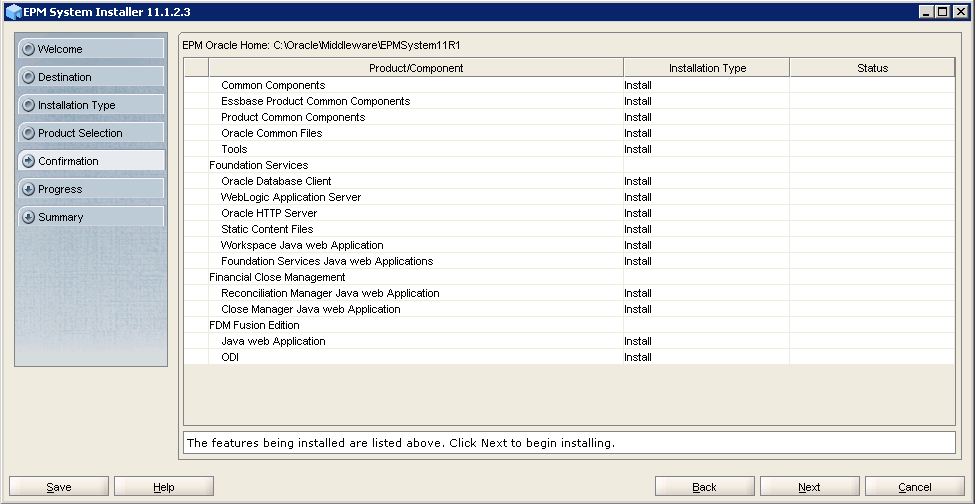
On the Confirmation screen, click Next.
|
. |
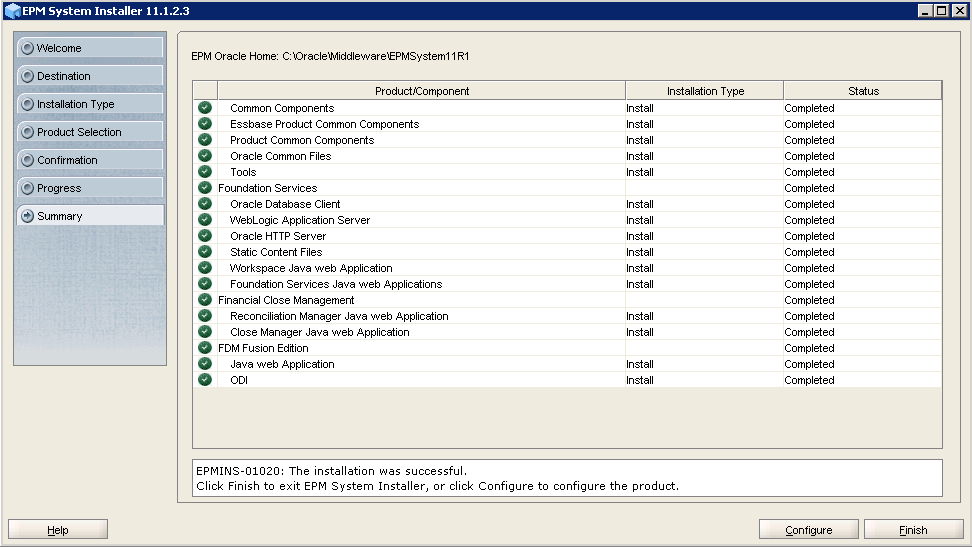
On the Summary screen, click Finish.
|



Creating the Database User
Follow the instructions provided in the appendices for creating the database users for your database:
- For Oracle, follow the instructions in Appendix A: Creating an Oracle Database User.
- For MS SQL Server, follow the instructions in Appendix B: Configuring Microsoft SQL Server.
Installing and Configuring SOA Suite
The following topics describe how to install and configure SOA Suite.
Installing SOA Suite on SOAHOST1 and SOAHOST2
When you install SOA Suite, select the same Middleware Home directory that you specified for installing EPM Components. The Middleware Home directory contains the WebLogic installation, which is required for installing SOA Suite.
. |
Open a command prompt and navigate to the Disk1 folder under the SOA Suite installation directory and enter the following command.
|
|---|---|
. |
On the Welcome screen, click Next.
|
. |
Select Skip Software Updates and click Next.
|
. |
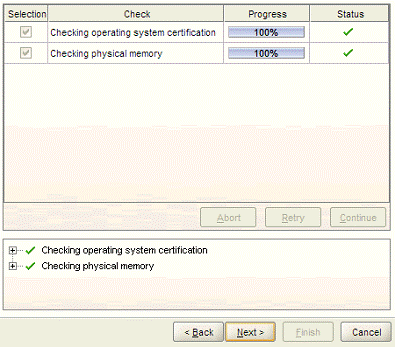
On the Prerequisites screen, click Next.
|
. |
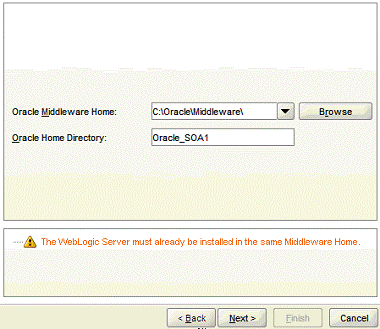
On the Specify Installation Location screen, verify that the Middleware Home directory is the directory that you selected when you installed the EPM Components, and click Next. Be sure to modify the default Middleware Home location if needed.
|
. |
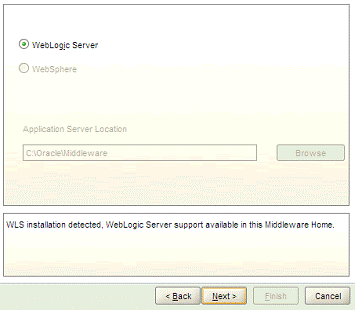
On the Application Server screen, verify that the WebLogic Server is selected, and click Next.
|
. |
On the Installation Summary screen, click Install.
|
. |
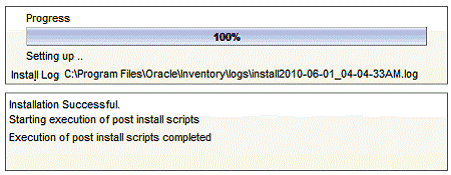
On the Installation Progress screen, when the Installation Successful message is displayed, click Next.
|
. |
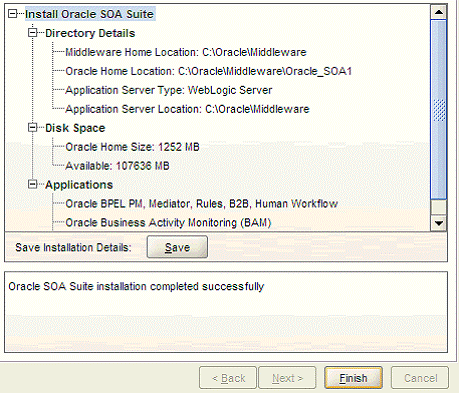
On the Installation Complete screen, click Finish.
|



Configuring SOA Suite on SOAHOST1 to Create a Domain
Run the Configuration Wizard from the SOA home directory to create a domain containing the Administration Server and Oracle Web Services Manager. Later, you will extend the domain to contain SOA components.
Note: Before running the configuration wizard, verify that the database where you installed the repository is running. For Oracle RAC databases, it is recommended that all instances are running, so that the validation check later on is more reliable.
. |
Select Start, then Programs, then Oracle SOA 11g - Home1, and then Configure Application Server. Note: You can also start configuration using config.cmd, or for Linux ./config.sh. For example; c:\Oracle\Middleware\Oracle_SOA1\common\bin\config.cmd).
|
|---|---|
. |
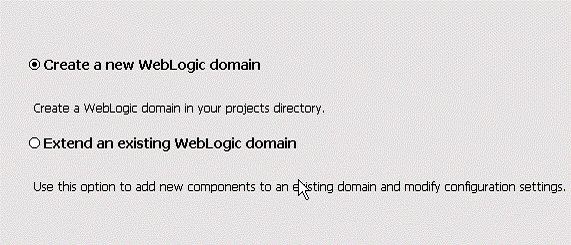
Select Create a new WebLogic domain, and click Next.
|
. |
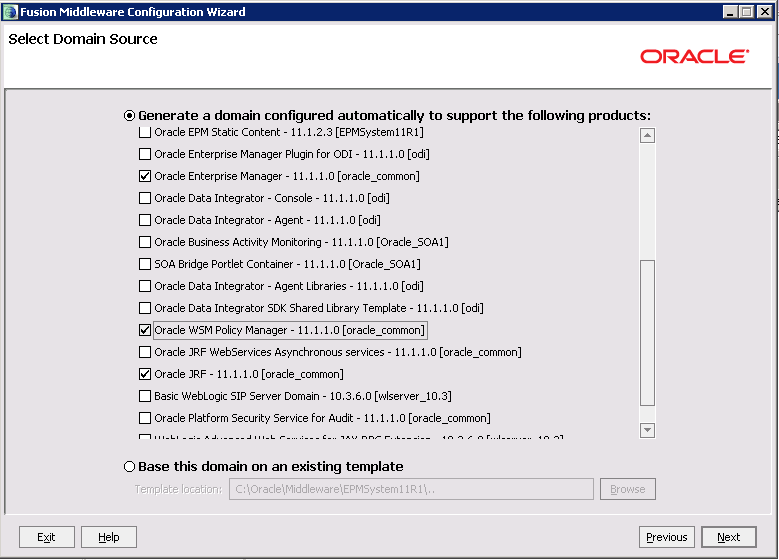
On the Select Domain Source screen, select Generate a domain configured automatically to support the following products, then select then select Oracle Enterprise Manager, Oracle WSM Policy Manager and Oracle JRF, and click Next.
|
. |
On the Specify Domain Name and Location screen, enter a domain name, accept the default locations, and click Next. You must use the same domain name when you configure the EPM components. In this example, the domain name is base _domain.
|
. |
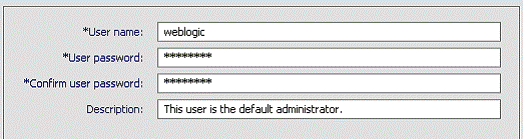
On the Configure User Name and Password screen, enter a user name and password for the WebLogic domain administrator, You use this domain administrator name and password for the EPM components as well. In this example,
|
. |
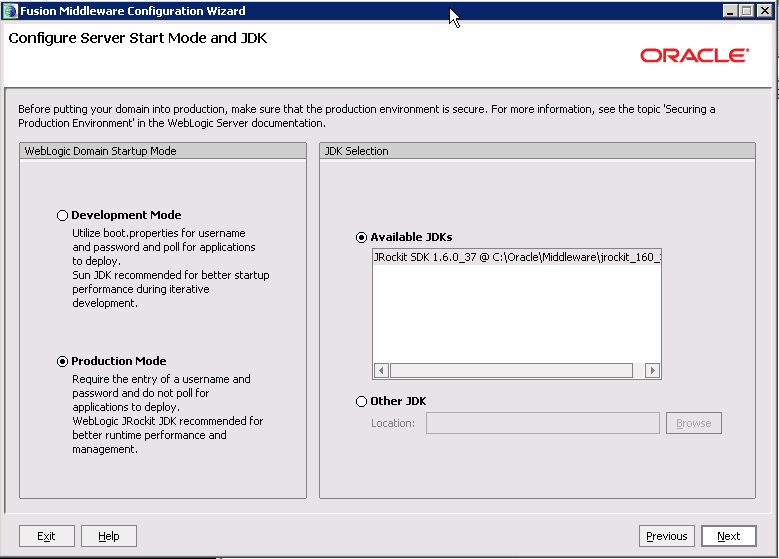
On the WebLogic Domain Startup Mode screen, change the mode to
|
. |
On the Configure JDBC Component Schema screen, select each component schema and provide the database connection information, Example for Oracle database:
Example for MS SQl Server database: |
. |
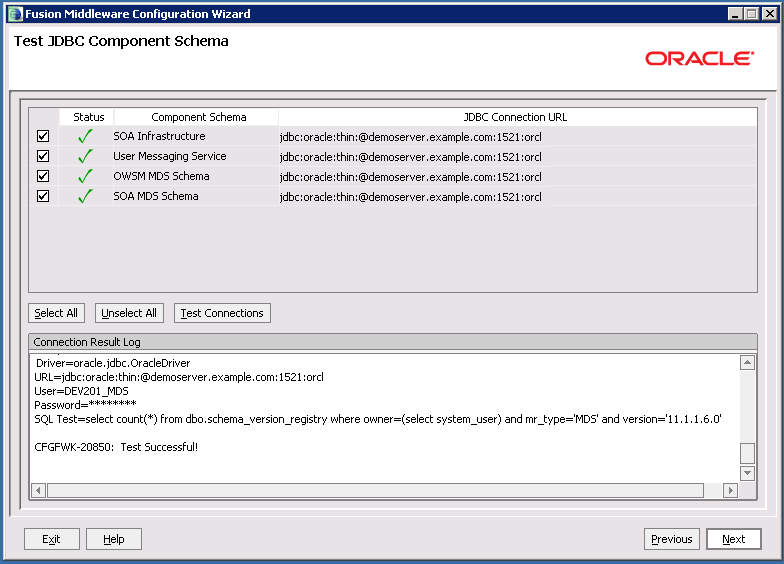
On the Test Component Schemas screen, verify that the connections to your data sources are successful, and click Next.
|
. |
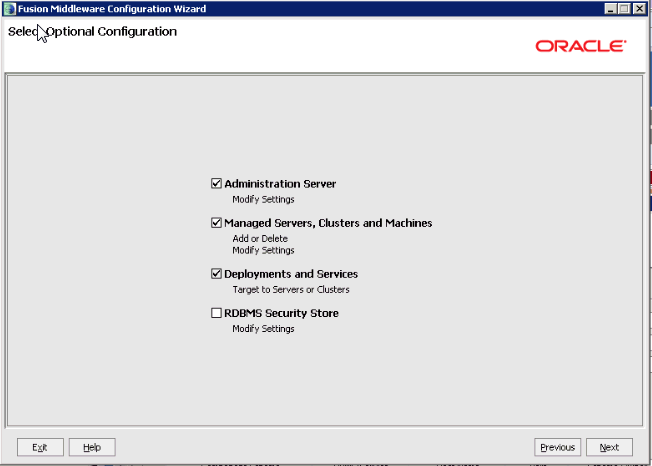
In the Select Optional Configuration screen, select Administration Server; Managed Servers, Clusters, and Machines; and Deployments and Services.
|
. |
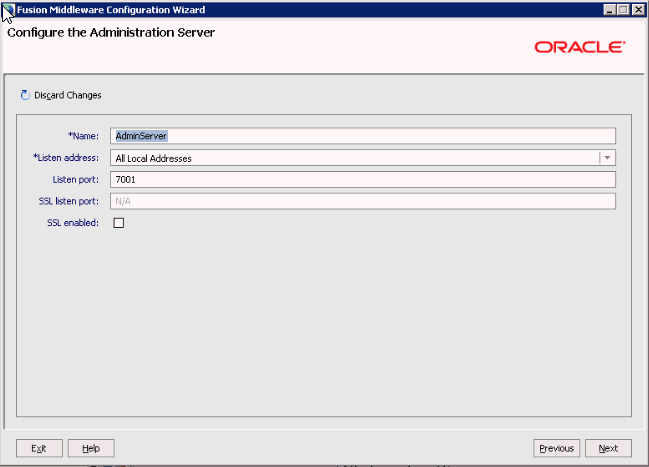
On the Configure the Administration Server screen, enter the following values:
|
. |
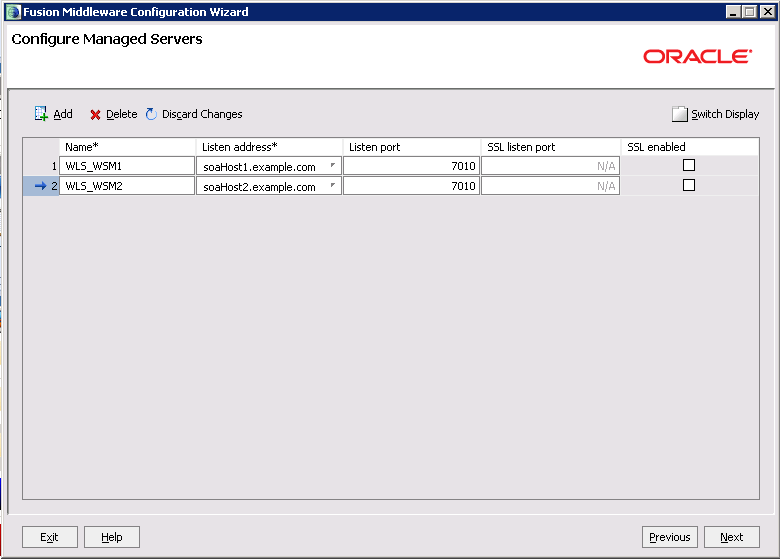
On the Configured Manage Servers screen, click Add to define the two servers below, and then click Next.
|
. |
On the Configure Clusters screen, click Add to enter the cluster details below, and then click Next.
|
. |
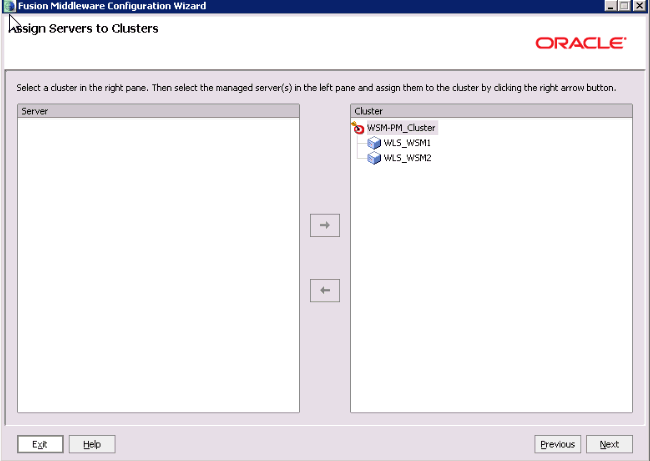
In the Assign Servers to Clusters screen, assign both WLS_WSM1 and.WLS_WSM2 to the WSM_PM cluster, and then click Next.
|
. |
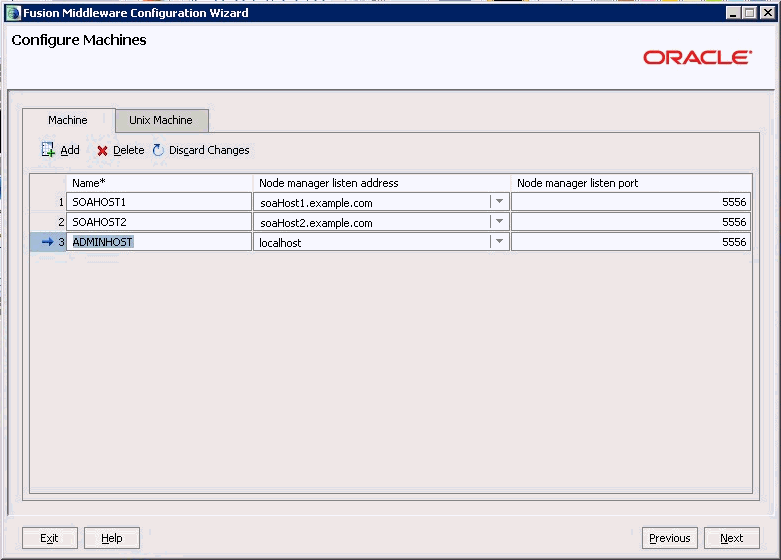
On the Configure Machines screen, click Add to the machines below, and then click Next.
Leave all other fields at their default values Note: For Linus/unix, click the Unix Machine tab and add the machines.
|
. |
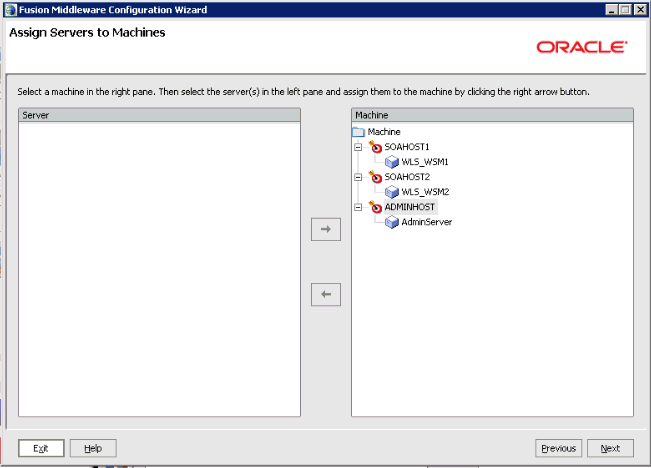
In the Assign Servers to Machines screen, make the assignments below, and then click Next.
|
. |
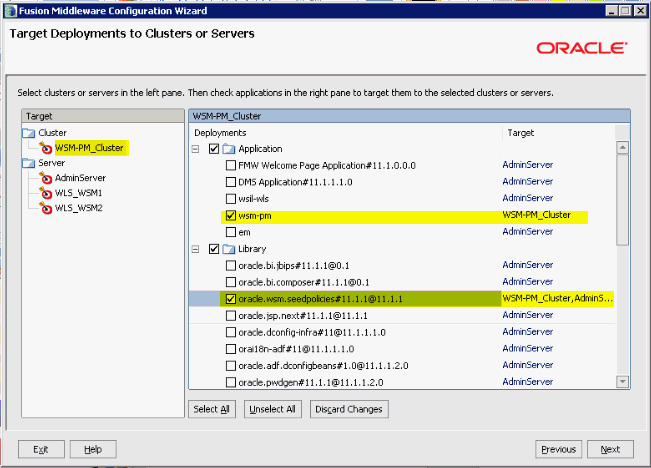
On the Target Deployments to Clusters or Servers screen, perform the following:
|
. |
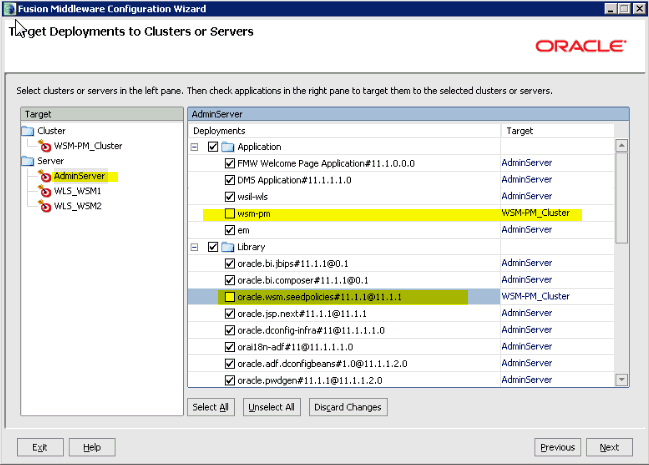
On the Target Deployments to Clusters or Servers screen, in the Target list select AdminServer, and in the right de-select wsm=pm and oracle.wsm.seedpolicies.Verify that, with the exception of wsm-pm and oracle.wsm.seedpolicies, all other application and seedpolicies are targeted only to Admin Server libraries, and then click Next.
|
. |
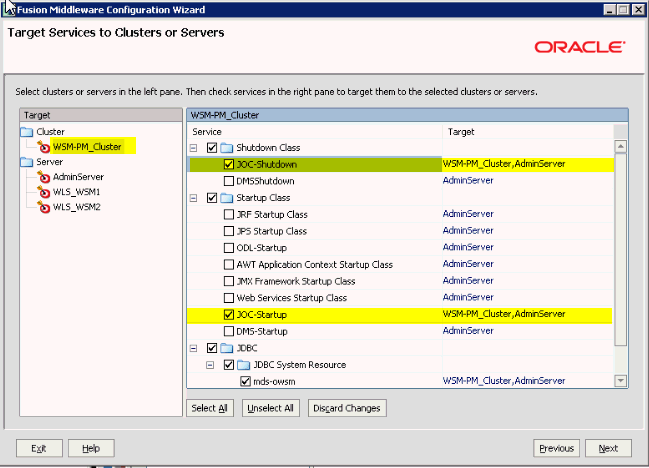
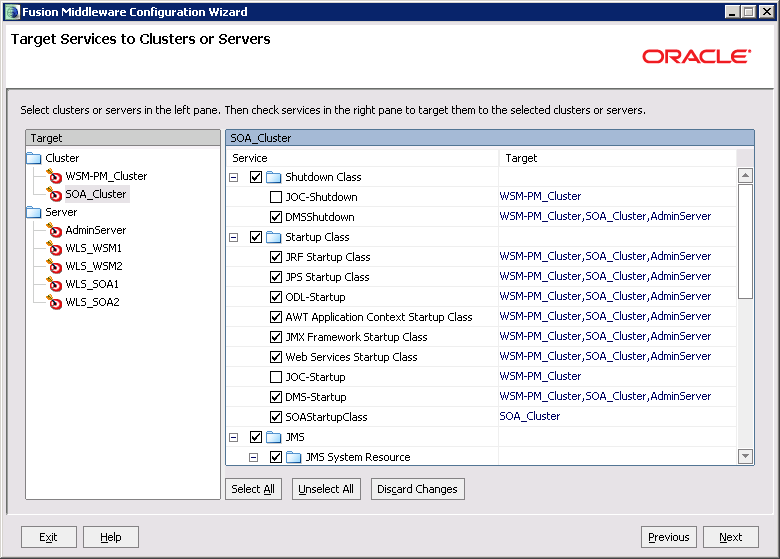
On the Target Services to Clusters or Servers screen, perform these steps to make sure the JOC-Shutdown and JOC-Startup services are targeted to the WSM-PM_Cluster and are not targeted to Admin Server:
|
. |
On the Configuration Summary screen, click Create.
|
. |
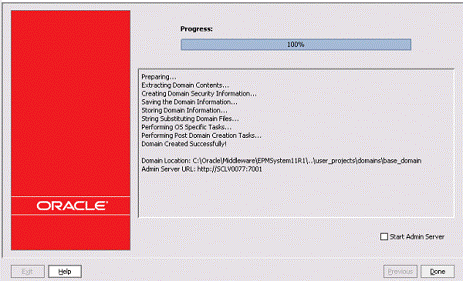
On the Creating Domain screen, when the process is complete, click Done.
|



Starting Node Manager on SOAHOST1
Perform these steps to start Node Manager on SOAHOST1:
. |
Navigate to ORACLE_COMMON_HOME/common/bin directory. The default location for windows is c:/Oracle/Middleware/oracle_common.
|
|---|---|
. |
Run setNMProps to set the StartScriptEnabled property to 'true' before starting Node Manager. For Windows: setNMProps.cmd A message displays saying that the required properties file was copied.
|
. |
Navigate to the WEBLOGIC_HOME/common/bin directory. The default location for Windows is c:/Oracle/Middleware/wlsserver_10.3/server/bin
|
. |
Run startNodeManager script to Start Node Manager: For Windows:startNodeManager.cmd
|
Starting the Administration Server on SOAHOST1
Perform these steps to start Administration Server on SOAHOST1:
. |
To start the WebLogic Admin Server, select Start, then Programs, then Oracle WebLogic, then User Projects, then <domain>, and then Start Admin Server, where <domain> is the WebLogic domain you created with the SOA configuration tool. Note: You can also start the server with startWebLogic.cmd. For example: c:\Oracle\Middleware\user_projects\domains\base_domain\bin\startWebLogic.cmd |
|---|---|
. |
When prompted, enter the WebLogic admin user name and password. The process will take a few minutes and is complete when you see '<Server started in RUNNING mode>' in the the command prompt box.
|
Validating the Administration Server
Perform these steps to validate the Administration Server configuration:
. |
In a browser, go to http://SOAHOST1VHN0:7001/console.
|
|---|---|
. |
Log in as the administrator.
|
. |
Verify that the WLS_WSM1 and WLS_WSM2 managed servers are listed.
|
. |
Verify that the WSM-PM_Cluster cluster is listed.
|
. |
Verify that you can access Oracle Enterprise Manager at http://SOAHOST1VHN0:7001/em.
|
. |
Log in to EM Console with the username and password.
|
Applying the Java Required Files (JRF) Template to the WSM-PM_Cluster
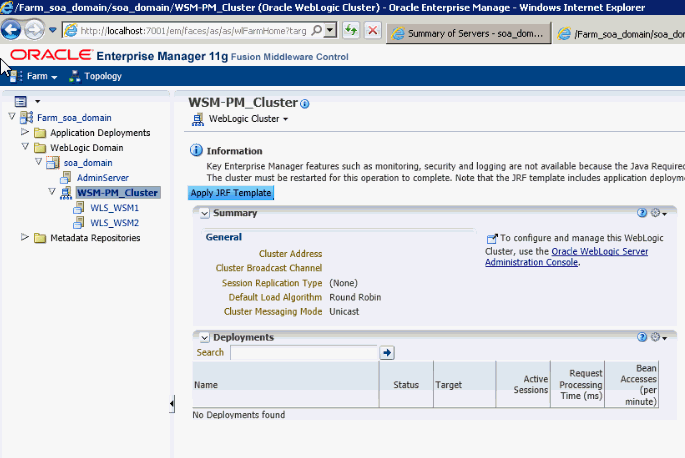
After the domain is created with the Configuration Wizard, you must target a number of resources not included in the WebLogic server installation to the WSM-PM Cluster.
. |
Log in to Oracle Enterprise Manager Fusion Middleware Control with the username and password.
|
|---|---|
. |
On the navigation tree on the left, expand Farm_<domain_name>, WebLogic Domain, and then <domain_name>, and select WSM_PM_Cluster.
|
. |
Click Apply JRF Template on the right.
|
. |
Wait for the confirmation message to appear on the screen.
|
Disabling Host Name Verification for the Oracle WebLogic Administration Server and the WLS_WSM1 and WLS_WSM2 Managed Servers
This procedure is required if you have not set up the appropriate certificates to authenticate the different nodes with the Administration Server. If you have not configured the server certificates, you will receive errors when managing the different WebLogic Servers. To avoid these errors, disable host name verification while setting up and validating the topology, and enable it again once the Enterprise Deployment topology configuration is complete.
. |
Log in to Oracle WebLogic Server Administration Console and click Lock and Edit.
|
|---|---|
. |
Expand the Environment node in the Domain Structure window.
|
. |
Click Servers. The Summary of Servers page is displayed.
|
. |
Select AdminServer(admin) in the Names column of the table. The Settings page for AdminServer(admin) appear.
|
. |
Click the SSL tab.
|
. |
Click Advanced.
|
. |
Set Hostname Verification to None. 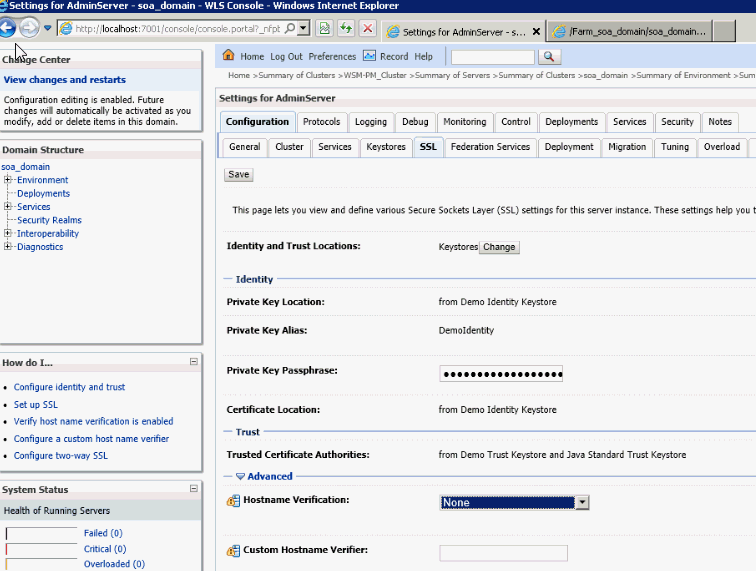
|
. |
Click Save.
|
. |
Repeat the above steps for the WLS_WSM1 and WLS_WSM2 servers.
|
. |
Save and activate the changes.
|
. |
Restart the Administration and WLS_WSM1 servers.
|
Starting and Validating the WLS_WSM1 Managed Server
Perform the following steps to start the WLS_WSM1 managed server and check that it is configured correctly:
. |
Start the WLS_WSM1 managed server using the Oracle WebLogic Server Administration Console as follows:
|
|---|---|
. |
Verify that the server status is reported as "Running" in the Admin Console, then access http://SOAHOST1:7010/wsm-pm. |
. |
Click Validate Policy Manager. A list of policies and assertion templates available in the data store appear.
|
Propagating the Domain Configuration to SOAHOST2 Using the Unpack Utility
Perform the following steps to start the WLS_WSM1 managed server and check that it is configured correctly:
. |
Navigate to the ORACLE_COMMON_HOME/common/bin directory. The default for location for < ORACLE_COMMON_HOME> is c:/Oracle/Middleware/oracle_common. |
|---|---|
. |
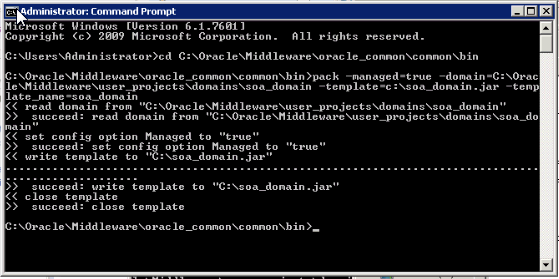
Run the pack command on SOAHOST1 to create a template pack as follows: The default for <MIDDLEWARE_HOME> for Windows is c:/Oracle/Middleware.
|
. |
Copy the template file created on SOAHOST1 to ORACLE_COMMON_HOME/common/bin on SOAHOST2.
|
. |
Login to the SOAHOST2 machine.
|
. |
Navigate to the ORACLE_COMMON_HOME/common/bin directory.
|
. |
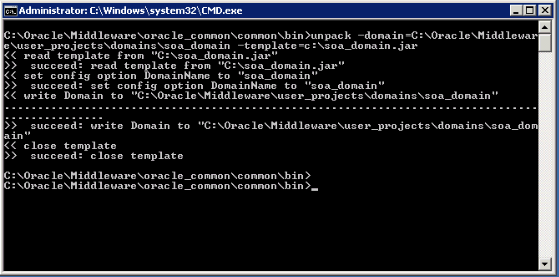
Run the unpack command on SOAHOST2 to unpack the propagated template:
|
Starting Node Manager on SOAHOST2
Perform these steps to start Node Manager on SOAHOST2:
. |
Navigate to ORACLE_COMMON_HOME/common/bin directory. The default location for windows is c:/Oracle/Middleware/oracle_common.
|
|---|---|
. |
Run setNMProps to set the StartScriptEnabled property to 'true' before starting Node Manager. For Windows: setNMProps.cmd A message displays saying that the required properties file was copied. |
. |
Navigate to the WEBLOGIC_HOME/common/bin directory. The default location for Windows is c:/Oracle/Middleware/wlsserver_10.3/server/bin
|
. |
Run startNodeManager script to Start Node Manager: For Windows:startNodeManager.cmd
|
Starting and Validating the WLS_WSM2 Managed Server
Perform the following steps to start the WLS_WSM2 managed server and check that it is configured correctly:
. |
Start the WLS_WSM2 managed server using the Oracle WebLogic Server Administration Console as follows:
|
|---|---|
. |
Verify that the server status is reported as "Running" in the Admin Console, then access http://SOAHOST2:7010/wsm-pm. |
. |
Click Validate Policy Manager. A list of policies and assertion templates available in the data store appear.
|
Configuring the Java Object Cache for Oracle WSM on SOAHOST1
The Java Object Cache (JOC) should be configured on all the servers running Oracle WSM. This local cache is provided to increase the performance of Oracle WSM. The Java Object Cache can be configured using the W_HOME/oracle_common/bin/configure-joc.py script. This is a Python script which can be used to configure JOC in the managed servers. The script runs in WLST online mode and expects the Administration Server to be up and running. When configuring JOC ports for Oracle products, Oracle recommends using ports in the 9988 to 9998 range.
Note: After configuring the Java Object Cache using the wlst commands or configure-joc.py script, all affected managed servers should be restarted for the configurations to take effect.
. |
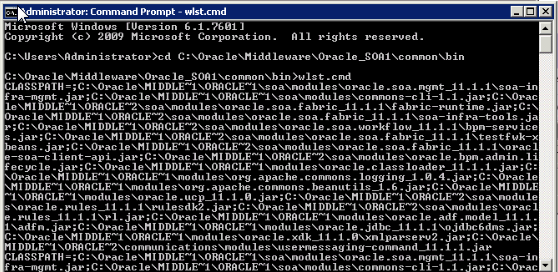
Connect to the Administration Server using the command-line Oracle WebLogic Scripting Tool (WLST) on SOAHOST1. For Windows: c:\Oracle\Middleware\Oracle_SOA1\common\bin\wlst.cmd
|
|---|---|
. |
Type connect(), and enter the WebLogic admin user name and password when prompted. |
. |
After connecting to the Administration Server using wlst, start the script using the execfile command: for example: execfile('c:\Oracle/Middleware/oracle_common/bin/configure-joc.py')
|
. |
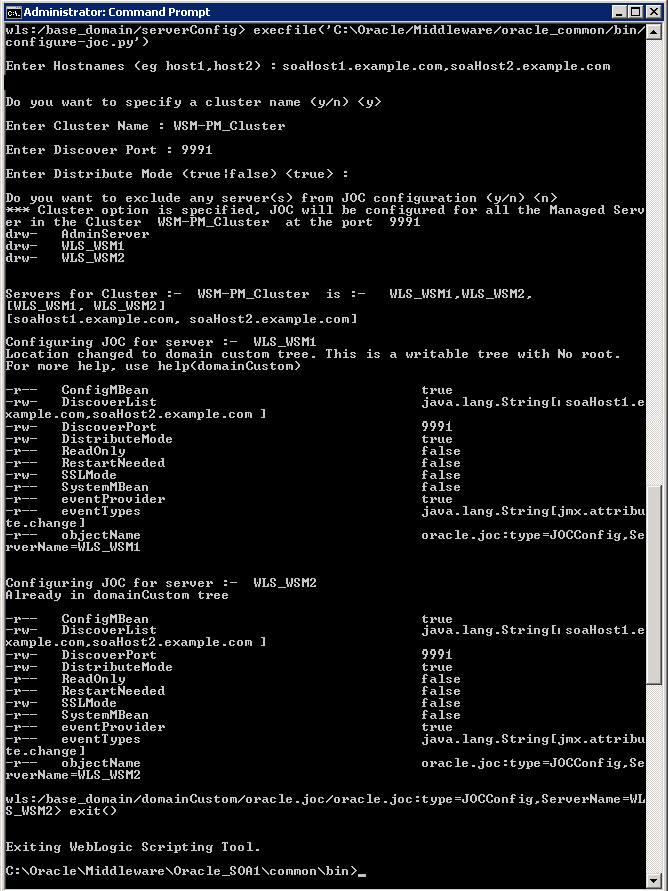
Configure JOC for all the managed servers for a given cluster. Enter 'y' when the script prompts whether you want to specify a cluster name, and also specify the cluster name and discover port, when prompted. This discovers all the managed servers for the given cluster and configures the JOC. The discover port is common for the entire JOC configuration across the cluster. For example: Here is a walk-through for using configure-joc.py for HA environments: execfile('MW_HOME/oracle_common/bin/configure-joc.py')
|
. |
Restart the managed servers, WLS_WSM1 and WLS_WSM2.
|
Shutting Down the Administration Server on SOAHOST1
. |
To stop the WebLogic Admin Server, press and hold Ctrl + C in the command window where WebLogic Admin server has been started.
|
|---|---|
. |
When prompted to terminate the batch job, type 'Y' and hit the enter key. |
Extending the Domain for SOA Components
In this procedure you extend the domain created to contain SOA components.
. |
Navigate to the <ORACLE_SOA_HOME>/common/bin directory. (It is recommended that all database instances should running.) The default location for < ORACLE_SOA_HOME> for Windows is c:/Oracle/Middleware/ Oracle_SOA1.
|
|||||||||||||||||||||||||
|---|---|---|---|---|---|---|---|---|---|---|---|---|---|---|---|---|---|---|---|---|---|---|---|---|---|---|
. |
Start the Configuration Wizard. For Windows: Config.cmd
|
|||||||||||||||||||||||||
. |
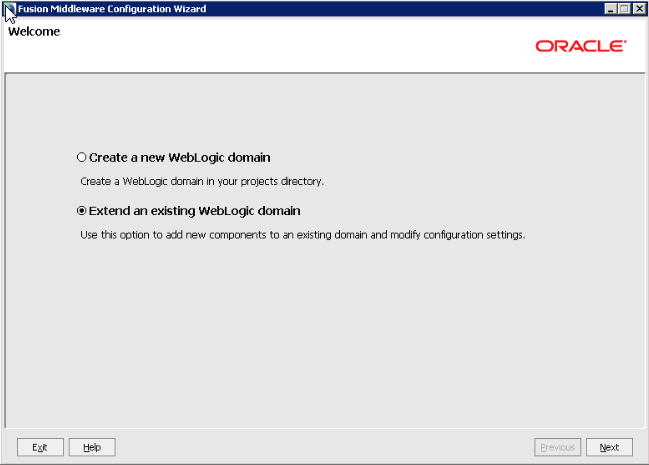
On the Welcome screen, select Extend an existing WebLogic domain, then click Next.
|
|||||||||||||||||||||||||
. |
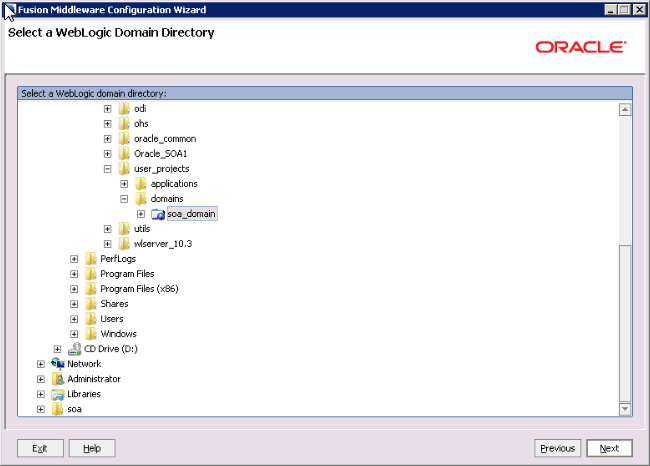
In the WebLogic Domain Directory screen, select the WebLogic domain directory (MIDDLEWARE_HOME/user_projects/domains/<<domain_name>>), then click Next. The default location for MIDDLEWARE_HOME for Windows isc:/Oracle/Middleware
|
|||||||||||||||||||||||||
. |
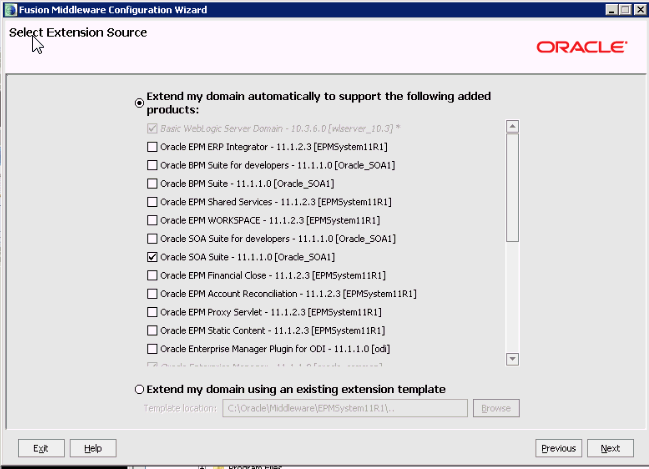
In the Select Extension Source screen, do the following:
Note: The following products should already be selected, and grayed out:
|
|||||||||||||||||||||||||
. |
In the Configure JDBC Component Schema screen, select the SOA Infrastructure, User Messaging Service,
|
|||||||||||||||||||||||||
. |
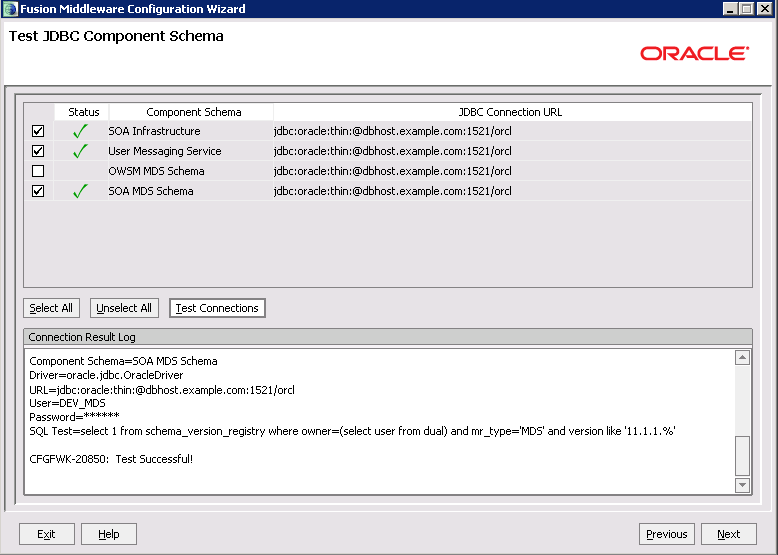
On the Test JDBC Data Sources screen, the connections should be tested automatically. The Status column displays the results. Verify that all connections were successful, then click Next.
|
|||||||||||||||||||||||||
. |
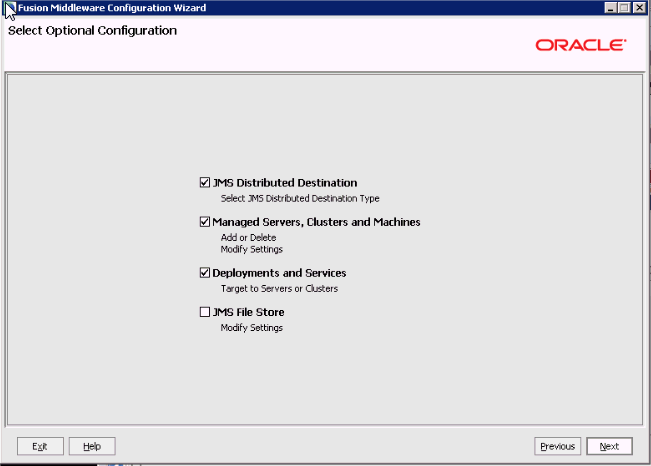
In the Select Optional Configuration screen, select the following JMS Distributed Destinations; Managed Servers, Clusters, and Machines; and Deployments and Services, and then click Next.
|
|||||||||||||||||||||||||
. |
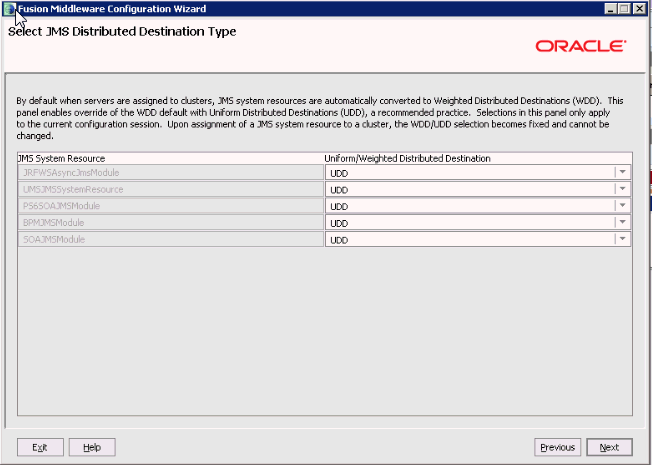
On the Select JMS Distributed Destination Type screen, verify that UDD is selected in the drop down list for UMSJMSystemResource and for SOAJMSModule, then click Next. Note: Ignore the warning message that displays.
|
|||||||||||||||||||||||||
. |
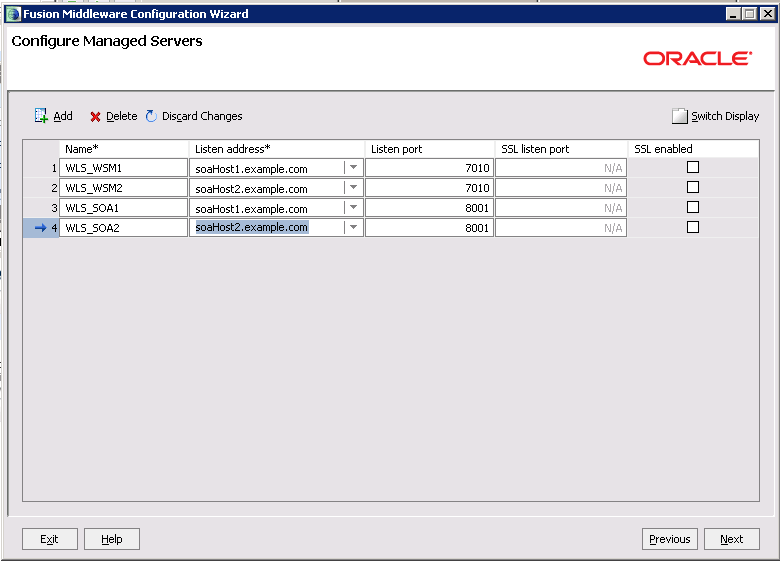
On the Configure Managed Servers screen, add the required managed servers A server called soa_server1 is created automatically. Rename this to WLS_SOA1 and give it the attributes listed as below. You then need to, add a new server called WLS_SOA2. The WLS_WSM1 and WLS_WSM2 managed servers should already be present because they are part of the domain that you are extending. When you are finished the list of managed servers should match table below. Click Next when done.
|
|||||||||||||||||||||||||
. |
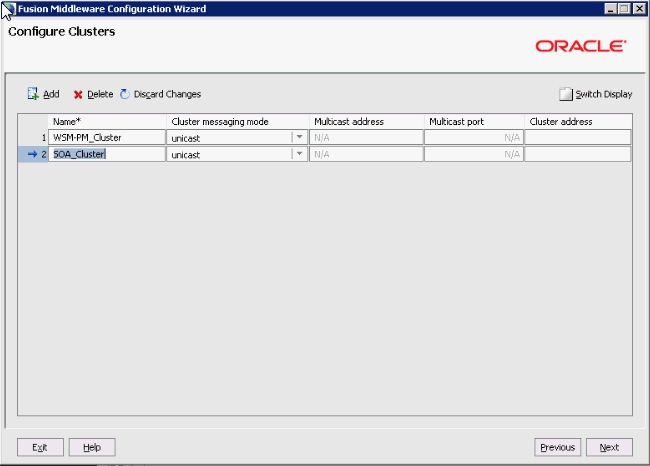
On the Configure Clusters screen, add SOA_Cluster with Cluster Messaging Mode set to unicast, and then click Next.
|
|||||||||||||||||||||||||
. |
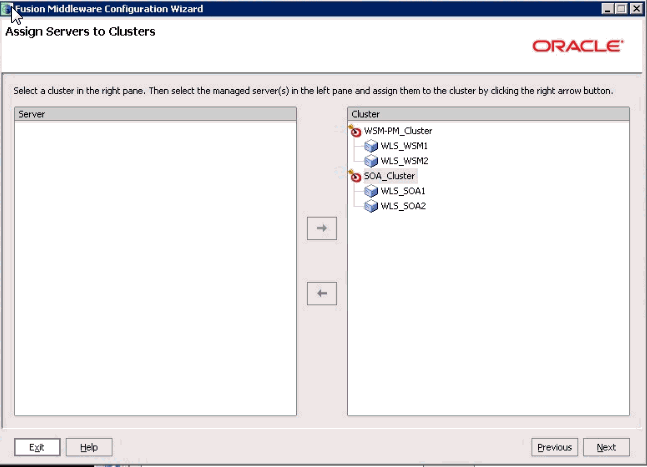
In the Assign Servers to Clusters screen, assign the WLS_SOA1 and WLS_SOA2 servers to SOA_Cluster. Assign the WLS_WSM1 and WLS_WSM2 servers to WSM-PM_Cluster. When finished, click Next.
|
|||||||||||||||||||||||||
. |
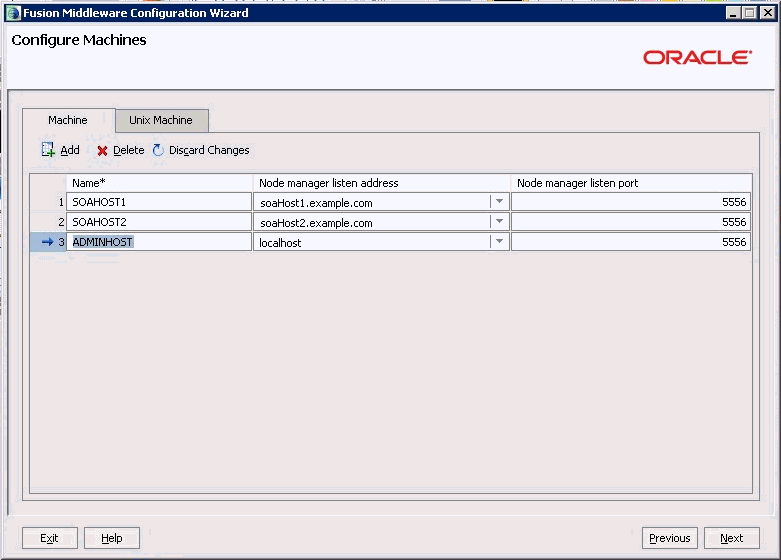
On the Configure Machines screen, delete LocalMachine, which appears by default. After deleting the machine, the screen should match the following:
|
|||||||||||||||||||||||||
. |
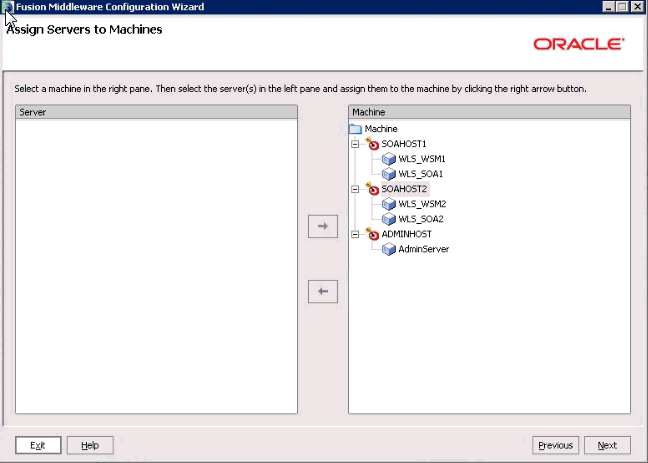
On the Assign Servers to Machines screen, assign WLS_SOA1 and WLS_WSM1 to SOAHOST1, assign WLS_SOA2 and WLS_WSM2 to SOAHOST2, and assign AdminServer to ADMINHOST. When finished, click Next.
|
|||||||||||||||||||||||||
. |
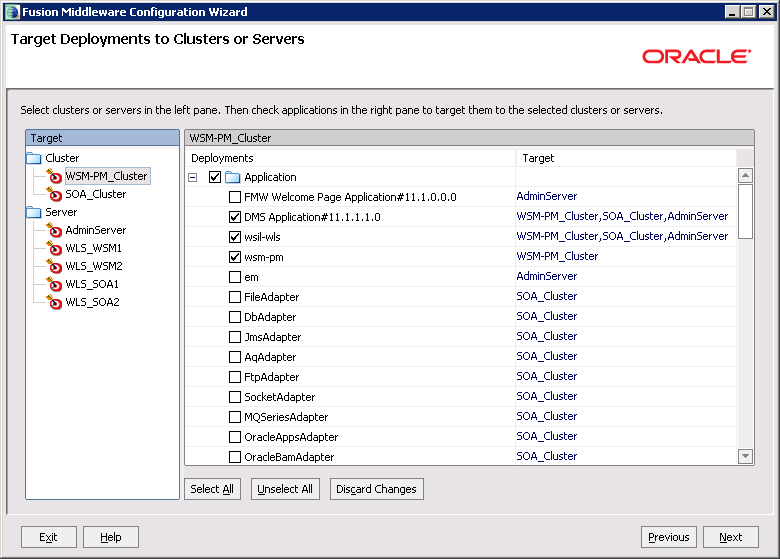
On the Target Deployments to Clusters or Servers screen, perform the steps below:
|
|||||||||||||||||||||||||
. |
On the Target Deployments to Clusters or Servers screen, perform the steps below:
|
|||||||||||||||||||||||||
. |
On the Configuration Summary screen, click Extend.
|
|||||||||||||||||||||||||
. |
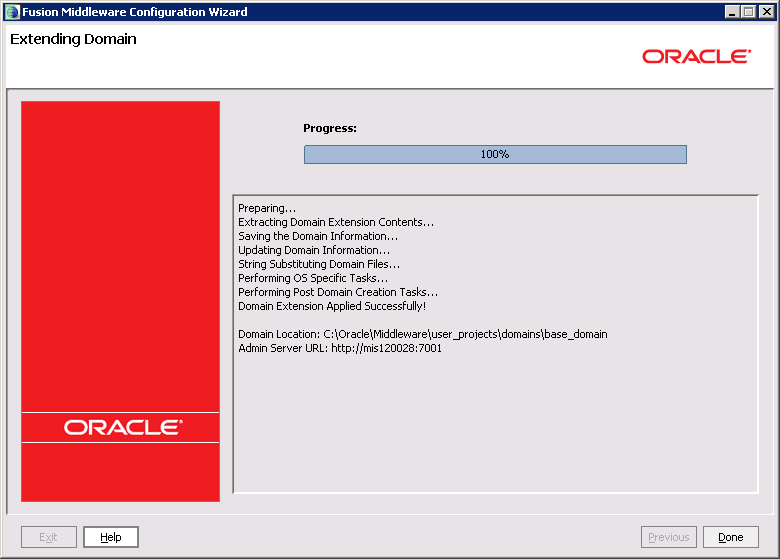
In the Extending Domain screen, click Done.
|

Starting the Administration Server on SOAHOST1
Perform these steps to start Node Manager on SOAHOST2:
. |
To start the WebLogic Admin server, select Start, then Programs, then Oracle WebLogic, then User Projects, then <domain>, and then Start Admin Server. Note: You can also start it with startWebLogic.cmd. For example, c:\Oracle\Middleware\user_projects\domains\base_domain\bin\startWebLogic.cmd).
|
|---|---|
. |
When prompted, enter the WebLogic admin user name and password. The process will take a few minutes and is complete when you see '<Server started in RUNNING mode>' in the command prompt box. |
Configuring Oracle Coherence for Deploying Composites
To add the host name used by Oracle Coherence, perform these steps:
. |
Log into the Oracle WebLogic Server Administration Console.
|
|---|---|
. |
In the Domain Structure window, expand the Environment node, then click Servers. The Summary of Servers page is displayed. |
. |
Click the name of the server (WLS_SOA1 or WLS_SOA2, which are represented as hyperlinks) in the Name column of the table. The settings page for the selected server is displayed. |
. |
Click Lock and Edit.
|
. |
Click the Server Start tab.
|
. |
Enter the following for WLS_SOA1 and WLS_SOA2 into the Arguments field. For WLS_SOA1, enter the following: For WLS_SOA2, enter the following: 
Note: There should be no breaks in lines between the different -D parameters. Do not copy or paste the text from above to your Administration Console's arguments text field. This may result in HTML tags being inserted in the Java arguments. The text should not contain other text characters than those included in the example above. |
Disabling Host Name Verification for the WLS_SOAn Managed Servers
This procedure is required if you have not set up the appropriate certificates to authenticate the different nodes with the Administration Server. If you have not configured the server certificates, you will receive errors when managing the different WebLogic Servers. To avoid these errors, disable host name verification while setting up and validating the topology, and enable it again once the Enterprise Deployment topology configuration is complete.
. |
Log in to Oracle WebLogic Server Administration Console and click Lock and Edit.
|
|---|---|
. |
Expand the Environment node in the Domain Structure window.
|
. |
Click Servers. The Summary of Servers page appears.
|
. |
Select WLS_SOA1 (represented as a hyperlink) in the Names column of the table. The Settings page is displayed.
|
. |
Click the SSL tab.
|
. |
Click Advanced.
|
. |
Set Hostname Verification to None.
|
. |
Click Save.
|
. |
Repeat the above steps for the WLS_SOA managed server.
|
. |
Save and activate the changes.
|
Restarting Node Manager on SOAHOST1
Perform these steps to restart Node Manager on SOAHOST1:
. |
Stop Node Manager by stopping the process associated with it.
|
|---|---|
. |
Navigate to ORACLE_COMMON_HOME/common/bin directory The default location for windows is c:/Oracle/Middleware/oracle_common.
|
. |
Run setNMProps to set the StartScriptEnabled property to 'true' before starting Node Manager. For Windows: setNMProps.cmd A message displays saying that the required properties file was copied. |
. |
Navigate to the WEBLOGIC_HOME/common/bin directory. The default location for Windows is c:/Oracle/Middleware/wlsserver_10.3/server/bin
|
. |
Run startNodeManager script to Start Node Manager: For Windows: startNodeManager.cmd
|
Starting the WLS_SOA1 Managed Server on SOAHOST1
Perform these steps to start the WLS_SOA1 managed server on SOAHOST1:
. |
Access the Administration Console at http://SOAHOST1VHN0:7001/console.
|
|---|---|
. |
Click Servers.
|
. |
Open the Control tab.
|
. |
Select WLS_SOA1.
|
. |
Click Start.
|
Validating the WLS_SOA1 Managed Server
To validate the WLS_SOA1 managed server, perform these steps:
. |
Verify that the WLS_WSM1 managed server is up and running.
|
|---|---|
. |
Verify that the WLS_SOA1 server status is reported as Running in the Admin Console. If the server is shown as Starting or Resuming, wait for the server status to change to Started.
|
. |
Access http://SOAHOST1:8001/soa-infra/ to verify status of WLS_SOA1. 
|
. |
Access http://SOAHOST1:8001/integration/worklistapp/ to verify status of the worklist application.
|
. |
Click Start.
|

Propagating the Domain Configuration to SOAHOST2 Using the Unpack Utility
Perform the following steps to propagate the domain configuration:
. |
Navigate to the ORACLE_COMMON_HOME/common/bin directory. The default for location for < ORACLE_COMMON_HOME> is c:/Oracle/Middleware/oracle_common.
|
|---|---|
. |
Run the pack command on SOAHOST1 to create a template pack as follows: The default for <MIDDLEWARE_HOME> for Windows is c:/Oracle/Middleware.
|
. |
Copy the template file created on SOAHOST1 to ORACLE_COMMON_HOME/common/bin on SOAHOST2.
|
. |
Login to the SOAHOST2 Machine.
|
. |
Navigate to the ORACLE_COMMON_HOME/common/bin directory.
|
. |
Run the unpack command on SOAHOST2 to unpack the propagated template:
|

Restarting Node Manager on SOAHOST2
Perform these steps to restart Node Manager on SOAHOST2:
. |
Stop Node Manager by stopping the process associated with it.
|
|---|---|
. |
Navigate to ORACLE_COMMON_HOME/common/bin directory. The default location for windows is c:/Oracle/Middleware/oracle_common.
|
. |
Run setNMProps to set the StartScriptEnabled property to 'true' before starting Node Manager. For Windows: setNMProps.cmd A message displays saying that the required properties file was copied. |
. |
Navigate to the WEBLOGIC_HOME/common/bin directory. The default location for Windows is c:/Oracle/Middleware/wlsserver_10.3/server/bin
|
. |
Run startNodeManager script to Start Node Manager: For Windows:startNodeManager.cmd
|
Starting and Validating the WLS_SOA2 Managed Server
Perform these steps to start the WLS_SOA2 managed server:
. |
Verify that at least one of the managed servers (WLS_WSM1 or WLS_WSM2) is up and running.
|
|---|---|
. |
Start the WLS_SOA2 managed server using the Administration Console.
|
. |
Verify that the server status is reported as Running in the Admin Console. If the server is shown as Starting or Resuming, wait for the server status to change to Started. If another status is reported (such as Admin or Failed), check the server output log files for errors.
|
. |
Access http://SOAHOST2:8001/soa-infra.
|
. |
Access http://SOAHOST2:8001/integration/worklistapp/ to verify status of the worklist application.
|
Setting the WLS Cluster address for Direct Binding/RMI Invocations to Composites
Perform these steps to set the WLS Cluster address:
. |
In the WebLogic Server Administration Console, in the Change Center section, click Lock & Edit.
|
|---|---|
. |
In the left pane, select Environment from the Domain Structure window, and then select Clusters. The Summary of Clusters page appears.
|
. |
Select the SOA_Cluster cluster.
|
. |
In the Configuration, General tab, enter the following in the Cluster Address field: SOAHOST1:8001,SOAHOST2:8001
|
. |
Access http://SOAHOST2:8001/integration/worklistapp/ to verify status of the worklist application.
|
. |
Click Save.
|
. |
To activate the changes, click Activate Changes in the Change Center section of the Administration Console.
|
. |
Restart the WLS_SOA1 and WLS_SOA2 managed servers.
|
Configuring a Shared JMS Persistence Store
Configure the location for all of the persistence stores as a directory that is visible from both nodes. You must then change all of the persistent stores to use this shared base directory as follows:
. |
In the WebLogic Server Administration Console, in the Change Center section, click Lock & Edit.
|
|---|---|
. |
In the Domain Structure window, expand the Services node and then click the Persistence Stores node. The Summary of Persistence Stores page is displayed.
|
. |
Repeat the steps below for each persistence store:
|

Configuring a Default Persistence Store for Transaction Recovery for the WLS_SOA1 and WLS_SOA2 Managed Servers
Each server has a transaction log that stores information about committed transactions that are coordinated by the server that may not have been completed. The WebLogic Server uses this transaction log for recovery from system crashes or network failures. To leverage the migration capability of the Transaction Recovery Service for the servers within a cluster, store the transaction log in a location accessible to a server and its backup servers.
To set the location for the default persistence store, complete these steps:
. |
Log in to the WebLogic Server Administration Console.
|
|---|---|
. |
In the left pane, select Environment from the Domain Structure window, and then select Servers. The Summary of Servers page is displayed.
|
. |
Click the name of the server (represented as a hyperlink) in Name column of the table. The settings page for the selected server appears and defaults to the Configuration tab.
|
. |
Click the Services tab.
|
. |
In the Default Store section of the page, enter the path to the folder where the default persistent stores will store its data files.
Note: The directory should be same as defined during Shared Storage Prerequisites step. |
. |
Click Save, then click Activate Changes in the Change Center section of the Administration Console.
|

Stopping the Servers
. |
To stop the SOA and WSM managed Servers:
|
|---|---|
. |
To stop the WebLogic Admin Server:
Note: You can also stop it with stopWebLogic.cmd. For example: c:\Oracle\Middleware\user_projects\domains\base_domain\bin\stopWebLogic.cmd).
|
Configuring EPM Components
The database schemas for the EPM components are created during the configuration process. During the configuration process you must provide valid Oracle/ MS SQL Server database user names and passwords under which to create the schemas. You perform the Deploy to SOA configuration task after you restart WebLogic Server.
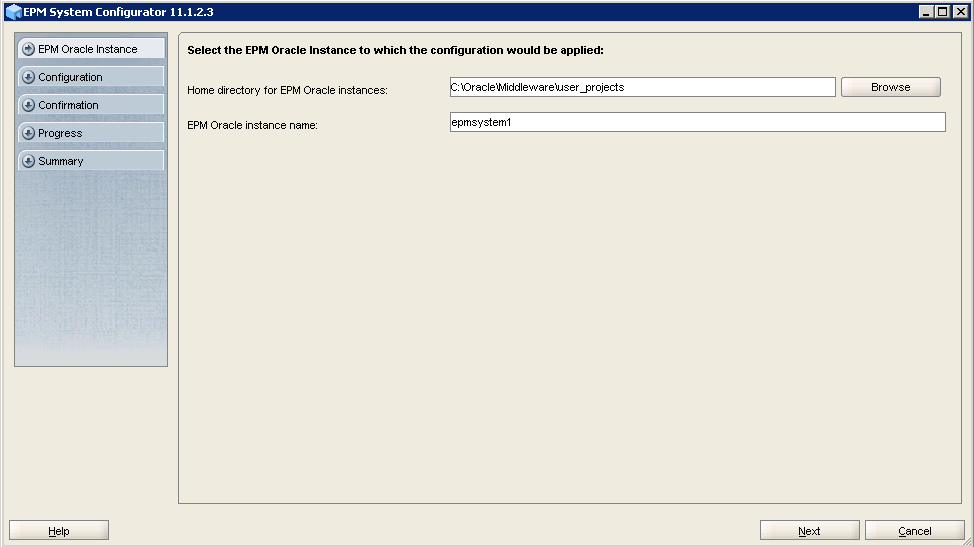
Configuring Foundation Services, Financial Close Management and FDM EE on SOAHOST1
. |
From the Windows Start menu, select Programs, then Oracle EPM System, Note: You can also start the configuration utility using configtool.bat. For example, c:\Oracle\Middleware\EPMSystem11R1\common\config\11.1.2.0\configtool.bat).
|
|---|---|
. |
Accept the defaults and click Next.
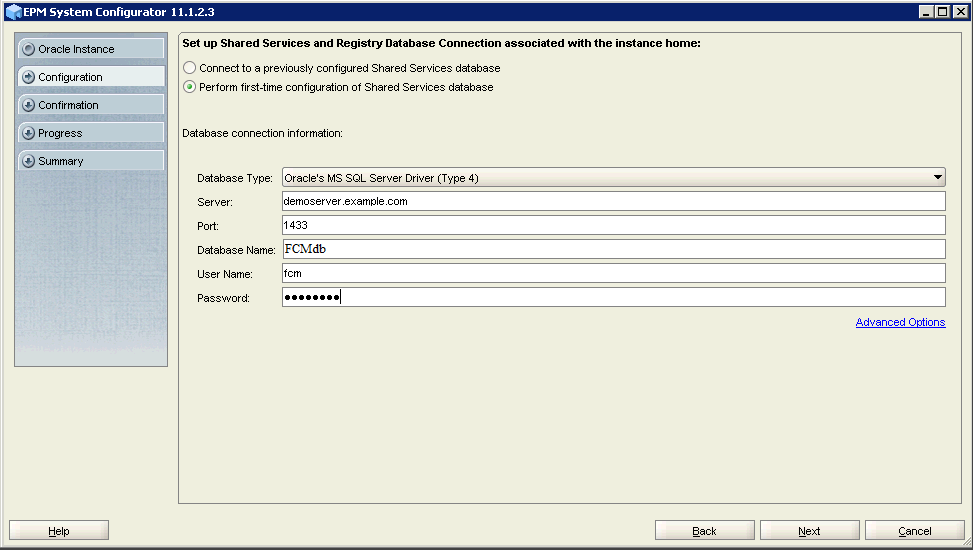
|
. |
Select Perform first -time configuration of Shared Services database, enter the database connection Example for Oracle database (in this example the user name is fcm):
Example for MS SQl Server database (in this example, the user name is fcm and the database name is FCMdb):
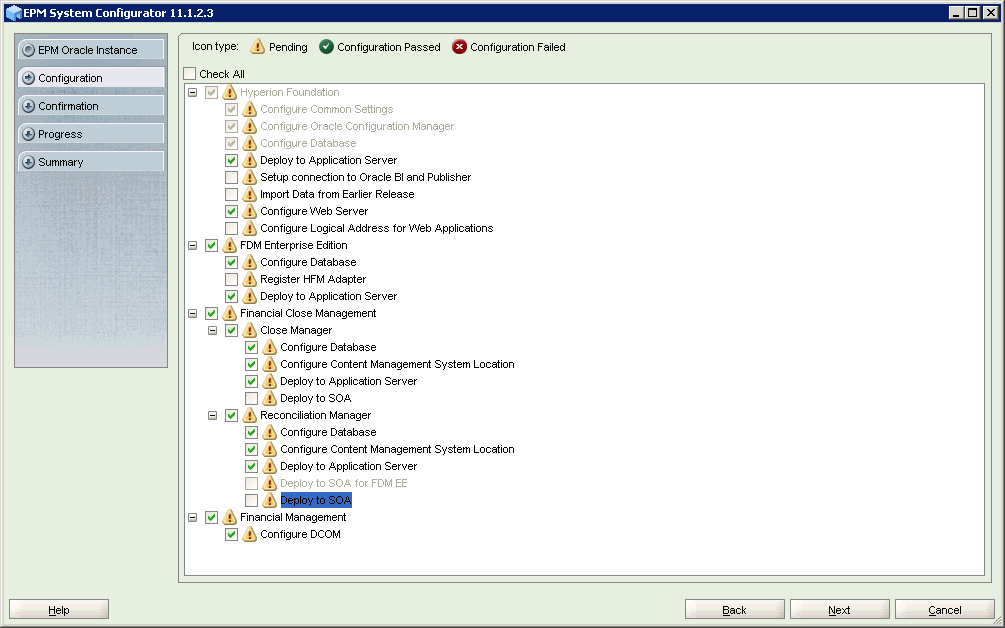
|
. |
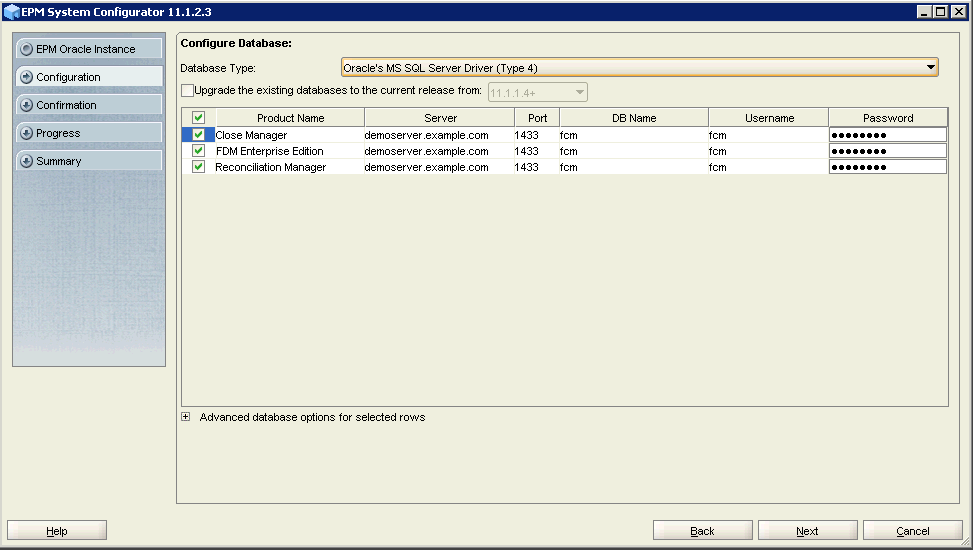
Accept the default options under Hyperion Foundation. For the products under Financial Close,
and for FDM Enterprise Edition, select Deploy to application server
|
. |
Select Create Windows Services for configured components, Enter Email Configuration details
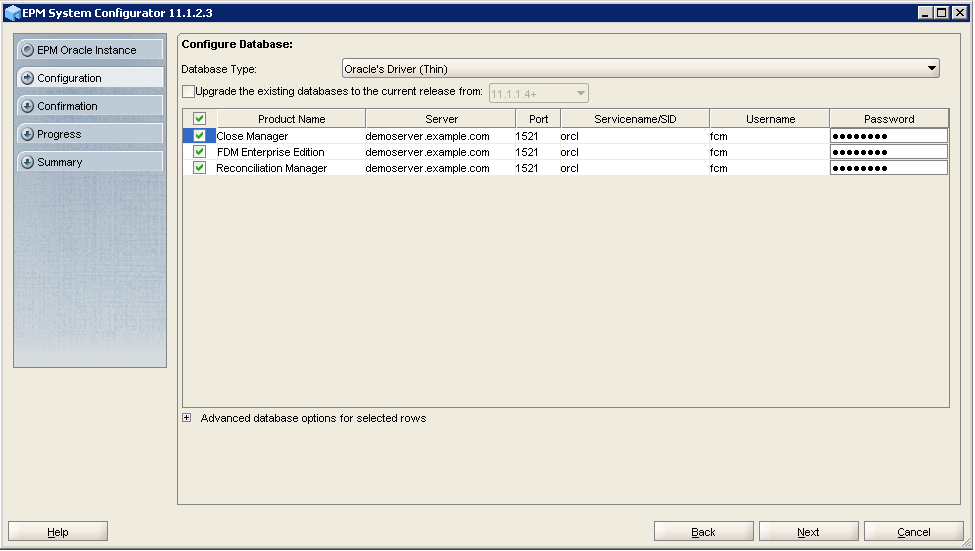
|
. |
The database connection details are displayed for the Example for Oracle Database:
Example for MS SQL Server Database
|
. |
Select Deploy web applications to an existing domain, enter the information for the
|
. |
At the prompt regarding password validation, click OK.
|
. |
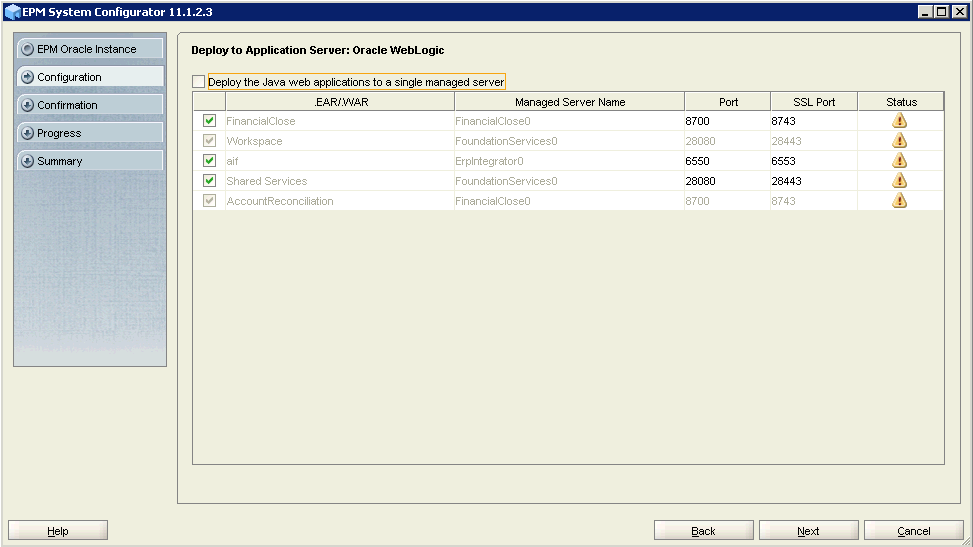
Uncheck Deploy the web application to a single managed Server and accept the
|
. |
In the Web Server Type list, select Oracle HTTP Server, and click Next.
|
. |
Enter the local user credential (the local administrator user you are currently logged in to the machine) and click Next.
|
. |
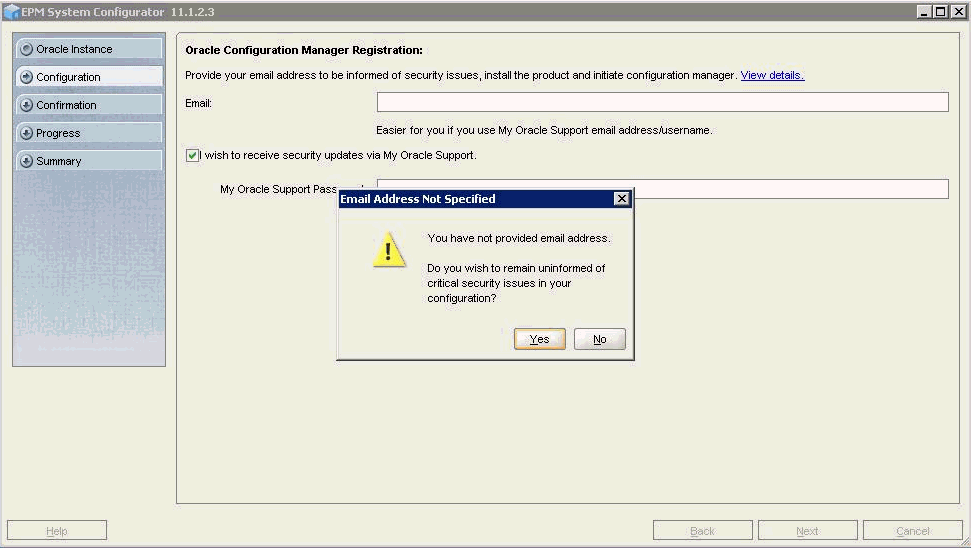
Provide the necessary information if you want to be informed of security updates by email,
|
. |
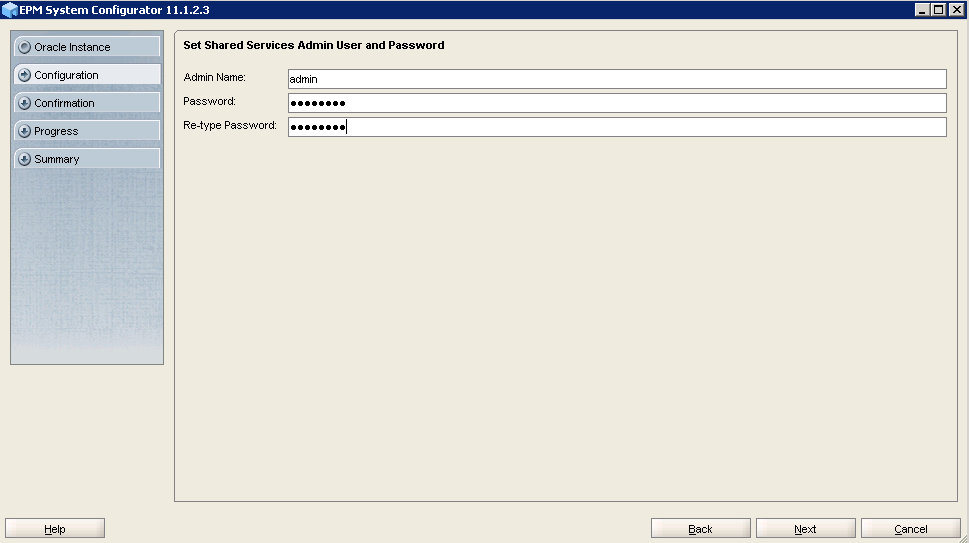
Enter the Shared Services administrator user name and password, and click Next.
|
. |
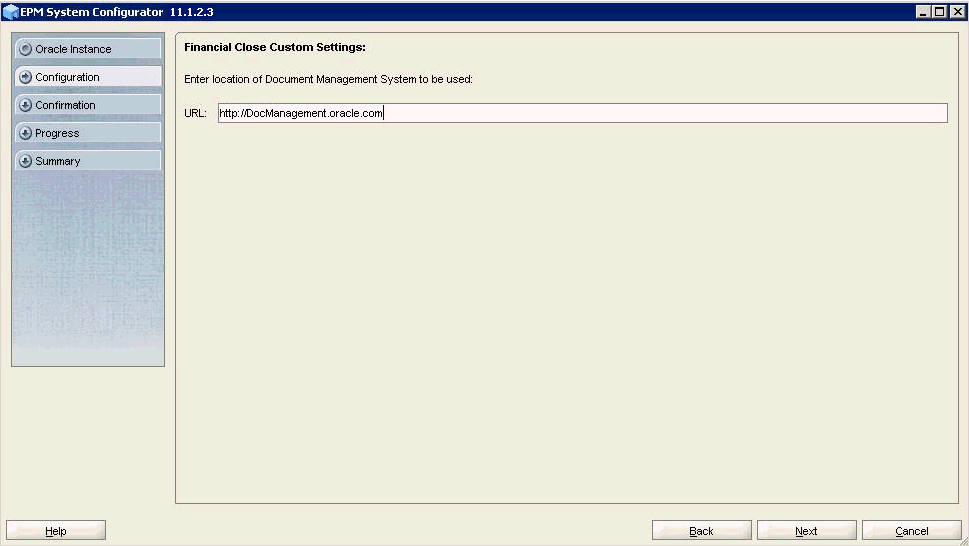
If you want to integrate Oracle Enterprise Content Management with your Financial Close Management
|
. |
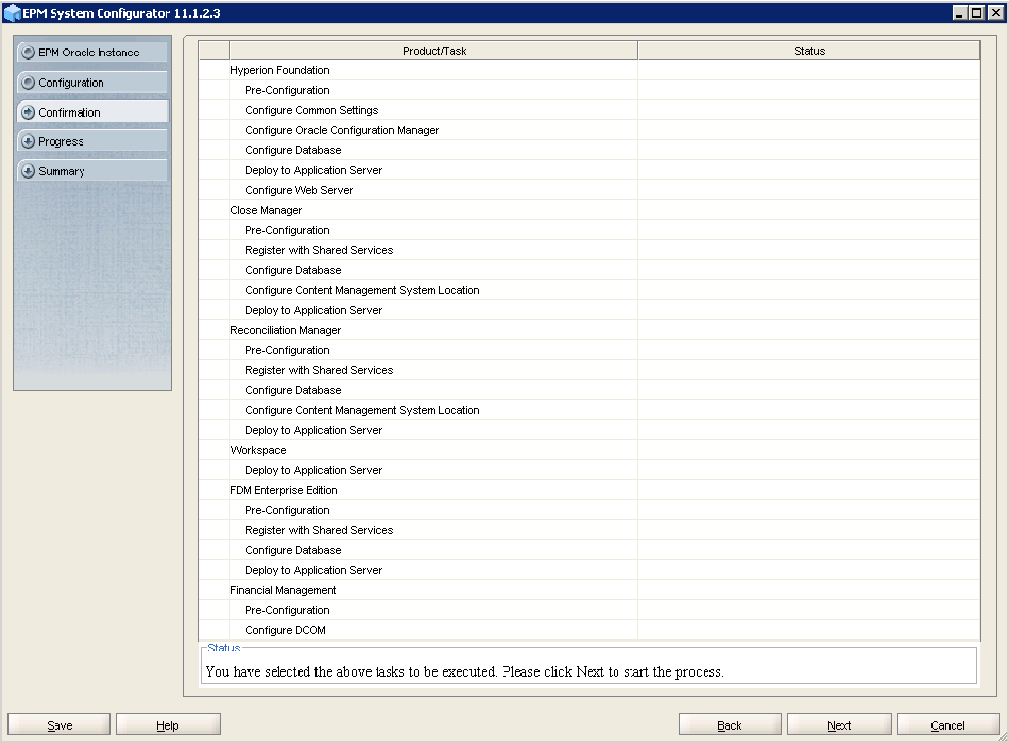
Review your selections, and click Next to launch the configuration.
|
. |
When the configuration is complete, click Finish.
|






Configuring Financial Close Management and FDMEE on SOAHOST2
Verify that admin server is running on SOAHOST1 before running the EPM configurator.
. |
To start the WebLogic Admin Server, select Start, then Programs, then Oracle WebLogic, then User Projects, then <domain>, and then Start Admin Server, where <domain is the WebLogic domain you created with the SOA configuration tool. Enter the WebLogic user name and password when prompted. The start up process will take a few minutes and is complete when you see '<Server started in RUNNING mode>' in the Command Prompt window.
|
|---|---|
. |
From the Windows Start menu, select Programs, then Oracle EPM System, Note: You can also start the configuration utility using configtool.bat. For example, c:\Oracle\Middleware\EPMSystem11R1\common\config\11.1.2.0\configtool.bat).
|
. |
Accept the defaults and click Next.
|
. |
Enter the database connection details for the Shared Service database. Verify that Connect to a previously configured Shared Service database is selected.
|
. |
Perform these steps:
|
. |
The database connection details that were provided in the Shared Services database connection details screen are displayed. Verify the connection details for the Financial Close Management, FDM EE and Account Reconciliation databases, and click Next.
|
. |
When prompted, select the Reuse the existing database option.
|
. |
Select Deploy web applications to an existing domain, enter the information for the WebLogic domain that you created when you configured SOA on SOAHOST1, and then click Next.
|
. |
Verify that Deploy to web application to single managed server is unchecked and grayed out. Accept the default application server deployment settings, then click Next.
|
. |
Enter the local user credential (the local administrator user you are currently logged in to the SOAHOST2) and click Next.
|
. |
Provide the necessary information if you want to be informed of security updates by email, otherwise click Next and answer Yes at the confirmation prompt.
|
. |
If previously you chose to integrate Oracle Enterprise Content Management with your Financial Close Management application you will see this screen, otherwise click Next to skip to the next section.
|
. |
Review your selections, and click Next to launch the configuration. |
. |
When the configuration is complete, click Finish.
|


Configuring the Web Server on SOAHOST1
Note: Before configuring the web server, shut down both Admin, WSM, and SOA servers.
. |
From the Windows Start menu, select Programs, then Oracle EPM System, Note: You can also start the configuration utility using configtool.bat. For example, c:\Oracle\Middleware\EPMSystem11R1\common\config\11.1.2.0\configtool.bat).
|
|---|---|
. |
Accept the defaults and click Next.
|
. |
Enter the database connection details for the Shared Service database. Verify that Connect to a previously configured Shared Service database is selected.
|
. |
Expand Hyperion Foundation and select only Configure Web Server. Verify that both FDM Fusion Edition and Financial Close are not selected, then click Next.
|
. |
Accept the default Configure Web Server settings, and click Next.
|
. |
Review your selections, and click Next to launch the configuration.
|
. |
When the configuration is complete, click Finish.
|


Validating Access Through Oracle HTTP Server
Verify that the server status is reported as Running in the Admin Console. If the server is shown as Starting or Resuming, wait for the server status to change to Started. If another status is reported (such as Admin or Failed), check the server output log files for errors. Verify that you can access these URLs, where WebHost1 specifies the name of Oracle HTTP Server host.
. |
While WLS_SOA2 is running, stop WLS_SOA1 from Oracle WebLogic Server Administration Console.
|
|---|---|
. |
Access the following URLs and verify the appropriate functionality: WebHost1:19000/soa-infra
|
. |
Start WLS_SOA1 from Oracle WebLogic Server Administration Console.
|
. |
Stop WLS_SOA2.
|
. |
Access the following URLs and verify the appropriate functionality: WebHost1:19000/soa-infra
|
. |
While WLS_WSM2 is running, stop WLS_WSM1 from Oracle WebLogic Server Administration Console.
|
. |
Access the following URL and verify the appropriate functionality: WebHost1:19000/wsm-pm
|
. |
Start WLS_ WSM1 from Oracle WebLogic Server Administration Console.
|
. |
Stop WLS_ WSM2.
|
. |
Access the following URL and verify the appropriate functionality: WebHost1: 19000/wsm-pm
|
Setting the Front-end HTTP Host and Port
You must set the front-end HTTP host and port for the Oracle WebLogic Server cluster.
. |
In the WebLogic Server Administration Console, in the Change Center section, click Lock & Edit. |
|---|---|
. |
In the left pane, select Environment in the Domain Structure window and then select Clusters. The Summary of Clusters page is displayed. |
. |
Select the SOA_Cluster cluster.
|
. |
Select HTTP.
|
. |
Set the following values:
|
. |
Click Save.
|
. |
To activate the changes, click Activate Changes in the Change Center section of the Administration Console.
|
. |
Restart the WLS_SOA1 and WLS_SOA2 servers to make the Frontend Host directive in the cluster effective.
|
Deploying to SOA on SOAHOST1
After configuring EPM products, you need to run the EPM System Configurator again to deploy to SOA on SOAHOST1.
. |
Make sure that both Admin, WSM and SOA servers are running before running
|
|---|---|
. |
From the Windows Start menu, select Programs, then Oracle EPM System, Note: You can also start it with configtool.bat. For example: c:\Oracle\Middleware\EPMSystem11R1\common\config\11.1.2.0\configtool.bat).
|
. |
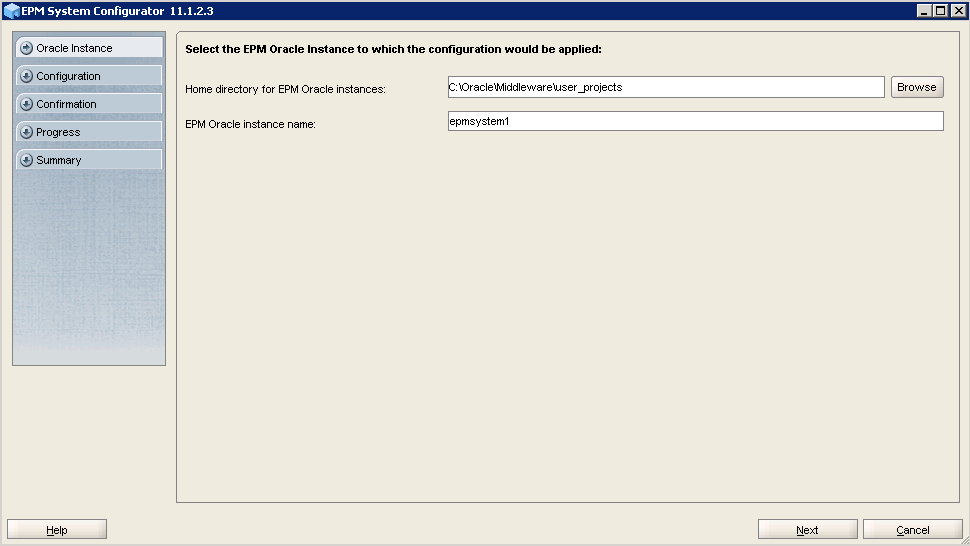
Select the EPM Oracle instance to which this configuration would be applied, and click Next.
|
. |
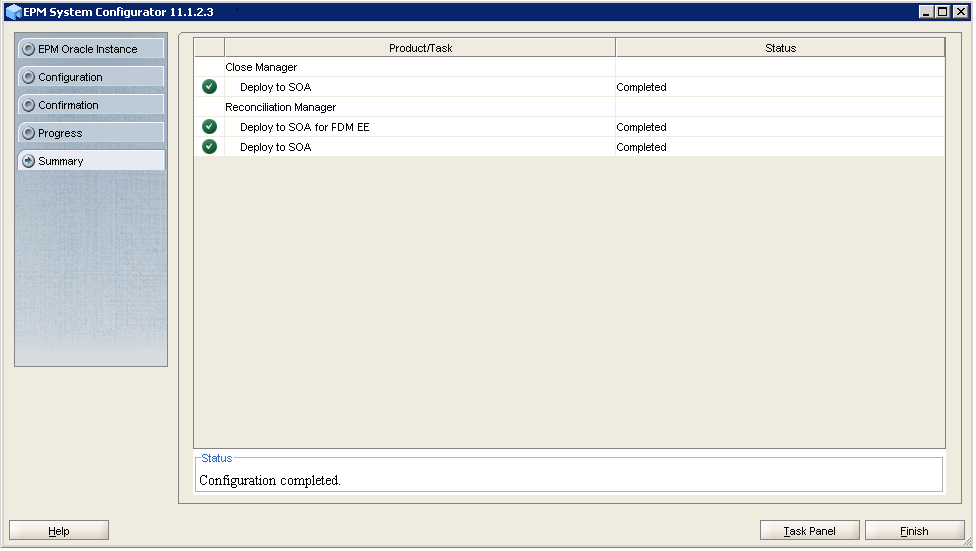
Expand Financial Close Management, then Close Manager and select Deploy to SOA. Ensure that none of the options under Hyperion Foundation are selected.
|
. |
On the Deploy to SOA screen, click Next.
|
. |
On the Confirmation screen, click Next to launch the configuration.
|
. |
When the configuration is complete, click Finish.
|


Performing Post-Installation Manual Configuration Tasks
You perform the manual configuration tasks after installing and configuring SOA Suite and the EPM components.
Start Admin Server
WebLogic Admin server must be running before you start manual configuration tasks.
. |
To start the WebLogic Admin Server, select Start, then Programs, then Oracle WebLogic, then User Projects, then <domain>, and then Start Admin Server, where <domain> is the WebLogic domain you created with the SOA configuration tool.
|
|---|---|
. |
When prompted, enter the WebLogic admin user name and password. The process will take a few minutes and is complete when you see '<Server started in RUNNING mode>' in the the command prompt box. |
Connecting External Authentication Providers to the Weblogic Server
To communicate with an external authentication provider, such as Oracle Internet Directory or Microsoft Active Directory, you must configure WebLogic. You must configure Shared Services to use the same external authentication provider. For more information on configuring Shared Services, see the Oracle Enterprise Performance Management System User and Role Security Guide.
The following instructions show an example of how to configure MSAD as the authentication provider.
. |
Connect to WebLogic Console http://host:7001/console where host is the name of the Machine.
|
|---|---|
. |
Log on using the WebLogic administrator name and password that you specified for the domain.
|
. |
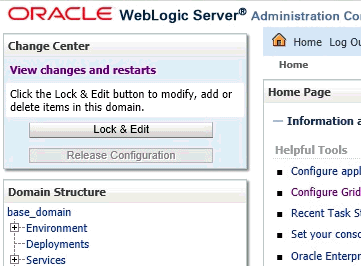
Click on Lock & Edit.
|
. |
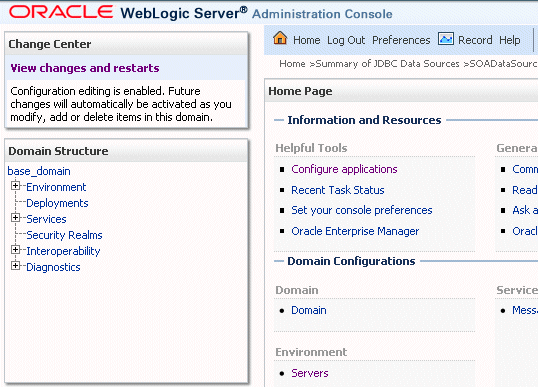
In the Domain Structure area, click Security Realms.
|
. |
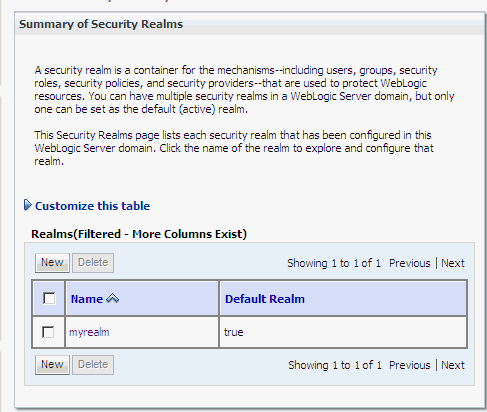
Click myrealm.
|
. |
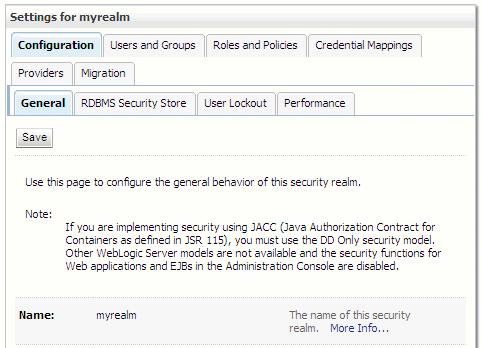
Select the Providers tab.
|
. |
Click New.
|
. |
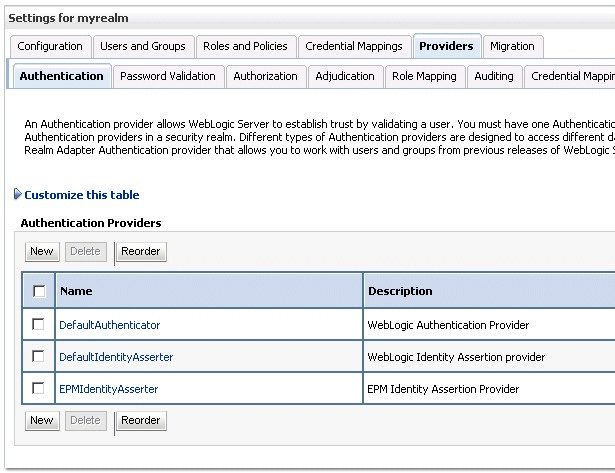
Configure your authentication provider. For Microsoft Active Directory, in the Name text box enter MSAD, and
|
. |
Click OK.
|
. |
In the Authentication Providers list, click MSAD.
|
. |
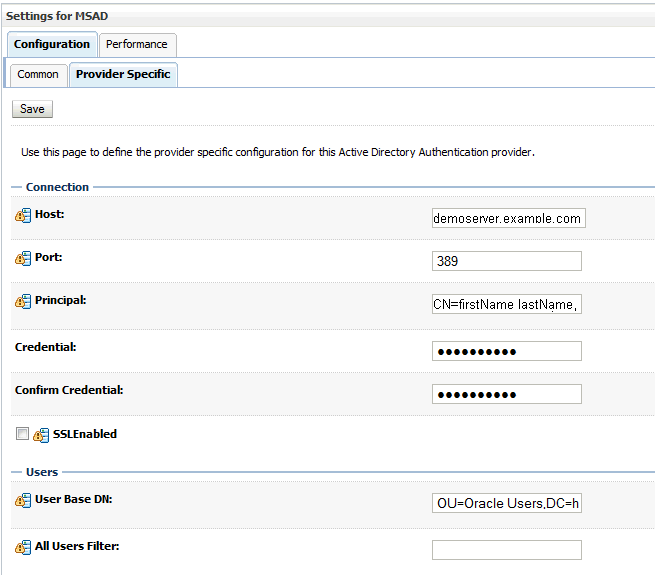
Select the Provider Specific tab. Enter the principal user name and credentials, and
|
. |
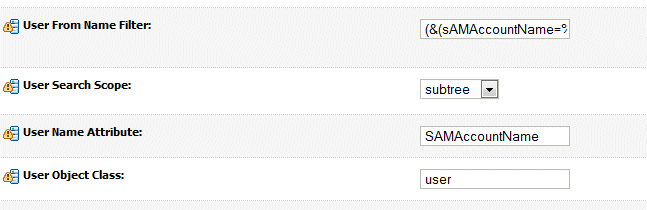
Make sure you provide SAMAccountName as User Name Attribute and in
|
. |
Click Save.
|
. |
In the Domain Structure area, click Security Realms, and then myrealm.
|
. |
Select the Providers tab.
|
. |
In the Authentication Providers list, click MSAD.
|
. |
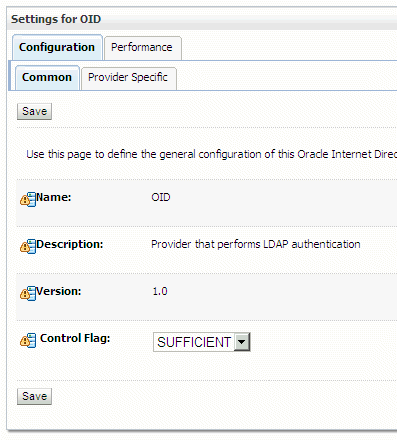
In the Control Flag list, select Sufficient.
|
. |
Click Save.
|
. |
Click Activate Changes.
|
. |
Click Logout.
|
. |
Select Start, then Programs, then Oracle WebLogic, then User Projects, then <domain>, Note: You can also stop it with stopWebLogic.cmd. For example: c:\Oracle\Middleware\user_projects\domains\base_domain\bin\stopWebLogic.cmd).
|
. |
Select Start, then Programs, then Oracle WebLogic, then User Projects, then <domain>, Note: You can also start it with startWebLogic.cmd. For example: c:\Oracle\Middleware\user_projects\domains\base_domain\bin\startWebLogic.cmd). When prompted, enter the WebLogic admin user name and password.
|



Configuring the External Provider with Shared Services
. |
Start Foundation Services and Oracle Process Manager (OHS) from windows Services.
|
|---|---|
. |
Connect to Shared Service Console http://host:port/interop/index.jsp where host is the name of the Machine and port is Listen port of FoundationServices0 managed Server in WebLogic console.
|
. |
Login as admin.
|
. |
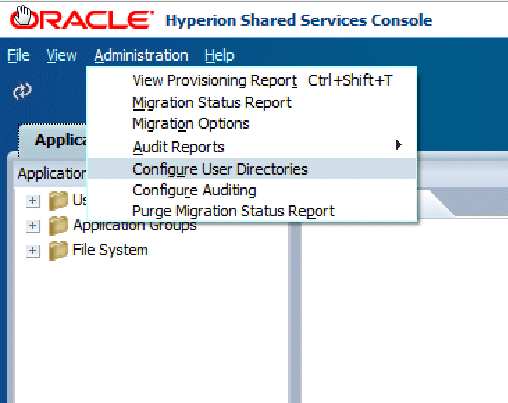
Click on Administration and Select Configure User Directories.
|
. |
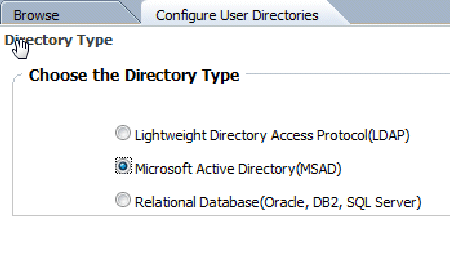
Click New and choose the Directory Type as MSAD, and click Next.
|
. |
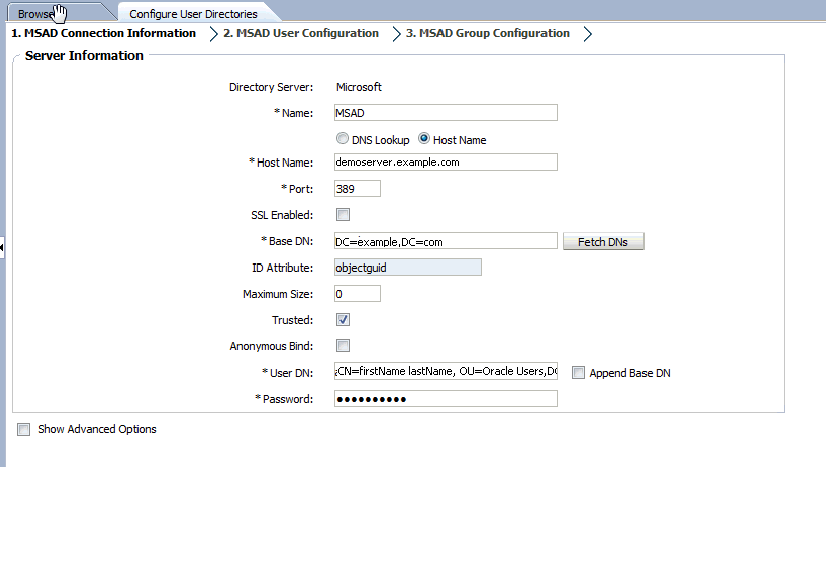
Enter the following in the Server information tab:
|
. |
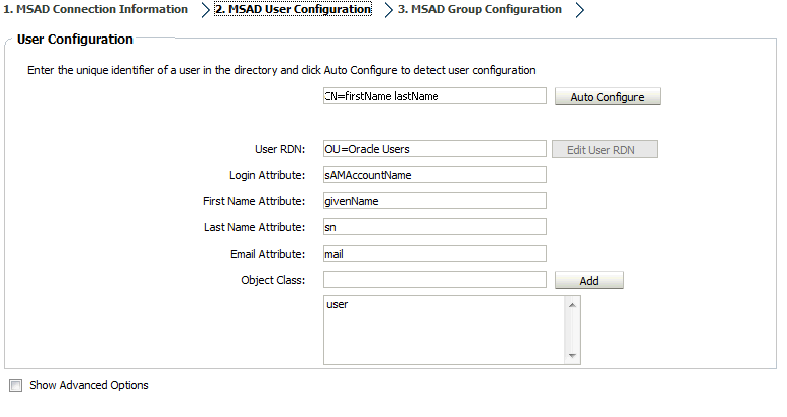
Click Next to navigate to the MSAD User Configuration Tab and enter user information.
|
. |
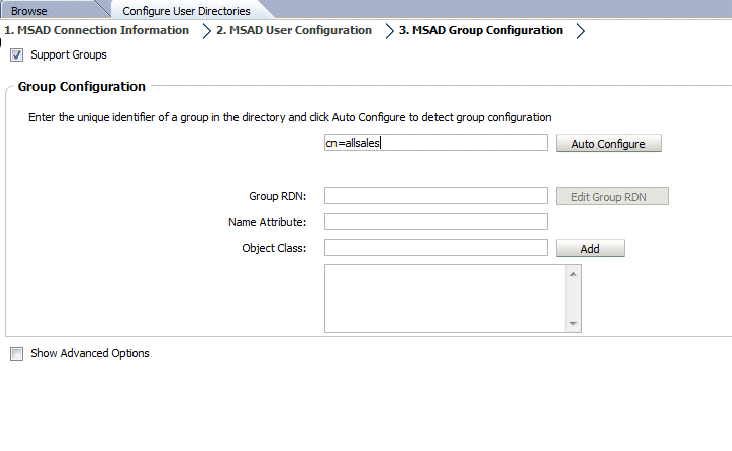
Click Next to navigate to the MSAD Group Configuration Tab and enter group information.
|
. |
Click Save and Logout.
|
. |
Restart the FoundationServices0 Managed Server.
|


Configuring the Keystore for Oracle Web Services Manager
You must set up the Keystore for message protection and configure the Credential Store Provider. The Financial Close Management client and the Oracle Hyperion Financial Management Web service use the following policies:
- wss11_saml_token_with_message_protection_client_policy
- wss11_saml_token_with_message_protection_service_policy
. |
At a command prompt, enter the following command to add the JDK to the path: set PATH=%PATH%;c:\Oracle\Middleware\jdk160_35\bin\ where c:\Oracle\Middleware\jdk160_35\bin has to be your JDK path The JDK must be included in the path in order to run the Java keystore utility.
|
|---|---|
. |
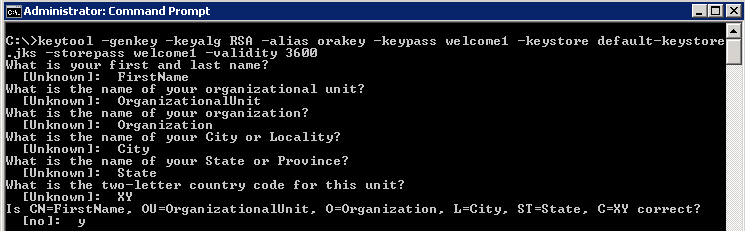
Use the Oracle keystore utility to create a keystore on the Weblogic Admin server hosting your EPM System domain by navigating to c:\oracle\middleware\user_projects\domains\<domain>\config\fmwconfig (where <domain> is the WebLogic domain you created with SOA configuration tool), and entering the following command: keytool -genkey -keyalg RSA -alias orakey -keypass welcome1 -keystore default-keystore.jks -storepass welcome1 -validity 3600
This command creates a keystore with the name default-keystore.jks if it does not command.
|
. |
Enter the following URL to start Oracle Enterprise Manager, replacing <host> with your host name:
|
. |
Enter your Weblogic administrator name and password to log in.
|
. |
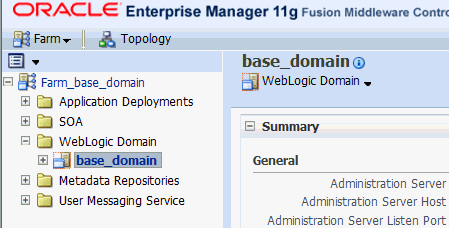
In the navigation pane, expand Weblogic Domain, and then select the WebLogic domain you created in the SOA configuration tool.
|
. |
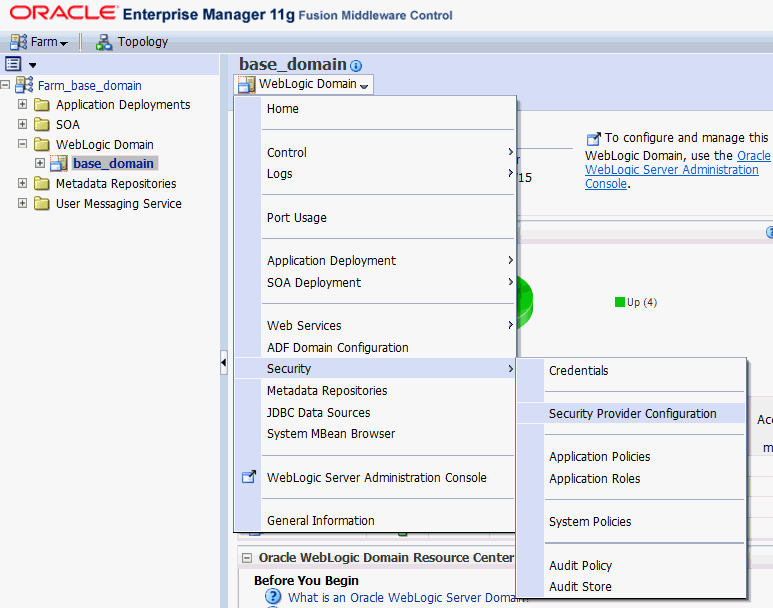
Right-click on WebLogic Domain, then Security, and then Security Provider Configuration.
|
. |
Expand the Keystore section, and click Configure.
|
. |
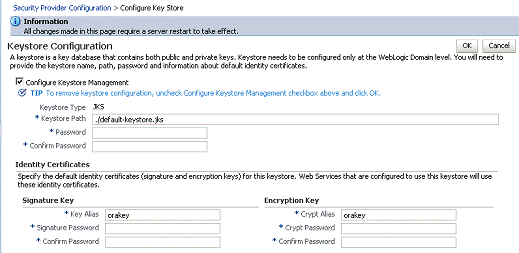
In the Keystore Path text box, enter the path name for the keystore you created, and enter the keystore password in the password fields. In the Signature Key and Encryption key text boxes, enter the alias and password for the signature and encryption keys. It should be noted that the "Keystore Path" requested by EM is relative to "c:\Oracle\Middleware\user_projects\domains\<domain>\config\fmwconfig" so it should be ./default-keystore.jks
|
. |
Click OK.
|

Delete Data Sources (Only for MS SQL Server)
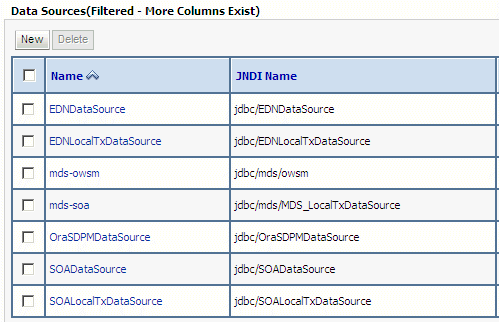
After you install and configure SOA, you delete the EDNDataSource and EDNLocalTxDataSource data sources.
. |
<If the Weblogic Admin server is not already running, select Start, then Programs, then Oracle WebLogic, Note: You can also start it with startWebLogic.cmd. For example; c:\Oracle\Middleware\user_projects\domains\base_domain\bin\startWebLogic.cmd). When prompted, enter the WebLogic admin user name and password. The process will take a few minutes and is complete when you see '<Server started in RUNNING mode>' in the command prompt box.
|
|---|---|
. |
Select Start, then Programs, then Oracle WebLogic, then User Projects, then<domain>,
|
. |
Log on using the WebLogic administrator name and password that you specified for the domain.
|
. |
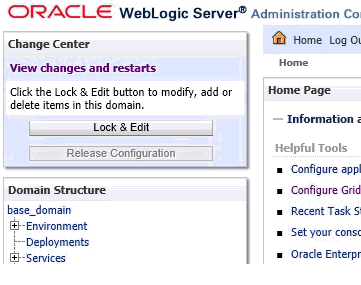
Click Lock & Edit.
|
. |
In the Domain Structure area, expand Services and select DataSources.
|
. |
In the Datasources table, delete EDNDataSource and EDNLocalTxDataSource.
|
. |
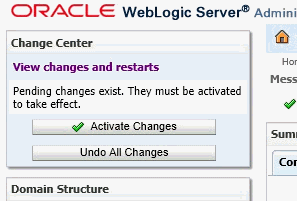
Click Activate Changes.
|
. |
Click Logout.
|

Raising the Maximums for Connection Pools
. |
Select Start, then Programs, then Oracle WebLogic, then User Projects, then <domain>,
|
|---|---|
. |
Log on using the WebLogic administrator name and password that you specified for the domain.
|
. |
Click on Lock & Edit.
|
. |
In the Domain Structure area, expand Services, and click on Datasources. Note: For SQL Server Only: Skip “Raising the Maximums for Connection Pools” for the deleted datasources
|
. |
In the Name list, click EDNDataSource.
|
. |
Select the Connection Pool tab.
|
. |
In the Maximum Capacity text box, enter 150.
|
. |
Click Save.
|
. |
In the Domain Structure area, click Data Sources to return to the list of data sources.
|
. |
Repeat the above steps to increase the connection pool for the EDNLocalTxDataSource If you receive resource errors specific to any of the following data sources,
|
. |
Click Activate Changes..
|
. |
Click Logout.
|

Raising the StuckThreadMaxTime
. |
Select Start, then Programs, then Oracle WebLogic, then User Projects, then <domain>, and then Admin Server Console.
|
|---|---|
. |
Log on using the WebLogic administrator name and password that you specified for the domain.
|
. |
Click Lock and Edit.
|
. |
In the Domain Structure area, expand Environment and select Servers.
|
. |
In the server list, click ERPIntegrator0.
|
. |
Select the Tuning tab.
|
. |
In the Stuck Thread Max Time text box, enter 6000.
|
. |
Click Save.
|
. |
In the Domain Structure area, click Servers to return to the list of servers.
|
. |
Repeat the above steps to increase the Stuck Thread Max Time for soa_server1 and FinancialClose0.
|
. |
Click Activate Changes.
|
. |
Click Logout.
|
. |
Stop Foundation Services from windows Services.
|
. |
To stop the WebLogic Admin Server,press and hold Ctrl + C in the command window where WebLogic Admin server
|
. |
To stop the SOA managed server,press and hold Ctrl + C in the command window where WebLogic Admin server
|

Starting the Servers
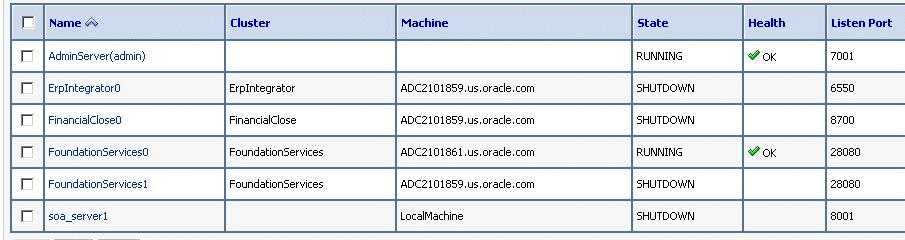
You must start the servers required for Financial Close Management in the following order:
- WebLogic Admin Server
- Foundation Services managed server
- Oracle HTTP Server
- FDM Enterprise Edition
- Optional: Managed servers for integration products (for example, Financial Management or Financial Reporting)
- SOA managed servers (WLS_WSM1,WLS_WSM2,WLS_SOA1 and WLS_SOA2)
- Financial Close Management Managed server
Note: Wait until each server status changes to the RUNNING state before you go to the next server in the sequence.
. |
In the Domain Structure area, click Environment, then Servers to return to the list of servers. You see the list of servers to be started:
Note: Wait until each server status changes to the RUNNING state before you go to next server in the sequence.
|
|---|---|
. |
To start the WebLogic Admin server, select Start, then Programs, then Oracle WebLogic, then User Projects, Note: You can also start it with startWebLogic.cmd. For example: c:\Oracle\Middleware\user_projects\domains\base_domain\bin\startWebLogic.cmd). When prompted, enter the WebLogic admin user name and password.
|
. |
To start Foundation Services, select Start, then Programs, then Oracle EPM System, then epmsystem1, then Foundation Services, Note: You can also start it with startFoundationServices.bat. For example c:\Oracle\Middleware\user_projects\epmsystem1\bin\startFoundationServices.bat).
|
. |
To start the Oracle HTTP server, enter the following command at a command prompt:
|
. |
To start FDMEE Services, select Start, then Programs, then Oracle EPM System, then epmsystem1, then FDM Enterprise Edition, and then Start ERPIntegrator.
|
. |
To start the SOA managed server , enter the following command at a command prompt: When prompted, enter the WebLogic admin user name and password.
|
. |
To start Financial Close Management Services, select Start, then Programs, then Oracle EPM System,
|
Running the Validation Tool to Verify EPM Configuration
Perform the procedures below to validate the EPM configuration.
. |
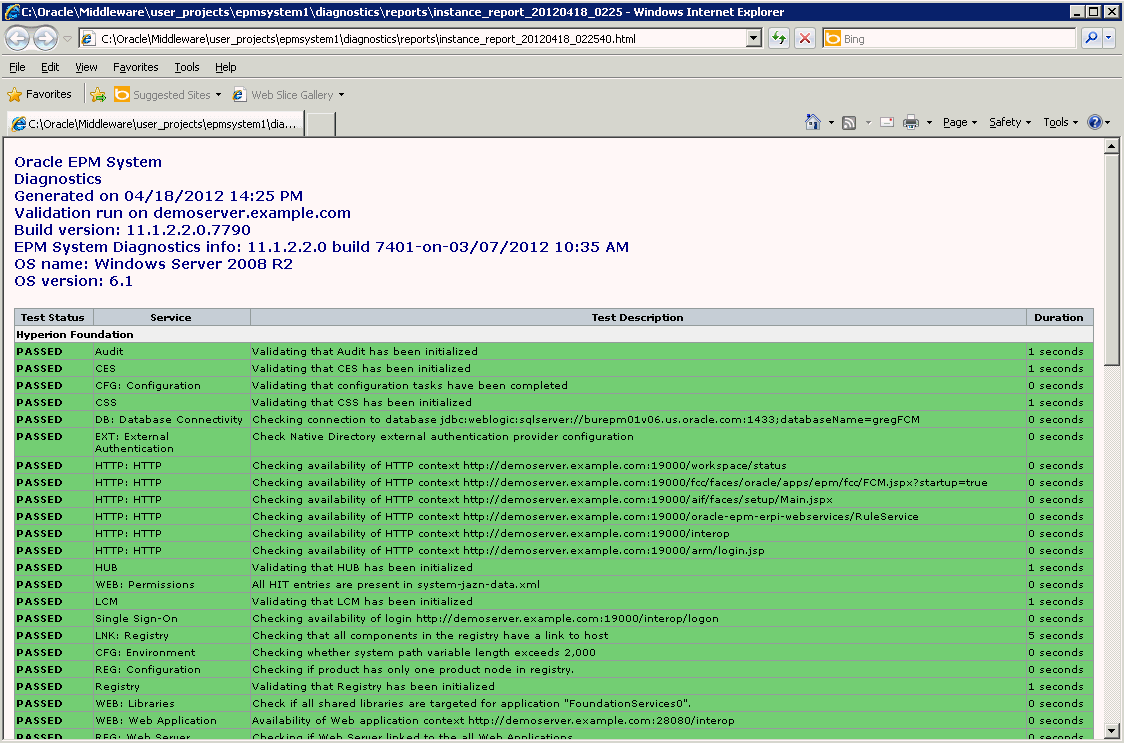
To start the EPM validator tool,select Start, then Programs, then Oracle EPM System, then Foundation Services, then epmsystem1, then EPM System Diagnostics. (You can also start it with validate.bat. For example: Example: c:\Oracle\Middleware\user_projects\epmsystem1\bin\validate.bat This launches a new browser window with the validation status for each EPM component (all components should have a pass status, as in the following example:
|
|---|---|
. |
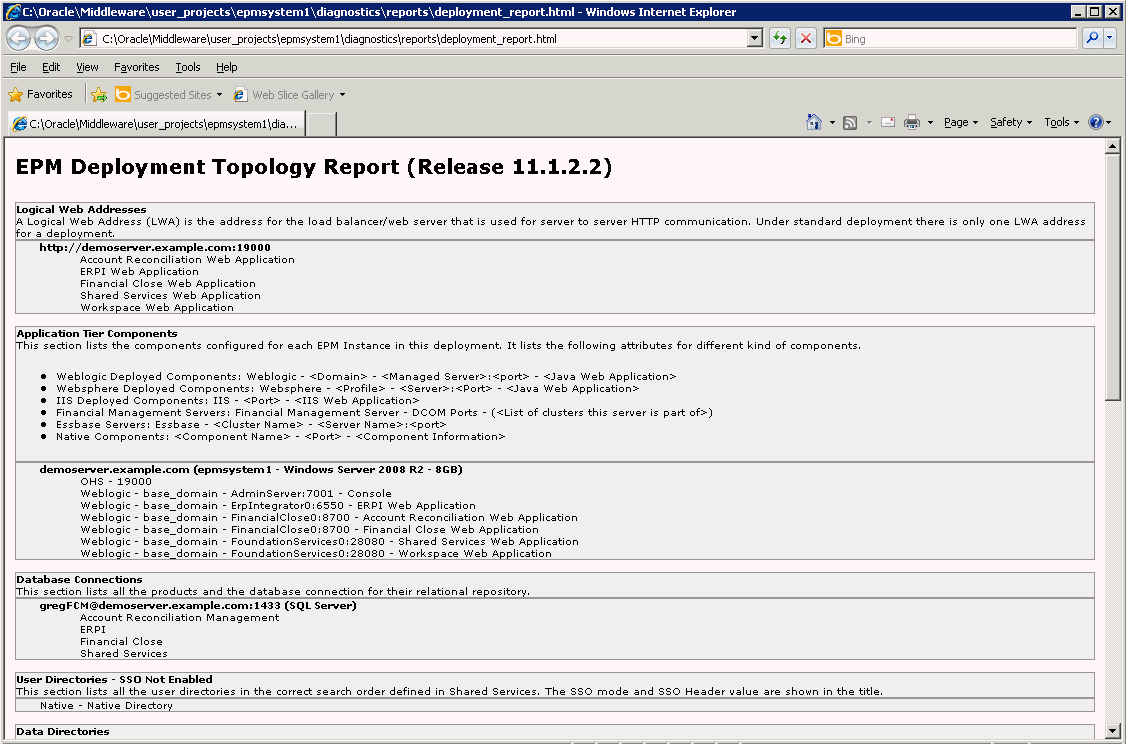
To run an EPM deployment report launch the following bat script:
This produces a new browser window with the following report:
|
. |
Scroll to the end of the report and you should all passed and 0 failed.
|


Running the Validation Tool to Verify Close Manager and Account Reconciliation Manager Configuration
Perform the procedures below to validate the configuration.
Validating Close Manager Configuration
. |
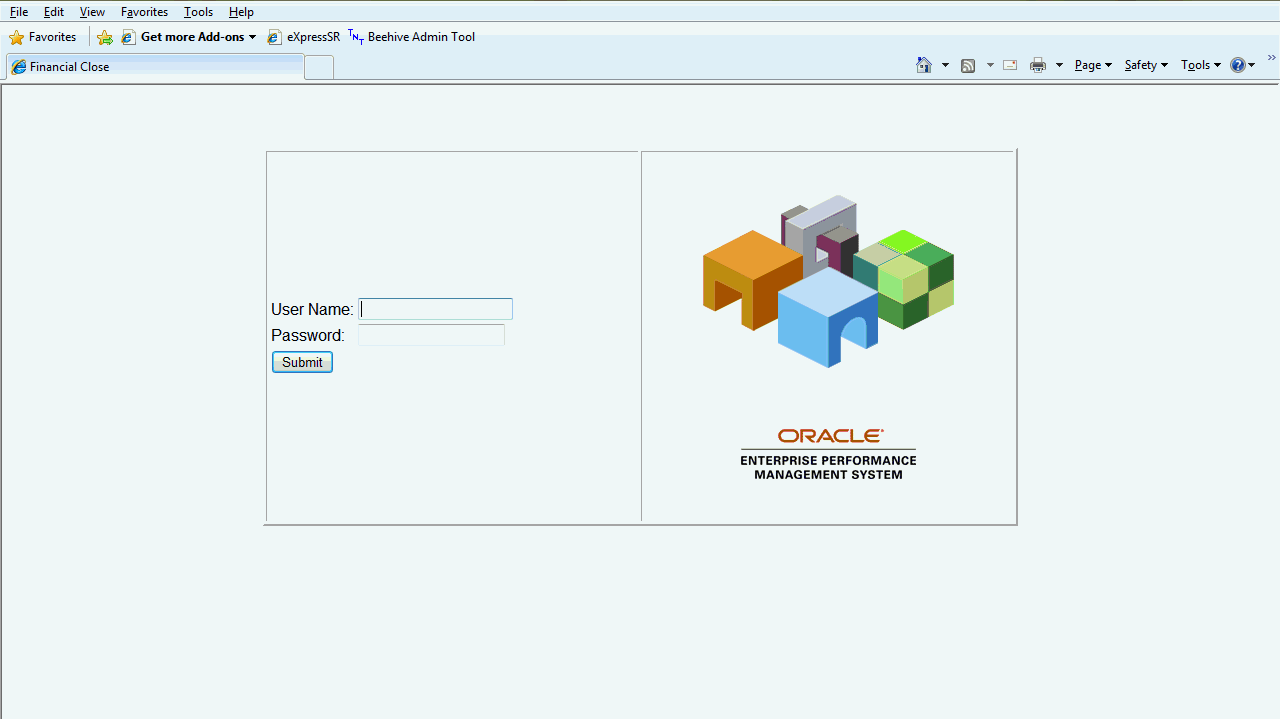
Launch the validator tool from a web browser using the following the URL:
|
||||||||||||||||||||
|---|---|---|---|---|---|---|---|---|---|---|---|---|---|---|---|---|---|---|---|---|---|
. |
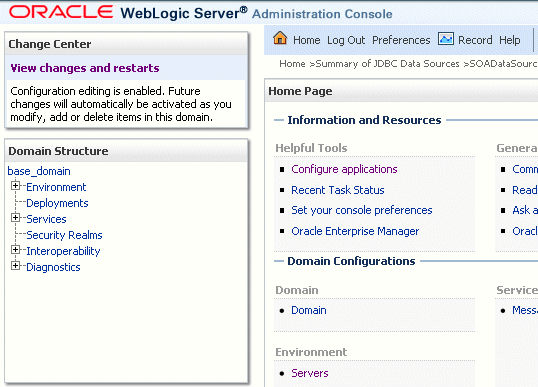
Log in to Close Manager using Shared Services administrator credentials. Note: If an external provider is configured, the log in can also be done with a user from the external provider. Example to seed an “admin” user (who is default administrator in Shared Services) in WebLogic (this way, you can use the admin user a. Log in to the WebLogic admin console (http://<host>:7001/console where <host> is machine name for where admin server is running) b. Click Lock and Edit.
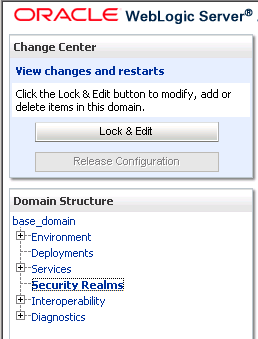
c. Go to the Domain Structure area and click Security Realms.
d. Click the myrealm link.
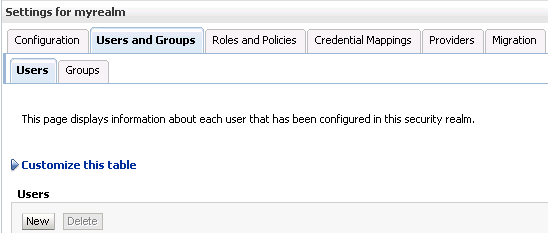
e. Go to the Users and Groups tab and click New under the Users tab.
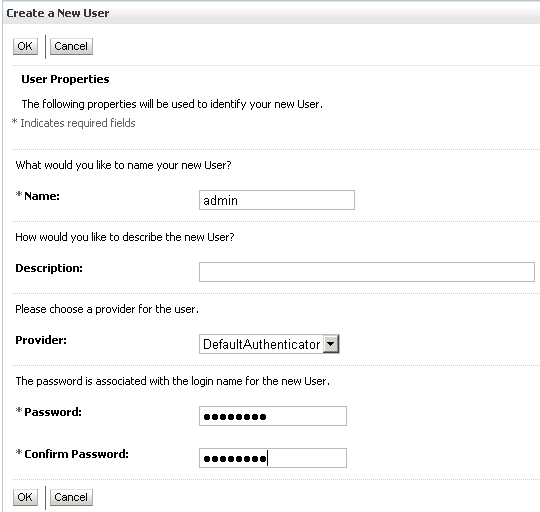
f. Enter admin in the Name field and enter the admin user’s password for the Password/Confirm Password fields
g. Click OK. h. Click Activate Changes.
|
||||||||||||||||||||
. |
After successfully logging in the following screen is displayed.
|
||||||||||||||||||||
. |
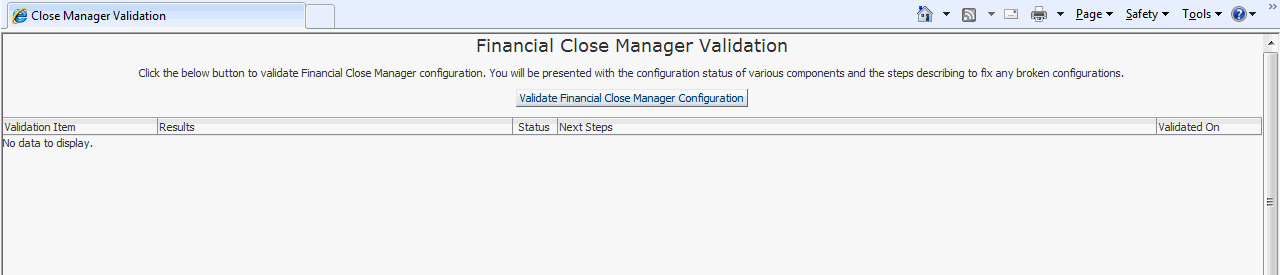
To validate the close manager configuration, click the Validate Financial Close Manager Configuration button
|
||||||||||||||||||||
. |
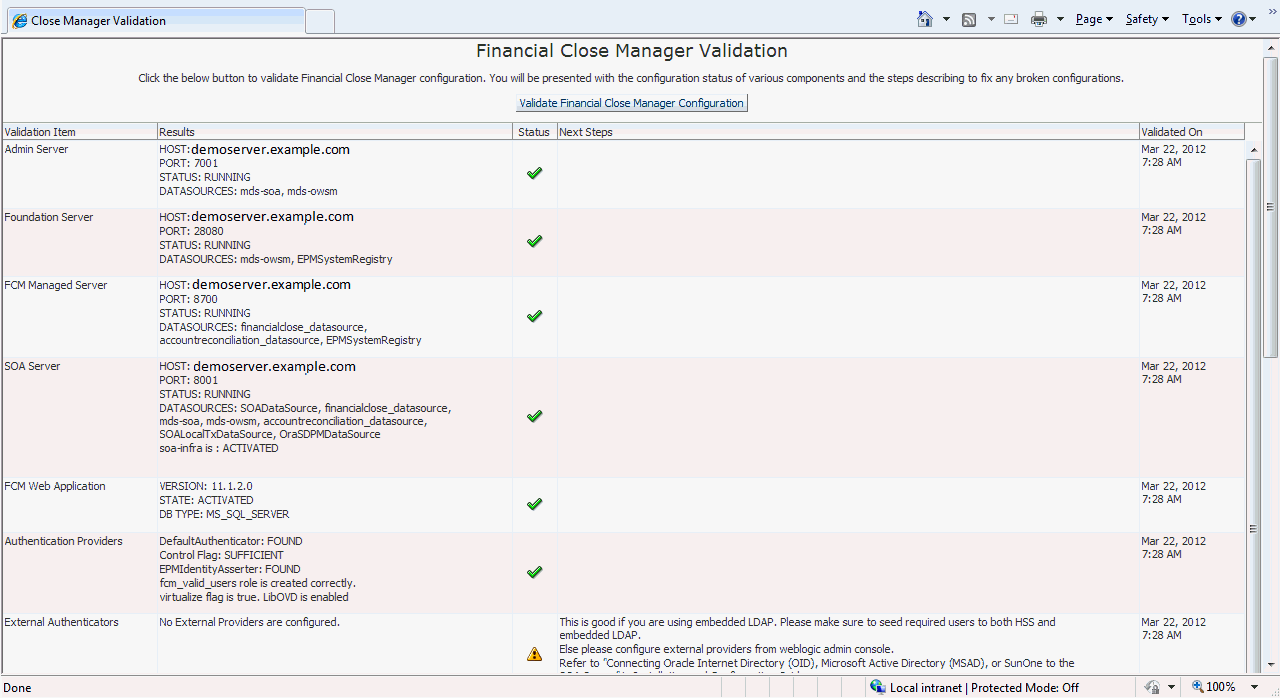
After validation, the configuration information will be displayed in a tabular form.
The table below lists the information that is displayed.
|
||||||||||||||||||||
. |
Validate the test schedule: If you are running this part, make sure the user logged into the Diagnostic tool is a user that is also present in HSS. To run validate the test schedule, click Validate Test Schedule. Note: The button to run this test is enabled only if all the required configuration from the above table is in
After validation, the configuration information will be displayed in a tabular form, Below is a list of the information displayed.
|


Validating Account Reconciliation Manager Configuration
. |
Launch the validator tool from a web browser using this URL:
Login with Shared Service administrator credentials.
|
||||||||||||||||||||
|---|---|---|---|---|---|---|---|---|---|---|---|---|---|---|---|---|---|---|---|---|---|
. |
To validate the account reconciliation manager configuration,
|
||||||||||||||||||||
. |
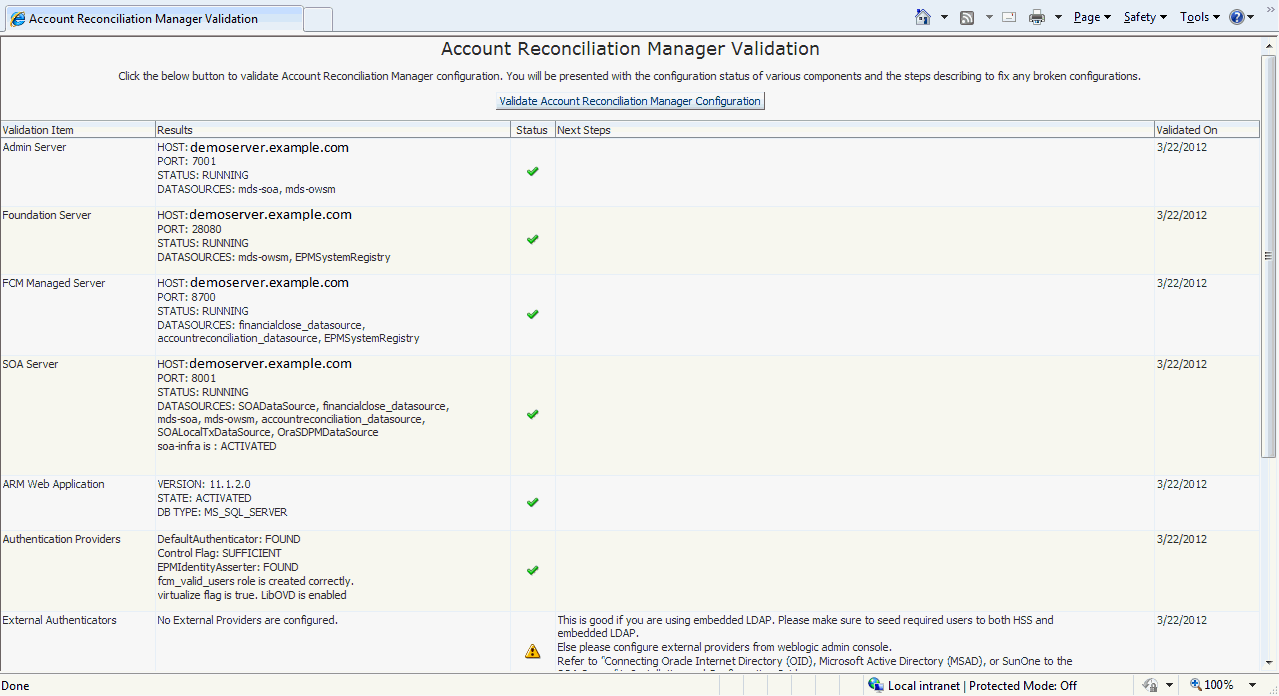
After validation, the configuration information is displayed in a tabular form. See the table below for more information on the results.
Below is the information that is displayed:
|

Configuring Oracle Security Policy for FDMEE
Configuration of Oracle Security Policy with OWSM is required to enable communication between Account Reconciliation Manager and FDMEE.
Note: FDMEE is required only for the Account Reconciliation Manager module.
It is not required for the Close Manager module.
Prerequisites:
- You should Have access with sysdba privileges to an Oracle 11g (11.1.0.7 or higher) database or access with sa privileges to an MS SQLServer (2005 or 2008) database.
- Oracle EPM installed machines should have installed and configured FDMEE.
- Verify that the EPM_ORACLE_HOME system variable has been set (it should be already have been set from the EPM Installation step).
- WebLogic admin server is started.
- Start the FDMEE services ( if the service is already running, then restart it) .
Running Automated Scripts to Set Oracle Security Policy
. |
Edit the wls-ARM.properties file: a. Go to directory <EPM_ORACLE_HOME>/products/FinancialDataQuality/bin For WebLogic Admin server connection:
Note: Do not change ServiceEndPointSecPolicy and ServiceCallBackSecPolicy.
|
|---|---|
. |
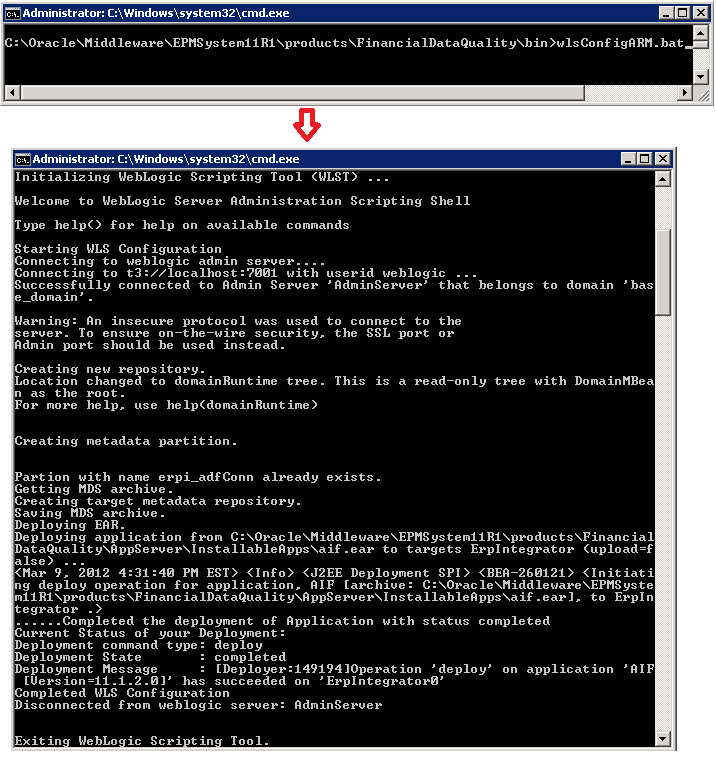
Run the wlsConfigARM.bat file: a.Open a command prompt. b. Change directory to <EPM_ORACLE_HOME>/products/FinancialDataQuality/bin. c. Run wlsConfigARM.bat file and ensure that the script runs successfully.
|
. |
Restart the FDMEE service and restart WebLogic admin server.
|
. |
Check the status of the FDMEE server:
|
Appendix A: Creating an Oracle Database User
This procedure explains how to create an Oracle database user.
. |
To open the SQLPlus window, select Start, then All Programs, then Oracle - OraDb 11g_home1,
|
|---|---|
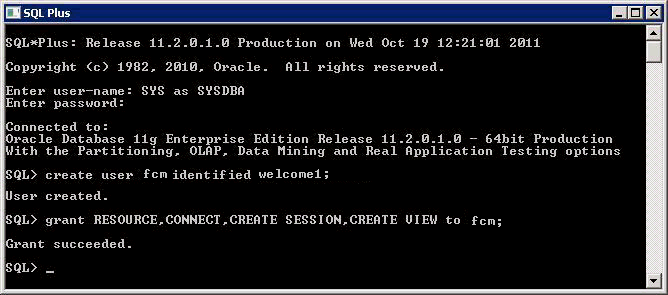
. |
Login to SQLPlus as sys user and run the following: create user fcm identified by welcome1; grant RESOURCE, CONNECT, CREATE SESSION, CREATE VIEW to fcm;
|
Appendix B: Configuring Microsoft SQL Server
This appendix contains information for using Microsoft SQL Server as the database.
Creating the Required Databases
. |
Install SQL Server and log in to Microsoft SQL Server Management Studio as sa user.
|
|---|---|
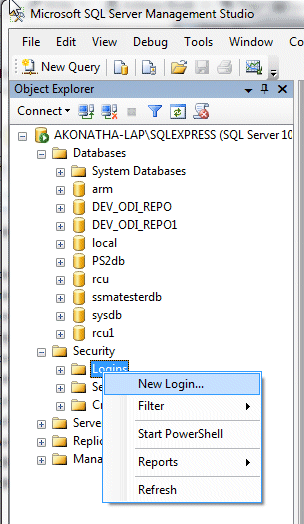
. |
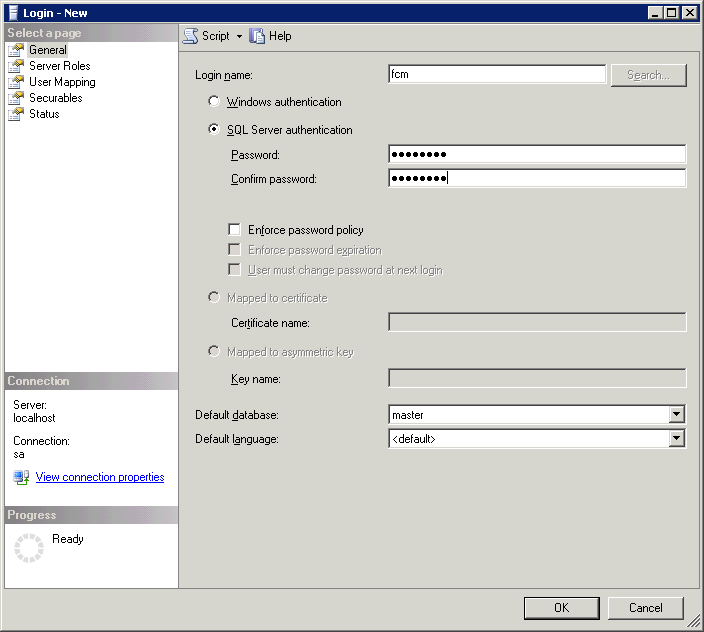
Create a login with the db owner role: a. Go to the Object Explorer window and right-click on the Logins folder under the Security folder.
b. In the General tab, select SQL Server authentication, and enter Login Name, password and Confirm password
|
. |
Select the Server roles tab, and then select the dbcreator and sysadmin Server roles.
|
. |
Click OK to create the user.
|
. |
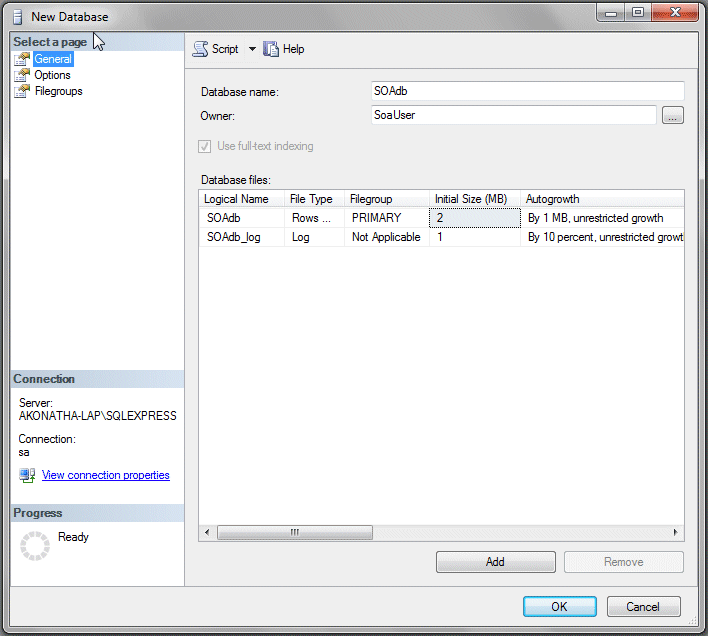
Create two databases: one for SOA, and one for Financial Close Management and Shared Services. a. Right click on Database and select “New Database…”
b. Enter the database name and owner.
c. Click OK to create the database. |
. |
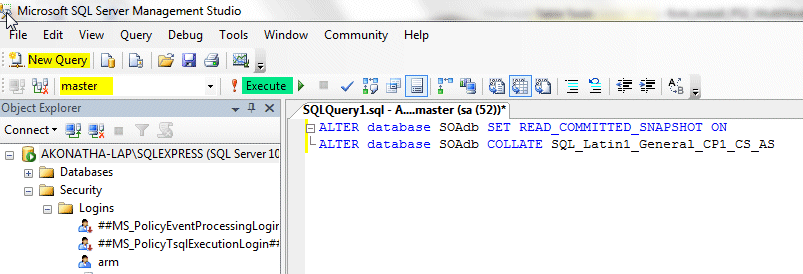
Modify the properties of the database for SOAdb: a. Click on the ‘New Query’ button in the upper left and choose ‘master’ database from the drop-down just below it. b. Enter the commands below. replacing <database name> with the SOA Database.ALTER database <database name> SET READ_COMMITTED_SNAPSHOT ON
c. Click on the Execute button to run the commands.
|
. |
Modify the properties of the database for Financial Close Management by using the following commands:
|


Enabling XA Transactions
You must Enable XA transactions for SQL Server in both SQL Server and at the operating system level.
You should perform these procedures before you install and configure SOA Suite.
. |
Copy instjdbc.sql from c:\Oracle\Middleware\wlserver_10.3\server\lib into: c:\Program Files\Microsoft SQL Server\MSSQL.1\MSSQL\Binn for SQL Server 2005 or c:\Program Files\Microsoft SQL Server\MSSQL10.<INSTANCE_NAME>\MSSQL\Binn for SQL Server 2008
|
|---|---|
. |
Copy one of the following:
|
. |
After copying the file, rename the 64sqljdbc.dll or x64sqljdbc.dll to sqljdbc.dll.
|
. |
Run the following command from the command prompt: SQLCMD.EXE is located at c:\Program Files\Microsoft SQL Server\90\Tools\Binn\ for SQL Server 2005 and In the above command "SERVER NAME" is the server name used to Example for SQL Server 2005:
Example for SQL Server 2008:
|
. |
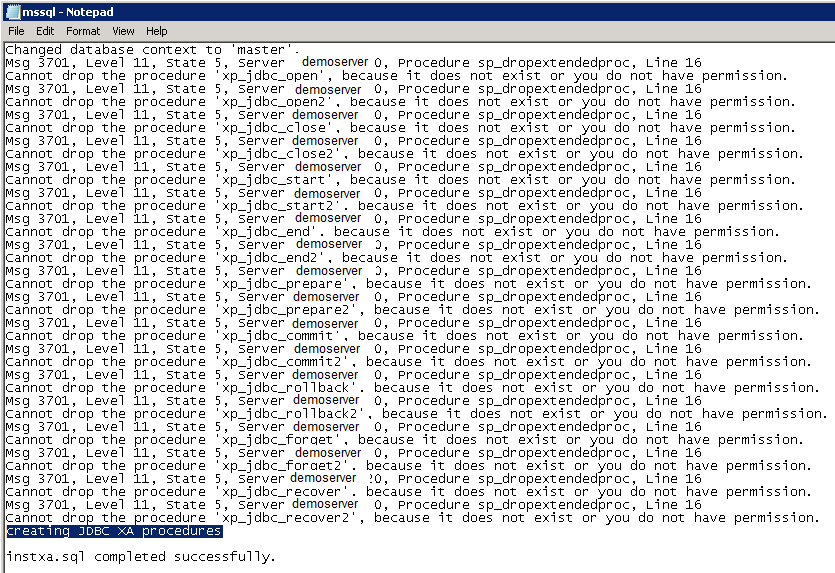
Look for the messages creating JDBC XA procedures and instxa.sql completed successfully in the log.
|
. |
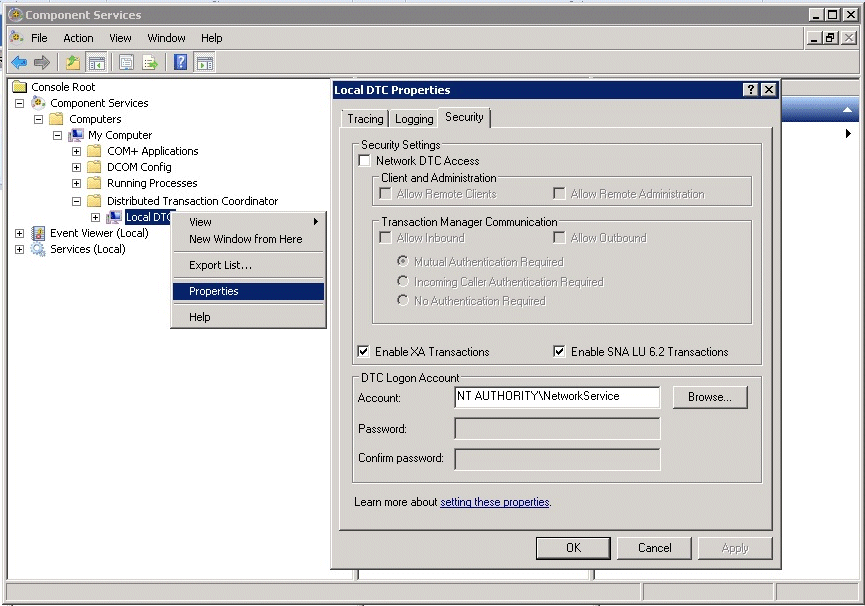
For Windows 2008: a. Select Start, then Programs, then Administrative Tools, then Component Services, b. Right Click Local DTC and select Properties c. Select the Security Tab and then select Enable XA Transactions d. Click OK
Note: Click OK through the warning dialogs about service restarting.
|
. |
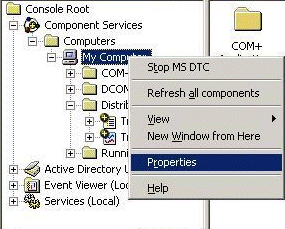
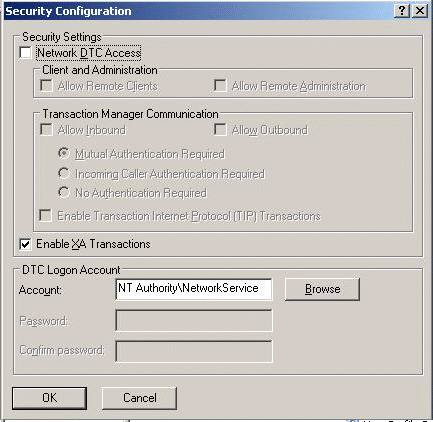
For Windows 2003: a. Select Start, then Programs, then Administrative Tools, then Component Services, and then Computers. b Right click on My Computer and select Properties.
c. Select the MSDTC tab and click Security Configuration.
d. Select Enable XA Transactions e. Click OK
|
. |
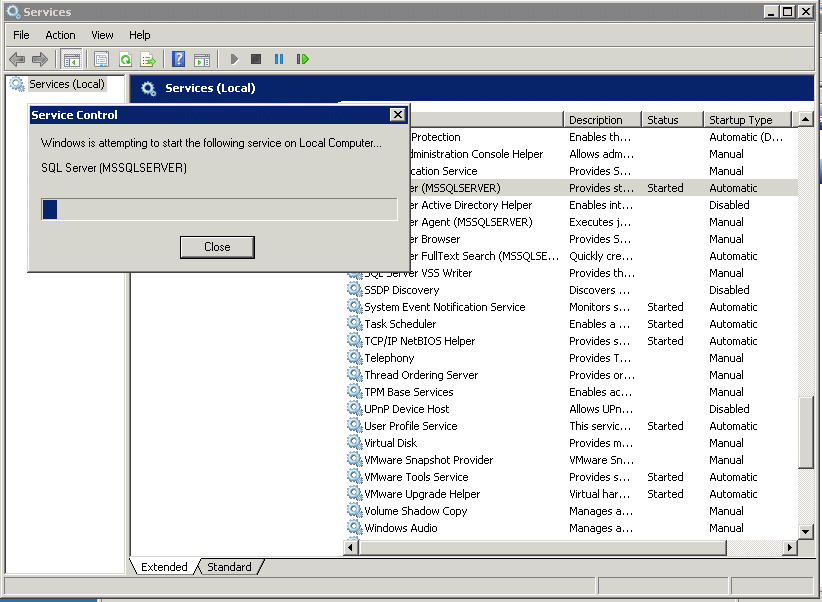
Restart SQL Server (MSSQLSERVER) from Windows Services.
|



Appendix C: IPv6 Network
This appendix contains information for testing IPv6 Network on your environment. If IPv6 is turned on for your machines, then you have to make sure IPv6 routing is properly working in your network. If your network doesn't support IPv6, then
you have to turn off IPv6 device(s) before you start EPM installation.
IPv6 Network Testing
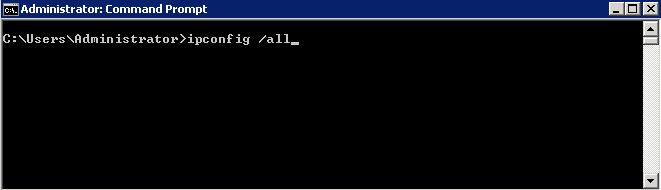
. |
Run "ipconfig /all" from a command prompt:
|
|---|---|
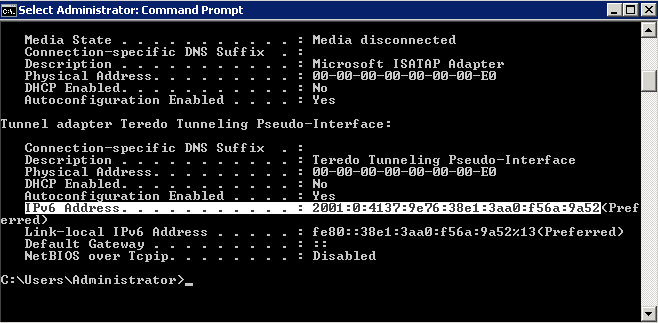
. |
If there is any device using IPv6 such as in the following example then you need to test IPv6 connection
|
. |
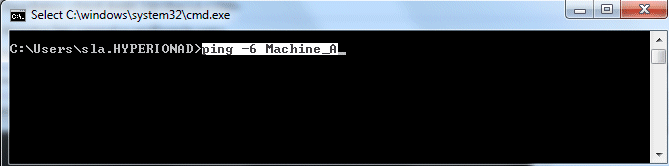
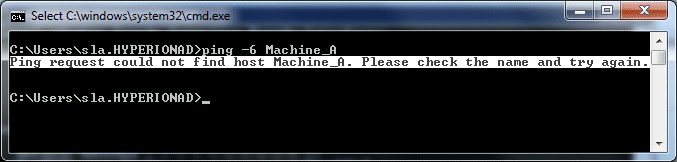
From the other remote machine, ping your machine (Machine A) from a comman prompt as follows:
|
. |
If ping returns "Ping request could not find host <Machine A>" then your network doesn't support IPv6 and
|
Turning Off IPv6
. |
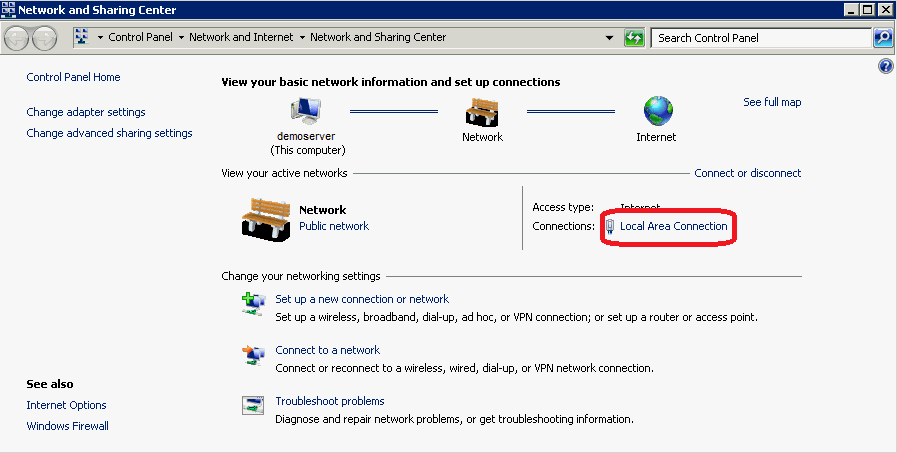
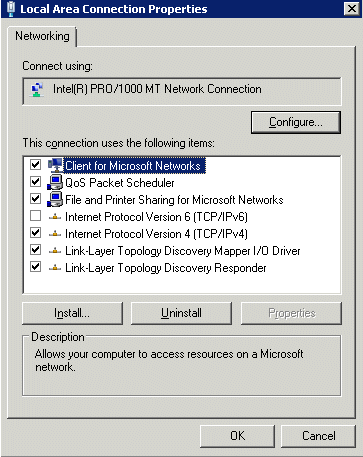
From Local Area Connection Properties, deselect IPv6. a. From Start menu, right click on Network and click on Properties. b. From the Network and Sharing Center screen, click on Local Area Connection.
|
|---|---|
. |
From Local Area Connection Properties, deselect IPv6.
|
. |
From a command prompt, run "ipconfig /all" and verify there is no process using
|
. |
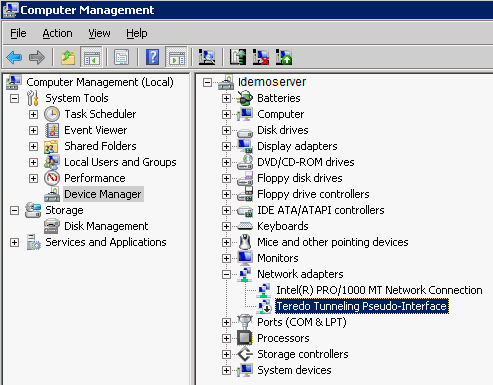
To disable devices using IPv6 do the following: a. From the Start menu, select Administrative Tools, then Computer Management" b. Go to Device Manager. c. Select Show hidden devices from the View menu d. Expand Network adapters. e. Right-click on Teredo Tunneling Pseudo-Interface (or any other device that is using IPv6) and disable it.
|
. |
Run “ipconfig /all” again from the command prompt to make sure there are no longer any devices using IPv6.
|
Appendix D: Linux Commands
- To launch the EPM System installer: Execute
installTool.sh
- To launch the SOA Installer: Execute
./runInstaller –jreLoc /oracle/middleware/jdk160_35
- To launch the SOA Configurator: Run
<MIDDLEWARE_HOME>/oracle_soa1/common/bin/config.sh
- To launch the EPM System Configurator: Run
<EPM_ORACLE_HOME>/common/config/version_number/configtool.sh
- To start weblogic server: Run
<Middleware_home>/user_projects/domains/<domain>/bin/startWebLogic.sh
- To start SOA server : Execute
<Middleware_home>/user_projects/domains/<domain>/bin/startManagedWebLogic.sh soa_server1
- To start Foundation Services: Run
<MIDDLEWARE_HOME>/user_projects/epmsystem1/bin/startFoundationServices.sh
- To start OHS: Run
<MIDDLEWARE_HOME>/user_projects/epmsystem1/bin/startOHS.sh
- To stop Foundation Services: Run
<MIDDLEWARE_HOME>/user_projects/epmsystem1/bin/stopFoundationServices.sh
- To launch FDMEE: Run
<MIDDLEWARE_HOME>/user_projects/epmsystem1/bin/startErpIntegrator.sh
- To launch the ODI installer: Execute
./runInstaller -jreLoc /scratch/Oracle/Middleware/jdk160_29
- To start the ODI studio: Run
<ODI_HOME>/oracledi/client/odi.sh
- Configuring Oracle Security Policy for ERPI:
Run wlsConfigMDS.sh and and wlsConfigOWSM.sh
If loading the properties and running the py from the wlsConfigMDS.sh does not succeed, you may load the properties and execute the py script from wls.
Example:
wls:/offline>loadProperties('/scratch/Oracle/Middleware/EPMSystem11R1/products/FinancialDataQuality/bin/wls-infra.properties')
wls:/offline>execfile('/scratch/Oracle/Middleware/EPMSystem11R1/products/FinancialDataQuality/bin/wlsConfigMDS.py')
Summary
In this tutorial, you have learned how to:
- Install and configure SOA Suite
- Install and Configure EPM Components for Financial Close Management
- Perform post-installation manual configuration tasks

 |
About
Oracle | Oracle and Sun |  | Subscribe | Careers | Contact
Us | Site Maps | Legal
Notices | Terms of Use | Your Privacy Rights | Subscribe | Careers | Contact
Us | Site Maps | Legal
Notices | Terms of Use | Your Privacy Rights |