Creating Financial Close Management 11.1.2.4 Server Clusters
Overview
- Machine A will be hosting Admin Server, SOA Server, and Foundation Services.
- Machine B will be hosting Financial Close Management (FinancialClose0), and FDMEE.
- Machine C will be hosting Financial Close Management (FinancialClose1)
- Verify that that FCM tasks/reconciliations are NOT in a running state. In case of tasks/reconciliations in a running state, you should change the schedule status to Close and the period status to Locked. These can successfully be reopened after the process is complete. Note that locked schedules cannot be reopened.
- Stop all servers in the following order: SOA Managed Server (Machine A), ERPI Managed Server (Machine B), FCM Managed Server (Machine B), Foundation Server (Machine A), and Admin Server (Machine A)
Purpose
This tutorial covers adding additional Oracle Hyperion Financial Close Management (FCM) servers to a multi-node environment.
Time to Complete
Approximately 4 hours
Introduction
This tutorial covers adding additional Oracle Hyperion Financial Close Management (FCM) servers to a multi-node environment. This tutorial assumes that FCM 11.1.2.4 has been installed and configured in a multi-node environment following the instructions in the Installing and Configuring Oracle® Hyperion Financial Close Management 11.1.2.4.000 in a Multi Node Environment tutorial.
Scenario
This tutorial assumes the following installation topology:
This example uses the standard default oracle home path, domain name and FCM cluster name. Please replace with the appropriate domain name, cluster name, and paths that are used in your configuration, if they are different from the defaults.
Before starting this tutorial, you should:
Installing EPM Components on Machine C
-
Navigate to the installation folder for the EPM software and run installtool.cmd.
-
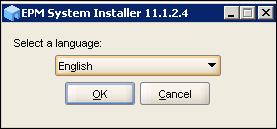
Select a language, and click OK.
-
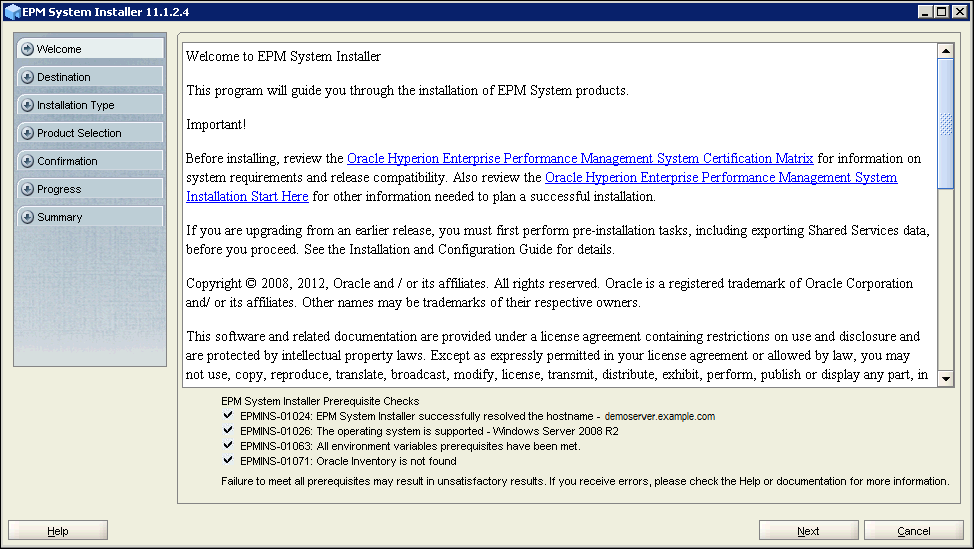
On the Welcome screen, click Next.
-
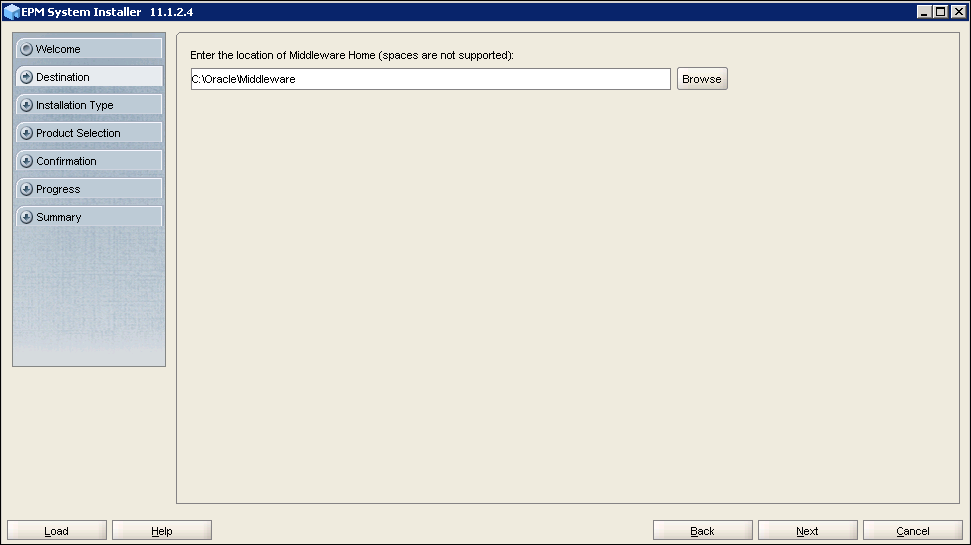
On the Destination screen, select the location for the Middleware Home directory, and click Next.
The default directory is c:\oracle\middleware.
-
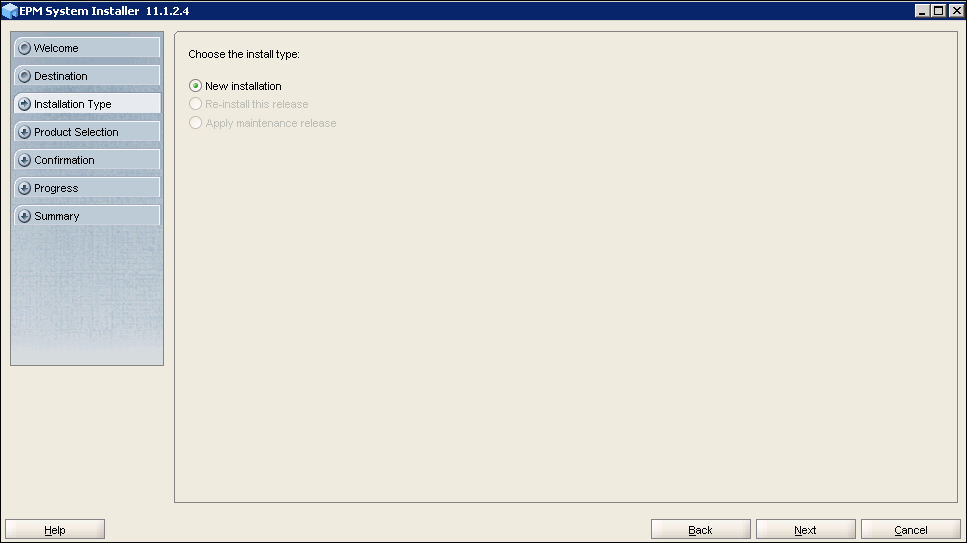
On the Installation Type screen, select New installation, and click Next.
-
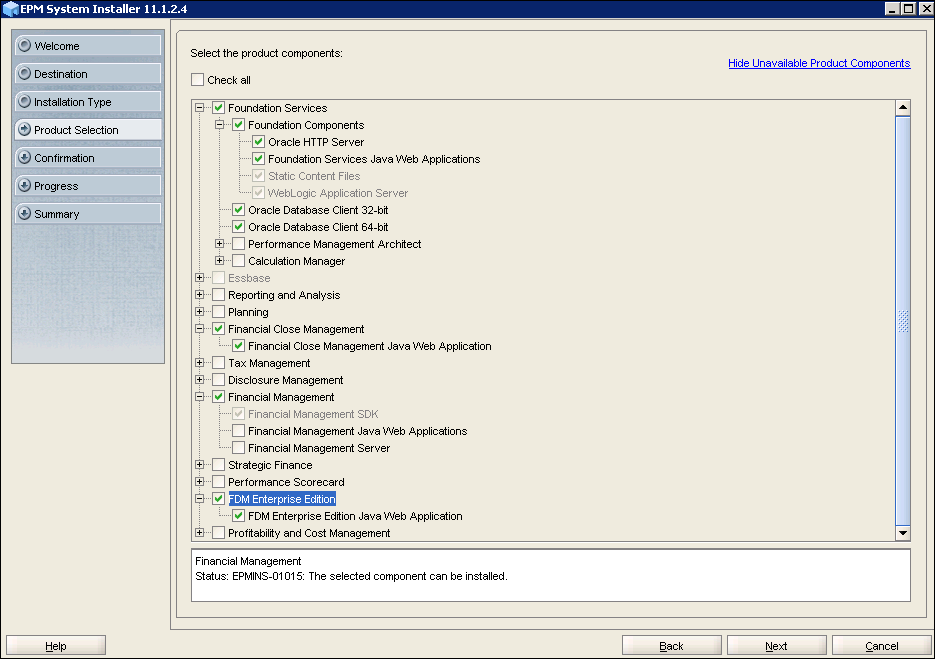
On the Product Selection screen, perform these steps
- Clear Uncheck All.
- Under Foundation Services, select Foundation Components.
- Select Financial Close Management.
- Select FDM Enterprise Edition “Financial Management SDK under Financial Management”, “Oracle Database Client 32-bit” and “Oracle Database Client 64-bit” will be auto-selected).
- Click Next.
Note: This example is for installing Foundation Services, Financial Close Manager, Account Reconciliation Manager, and FDM Enterprise Edition only.
-
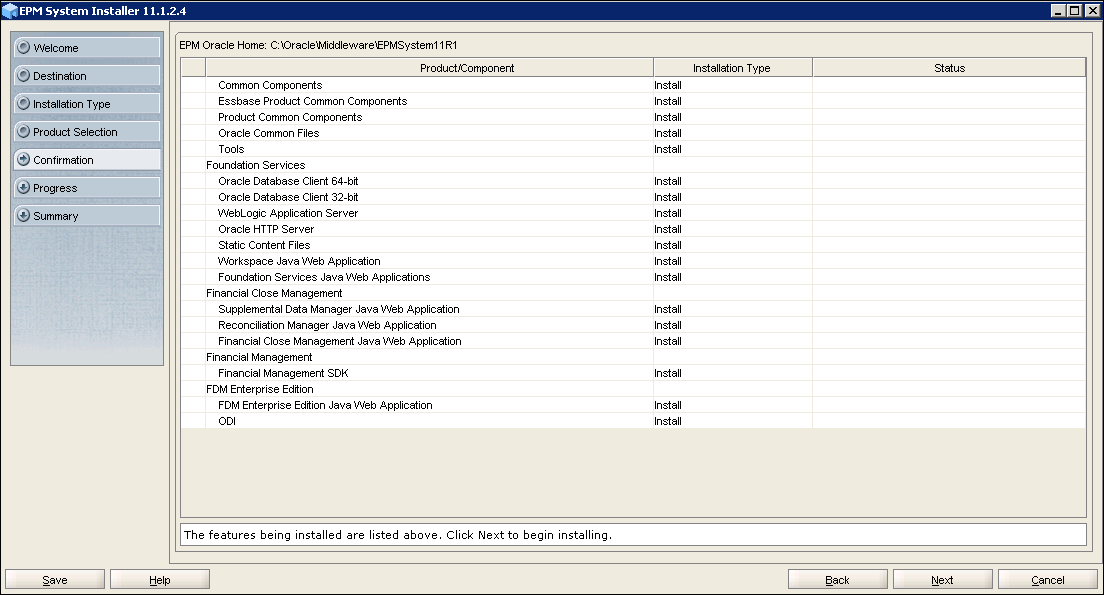
On the Confirmation screen, click Next.
-
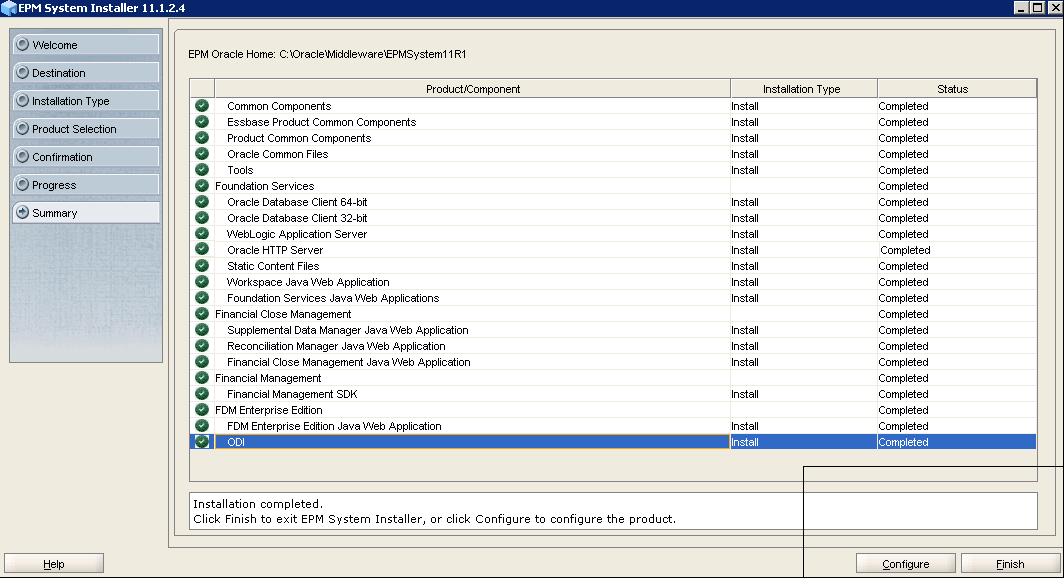
On the Summary screen, click Finish.
Installing SOA Suite on Machine C
When you install SOA Suite, select the same Middleware Home directory that you specified for installing EPM Components. The Middleware Home directory contains the WebLogic installation, which is required for installing SOA Suite.
-
Open a command prompt, navigate to the Disk1 folder under SOA Suite installation directory, and enter the following command:
Setup.exe -jreLoc <jre location>

-
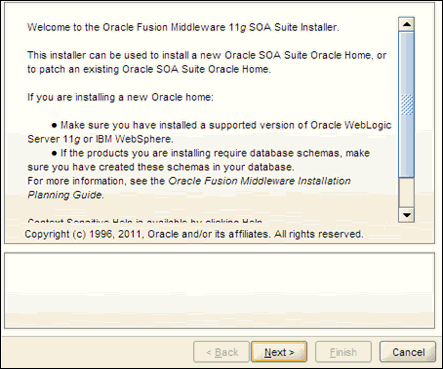
On the Welcome screen, click Next,
-
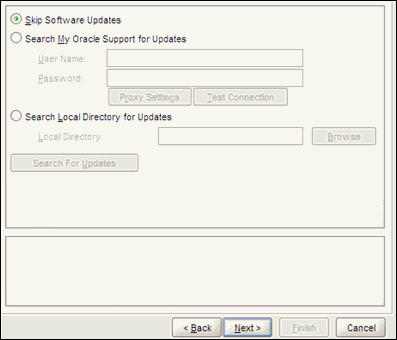
Select Skip Software Updates, and click Next.
-
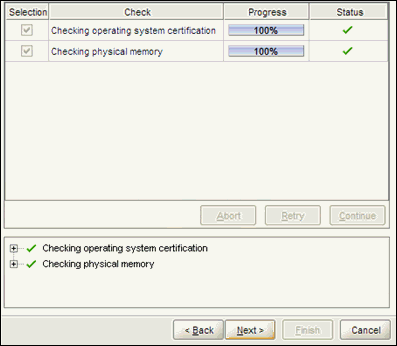
On the Prerequisites screen, click Next.
-
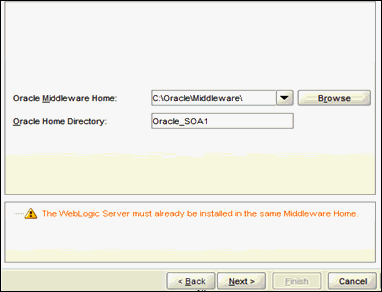
On the Specify Installation Location screen, verify that the Middleware Home directory is the directory that you selected when you installed the EPM Components, and click Next.
Be sure to modify the Middleware Home that is defaulted.
-
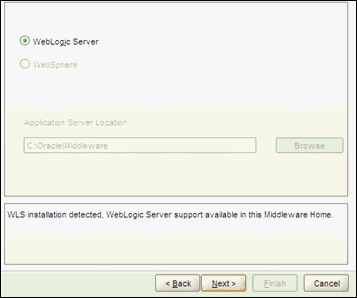
On the Application Server screen, verify that WebLogic Server is selected, and click Next.
-
On the Installation Summary screen, click Install.
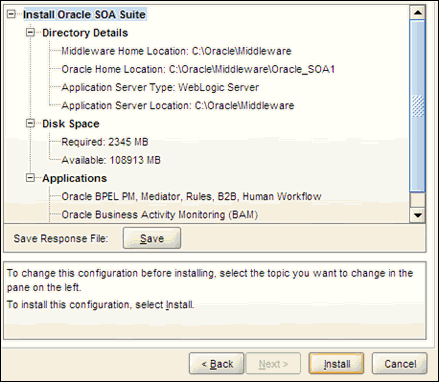
-
On the Installation Progress screen, when the Installation Successful message is displayed, click Next.
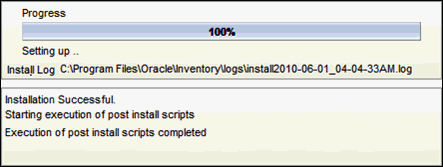
-
On the Installation Complete screen, click Finish.
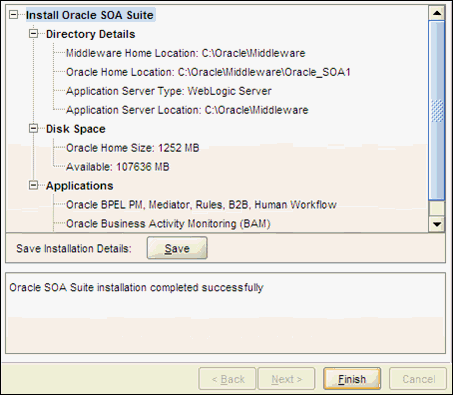
Apply SOA Patch 17014142
NOTE: This patch upgrades SOA to level 11.1.1.7.1
To apply the patch follow instructions given in the readme file of the patch.
Apply SOA Patch 17440113
NOTE: This patch fixes a SOA bug. Please make sure that you downloaded patch for SOA version 11.1.1.7.1
To apply the patch follow instructions given in the readme file of the patch.
Configuring EPM on Machine C
WebLogic Admin Server must be running on Machine A before you run the EPM configurator.
-
To start the WebLogic Admin Server, select Start, then Programs, then Oracle WebLogic, then User Projects, then <domain>, and then Start Admin Server, where <domain is the WebLogic domain you created with the SOA configuration tool.
(You can also start it with the startWebLogic.cmd. For example: C:\Oracle\Middleware\user_projects\domains\base_domain\bin\startWebLogic.cmd).
-
When prompted, enter the Web Logic admin user name and password.
The process will take few minutes and is complete when you see '<Server started in RUNNING mode>' in the Command Prompt window.
-
From the Windows Start menu, select Programs, then Oracle EPM System, then Foundation Services, and then EPM System Configurator.
(You can also start the configuration tool by using configtool.bat. For example: C:\Oracle\Middleware\EPMSystem11R1\common\config\11.1.2.0\configtool.bat).
-
Accept the defaults and click Next.
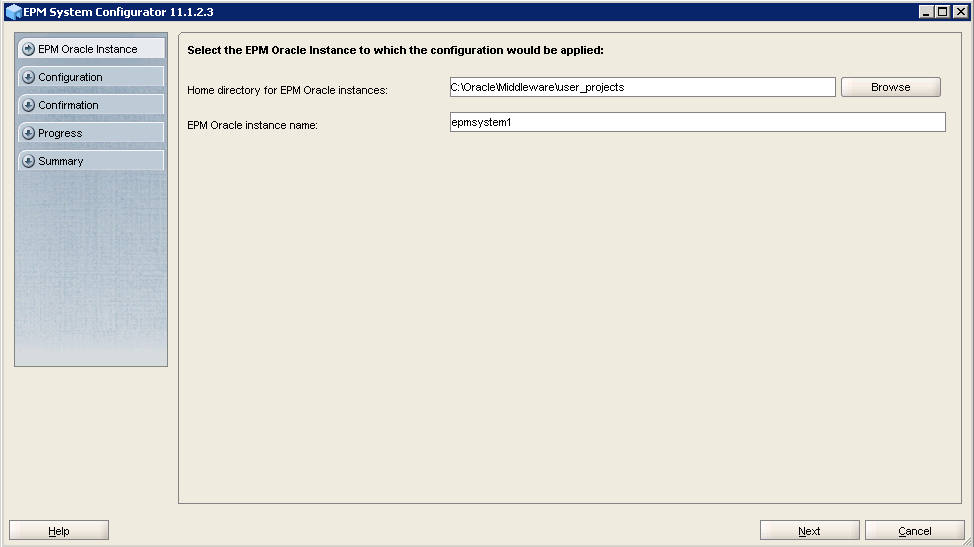
-
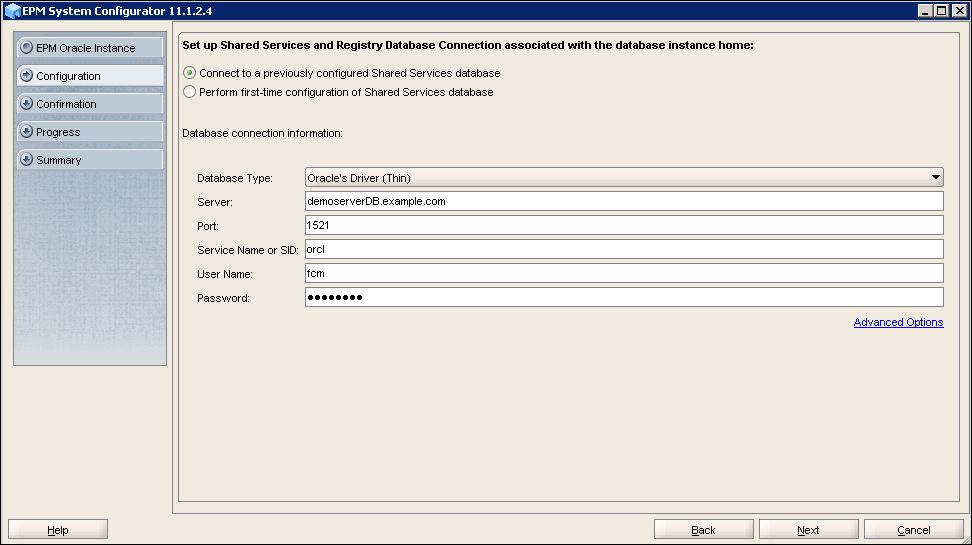
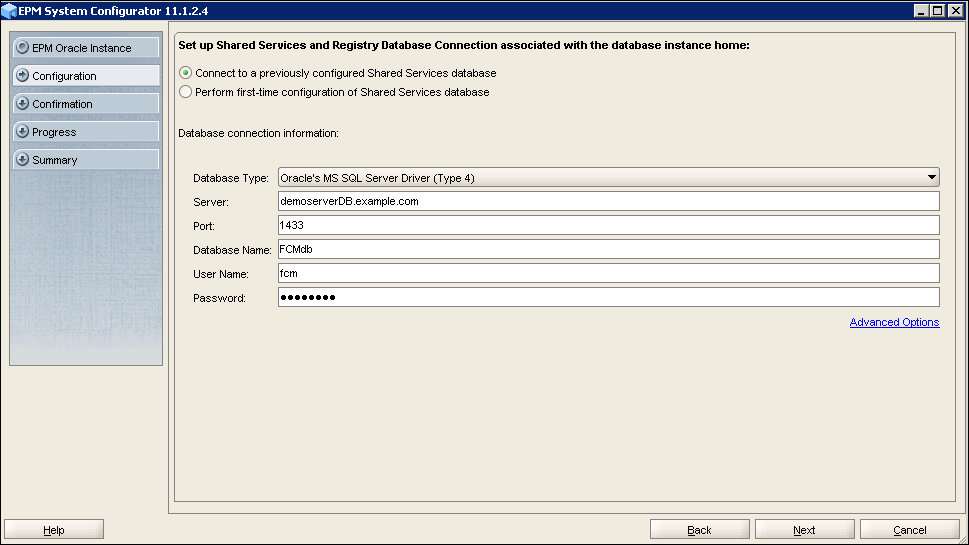
Enter the database connection details for the Shared Service database. Verify that Connect to a previously configured Shared Service database is chosen. You should use the same credentials as you entered when you configured Shared Services on Machine A.
Example for Oracle database:
Example for MS SQL Server database:
-
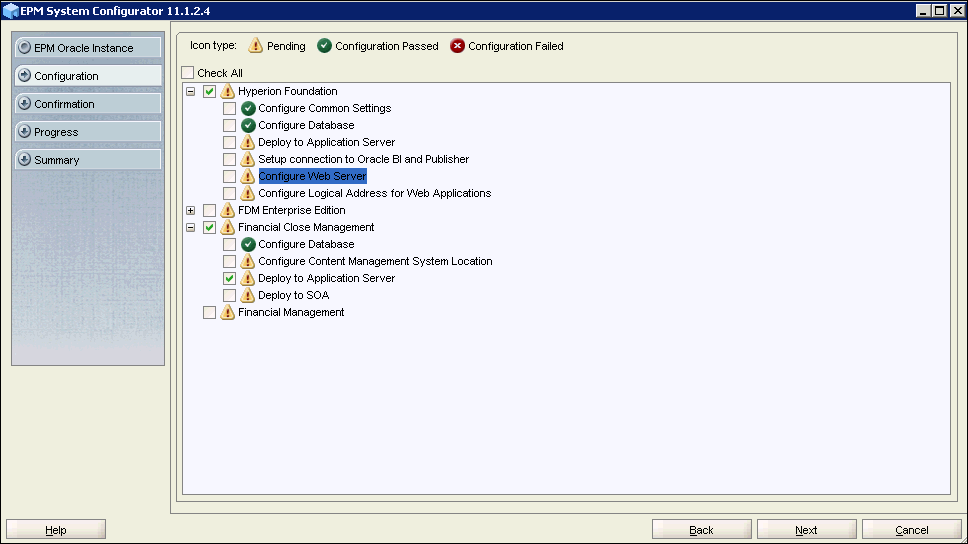
Perform the following steps to select the components to configure:
- Uncheck “Check All” check box.
- Expand Hyperion Foundation and ensure that only Configure Common Settings and Configure Database are selected and grayed out. Deselect any items that were selected by default.
- Expand Financial Close Management and select Deploy to application server. Do not select Configure Database and Deploy to SOA.
- Click Next.
-
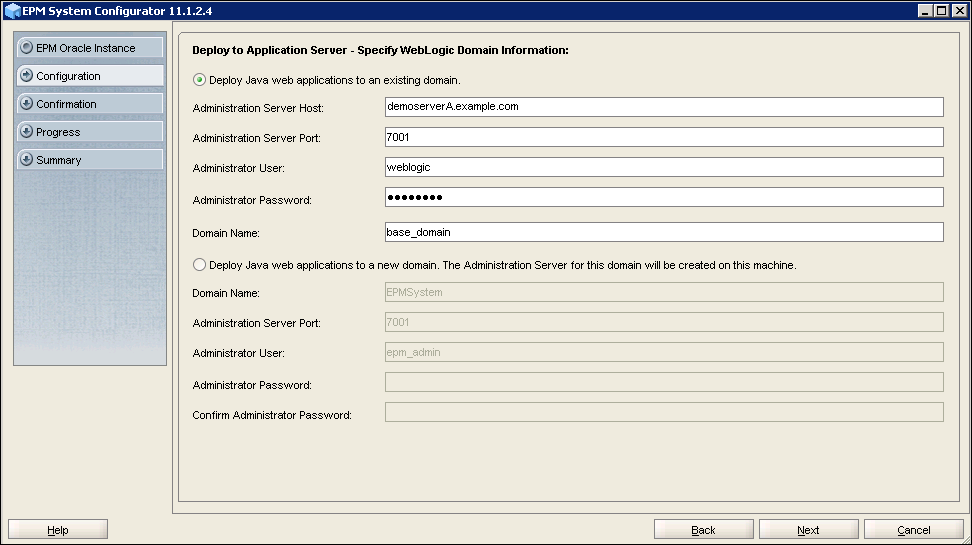
Select Deploy web applications to an existing domain; enter the information for the WebLogic domain that you created when you configured SOA on Machine A and click Next.
Note: The details will be populated by default.
-
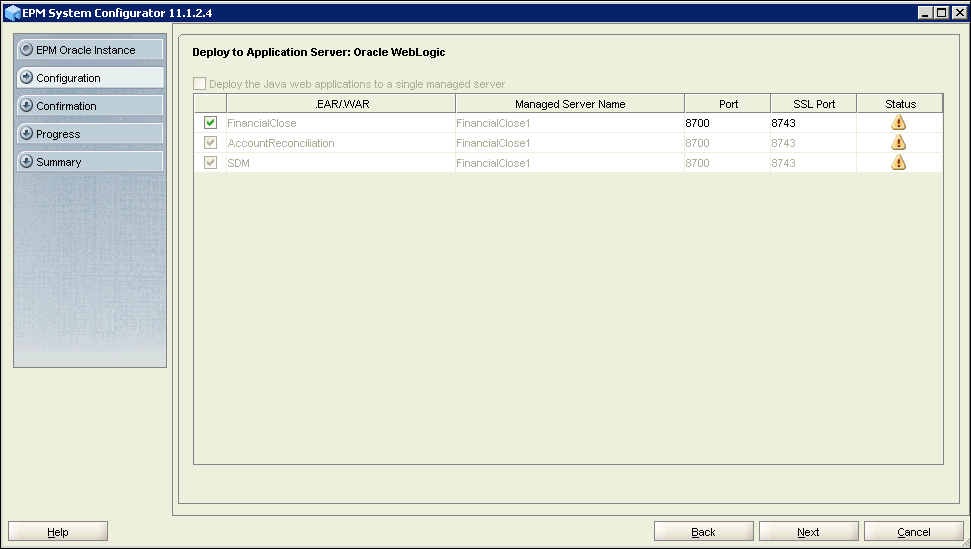
Verify that "Deploy web application to single managed Server" is unchecked and grayed out. Select the FinancialClose, AccountReconciliation and SDM check boxes if they are not selected by default, and click Next.
-
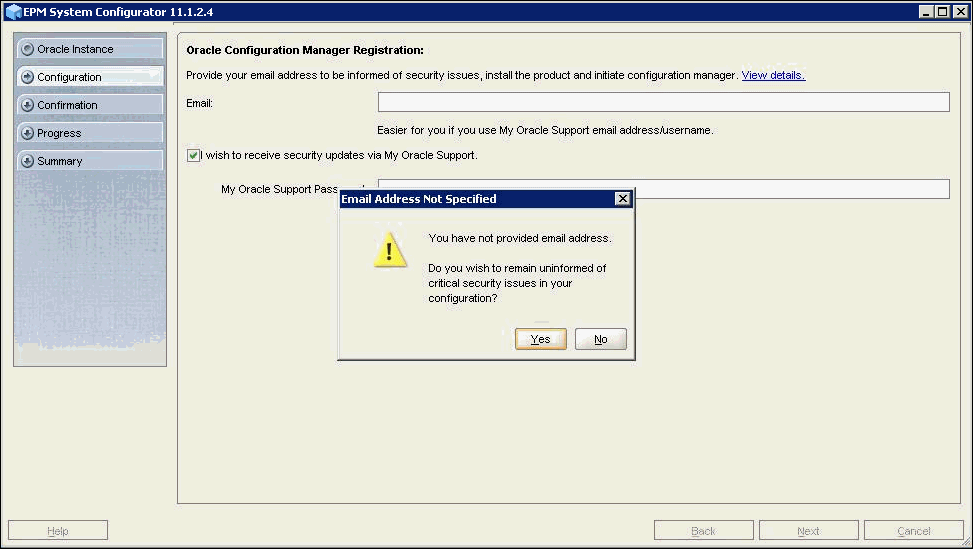
If you want to be informed of security updates by email, provide the necessary information; otherwise click Next and answer Yes at the confirmation prompt.
-
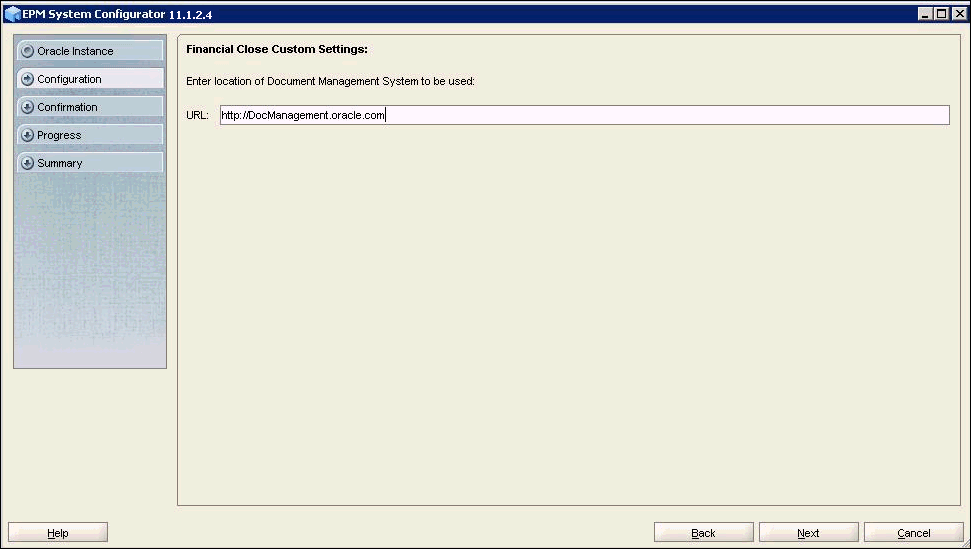
If earlier you chose to integrate Oracle Enterprise Content Management with your Financial Close Management application, specify a location; otherwise click Next.
-
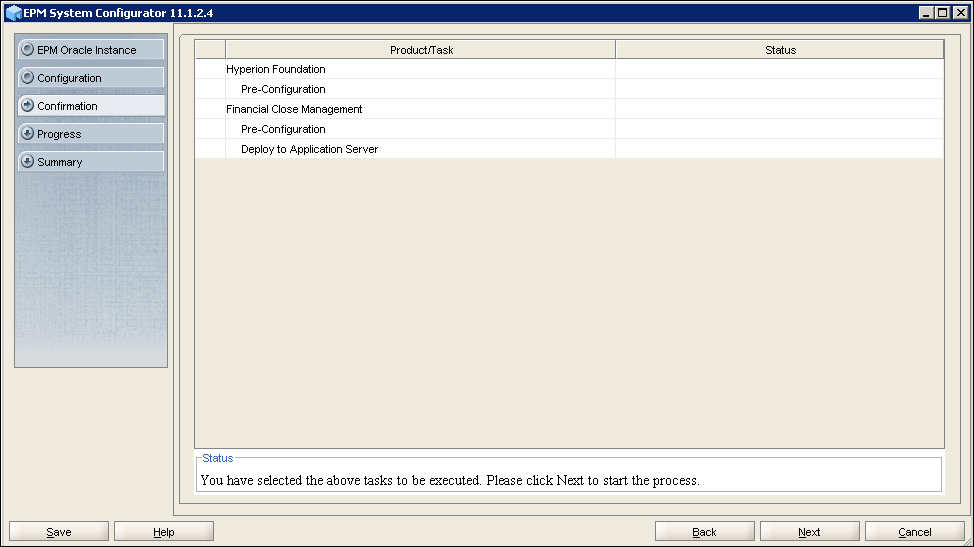
Review your selections, and click Next to launch the configuration process.
-
When the configuration is complete, click Finish.
This process creates the Clustered Financial Close Management server.
Reconfiguring the Web Server and Logical Web Address on Machine A
You must reconfigure the web server and logical web address on machine A, where Foundation Services is configured. Before reconfiguring the web server, you must shut down WebLogic Admin Server.
-
To stop the WebLogic Admin Server perform these steps:
- Press and hold Ctrl + C in the command window where WebLogic Admin server has been started.
- When prompted to terminate the batch job, type 'Y' and hit the enter key.
-
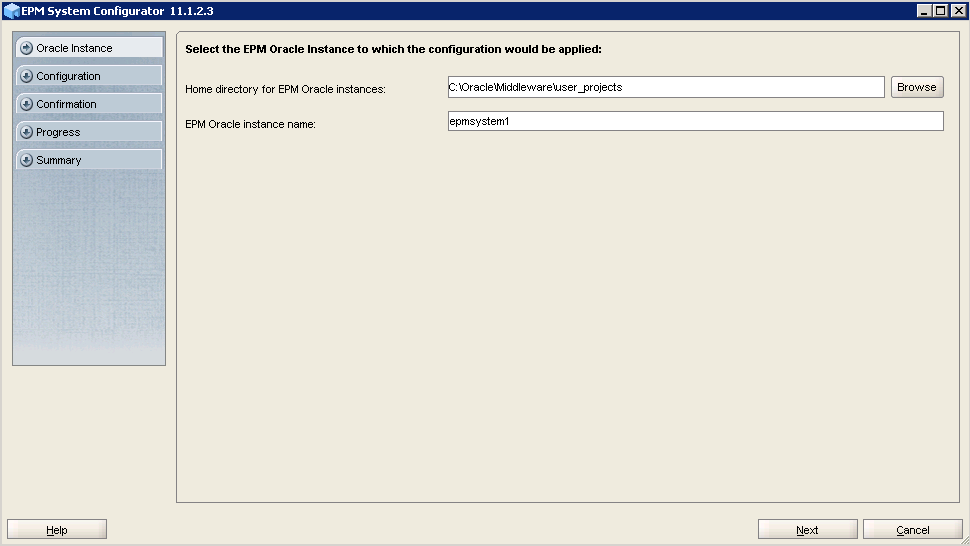
From the Windows Start menu, select Programs, then Oracle EPM System, then Foundation Services, and then EPM System Configurator.
-
Accept the defaults and click Next.
-
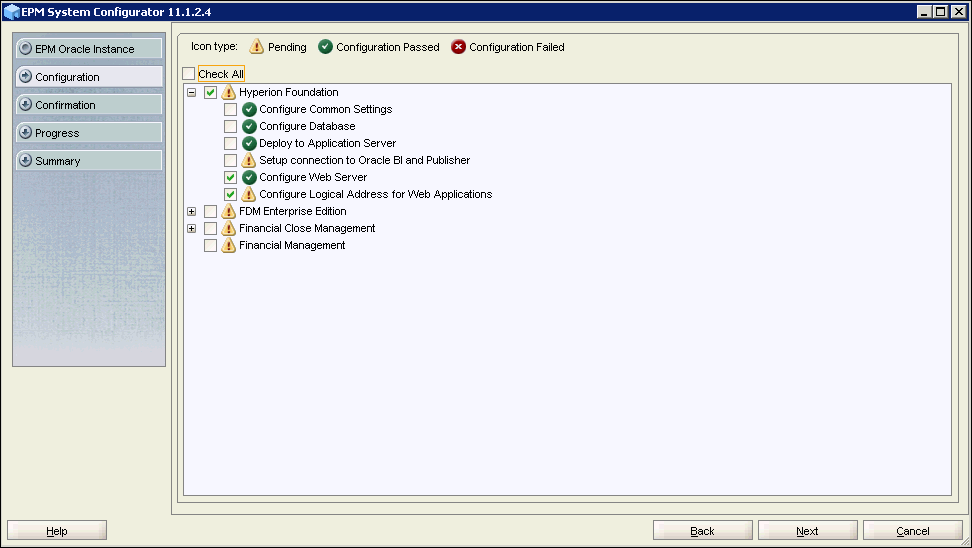
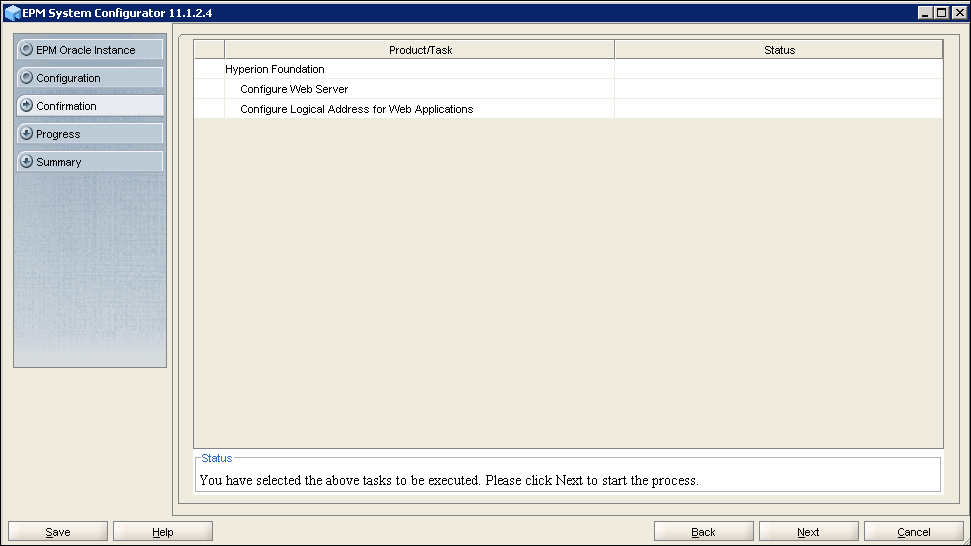
Expand Hyperion Foundation and select Configure Web Server and Configure Logical Address for Web Applications. Make sure both FDM Fusion Edition and Financial Close are not selected. Click Next.
-
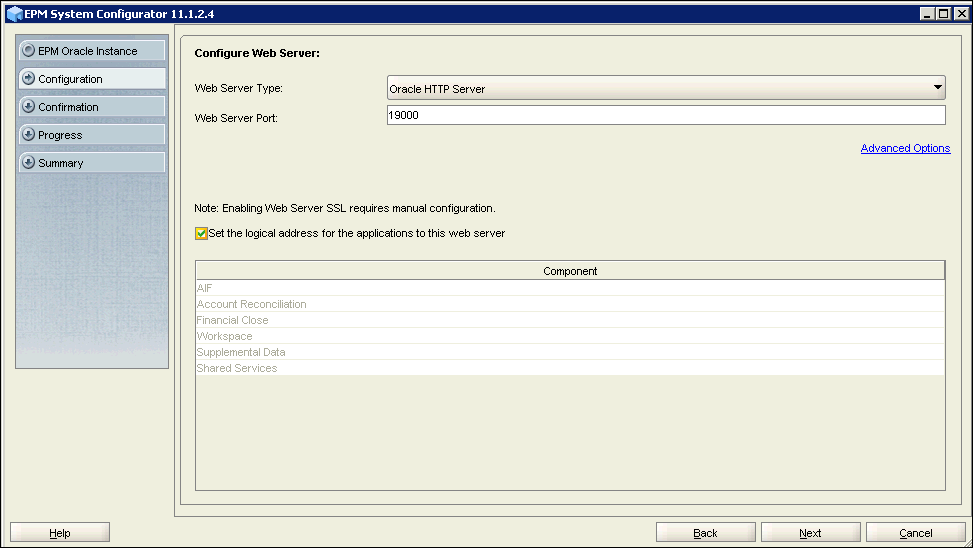
Accept the default Configure Web Server settings. Verify that Set the logical web address for the web applications to this web server is selected (select it if it is not already selected). Click Next.
-
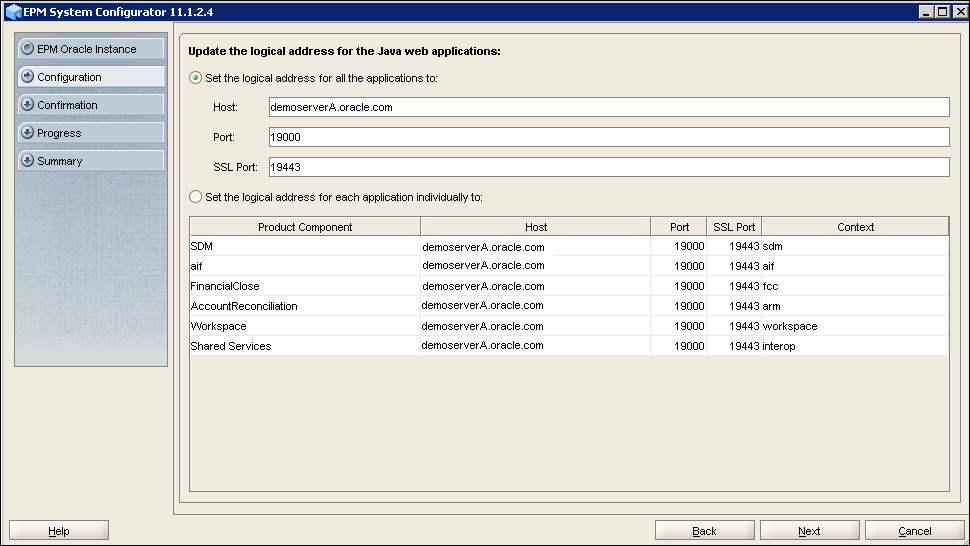
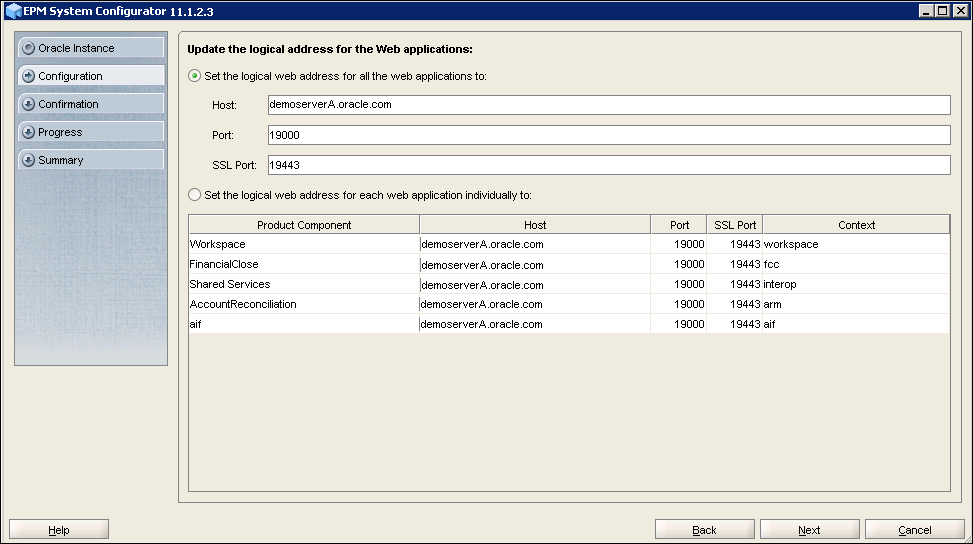
Select the Set the logical web address for all the web applications to: option and click Next.
-
Review your selections, and click Next to launch the configuration process.
-
When the configuration is complete, click Finish.
Copying Keystore Files from Machine A to Machine C
- Copy the keystore file, default-keystore.jks, and the cwallet..sso file from the source folder on machine A to the destination folder on machine C:
Follow the procedure below to copy the keystore files from machine A to machine C.
The source folder on machine A is:
C:\Oracle\Middleware\user_projects\domains\<domain>\config\fmwconfig
where <domain> is the domain you created using the SOA Configuration tool.The destination folder on machine C is:
C:\Oracle\Middleware\user_projects\domains\<domain>\config\fmwconfig
where <domain> is the domain you created using the SOA Configuration tool.
Performing Post-Installation Manual Configuration Tasks
-
After completing the above installation and configuration tasks, you must perform the following manual configuration tasks:
- Configure the async queue for a new node
- Update the soa_infra schema
- Update the LLR table (MS SQL Server only)
-
Shut down both FinancialClose0 and FinancialClose1 servers. (Shut down only these servers. WebLogic Admin Server should be running.)
-
Start WebLogic Admin Console: Select Start, then Programs, then Oracle WebLogic, then User Projects, then <domain>, and then Admin Server Console.
-
Log on using the WebLogic administrator name and password that you specified for the domain.
-
Click Lock & Edit.
-
Under Domain Structure, expand Services.
-
Under Services, expand Messaging.
-
Select JMS Modules, and in the JMS Modules list, deleteJRFWSAsyncJmsModule_FinancialClose.
-
Select JMS Servers and in the JMS Servers List, deleteJRFWSAsyncJmsServer_FinancialClose0_auto_1.
-
Select Persistent Stores and in the Persistent Stores list, deleteJRFWSAsyncFileStore_FinancialClose0_auto_1.
-
Click Activate Changes.
Logout of Admin console. Shut down Admin server.
-
On Machine A (where admin server is running), open a command prompt, change the directory to C:\Oracle\Middleware\oracle_common\webservices\bin, and run the following command:
C:\Oracle\Middleware\wlserver_10.3\common\bin\wlst jrfws-async-createUDDs.py --domain_home C:\Oracle\Middleware\user_projects\domains\base_domain --cluster FinancialClose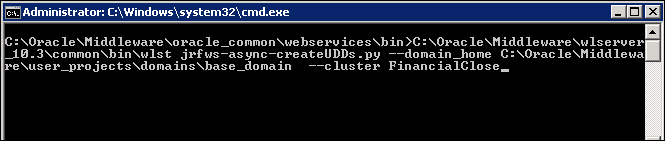
-
On Machine B (where FinancialClose0 is running), go to <domain_home> (e.g. C:\Oracle\Middleware\user_projects\domains\base_domain) and create a blank directory with the following name: JRFWSAsyncFileStore_auto_1
-
On Machine C (where FinancialClose1 is running), go to <domain_home> (e.g. C:\Oracle\Middleware\user_projects\domains\base_domain) and create a blank directory with the following name:
JRFWSAsyncFileStore_auto_2 -
On Machine C, perform the following steps to modify the file setdomainEnv.cmd in the <domain_home>/bin directory (e.g. C:\Oracle\Middleware\user_projects\domains\base_domain\bin) for notifications:
- Add ‘set SOA_ORACLE_HOME=C:\Oracle\Middleware\Oracle_SOA1’ after set SUN_JAVA_HOME=
- Modify
‘set EXTRA_JAVA_PROPERTIES=%EXTRA_JAVA_PROPERTIES% -Dem.oracle.home=C:\Oracle\Middleware\oracle_common -Djava.awt.headless=true’
to
‘set EXTRA_JAVA_PROPERTIES=%EXTRA_JAVA_PROPERTIES% -Dsoa.oracle.home=%SOA_ORACLE_HOME% -Dem.oracle.home=C:\Oracle\Middleware\oracle_common -Djava.awt.headless=true’ (just add the -Dsoa.oracle.home=%SOA_ORACLE_HOME% variable)
Start Admin server. Wait till Admin server comes up.
-
In WebLogic Admin Console, start the FCM nodes ( FinancialClose0 and FinancialClose1) one after the other. Wait until both FCM nodes have finished starting.
-
Verify the JMS async queue configurations and their targets:
- Go to WebLogic Admin Console
- Verify the created modules, servers and stores are targeted to FCM managed servers or cluster wherever applicable by navigating to Domain Structure > Services > JMS Modules, JMS Servers and Domain Structure > Persistent stores.
- Verify FCM and ARM deployment status to be Active (both from weblogic console and em console).
-
Launch MS SQL Management Studio.
-
Click New Query in the upper left and choose FCM database from the drop-down list just below it.
-
Run the following scripts to update the LLR tables:
DECLARE @alterquery as varchar(2000)
-- Get the Table created for LLR Transaction
DECLARE c1 cursor LOCAL FOR
SELECT
o.name
FROM dbo.sysobjects AS o
WHERE o.name like 'WL_LLR%'
DECLARE @TEMP_TABLE_NAME VARCHAR (1000)
OPEN c1
FETCH NEXT FROM c1 INTO
@TEMP_TABLE_NAME
WHILE (@@FETCH_STATUS = 0)
BEGIN
PRINT @TEMP_TABLE_NAME
-- Modify each LLR Table and alter column RECORDSTR width to 4000.
SET @alterquery = 'ALTER TABLE ' + @TEMP_TABLE_NAME +' ALTER COLUMN RECORDSTR nvarchar(4000)'
exec (@alterquery )
FETCH NEXT FROM c1 INTO
@TEMP_TABLE_NAME
END
CLOSE c1
DEALLOCATE c1
GO
Configuring the Async Queue for a New Node
Updating the soa_infra Schema
Connect to soa_infra schema using SQL Developer and run the following query:
For Oracle Databases:
UPDATE WFTASKDISPLAY SET httpport = <LWA Port> , httpsport=0, hostname = <LWA Host> WHERE URI like '/workflow/%';
Note:
Use the logical web address host and port that you specified during logical web address configuration,
where <LWA Port> is replaced by the logical web address port (default 19000), and
where <LWA Host> is replaced by the logical web address host name(default Machine A)
For MS SQL Server Databases:
UPDATE your_sql_db.DEV_SOAINFRA.WFTaskDisplay SET your_sql_db.DEV_SOAINFRA.WFTaskDisplay.httpPort = <LWA Port>, your_sql_db.DEV_SOAINFRA.WFTaskDisplay.httpsPort=0, your_sql_db.DEV_SOAINFRA.WFTaskDisplay.hostName = <LWA Host> WHERE your_sql_db.DEV_SOAINFRA.WFTaskDisplay.uri like '/workflow/%';
Note:
Where ‘your_sql_db’ is replaced by SQL DB name
Where ‘DEV_’ is replaced by the prefix name used when creating via RCU
Use the logical web address host and port that you specified during logical web address configuration,
Where <LWA Port> is replaced by the logical web address port (default 19000), and
Where <LWA Host> is replaced by the logical web address host name(default Machine A).
Refer to the screen shot below for details.
Updating the LLR Table (MS SQL Server Only)
Restarting the Servers
- WebLogic Admin Server (Machine A)
- Foundation Services managed server (Machine A)
- Oracle Process Manager(Machine A)
- Optional: Managed servers for integration products (for example: FDM Enterprise Edition, Financial Management or Financial Reporting) (Machine B)
- SOA managed server (Machine A)
- Financial Close Management Managed server (Machine B)
- Financial Close Management Managed server (Machine C)
You must start the servers required for Financial Close Management in the proper order.
Note: Wait until each server status changes to RUNNING before you starting the next server in the sequence. Refresh the page to get the server status.
Start the servers in the following order.
Running the Validation Tool to Verify Your Configuration
-
To run the EPM System Diagnostics tool, double-click the validate.bat file:
%EPM_ORACLE_INSTANCE%\bin\validate.bat.For example: C:\Oracle\Middleware\user_projects\epmsystem1\bin\validate.bat
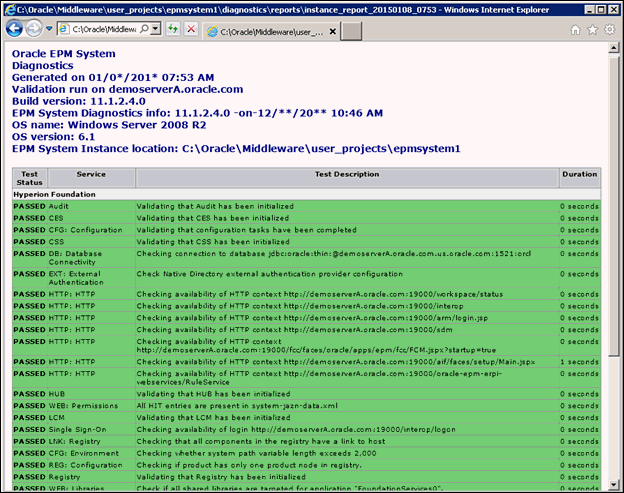
A new browser window is launched that displays the Oracle EPM System Diagnostics page with the status of all EPM components.
-
In the Oracle EPM System Diagnostics page, verify that all components have a status of PASSED.
-
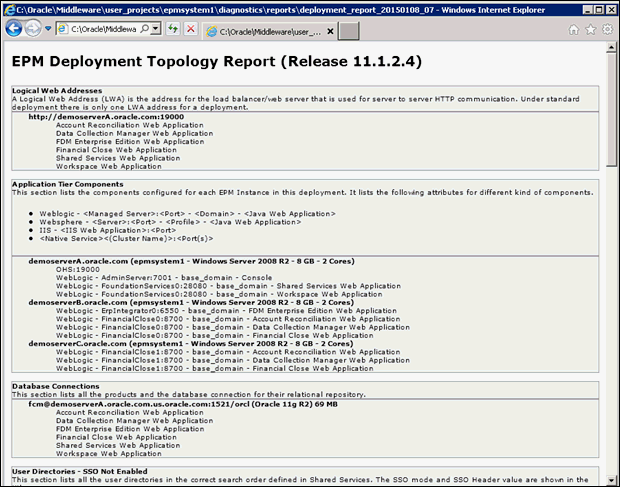
To run the EPM Deployment Topology report, at a command prompt, enter the following command:
%EPM_ORACLE_INSTANCE%\bin\epmsys_registry.bat report deploymentFor example: C:\Oracle\Middleware\user_projects\epmsystem1\bin\epmsys_registry.bat report deployment
A new browser window is launched that displays the EPM Deployment Topology Report.
-
Scroll to the bottom of the report and verify that 0 items failed.

-
From a Web browser, open the following URL:
http://<FCMHOST>:<FCMPORT>/fcc/faces/oracle/apps/epm/fcc/ui/page/FCCValidation.jspxwhere <FCMHOST> is the name of the machine where the FinancialClose0 managed server is configured.
where <FCMPORT> is the Listening port of the FinancialClose0 Managed Server in the WebLogic console. -
Log on to Close Manager with Shared Services administrator credentials.
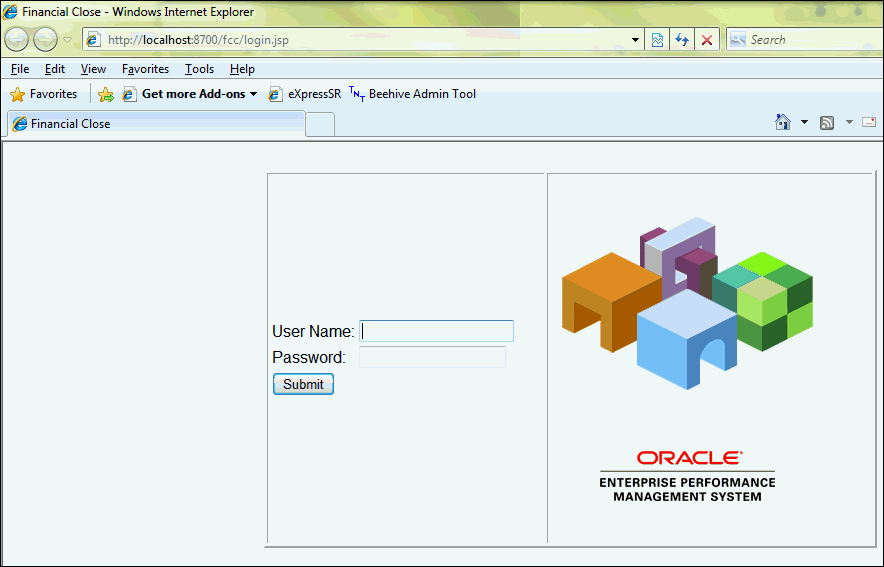
After successfully logging on the following screen is displayed.

-
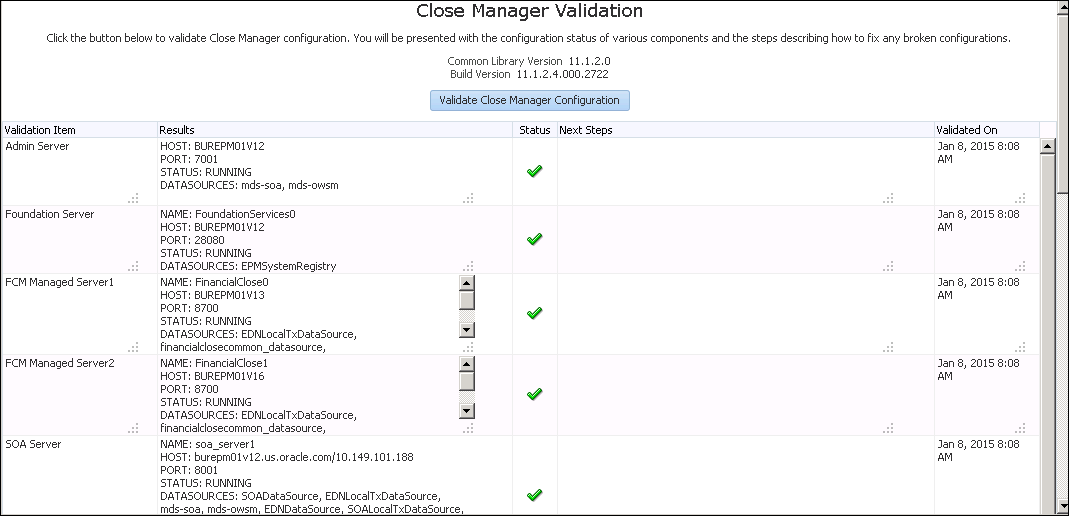
To validate the Close Manager configuration, click the Validate Close Manager Configuration button.

-
After validation, the configuration information will be displayed in a tabular form. A check mark in the status columns indicates Pass, an X indicates Fail. In case of a Fail status, the Next Steps column suggests the corrective actions. See the table beneath the graphic for a list of all validation items.
-
Validate Test Schedule:
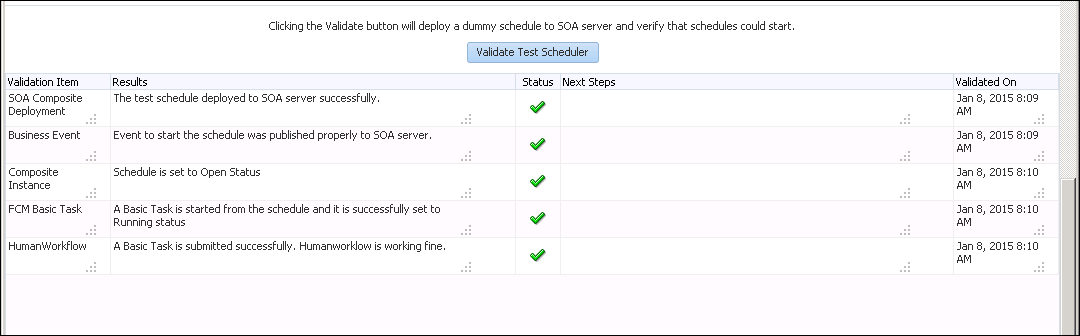
The second half of the page has a utility that will generate a test Main Orchestration Process, deploys it to soa server and start a test task. The status for each task is displayed in a table below it and should there be any errors – the possible cause of the error and the way to fix it will be displayed in the last column.
If you are running this part, make sure the user logged into the Diagnostic tool with a user that is also present in HSS.Click on Validate Test Scheduler.
Note: The button to run this test is enabled only if all the required configuration from the above table is in place; marked with check marks instead of X.

-
After validation, the configuration information is displayed in a tabular form:
-
From a Web browser, open the following URL:
http://<FCMHOST>:<FCMPORT>/arm/faces/oracle/apps/epm/arm/ui/page/common/ARMValidation.jspxwhere <FCMHOST> is the name of the machine where the FinancialClose0 managed server is configured.
where <FCMPORT> is the Listening port of the FinancialClose0 Managed Server in the WebLogic console. -
Log on with Shared Services administrator credentials.
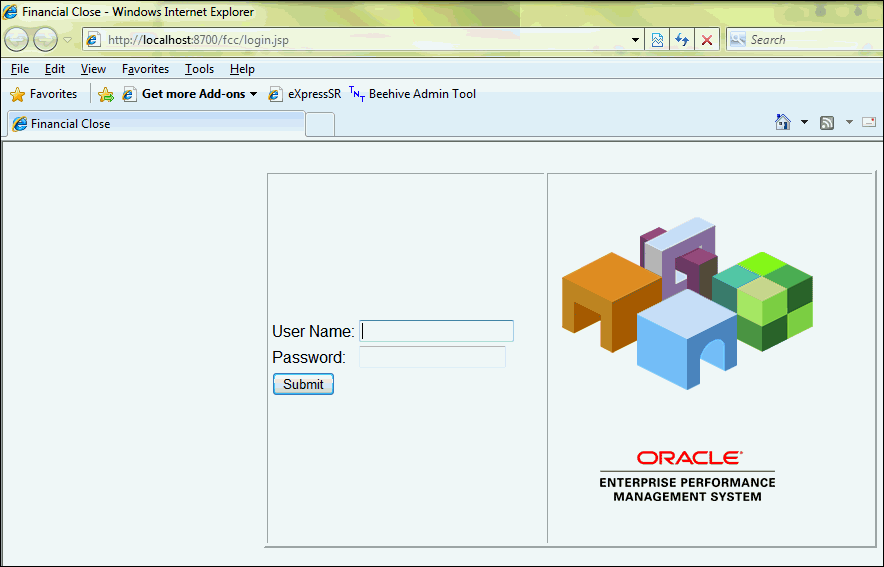
After successfully logging on the following screen is displayed.

-
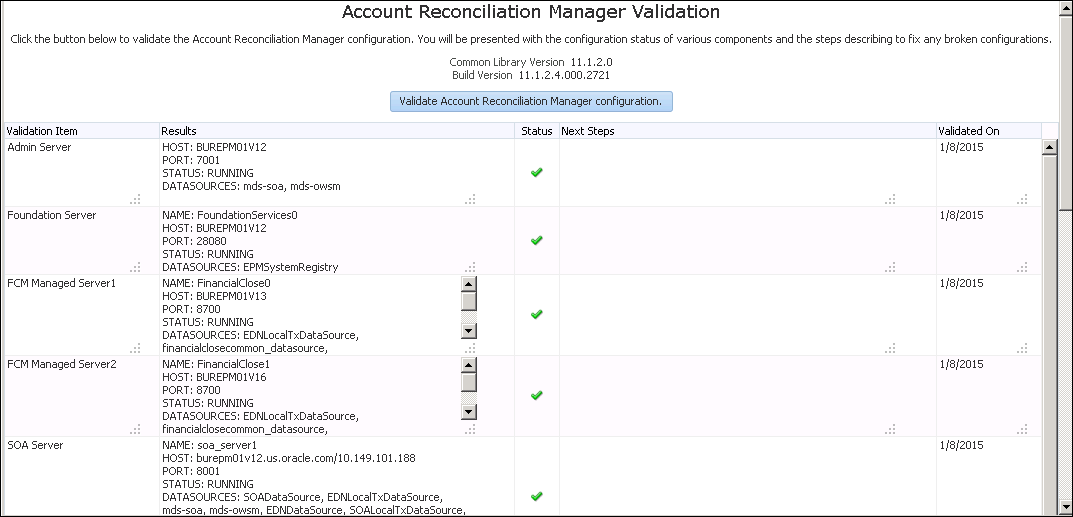
To validate the Account Reconciliation Manager configuration, click on the Validate Account Reconciliation Manager Configuration button.

-
After validation, the configuration information is displayed in a tabular form. See the following table for more information on the results. A check mark in the status columns indicates Pass, an X indicates Fail. In case of a Fail status, the Next Steps column suggests corrective actions. See the table beneath the graphic for a list of all validation items.
- Validate test scheduler:
Click on Validate Test Scheduler
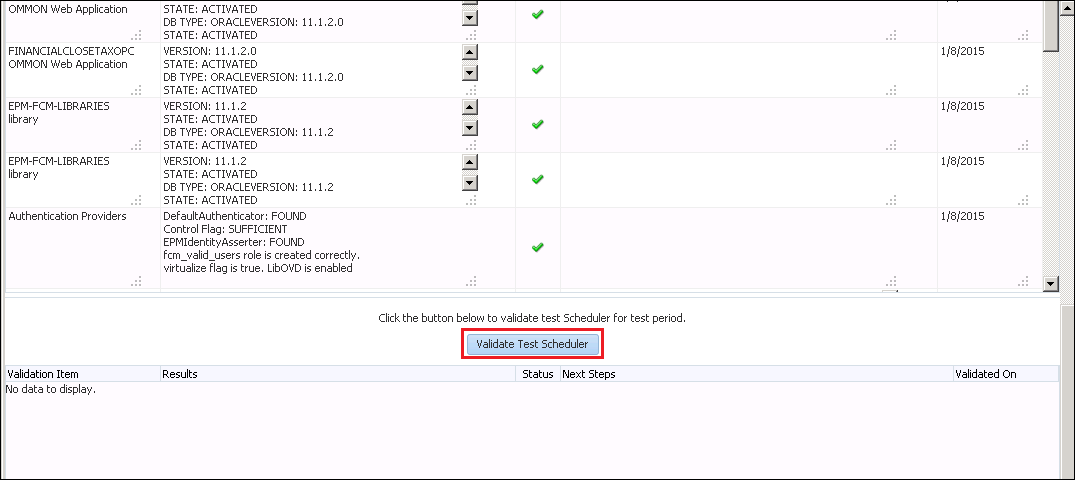
Note: The button to run this test is enabled only if all the required configuration from the above table is in place; marked with Check Marks instead of X.
After validation, the configuration information is displayed in a tabular form:

You can use the validation tool to verify your EPM, Close Manager, and Account Reconciliation Manager configurations.
Running the Validation Tool to Verify EPM Configuration on Machine A
Running the Validation Tool to Verify Close Manager Configuration on Machine B
Below is the list of things that will be displayed in a tabular form:
Admin Server |
Host |
Check Mark(Green)/ X (red) |
Messages describing the steps to fix in case of X (red) |
Foundation Server |
Host |
|
|
FCM Managed Server |
Host |
|
|
SOA Server |
Host |
|
|
FCM Web application |
Version: |
|
|
Authentication Providers |
Provider configured/ not |
|
|
External Authenticators |
Lists the Authentication Providers |
|
|
SOA Composites |
Check whether SOA composites Active/Not |
|
|
Foreign JNDI |
EDN JMS (in case of sql server) |
|
|
OWSM KeyStore |
Lists the external Identity store configuration. The tool only lists the values used for the configuration. It is the responsibility of the customer to make sure that the entered values are correct. |
|
|
Below is the list of things that is displayed in a tabular form:
SOA Composite Deployment |
Tells if the composite deployment to soa server is successful. |
Check Mark (Green)/ X (red) |
Messages describing the steps to fix in case of X (red) |
Business Event |
Tells if the business event if fired successfully. |
|
|
Composite Instance |
Tells if the business event is able to start a Task correctly or not. |
|
|
FCM Basic Task |
Tells if the basic task is started and successfully set to Running Status. |
|
|
Humanworkflow |
The above task is submitted internally to confirm if Humanworkflow is working fine. |
|
|
Running the Validation Tool to Verify Account Reconciliation Manager Configuration on Machine B
Below is the list of things that will be displayed in a tabular form:
Admin Server |
Host |
Check Mark (Green)/ X (red) |
Messages describing the steps to fix in case of X (red) |
Foundation Server |
Host |
|
|
FCM Managed Server |
Host |
|
|
SOA Server |
Host |
|
|
ARM Web Application |
Version: |
|
|
Authentication Providers |
Provider configured/ not |
|
|
External Authenticators |
Lists the Authentication Providers |
|
|
SOA Composites |
Check whether SOA composites Active/Not |
|
|
Foreign JNDI |
EDN JMS (in case of sql server) |
|
|
OWSM KeyStore |
Lists the external Identity store configuration. The tool only lists the values used for the configuration. It is the responsibility of the customer to make sure that the entered values are correct. |
|
|
Summary
- Add additional Financial Close Management (FCM) servers to a multi-node environment.
- Perform post-Installation manual configuration tasks.
- Run the validation tool to verify your configuration.
- Lead Curriculum Developer: Syed Khairulla
- Other Contributors: Mark Mitsock, Sergei Pecherskyy, Ron Reiley, Raghava Enumadi
In this tutorial, you have learned how to:
Resources
Credits
To navigate this Oracle by Example tutorial, note the following:
- Topic List:
- Click a topic to navigate to that section.
- Expand All Topics:
- Click the button to show or hide the details for the sections. By default, all topics are collapsed.
- Hide All Images:
- Click the button to show or hide the screenshots. By default, all images are displayed.
- Print:
- Click the button to print the content. The content that is currently displayed or hidden is printed.
To navigate to a particular section in this tutorial, select the topic from the list.