Creating Metadata Extract Files with the Oracle® Hyperion Enterprise Performance Management Architect, Fusion Edition 11.1.2 File Generator
Purpose
This tutorial covers creating metadata extract files with the Performance Management Architect File Generator utility.
Time to Complete
Approximately 20 minutes.
Overview
This tutorial covers creating metadata extract files Financial management application created in Performance Management Architect by using Performance Management Architect File Generator.
Scenario
Your company finalized its metadata structure in a testing environment and is ready to move the metadata to the production environment. To do this, you use the Performance Management Architect File Generator utility to extract the metadata from the Financial Management files or applications and to create metadata extract files (ADS). You then use the extract files to load the metadata into the production environment.
Prerequisites
Before starting this tutorial, you should:
. |
Have access to or have installed Oracle® Hyperion Financial Management, Fusion Edition 11.1.2 |
|---|---|
. |
Have installed two Financial Management applications (Comma and Reports applications are used for this tutorial.) |
Creating Metadata Extract Files
You create metadata extract files from Financial Management files or applications.
You can use the following Financial Management file types to create a metadata extract file: application profile (PER), security (SEC), and metadata (XML).
Your company asked you to create two metadata extract files. One extract file is from existing Comma Financial Management files (CommaCalendar.per, Comma.sec, and Comma.xml.) The other extract file is from the Financial Management application named Reports, which was created in Performance Management Architect.
Creating Metadata Extract Files from Financial Management Files
. |
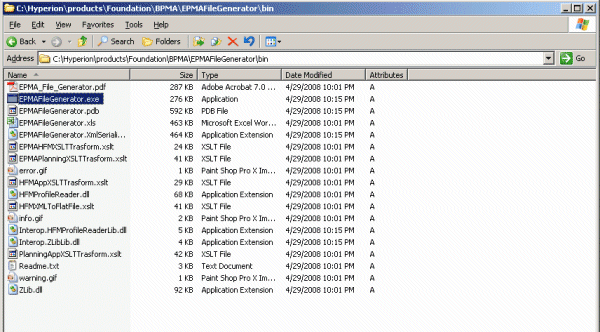
Navigate to the C:\oracle\Middleware\EPMSystem11R1\products\Foundation\BPMA\EPMAFileGenerator\bin directory, and double-click the EPMAFileGenerator.exe file.
|
||||||||||||
|---|---|---|---|---|---|---|---|---|---|---|---|---|---|
. |
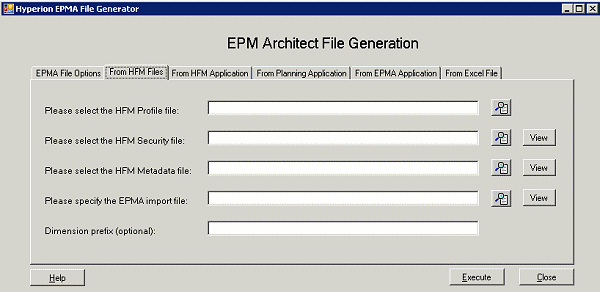
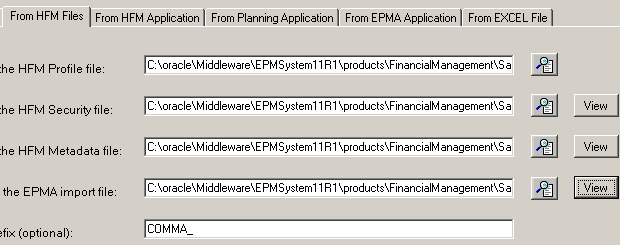
Select the From HFM Files tab.
|
||||||||||||
. |
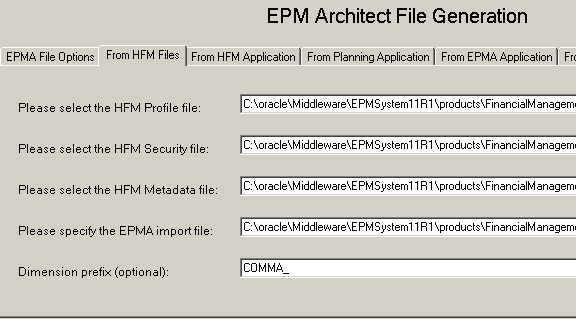
Perform the following actions: a. Click Browse, and select CommaCalendar.per, Comma.sec, and Comma.xml from the locations specified in the following table:
b. Click Browse, and specify the location and name of the Performance Management Architect import file as C:\oracle\Middleware\EPMSystem11R1\products\FinancialManagement\SampleApps\Comma\EPMAImport.ads. c. Enter COMMA_ as the prefix for dimensions.
d. Click Execute.
|
||||||||||||
. |
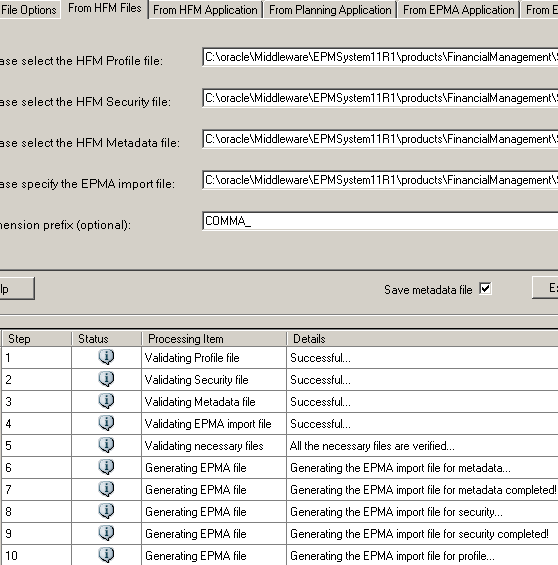
Verify that the Performance Management Architect file was generated successfully.
|
||||||||||||
. |
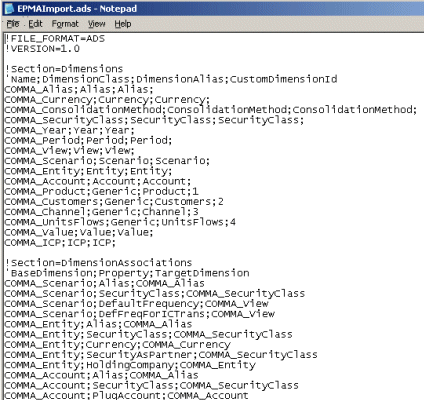
Click View to review the EMPAImport.ads file.
|
||||||||||||
. |
Perform the following actions: a. Review the EPMAImport.ads file. Note: All dimensions are prefixed by COMMA_ . b. Select File > Close to close the EMPA.ads file.
|

Creating Metadata Extract Files from Financial Management Applications that were created in Performance Management Architect
. |
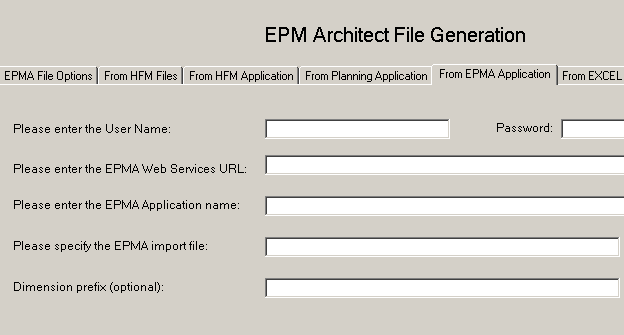
In the Hyperion EPMA File Generator dialog box, select the From EPMA Application tab.
|
||||||||||
|---|---|---|---|---|---|---|---|---|---|---|---|
. |
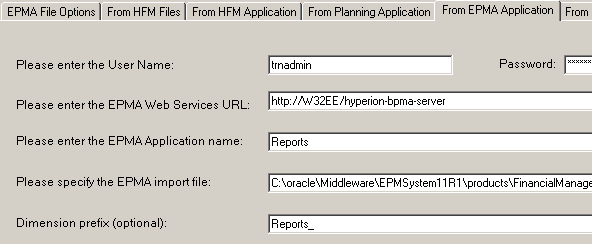
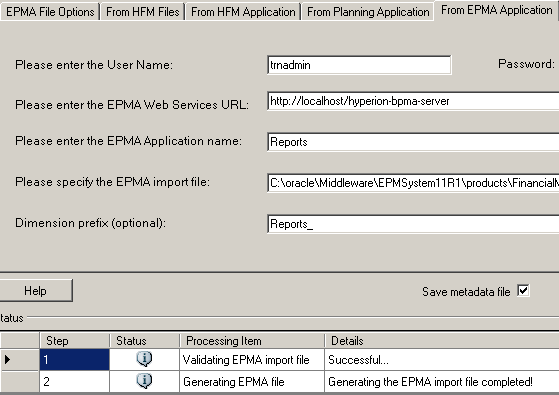
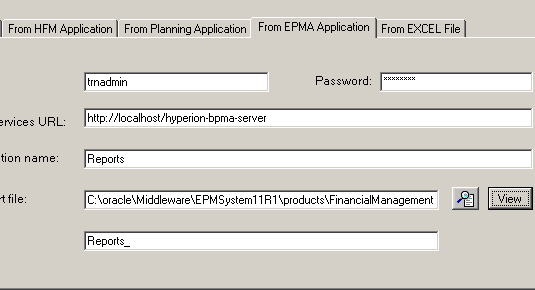
Perform the following actions: a. Enter the following information:
b. For the Performance Management Architect import file, click Browse, and specify the location and name of the file as: C:\oracle\Middleware\EPMSystems11R1\products\FinancialManagement\EPMAImport_Reports.ads. c. Enter Reports_ as the prefix for the dimensions.
d. Click Execute
|
||||||||||
. |
Verify that the Performance Management Architect file was generated successfully.
|
||||||||||
. |
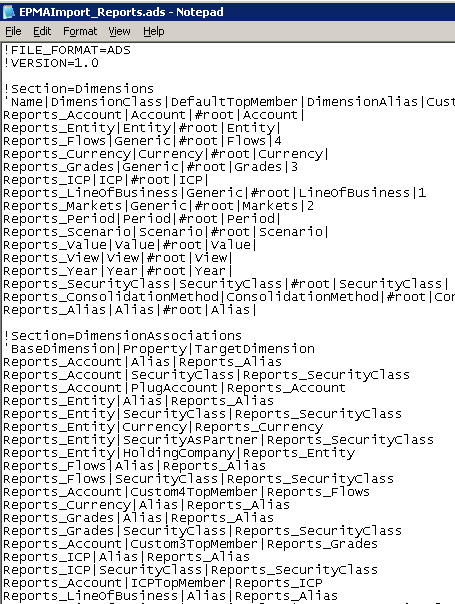
Click View to review the EPMAImport_Reports.ads file.
|
||||||||||
. |
Perform the following actions: a. Review the EPMAImport_Reports.ads file. Note: All dimensions are prefixed by Reports_ . b. Select File > Close to close the EMPAImport_Reports.ads file.
|
Summary
In this tutorial, you learned how to:
- Create metadata extract files from Financial Management files
- Create metadata extract files from Financial Management applications that were created in Performance Management Architect
Resources
- To learn more about metadata, refer to additional OBEs in the Oracle Learning Library.

 |
About
Oracle |  | Careers | Contact
Us | Site Maps | Legal
Notices | Terms of Use | Your Privacy Rights | Careers | Contact
Us | Site Maps | Legal
Notices | Terms of Use | Your Privacy Rights
|