Creating Recurring Journals in Oracle® Hyperion Financial Management, Fusion Edition 11.1.2
Purpose
This tutorial covers creating and generating recurring journals.
Time to Complete
Approximately 30 minutes.
Overview
This tutorial covers creating templates for recurring journals and generating and approving recurring journals.
Scenario
You have a fixed monthly amount to be debited to your investment account. You create a recurring journal to create this monthly journal automatically.
Prerequisites
Before starting this tutorial, you should:
. |
Have access to or have installed Oracle® Hyperion Financial Management, Fusion Edition 11.1.2 |
|---|---|
. |
Have installed and opened a Financial Management application |
. |
Have created a child entity (WestSales is used for this tutorial.) |
. |
Opened the period for which you are generating journal entries |
Creating Templates for Recurring Journals
In this part of the tutorial, you create a template for a recurring journal for a child entity.
. |
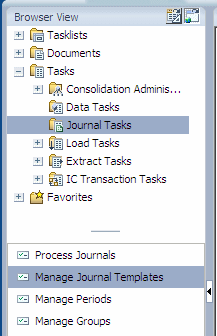
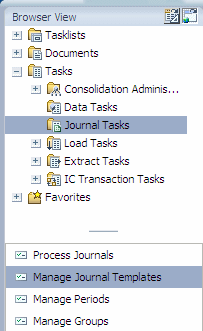
Open your Financial Management application, and in the Browser View pane, navigate to Tasks > Journal Tasks > Manage Journal Templates.
|
||||||||||||||||||||||||
|---|---|---|---|---|---|---|---|---|---|---|---|---|---|---|---|---|---|---|---|---|---|---|---|---|---|
. |
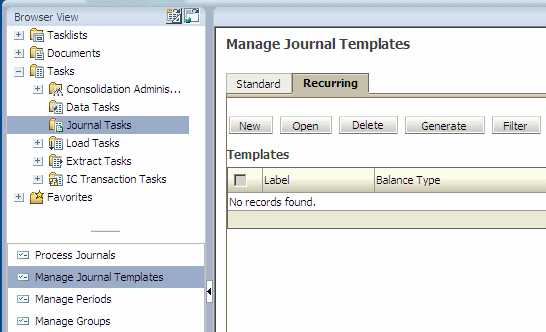
In the content pane, select the Recurring tab, and click New.
|
||||||||||||||||||||||||
. |
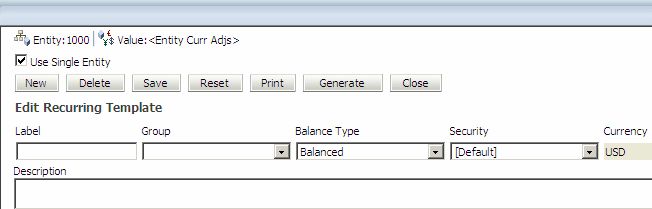
Select Use Single Entity.
|
||||||||||||||||||||||||
. |
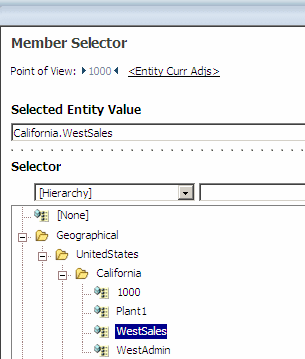
In the POV for Entity, select WestSales.
|
||||||||||||||||||||||||
. |
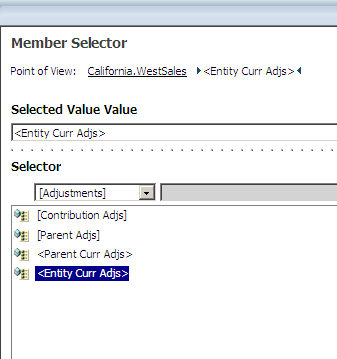
In the POV for Value, select <Entity Curr Adjs>, and click OK.
|
||||||||||||||||||||||||
. |
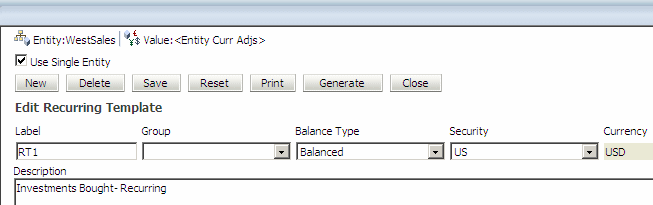
Under Edit Recurring Template, enter the following information:
|
||||||||||||||||||||||||
. |
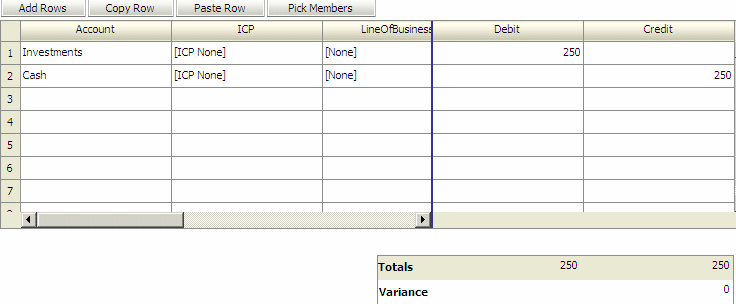
Place your cursor in the first cell in the Account column, click Pick Members, and enter the following member information:
|
||||||||||||||||||||||||
. |
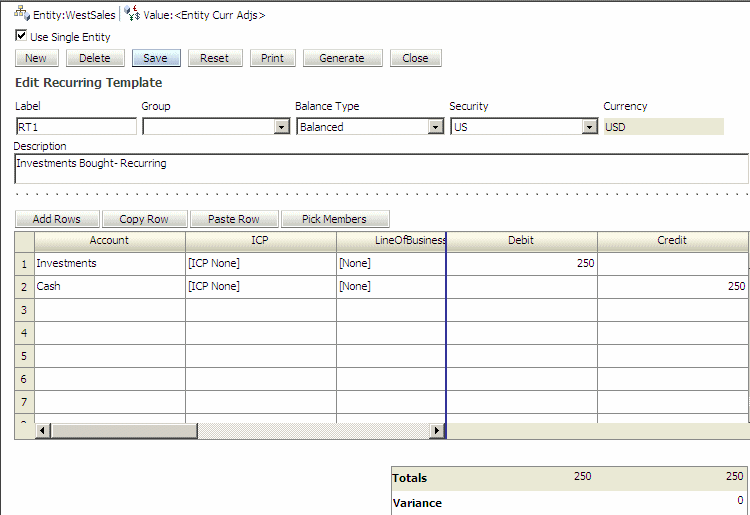
Click Save.
|
Generating Recurring Journals
You now generate and approve the recurring journal that you created.
. |
In the Browser View pane, navigate to Tasks > Journal Tasks > Manage Journal Templates.
|
|---|---|
. |
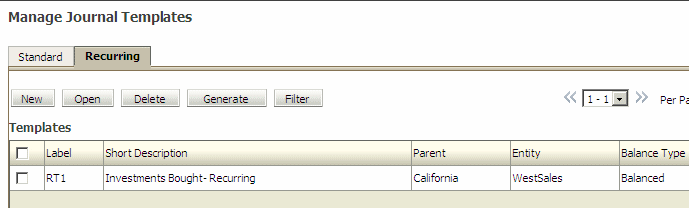
Select the Recurring tab
|
. |
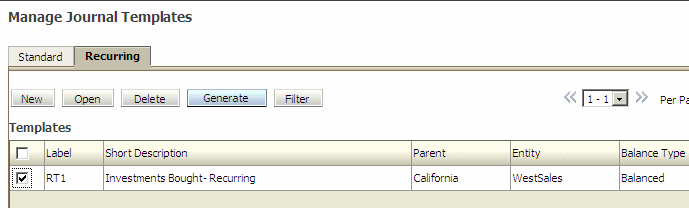
Select the check box to the left of RT1, and click the Generate button.
|
. |
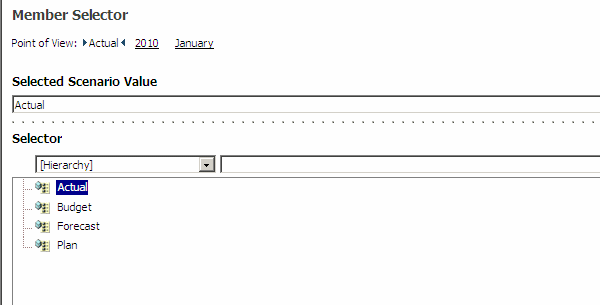
Review the point of view for the journal, and click OK.
The following message is displayed: "1 Journal generated successfully".
|
. |
Click OK.
|
. |
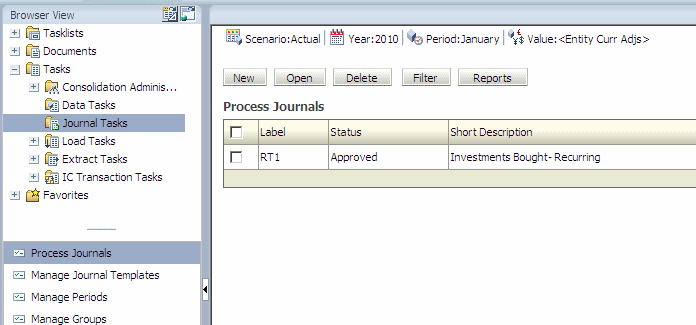
In the Browser View pane, select Tasks > Journal Tasks > Process Journals.
The journal is displayed in the list, its status is Approved, and it is ready to be posted.
|
Summary
In this tutorial, you learned how to:
- Create recurring journals
- Generate recurring journals
Resources
- To learn more about data journals, refer to additional OBEs in the Oracle Learning Library.

 |
About
Oracle |  | Careers | Contact
Us | Site Maps | Legal
Notices | Terms of Use | Your Privacy Rights | Careers | Contact
Us | Site Maps | Legal
Notices | Terms of Use | Your Privacy Rights
|