This tutorial covers installing, configuring, and verifying Oracle Hyperion Enterprise Performance Management System 11.1.1.
Approximately 1 hour.
This tutorial covers the following topics:
|
Overview |
|
Scenario |
|
Prerequisites |
|
Reviewing Installation Prerequisites |
|
Installing EPM System Products |
|
Configuring EPM System Products |
|
Verifying the EPM System Installation |
|
Summary |
|
Related information |
 Place the cursor over this icon to load and view all the screenshots for this tutorial.
(Caution: This action loads all screenshots simultaneously, so response time may be slow depending on your Internet connection.)
Place the cursor over this icon to load and view all the screenshots for this tutorial.
(Caution: This action loads all screenshots simultaneously, so response time may be slow depending on your Internet connection.)
Note: Alternatively, you can place the cursor over an individual icon in the following steps to load and view only the screenshot associated with that step. You can hide an individual screenshot by clicking it.
In this tutorial, you install and configure Oracle Hyperion Enterprise Performance Management System 11.1.1.
You are tasked with installing Oracle Hyperion Enterprise Performance Management System 11.1.1 by using the embedded Java container (Apache Tomcat servlet container) as your web application server. You install the components on a single server, and you use a single Oracle user for all products.
Before starting this tutorial, you should:
| 1. |
Have installed and configured an Oracle 11g database, created a "hyperion" SID, and installed the Oracle client |
| 2. | Have created the Oracle user for EPM System products |
| 3. | Have the login credentials of a Windows administrator to be configured as a DCOM user |
| 4. | Have installed and configured Microsoft Internet Information Server (IIS) 6.0, including ASP |
| 5. | Have verified that your system meets the minimum system requirements for an EPM System installation |
In this topic, you prepare your environment for an EPM System installation.
|
Reviewing the Pre-Installation Checklist |
|
Preparing the Files for Installation |
Reviewing the Pre-Installation Checklist
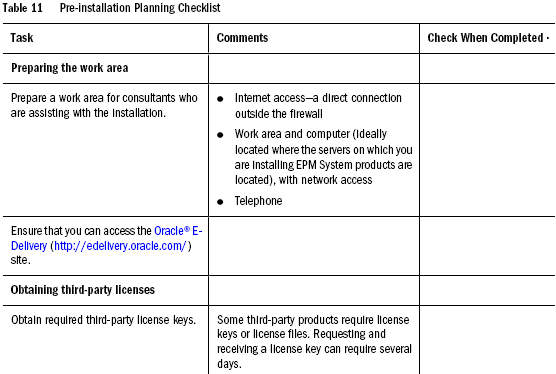
You use the Pre-Installation Checklist, contained in the Installation Start Here document, to prepare for installing EPM System products and components. Completing the checklist in advance of installation helps ensure a smoother, faster installation.
1. |
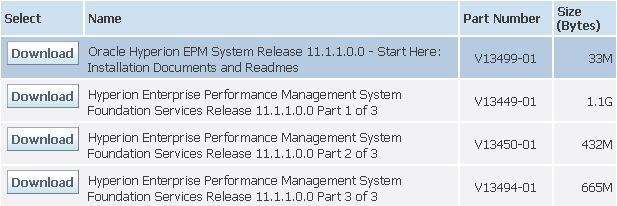
On the Oracle e-Delivery site, download the EPM System Installation documentation.
|
2. |
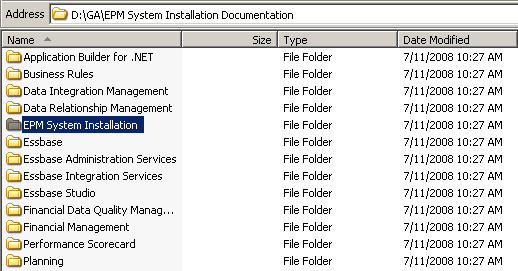
Unzip the installation documentation ZIP file to a central location, and double-click the EPM System Installation folder.
|
3. |
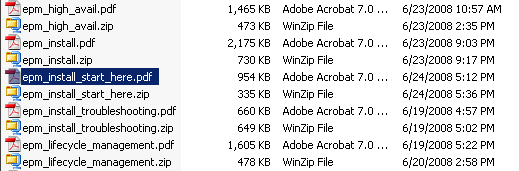
Double-click epm_install_start_here.pdf to open the Oracle Hyperion Enterprise Performance Management System Installation Start Here guide.
|
4. |
In Oracle Hyperion Enterprise Performance Management System Installation Start Here, review the Pre-installation Planning Checklist.
|
Preparing the Files for Installation
1. |
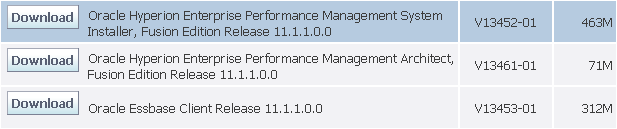
On the Oracle e-Delivery site, download the EPM System Installer.
|
2. |
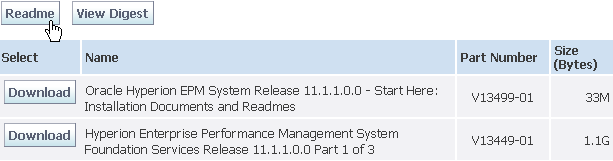
On the Oracle e-Delivery site, click Readme to decide which files you need to download for the products that you purchased, and then download the appropriate product ZIP files.
|
| 3. | Unzip EPM System Installer to a central location. Note: You can unzip files to a shared drive or to each machine in your deployment. If you are installing from a network drive, map this drive. The use of space characters in the path is not supported.
|
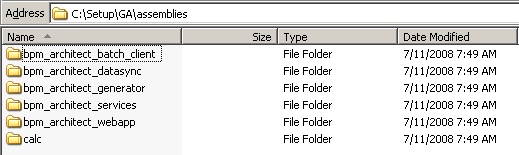
| 4. | Unzip the product installation assembly files into the same folder as the EPM System Installer. The /assemblies folder and specific product subfolders are created for you automatically. Common files are included in each product's ZIP file. If you are prompted that common components already exist in the \assemblies folder, click Yes to overwrite the files. Note: EPM System Installer can install a product only if the installation assembly files for the product are downloaded to the correct location.
|
| 5. | Make sure that there are no extraneous files in the /assemblies directory and its subdirectories. The /assemblies directory should include only a subdirectory for each product that you want to install on this machine, as follows: assemblies/ <product>/ <version>/ assembly.dat
|
In this topic, you install Oracle Hyperion EPM System 11.1.1.0.0 products and components.
| 1. |
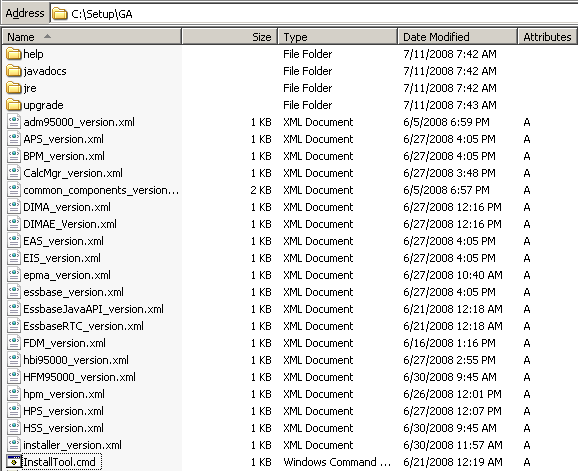
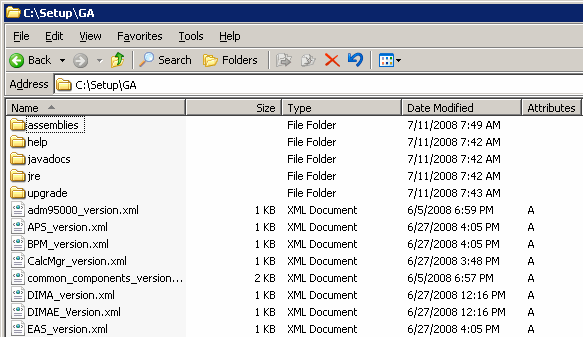
In Windows Explorer, browse to the location where you unzipped the installer.
|
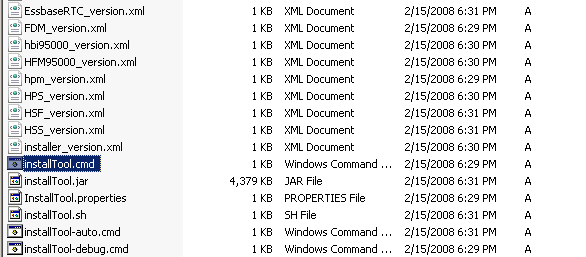
| 2. | Double-click installTool.cmd to launch EPM System Installer.
|
| 3. |
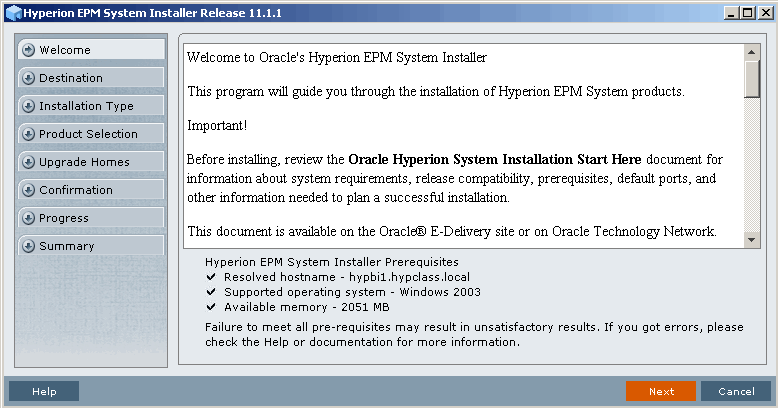
On the Welcome screen, verify that your system meets EPM System Installer prerequisites, and click Next.
|
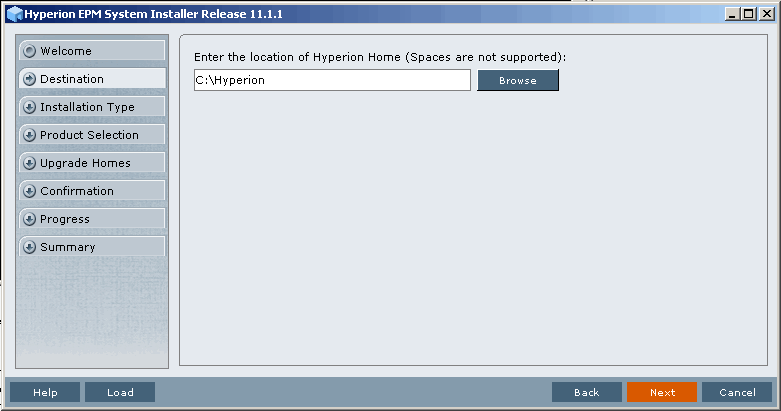
| 4. | For the location of Hyperion Home, accept the default of C:\Hyperion, and click Next.
|
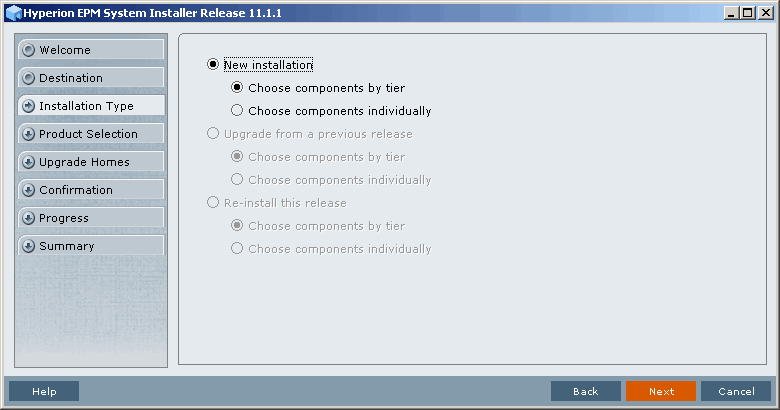
| 5. | For Installation Type, perform the following actions:
|
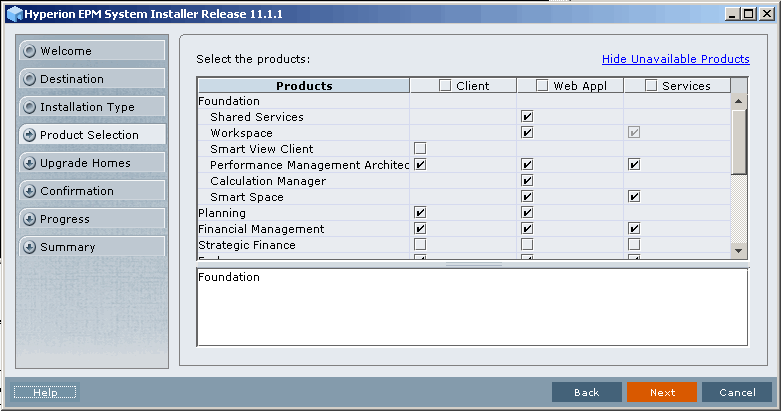
| 6. | For product selection by tier, accept the default for all selected products and components, and click Next.
|
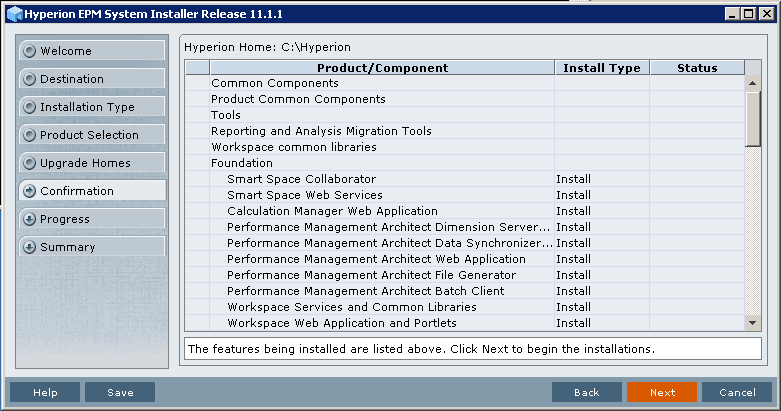
| 7. | Review the Confirmation screen, and click Next to install the products and components.
|
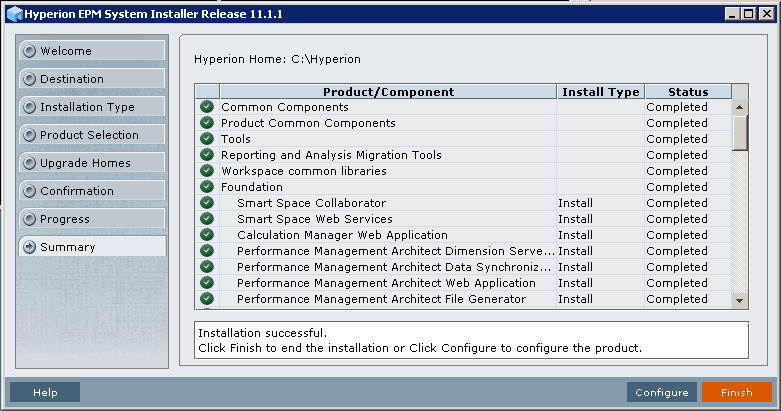
| 8. | Review the Summary screen, and click Configure to close EPM System Installer and launch EPM System Configurator.
|
EPM System Configurator is installed with the first EPM System product installed on a computer. It is used to configure all products and components that are installed on the computer. Use EPM System Configurator on each computer on which EPM System products and components are installed.
In this topic, you configure all EPM System products and components by using EPM System Configurator.
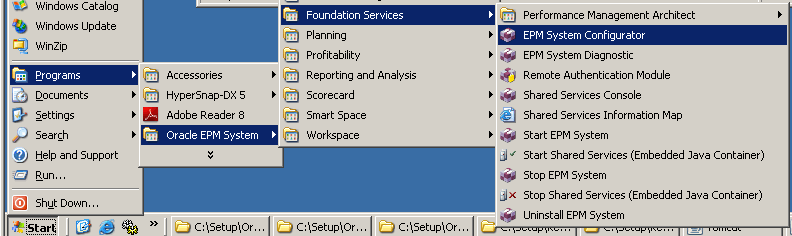
| 1. | If EPM System Configurator is not already open, select Start > Programs > Oracle EPM System > Foundation Services > EPM System Configurator.
|
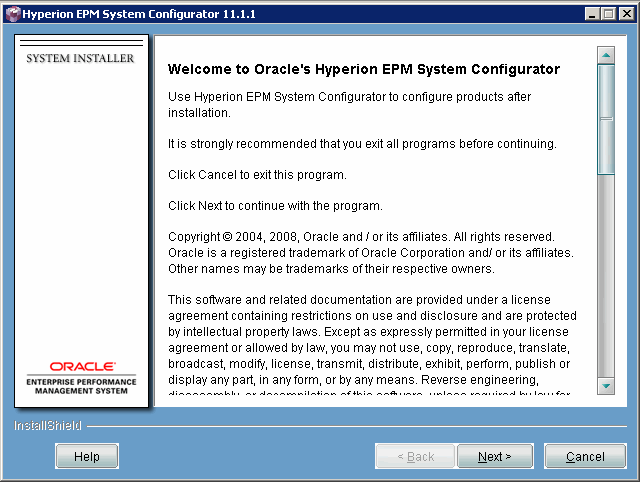
| 2. | Review the EPM System Configurator Welcome
screen, and click Next.
|
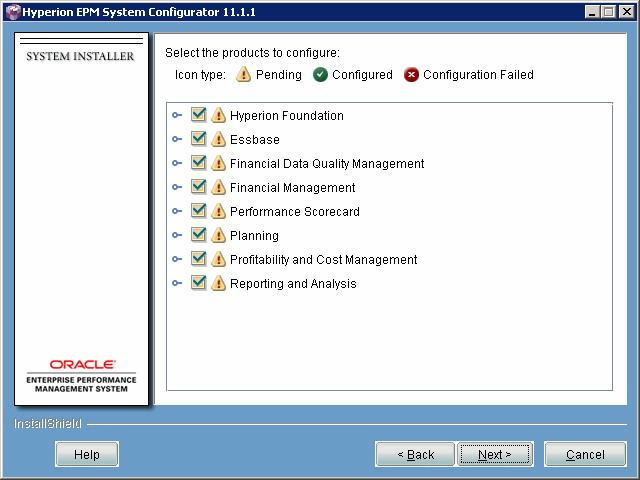
| 3. |
On the task selection panel, accept the default selections and click Next. Note: EPM System Configurator determines which EPM System products are installed and ready to be configured.
|
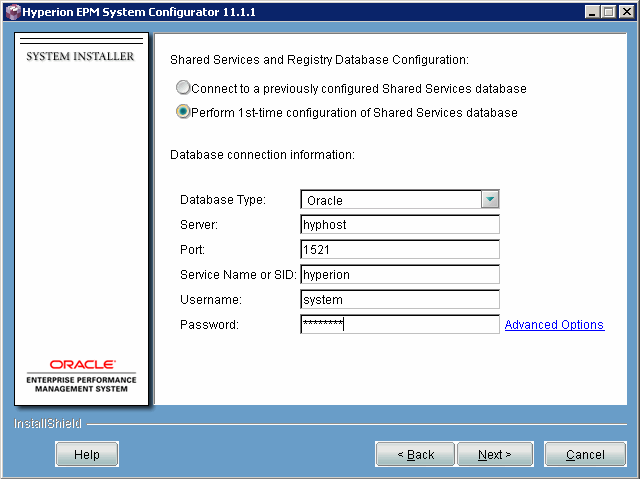
| 4. | On the Shared Services Database Configuration panel, perform the following actions:
|
| 5. | On the Product Options panel, select the purchased product option licenses, and click Next.
|
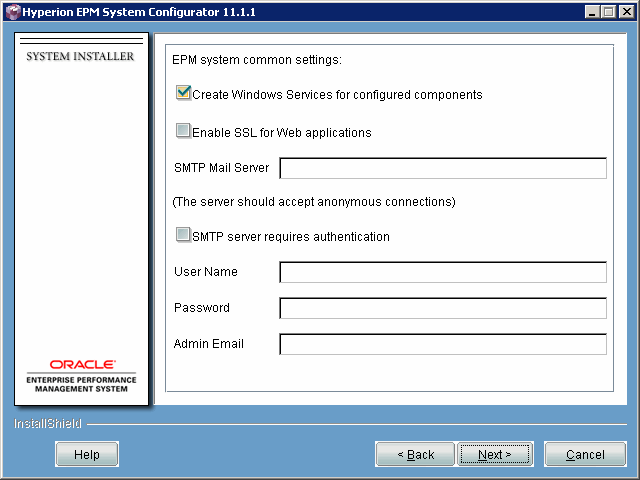
| 6. | On the Common Settings panel, accept the default values, and click Next. Note: "Create Windows Services for configured components" configures each service as a Windows service that starts automatically when you start Windows.
|
| 7. | On the Database Configuration panel, perform the following actions:
|
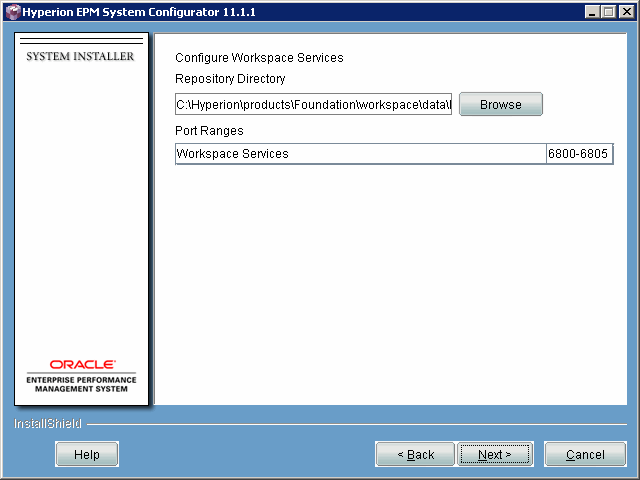
| 8. | On the Workspace Service Configuration panel, accept the default entries, and click Next. Note: Repository Directory is the directory where the Reporting and Analysis repository data is stored.
|
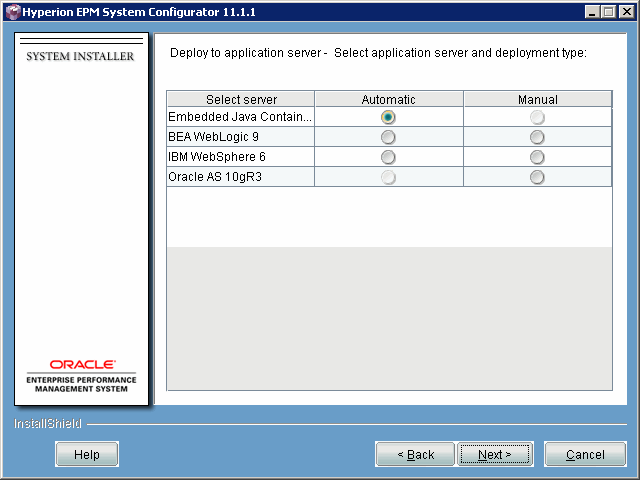
| 9. | On the Application Server panel, select Automatic as the deployment type for Embedded Java Container, and click Next.
|
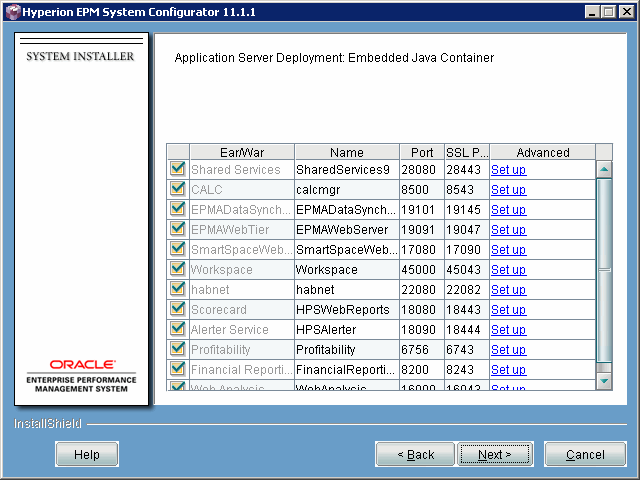
| 10. | On the Application Server deployment panel, accept the default entries, and click Next.
|
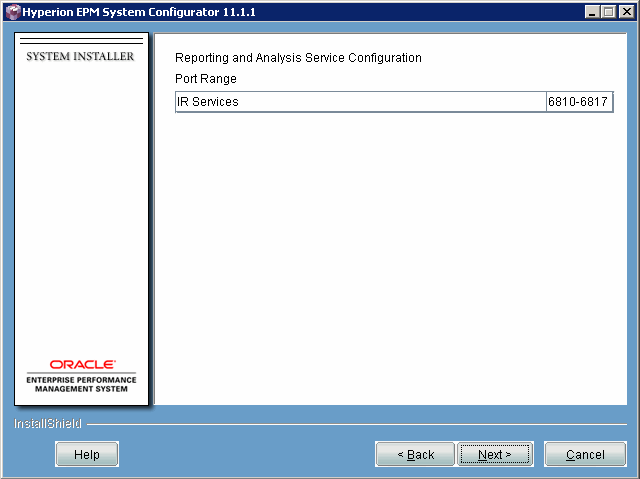
| 11. | On the Reporting and Analysis Service Configuration panel, accept the default port ranges, and click Next.
|
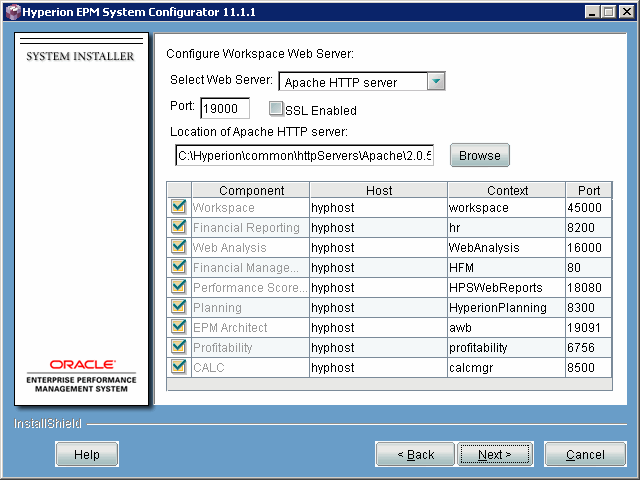
| 12. | On the Workspace Web Server panel, accept the default entries, and click Next. Note: if you configure products subsequent to this step, you must rerun the Workspace Web Server configuration.
|
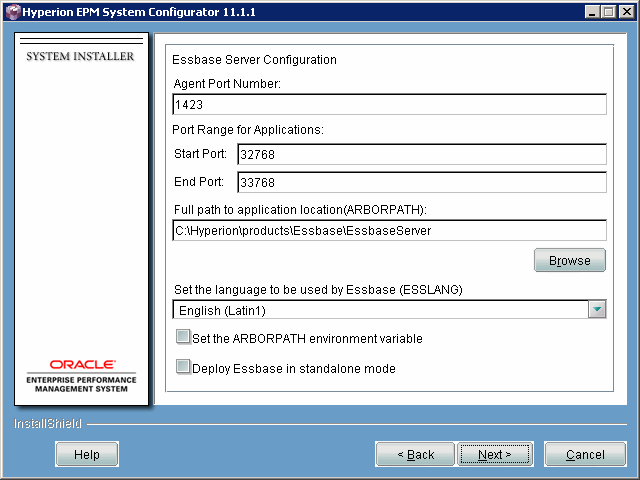
| 13. | On the Essbase Server Configuration panel, accept the default entries and click Next.
|
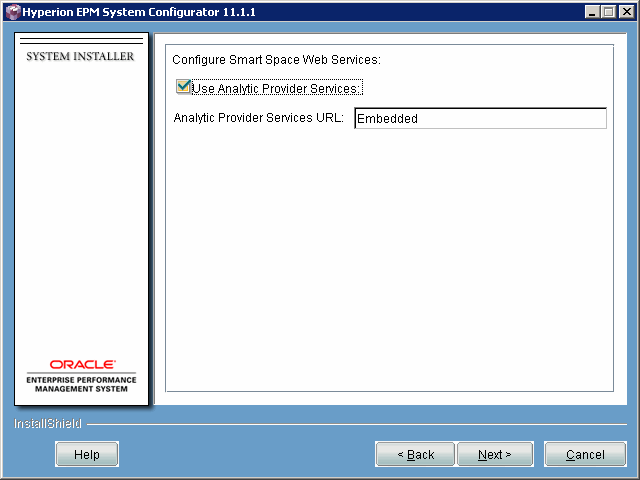
| 14. | On the Smart Space Web Services panel, select Use Analytic Provider Services, and click Next.
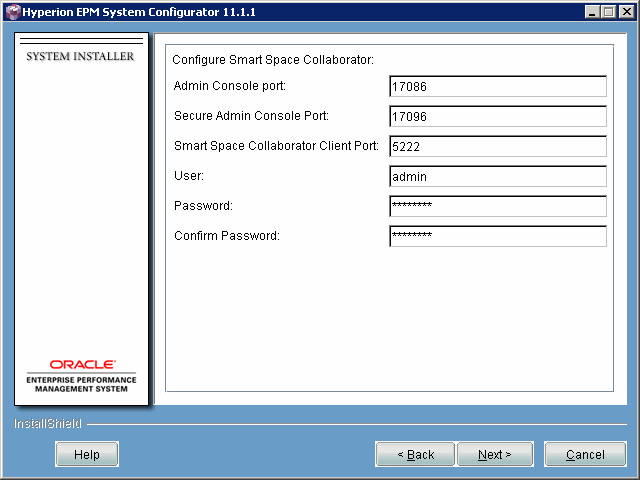
|
| 15. | On the Smart Space Collaborator panel, enter password for both "Password" and "Confirm Password," and click Next.
|
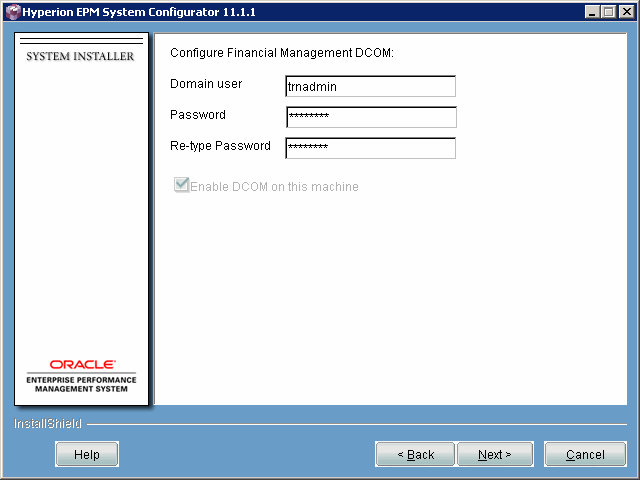
| 16. | On the Financial Management DCOM Configuration panel, perform the following actions:
Note: You must run EPM System Configurator as a Domain or Local Administrator to configure the DCOM user.
|
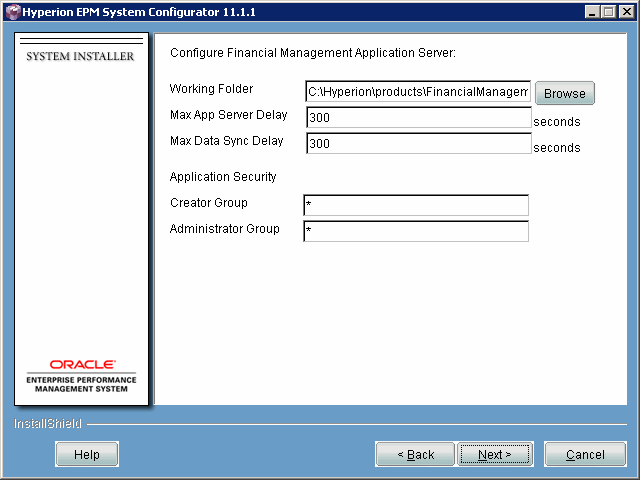
| 17. | On the Financial Management Application Server Configuration panel, accept the default entries, and click Next.
|
| 18. | On the Financial Management Server/Cluster Configuration panel, perform the following actions:
An application server cluster is a set of application servers that run the same application. Clustered application servers provide load balancing and failover capability, and enable the servers to be transparently maintained while applications remain available for users. If you want to create a cluster, click Add under Defined Clusters, and enter the name of the cluster in the text box.
|
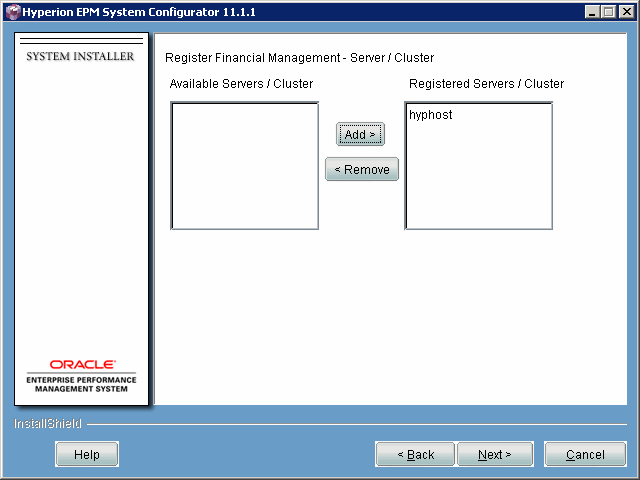
| 19. | On the Financial Management Server/Cluster Registration panel, perform the following actions:
|
| 20. | On the Financial Management Web Server Configuration panel, accept the default values, and click Next.
|
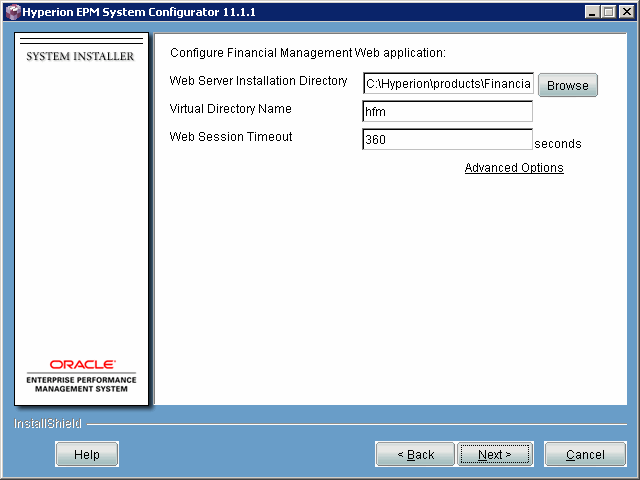
| 21. | On the Financial Management Web configuration panel, accept the default values, and click Next.
|
| 22. | On the panel to enable the Smart View Provider for Financial Management, accept the default values, and click Next.
|
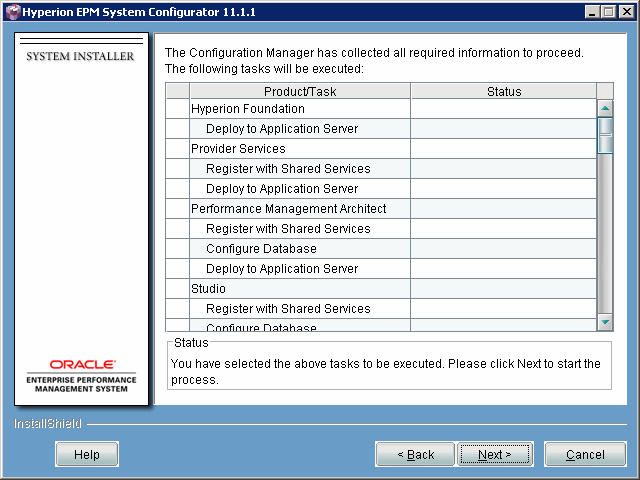
| 23. | On the confirmation panel, review the configuration tasks, and click Next. Note: EPM System Configurator starts all Windows services as part of the configuration process.
|
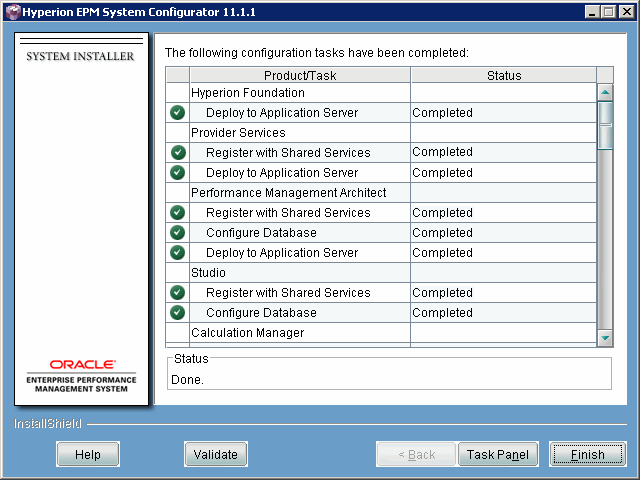
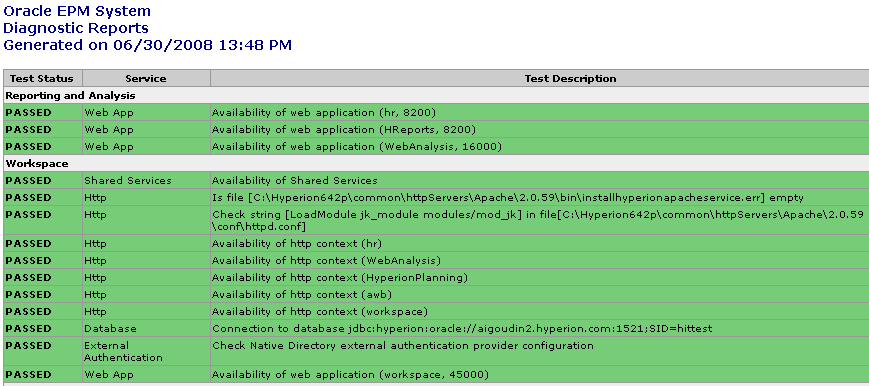
| 24. | On the summary panel, review the status of each configuration task to ensure that all tasks were completed, and click Validate to launch EPM System Diagnostics. EPM System Diagnostics tests the communication between all installed and configured EPM System components on that computer. The results of the tests are saved in HTML format.
|
| 25. | Review the Validation & Diagnostic Report, and close the report when finished.
|
In this topic, you verify the installation by logging on to Workspace verify that all installed and configured EPM System products are available.
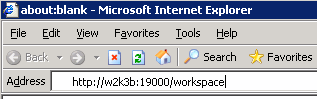
| 1. | In Internet Explorer, enter the following URL: http://[servername]:19000/workspace.
|
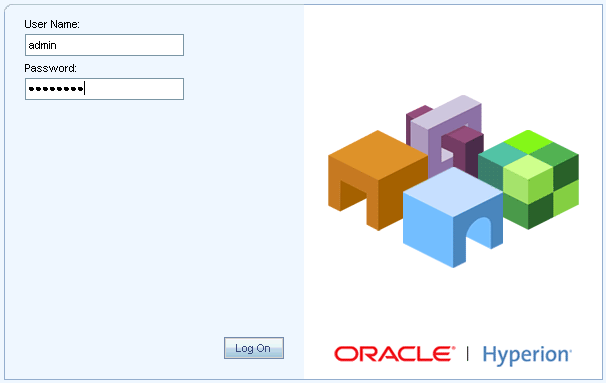
| 2. | Enter user name admin and password password, and click Log On.
|
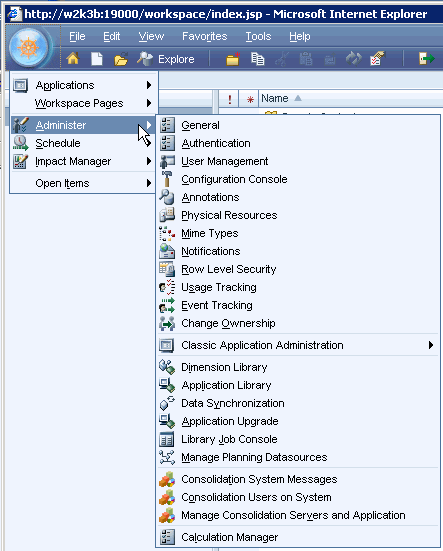
| 3. | Verify that you are able to log on to Workspace.
|
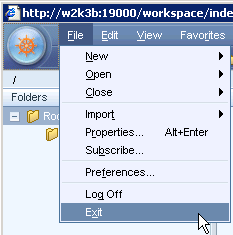
| 4. | Select File > Exit.
|
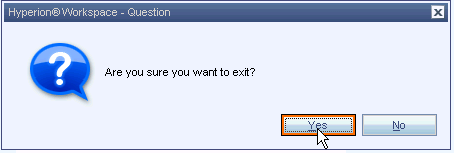
| 5. | Click Yes to exit Workspace.
|
| 6. | If you deployed products that are not integrated into Workspace, verify that you can log on to those products. |
In this tutorial, you learned how to:
|
Review installation prerequisites |
|
Install Oracle Hyperion EPM System 11.1.1 software |
|
Configure Oracle Hyperion EPM System 11.1.1 software |
|
Verify the installation |
|
To learn more about EPM System products, refer to additional OBEs on the OTN Web site. |
Place the cursor over this icon to hide all screenshots.