Before You Begin
Purpose
This tutorial covers creating and generating recurring journals.
Time to Complete
Approximately 30 minutes.
Background
This tutorial covers creating templates for recurring journals and generating and approving recurring journals.
Scenario
You have a fixed monthly amount to be debited to your investment account. You create a recurring journal to create this monthly journal automatically.
What Do You Need?
Before starting this tutorial, you should:- Have access to or have installed Oracle® Hyperion Financial Management 11.1.2.4
- Have installed and opened a Financial Management application
- Have created a child entity (WestSales is used for this tutorial)
- Opened the period for which you are generating journal entries
Creating Templates for Recurring Journals
In this part of the tutorial, you create a template for a recurring journal for a child entity.
-
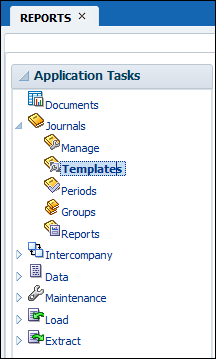
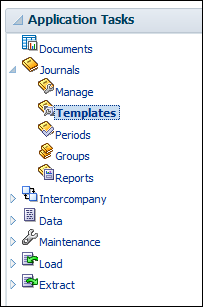
Open your Financial Management application, and in the Application Tasks pane, under Journals, double-click Templates.
-
On the toolbar of the Journal Templates tab, click New
 , and select Recurring Template.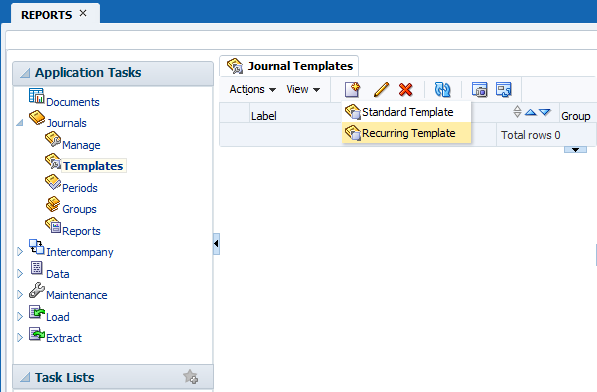
-
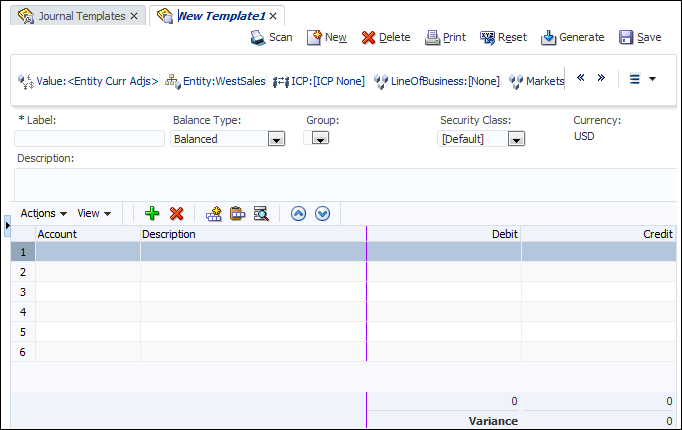
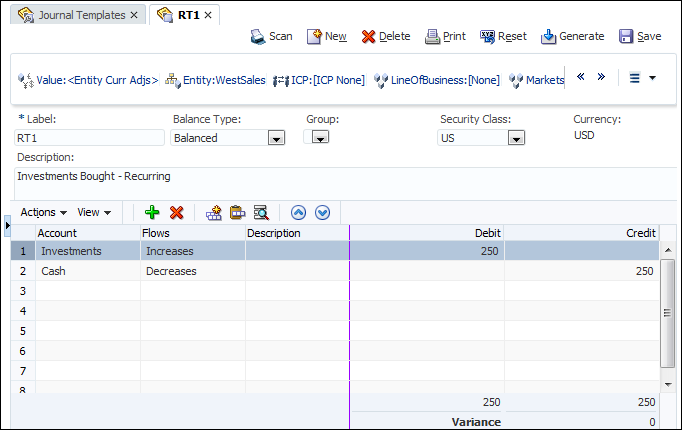
On the point of view (POV) bar, select the following:
- Value: <Entity Curr Adjs>
- Entity: WestSales
-
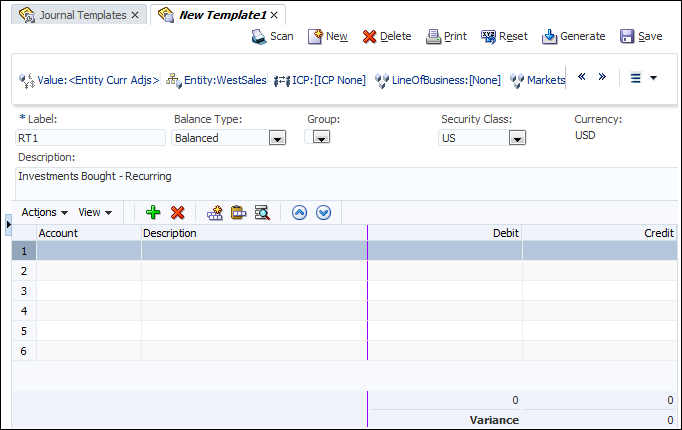
Enter the following information:
Label: RT1
Balanced Type: Balanced
Security Class: US
Description: Investments Bought - Recurring
-
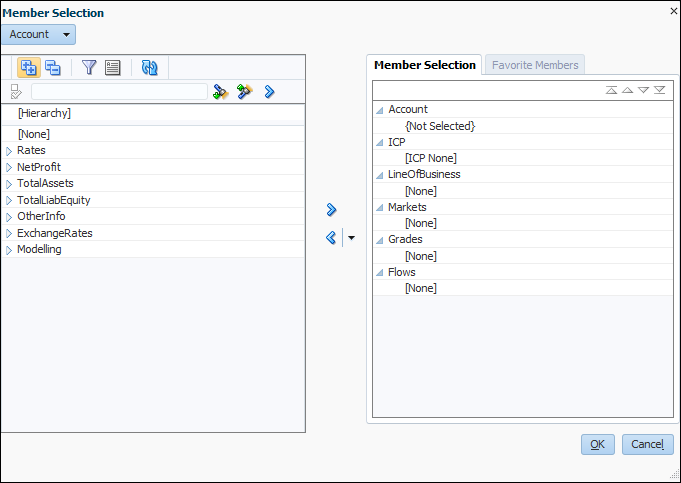
Place the cursor in the first cell of the Account column, select Actions, and then Pick Members.
The Member Selection dialog box is displayed.
-
In the Member Selection dialog box, select a member for each dimension and click OK.
Account ICP LineOfBusiness Markets Grades Flows Investments [ICP None] [None] [None] [None] Increases 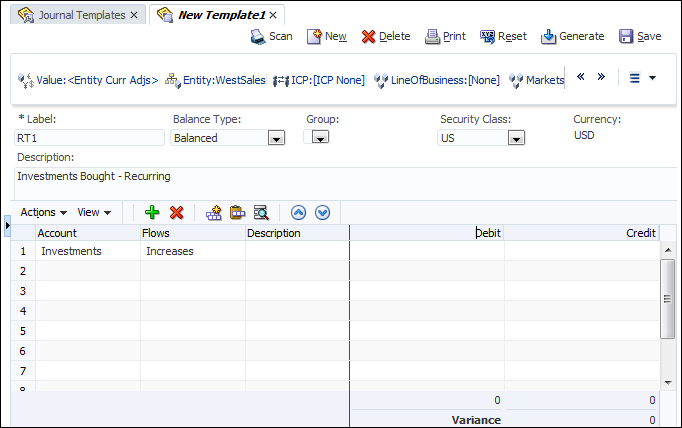
-
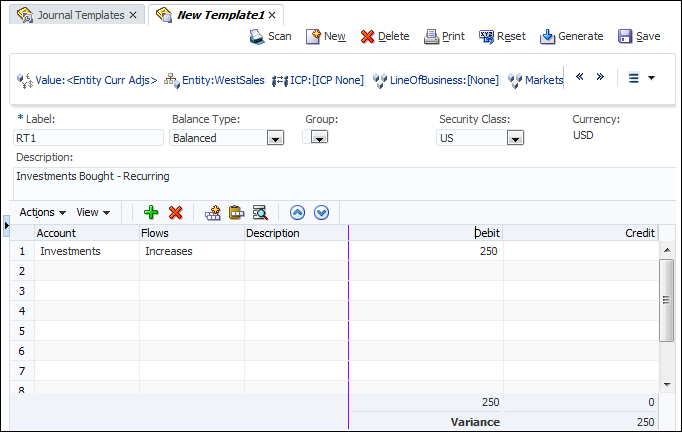
In the Debit field, enter 250 for row 1.
-
Repeat steps 5 through 7 to create an another row with the information below:
Account ICP LineOfBusiness Markets Grades Flows Debit Credit Cash [ICP None] [None] [None] [None] Decreases 250 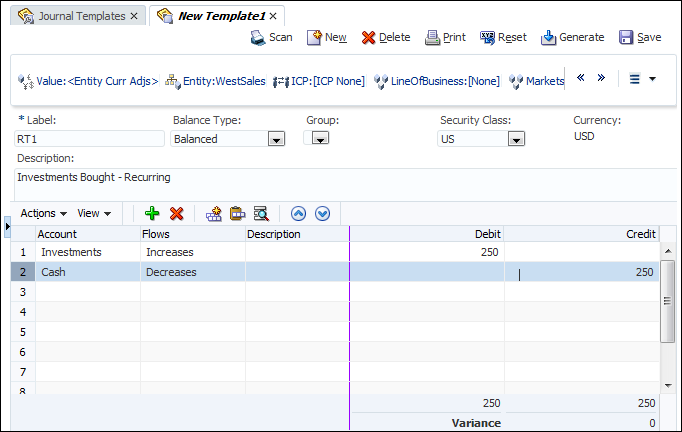
-
Click Save.
Generating Recurring Journals
You now generate and approve the recurring journal that you created.
-
In the Application Tasks pane, under Journals, double-click Templates.
-
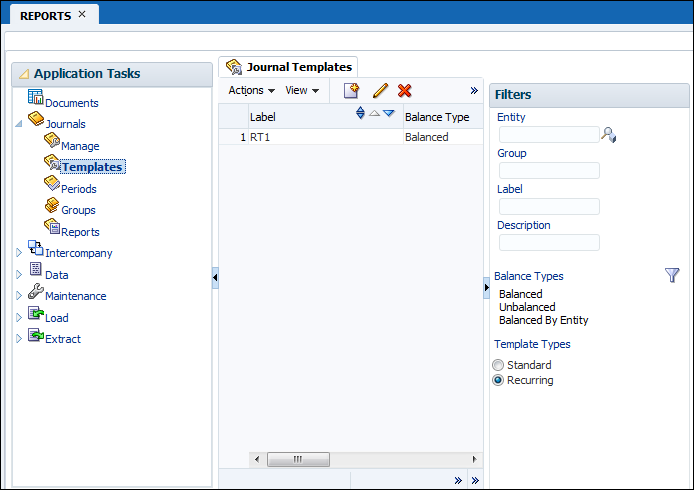
In the Filters Pane, select Recurring in the Template Types area.
-
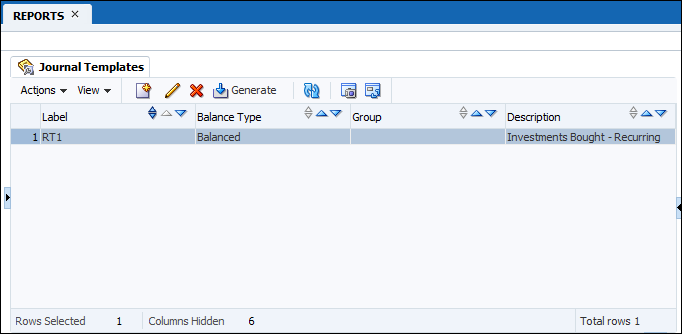
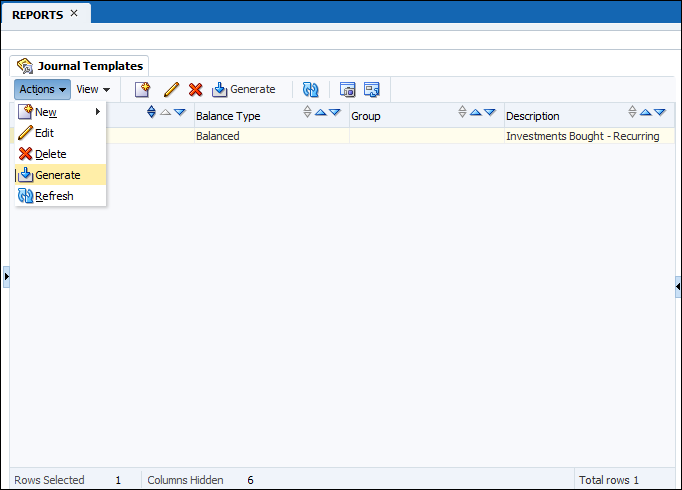
In the Journal Templates tab, select the RT1 template.
-
From the Actions menu, select Generate.
-
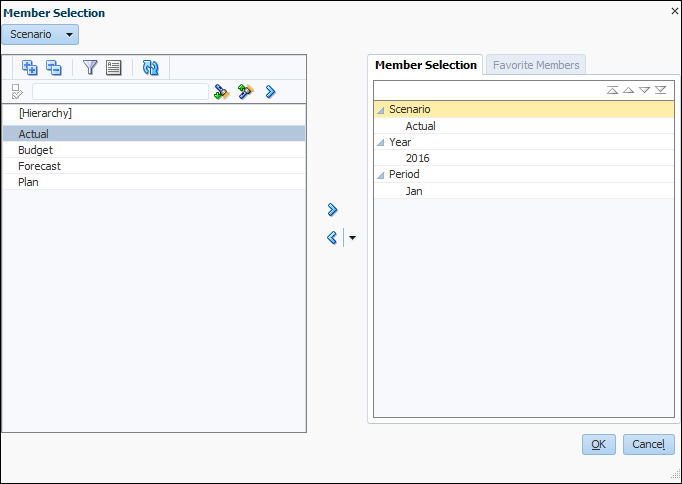
Review the Member Selection dialog box and click OK.
-
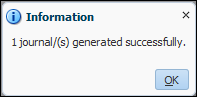
The following message is displayed: "1 journal /(s)generated successfully". Click OK.
-
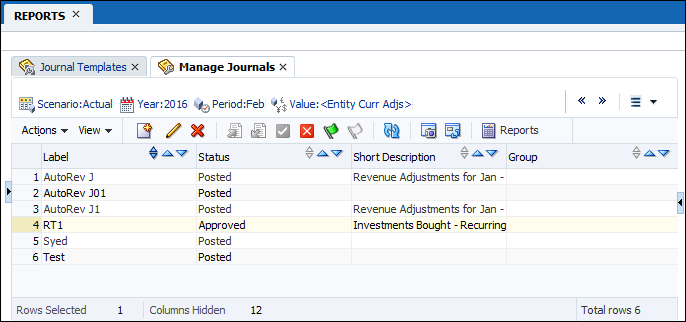
In the Application Tasks pane, under Journals, double-click Manage.
The journal is displayed in the list, its status is Approved, and it is ready to be posted.
Want to Learn More?
- To learn more about journals, refer to additional OBEs in the Oracle Learning Library.