Writing Formulas
Purpose
This tutorial covers how to write formulas.
Time to Complete
Approximately 10 minutes.
Overview
You use formulas in measure and constraint definitions. Formulas consist of row source variables, cube locations, and functions. Formulas are restricted by the dense and sparse dimensions of the cube to which they belong.
Measure values are calculated from formulas by using Integrated Operational Planning built-in functions. Derived values can be based on other measures, including loaded and input measures. Examples of derived measures include Actual Average Selling Price and Excess Material Cost.
The arguments (inputs) to functions used in formulas may be numbers, alphanumeric characters, variables, logical values (true or false), cell locations, or other formulas.
Scenario
In this example, you write a formula for the derived measure, Gross Margin Dollars.
Software and Hardware Requirements
The following is a list of software requirements:
- Integrated Operational Planning 4.0.1
- Java Development Kit JDK 1.6.0_12 or later
- Microsoft Internet Explorer 6.x or 7.x
- Oracle 10.2.0.4 or 11.1.0.7 database
Prerequisites
Before starting this tutorial, you should:
| . | Load the Integrated Operational Planning model. |
|---|---|
| . | Start the Integrated Operational Planning server. |
| . | Define Integrated Operational Planning dimensions, row sources, and cubes. |
Writing Formulas
To write a derived measure formula, perform the following steps:
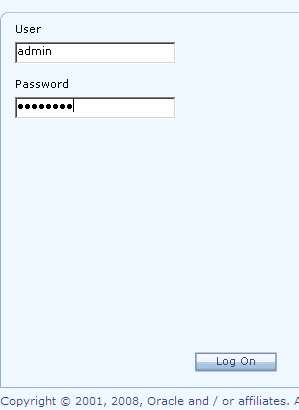
Log on to Integrated Operational Planning as the administrator.
|
|
2. |
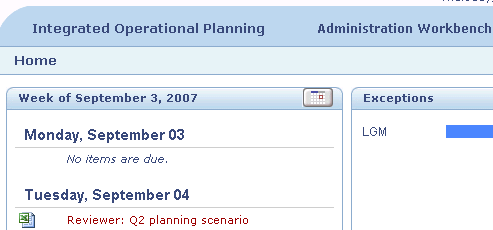
From Planning Workbench, click the Administration Workbench link.
|
3. |
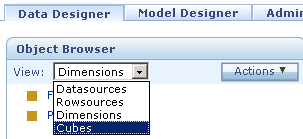
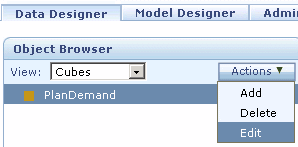
In the Object Browser section, from the View drop-down list, select Cubes.
|
4. |
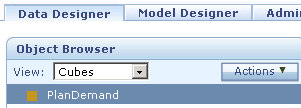
In the Object Browser section, click PlanDemand.
The PlanDemand cube is selected.
|
5. |
From the Actions drop-down list, select Edit to display Cube Wizard.
|
6. |
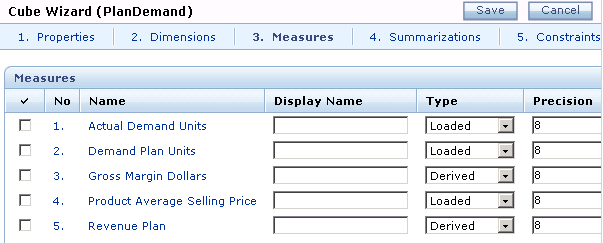
Select the Measures tab.
|
7. |
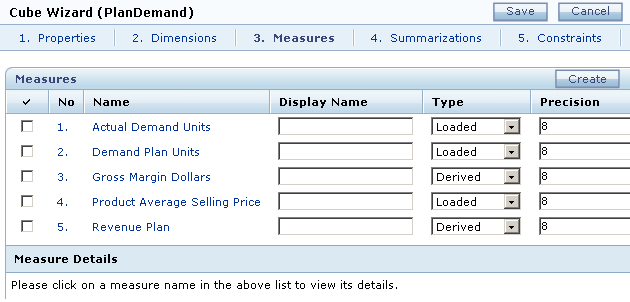
Click Create to add a line to the Measures section.
|
8. |
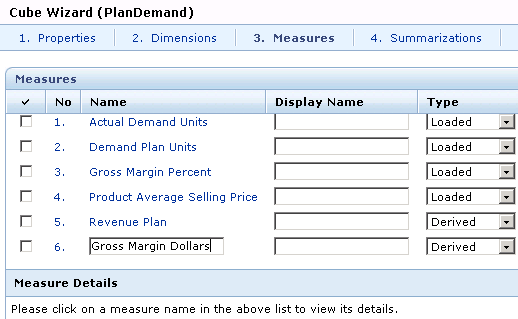
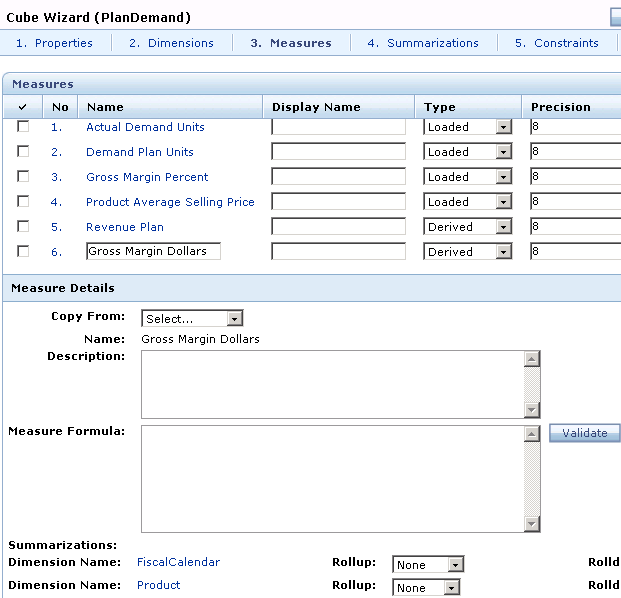
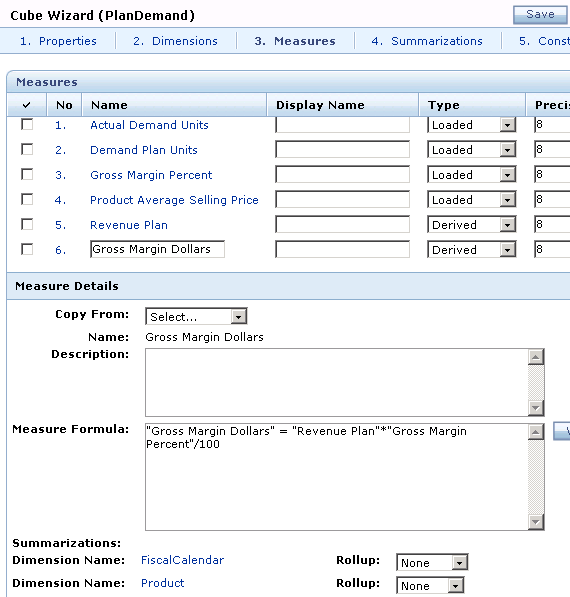
In the Name box, enter the measure name. In this example, name it Gross Margin Dollars.
|
9. |
Click the 6. link to display the Measure Details section.
|
10. |
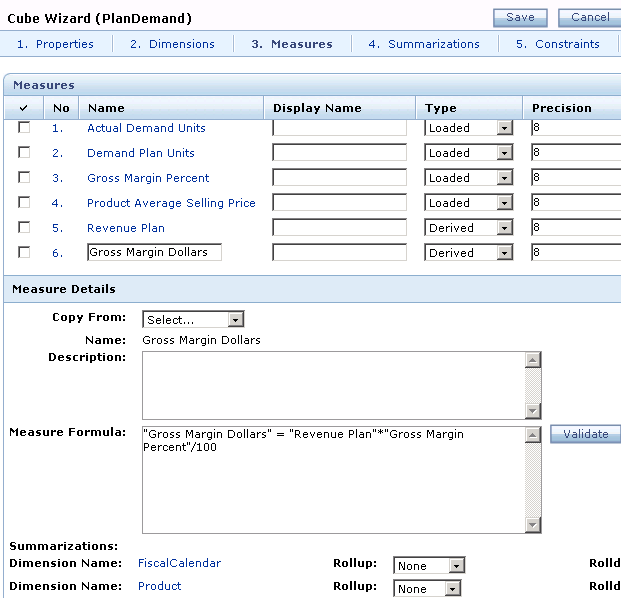
In the Measure Formula box, enter the formula "Gross Margin Dollars" = "Revenue Plan" * Gross Margin Percent"/100. In this example, the measure is calculated based on other measures for the cube.
|
11. |
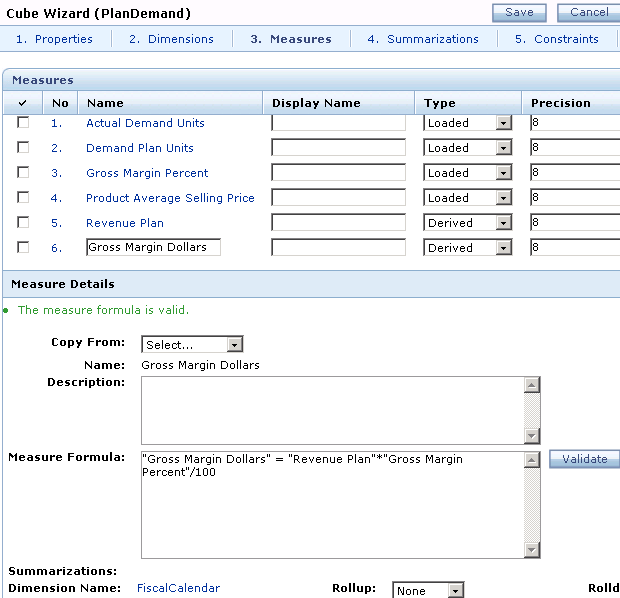
Click Validate. In this example, the measure formula is valid.
|
12. |
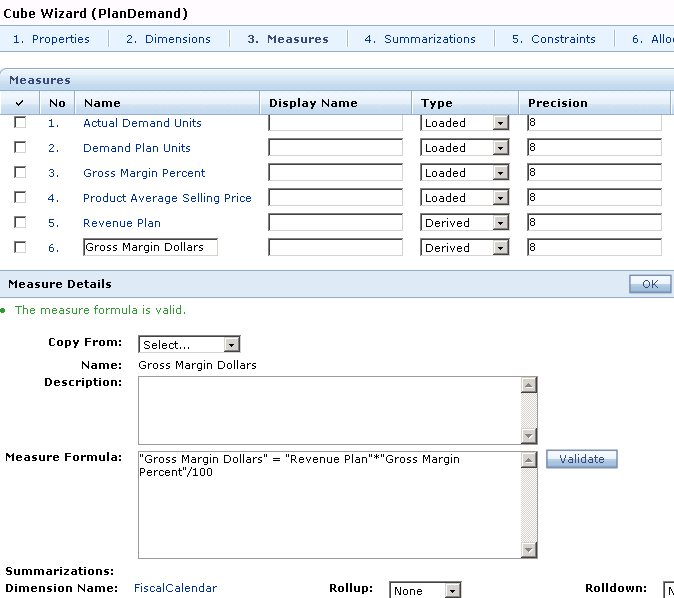
Click OK.
|
13. |
Click Save.
Note: Be sure to republish the model before allowing your end users to work with it.
|
Summary
In this tutorial, you learned how to write formulas.
Resources
- Oracle Integrated Operational Planning Release 4.0.1 User's Guide
- To learn more about
Integrated Operational Planning, refer to additional OBEs and the Modeling in Integrated Operational Planning tutorial on the Oracle Technology Network Web site.
