Creating MDX and RSQL Queries
Purpose
This tutorial covers how to create and test MDX and RSQL queries.
Time to Complete
Approximately 30 minutes.
Overview
MDX (Multidimensional Expressions) queries use standard MDX and Integrated Operational Planning extensions to query multidimensional cubes. MDX queries return subsets of the base data or scenario data in the Integrated Operational Planning database.
RSQL (Rowsource Structured Query Language) queries use SQL to return row source data. Row source data is transactional, component-level data (for example, sales order details) that is loaded into relational database tables.
After creating a query, you can preview it to confirm that it returns the expected results. A syntax check is performed and errors are reported. You preview query results against base data in Integrated Operational Planning or scenario data.
Scenario
In this example, you create and test a MDX query to view actual and planned demand unit numbers. You also create and test an RSQL query to view the Product row source for product family pricing.
Software and Hardware Requirements
The following is a list of software requirements:
- Integrated Operational Planning 4.0.1
- Java Development Kit JDK 1.6.0_12 or later
- Microsoft Internet Explorer 6.x or 7.x
- Oracle 10.2.0.4 or 11.1.0.7 database
Prerequisites
Before starting this tutorial, you should:
| . | Load the Integrated Operational Planning model. |
|---|---|
| . | Start the Integrated Operational Planning server. |
| . | Define Integrated Operational Planning dimensions, row sources, and cubes. |
Creating and Testing MDX Queries
To create and test a query, perform the following steps:
1. |
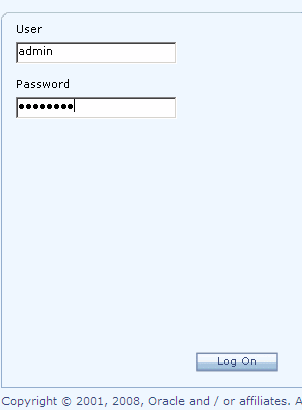
Log on to Integrated Operational Planning as the administrator.
|
|---|---|
2. |
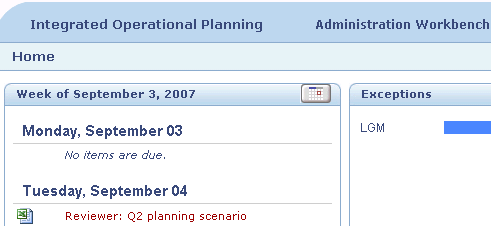
From Planning Workbench, click the Administration Workbench link.
|
3. |
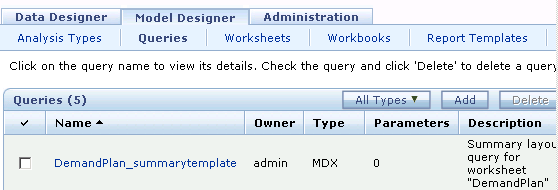
Select the Model Designer tab.
|
4. |
Select the Queries tab.
|
5. |
Click Add to display the Create Query page.
|
6. |
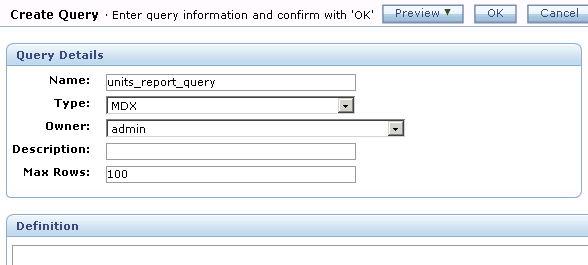
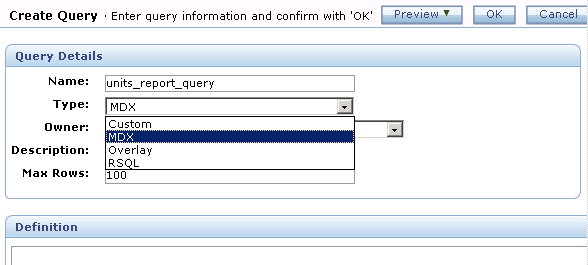
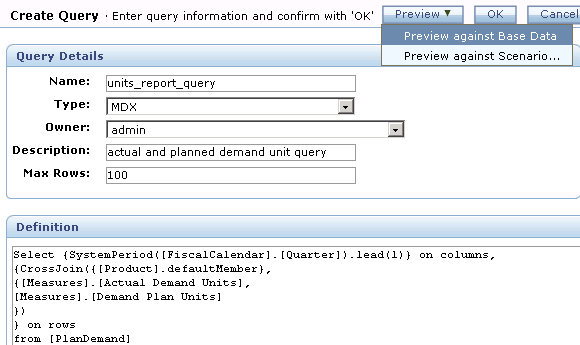
In the Name box, enter the name of the query. In this example, enter named units_report_query.
|
7. |
From the Type drop-down list, select MDX.
|
8. |
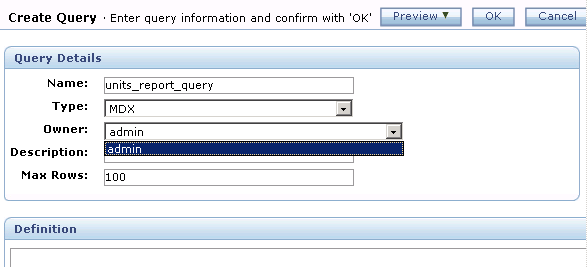
From the Owner drop-down list, select admin. In this example, the query is owned by the administrator.
|
9. |
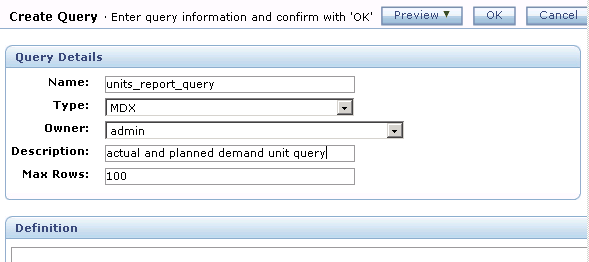
In Description, enter a description to identify the query. In this example, you use this query to view actual and planned demand units numbers.
|
10. |
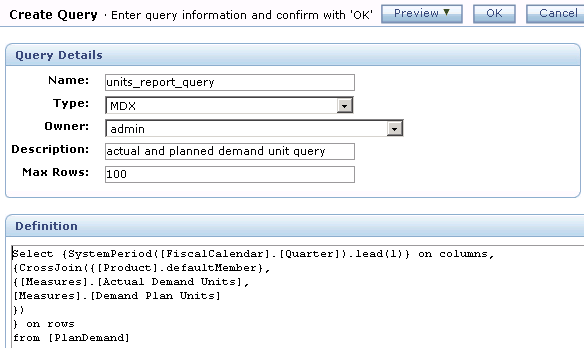
In the Definition box, enter the syntax for the query. When you write MDX queries, keep the following in mind:
|
11. |
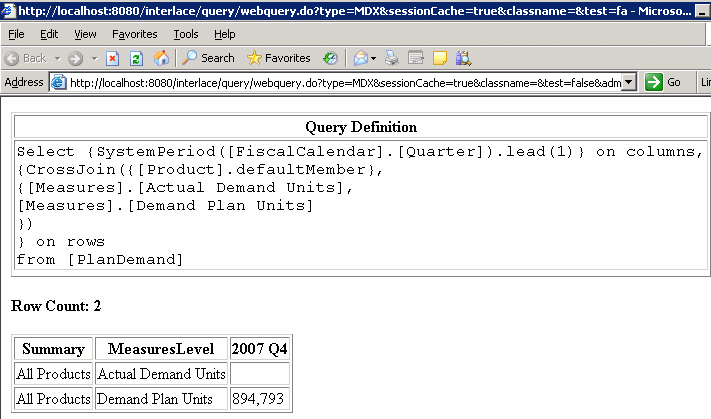
Click Preview and from the drop-down list, select Preview against Base Data to display the browser preview page. If no errors exist, the query runs and a table of results is displayed. When you preview MDX queries, keep the following in mind:
Note: If you select Preview against Scenario and no scenarios appear in the drop-down list, no scenarios exist in the "In Progress" or "Submitted" states.
The browser preview page is displayed. In this example, the expected results are returned and there are no errors.
|
12. |
Return to the Create Query page, and click OK.
The MDX query is saved to the model. Note: Be sure to republish the model before allowing your end users to work with it.
|



Creating and Testing RSQL Queries
To create and test a RSQL query, perform the following steps:
1. |
Log on to Integrated Operational Planning as the administrator
|
|---|---|
2. |
From Planning Workbench, click the Administration Workbench link.
|
3. |
Select the Model Designer tab.
|
4. |
Select the Queries tab.
|
5. |
Click Add to display the Create Query page.
|
6. |
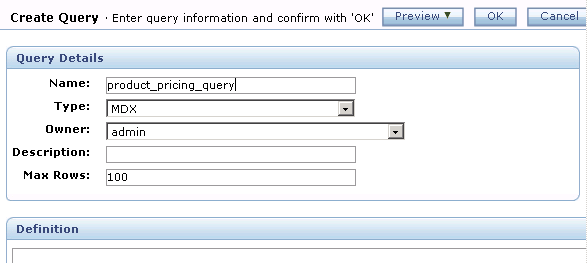
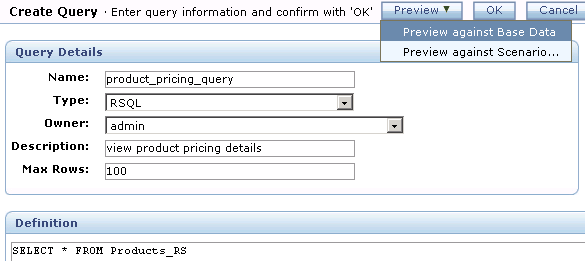
In the Name box, enter the name of the query.
|
7. |
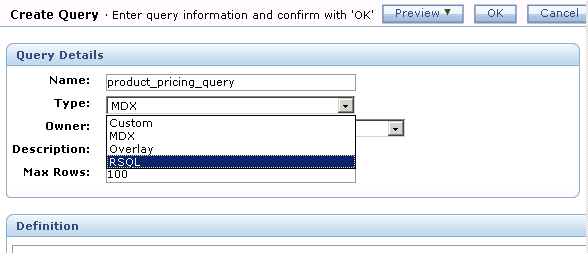
From the Type drop-down list, select RSQL.
|
8. |
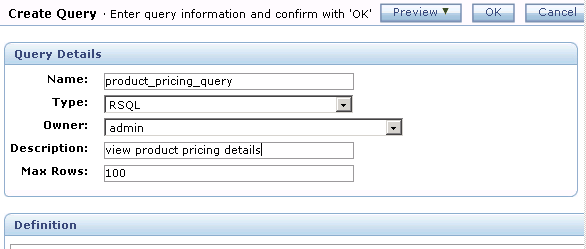
From the Owner drop-down list, select a query owner. In this example, select admin because the query is owned by the administrator.
|
9. |
Enter a description to identify the query. In this example, you use this query to view product pricing details.
|
10. |
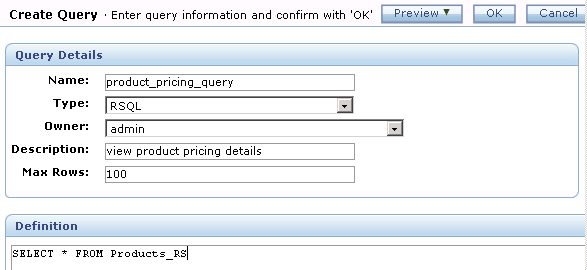
In Definition, enter the syntax for the query. When you write RSQL queries, keep the following guidelines in mind:
|
11. |
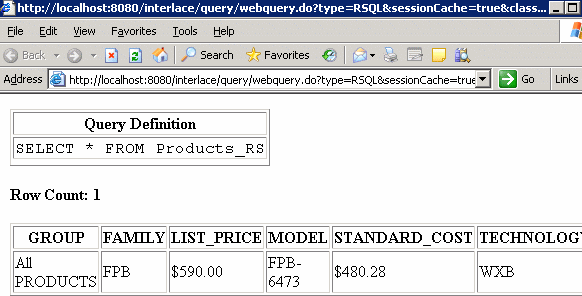
Click Preview and from the drop-down list, select Preview against Base Data to display the browser preview page. If no errors exist, the query runs and a table of results is displayed. When you preview RSQL queries, keep the following guidelines in mind:
Note: If you select Preview against Scenario and no scenarios are displayed in the drop-down list, no scenarios exist in the In Progress or Submitted states.
The browser preview page is displayed. In this example, the expected results are returned and there are no errors.
|
12. |
Return to the Create Query page, and click OK.
The RSQL query is saved to the model. Note: Be sure to republish the model before allowing your end users to work with it. |


Summary
In this tutorial, you learned how to create and test MDX and RSQL queries.
Resources
- Oracle Integrated Operational Planning Release 4.0.1 User's Guide
- To learn more about
Integrated Operational Planning, refer to additional OBEs and the Modeling in Integrated Operational Planning tutorial on the Oracle Technology Network Web site.
