Migrating Models Between Environments
Purpose
This tutorial covers how to migrate a model between environments.
Time to Complete
Approximately 60 minutes.
Overview
You can migrate models between Integrated Operational Planning environments at any time during your application development, test, and production phases.
Scenario
In this example, you export a model from your development environment, iop, to your test environment, iop2. This process includes exporting the model, starting the Integrated Operational Planning (iop2) server in the test environment, loading data from the iop development model to the iop2 test model, and verifying that the migration was successful.
Software and Hardware Requirements
The following is a list of software requirements:
- Integrated Operational Planning 4.0.1
- Java Development Kit JDK 1.6.0_12 or later
- Microsoft Internet Explorer 6.x or 7.x
- Oracle 10.2.0.4 or 11.1.0.7 database
Prerequisites
Before starting this tutorial, you should:
| . | Start the Integrated Operational Planning server for your development environment. |
|---|---|
| . | Define Integrated Operational Planning dimensions, row sources, and cubes for your development environment. |
| . | Install Integrated Operational Planning on your test environment. |
Exporting Models
To export a model from the development environment, perform the following steps:
1. |
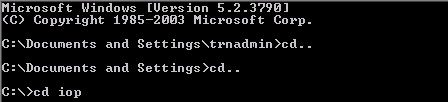
Open a Windows command prompt and navigate to the location of the model. In this example, go to c:\iop.
|
|---|---|
2. |
Run setvar.bat to set the environment variables.
|
3. |
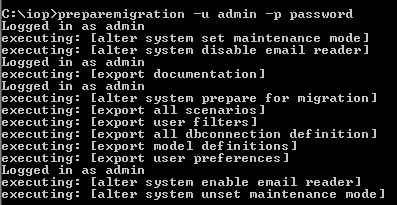
Run preparemigration -u admin -p password to export all metadata and data to the file system.
|
4. |
Run stopserver to stop the Integrated Operational Planning server.
|
5. |
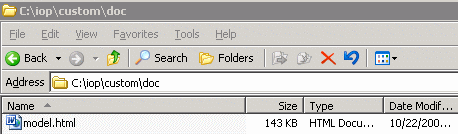
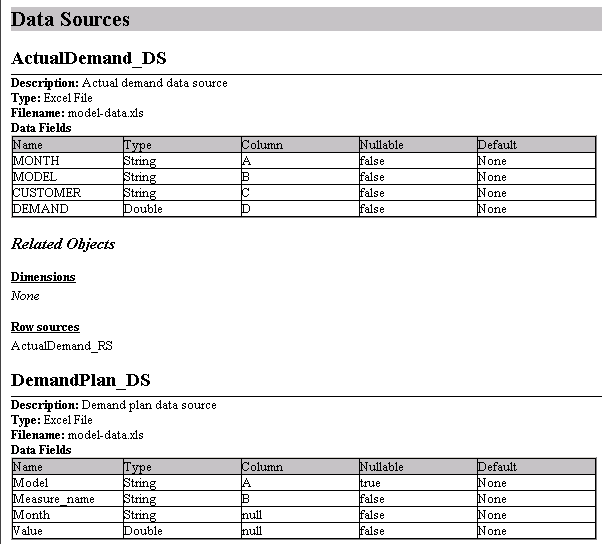
Navigate to c:\iop\custom\doc and open model.html to view the exported model description.
The migrated model description is displayed on the page.
|


Starting the Integrated Operational Server on the Test Environment
To start the Integrated Operational Planning server on the test environment, perform the following steps:
Note: Before you begin the following steps, you must install Integrated Operational Planning on the test environment.
1. |
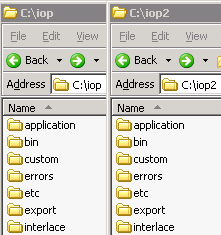
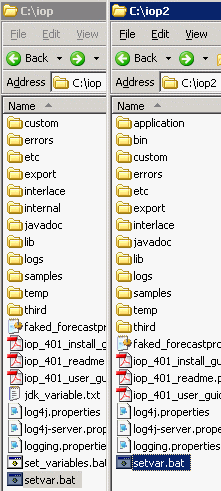
Copy and paste the custom and export folders from the development environment to the test environment. In this example, copy from c:\iop to c:\iop2.
|
|---|---|
2. |
Copy and paste setvar.bat from c\:iop to c\:iop2.
|
3. |
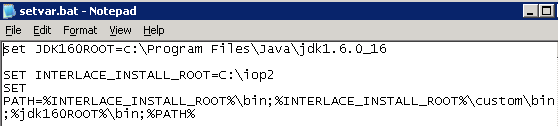
Open a text editor and modify setvar.bat to point to the new environment, c:\iop2.
|
4. |
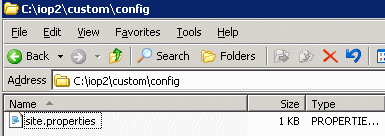
Navigate to c:\iop2\custom\config.
|
5. |
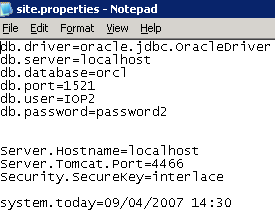
Modify site.properties to reflect the test environment database user name, password, and server port.
|
6. |
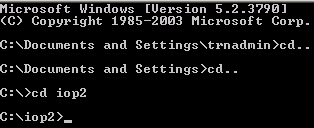
Open a Windows command prompt and set the location to c:\iop2.
|
7. |
Run setvar.bat to set the environment variables.
|
8. |
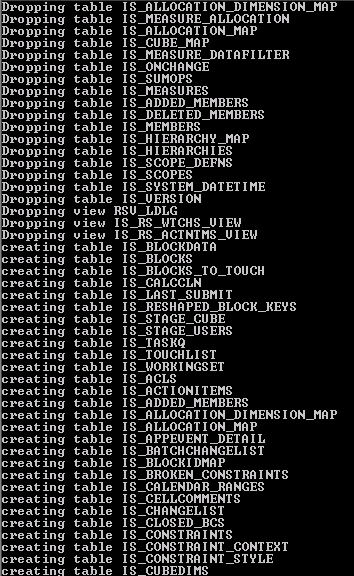
Run isreset to drop all internal tables and model information, and re-create the internal tables. In this example, there is no model but you do this as a precaution.
The following messages are displayed in the command window.
|
9. |
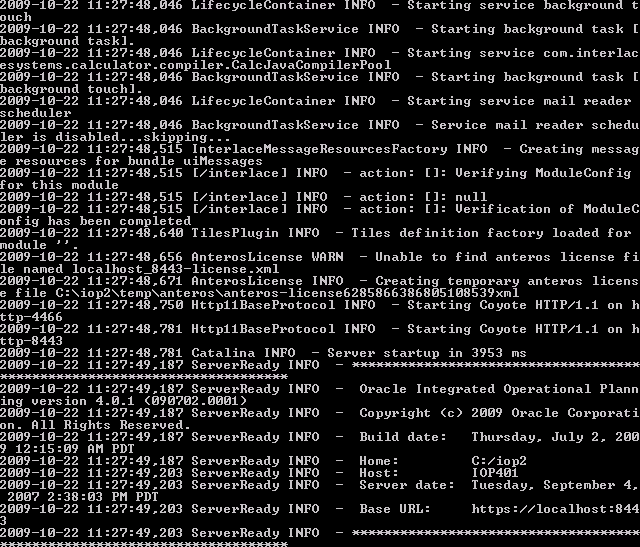
Run startserver to start the Integrated Operational Planning server.
The following messages are displayed in the command window.
|
10. |
In a new window, run setvar.bat to set the environment variables for the new environment.
|
11. |
Run initializesystem –u admin –p <password> to initialize the objects required for building models.
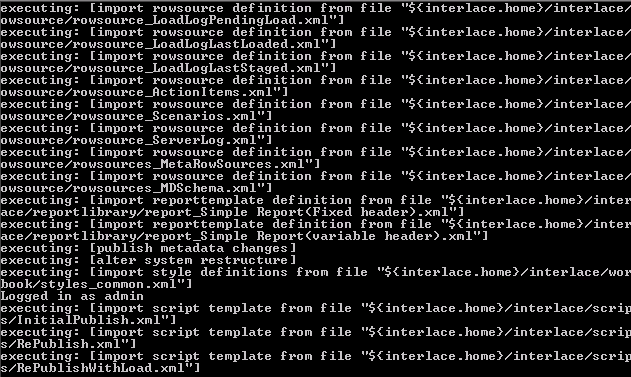
The following messages are displayed in the command window.
|





Loading Data from Exported Models
To load data from exported models into a new model, perform the following steps:
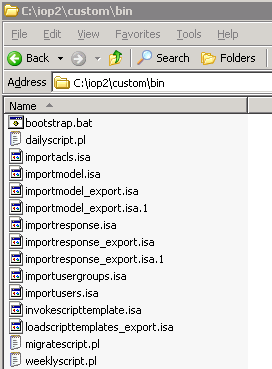
1. |
Navigate to c:\iop2\custom\bin.
|
|---|---|
2. |
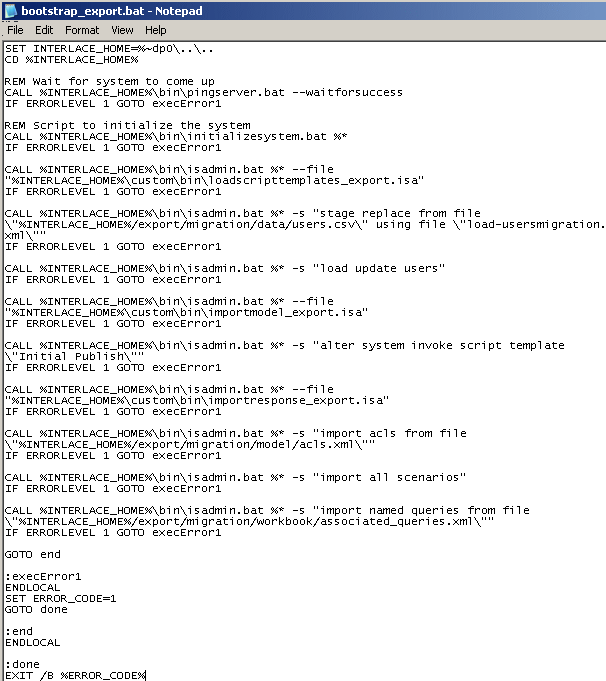
Create a new text file, bootstrap_export.bat, to include the syntax displayed in the following figure.
|
3. |
In a new window, set the location to the new environment. In this example, it is c:\iop2.
|
4. |
Run bootstrap_export.bat -u admin -p password to load the exported model into the new environment.
The following messages are displayed in the command window.
|



Testing the New Environment
To test the new (test) Integrated Operational Planning environment, perform the following steps:
1. |
Navigate to the new environment. In this example, go to http://localhost:4466/interlace.
|
|---|---|
2. |
Log on to Integrated Operational Planning as the administrator.
|
3. |
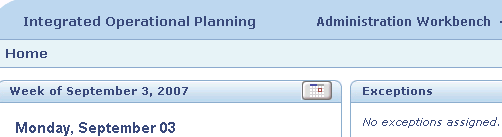
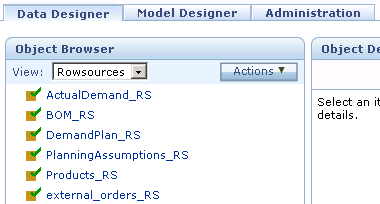
From Planning Workbench, click the Administration Workbench link.
The model is displayed in the new environment.
|

Summary
In this tutorial, you learned how to migrate models between environments.
Resources
- Oracle Integrated Operational Planning Release 4.0.1 User's Guide
- To learn more about
Integrated Operational Planning, refer to additional OBEs and the Introduction to Modeling Concepts in IOP 4.0.1 tutorial on the Oracle Technology Network Web site.

 |
About
Oracle |Oracle and Sun |  | Careers | Contact
Us | Site Maps | Legal
Notices | Terms of Use | Your Privacy Rights | Careers | Contact
Us | Site Maps | Legal
Notices | Terms of Use | Your Privacy Rights |