Java EE 7: Implementing JMS 2.0 Shared
Subscriptions in the Java SE Environment
Overview
Purpose
This tutorial covers how to implement Java Message Service 2.0
(JMS 2.0) shared nondurable subscriptions and shared durable
subscriptions in the Java Platform, Standard Edition (Java SE)
environment.
Time to Complete
Approximately 60 minutes
Introduction
JMS 2.0 is part of Java Platform, Enterprise Edition 7 (Java EE
7). One of the most important new features of JMS 2.0 is shared
subscriptions. In JMS 1.1, a topic subscription is not permitted
to have more than one consumer at a time. Because the work of
processing messages about a topic subscription could not be shared
among multiple threads, connections, or Java Virtual Machines
(JVMs), the scalability of the application was limited. This
restriction is removed in JMS 2.0 with the introduction of a new
kind of topic subscription called a shared subscription.
When a message is sent to the topic, all consumers that are
subscribed to the topic receive it. The basic idea in shared
subscriptions is to have a set of consumers (identified by a
shared subscription name) exclusively receive a message from a
topic. A topic may have multiple subscriptions. Each message sent
to the topic is added to each topic subscription. However, if
multiple consumers are on a particular subscription, each message
added to that subscription is delivered only to one of those
consumers.
JMS 2.0 defines four types of topic subscriptions that can be
created:
Unshared nondurable subscriptions: These
subscriptions are created with the createConsumer
method and can have only one consumer who will not receive
messages sent while its consumer is offline.
Unshared durable subscriptions: These
subscriptions are created with the createDurableConsumer
method and can have onlyone consumer who will receive the
messages sent while its consumer is offline.
Shared nondurable subscriptions: These
subscriptions are introduced in JMS 2.0, are created with the createSharedConsumer method, and can have
many consumers who will not receive messages sent while all
consumers are offline.
Shared durable subscriptions: These
subscriptions are introduced in JMS 2.0, are created with the createSharedDurableConsumer
method, and can have many consumers who will not receive the
messages sent while all consumers are offline.
In this tutorial, you learn how to use JMS 2.0 shared subscriptions:
Create two Java SE projects (message producer and
message subscribers)
Configure JMS resources in GlassFish Server
Develop a JMS message producer
Develop a shared nondurable subscription
Develop a shared durable subscription
Test the project for shared durable and nondurable
subscriptions
Hardware and Software Requirements
The following is a list of hardware and software requirements:
Download and install the latest JDK from this link (Java SE 7u21 recommended).
Download and install NetBeans 7.3.1 with Java EE, which
includes GlassFish 4 (Java EE download bundle), from this link. During installation, be sure to
select the check box to install GlassFish. JUnit is an optional
installation and is not required for this tutorial.
Prerequisites
Before starting this tutorial, you should:
Have installed the required software.
Ensure that NetBeans is running.
Creating Java Projects
In this section, you create two Java SE 7 applications in the
NetBeans IDE.
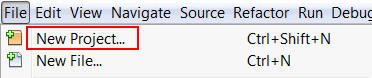
Select File > New Project.
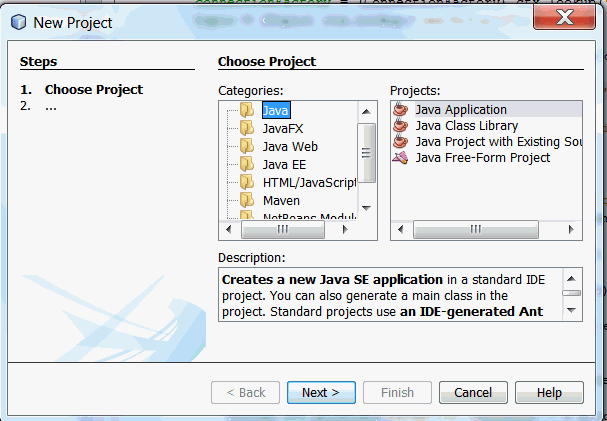
In the New Project dialog box, perform the following steps on
the Choose Project page:
Select Java from Categories.
Select Java Application from Projects.
Click Next.
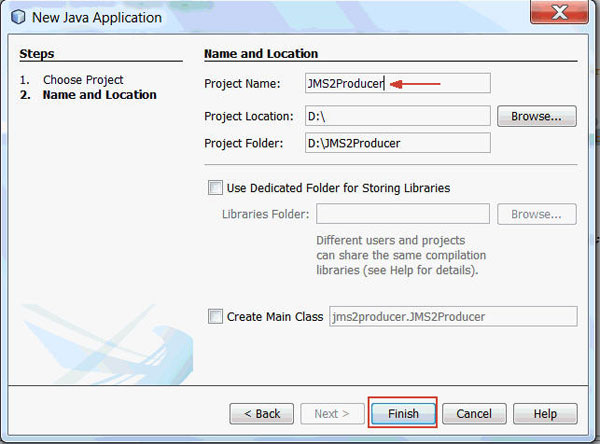
On the Name and Location page:
Enter JMS2Producer as the project name.
Click Finish.
Note: Uncheck Create Main Class option if it is already
checked.
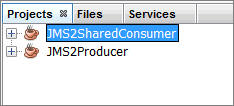
The JMS2Producer project is created in
NetBeans.
Repeat steps 1, 2, and 3 to create another Java project,
JMS2SharedConsumer.
Adding Libraries to the Projects
In this section, you add Java EE 7 API Library and the gf-client.jar
and appserv-rt.jar libraries to the JMS2Producer
and JMS2SharedConsumer projects.
Adding Java EE 7 API Library
On the Projects tab, right-click JMS2Producer
and select Properties.
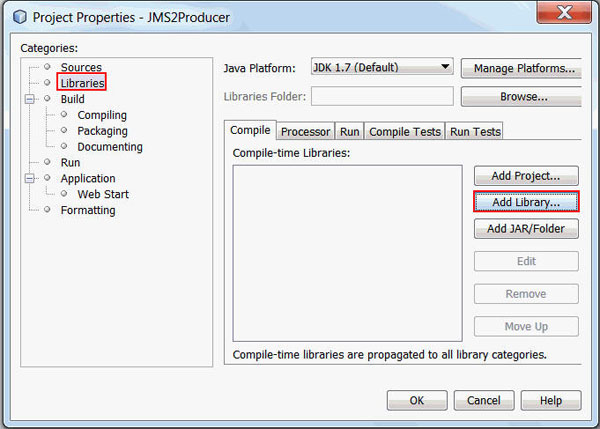
In the Project Properties dialog box, select Libraries
from Categories and click Add Library.
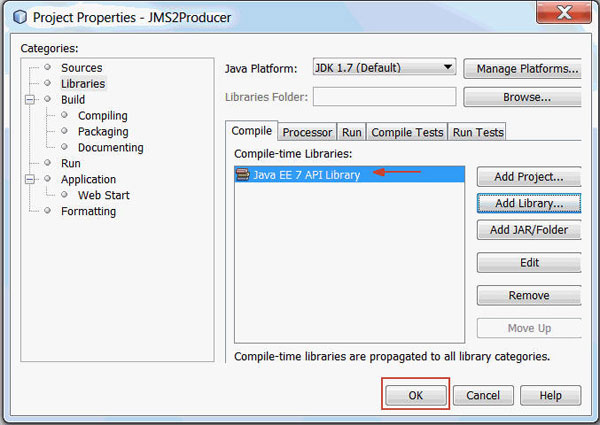
In the Add Library dialog box, select Java EE 7
API Library and click Add Library.
Click OK in the Project Properties
dialog box.
Adding the gf-client.jar
and the appserv-rt.jar Libraries
On the Projects tab, right-click JMS2Producer
and select Properties.
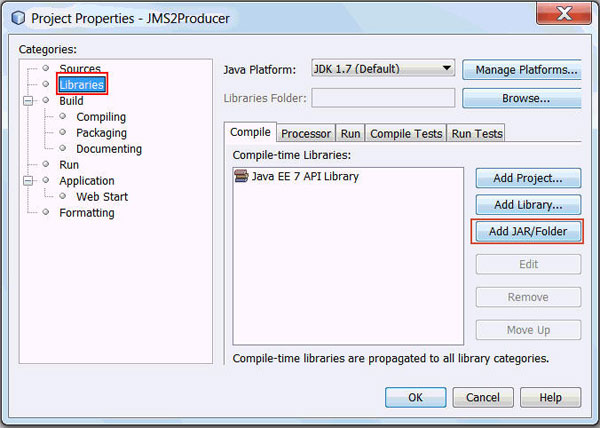
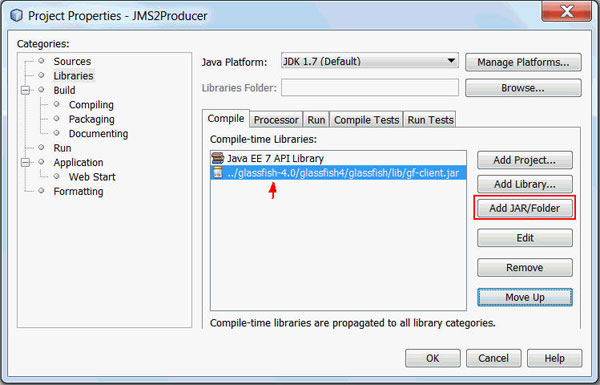
In the Project Properties dialog box, select Libraries
from Categories and click Add Jar/Folder.
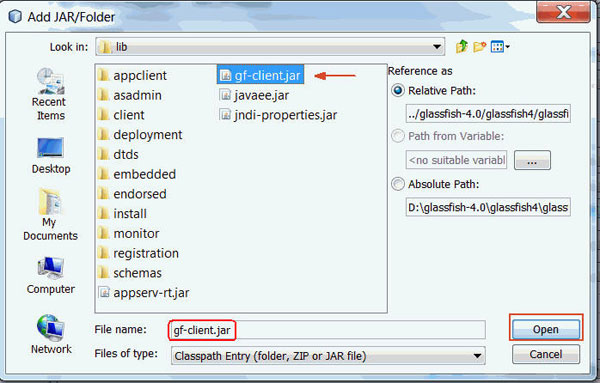
Perform the following steps to add gf-client.jar:
Browse to $GLASSFISH_HOME/lib.
$GLASSFISH_HOME points to the GlassFish 4
installation directory.
Select gf-client.jar.
Click Open.
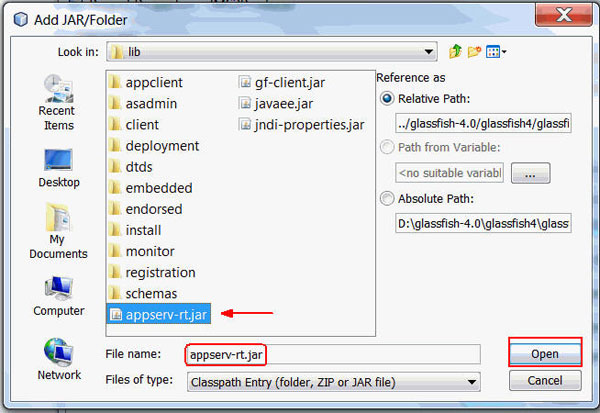
Perform the following steps to add appserv-rt.jar:
In the Project Properties dialog box, click Add
Jar/Folder.
Browse to $GLASSFISH_HOME/lib.
$GLASSFISH_HOME points to the GlassFish 4
installation directory.
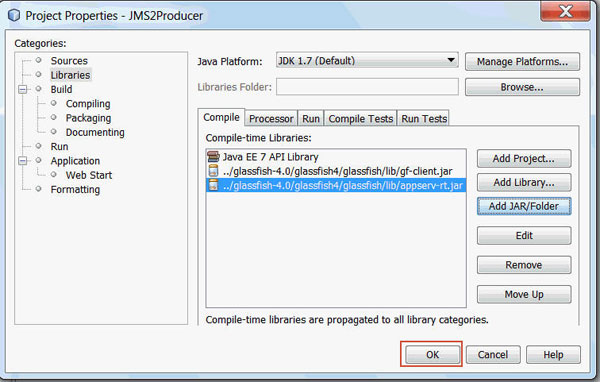
Select appserv-rt.jar.
Click Open.
Click OK in the Project Properties
dialog box.
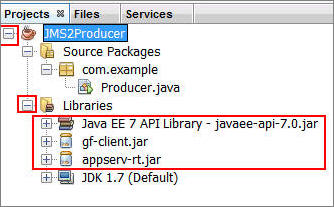
Perform the following steps to verify that the libraries
were added to the project:
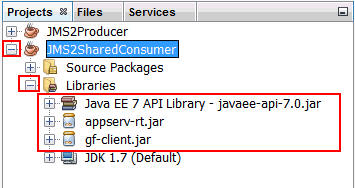
On the Projects tab, select the JMS2Producer
project.
Expand the Libraries folder to view
the listed libraries.
Repeat steps 1 through 6 to add the three libraries to
the JMS2SharedConsumer project.
Configuring the JMS Topic Resource
In this section, you configure the JMS resource, JMS Topic, in
the GlassFish Server. You do not configure Connection Factory
because you are using the default connection factory.
Perform the following steps to log on to the GlassFish Admin
console:
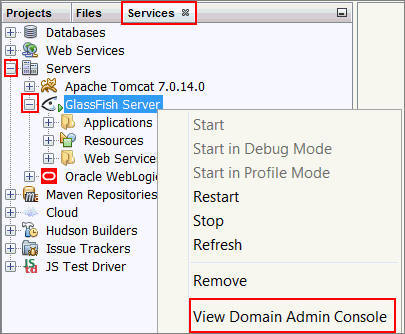
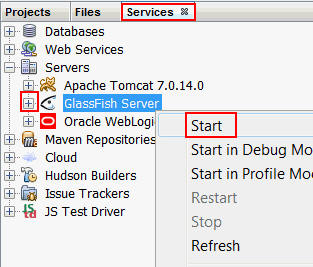
On the Services tab, expand the Servers
folder.
Right-click GlassFish Server and select Start.
Note: If your instance of GlassFish has a green triangle
next to the fish icon, the server is already started and
the Start option is disabled.
Right-click GlassFish Server and select
View Domain Admin Console.
The GlassFish Admin console opens in the browser.
In the GlassFish Admin console, perform the following steps
to configure the topic.
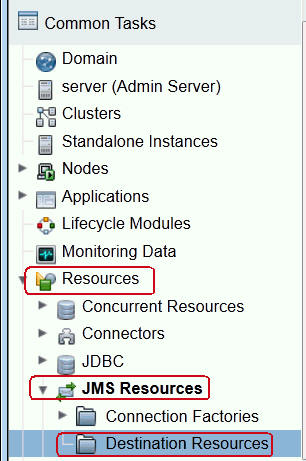
In the navigation bar, expand the Resources node
and select JMSResources.
Expand JMS Resources and select Destination
Resources.
Expand Destination Resources.
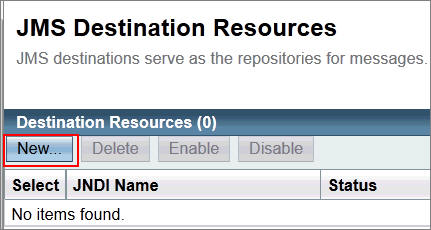
On the JMS Destination Resources page, click New.
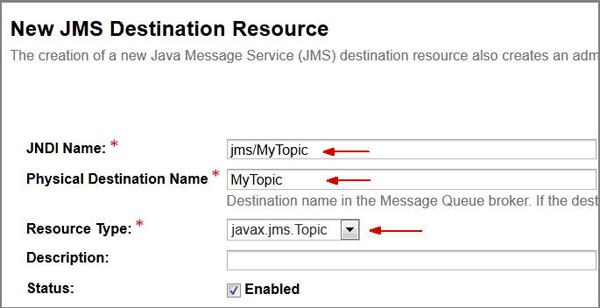
On the New JMS Destination Resource page, enter or select
the following :
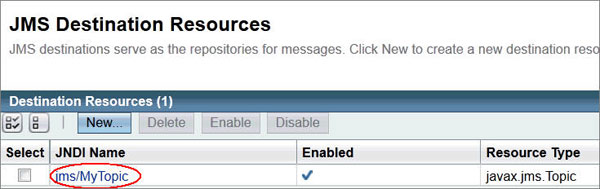
The JMS Resources page displays jms/MyTopic
in the Destination Resources table.
Verifying the JMS Resources
In this section, you verify the following JMS resources in the
GlassFish Server: JMS Topic,jms/MyTopic,
and the default connection factory, jms/_defaultConnectionFactory.
Perform the following steps on the Services tab:
Expand Servers.
Right-click GlassFish Server and select Start.
Note: If your GlassFish instance
displays a green triangle next to the fish icon, the
server is already started and the Start option is
disabled.
In the Output window, the GlassFish Server console
indicates that GlassFish has started.
Perform the following steps:
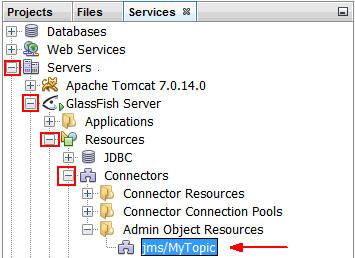
Expand the Servers > GlassFish Server folders.
Expand the Resources > Connectors folders.
Right-click Admin Object Resources and select Refresh
to display the jms/MyTopic resource.
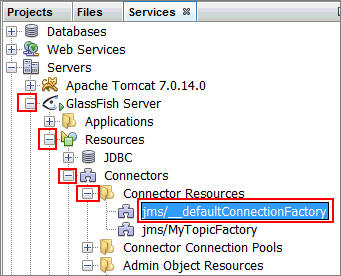
Expand the Connector Resources folder.
The jms/_defaultConnectionFactory
resource is displayed.
Developing a Message Producer
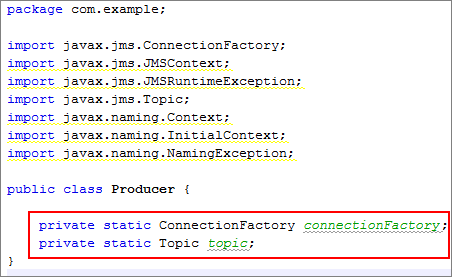
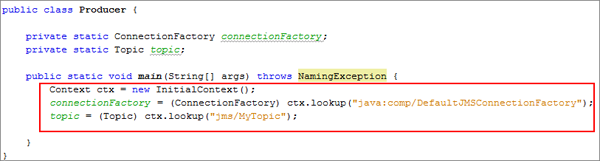
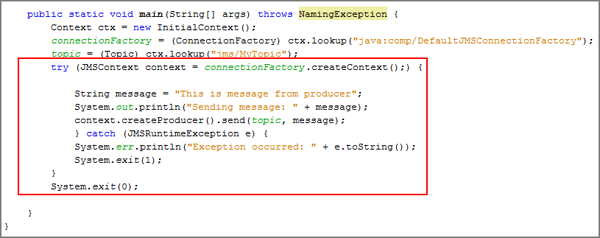
In this section, you develop a JMS message producer named Producer.
The producer sends one message to the JMS topic, jms/MyTopic,
and the message subscribers to this topic can consume the JMS
messages.
Perform the following steps to implement the Producer
class:
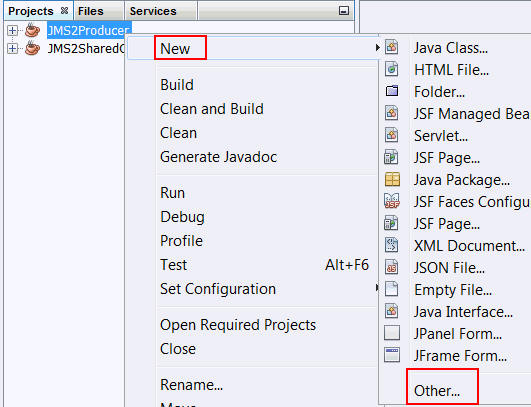
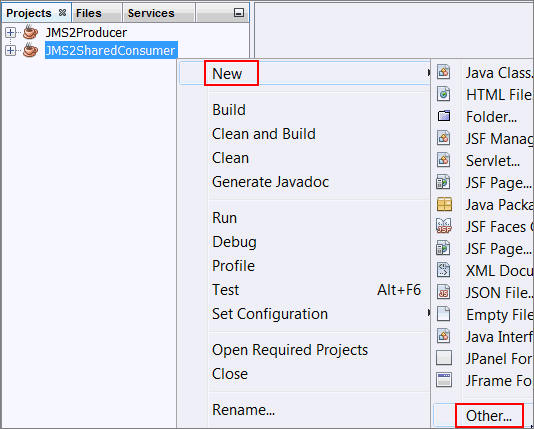
On the Projects tab, right-click JMS2Producer
and select New >Other.
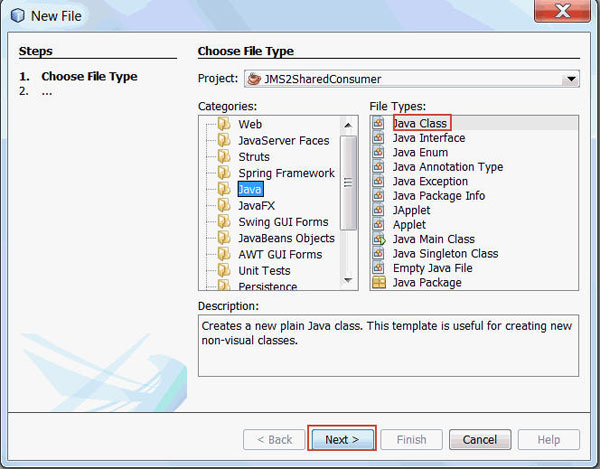
In the New File dialog box, perform the following steps on
the Choose File Type page:
Select Javafrom Categories.
Select Java Class from File Types.
Click Next.
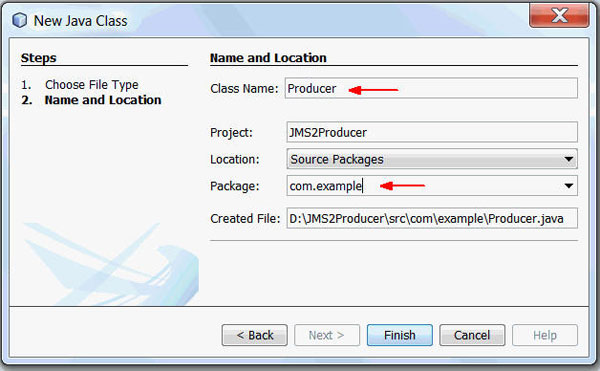
On the New Java Class page, perform the following steps:
Injects resources for a connection factory and topic.
Creates a JMSContext in a
try-with-resources block.
Creates a consumer on a shared nondurable subscription,
specifying a subscription name: consumer=context.createSharedConsumer(topic,
"SubName");
Creates an instance of the TextListener
class and registers it as the message listener for the
shared consumer.
Listens for the messages published to the destination
and stops when the user enters q or Q.
Catches and handles any exceptions. The end of the
try-with-resources block automatically causes the JMSContext
to be closed.
Developing a Message Listener for the Shared Subscriber
In this section, you develop a message listener, TextListener.
This class acts as the listener for the SharedConsumer
class. The TextListener class implements the MessageListener
interface by defining an onMessage method that
displays the contents of a TextMessage.
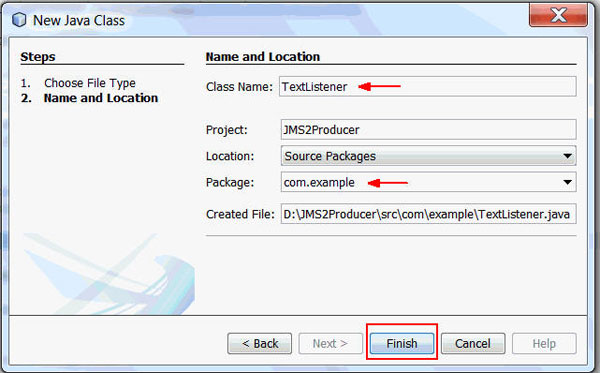
Perform the following steps to implement the TextListener
class:
On the Projects tab, right-click JMS2SharedConsumer
and select New > Other.
In the New File dialog box, perform the following steps on
the Choose File Type page:
Select Java from Categories.
Select Java Class from File Types.
Click Next.
On the Name and Location page, perform the following steps:
The TextListener class implements the MessageListener
interface.
public class TextListener implements MessageListener {
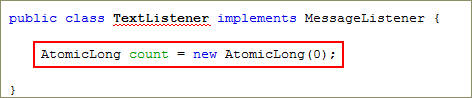
Declare and initialize a variable, AtomicLong.
AtomicLong count = new AtomicLong(0);
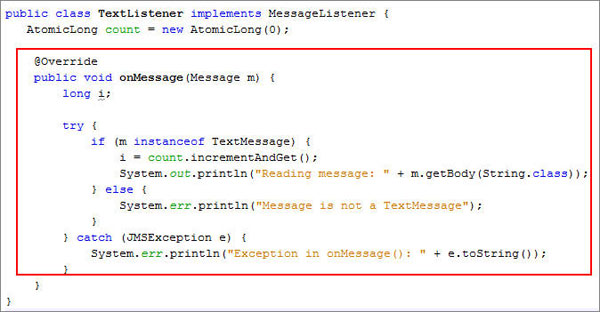
Add the onMessage() method.
@Override
public void onMessage(Message m) {
long i;
try {
if (m instanceof TextMessage) {
i = count.incrementAndGet();
System.out.println("Reading message: " +
m.getBody(String.class));
} else {
System.err.println("Message is not a TextMessage");
}
} catch
(JMSException e) {
System.err.println("Exception in onMessage(): " +
e.toString());
}
}
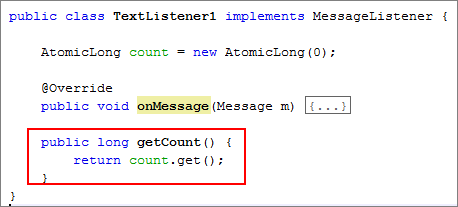
Add the getCount() method.
public long getCount() {
return count.get();
}
Developing a Shared Nondurable Subscription
In this section, you develop a shared nondurable subscriber, the
SharedConsumer class, which uses a topic to receive
messages by using asynchronous message delivery. It uses the TextListener
message listener.
This section describes how to use a shared consumer to distribute
messages about a topic among multiple consumers. All consumers
share the same subscription.
Perform the following steps to implement the SharedConsumer
class:
On the Projects tab, right-click JMS2SharedConsumer
and select New > Other.
In the New File dialog box, perform the following steps on
the Choose File Type page:
Select Java from Categories.
Select Java Class from File Types.
Click Next.
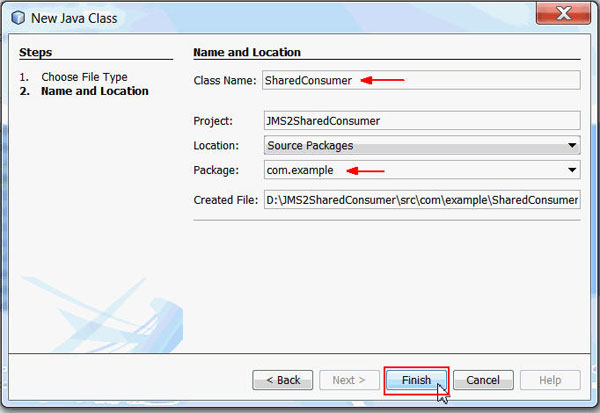
On the New Java Class page, perform the following steps:
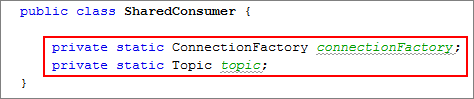
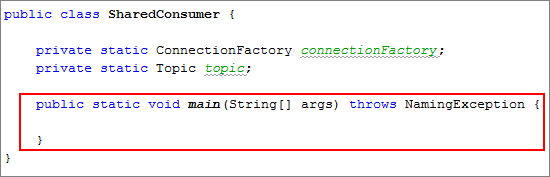
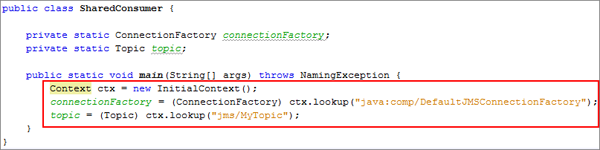
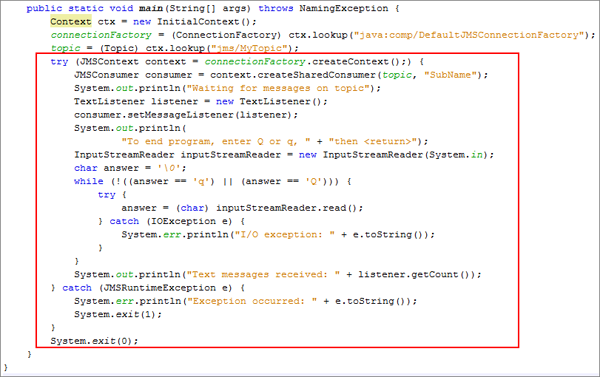
Injects resources for a connection factory and topic.
In a try-with-resources block, creates a JMSContext.
Creates a consumer on a shared nondurable subscription,
specifying a subscription name: JMSConsumer
consumer=context.createSharedConsumer(topic,
                        "SubName");
Creates an instance of the TextListener
class and registers it as the message listener for the
shared consumer.
Listens for the messages published to the destination
and stops when the user enters q or Q.
Catches and handles any exceptions. The end of the
try-with-resources block automatically causes JMSContext
to be closed.
Testing the Shared Nondurable Subscriptions
In this section, you test the shared nondurable subscriptions of
the JMS/MyTopic topic as follows:
Run two instances of the JMS shared nondurable subscription, SharedConsumer.java,
in the JMS2SharedConsumer project.
Run the JMS message producer, Producer.java, in
the JMS2Producer project.
Enter Q or q and then press Enter to stop each client and see
a report of the number of text messages received.
You observe that only one client receives the message because it
is a shared subscription.
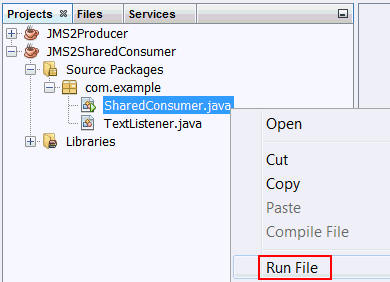
Perform the following steps to run SharedConsumer.java:
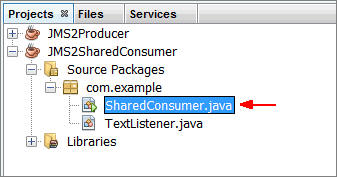
Expand the JMS2SharedConsumer
project.
Expand Source
Packages > com.example.
Right-click SharedConsumer.java
and select Run File.
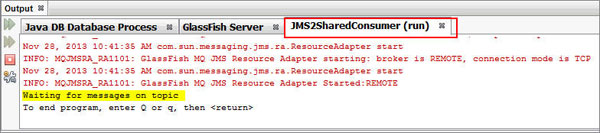
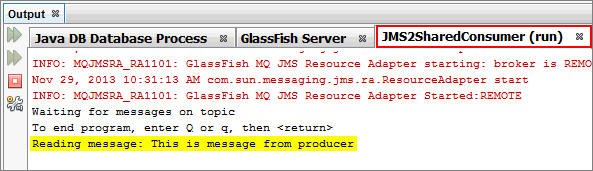
In the Output console, one instance of JMS2SharedConsumer
is running.
Right-click SharedConsumer.java and
select Run File to execute another instance of JMS2SharedConsumer.
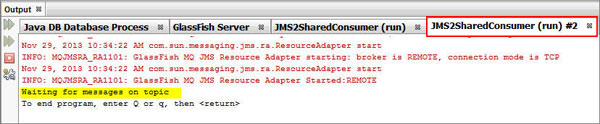
In the Output console, the second instance of JMS2SharedConsumer
is running.
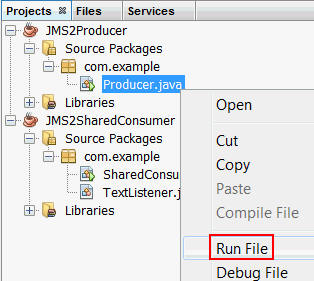
Perform the following steps to run the JMS message producer.
Expand the JMS2Producer
project.
Expand Source
Packages > com.example.
Right-click Producer.java
and select Run File.
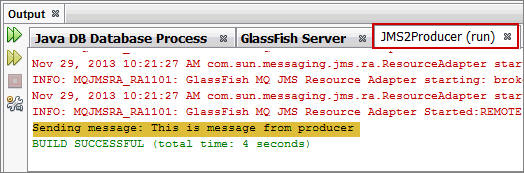
In the Output console, one instance of JMS2Producer
is running.
Perform the following steps in the Output console:
Click JMS2SharedConsumer(run).
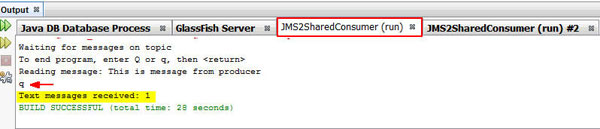
The message sent from the producer has been consumed.
Enter q or Q to quit.
The number of received messages is displayed.
Perform the following steps in the Output console:
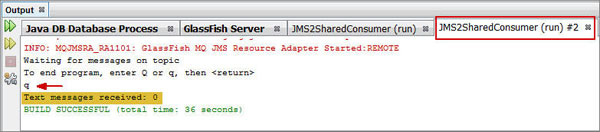
Click the JMS2SharedConsumer(run)#2 tab.
You can see it is still waiting for messages.
Enter q or Q to quit.
The number of messages received is 0.
Developing a Shared Durable Subscription
In this section, you develop a shared durable subscriber, which
uses a topic, jms/MyTopic, to receive messages
by using asynchronous message delivery. It uses the TextListener
message listener. The shared durable subscriber is implemented by
modifying SharedConsumer.java.
This section demonstrates how shared durable subscriptions
combine the advantages of durable subscriptions (the subscription
remains active when the client is not) with those of shared
consumers (the message load can be divided among multiple
clients).
Perform the following steps to modify SharedConsumer.java:
On the Projects tab, expand the JMS2SharedConsumer
project.
Expand Source Packages > com.example.
Double-click SharedConsumer.java
to open it in the editor.
Perform the following stepsto
modify the main() method:
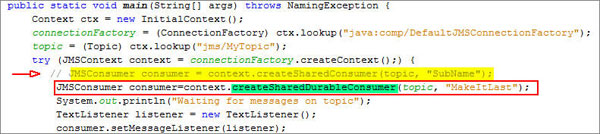
Comment the following line of code: JMSConsumer consumer =
context.createSharedConsumer(topic, "SubName");
Add the following line of code: JMSConsumer
consumer=context.createSharedDurableConsumer(topic,
"MakeItLast");
The code does the following:
Injects resources for a connection factory and topic.
In a try-with-resources block, creates a JMSContext.
Creates a consumer on a shared durable subscription,
specifying a subscription name: JMSConsumer
consumer=context.createSharedDurableConsumer(topic,
"MakeItLast");
Creates an instance of the TextListener
class and registers it as the message listener for the
shared consumer.
Listens for the messages published to the destination
and stops when the user enters q or Q.
Catches and handles any exceptions. The end of the
try-with-resources block automatically causes the JMSContext
to be closed.
Testing the Shared Durable Subscriptions
In this section, you test the shared durable subscriptions of the
JMS/MyTopic topic as follows:
Run the JMS message producer, Producer.java, in
the JMS2Producer project.
Run two instances of the JMS shared nondurable subscription, SharedConsumer.java,
in the JMS2SharedConsumer project.
Enter Q or q and press Enter to stop each client and see a
report of the number of received text messages.
The subscription remains active and accumulates messages even
when no active consumer is on it. Whichever client starts first
receives all messages that were sent when there was no active
subscriber.
Perform the following steps to run Producer.java:
Expand the JMS2Producer
project.
Expand Source Packages -> com.example.
Right-click Producer.java
and select Run File.
In the Output console, one instance of the JMS2Producer
is running, and a message was sent to the JMS/MyTopic
topic.
Perform the following steps to run SharedConsumer.java:
Expand the JMS2SharedConsumer
project.
Expand Source Packages > com.example.
Right-click SharedConsumer.java
and select Run File.
In the Output console, one instance of JMS2SharedConsumer
is running and is waiting for messages about the jms/MyTopic
topic.
Right-click SharedConsumer.java and
select Run File to execute another instance of JMS2SharedConsumer.
In the Output console, the second instance of SharedConsumer
is running and is waiting for messages about the jms/MyTopic
topic.
Perform the following steps in the Output console:
Click the JMS2SharedConsumer(run) tab and enter q
or Q to end the program.
The number of received messages is displayed.
Click the JMS2SharedConsumer(run)#2 tab and enter
q or Q to end the program.
The number of messages received is displayed.
Summary
In this tutorial, you learned to:
Use the JMS 2.0 simplified API in a Java SE application