Troubleshooting Applications in Oracle Cloud by Using OEPE
Overview
- Have an Oracle.com account.
- Have already completed the Oracle by Example tutorial titled Configuring Oracle Enterprise Pack for Eclipse for Oracle Cloud.
- Have downloaded the visitors.war
file to a local directory.
Purpose
This tutorial covers how to use the resources available in
Oracle Enterprise Pack for Eclipse (OEPE) to troubleshoot and
correct problems with applications that are deployed to Oracle
Java Cloud Service.
Time to Complete
Approximately 30 minutes
Introduction
Oracle Cloud is a public, enterprise, platform-as-a-service (Paas) offering. Two services provided by Oracle Cloud are particularly interesting to Java applications developers: Oracle Java Cloud Service and Oracle Database Cloud Service. You can configure these services through a web interface, a command-line tool, or an integrated development environment (IDE) such as OEPE.
Scenario
In this tutorial, you deploy a completely developed and tested
web archive (WAR) application (visitors.war) and use OEPE tools
to troubleshoot and correct an issue in the application.
Prerequisites
Before starting this tutorial, you should:
Importing and Deploying the Application
In this section, you import the visitors.war file into OEPE and
then deploy it to Oracle Cloud.
Right-click in the Project Explorer tab and select Import
> WAR file.
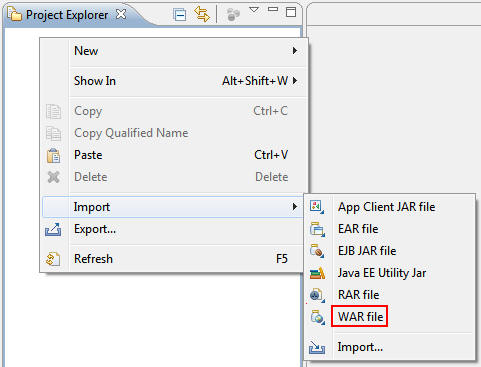
Perform the following steps:
a. Browse to the directory where you downloaded the visitors.war file.
b. Select Oracle Cloud as the target runtime.
c. Click Finish.

A progress bar shows the status of the import process.

In Project Explorer, right-click the visitors project
and select Run As > Run on Server.

In the Run On Server dialog box, make sure that Oracle
Cloud is selected and click Finish.
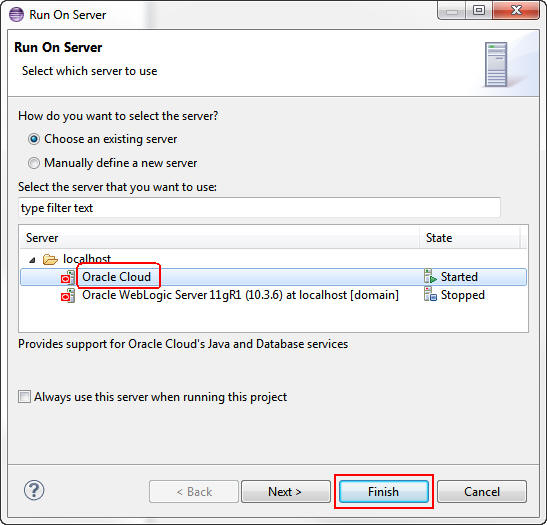
In a web browser, sign in to your Oracle
Cloud account .

On the Visitors page, click the Start link.
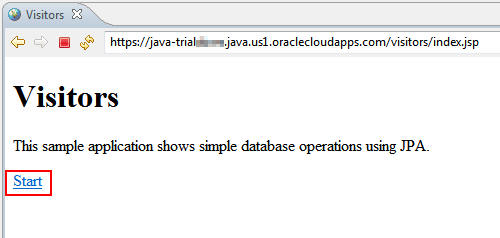
An error is displayed at the bottom of the page.

Troubleshooting the Application Error
In this section, you use the OEPE tools to troubleshoot the
error in the application.
On the Servers tab, right-click Oracle Cloud and
select Java Cloud Service Control.
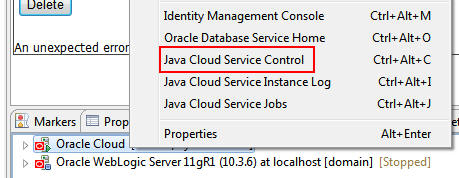
Log in to your Oracle Cloud account.
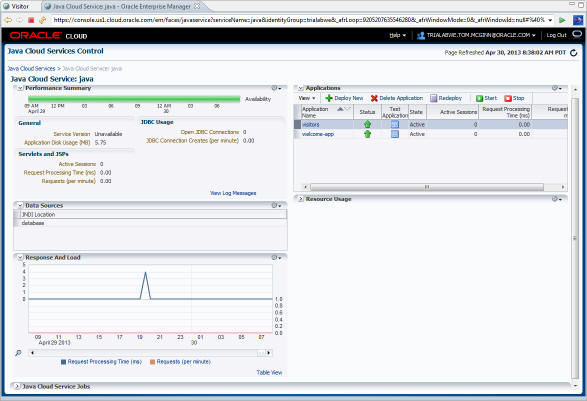
The Java Cloud Services Control console opens in another web browser window.
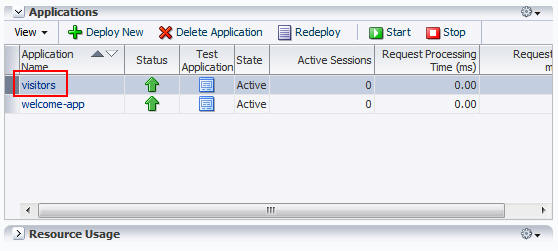
The Applications section shows the list of applications that are deployed to Oracle Java Cloud Service.
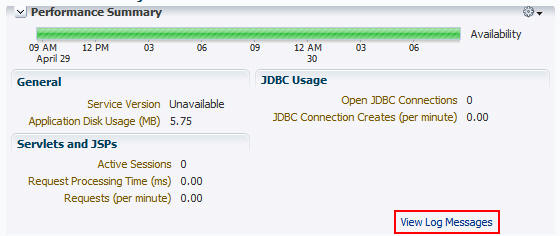
In the Performance Summary section, click View Log
Messages.
Select the error line and right-click at the top of the
error message detail section to enlarge the window.
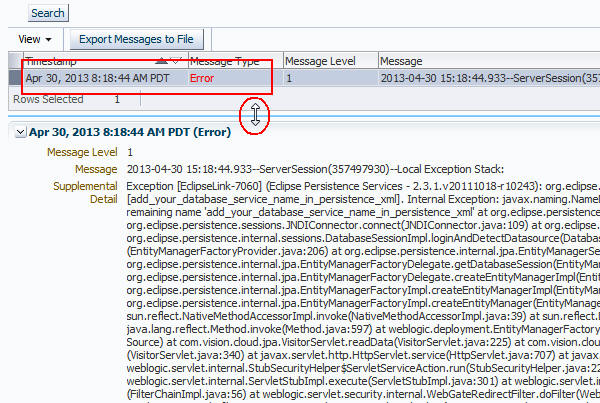
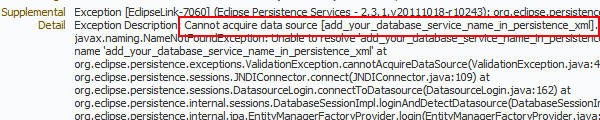
The Supplemental Detail section includes the complete stack trace. The critical information is the first line, which indicates that the data source is not set properly in the persistence.xml file.
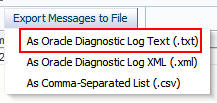
The Export Messages to File button is used to save the stack trace as a file. Long stack traces are easier to read in a file.
Correcting the Application Error
In this section, you use the OEPE tools to correct the missing
data source error in the application.
On the Project Explorer tab, perform the following steps:
a. Expand the visitors project.
b. Expand Java Resources.
c. Expand src.
d. Expand META-INF.
e. Double-click the persistence.xml file.

The persistence.xml file is displayed.
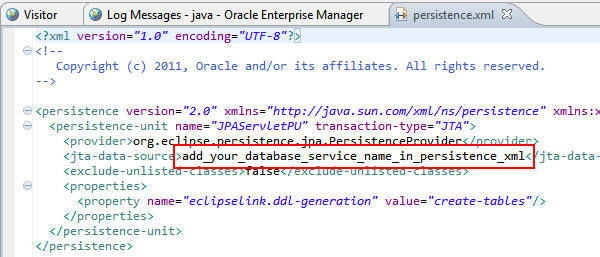
Replace "add_your_database_service_name_in_persistence_xml"
with database, which is the Java Naming and
Directory Interface data source for Oracle Database Cloud
Service.

Click Save.

Whitelist Scanning the Application
Oracle Cloud prevents applications that fail to meet specific
whitelist requirements from deploying and running. For example,
the whitelist scan fails for APIs that were deprecated in Oracle
WebLogic Server 10.3.6 or earlier and in Oracle Application
Development Framework 11.1.1.6 or earlier. For a complete list
of APIs, features, and capabilities that are detected by the
whitelist scan, see the Oracle Cloud documentation.
Right-click the visitors project and select Oracle
Cloud Whitelist Scan.
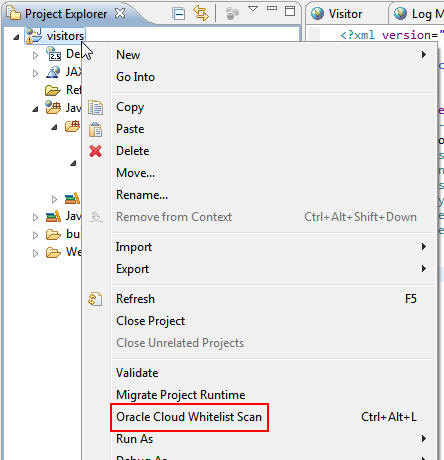
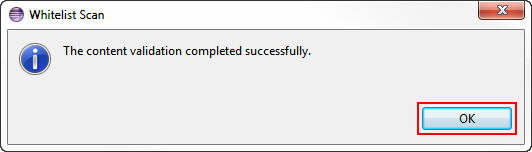
When the success message is displayed, click OK to close the Whitelist Scan dialog box.
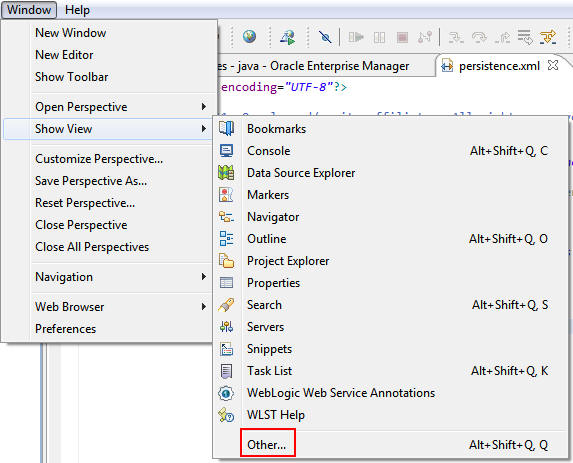
On the Window menu, select Show View > Other to see the results of the whitelist scan.
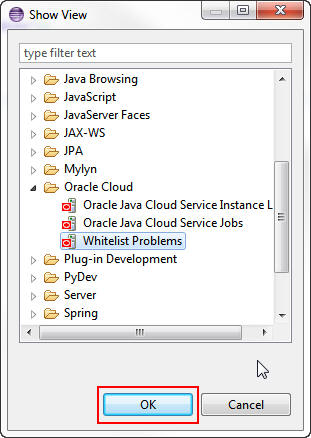
In the Show View dialog box, expand Oracle Cloud, select Whitelist Problems, and click OK.
Any whitelist errors appear on the Whitelist Problems tab.
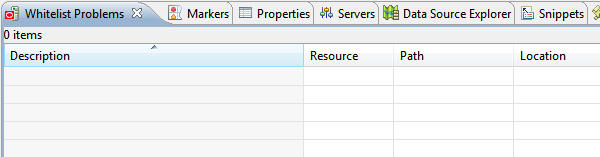
Your application has no whitelist errors.
Retesting the Application
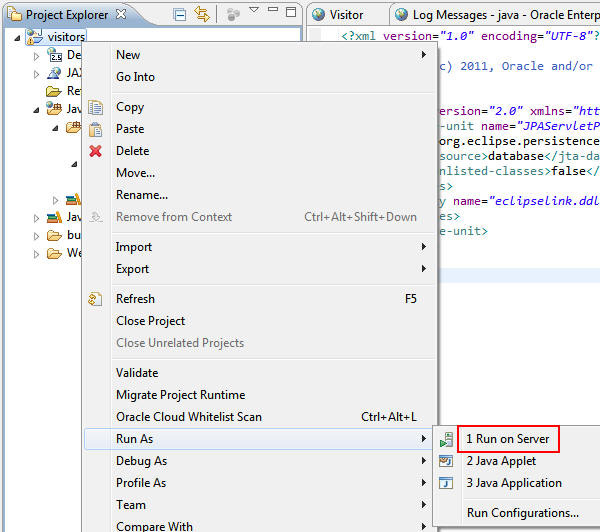
Right-click the visitors project and select Run
As > Run on Server to redeploy the application.
In the Run On Server dialog box, make sure that Oracle
Cloud is selected and click Finish.

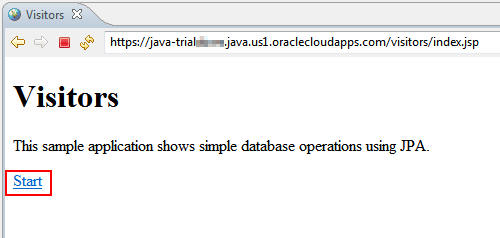
Log in to your Oracle Cloud account, and click the Start
link.
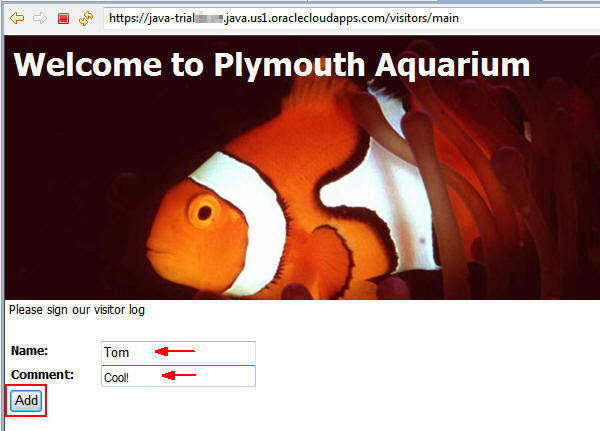
On the Welcome page, enter your first name and a comment,
and click Add.
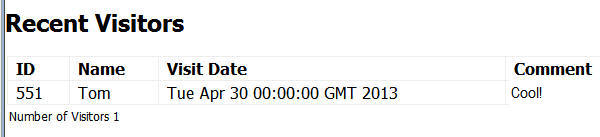
Scroll to the bottom of the Welcome page to see the name
and comment that you entered.
Summary
- Oracle
Cloud Learning Center
- Oracle
Enterprise Pack for Eclipse User's Guide
- WebLogic
Server 11g documentation
- To learn more about Oracle
Cloud, refer to additional OBEs in the Oracle Learning Library.
- Lead Curriculum Developer: Tom McGinn
- Other Contributors: Anand Kothari, Nilesh Junnarkar, Vel
Subramini Nadar
In this tutorial, you learned to use the Java Cloud Services
Control console to view log messages and troubleshoot a
nonworking application. You used the log's stack trace and
debugging information to correct the missing data source
definition in the persistence unit definition (persistence.xml).
You also learned to use the whitelist scan to detect APIs and
Java functionality that are not permitted in Oracle Java Cloud
Service.
Resources
Credits
To help navigate this Oracle by Example, note the following:
- Hiding Header Buttons:
- Click the Title to hide the buttons in the header. To show the buttons again, simply click the Title again.
- Topic List Button:
- A list of all the topics. Click one of the topics to navigate to that section.
- Expand/Collapse All Topics:
- To show/hide all the detail for all the sections. By default, all topics are collapsed
- Show/Hide All Images:
- To show/hide all the screenshots. By default, all images are displayed.
- Print:
- To print the content. The content currently displayed or hidden will be printed.
To navigate to a particular section in this tutorial, select the topic from the list.