Java SE 8: Using Regular Expressions in Java
Overview
Purpose
This tutorial shows you how to use regular expressions in Java Platform, Standard Edition 8 (Java SE 8).
Time to Complete
Approximately 100 minutes
Introduction
Regular expressions were introduced in Java 4 (JDK 1.4) through the standard java.util.regex package. Regular expressions use an annotation system to match complex string patterns. You use regular expressions to describe a set of strings based on common characteristics shared by each string in the set. You can search, edit, or manipulate text and data.
The Java API provides the java.util.regex
package for pattern matching with regular expressions.
The package
consists of the following classes:
- A pattern
object is the compiled representation of the regular expression.
The pattern
object does not have a public constructor. Therefore to create a
pattern
object, you need to invoke one of the
public
                  static compile
methods. -
The Matcher class is an engine for the pattern class. The Matcher class helps to interpret pattern and perform match operations on the input string. Like the pattern class, matcher defines no public constructors. You obtain a matcher object by invoking the matcher method on a pattern object.
-
PatternSyntaxException is an unchecked exception and is thrown when a syntax error occurs in a regular expression pattern.
The basic form of pattern matching supported by java.util.regex is a string literal. In the pattern class specification, you see a set of constructs that support regular expressions. These constructs are called character classes. A few constructs have a predefined meaning and are classified as predefined character classes. The java.util.regex package also provides quantifiers for specifying the size or length of the pattern to be matched.
The next sections cover the constructs and quantifiers.
String Literals
String literals try to match the regular expression with the input string. The match succeeds if the input string and the regular expression are identical. For example, if the regular expression is 'foo' and the user input string is also 'foo,' then the match is successful. The input string is three characters long, so the start index is 0 and the end index is 3.
Character Classes
With the character classes, you can write a series of options to match against a single character. You can write a group of characters, a range of characters, and even the inverse of characters.
| Construct | Description |
| [abc] | a, b, or c (simple class) |
| [^abc] | any character except a, b, or c (negation) |
| [a-zA-Z] | a through z, or A through Z, inclusive (range) |
| [a-d[m-p]] | a through d, or m through p: [a-dm-p] (union) |
| [a-z&&[def]] | d, e, or f (intersection) |
| [a-z&&[^bc]] | a through z, except for b and c: [ad-z] (subtraction) |
| [a-z&&[^m-p]] | a through z, and not m through p: [a-lq-z] (subtraction) |
| [bcr]at | accepts "b", "c", or "r" as its first character |
Note: The word "class" in the phrase "character classes" doesn't refer to a .class file. In the context of regular expressions, a character class is a set of characters that are enclosed within square brackets. It specifies the characters that will successfully match a single character from a given input string.
Metacharacters
The metacharacter in a regular expression is the dot. The dot tries to match anything and everything in the input string. Consider the same string literal example: If the regular expression is 'foo.' and the user input string is 'foot' the match succeeds even though the dot isn't in the input string. It succeeds because the dot is a metacharacter—a character with special meaning that the matcher interprets. The metacharacter "." means "any character."
Predefined Character Classes
The Pattern API contains a number of useful predefined character classes, which offer a convenient shorthand for commonly used regular expressions.
| Construct | Description |
| . | any character (may or may not match line terminators) |
| \d | a
digit: [0-9] |
| \D | a
non-digit: [^0-9] |
| \s | a
whitespace character: [
\t\n\x0B\f\r] |
| \S
|
a
non-whitespace character: [^\s] |
| \w | a
word character: [a-zA-Z_0-9] |
| \W | a
non-word character: [^\w] |
Quantifiers
With quantifiers, you can specify the number of occurrences that
you want to match. Quantifiers bind a numeric value to a pattern,
and the value determines how many times to match a pattern.
| Construct | Number
of Times to Match |
| * | 0
or more |
| + | 1
or more |
| ? | 1
or 0 |
| {n} | exactly
n |
| {n,} |
at
least n |
| {n,m} | at
least n but not
more than m |
Scenario
This tutorial implements a simple scenario to demonstrate regular expressions. Consider the scenario of a retail customer database. The retailer wants to retrieve customer details based on the following filters, and regular expressions simplify the implementation.
Scenario 1: Retrieving a customer name and a state code
Scenario 2: Retrieving a zip codes and phone numbers
Scenario 3: Retrieving an email address
Scenario 4: Implementing the greedy quantifier in regular expressions
Scenario 5: Retrieving and replacing characters
Scenario 6: Implementing anchor tags in regular expressions
Hardware and Software Requirements
Creating a Java Application
In this section, you deploy and run a Java application so that you can use regular expressions.
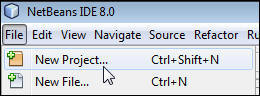
- Select File > New Project to open NetBeans
IDE 8.0.
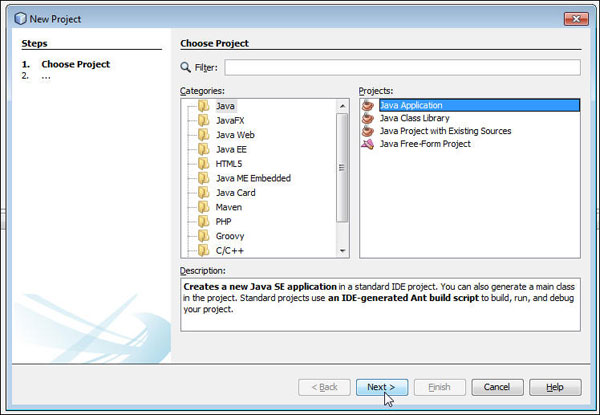
- In the New Project dialog box, select Java from Categories and Java Application from projects, and then click Next.
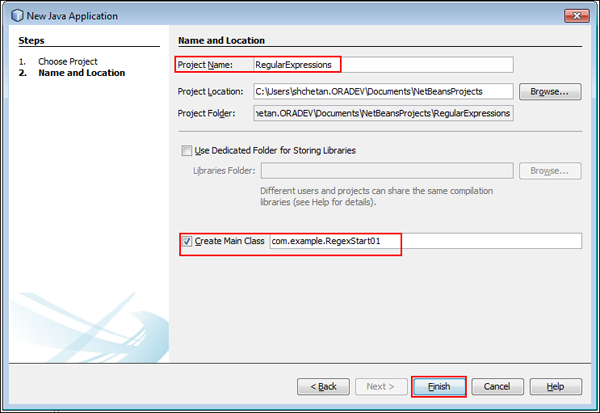
- Enter or select the following details on the Name and Location
page:
- Enter RegularExpressions as the project name.
- Select Create Main Class.
- Enter the following:
- Package name: com.example
- Class name: RegexStart01
- Click Finish.
A Java SE 8 project named RegularExpressions is created in NetBeans, and you are now ready to retrieve customer details based on specified filters.
Retrieving a Customer Name and a State Code
In this section, you generate a regular expression with character classes and quantifiers. The regular expression retrieves a customer name and a state code from the input string.
- Import the following packages: import java.util.regex.Matcher;
-
Add the following code to the main()method to set the value for the input string named address:
-
Add the following code to the validate()method to find "johnn" in the input string:
- Creates the pattern and a corresponding matcher field.
- Generates the matcher based on the supplied pattern object.
- Searches the string for the supplied pattern.
- Prints the result based on the matching text.
- Review the code, which should look like the following:
package com.example; import java.util.regex.Matcher; import java.util.regex.Pattern; public class RegexStart01 { public static void main(String[] args) { String address = " John S Smith CA 12345 PA (412)555-1212 johnsmith_123@gmail.com 610-555-1234 610 555-6789 "; validate("johnn", address); } public static void validate(String theRegex, String str2Check) { Pattern checkRegex = Pattern.compile(theRegex); Matcher regexMatcher = checkRegex.matcher(str2Check); if (regexMatcher.find()) { System.out.println("Match found"); } else { System.out.println("Match Not Found"); } } } -
On the Project tab, right-click RegexStart01.java and select Run File.
-
Verify the output.
-
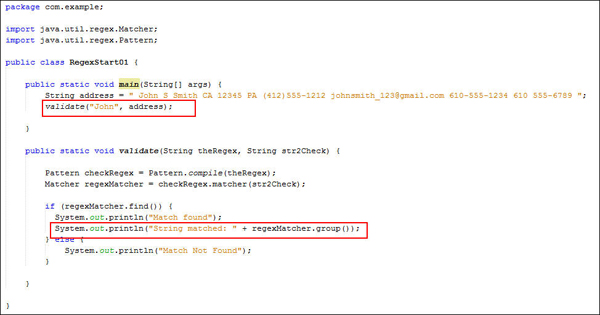
Invoke the validate()method from the main()method:
validate("John", address);
The validate()method runs through input string named address and searches for the pattern match named "John".
- Edit the highlighted section in your code as shown, and then
review the code.
-
On the Projects tab, right-click RegexStart01.java and select Run File.
-
Verify the output.
-
Invoke the validate()method from the main method:
validate("[Jj]ohn", address);
The validate()method runs through the input string named address, and searches for the pattern match "John" or "john". [Jj] is a character class and here "[Jj]ohn" looks for instances of uppercase J followed by ohn or lowercase j followed by ohn.
- Edit the highlighted section in your code as shown, and then
review the code.
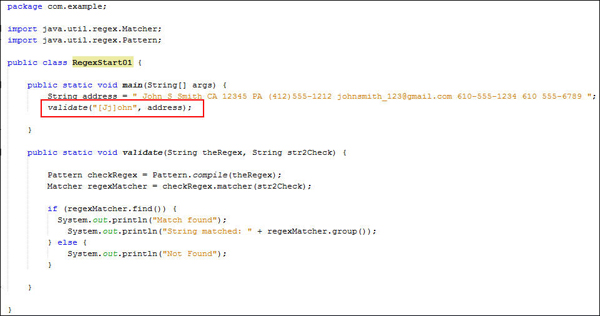
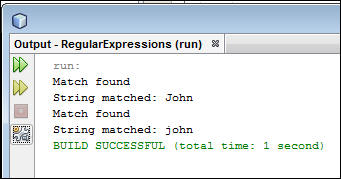
Here the find()method in the if condition retrieves the first occurrences of either "John" or "john" in the given input string. If you have to retrieve all occurrences of "John" or "john" in the string, then you must call the find()method multiple times.
-
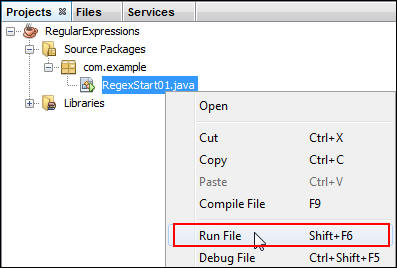
On the Projects tab, right-click RegexStart01.java and select Run File.
-
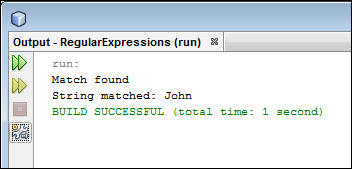
Verify the output.
- Edit the highlighted section in your code as shown, and then
review the code.
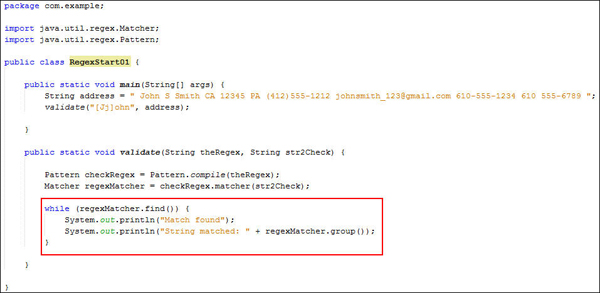
Here, the while loop tries to retrieve all occurrences of "John" and "john" in the given input string. This loop helps to return all matches until it reaches the end of the string.
-
On the Projects tab, right-click RegexStart01.java and select Run File.
-
Verify the output.
-
In the NetBeans IDE, perform the following steps:
- Open the provided RegularExpressions
project.
- Expand
Source Packages > com.example. - On the Projects tab, create a Java file named RegularExpression.java.

- Open the provided RegularExpressions
project.
-
Open RegularExpression.java in the code editor window and enter the following code to retrieve the customer name from the input string named address:
package com.example;
import java.util.regex.Matcher;
import java.util.regex.Pattern;
public class RegularExpression {
public static void main(String[] args) {
String address = " John S Smith CA 12345 PA (412)555-1212 johnsmith_123@gmail.com 610-555-1234 610 555-6789 ";
System.out.println("Address: "+address);
validate("\\s[A-Za-z]{3,20}\\s", address);
}
public static void validate(String theRegex, String str2Check) {
Pattern checkRegex = Pattern.compile(theRegex);
Matcher regexMatcher = checkRegex.matcher(str2Check);
while (regexMatcher.find()) {
if (regexMatcher.group().length() != 0) {
System.out.println("Match:" + regexMatcher.group(0).matches(theRegex));
System.out.println(regexMatcher.group().trim());
}
}
System.out.println();
}
}
The validate() method runs the regular expression [A-Za-z]{3,20}and retrieves the matching pattern. This expression is case-insensitive and can contain 3 to 20 characters in the input string. The trim()method removes extra spaces in the input string named address.
Note: \s is a predefined character class that looks for the whitespace character before and after the search pattern. In regular expressions, constructs beginning with a backslash are called escaped constructs. If you are using an escaped construct in a string literal, you must precede the backslash with another backslash to make the string compile. - Review the code, which should look like the following:
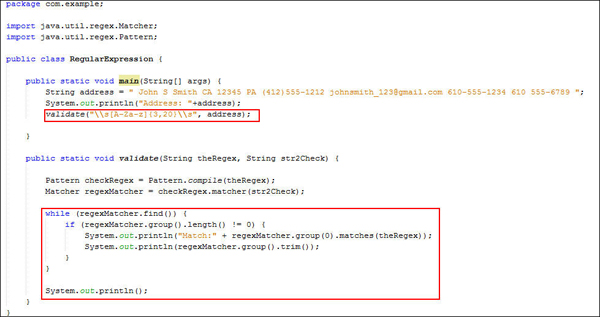
-
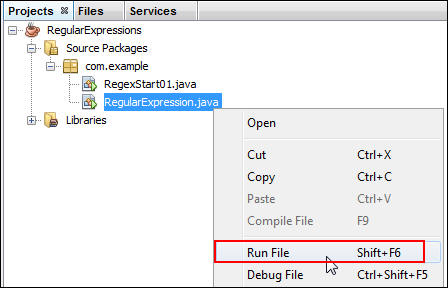
On the Projects tab, right-click RegularExpression.java and select Run File.
-
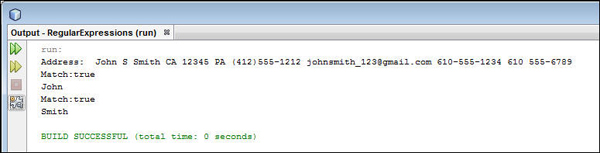
Verify the output.
-
Invoke the validate()method from the main()method with the following regular expression pattern:
validate("A[KLRZ]|C[AOT]", address);
The validate()method contains a pattern to retrieve the state code that starts with 'A' or 'C'. The regular expression tries to match character 'A' combined with 'K', 'L', 'R' and Z'. Similarly, the regular expression tries to match character 'C' combined with 'A', 'O', and 'T'.
Note: The regular expression A[KLRZ]|C[AOT] tries to match the patterns. For state code 'A', the pattern match is 'AK', 'AL', 'AR', and 'AZ'. For state code 'C', the pattern match is 'CA', 'CO', and 'CT'. - Review the code, which should look like the following:

-
On the Projects tab, right-click RegularExpression.java and select Run File.
-
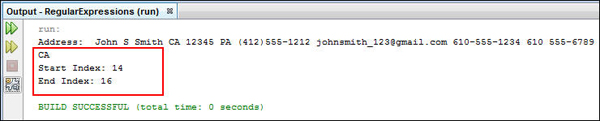
Verify the output.
import java.util.regex.Pattern;
1 public static void main(String[] args) {
2        String address = " John S Smith CA 12345 PA (412)555-1212 johnsmith_123@gmail.com 610-555-1234 610 555-6789 ";
3        validate("johnn", address);
4
5   }
The validate() method accepts two parameters. The first parameter is a regular expression for retrieving the customer name. The second parameter is the user input string. The validate()method looks for "johnn" in the input string. If it finds a match, it displays "Match Found" in the console; otherwise, it displays "Match Not Found."
 public static void validate(String theRegex, String str2Check) {
14
15     Pattern checkRegex = Pattern.compile(theRegex);
16     Matcher regexMatcher = checkRegex.matcher(str2Check);
17
18         if (regexMatcher.find()) {
19         System.out.println("Match Found");
20         }else{ System.out.println("Match Not Found");
21         }
22     }
The code performs the following tasks:
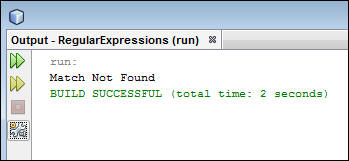
The validate()method runs through the input string named address, searches for the pattern matches, and displays "Match Not Found" in the console.
The validate() method runs through the input string named address, searches for the pattern matches, and displays "John" in the console. The group()method returns the input instance captured by the given group during the previous match operation.
The validate()method runs through the input string named address, searches for the pattern matches, and displays the state code in the console.
Retrieving Zip Codes and Phone Numbers
In this section, you generate a regular expression with predefined character classes and quantifiers. The regular expression retrieves zip codes and phone numbers from the input string.
-
To retrieve zip codes, invoke the validate()method from the main() method with the following regular expression pattern:
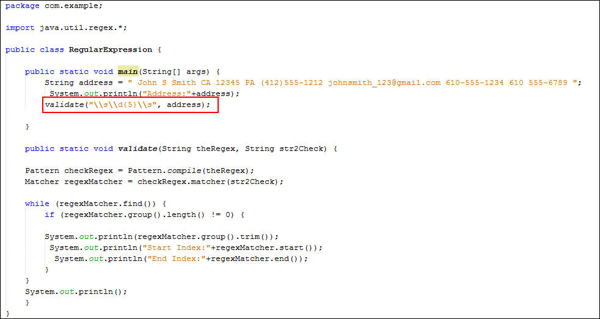
validate("\\s\\d{5}\\s", address);
The validate() method contains a pattern to retrieve digits of length 5. The \\s predefined character looks for whitespace before and after the digits.
Note: You can also represent \\d{5} as [0-9]{5}. Both regular expressions perform the same pattern matching. Here,\d is a predefined character class. - Review the code, which should look like the following:
-
On the Projects tab, right-click RegularExpression.java and select Run File.
-
Verify the output.

-
To retrieve phone numbers, invoke the validate()method from the main()method with the following regular expression pattern:
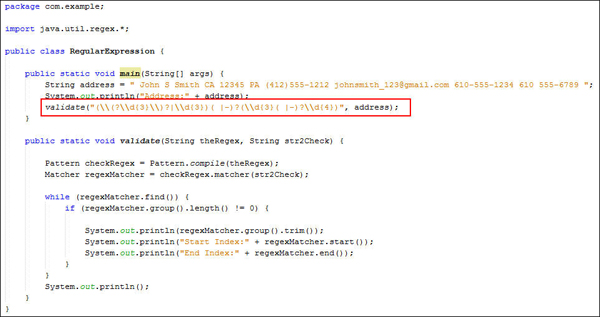
validate("(\\(?\\d{3}\\)?|\\d{3})( |-)?(\\d{3}( |-)?\\d{4})", address);The validate method contains a pattern to retrieve different types of phone numbers. Examine the input string named address:
String address = " John S Smith CA 12345 PA (412)555-1212 johnsmith_123@gmail.com 610-555-1234 610 555-6789 ";
The input string contains three types of phone numbers: (412)555-1212, 610-555-1234, and 610 555-6789. You generate a regular expression for retrieving the phone numbers, break the phone numbers into parts, and generate a regular expression for each matching subpart.
First, you retrieve the area codes:(412), 610-, and 610. The regular expression for the area code is(\\(?\\d{3}\\)?|\\d{3})( |-) ?. The first area code is enclosed in (), which is an escaped construct. The escaped construct needs to be a backslash. The regular expression for the pattern 555-1212, 555-1234, and 555-6789 is (\\d{3}( |-)?\\d{4}).
You can also represent the regular expression (\\(?\\d{3}\\)?|\\d{3})( |-)?(\\d{3}( |-)?\\d{4}) as (\\(?[0-9]{3}\\)?|[0-9]{3})( |-)?([0-9]{3}( |-)?[0-9]{4}). Here, the '?' quantifier indicates that the number can occur zero times or one time. Both regular expressions perform the same pattern matching and try to retrieve the phone numbers in the input string. - Review the code, which should look like the following:
-
On the Projects tab, right-click RegularExpression.java and select Run File.
-
Verify the output.
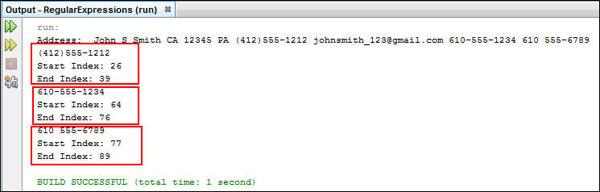
The validate()method runs through the input string named address, searches for the pattern matches, and displays different types of phone numbers in the console.
The validate()method runs through the input string named address, searches for the pattern matches, and displays the zip code in the console.
Retrieving an Email Address
In this section, you generate a regular expression with character classes, predefined character classes, and quantifiers. The regular expression retrieves the customer's email address from the input string.
-
Invoke the validate()method from the main()method with the following regular expression pattern to retrieve an email address:
validate("[A-Za-z0-9._\\%-]+@[A-Za-z0-9.-]+\\.[A-Za-z]{2,4}", address);The validate()method contains a pattern to retrieve the email address. You break the regular expression to better understand it. Examine the input string:
String address = " John S Smith CA 12345 PA (412)555-1212 johnsmith_123@gmail.com 610-555-1234 610 555-6789 "; - Review the code, which should look like the following:
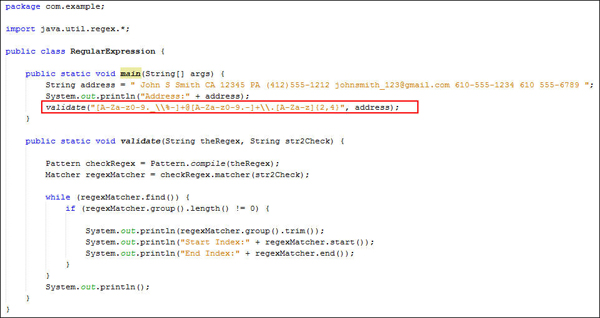
-
On the Projects tab, right-click RegularExpression.java and select Run File.
-
Verify the output.

The validate()method runs through the input string named address, searches for the pattern match and displays the email address in the console.
You generate a regular expression for johnsmith_123@gmail.com.
Here is the regular expression for johnsmith_123:[A-Za-z0-9._\\%-]+. Because this combination can occur one or more times, you add a plus (+) sign.
You add @ annotation
to the pattern to represent @ in the regular expression. @ is
followed by gmail
which can be represented as [A-Za-z0-9.-]+.
Because this combination can occur one or more times,
you add a plus (+) sign. The .com
designation is represented as \\.[A-Za-z]{2,4}.
Note: Because dot(.) is a metacharacter, you need to
append it with the backslash(\\).[A-Za-z]{2,4}
represents any character with a minimum length of two and a
maximum length of four.
Implementing the Greedy Quantifier in Regular Expressions
Greedy quantifiers are considered "greedy" because they force the matcher to read in, or eat, the entire input string before attempting the first match. If the first match attempt (the entire input string) fails, the matcher backs off the input string by one character and tries again, repeating the process until a match is found or no more characters remain. Depending on the quantifier used in the expression, it will try matching against 1 or 0 characters.
-
In the NetBeans IDE, perform the following steps:
-
Open the provided RegularExpressions project.
-
Expand Source Packages > com.example.
-
On the Projects tab, create a Java file named GreedinessExample.java.
- Import the following packages:
import java.util.regex.*; -
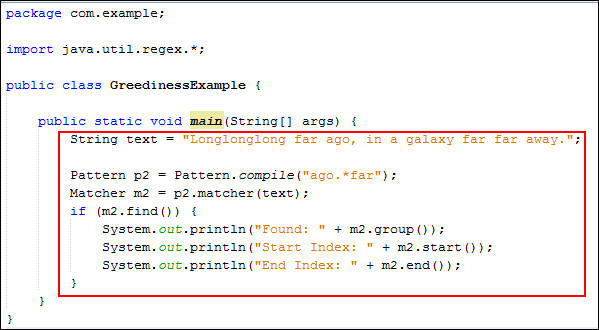
Open GreedinessExample.java and edit the main() method to retrieve zero or more occurrences of matches using the regular expression.
- Review the code, which should look like the following:
-
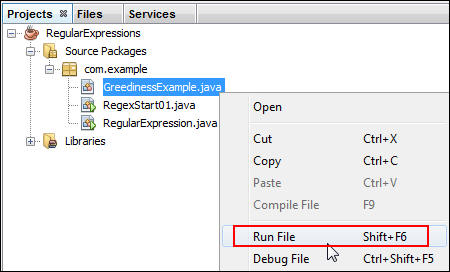
On the Projects tab, right-click GreedinessExample.java and select Run File.
-
Verify the output.
-
Open GreedinessExample.java and edit the main()method to retrieve zero or one time occurrences of matches using the regular expression.
- Review the code, which should look like the following:
-
On the Projects tab, right-click GreedinessExample.java and select Run File.
-
Verify the output.
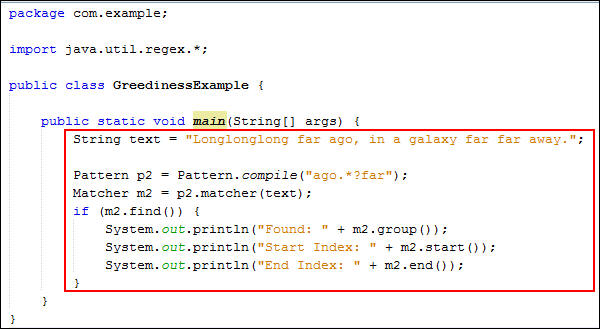
String text =
"Longlonglong far ago, in a galaxy far far away.";
Pattern p2 = Pattern.compile("ago.*far");
Matcher m2 = p2.matcher(text);
if (m2.find()) {
System.out.println("Found: " + m2.group());
System.out.println("Start Index: " + m2.start());
System.out.println("End Index: " + m2.end());
}
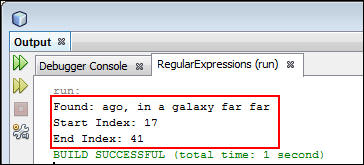
The example uses the greedy quantifier .* to find "anything," zero, or more times, followed by the letters "f" "a" "r". Because the quantifier is greedy, the .* portion of the expression eats the entire input string. At this point, the overall expression cannot succeed, because the last three letters ("f" "a" "r") were already consumed. The matcher slowly backs off one letter at a time until the farthest occurrence of "far" is regurgitated. At this point, the match succeeds, the search ends, and the matched string is displayed in the console.
Pattern p2 = Pattern.compile("ago.*?far");
Matcher m2 =
p2.matcher(text);
if (m2.find()) {
System.out.println("Found: " + m2.group());
System.out.println("Start Index: " + m2.start());
System.out.println("End Index: " + m2.end());
}
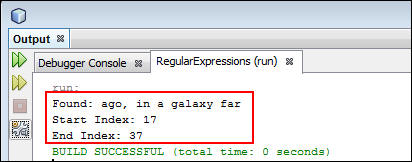
The example uses the reluctant quantifier .? to find "anything", zero, or one time. Because "far" doesn't appear at the beginning of the string, it's forced to swallow all letters until it retrieves the first match. Because it's a non-greedy quantifier, the smallest string is matched and displayed in the console. Make the quantifier non-greedy by adding the question mark.
Retrieving and Replacing Characters
-
In the NetBeans IDE, perform the following steps:
-
Open the provided RegularExpressions project.
-
Expand Source Packages > com.example.
-
On the Projects tab, create a Java file named ReplaceDemo.java.
- Import the following packages:
import java.util.regex.*; -
Open ReplaceDemo.java and add the following code to declare the string variables:
private static String REGEX = "a*b";
private static String INPUT = "aabfooaabfooabfoob";
private static String REPLACE = "-";
-
Edit the main() method to apply the replaceAll()and replaceFirst()methods.
Pattern p = Pattern.compile(REGEX);
Matcher m = p.matcher(INPUT);
INPUT = m.replaceAll(REPLACE);
System.out.println(" Applying replaceAll method on the input string: "+INPUT);
INPUT = m.replaceFirst(REPLACE); System.out.println(" Applying replaceFirst method on the input string: "+INPUT);
- Review the code, which should look like the following:
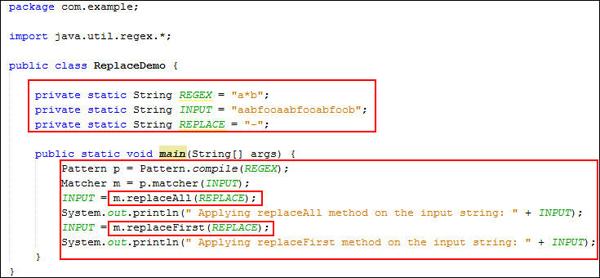
In this example, you are using two methods:
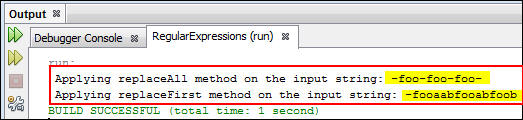
replaceAll() replaces every instance of the input sequence that matches the pattern with the given replacement string.
replaceFirst() replaces the first instance of the input sequence that matches the pattern with the given replacement string. -
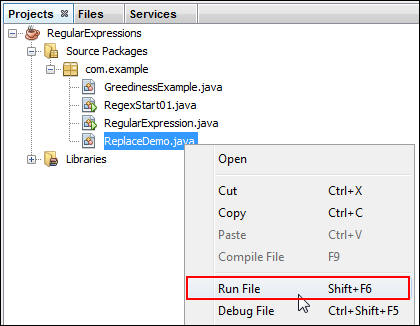
On Projects tab, right-click ReplaceDemo.java and select Run File.
-
Verify the output.
Implementing Anchor Tags in Regular Expressions
-
In the NetBeans IDE, perform the following steps:
-
Open the provided RegularExpressions project.
-
Expand Source Packages > com.example.
-
On the Projects tab, double-click RegularExpression.java.
-
Edit the validate()method to retrieve the first name of the customer.
- Creates the pattern and a corresponding matcher field.
- Generates the matcher based on the supplied pattern object.
- Searches the string for the supplied pattern.
- Finds the match and returns true if it is found.
- Prints the result of the group (0) and group(1) matching text.
-
Invoke the validate()method from the main() method.
- The ^ symbol looks for the match to occur at the beginning of the line.
- \b represents the word "boundary," which is an anchor tag because it doesn't consume any characters. Use\b to avoid matching a word that appears inside another word. In this example, the boundary character is looking only for the word "John" not the word "john" in the johnsmith_123 email address. \b is an escaped construct that must be preceded with another backslash to ensure that the string compiles.
- Review the code, which should look like the following:

-
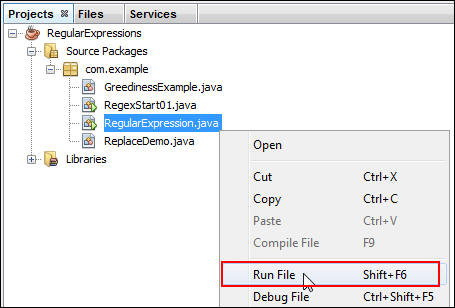
On the Projects tab, right-click RegularExpression.java and select Run File.
-
Verify the output.

public static void
validate(String theRegex, String str2Check) {
Pattern checkRegex =
Pattern.compile(theRegex);
Matcher regexMatcher =
checkRegex.matcher(str2Check);
while (regexMatcher.find()) {
if
(regexMatcher.group().length() != 0) {
System.out.println("Match:" +
regexMatcher.group(0).matches(theRegex));
System.out.println(regexMatcher.group(0).trim());
}
}
System.out.println();
}
The code performs the following tasks:
validate("^.*(\\bJohn\\b).*?", address);
The validate() method runs through the input string named address, searches for the pattern matches and displays "John" in the console.
You break the regular expression ^.*(\\bJohn\\b).*? into parts to understand its functionality:
To find out what word is exactly matched, use the group()method, which returns the input instance captured by the given capturing group.
The validate() method runs through the input string named address, searches for the pattern matches, and displays the customer name in the console.
Summary
In this tutorial, you learned how to:
- Apply the java.util.regex API classes to generate regular expressions
- Implement regular expressions to retrieve search patterns
Resources
To learn more about regular expressions in Java, see the following resources:
-
Java SE Tutorial: Overview on Regular Expressions
- Java SE 8 documentation on Regular Expression in Java
Credits
- Curriculum Developer: Shilpa Chetan
To navigate this Oracle by Example tutorial, note the following:
- Topic List:
- Click a topic to navigate to that section.
- Expand All Topics:
- Click the button to show or hide the details for the sections.
By default, all topics are collapsed.
- Hide All Images:
- Click the button to show or hide the screenshots. By default,
all images are displayed.
- Print:
- Click the button to print the content. The content that is
currently displayed or hidden is printed.
To navigate to a particular section in this tutorial, select the topic from the list.