Creating Translucent and Shaped Windows in NetBeans 7
Purpose
This tutorial demonstrates usage of Translucent and Shaped Windows in Java Swing applications.
Time to Complete
Approximately 30 minutes.
Overview
As of the Java SE 6 update 10 (6u10) release, you can add translucent and shaped windows to your Swing applications. This functionality is part of the public AWT package in JDK 7. You can create windows of three forms-
Window with uniform translucency : You can create window with uniform translucency where each pixel has the same translucency (or alpha) value.
Window with per-pixel translucency : You can create window where each
pixel has its own alpha value. Make a part of the window translucent.
Window with any shape object : You can create windows with a certain shape
like circle, oval etc.
Software and Hardware Requirements
The following is a list of software requirements:
Prerequisites
Before starting this tutorial, you should have the software installed as listed under Software Requirements.
How to Implement Uniform Translucency
Windows with uniform translucency have the same translucency for each pixel. You can create uniform translucency by invoking the setOpacity(float) method in the Window class. The float argument passed to this method should be between 0 and 1. It represents the translucency of the window. The smaller the number, the more transparent the window.
The following example creates a window that is 55% opaque (45% translucent). If the underlying platform does not support translucent windows, the example exits.
|
. |
Create a New Project. Select File > New Project.
|
|---|---|
|
. |
Select Java from the Categories column and Java Application from the Projects column and then click Next.
|
|
. |
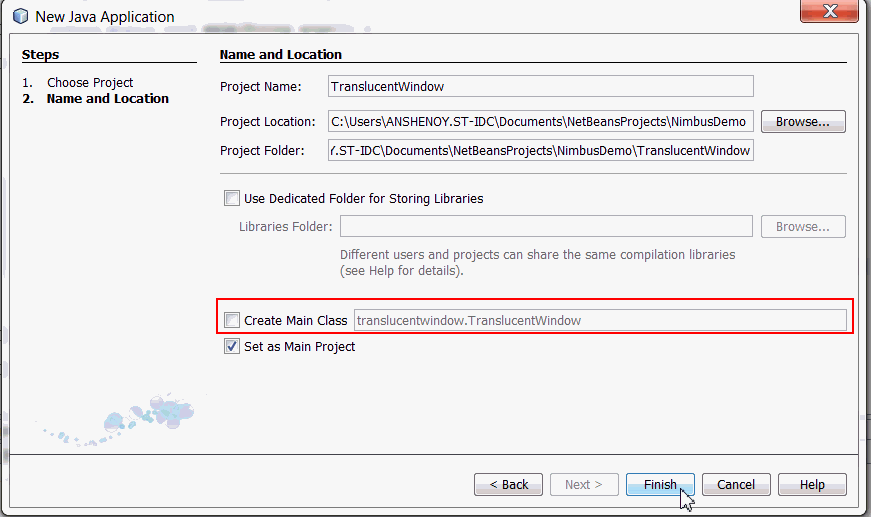
Perform the following steps. a. Name the project TranslucentWindow. b. Uncheck the Create Main Class check box. c. Click Finish.
|
|
. |
Right-click TranslucentWindow Project and select New > JFrame Form .
|
|
. |
Name the JFrame TranslucentWindowDemo , package name demo, and then click Finish.
|
|
. |
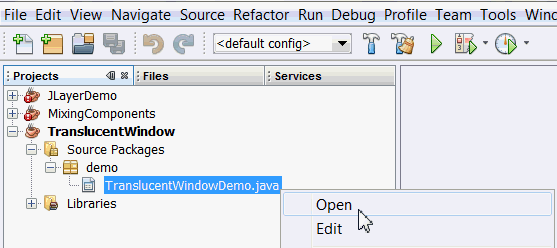
Perform the following steps : a. Right-click TranslucentWindowDemo.java and select Open .
b. Click Source tab.
|
|
. |
Add the following import statements to the java class, TranslucentWindow.java import java.awt.*;
|
|
. |
Write the following lines of code in the main() method to determine whether translucency is supported by your system’s graphic device. GraphicsEnvironment ge = GraphicsEnvironment.getLocalGraphicsEnvironment();
Not all platforms support these capabilities. An UnsupportedOperationException
exception is thrown when a platform that does not support these
features. Hence it is best practice to first check that the platform
supports the capability. The GraphicsDevice
class provides isWindowTranslucencySupported(GraphicsDevice.WindowTranslucency)
method
|
|
. |
Add the below code to the main method to exit the program if translucency is not supported by the graphic device.
|
|
. |
Perform the following steps
to the constructor of the class,
TranslucentWindowDemo()
. 1. Delete the below NetBeans generated line of code. initComponents();
2. Add the following lines to set the properties of the frame. super("TranslucentWindowDemo"); |
|
. |
Add the below code to the constructor to create a Button, Close and add the button to the frame. JButton btnClose = new JButton("Close");
|
|
. |
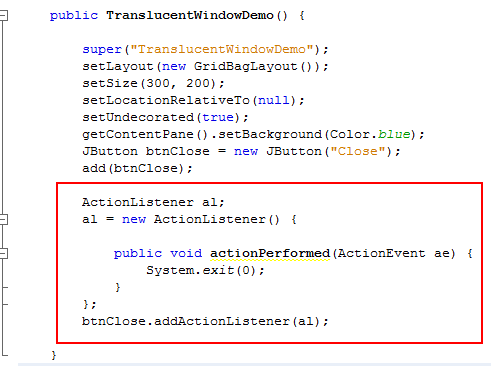
To the constructor, add event handling code to the Close button. ActionListener al;
public void actionPerformed(ActionEvent
ae) {
The Close button responds to click event and closes the Frame .
|
|
. |
Perform the following changes to the run() method . 1. Delete the below NetBeans generated line of code. new TranslucentWindowDemo().setVisible(true);
2. Next add the below lines of code. TranslucentWindowDemo tw =
new TranslucentWindowDemo();
The above code performs the following : 1. Starts a thread to create the GUI.
|
|
. |
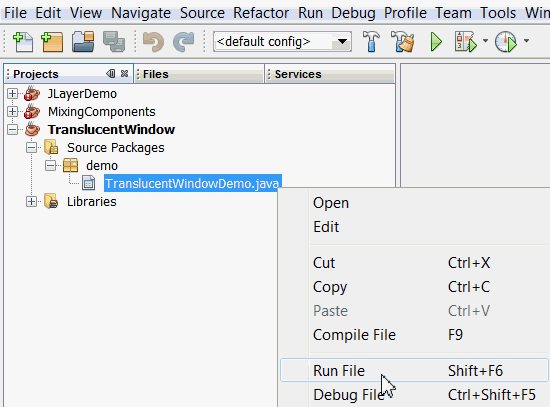
In the Projects pane, right-click TranslucentWindowDemo.java and choose Run File.
|
|
. |
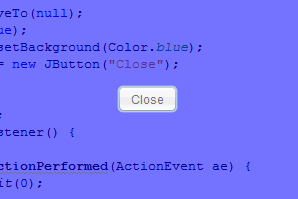
The output with 55% translucent window will be as below. You can click the Close button to close the Window.
Note that the button is also affected by the uniform translucency. Setting the opacity affects the whole window, including any components that the window contains. You can test the application with different opacity values .
|








How to implement Shaped Windows
A shaped window is an undecorated window whose appearance conforms to a specific
shape . Pixels outside of the shape are transparent and reveal the background.
Java 7 allows you to create Window of various shapes. You can create circle,
triangle, elliptic windows or more complex shape. You can create a shaped
window by invoking the setShape(Shape) method in the Window class.
The Shape passed to the method determines how the window is clipped.The following
example creates an oval-shaped window. If the underlying platform does not
support shaped windows, the example exits.
|
. |
Right-click TranslucentWindow Project and select New > JFrame Form .
|
|---|---|
|
. |
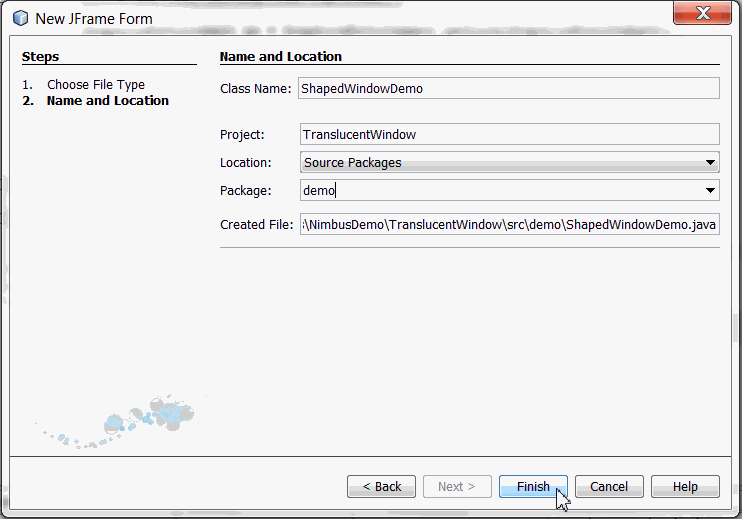
Name the class ShapedWindowDemo, package name demo and then click Finish.
|
|
. |
Perform the following steps: 1. Right click ShapedWindowsDemo.java and select Open. 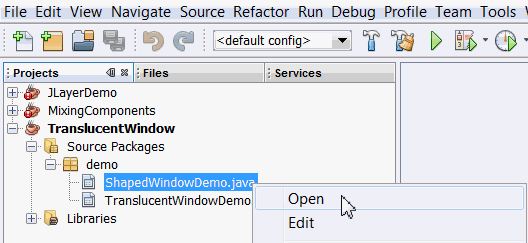
2. Click Source tab.
|
|
. |
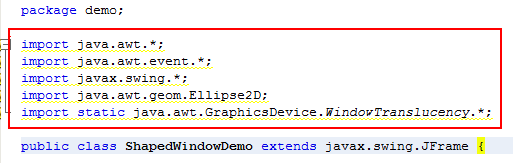
Add the following import statements to the java class, ShapedWindowDemo.java import java.awt.*;
|
|
. |
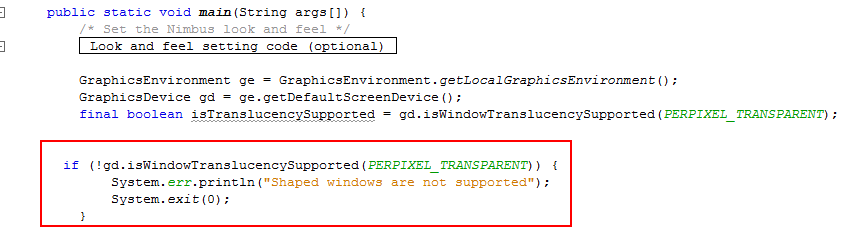
Add the following lines of code in the main method to determine whether translucency is supported by your system’s graphic device.
|
|
. |
Add the below code to the main method to exit the program if translucency is not supported by the graphic device.
|
|
. |
Perform the following steps
to the constructor of the class,
ShapedWindowDemo()
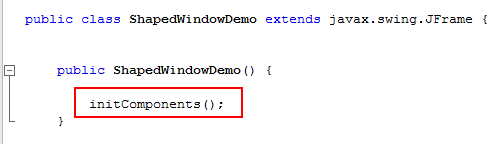
. 1. Delete the below NetBeans generated line of code. initComponents();
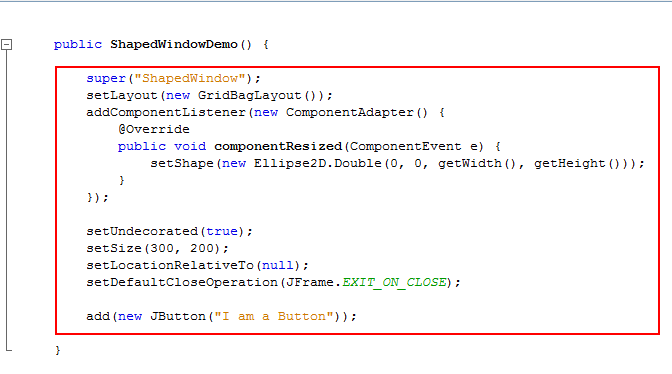
2. Add the following lines of code . super("ShapedWindow"); @Override
|
|
. |
In the Projects pane, right-click ShapedWindowDemo.java and choose Run File.
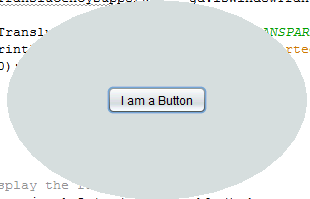
The output will be as below
|
|
. |
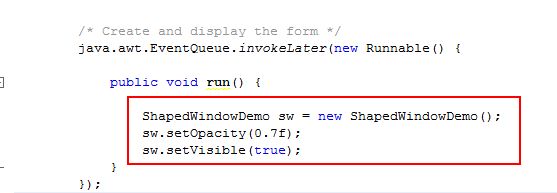
Make the following changes to the run() method. 1. Delete the below line of code. new ShapedWindowDemo().setVisible(true);
2. Add the following lines of code . ShapedWindowDemo sw = new ShapedWindowDemo();
The above code is used to set the Transparency of the window to 70%.
|
|
. |
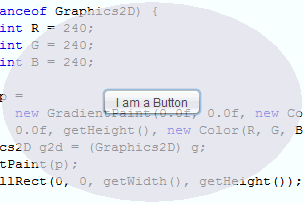
In the Projects pane, right-click ShapedWindowDemo.java and choose Run File.
The output with 70% translucent shaped window will be as below.
|



Summary
This tutorial covers some of the capabilities of Translucent and Shaped Windows . JDK 7’s support for translucent and shaped windows should facilitate the creation of complex UIs in desktop applications.
Resources
- Java Platform Standard Edition 7 Documentation
- Java 7 : Translucency and shaped windows
- Translucent
and Shaped Windows in JDK7
Credits
- Curriculum Developer: Anjana Shenoy

 |
Copyright © 2011, Oracle and/or its affiliates. All rights reserved |