Before You Begin
Purpose
In this tutorial, you retrieve data stored in an Oracle NoSQL Database using Hive Query Language.
Time to Complete
15 minutes (approximately).
Background
Oracle NoSQL Database is a scalable, distributed NoSQL database, designed to provide highly reliable, flexible and available data management across a configurable set of storage nodes.
Apache Hive is a data warehouse infrastructure built on top of Hadoop for providing data summarization, query, and analysis. Hive also provides a pluggable programming model that allows you to specify custom interfaces and classes that support querying data residing in data sources like an Oracle NoSQL Database table.
Oracle NoSQL Database Hadoop Integration Classes support running Hadoop MapReduce jobs and Hive queries against data stored in an Oracle NoSQL Database table.
What Do You Need?
Environment: To perform this tutorial, you need to have the following software installed, configured and running:
- HDFS
- Hive
- Oracle NoSQL Database
Files: All the code used in this tutorial is available here.
Loading Data into Oracle NoSQL Database
In this section, you load some sample data into a kvstore. Perform the following steps:
-
Log into the Big Data Lite VM.
-
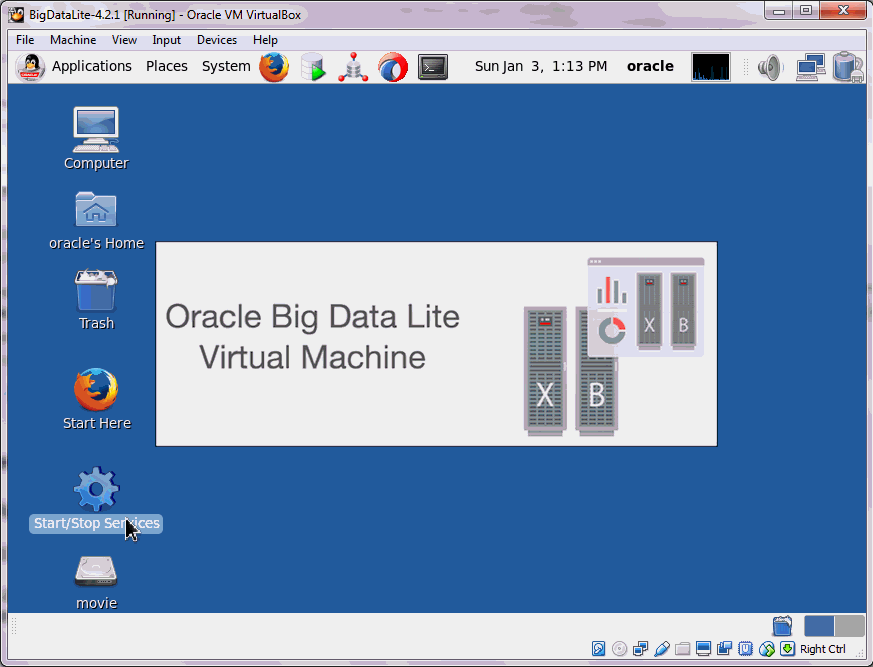
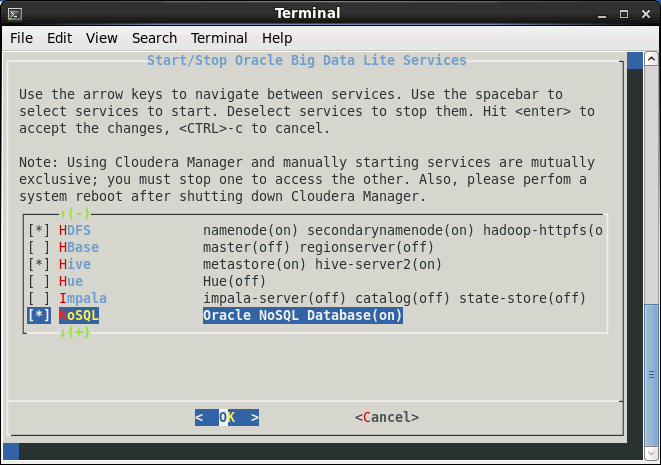
Double-click the Start/Stop Services icon from the desktop.
-
Confirm that the HDFS, Hive, and Oracle NoSQL Database services are running and click OK. If any of these services are not running, follow the instructions given in the terminal window and start these services.
-
In this tutorial, you use the table model to store data. The code to create a table is already existing in the examples directory shipped along with the product. Review the
create_vehicle_table.kvsfile from the$KVHOME/examples/hadoop/tablelocation. Open a terminal and execute the following command to start the command line interface for Oracle NoSQL Database as well as load and run the code in the file. [Click here for code file.]java -jar $KVHOME/lib/kvcli.jar -host localhost -port 5000 -store kvstore load -file $KVHOME/examples/hadoop/table/create_vehicle_table.kvs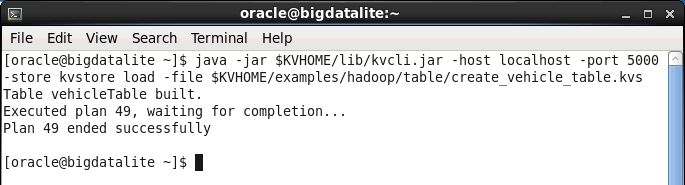
-
Start the command line interface. You see the kv prompt. [Click here for code file.]
java -jar $KVHOME/lib/kvcli.jar -host
                                  localhost -port 5000 -store kvstore
-
Verify that the table was created successfully.The screenshot below shows part of the output. [Click here for code file.]
show table -name vehicleTable
-
You can now load the sample data into this table. Open a new tab in the terminal and navigate to the
$KVHOMEdirectory.
-
In the examples provided for Hadoop, there is a file called
LoadVehicleTable.java. This file contains a java class that creates sample records and uses the Table APIs to populate a NoSQL Database with those records. Compile the java class file. [Click here for code file.]javac -classpath lib/kvstore.jar:examples examples/hadoop/table/LoadVehicleTable.java
-
After the class is successfully complied, run the java file. While running the file you must provide the kvstore name, the host name, the port where NoSQL service is running and the number of records to create in the database. In this example, you create 100 records. [Click here for code file.]
java -classpath lib/kvstore.jar:examples
                                  hadoop.table.LoadVehicleTable -store kvstore
                                  -host localhost -port 5000 -nops 100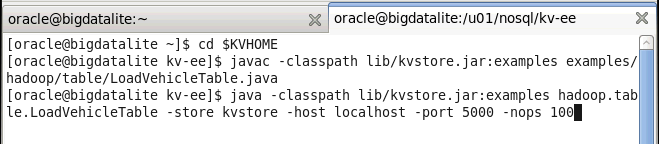
-
The java file will execute and you see a message stating records were added.

-
Switch to the tab where kv CLI is running and query the kvstore to confirm that the data was loaded. [Click here for code file.]
get table -name vehicleTable
Running Hive Queries
In this section, you will use hive queries to fetch data from the Oracle NoSQL Database.
Creating an Hive External Table
Before you can query the table data from the Oracle NoSQL Database, you need to create a Hive table with columns whose type is consistent with the corresponding fields of the Oracle NoSQL Database table created previously. Perform the following steps:
-
Open a new terminal tab and enter
hiveto invoke hive.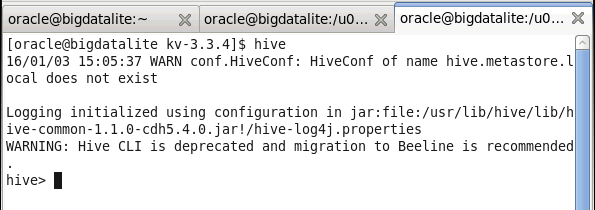
-
Use the following code to create an external table in hive that maps to the table you want to query in the Oracle NoSQL Database. [Click here for code file.]
CREATE EXTERNAL TABLE IF NOT EXISTS
                                      vehicleTable

                                             (TYPE
                                      STRING, MAKE STRING, MODEL STRING, CLASS
                                      STRING, COLOR STRING, PRICE DOUBLE, COUNT
                                      INT)

                                      STORED BY
                                      'oracle.kv.hadoop.hive.table.TableStorageHandler'


                                      TBLPROPERTIES ("oracle.kv.kvstore" =
                                      "kvstore",


                                      "oracle.kv.hosts" = "localhost:5000",


                                      "oracle.kv.tableName" = "vehicleTable",


                                      "oracle.kv.hadoop.hosts" =
                                      "dn-host-1,dn-host-2,dn-host-3");
Querying all records in the table
-
Similar to SQL, in hive you can query all the records in a table using the '*' operand. [Click here for code file.]
select * from vehicleTable;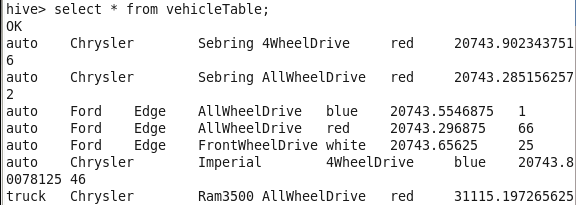
Using functions in query statements
Simple queries like the one you used in the previous topic do not result in the execution of a MapReduce job. However, if you run some complex queries like using functions within the query, you will see that some MapReduce jobs are run before displaying the output.
-
Run a query to count the number of records in the table. [Click here for code file.]
select count(type) from vehicleTable;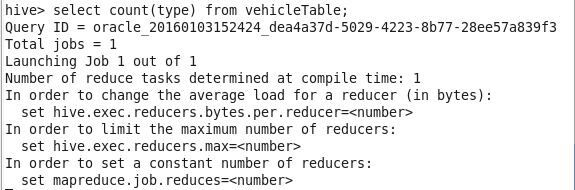
-
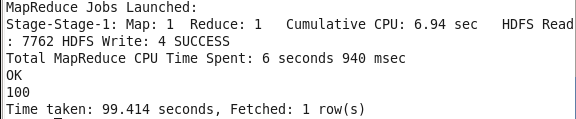
After the MapReduce jobs are run, the result is displayed.