
 Deploying a Java SE Application to Oracle Application Container Cloud Service
 Before You Begin
This tutorial shows you how to deploy a Java Platform, Standard Edition (Java SE) application to Oracle Application Container Cloud Service. This tutorial takes 10 minutes to complete.
Background
Oracle Application Container Cloud Service includes Oracle Java SE Cloud Service, which lets you deploy Java applications to Oracle Cloud, and Oracle Node Cloud Service, which lets you deploy Node.js applications to Oracle Cloud. You can also deploy PHP applications.
Oracle Application Container Cloud Service has a preconfigured environment for Java, Node.js, and PHP applications. Its open platform supports all Java frameworks and containers, such as Spring, Play, Tomcat, and Jersey. It supports Java Virtual Machine (JVM) languages such as JRuby, and any language that uses the JVM can run on this service.
Oracle Application Container Cloud Service is fully integrated with other Oracle Cloud Platform services. You can develop your application on your local system, or you can use Oracle Developer Cloud Service.
What Do You Need?
- A desktop or laptop computer running Microsoft Windows 7, Apple macOS 10.9 or later, or any Linux distribution with a web browser.
- Access to an instance of Oracle Application Container Cloud Service (Make a note of your account information: identity domain, user name, password, and data center/region.)
- A storage replication policy for your service instance
- Blackjack_accs.zip file downloaded and extracted to your local folder (This is the Java SE application that you deploy.)
 Open the Oracle Application Container Cloud Service Console
- In a web browser, go to https://cloud.oracle.com/home and click Sign In.
- From the Cloud Account drop-down menu, select your data center and click My Services.
- Enter your identity domain and click Go.
- Enter your cloud account credentials and click Sign In.
- If Oracle Application Container Cloud Service isn't listed on the dashboard, click Customize Dashboard.
- Under Java, find Application Container, select Show, and then close the Customize Dashboard tab.
- In the Application Container tile, click Action and select Open Service Console.

Description of the illustration OpenACCS.jpg
 Deploy the Blackjack Game to Oracle Application Container Cloud Service
- On the Applications tab, click Create Application.
- Select Java SE as the application platform.
- In the Application section, enter
BlackjackACCSfor the name. Under Application Artificts, select Upload and then click Choose File next to Archive.- Name:
BlackjackACCS - Application Artifacts: Upload
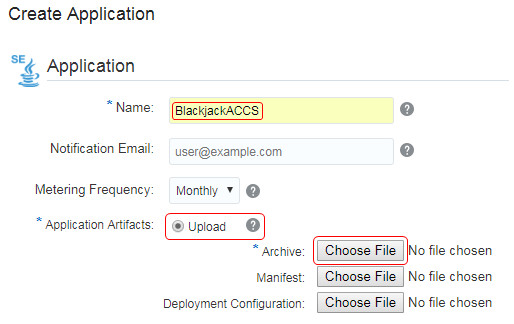
Description of the illustration deployBJ.jpg - Name:
- In the opened file browser, navigate to the folder where you extracted the Blackjack_accs project, select blackjack-part2-1.0-dist.zip, and click Open.
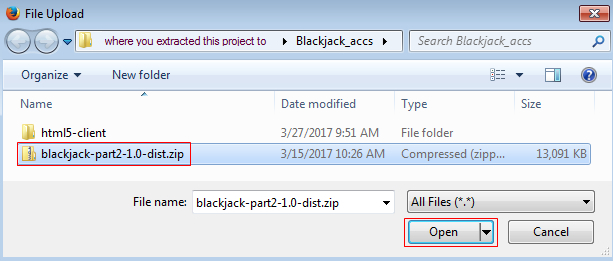
Description of the illustration deployBJ_2.jpg - Click Create. Processing takes a few minutes.

Description of the illustration deployBJ_3.jpg
 Test and Play the Blackjack Game
- On the Applications tab, click Refresh repeatedly until your application is created.
- Copy the application URL.

Description of the illustration testBJ.jpg - In a file browser, navigate to the directory where you extracted the Blackjack_accs project, open the
html5-clientfolder, and double clickindex.html.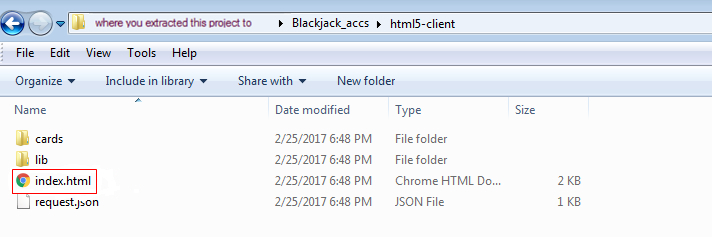
Description of the illustration testBJ_2.jpg - To start the game, in the first field, enter the application URL that you copied in step 2. In the Table field, enter any number between 1 and 9 and click Connect.

Description of the illustration testBJ_3.jpg - Play the game. If you want, click Debug on/off to track the service details.
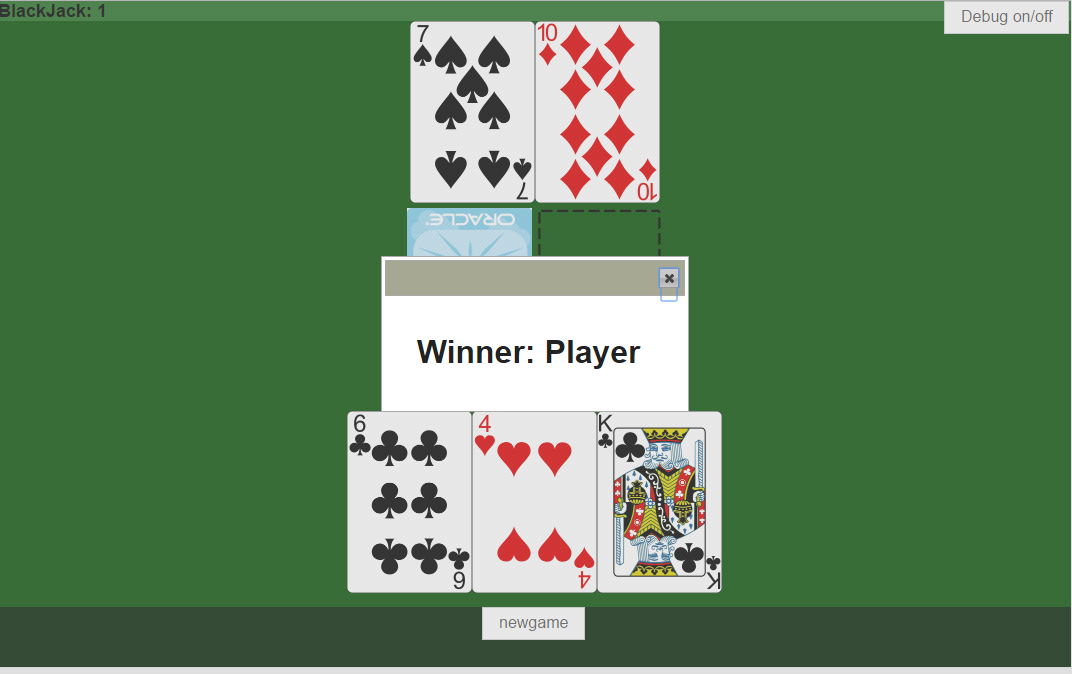
Description of the illustration winner.jpg
 Want to Learn More?
- Node.js website nodejs.org
- Using Oracle Application Container Cloud Service