Sorting Data and Ordering Columns
The Activities page allows you to modify sorting preferences and change the order of columns.
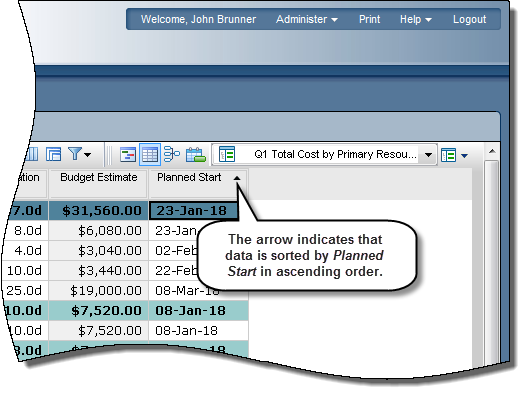
- Sort - Click a column header to change the sort by preference. Toggle between ascending and descending order by clicking the same column header. An arrow indicates whether the data is ascending (upward-pointing) or descending (downward-pointing). Clicking a column header sorts the Activities page by that column's data item only and cancels any sorting options specified on the Sorting tab in the Customize Activity View dialog box.
- Drag and Drop - Drag and drop columns to change their order in the Activity Table. However, to remove or add columns, you must open the Customize Activity View dialog box.