Using Filters
When working with large lists, focus on activities more effectively by filtering out data. P6 offers several types of filters:
Standard - You cannot modify criteria in the predefined filters or add new filters to the list. Available filters include:
- Activities occurring within a specified number of days
- Activities finishing within a specified number of days
- Completed activities only
- In progress activities only
- Milestones only
- My activities
- Not started activities only
Custom - Create filters by specifying your own criteria. There are three types of custom filters:
- Global - Custom filter that is available to all users.
- Multiple User - Custom filter that is available to multiple specified users.
- User - Custom filter available only to the current user.
In addition to standard filtering options, the is under option is provided to enable you to filter on hierarchical elements, such as filtering for projects under a specified EPS node and its child nodes. The is under option is also available in the EPS and Resources Assignments views.
To add or edit filters without launching the Customize Activity Views dialog box, click the Filters icon  on the Activities toolbar, or on the View menu click Filters.
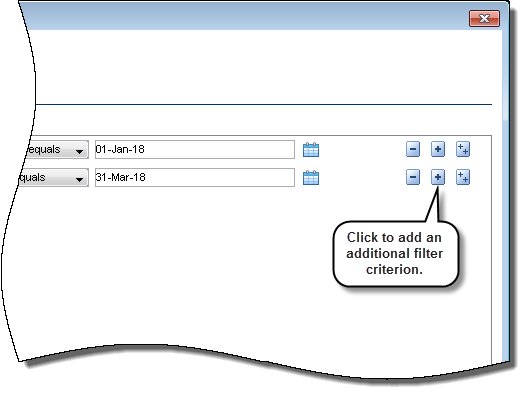
In this exercise, create a custom filter to show activities with Planned Start dates between 01-Jan-18 and 31-Mar-18.