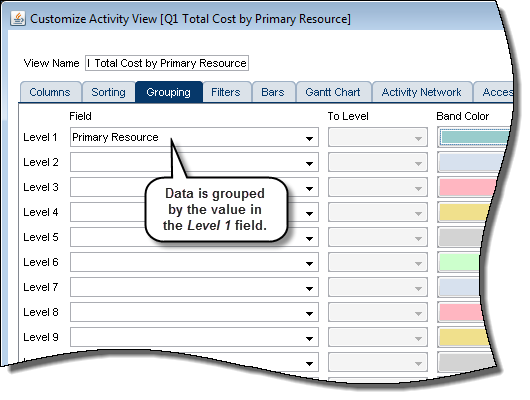
Grouping Data
Use grouping to categorize and organize activities that share a common attribute.
Groups are separated by bands that describe the attribute. Use the Band Color and Text Color lists to specify color and text for each band. Use the Sort Order list to sort by Ascending, Descending, or Hierarchy.
When you choose to group activities by a hierarchical field, for example WBS or activity code, the To Level list is enabled so you can choose the number of hierarchy levels to group by. For example, if your WBS is five levels, you may want to group only to the third level.
For each grouping level you also can opt to:
Show field title - Displays the grouping level field name, followed by the field value. For example, if you choose to group activities by WBS, the field name WBS appears to the left of the date value for the group. If you do not choose this option, only the field value appears in the band.
Show field rollups - Displays summary information for all cost, numeric, integer, start date, and finish date fields in the group.
- Start date rollups reflect the earliest date for the group.
- Finish date rollups reflect the latest date for the group.
- Unit and cost rollups are a total of the values for each activity in the group.
When grouping by WBS, Project, Activity Code, or Primary Resource, specify the text that displays in the grouping band.
- ID/Code - Displays the ID or Code value in the grouping band.
- Name/Description - Displays the Name or Description in the grouping band.
- ID/Code and Name/Description - Displays the ID/Code and Name/ Description.
To create or edit a grouping without launching the Customize Activity Views dialog box, click the Grouping icon  on the Activities toolbar, or click Group on the View menu.