Sample Lesson: Adding Activities
Click Add on the Edit menu or click  on the Edit toolbar to launch the New Activity wizard, which provides step-by-step guidance for adding activities to the project plan. The wizard, which must first be enabled in User Preferences, ensures that all necessary information is entered properly. Once you become more familiar with the information required for adding a new activity, you may prefer to forgo the use of the wizard and add activities manually.
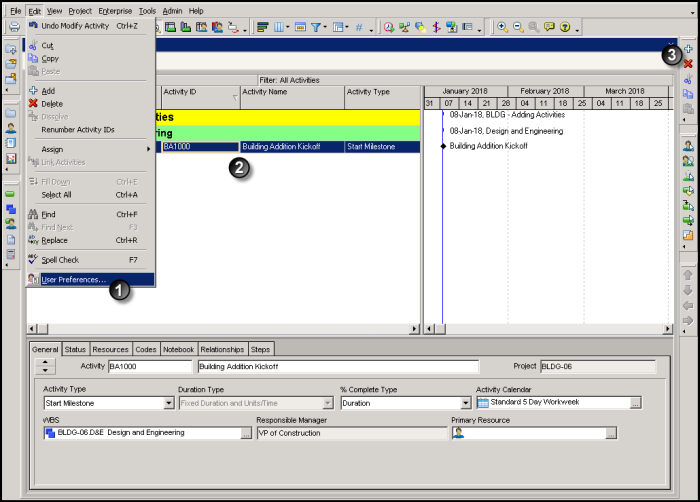
 On the Edit menu, click User Preferences and then select the Assistance tab to enable the New Activity wizard.
 The Activity Table lists the activities in the project.
 Use the Edit toolbar to add, delete, cut, copy, and paste activities.