Team Member Web - Configuring Preferences in P6
The Project Preferences dialog box in P6 contains Team Member application configuration options.
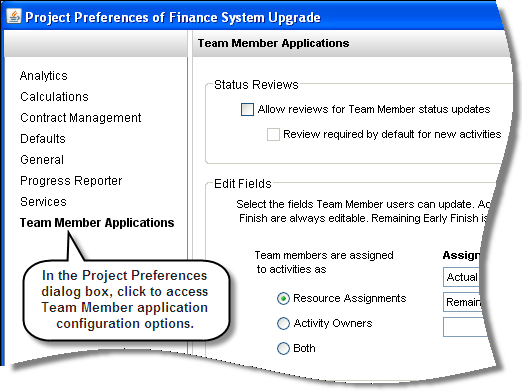
Status Reviews
Select the Allow reviews for Team Member status updates check box to enable the Review Status Updates feature in P6. When this check box is cleared, all team member status updates are automatically approved.
Click the Select icon  in the Reviewer field to specify a reviewer. Specifying a reviewer is optional; if a reviewer is not selected, any project or admin superuser can review status updates.
Edit Fields
Use the options to choose which fields team members can update. Select whether team members are using P6 Team Member applications as resource assignments, activity owners, or a combination of both; your choice determines the fields that are available for selection in the drop-down lists.
View Fields
Choose up to three additional fields to display in P6 Team Member applications, such as activity codes or user-defined fields.
To access this feature:
On the EPS page in P6, right-click a project and then click Set Project Preferences, or select a project and then click Set Project Preferences on the Actions menu.