Open a Project Exclusively
Opening a project exclusively enables you to prevent others from making changes to a project so that you can run reports, schedule the project, level resources, or create a baseline of the project, while ensuring that project data is unchanged.
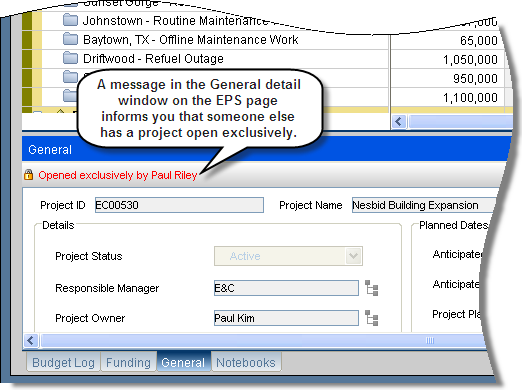
The Exclusive Project icon  on the EPS page and in the Open Projects dialog box indicates projects that are open exclusively.
You must have the proper security privileges to open a project exclusively.
To access this feature:
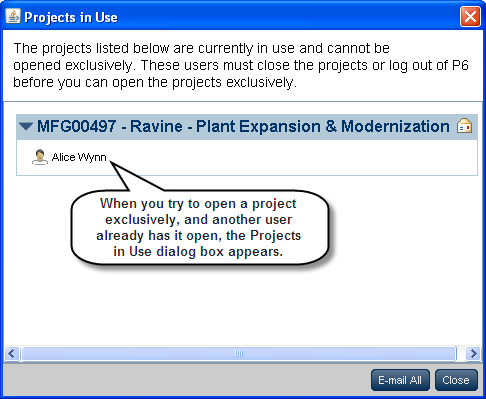
Click Open, Open Exclusively on the EPS page Actions menu, or right-click a project, and then click Open Exclusively. You can also select the Open Exclusively check box in the Open Projects dialog box.
Close the project or log out of P6 to end exclusivity. To end exclusivity while keeping a project open, click Release Exclusive Lock on the Actions menu. Alternatively, if it is configured to appear on your Activities toolbar, you can click the Release Exclusive Lock icon  .
.