Using Budget Planning
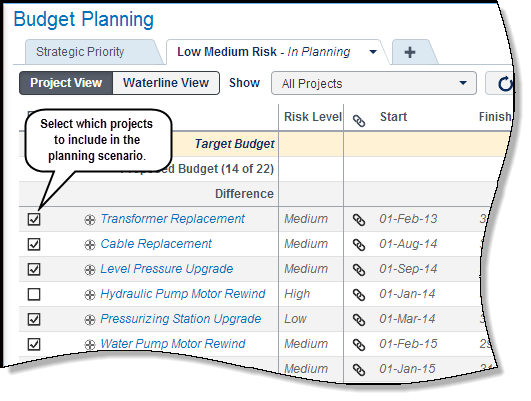
The Budget Planning page is time-phased view allowing the capital planner to enter proposed budget values for each time period of the planning horizon.
The target budget is set when creating the capital plan but the value can be adjusted per capital plan scenario in budget planning. An indicator is displayed if the target budget is changed on the Budget Planning page.
The capital planner next enters the proposed budget values for each project. Two options are available for planning:
- Top-Down Budgeting: Add proposed budget values and project dates to each project in the scenario.
- Bottom-Up Budgeting: Link proposed budget values and project dates to the forecast or planned budget values set by the project manager.
The proposed budget and target budget can be manually spread over the duration of the capital plan type's planning horizon beginning with the current capital plan period.
After budgets are set, the capital planner uses these methods to begin the process of selecting projects for the planning period that meets the organization's strategic goals:
- Waterlining: Prioritize projects according to the specified criteria and the plan's constraint. The project state and sorting order can be set before the waterline criteria is applied. Projects above the waterline collectively meet the constraint value. All other projects appear below the waterline.
- Chart View: View cost curves for the scenario in graph form. Cost curves can be displayed incrementally, cumulatively or both.
- Show Dependencies: Assess whether projects have dependencies that also need to be considered for the capital plan.
Column data, cost curve values with variances, grouping, sorting and filtering also assist in the selection process.
The capital planner should consider creating multiple scenarios for the capital plan. The scenario(s) can be sent out for review to gather feedback from a committee prior to sending the scenario for share or approval.
After the capital planner has completed planning the scenario, it can be shared with project managers to negotiate the dates and budgets for each project, and then sent for approval to become the capital plan for the year.
In this topic you will:
- View Capital Plans page.
- View the Budget Planning page.
- Create a new scenario.
- Add target budget and link proposed budget values.
- Use waterlining to include projects in the scenario.
- View the costs curves in chart view.
- View project dependencies.
Copyright © 2014, Oracle and/or its affiliates. All rights reserved.