
| Date | Feature | Notes |
|---|---|---|
| 24 MAY 2019 | Created initial document. |
This document outlines the features in Oracle Adaptive Intelligent Apps for Customer Experience and describes any tasks you might need to perform for this service. Each section includes a brief description of the feature, the steps you need to take to enable or begin using the feature, any tips or considerations that you should keep in mind, and the resources available to help you.
Give Us Feedback
We welcome your comments and suggestions to improve the content. Please send us your feedback at oracle_aiapps_doc_feedback_grp@oracle.com.
Column Definitions:
Report = New or modified, Oracle-delivered, ready to run reports.
UI or Process-Based: Small Scale = These UI or process-based features are typically comprised of minor field, validation, or program changes. Therefore, the potential impact to users is minimal.
UI or Process-Based: Larger Scale* = These UI or process-based features have more complex designs. Therefore, the potential impact to users is higher.
Features Delivered Disabled = Action is needed BEFORE these features can be used by END USERS. These features are delivered disabled and you choose if and when to enable them. For example, a) new or expanded BI subject areas need to first be incorporated into reports, b) Integration is required to utilize new web services, or c) features must be assigned to user roles before they can be accessed.
| Ready for Use by End Users Reports plus Small Scale UI or Process-Based new features will have minimal user impact after an update. Therefore, customer acceptance testing should focus on the Larger Scale UI or Process-Based* new features. |
Customer Must Take Action before Use by End Users Not disruptive as action is required to make these features ready to use. As you selectively choose to leverage, you set your test and roll out timing. |
|||||
|---|---|---|---|---|---|---|
| Feature |
Report |
UI or |
UI or |
|
||
Oracle Adaptive Intelligent Apps for Customer Experience provides personalized, dynamic, and continuously adaptive offers across B2C commerce and marketing platforms. It delivers the product recommendations and promotions through commerce storefronts and marketing channels.
Product IDs in Supervisory Controls
View product IDs and other comparable IDs for brands, categories, and promotions in addition to names on the Supervisory Controls pages. These IDs make it easier to reference items in your catalog.
IDs display both in the card view and list view. This screenshot shows IDs on the card view.
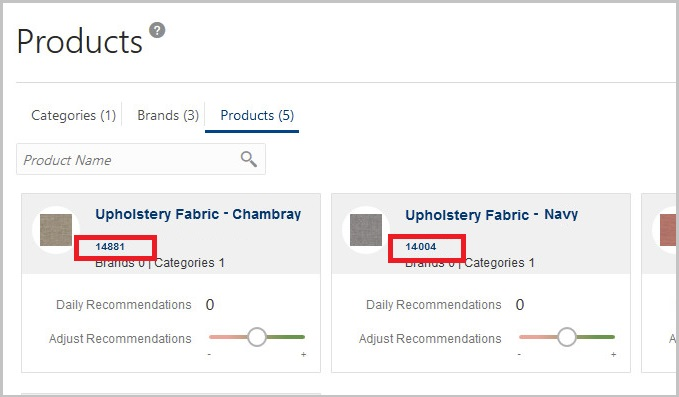
Product IDs on the Products Page Card View
Steps to Enable
You don't need to do anything to enable this feature.
Tips And Considerations
- IDs only display if they exist in your commerce application. Brands and promotions don’t always have associated IDs.
Styles for List Price in Email Widgets
You can now better control the combination of formatting for the product list price and sale price in your email widgets. For products on sale, you can add more contrast between the list price and the sale price by choosing a different style for the list price.
This screen capture shows the new menu options where you can preview or edit the style based on products being on sale or not on sale.
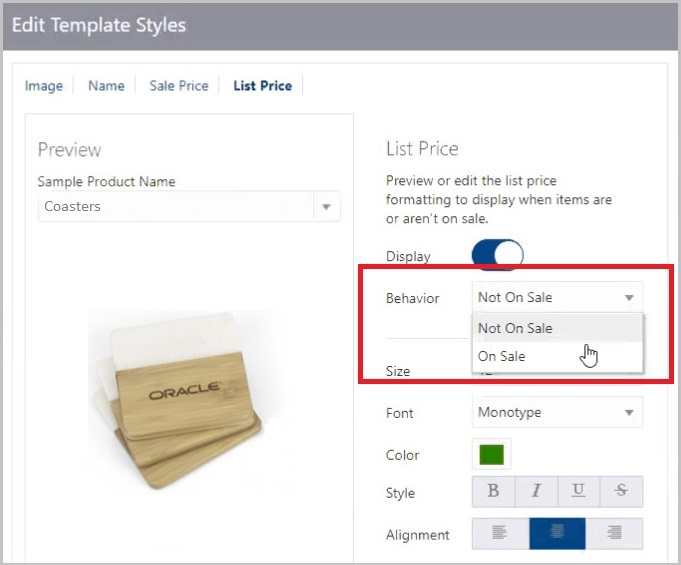
Edit Template Styles Page Showing List Price Options
Steps to Enable
You don't need to do anything to enable this feature.
Tips And Considerations
- You don’t need to recopy the code snippet in your widgets because this is just a style change, not a functional change.
If you’re already using formatted email templates, you must republish your widgets to use this feature.
- On the navigation menu, under Connections, select Email Widgets.
- Enter the same settings that you have for your existing email widget, such as number of products and layout.
- Click Edit Template Styles.
- On the Image tab, Name tab, and Sale Price tab, enter the same settings as your existing style, or change the style if you want.
- On the List Price tab, set the style you want for the list price for when items aren’t on sale. For example, you might want the list price to display as large or bold text.
- On the same tab, set the style you want for the list price for when items are on sale. For example, you might want the list price to display as small strikethrough text.
- Click Publish Now to immediately start generating new images based on your changes. Or, you can wait for the scheduled update process to generate new images for any changed products on your commerce application. By default, the scheduled updates are every fifteen minutes.
Key Resources