
This document will continue to evolve as existing sections change and new information is added. All updates appear in the following table:
| Date | Module | Feature | Notes |
|---|---|---|---|
| 13 OCT 2023 | Created initial document. |
 HAVE AN IDEA?
We’re here and we’re listening. If you have a suggestion on how to make our cloud services even better then go ahead and tell us. There are several ways to submit your ideas, for example, through the Ideas Lab on Oracle Customer Connect. Wherever you see this icon after the feature name it means we delivered one of your ideas.
GIVE US FEEDBACK
We welcome your comments and suggestions to improve the content. Please send us your feedback at oracle_fusion_applications_help_ww_grp@oracle.com.
DISCLAIMER
The information contained in this document may include statements about Oracle’s product development plans. Many factors can materially affect Oracle’s product development plans and the nature and timing of future product releases. Accordingly, this Information is provided to you solely for information only, is not a commitment to deliver any material, code, or functionality, and should not be relied upon in making purchasing decisions. The development, release, and timing of any features or functionality described remains at the sole discretion of Oracle.
This information may not be incorporated into any contractual agreement with Oracle or its subsidiaries or affiliates. Oracle specifically disclaims any liability with respect to this information. Refer to the Legal Notices and Terms of Use for further information.
Column Definitions:
Report = New or modified, Oracle-delivered, ready to run reports.
UI or Process-Based: Small Scale = These UI or process-based features are typically comprised of minor field, validation, or program changes. Therefore, the potential impact to users is minimal.
UI or Process-Based: Larger Scale* = These UI or process-based features have more complex designs. Therefore, the potential impact to users is higher.
Features Delivered Disabled = Action is needed BEFORE these features can be used by END USERS. These features are delivered disabled and you choose if and when to enable them. For example, a) new or expanded BI subject areas need to first be incorporated into reports, b) Integration is required to utilize new web services, or c) features must be assigned to user roles before they can be accessed.
| Ready for Use by End Users Reports plus Small Scale UI or Process-Based new features will have minimal user impact after an update. Therefore, customer acceptance testing should focus on the Larger Scale UI or Process-Based* new features. |
Customer Must Take Action before Use by End Users Not disruptive as action is required to make these features ready to use. As you selectively choose to leverage, you set your test and roll out timing. |
|||||
|---|---|---|---|---|---|---|
| Feature |
Report |
UI or |
UI or |
|
||
Favorites Are Limited by the Portal's Interface
When viewing your list of favorites in customer portal only those that are for articles in the interface of the portal being used will be displayed.
For users that are moving between different customer portal instances it is possible to favorite articles that are only available in one of those customer portals. This feature ensures that users will not end up clicking on a favorite that cannot be opened in the portal they are currently using.
Steps to Enable
You don't need to do anything to enable this feature.
Mark Recommendations As Under Review
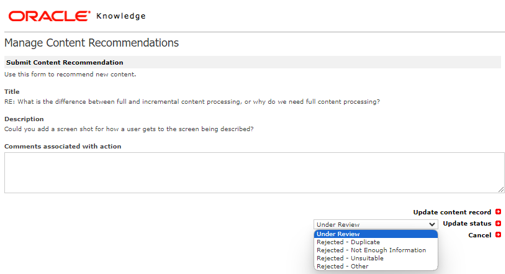
Authors working on recommendations can mark a recommendation as being "Under Review" in addition to the previously available update and reject statuses. This let's the user who left the recommendation know that you are working on their recommendation but have not yet rejected or accepted it. This status will display anywhere a user can see the recommendation. Once an article is in "Under Review" status, it will disappear from the list of available statuses to assign to the recommendation because you cannot go from Under Review to Under Review.
| Before changing to Under Review | After changing to Under Review |
|---|---|
 |
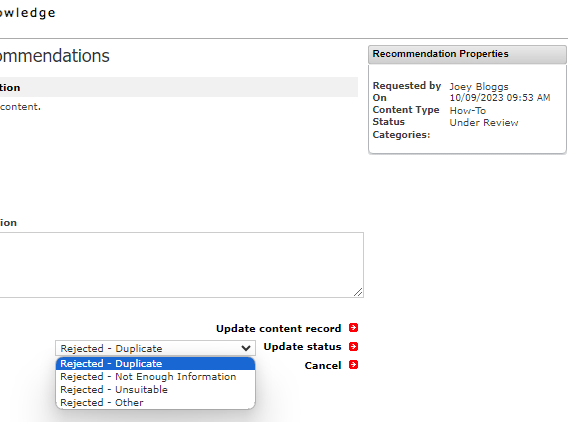 |
The recommendations you get from your users matter to you and to the people who took the time to leave those recommendations. Part of letting your users know you value their feedback is acting on it, but sometimes research is required before you know how to actually disposition the recommendation, moving a recommendation to Under Review allows you to meet these conflicting needs. Your users will know that you are working, and you will have the time to do the level of research your user's recommendations deserve.
Steps to Enable
You don't need to do anything to enable this feature.
Create Knowledge Article Feedback Incidents
In Customer Portal it is possible for users to rate knowledge articles. If the user's rating falls below a defined threshold, the widget will ask them to leave textual feedback.
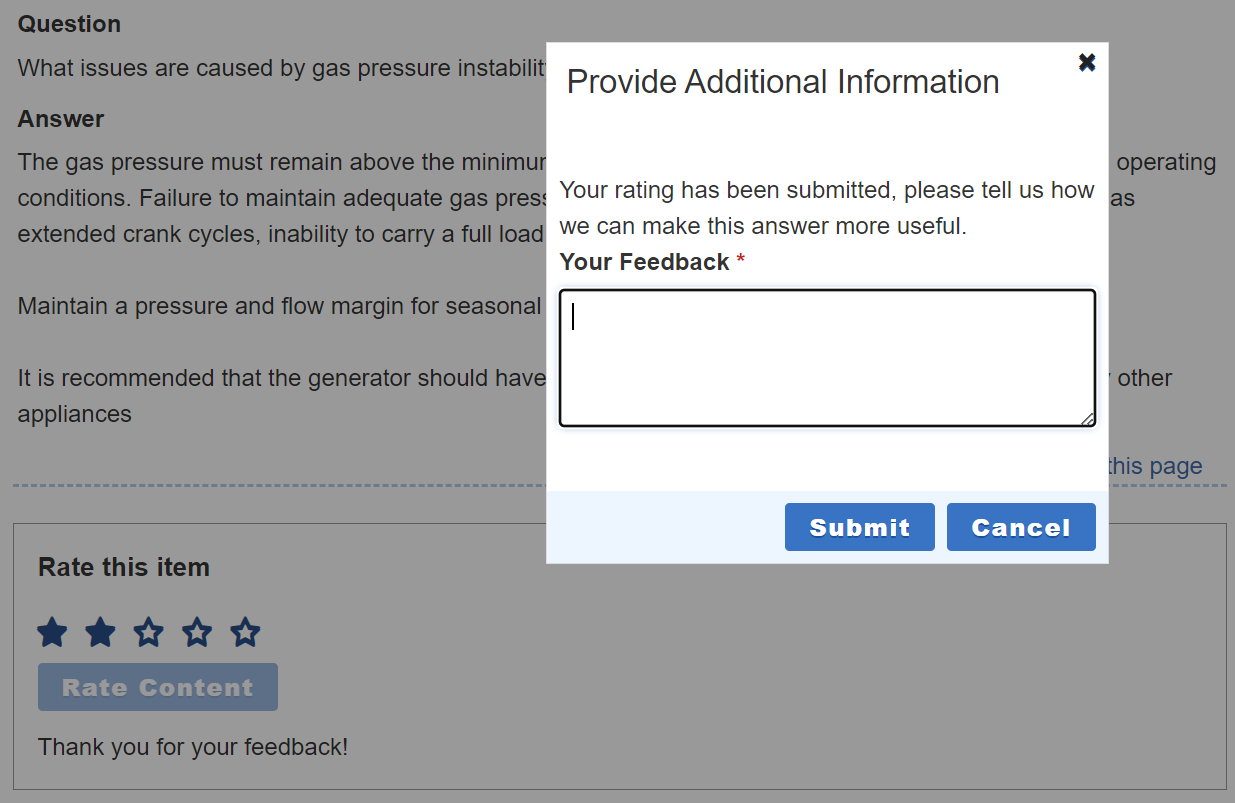
Once your user submits their feedback in the overlay they will be able to check on the status of that feedback in Account Overview under My Support Questions. Additionally, as with any Incident, your users will be able to post new messages including attachments, making it possible to have a dialog about the feedback.
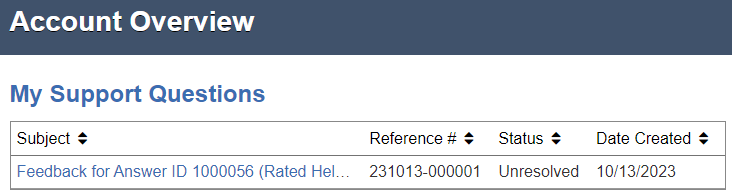
Your authoring will then review and react to these Incidents via a workspace you tailor to your process.
While rating numbers are easy to analyze, textual feedback is really required in order to be successful in understanding what motivated the rating that was left and being able to take some action to correct your user's concerns. If you have been thinking that the Recommendations functionality of Knowledge Advanced is too limited, using Incidents to capture user feedback may be for you. Incidents are extensible, their workspaces are configurable, you can have rules, queues, and so many other things that they are truly capable to mapping how you want to work on knowledge feedback.
Steps to Enable
- All content types for which you wish to use this feature will need to have a rating configured.
- In Customer Portal confirm that you are using the v1.2 DocumentRating widget, if not you will need to upgrade to this first.
- Set dialog_threshold to the number at which you wish to have the overlay for creating incidents to display. e.g. if your rating is a five star rating and you set dialog_threshold to 3, then any rating submitted with 1, 2, or 3 stars will cause the overlay to be displayed.
- Deploy your Customer Portal changes.
Tips And Considerations
- This is a customer portal only feature, there is no way to take advantage of it in browser UI.
- Setting up how you will work on incidents is not covered here but should be considered as part of your implementation.
- Try this out on a test site and work through your process as well as any workspace/queue/profile/rule changes you will need.
- Using a consistent rating format and threshold across your content types is recommended.
- Turn off recommendations if you are using this feature, you do not want to confuse your users with conflicting feedback tools that seem to accomplish the same thing.