Update 22D
Revision History
This document will continue to evolve as existing sections change and new information is added. All updates appear in the following table:
| Date | Module | Feature | Notes |
|---|---|---|---|
| 08 AUG 2024 | Agent Console | Custom Config Can Terminate a Chat When Wrap-up Timer Expires | Updated document. Revised feature information. |
| 18 JAN 2023 | Service Center | Customer Portal Framework Version 3.9 Is Available | Updated document. Delivered feature in update 22D. |
| 28 NOV 2022 | Service Center | Preview Attached Files | Updated document. Delivered feature in update 22D. |
| 28 NOV 2022 | Service Center | Alphabetic Sort for Custom Objects | Updated document. Delivered feature in update 22D. |
| 28 NOV 2022 | Service Center | Search for Standard Text WS Rules Action | Updated document. Delivered feature in update 22D. |
| 22 NOV 2022 | Created initial document. |
Overview
This guide outlines the information you need to know about new or improved functionality in Oracle B2C Service Center and describes any tasks you might need to perform for the update. Each section includes a brief description of the feature, the steps you need to take to enable to begin using the feature, any tips or considerations that you should keep in mind, and the resources available to help you.
For a listing of hardware and software requirements for Oracle products, log in to our support site and access Answer ID 31.
 HAVE AN IDEA?
We’re here and we’re listening. If you have a suggestion on how to make our cloud services even better then go ahead and tell us. There are several ways to submit your ideas, for example, through the Ideas Lab on Oracle Customer Connect. Wherever you see this icon after the feature name it means we delivered one of your ideas.
DISCLAIMER
The information contained in this document may include statements about Oracle’s product development plans. Many factors can materially affect Oracle’s product development plans and the nature and timing of future product releases. Accordingly, this Information is provided to you solely for information only, is not a commitment to deliver any material, code, or functionality, and should not be relied upon in making purchasing decisions. The development, release, and timing of any features or functionality described remains at the sole discretion of Oracle.
This information may not be incorporated into any contractual agreement with Oracle or its subsidiaries or affiliates. Oracle specifically disclaims any liability with respect to this information. Refer to the Legal Notices and Terms of Use for further information.
Feature Summary
Column Definitions:
Report = New or modified, Oracle-delivered, ready to run reports.
UI or Process-Based: Small Scale = These UI or process-based features are typically comprised of minor field, validation, or program changes. Therefore, the potential impact to users is minimal.
UI or Process-Based: Larger Scale* = These UI or process-based features have more complex designs. Therefore, the potential impact to users is higher.
Features Delivered Disabled = Action is needed BEFORE these features can be used by END USERS. These features are delivered disabled and you choose if and when to enable them. For example, a) new or expanded BI subject areas need to first be incorporated into reports, b) Integration is required to utilize new web services, or c) features must be assigned to user roles before they can be accessed.
| Ready for Use by End Users Reports plus Small Scale UI or Process-Based new features will have minimal user impact after an update. Therefore, customer acceptance testing should focus on the Larger Scale UI or Process-Based* new features. |
Customer Must Take Action before Use by End Users Not disruptive as action is required to make these features ready to use. As you selectively choose to leverage, you set your test and roll out timing. |
|||||
|---|---|---|---|---|---|---|
| Feature |
Report |
UI or |
UI or |
|
||
Custom Config Can Terminate a Chat When Wrap-up Timer Expires |
||||||
Custom Config for Add Text to Thread Option in Guided Assistance |
||||||
Chat Browser UI: Magnification Function in the Engagement Panel |
||||||
Element Manager - Integration of Element Manager with Version Control to Fetch Browser Extensions |
||||||
Enhanced Business Rules: Increased CASE Statements in SWITCH |
||||||
B2C Service Center
Agent Console
Expand Variables Engagement Panel Compose Control
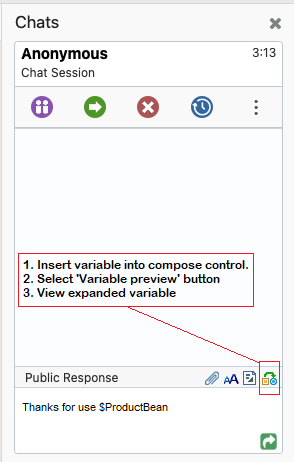
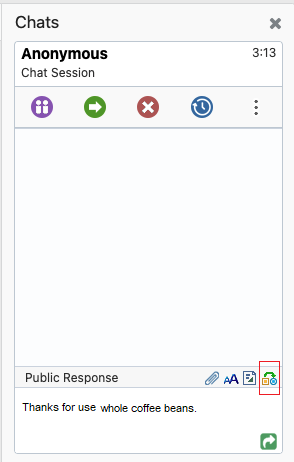
Agent Browser UI chat users can now expand variables in the chat compose control before saving. This allows users to see the variable content that will be sent in the chat.
When composing a chat entry, a preview icon will appear. Selecting the icon will expand any variables in compose control and replace them with the corresponding variable content. Selecting the icon once again will return the content to it's variable form.
Users are not required to expand or retract the variable before committing a chat entry.
This feature is enabled by default and is not configurable.
Expand Variable
Business Benefit:
This will increase chat agent accuracy and efficiency.
Steps to Enable
You don't need to do anything to enable this feature.
Custom Config Can Terminate a Chat When Wrap-up Timer Expires
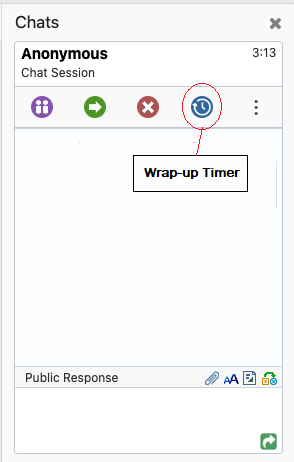
The wrap up timer allows the chat agent time at the end of the session with the customer to complete any post-chat tasks on the incident; such as creating an incident, adding the chat to an existing incident, or creating an opportunity from the chat. You can edit this incident in the same manner as any other incident, including changing the incident subject.
By default, the wrap up timer is set to 45 seconds and it does not terminate the chat. Not only can the wrap-up timer be set to allow additional or less time before the timer expires, but it can now be configured to terminate the chat.
Please see Steps to Enable for set up.
Wrap-up Timer in the Engagement Panel
Business Benefit:
Increases efficiency by allocating accurate time needed to wrap-up a chat and terminating the chat by default.
Steps to Enable
- In the .NET Agent Desktop, open the Configuration Settings from the Navigation Set.
- From the Ribbon, select New > Text.
- Type: Site or Interface
- For Key add: CUSTOM_CFG_CHAT_WRAPUP_TIMER
- Max Length should be long enough to add all Interaction WS ids, the number of seconds, and T (true) or F (false) to terminate the chat.
- Value is the Interaction WS ID followed by a colon ":" , then the number of seconds for the wrap-up timer, and T or F. The true and false is optional. If there is not an entry, the chat terminate will default to false. Supported scenarios include:
- Example: 102172:15:T
- Interaction WS ID 102172 will wrap up and terminate the chat in 15 seconds.
- Example: 102172:15:F
- Interaction WS ID 102172 will wrap in 15 seconds and the chat will not terminate.
- Example: 102172:15
- Interaction WS ID 102172 will wrap in 15 seconds and the chat will not terminate.
- Example: 102172:15:T
- The Value field can include multiple entries that are comma-delimited.
- Example: 102172:15:T, 10073:20:F, 102163:30
Custom Config for Add Text to Thread Option in Guided Assistance
A new custom config is now supported to configure the Add Text to Thread option in Guided Assistance. By default, the Add Text to Thread option is not selected. When the new custom config has a value of one, the Add Text to Thread will be selected by default.
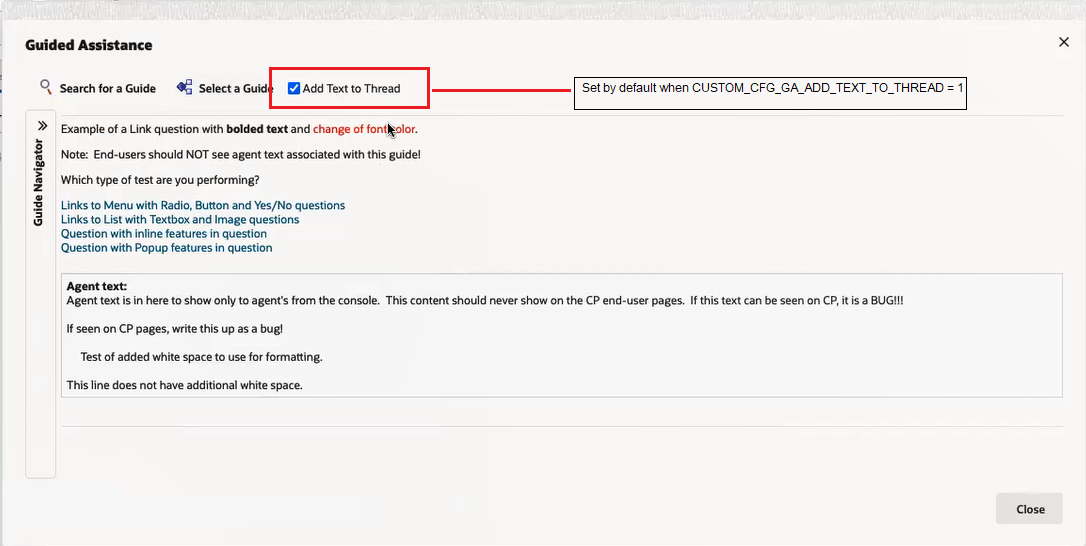
Add Thread to Text Option in Guided Assistance
See steps to enable.
Business Benefit:
Provides more efficiency for Agents with one less click to add the content from the Guided Assistance.
Steps to Enable
- In the .NET Agent Desktop, open the Configuration Settings from the Navigation Set.
- From the Ribbon, select New > Text
- Type: Site or Interface
- For Key add: CUSTOM_CFG_GA_ADD_TEXT_TO_THREAD
- Max Length: 1
- Value: 1
Configuration Settings in Agent Desktop
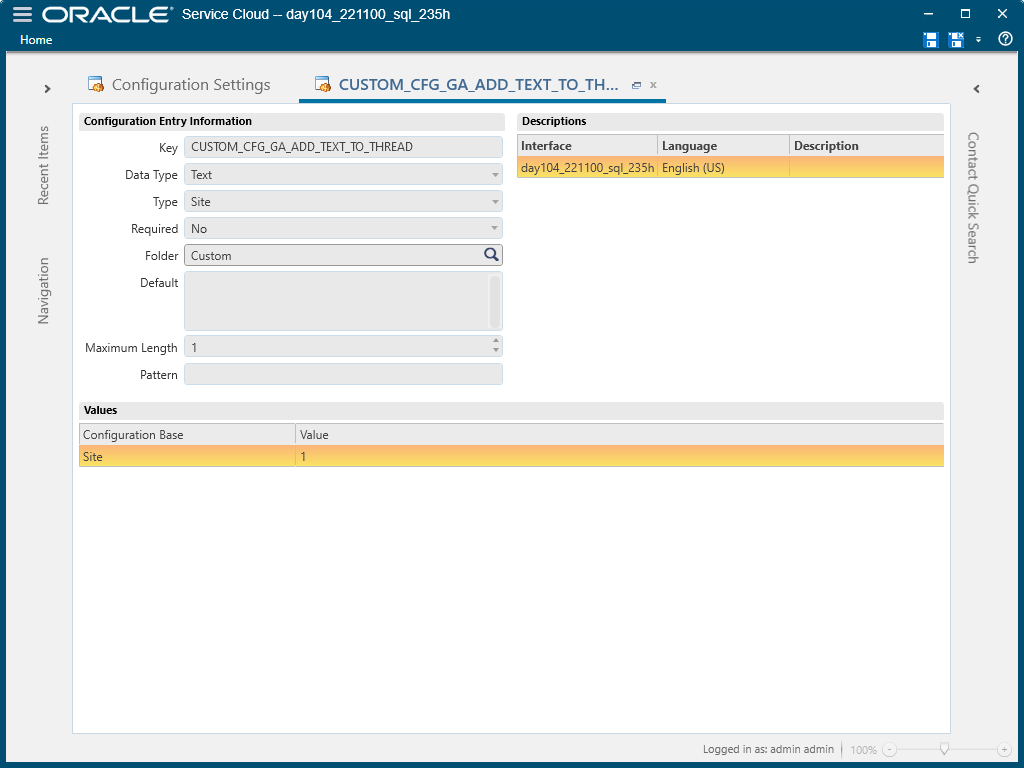
Add Text to Thread Custom Config
Service Center
IScriptQuestion in Agent Browser UI Extensibility Framework
As an extension developer can now get the hidden property value of the Questions in script and the current page number
All the fields will have the value that is present at the time the API response is returned. Subsequent changes in the fields can only be obtained by getting the API response after the change has occurred.
| The following functions are available for use with the IScriptEntry object:
|
|---|
Business Benefit:
Provides access to the Survey artifacts via the extensibility framework for greater customization possibilities and flexibility.
Steps to Enable
You don't need to do anything to enable this feature.
Preview Attached Files
The ability to preview attachment files is now supported. The following types are supported for preview; bmp, gif, jpeg, jpg, json, mp4, pdf, png, svg, txt, and xml as both new and saved attachments.
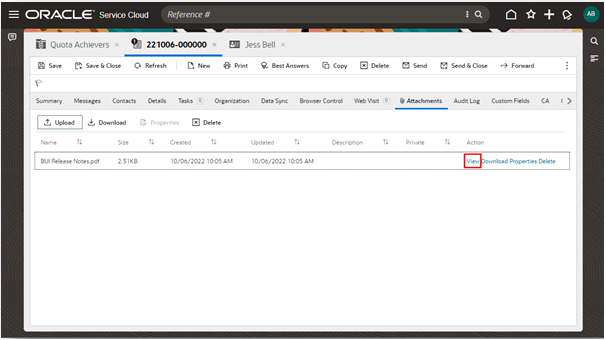
Preview Attachment
Business Benefit:
Improve agent efficiency which will provide faster customer problem resolutions.
Steps to Enable
You don't need to do anything to enable this feature.
Alphabetic Sort for Custom Objects
Custom Objects are now displayed in alphabetic order for the admin when creating a new custom object workspaces in the Workspace Designer.
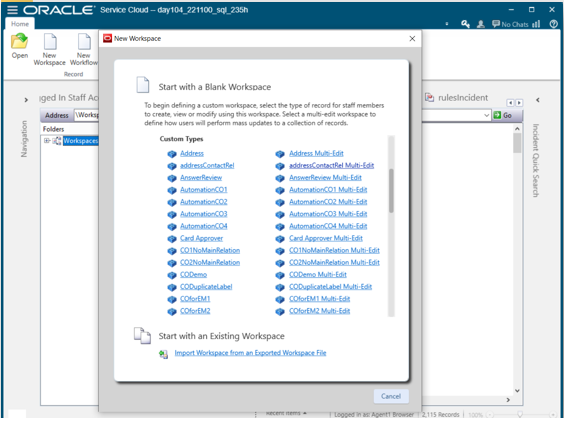
Custom Object Workspace Designer
Business Benefit:
Easy administration.
Steps to Enable
You don't need to do anything to enable this feature.
Search for Standard Text WS Rules Action
The Standard Text is now searchable when creating a Workspace Rule Action using Standard Text.
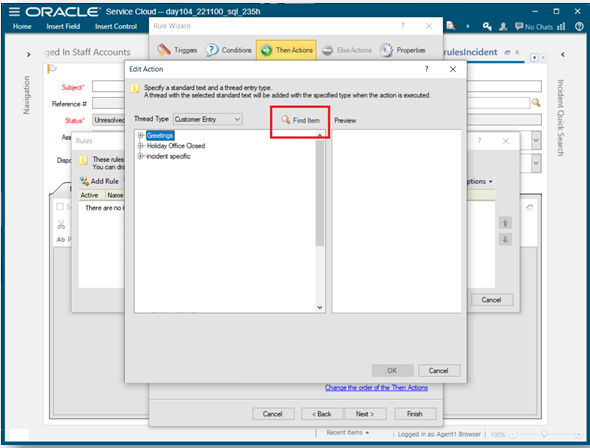
Search Standard Text for Workspace Rule Action
Business Benefit:
Easy administration by making it easier to find the specific Standard Text and reduces the risk of added the incorrect Standard Text to the rule.
Steps to Enable
You don't need to do anything to enable this feature.
Customer Portal Framework Version 3.9 Is Available
With the November 2022 release of Oracle Service Cloud, we have upgraded our support of Customer Portal to framework version 3.9. Previously, framework version 3.8 was supported.
Business Benefit:
Remain on the most current & supported version of Customer Portal in order to uptake necessary updates and new features.
Steps to Enable
More information about Customer Portal migrations can be found here in Answer ID 2678 (https://cx.rightnow.com/app/answers/detail/a_id/2678/)
Tips And Considerations
For more information about Customer Portal migrations, please review these helpful answers:
- Answer ID 12523: Customer Portal framework version 3.9 is now available
- Answer ID 9629: Customer Portal versions associated with Oracle B2C Service
- Answer ID 5974: Oracle B2C Service Deprecations
- Answer ID 12455: Customer Portal 3.6, 3.7 and 3.8 deprecation and EOL
- Answer ID 4709: Popular Answers About Customer Portal
Access Requirements
- Customer Portal Administrator
Channels
Chat Browser UI: Magnification Function in the Engagement Panel
For agents handing chats in the Browser UI, a new function for Chat Magnification is available. This is an update to the Engagement Panel, that improves the agent's experience by including the option to magnify or reduce the text size within the chat transcript and the compose fields (both public & private).
Please note, this update only applies to the appearance of the text for the agent. This is a presentation update that applies to the agent's experience and does not change the size of the font that is delivered to the end user. If the agent has magnified the size of the text, this update does not appear for the end-user when receiving posted messages from the agent.
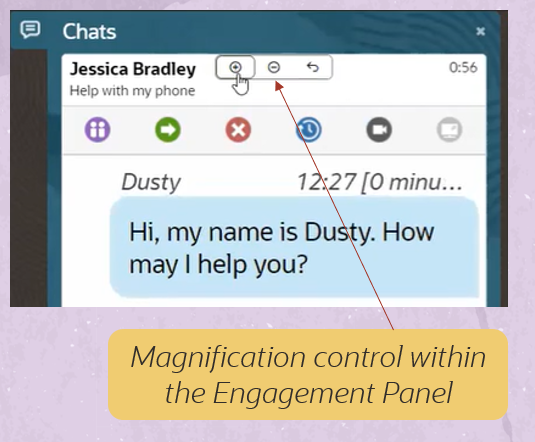
New chat magnification function for 22D
Business Benefits:
- This update is helpful to agents when they are chatting on a small screen (laptop or mobile device)
- This update is helpful to agents who require magnification to see the text more clearly and reduces fatigue
Steps to Enable
Engagement Panel version 15+ must be deployed for the site
- If Engagement Panel version 15 is not generally available, then email Jessica Bradley (jessica.bradley@oracle.com) to have your site upgraded
- There is no downtime associated with this update
- First, we will enable Engagement Panel version 15 on your test site, then on your production site at a day/time of your choosing
Tips And Considerations
- At this time, there is no way to disable this feature.
- If the Engagement Panel version is set to 15+, then this feature is automatically enabled.
- If browser cookies are cleared, then the magnification preference is not remembered.
- This feature does not affect the presentation of the text size to the end-user.
- If the agent adjusts their magnification preference, then the magnification preference does not apply to:
- The chat header
- Buttons within the chat header
- Buttons within the header of the public compose control
- Images within the chat
- Emojis within the chat
- Stickers within the chat
- Gifs within the chat
Key Resources
- Chat Administrator
Access Requirements
- Chat Agent
Platform
Element Manager - Integration of Element Manager with Version Control to Fetch Browser Extensions
Integration of Element Manager with common Version Control systems provides:
- The ability to import BUI Extensions from Version Control using Import APIs.
- The ability to by-pass signing of certificates for elements imported from the Version Control system.
- The import from Version Control is singleton only.
Business Benefits:
- Efficiency: Reduces development cycle time by eliminating the need to manually deploy config elements to a test instance.
- Ease of use: By-pass signing of certificates since the import is from Version Control.
Steps to Enable
You don't need to do anything to enable this feature.
Key Resources
Enhance Business Rules: Chat Masking
- Ability to define a custom mask using regex.
- Ability to mask non-standard PII items with the custom mask as per business needs.
- Ability to mask standard PII items such as credit card, SSN, phone numbers etc...with standard mask.
- Ability to preview the chosen mask.
Business Benefits:
- Compliance: Adhere to PII compliance by masking PII attributes such as SSN, Phone number, and Credit Card number.
- Customization: Use a regular expression to define a custom mask and utilize it to mask PII items with specific patterns.
Steps to Enable
You don't need to do anything to enable this feature.
Key Resources
Enhanced Business Rules: Increased CASE Statements in SWITCH
- The enhancements provides the ability to add up to 30 CASE statements in a SWITCH case.
- This capability will be useful in defining rules for sites that has more than 20 interfaces.
Business Benefit:
Reduced Rule base: Reduces number of rules due to increased number of CASE in SWITCH.
Steps to Enable
You don't need to do anything to enable this feature.
Tips And Considerations
- In the Agent Browser UI, click the Navigation Menu icon, then select Configuration > Site Configuration > Rules.
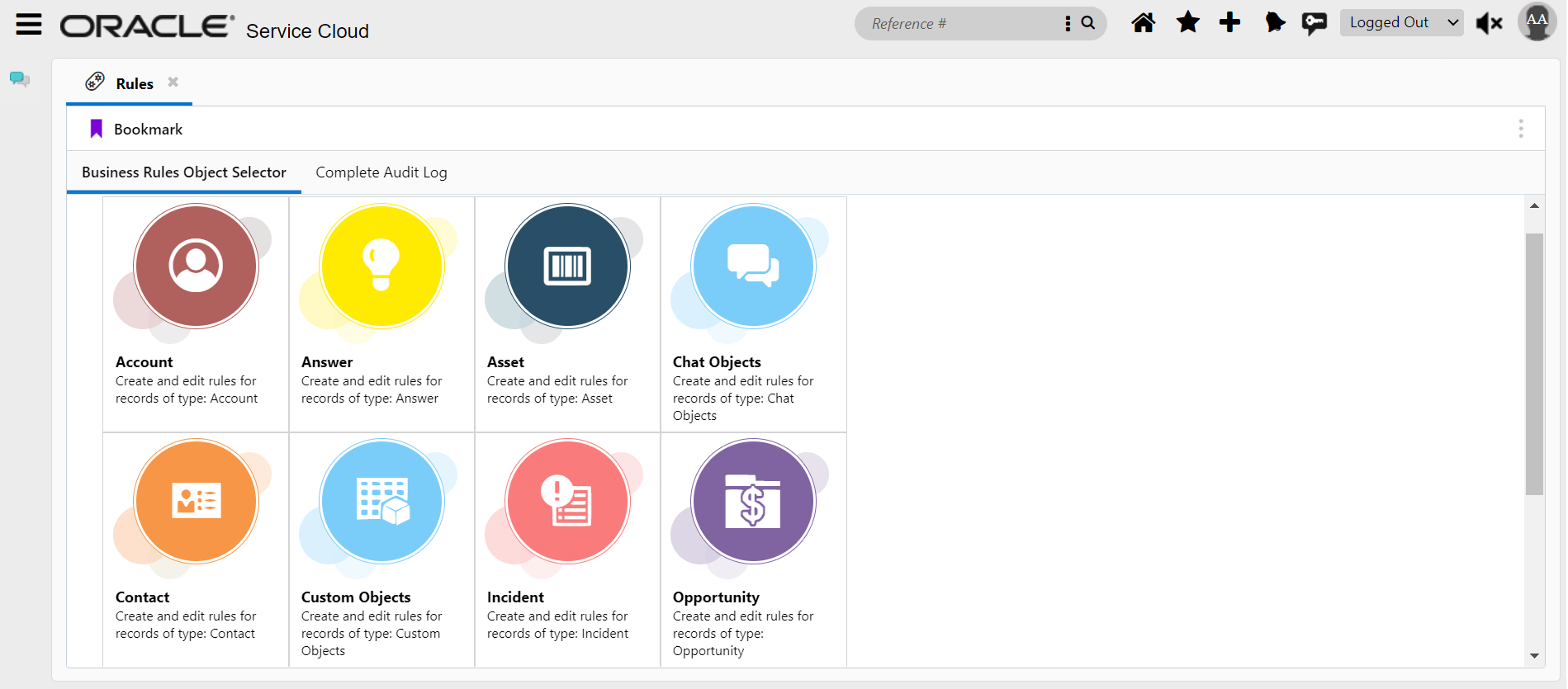
- Choose the object of interest to create the rule.

- A rule with 30 CASE statement.
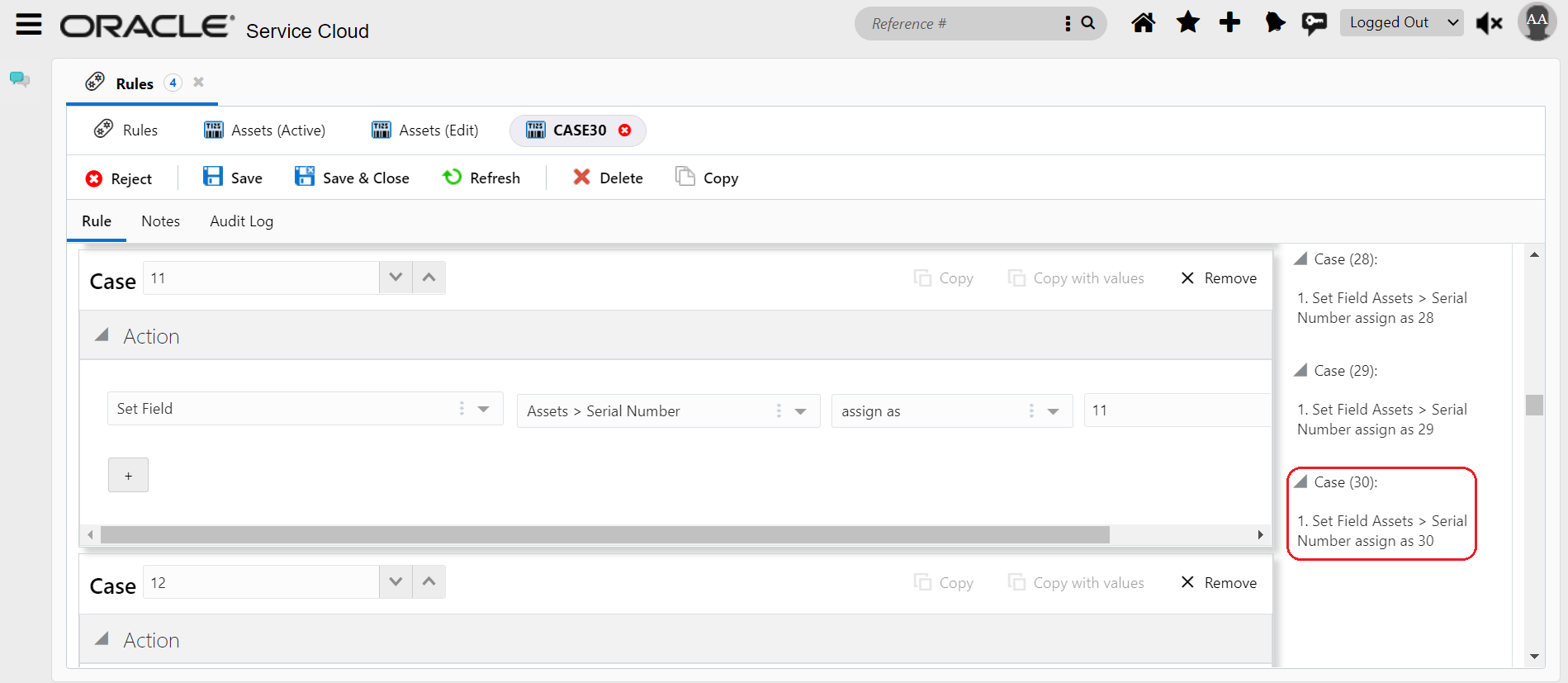
Key Resources
Enhanced Business Rules: Search Rules by Action
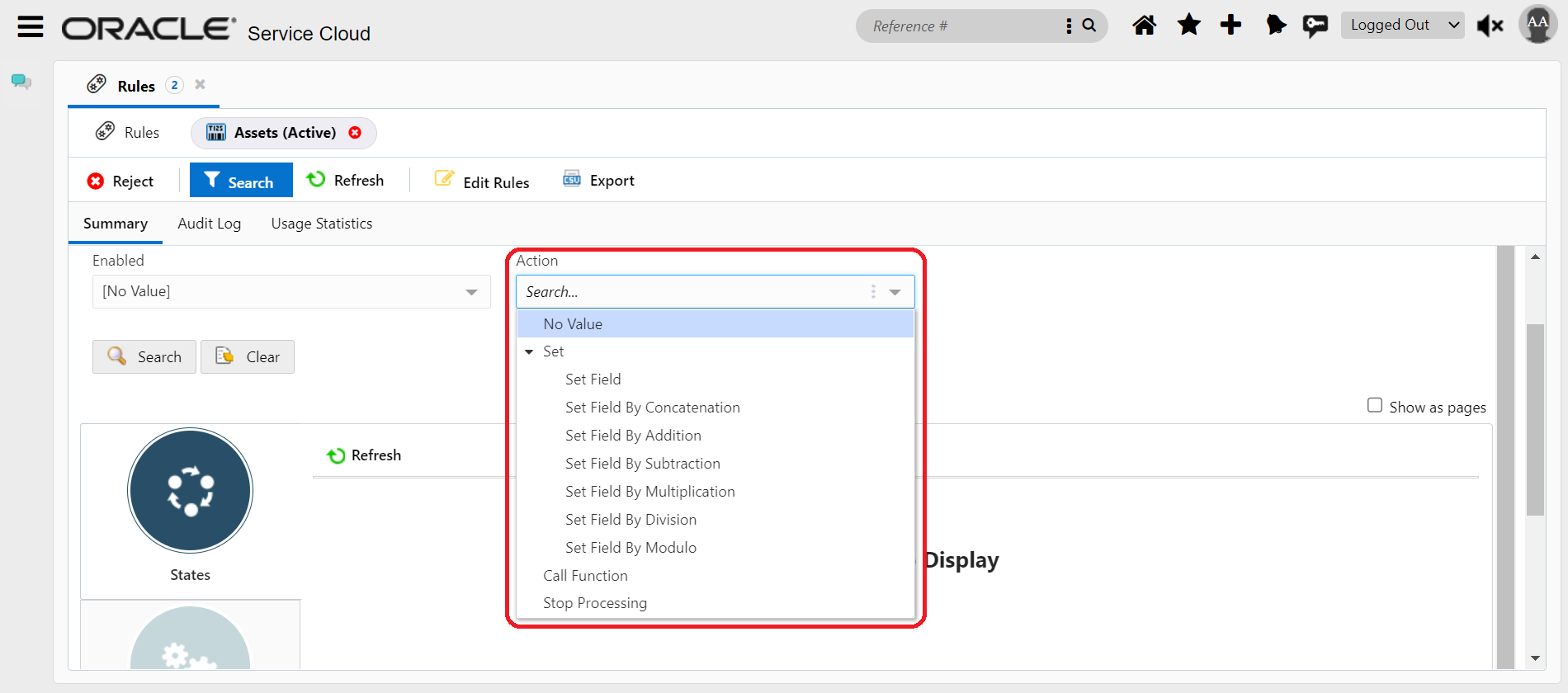
- A new Filter to filter search results by ‘Action’ is introduced.
- The filter lists the Actions used in the rule base in a dropdown.
Business Benefit:
Better Search results: Provides accurate results while searching for rules by filtering on Actions.
Steps to Enable
You don't need to do anything to enable this feature.
Tips And Considerations
- In the Agent Browser UI, click the Navigation Menu icon, then select Configuration > Site Configuration > Rules.
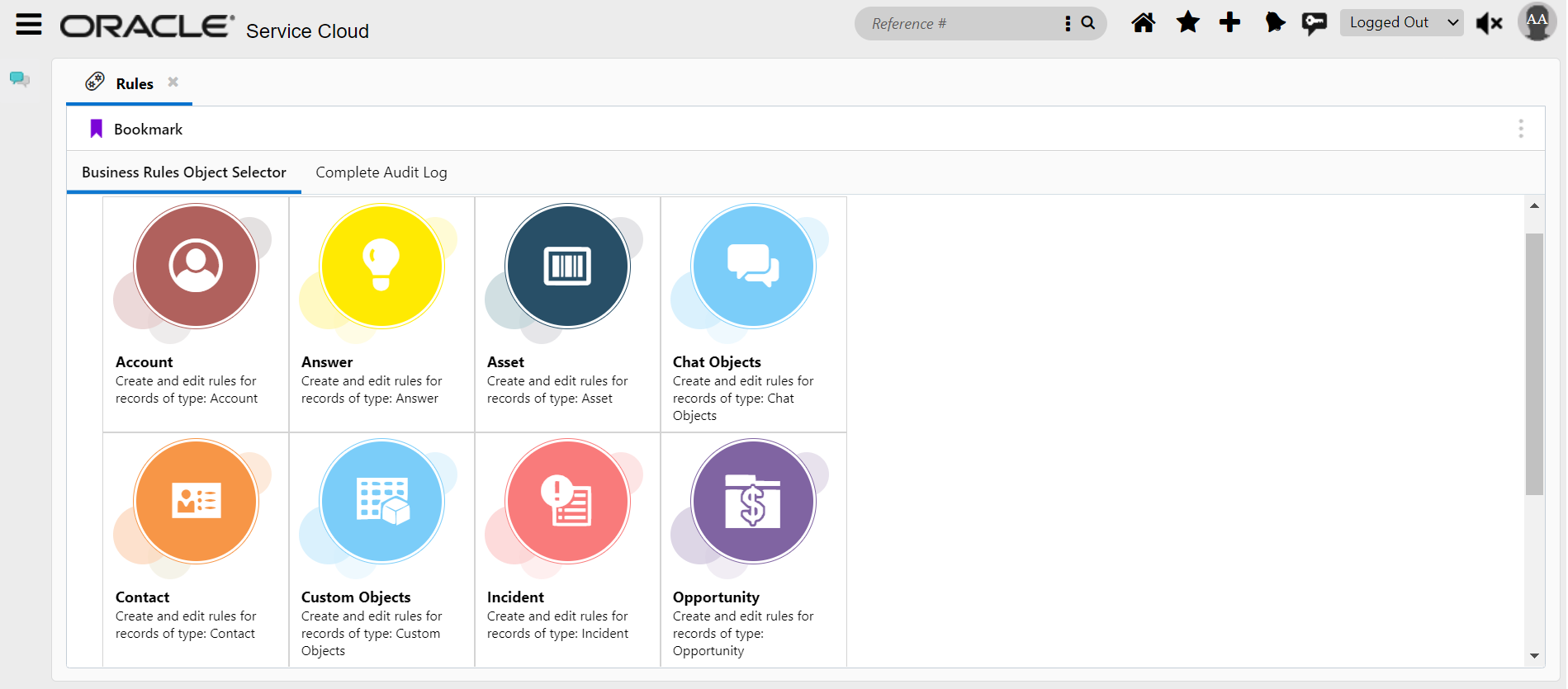
- Choose the object of interest and click 'Search' from the top ribbon.

- Choose the desired Action from the dropdown.
Data Management
Data Lifecycle Policies: Usage Statistics
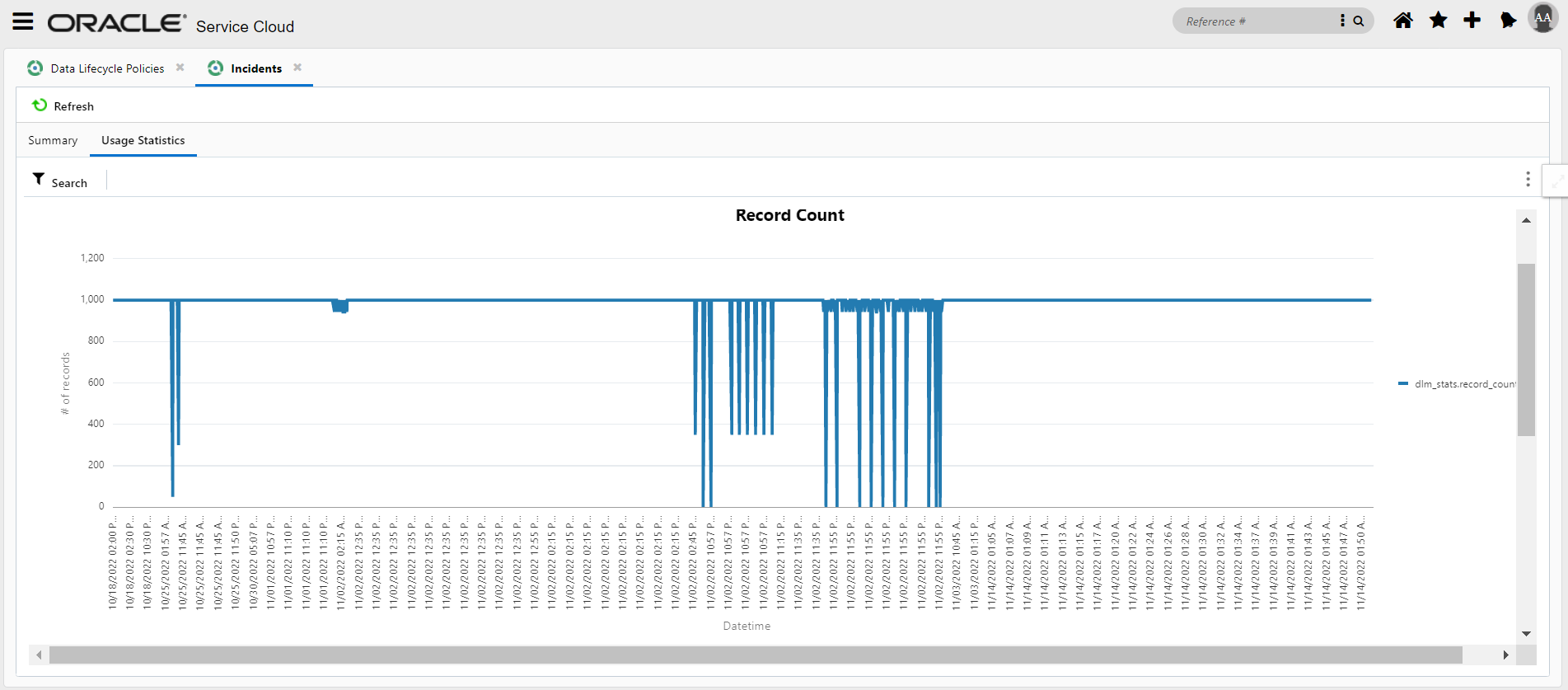
- Provides metrics about number of records archived/purged for each object over the last 30 days.
- Provides insight about the time taken for each policy for each execution over the last 30 days.
Business Benefits:
- Insight: Provides metrics about number of records impacted by policy for each run thus enabling identifying ineffective policy.
- Performance: Provides metrics about time taken by a policy for each run thus enabling identifying inefficient policy.
- Historical Data: Provides Usage Statistics for the last 30 days for all objects and actions.
Steps to Enable
You don't need to do anything to enable this feature.
Tips And Considerations
- In the Agent Browser UI, click the Navigation Menu icon, then select Configuration > Site Configuration > Data Lifecycle Policies.

- Choose the object of interest to view the Usage Statistics.
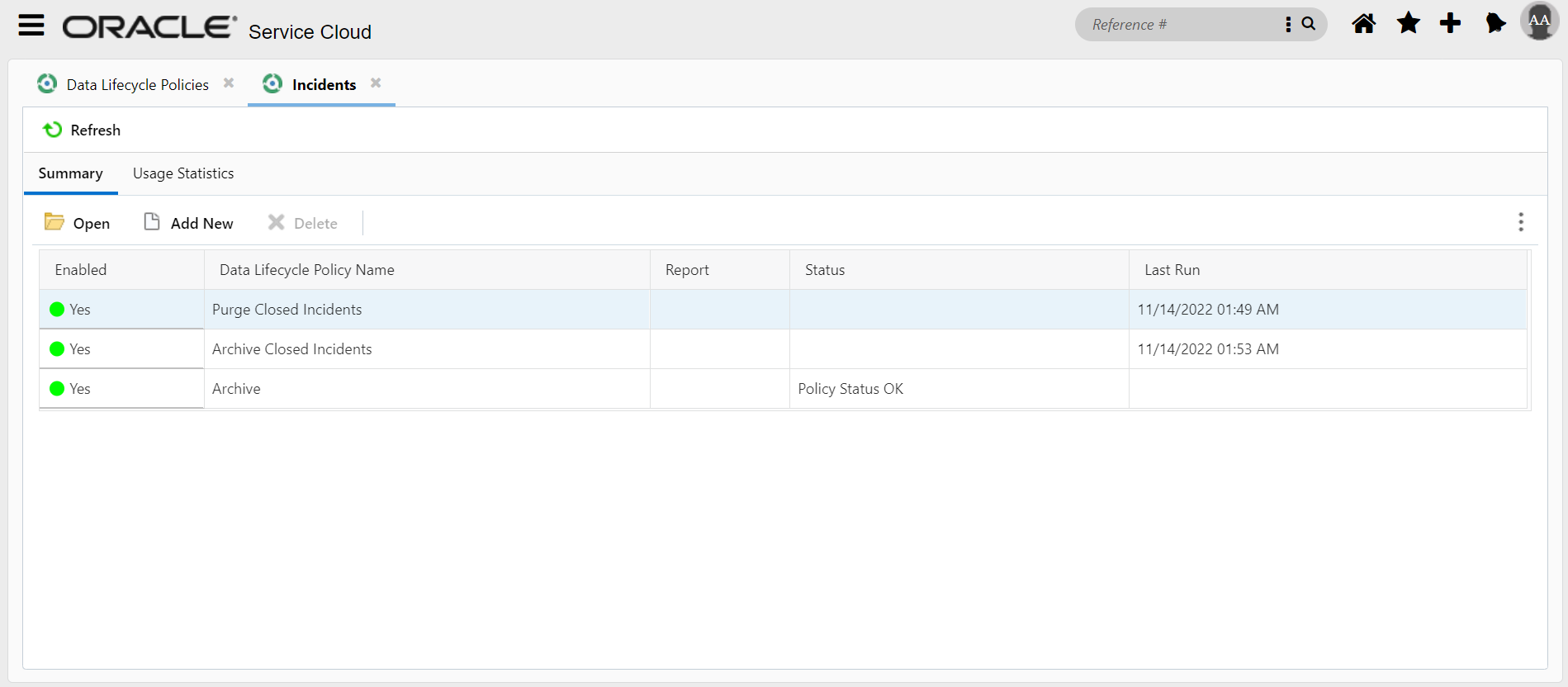
- Click 'Usage Statistics' tab to view Record Count and Performance.
Enhanced Business Rules: Last Updated and Updated by
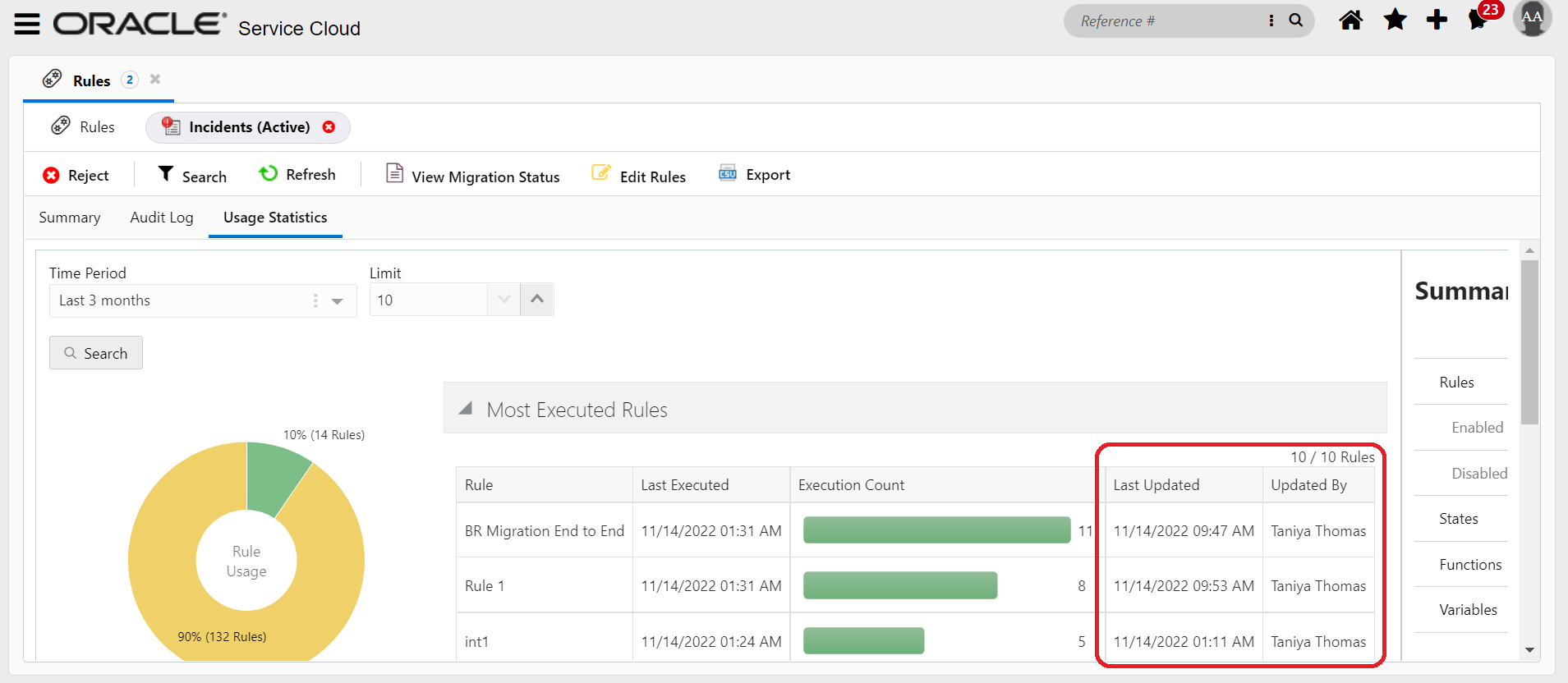
A new capability that provides the last updated data time and updated by information in the Business Rules Usage Statistics page page
- Two new columns viz 'Last Updated' and 'Updated by' are introduced for each category of rules based on the execution frequency.
- Last Updated column provides the date and time when the rule was last updated.
- Updated by column captures the name of Admin/Agent who updated the rule.
Business Benefit:
Makes tracking easy by providing information about the last updated date time and by whom for each category of rules in one page.
Steps to Enable
You don't need to do anything to enable this feature.
Tips And Considerations
- In the Agent Browser UI, click the Navigation Menu icon, then select Configuration > Site Configuration > Rules.
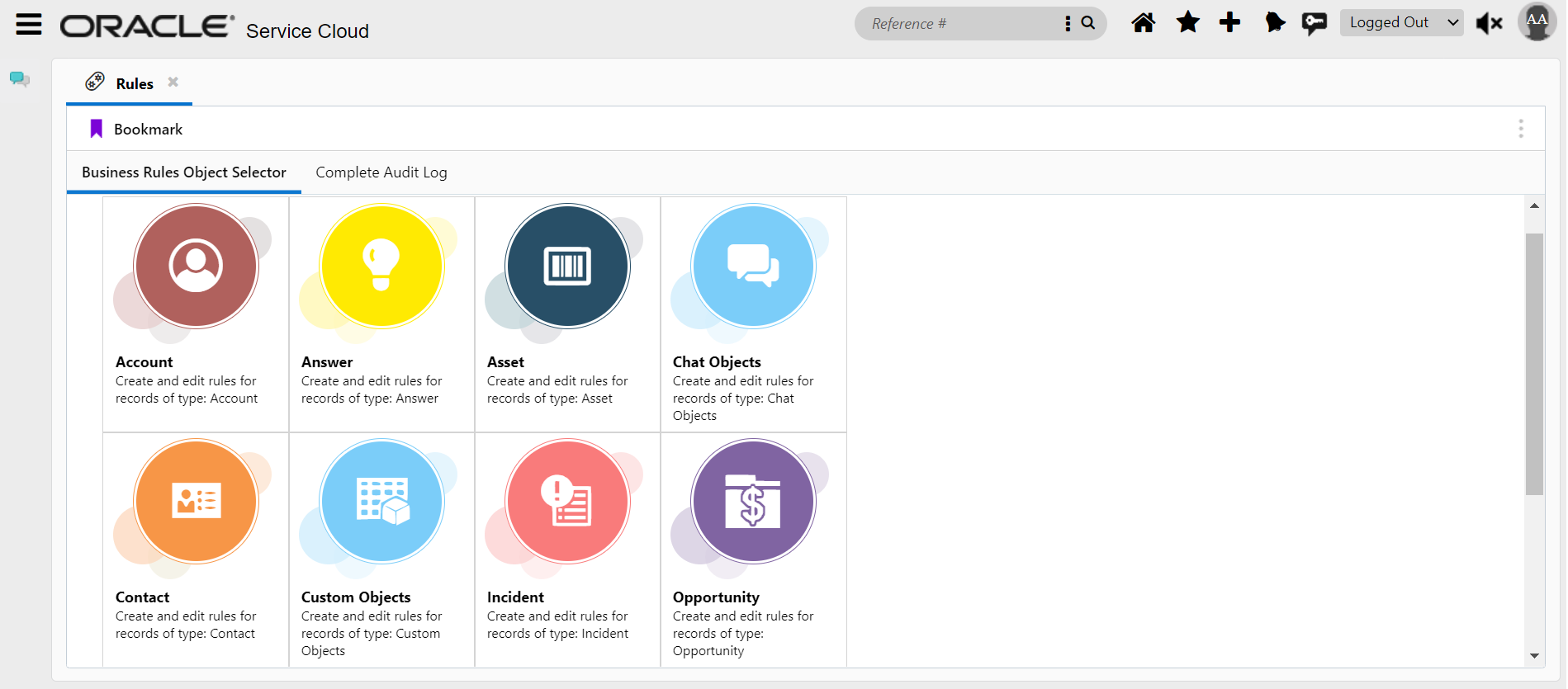
- Choose the object of interest to view the last updated date time and Updated by.
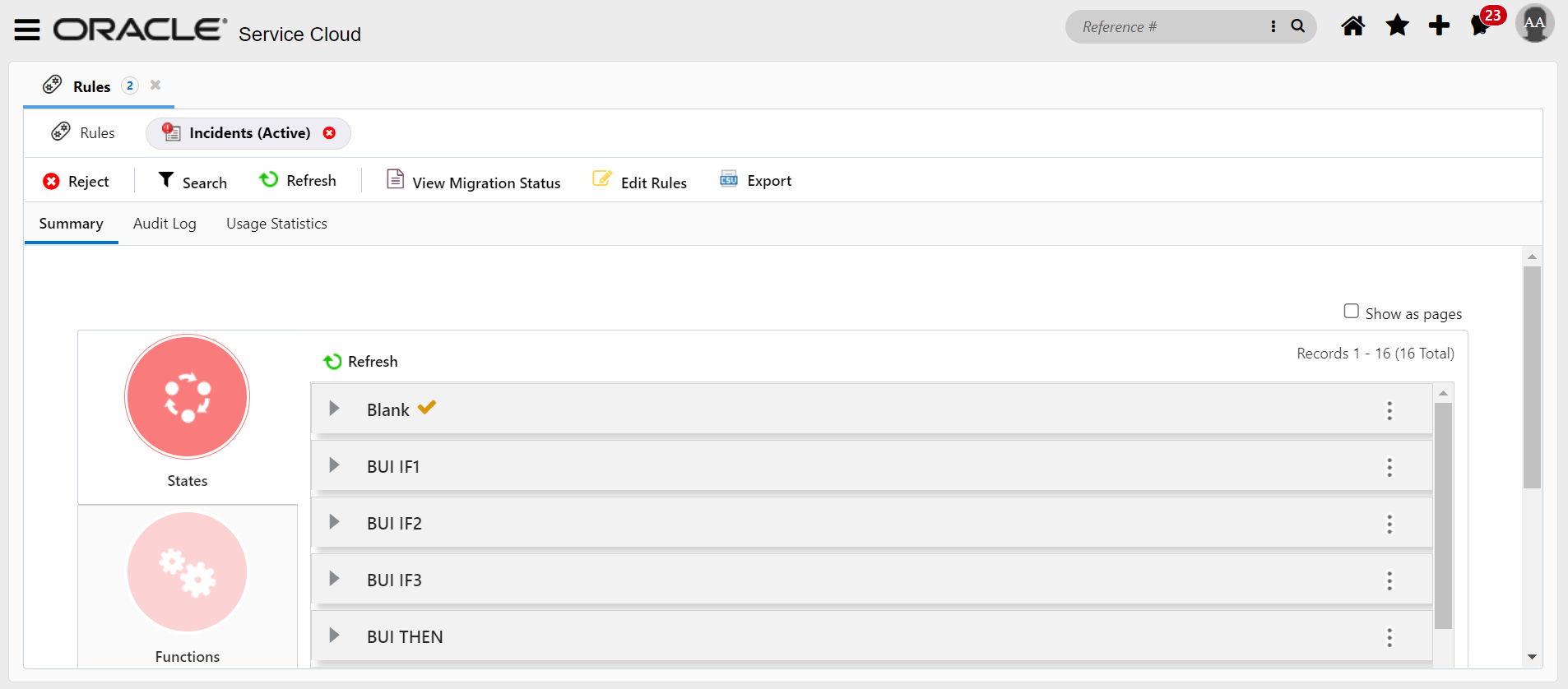
- Choose Usage Statistics and expand the Most Executed.