
This document will continue to evolve as existing sections change and new information is added. All updates appear in the following table:
| Date | Feature | Notes |
|---|---|---|
| 18 FEB 2020 | Expand Variables | Removed feature from January 2020 Update. |
| 31 JAN 2020 | Created initial document. |
This guide outlines the information you need to know about new or improved functionality in Oracle B2C Service Agent Browser UI and describes any tasks you might need to perform for the update. Each section includes a brief description of the feature, the steps you need to take to enable to begin using the feature, any tips or considerations that you should keep in mind, and the resources available to help you.
For a listing of hardware and software requirements for Oracle products, log in to our support site and access Answer ID 31.
GIVE US FEEDBACK
We welcome your comments and suggestions to improve the content. Please send us your feedback.
Column Definitions:
Report = New or modified, Oracle-delivered, ready to run reports.
UI or Process-Based: Small Scale = These UI or process-based features are typically comprised of minor field, validation, or program changes. Therefore, the potential impact to users is minimal.
UI or Process-Based: Larger Scale* = These UI or process-based features have more complex designs. Therefore, the potential impact to users is higher.
Features Delivered Disabled = Action is needed BEFORE these features can be used by END USERS. These features are delivered disabled and you choose if and when to enable them. For example, a) new or expanded BI subject areas need to first be incorporated into reports, b) Integration is required to utilize new web services, or c) features must be assigned to user roles before they can be accessed.
| Ready for Use by End Users Reports plus Small Scale UI or Process-Based new features will have minimal user impact after an update. Therefore, customer acceptance testing should focus on the Larger Scale UI or Process-Based* new features. |
Customer Must Take Action before Use by End Users Not disruptive as action is required to make these features ready to use. As you selectively choose to leverage, you set your test and roll out timing. |
|||||
|---|---|---|---|---|---|---|
| Feature |
Report |
UI or |
UI or |
|
||
Top Level Tab Options for Browser UI
Users can right-click on a top level tab (incidents, contacts, orgs, custom objects, etc.) to reveal a menu with options to 'Close All tabs', 'Close All But This', and 'Copy Text to Clipboard'.

Right-click context menu
Steps to Enable
You don't need to do anything to enable this feature.
Tips And Considerations
Users can also 'Copy Text to Clipboard' by right-clicking on sub-tabs that appear in workgroups.
Drag Attachments from Attachment Control
Agent Browser UI users can now select and drag attachments from the attachment control onto their operating system.
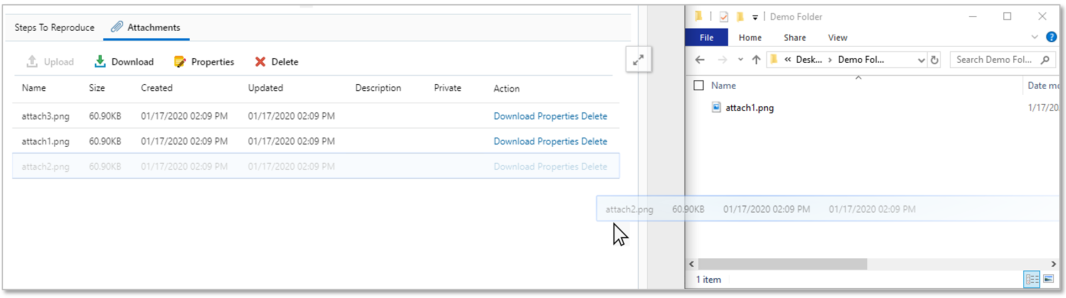
Select and Drag Attachments to Operating System Folder
Steps to Enable
You don't need to do anything to enable this feature.
Custom Browser Tab Title for Browser UI
Administrators can personalize Agent Browser UI by customizing the browser's tab title with internal corporate brand content for example.
Steps to Enable
To implement the custom browser tab title, the administrator will create and deploy custom text type configuration settings with a specific name (keys).
- Create and deploy a custom configuration setting. Instructions on creating and deploying custom configuration settings can be found here.
- The configuration setting must have a specific key.
Browser tab title: Displayed in the browser tab adjacent to the favicon. Default is 'Oracle ® Service Cloud | <sitename>' .
Key name and description: CUSTOM_CFG_BUI_BROWSER_TAB_TEXT
Enter text to appear in browser tab. Save and refresh Agent Browser UI to confirm.
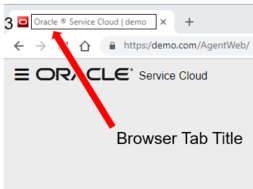
Location of Browser Tab Title
Custom Branding for Browser UI
Administrators can personalize Agent Browser UI by replacing out of the box Oracle logos with alternative images such as corporate branding. Options include placing an image in the Browser UI header, placing text next to the header, and adding a favicon and title to the browser's tab.
Steps to Enable
Adding images to Browser UI requires a administrator to create and deploy custom text type configuration settings with specific names (keys). Once deployed, a URL pointing to a hosted image is entered into the configuration verb.
- Create and deploy a custom configuration setting. Instructions on creating and deploying custom configuration settings can be found here.
- Each configuration setting must have a specific key:
-
Brand logo: Displayed in the upper left header. Default is Oracle logo. Key names and descriptions:
- CUSTOM_CFG_BUI_LOGO_IMAGE_URL
- URL for hosted image that will display when the user's preference is set to 'vanilla' or 'light blue'
- CUSTOM_CFG_BUI_LOGO_ALT_IMAGE_URL
- URL for hosted image that will display when the user's preference is set to 'dark grey' or 'dark blue'URL for hosted image that will display when the user's preference is set to 'vanilla' or 'light blue'
- Recommended image aspect ratio is 3:1
- Any image that can be rendered by a browser is supported although a transparent .png is recommended.
- CUSTOM_CFG_BUI_LOGO_IMAGE_URL
-
Brand logo label: Text displayed to the right of the 'brand logo'. Default is 'Service Cloud'.
-
This does not require a new custom configuration setting. Instead, enter desired text in the existing message base called SERVICE_CLOUD_LBL
-
-
Favicon: Displayed in the browser tab that contains Browser UI. Default is Oracle logo. Key name and description:
- CUSTOM_CFG_BUI_FAVICON_URL
- URL for the hosted image.
- Recommended image aspect ratio is 3:1
- Supported file types are .png and .ico
- CUSTOM_CFG_BUI_FAVICON_URL

Tips And Considerations
- Configuration settings can be associated with one or more site interfaces.
- Images will be scaled to fit the allotted space.
- URLs that cannot be resolved will display broken image icons.
- Out of the box Oracle branding will be displayed where these configuration settings do not exist.
- File size of hosted images should be minimized in order to maximize display performance.