
This document will continue to evolve as existing sections change and new information is added. All updates appear in the following table:
| Date | Product | Feature | Notes |
|---|---|---|---|
| 05 MAR 2021 | Workspaces | Thread Zoom | Updated document. Delivered feature in January 2021. |
| 29 JAN 2021 | Created initial document. |
This guide outlines the information you need to know about new or improved functionality in Oracle B2C Service Agent Browser UI and describes any tasks you might need to perform for the update. Each section includes a brief description of the feature, the steps you need to take to enable to begin using the feature, any tips or considerations that you should keep in mind, and the resources available to help you.
For a listing of hardware and software requirements for Oracle products, log in to our support site and access Answer ID 31.
GIVE US FEEDBACK
We welcome your comments and suggestions to improve the content. Please send us your feedback.
Column Definitions:
Report = New or modified, Oracle-delivered, ready to run reports.
UI or Process-Based: Small Scale = These UI or process-based features are typically comprised of minor field, validation, or program changes. Therefore, the potential impact to users is minimal.
UI or Process-Based: Larger Scale* = These UI or process-based features have more complex designs. Therefore, the potential impact to users is higher.
Features Delivered Disabled = Action is needed BEFORE these features can be used by END USERS. These features are delivered disabled and you choose if and when to enable them. For example, a) new or expanded BI subject areas need to first be incorporated into reports, b) Integration is required to utilize new web services, or c) features must be assigned to user roles before they can be accessed.
| Ready for Use by End Users Reports plus Small Scale UI or Process-Based new features will have minimal user impact after an update. Therefore, customer acceptance testing should focus on the Larger Scale UI or Process-Based* new features. |
Customer Must Take Action before Use by End Users Not disruptive as action is required to make these features ready to use. As you selectively choose to leverage, you set your test and roll out timing. |
|||||
|---|---|---|---|---|---|---|
| Feature |
Report |
UI or |
UI or |
|
||
The workspace attachment control displays a link to preview image and .PDF files.
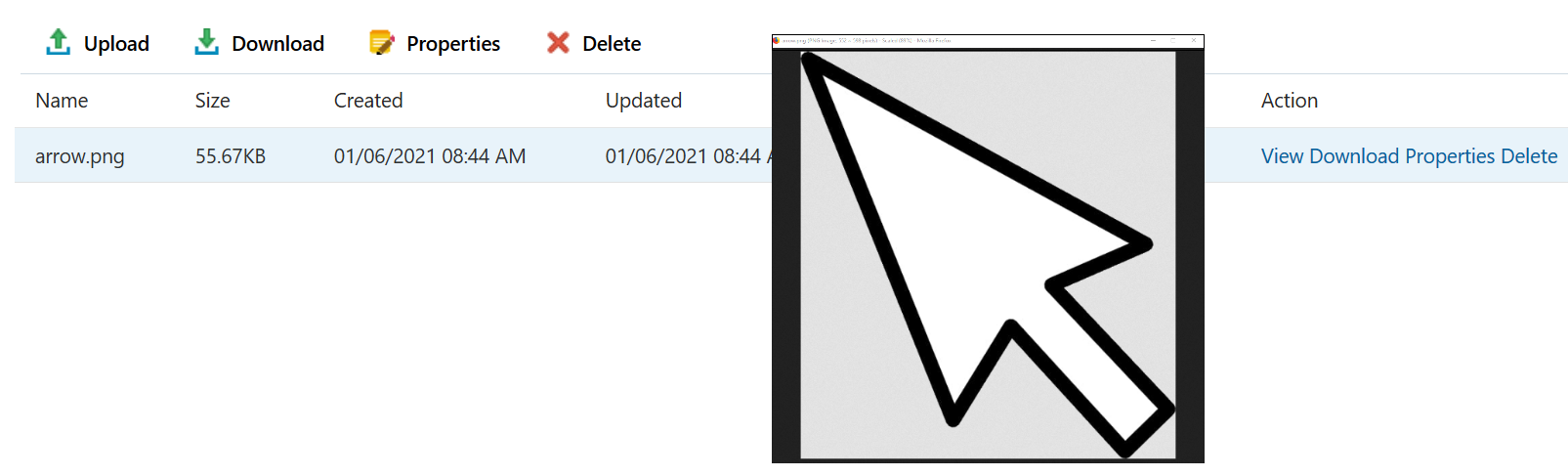
Image Attachment Preview
Users can quickly preview an image file or .PDF without downloading the file.
Steps to Enable
You don't need to do anything to enable this feature.
Tips And Considerations
- The 'view' link will appear for valid file types (.jpg, .png, .bmp, .gif, .pdf) that have been saved and are available for preview. The link will be disabled for other file types.
- The preview is executed in a separate browser window.
The workspace toolbar can be hidden by removing all the Quick Access Toolbar buttons either by configuration or by workspace rules.
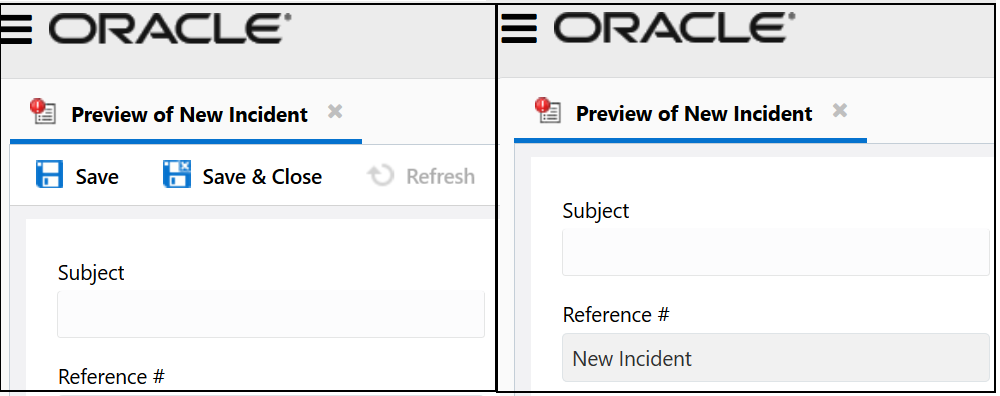
Comparison of an Incident Workspace With and Without Toolbar
Hiding the workspace toolbar allows more space for workspace layout, making it easier for users to view content within the workspace.
Steps to Enable
The workspace toolbar can be hidden two ways:
- In the workspace designer, select 'Ribbon', then select 'Configure Quick Access Buttons'.
- De-select all buttons.
- Save and preview the workspace in Browser UI.
OR
- In the workspace designer, select 'Rules'.
- Select 'Add Rule' to create a rule with an action to 'Hide a Ribbon Button'. Create multiple rules to hide multiple buttons.
- Save and preview the workspace in Browser UI. Trigger the workspace rule conditions to hide the buttons and toolbar.
Tips And Considerations
The feature is particularly useful for read-only or informational workspaces where users don't save updates or send responses and do not have a need to create record bookmarks.
Workspaces that contain reports within workspace tabs where the 'show row count' option is selected will display a report row count on the workspace tab.
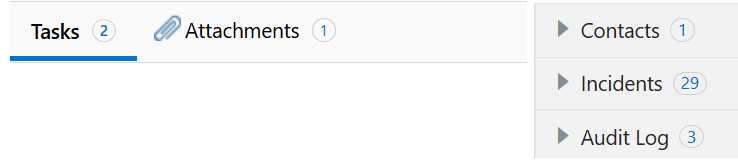
Workspace Report Row Counts
Users can quickly determine the number of rows in a workspace report by looking at the tab without taking time to view the report.
Steps to Enable
- Open a workspace in the Workspace Designer.
- Select a report control
- Select the option called 'show row count'
- Save and preview the workspace in Browser UI
- Note that the row count is indicated adjacent to the tab title
Tips And Considerations
- For workspace tabs that contain multiple reports, the topmost report's row count will be displayed on the workspace tab
- Enabling this feature will impact workspace load times consistent with the number of results returned for each report.
Users can zoom into thread content using the zoom control on the thread command bar under the ellipsis.
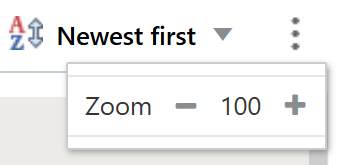
Thread Zoom on Thread Command Bar Ellipsis
Users can quickly zoom in to view small text or images. This is also helpful for users with sight impairments to see small text and images more easily.
Steps to Enable
You don't need to do anything to enable this feature.
Enhanced CC Handling (Reply All)
Reply to all of the recipients from the most recent customer thread. Increase time to resolution and efficiency while reducing copy and paste errors. Click the link on the response thread to add recipients from the most recent mail header to the CC field. This will be an append to the CC field so as not to clear any addresses the customer has already added in the field.
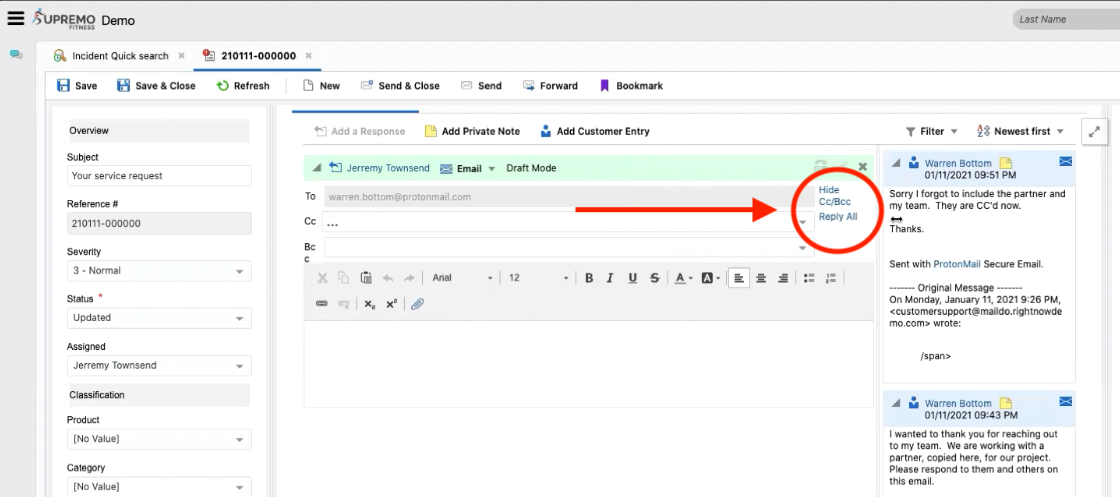
This feature gives agents a quick and efficient way to "reply" to all of the recipients with a single click.
Steps to Enable
You don't need to do anything to enable this feature.
Tips And Considerations
- Enable EGW_SAVE_EMAIL_HEADERS in configuration settings
- Always confirm all of the addresses that you are adding to the CC field